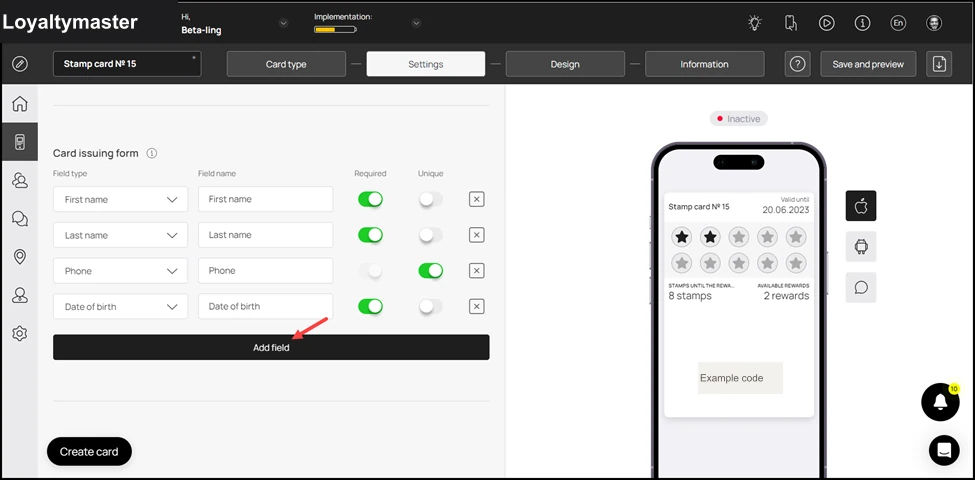
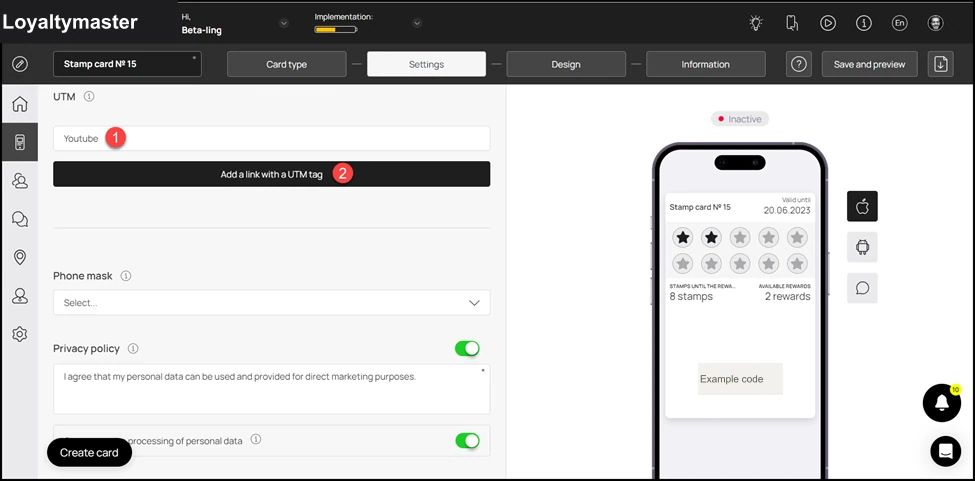
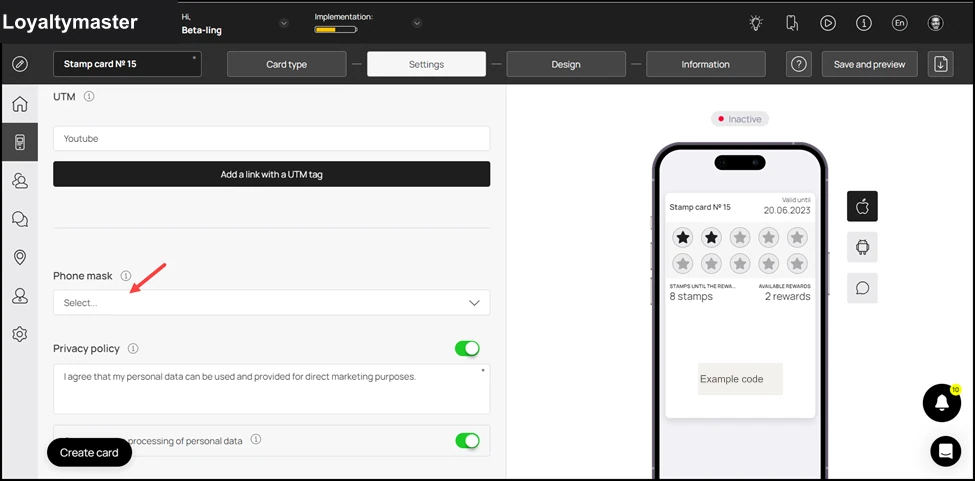
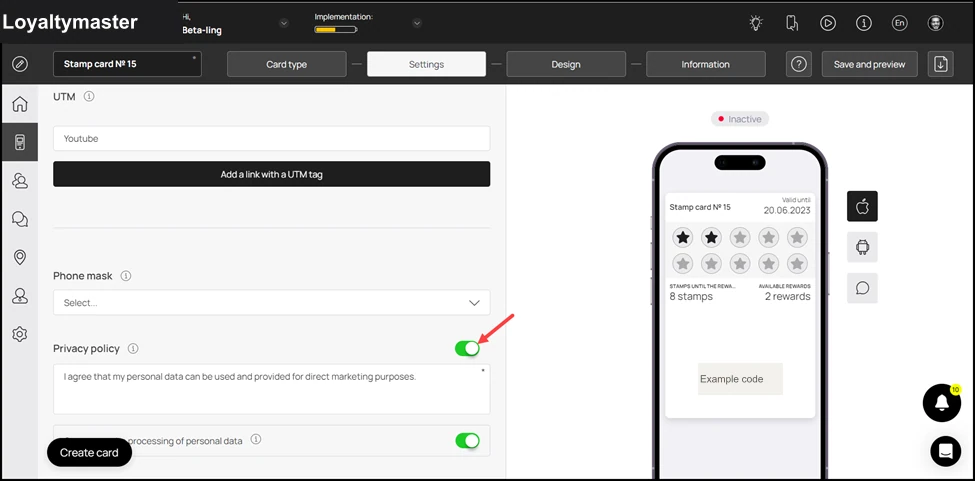
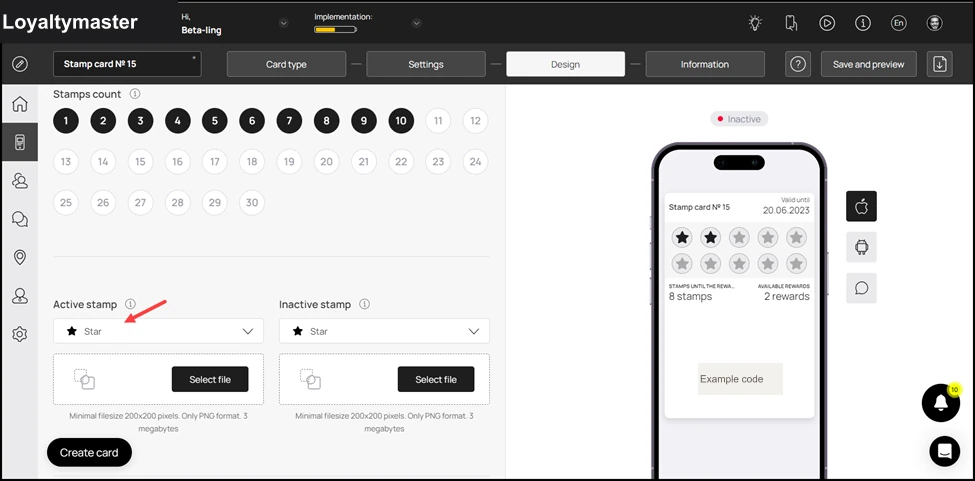
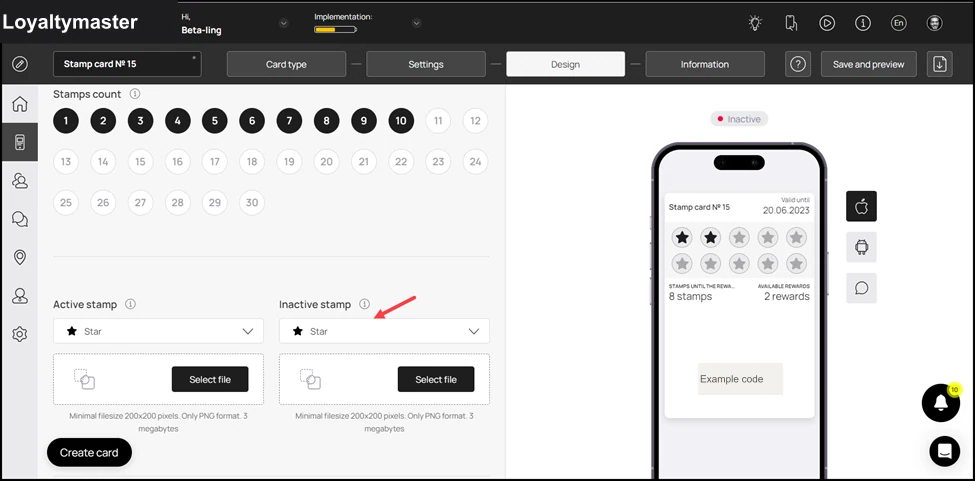
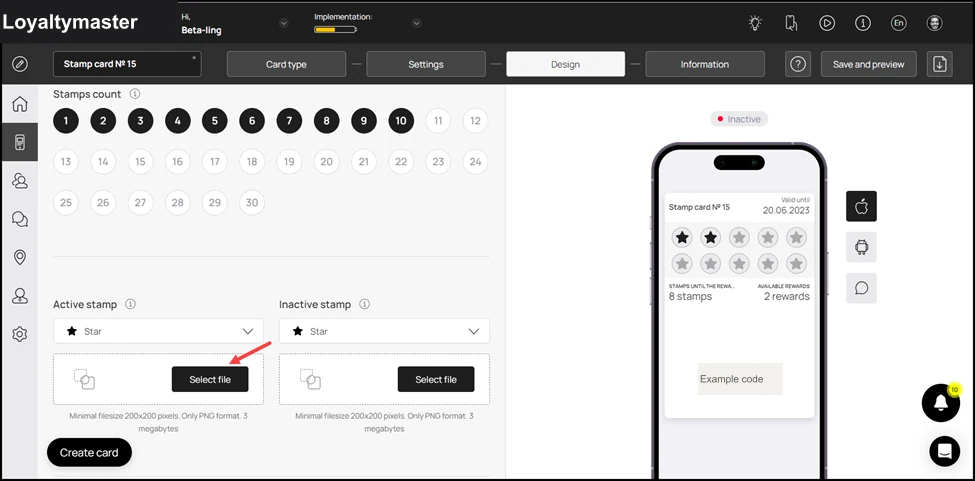
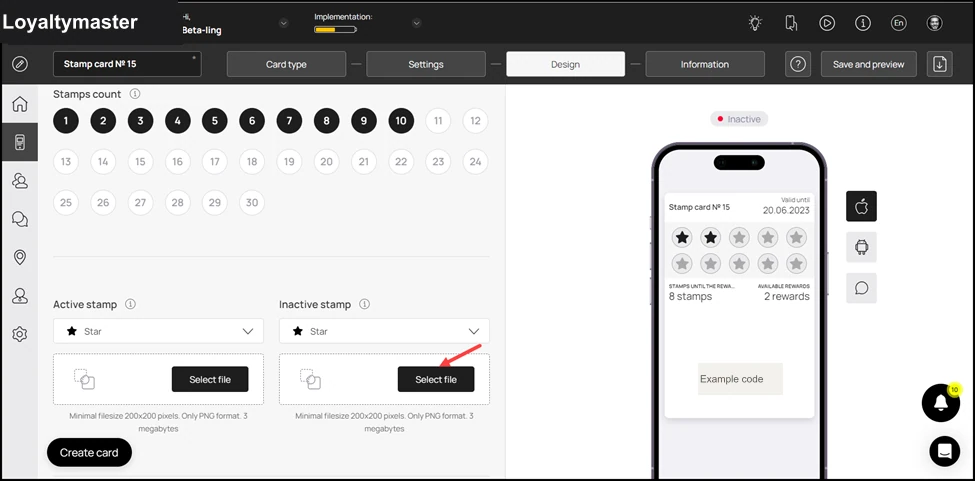
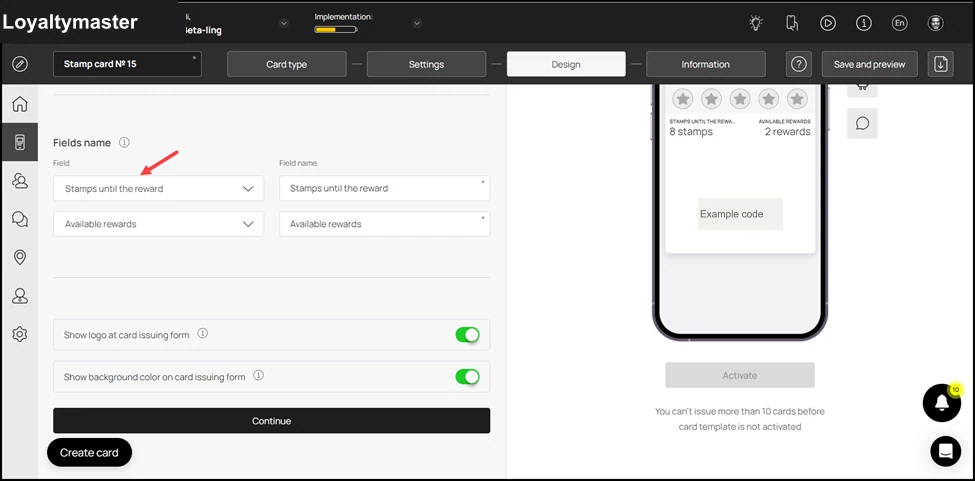
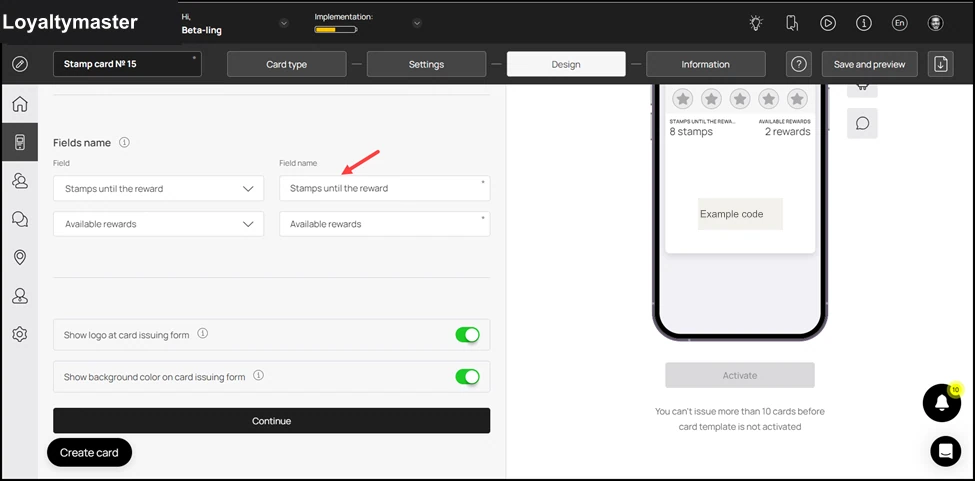
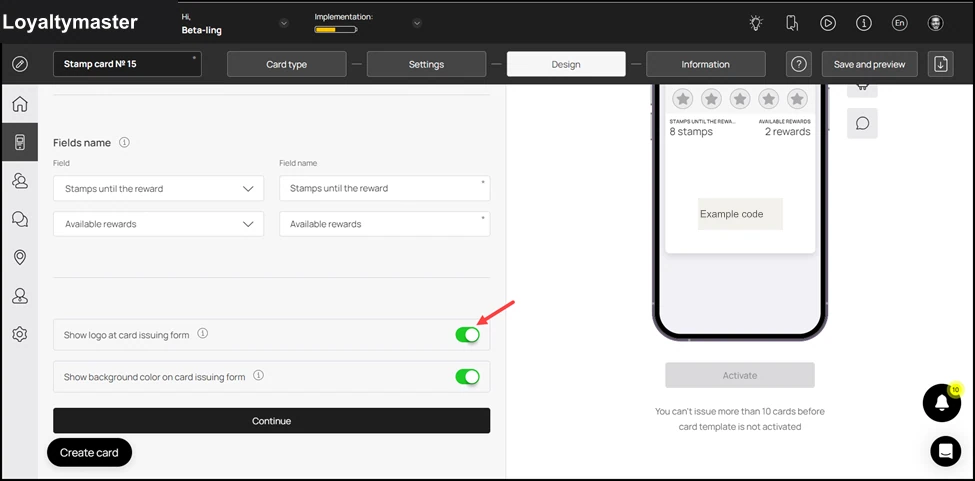
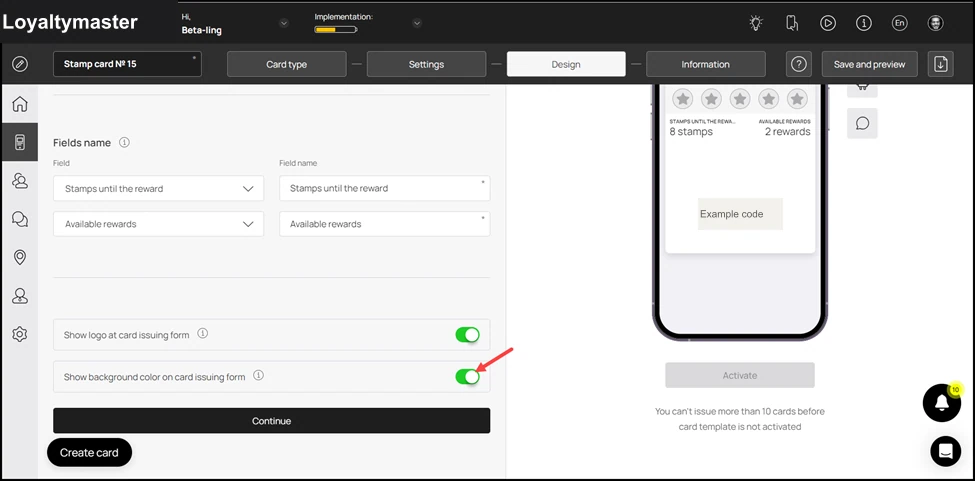
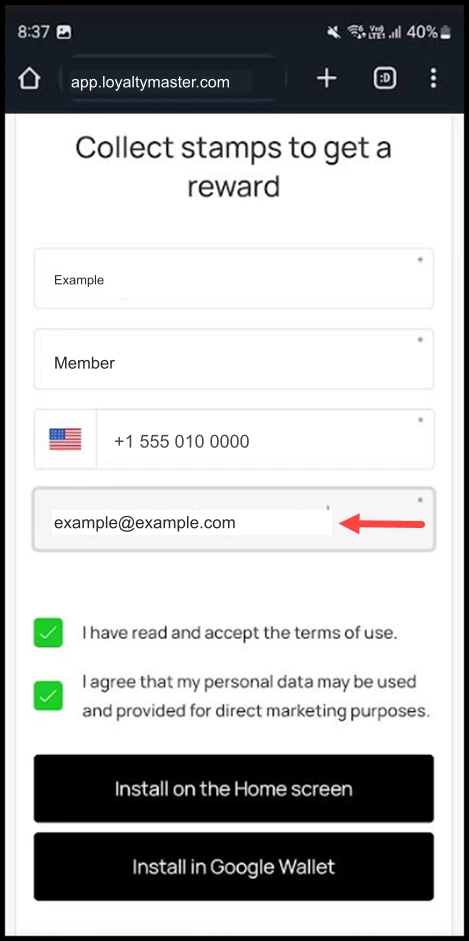
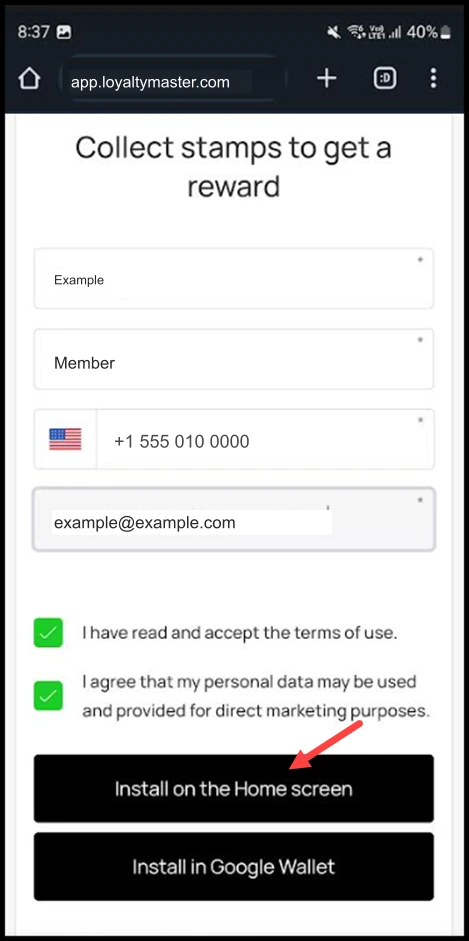
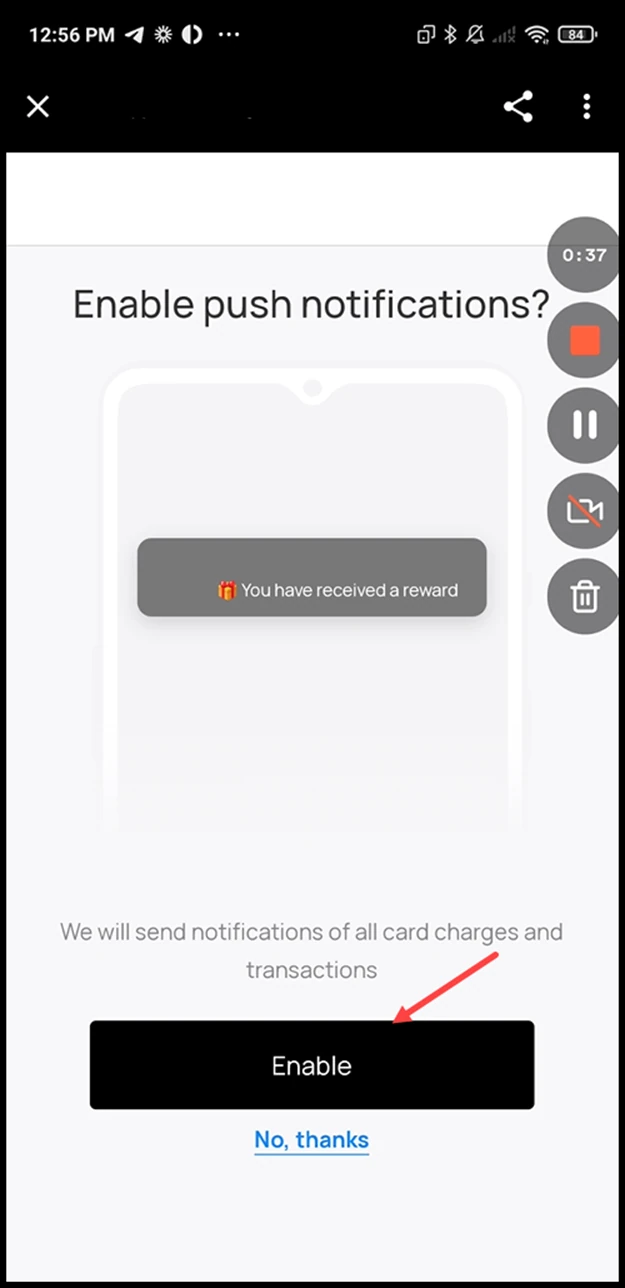
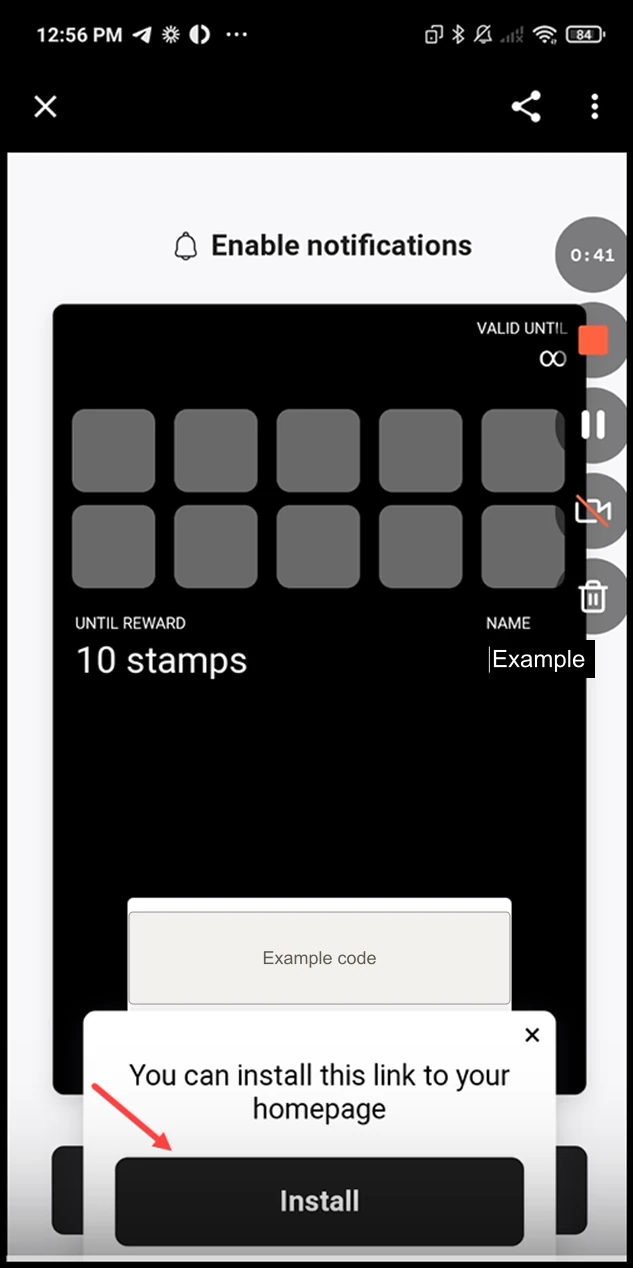
# Loyaltymaster Support — Complete Documentation Release: d9bdcebb16116240 # Customer Filters Overview of the customer base filtration options Canonical: https://support.loyaltymaster.com/customers-crm/customer-filters Review status: Application review pending; current permissions and product version unverified. Customer filtration by parameters and filter groups have been added to the customer base 1. Filters include the following parameters: * Card balance * Device type * Card serial number * Card status * UTM-tag * Current number of uses * Registration date * Email * Gender * Name * Phone * Unused rewards * Number of stamps * Customer birthday ![Customer Filters: Customer birthday](/media/30bf44f75da0c6617de6-69995a9955cf22606cb79494d5e668c6a5d1f647682d1514951aee89d1d94992.webp) Filters can overlap on an AND/OR condition. ![Customer Filters: Filters can overlap on an AND/OR condition.](/media/74bc74b06855ba346f5c-afe5766c12992f056ee0f13ac0a729bbefb425c805362e1abf79c7956d594267.webp) Filter can include: * comparison to a specific value (string, number, etc.): equal, not equal, more, less, etc. * entering a range of values: e.g. date from - date to * entering an array of values: equal to one from the list For example, the "Card balance" filter ![Customer Filters: For example, the "Card balance" filter](/media/28287905b638ebecb6b9-a09f893d83d364bdc3624e515da93a0d7950fda7eae59825c24e492390122252.webp) 1. Filter Groups are ready-to-use presets based on filters. Each filter in a group can be applied individually or combined There are currently 3 groups of filters, but they will be added quickly. The first filter group “RFM - segments” is a method of analysis that allows you to segment customers based on two variables - duration and frequency of visits. The following visit periods are included in the analysis: ## 0 to 30 days: Number of visits from 0 to 3: RFM - Beginners Number of visits from 4 to 7: RFM - Growths Number of visits from 8 to 12: RFM - Champions ## 31 to 60 days: Number of visits 0 to 3: RFM - Doubtful Number of visits from 4 to 7: RFM - Medium (borderline) Number of visits from 8 to 12: RFM - Loyal - Regular ## 61 to 90 days: Number of visits 0 to 3: RFM - Sleeping Number of visits from 4 to 7: RFM - At risk Number of visits from 8 to 12: RFM - Needs attention ![Customer Filters: Number of visits from 8 to 12: RFM - Needs attention](/media/0b5b0c6b596fd4abf217-5e652a08cd5955bdcf601421c4df9cd7164d730a3635c5179812b91806d27534.webp) "Health" group contains filters that can be used to sort clients with missing data/not installed cards: * Card status not installed * Unknown gender * Empty birthday ![Customer Filters: Empty birthday](/media/d5e769f7ef6ad0e568f1-164016aeeffdc7e4e0f60c3c2b97315157ff8fad65f424ab5abb456dfef5138f.webp) The "Loyalty" filter group includes filters: * Card status installed * Apple Wallet * Wallet Passes * Google Pay * PWA ![Customer Filters: PWA](/media/58bc0e4702c4edea6cbe-39025a8c6e45d1e57a7bfaf9f449cecf1c8a251bc0753d946f604f8a667bae98.webp) --- # Install a Loyalty Card on Android Convenient method to install cards on Android devices Canonical: https://support.loyaltymaster.com/how-to-install-the-card/android Review status: Application review pending; current permissions and product version unverified. > **Loyaltymaster > Left-Hand Menu > Cards > Select Card** 1. Follow the above-mentioned workflow to land on the Card Information section. 2. Scan the QR code from your Android device. This takes you to the Card Issuing Form. ![Install a Loyalty Card on Android: Scan the QR code from your Android device. This takes you to the Card Issuing Form.](/media/bdae653a47ed09d1577f-7cbcae913a5f980dd05044e2a15f708a6bfb665793868553aa640faeea0b8bc7.webp) 3. Use the First Name field to record your first name. ![Install a Loyalty Card on Android: Use the First Name field to record your first name.](/media/8fe7f34ecc6bb192dd8b-f76853463acb88d18a811ceeecec4077917e906b7ab22230f29cf3965a84165f.webp) 4. Similarly, enter your last name in the Last Name field. ![Install a Loyalty Card on Android: Similarly, enter your last name in the Last Name field.](/media/9bf8c03ef38c99fe4899-bbb86665c1b31baf2b7075842979ad24e3d2e0dfef314f17ce791dc51d09f890.webp) 5. Enter your contact number in the Contact Number field. ![Install a Loyalty Card on Android: Enter your contact number in the Contact Number field.](/media/ac1543a8be0cb33830a4-977fa4f662e7607c0355e74c31f6952320ab1314d7a787747cf02ceadfcf9a79.webp) 6. Use the Email field to record your email address. ![Install a Loyalty Card on Android: Use the Email field to record your email address.](/media/fe3c02d5db48080ed748-09323bfbef06baec6ab8c11e3ad3b4c69dde967feaccacd43a86dd607429c3bb.webp) 7. To install the card on your home screen, click the Install on Home Screen button. ![Install a Loyalty Card on Android: To install the card on your home screen, click the Install on Home Screen button.](/media/f50222559089d79f5c6f-e44b0d05ce0718c5606cd5e819139f6fe31f0ef81c9b50498709e5a9aec31d45.webp) 8. To install the card in Google Wallet, click the Install in Google Wallet button. ![Install a Loyalty Card on Android: To install the card in Google Wallet, click the Install in Google Wallet button.](/media/44c2f66f32da598aa616-0a2d9bf90c72b23ea57d12ebaa70623b455dbc079dbd331cd1245885dd9096e2.webp) 9. This loads the card in Google Wallet. To add the card to wallet, click the Add button. ![Install a Loyalty Card on Android: This loads the card in Google Wallet. To add the card to wallet, click the Add button.](/media/8cf0f4b35427a507858a-d9e44a5e25aeb5934292afb7b0ee99f2b013dee4c60fdf4e19675f60c159c4d8.webp) --- # How to Create a Multipass Card Create a prepaid Multipass card and work through its settings, design, and preview. Canonical: https://support.loyaltymaster.com/cards-creation/multipass Review status: Application review pending; current permissions and product version unverified. 1. Upon successful login, navigate to the left-hand menu. 2. From the list of modules, click the **Cards** icon. Doing so opens the Cards module. ![How to Create a Multipass Card: From the list of modules, click the icon. Doing so opens the Cards module.](/media/be823b1407ddcbd6b7cb-4605f9faead10dd3e4d14b68a1438b3b732e0a3f355ae8cf3a4fb100fcc92044.webp) 3. Here, you can either create a card using a template from a list of a wide range of pre-loaded templates or create one from scratch. To develop a better understanding, we will take a look at card creation from scratch. 4. To do so, click the **From scratch** button. ![How to Create a Multipass Card: To do so, click the button.](/media/d578f52f59b7dec360cf-47f2cb22bcc0ba6de620c518708bc5c51f77113877577a11a5ae89863c7b2b2e.webp) 5. This initiates the stamp card creation workflow. A card is created by filling in the details in 5 sections that include Card Type, Settings, Design, Information, and Save and preview. Let us take a look at how each section works. ## Card Type 1. This is the first section. Here, you make a selection regarding the type of card you want to create. 2. From the available card types, click Multipass. 3. Once selected, click the Continue button. As a result, you land on the Settings section. ![How to Create a Multipass Card: Once selected, click the Continue button. As a result, you land on the Settings section.](/media/252f6d803ffff04e3346-99443031c5e044ae8832162c84da499e6e5d79b6856b735ea5428135c7026883.webp) ## Settings 1. Here, choose the language in which you want to create the Multipass card using the **Language** dropdown. ![How to Create a Multipass Card: Here, choose the language in which you want to create the Multipass card using the Language dropdown.](/media/308aaee33563ab626518-5e040a4315afa3b43f0854958b55cfd21c9f887744fcb1659354840266474d16.webp) 2. Select the expiration date for the multipass card using the radio buttons under the **Card Expiration Date** heading. ![How to Create a Multipass Card: Select the expiration date for the multipass card using the radio buttons under the Card Expiration Date heading.](/media/1f79dbc28df92fdc3547-6514a9b1af2aeedb3ac41a16cc6edffe5deae137cd7be7711852bb6919152081.webp) 3. It is recommended to select **Fixed term after card issuing** from here. As this option is selected, the **Term** dropdowns are displayed. Here, you can select the number of days upon card activation after which it expires. ![How to Create a Multipass Card: It is recommended to select Fixed term after card issuing from here. As this option is selected, the Term dropdowns are displayed. Here, you can select the number of days upon card](/media/183937f61910a7b46409-907c0d80f484c6067aa40606ab39d46157a193f3fdb2bac5d492c5387fc9032a.webp) 4. Set the location(s) of your business where the card can be used from the **Locations** field. Multiple selections can be made from here. ![How to Create a Multipass Card: Set the location(s) of your business where the card can be used from the Locations field. Multiple selections can be made from here.](/media/e4e644c43bb9460545f3-462caa0c5a1511f09a79f552043b1cc231ae1ff6452333a054b44151cf453e11.webp) 5. Next up is the Card Issuing Form heading. Here, you can define the fields you want to include on the stamp card. 6. Use the Field Type dropdown to select the type of field you are adding. ![How to Create a Multipass Card: Use the Field Type dropdown to select the type of field you are adding.](/media/10dadb6b4cd2c77fd4e3-8d99168c57c5cde41442df897bfa379a0a847796f35dc9fee4b449e15c47e77e.webp) 7. Similarly, enter the name of the field in the **Field Name** text field. ![How to Create a Multipass Card: Similarly, enter the name of the field in the Field Name text field.](/media/b83095bdd0e22e5f220b-0d91536a1d79f396a5dcaa49ebf61d9a2d1e9de26eb838f6889657841d74a8bb.webp) 8. In case you want to make a field mandatory, enable the **Required** toggle. ![How to Create a Multipass Card: In case you want to make a field mandatory, enable the Required toggle.](/media/897e492b946119dcca21-ef8b8ec0b8b21211e51df2718da92e4069618097399e5ec6ab1388b4a73fecfd.webp) 9. Similarly, if you want to record unique data in a field, enable the **Unique** toggle. ![How to Create a Multipass Card: Similarly, if you want to record unique data in a field, enable the Unique toggle.](/media/082e6c1a19464ed7f386-2b31c9fa33d5701685666726c4951b7dcd4ee2903a246a4a1af715860eed64a2.webp) 10. In case you want to remove a field, click the **Remove** button. ![How to Create a Multipass Card: In case you want to remove a field, click the button.](/media/75ad48440a814206ff4a-e5276df59eea063f20217f7a7a1d54e3f737b67667fd34d4b4471ca180e64607.webp) 11. Similarly, if you want to create a new field, click the **Add field** button. This adds a new field from where you can select the field type and enter the name of the field for it to be added on the card. ![How to Create a Multipass Card: Similarly, if you want to create a new field, click the button. This adds a new field from where you can select the field type and enter the name of the field for it to be added o](/media/673f125629af2b7f16e0-9d6f4e5fe436c644b87dfedec1ed53a29dc867d97891cd11e71076182f463300.webp) 12. This is followed by the **UTM** field. Here, you can create a channel link for the analytics to be tracked of the traffic generated by that channel. For instance, if you add Facebook in this field, Loyaltymaster will generate a URL automatically associated to a UTM tag. 13. Use the **Source Name** to record the name of the channel. 14. Once entered, click the **Add a link with UTM Tag** button. ![How to Create a Multipass Card: Once entered, click the Add a link with UTM Tag button.](/media/73c6d029eff16198a70d-08ee0d61389948afdaa49ec844abb5bb982140fe2724aea36b7b69c75afdbcb6.webp) 15. Moving forward, the **Phone Mask** dropdown lets you choose a region via which you want to mask the communication calls. ![How to Create a Multipass Card: Moving forward, the Phone Mask dropdown lets you choose a region via which you want to mask the communication calls.](/media/91571f7702df6823f006-bfd64e2b35d2ad53c527338b1d37b440124f5eb710d9252c2eeb120fb3fc44de.webp) 16. In case you want to include the privacy policy on the card, enable the toggle button next to the **Privacy Policy** heading. Moreover, you can also edit the privacy policy using the field below the heading. ![How to Create a Multipass Card: In case you want to include the privacy policy on the card, enable the toggle button next to the Privacy Policy heading. Moreover, you can also edit the privacy policy using the fi](/media/01b96238201e711ed82c-91083051651891588c171115a58b3f6128efb989b6e345a90e112a1ad9780364.webp) 17. In case you want to include consent while processing personal information of the user, enable the toggle button next to **Consent to the processing of personal data** heading. ![How to Create a Multipass Card: In case you want to include consent while processing personal information of the user, enable the toggle button next to Consent to the processing of personal data heading.](/media/88eea9eecdf9221d6466-0d2629a0d64e613f4209784335aac2b6bb4407789e6ff00d2f2ed7616a6dd7d5.webp) 18. If you want to include a customized script for analytics, you can include this script in the **Analytics** field. ![How to Create a Multipass Card: If you want to include a customized script for analytics, you can include this script in the Analytics field.](/media/50213872593ff794ab95-2806a8841d567db8baef87a0354db471a0d98c542900253652035e7ab02735ac.webp) 19. Once the required fields are filled, click the **Continue** button. This takes you to the **Design** section. ![How to Create a Multipass Card: Once the required fields are filled, click the Continue button. This takes you to the Design section.](/media/2dc066718f68372b4556-9eed09fbac34936f21e495db0391bae604e5a50ab420e5e00afbe97e1836dfb9.webp) ## Design 1. This section lets you configure the design of the multipass card. 2. Starting off, choose the number of stamps at which the reward can be redeemed from the Stamp Count heading. ![How to Create a Multipass Card: Starting off, choose the number of stamps at which the reward can be redeemed from the Stamp Count heading.](/media/81b82d58f0ca71b2aac0-7e9018ff5519d1c09fde2f2ae25ee8d4a2a7346115bfbe2be7df97fe210dfcd1.webp) 3. Use the **Active Stamp** dropdown to select the icon for representing how the active stamp would appear. ![How to Create a Multipass Card: Use the Active Stamp dropdown to select the icon for representing how the active stamp would appear.](/media/e10afe01abcd36aade83-0802c1fb0c4baf5c2161aebea20750c1ef4f83426686ae6d24547af170559bbe.webp) 4. Similarly, use the **Inactive Stamp** dropdown to choose the icon representing an inactive stamp. ![How to Create a Multipass Card: Similarly, use the Inactive Stamp dropdown to choose the icon representing an inactive stamp.](/media/81568ec407783047530c-f9e76aeaf106b93185d34d284cfbccf1d3e119d3cfdad83be99afd49d2bb1d2a.webp) 5. In case you want to upload an icon from your system storage for an active stamp, click the Select File button under the Active Stamp dropdown. ![How to Create a Multipass Card: In case you want to upload an icon from your system storage for an active stamp, click the Select File button under the Active Stamp dropdown.](/media/f866b0f3bb92d01782a8-1d1f4ec1b3e4527eca84ea63f5fe8beeb0911b43202b35e9f6bc43050ccc5216.webp) 6. Similarly, clicking the Select File button under the Inactive Stamp dropdown lets you choose an icon for inactive stamp from your system storage. ![How to Create a Multipass Card: Similarly, clicking the Select File button under the Inactive Stamp dropdown lets you choose an icon for inactive stamp from your system storage.](/media/8a1ec78f98f3eb85bb01-ed36ba2a5c3eaa28af7db030a17cd8cad398869d5ae9c27b90d3a8cf6ddfc85c.webp) 7. Click the **Select File** button from the **Logo** heading to choose a logo to be displayed on the card and on the release form from your system storage. ![How to Create a Multipass Card: Click the Select File button from the Logo heading to choose a logo to be displayed on the card and on the release form from your system storage.](/media/7ae3471b5406fe66b103-79f6f0e975ad25472d88d3845f04c2f2fd9c1f78f6b084ca88d2acb2aa74be0a.webp) 8. Similarly, click the Select File button from the **Icon** heading to choose an icon from your system storage to be displayed in the push messages. ![How to Create a Multipass Card: Similarly, click the Select File button from the Icon heading to choose an icon from your system storage to be displayed in the push messages.](/media/236e058040cc29a9b6d9-dc48f7c91ffa3c632120d639a663aecc4116350b326cc9cd41539b693df362d2.webp) 9. Choose an icon from your system storage for the background under the stamps by clicking the Select File button under the **Background under stamps** heading. ![How to Create a Multipass Card: Choose an icon from your system storage for the background under the stamps by clicking the Select File button under the Background under stamps heading.](/media/46d49f21712405bf270b-8b126128ec466fbc8367e3fe7f64cc78de11dfd102996872a8b5961cce7a2134.webp) 10. From the Colors section, you can set the colors for Card Background, Text Color, Stamp Background, Outline Color, Active Stamp, Inactive Stamp, and Background under stamp. ![How to Create a Multipass Card: From the Colors section, you can set the colors for Card Background, Text Color, Stamp Background, Outline Color, Active Stamp, Inactive Stamp, and Background under stamp.](/media/ba60722c2a37a7d18755-3b0d275db3d007b8cc80dfb8c84a0b52ee32b868676c60607e3a86bf8ea91536.webp) 11. From the Fields Name heading, you can use the **Field** dropdown to select the type of field that appears on the card. ![How to Create a Multipass Card: From the Fields Name heading, you can use the Field dropdown to select the type of field that appears on the card.](/media/1e43906794df3de6b5fb-81f09a5be2eb48f23b6e8781cf055ca9d69a047bf80e1914654e69ee6d99b438.webp) 12. Similarly, the Field Name field allows you to enter what text appears on the card in the defined field. ![How to Create a Multipass Card: Similarly, the Field Name field allows you to enter what text appears on the card in the defined field.](/media/f3a7afa0fe5497c40955-88ca44dc9f129797d61ac8faeaafb932093408b60e4ec2538af3472673debe2b.webp) 13. In case you want the logo to appear on the Card Issuing Form, enable the Show logo at card issuing form toggle button. ![How to Create a Multipass Card: In case you want the logo to appear on the Card Issuing Form, enable the Show logo at card issuing form toggle button.](/media/6f29706c5b2ac73c4661-f71f9a9dd0d3ef6a049c808fad7cb9a607cae3407f21f99fcb1b18895132acde.webp) 14. Similarly, enable the Show background color on card issuing form toggle button in case you want the background color to appear on the card issuing form. ![How to Create a Multipass Card: Similarly, enable the Show background color on card issuing form toggle button in case you want the background color to appear on the card issuing form.](/media/bfe2ae81667623e1682f-0c261374ec5f97bda7a3b89d856d851b95a693084f121abd89a25c178cd9cc6f.webp) 15. Once all the selections are made, click the **Continue** button. Resultantly, you land on the **Information** section. ![How to Create a Multipass Card: Once all the selections are made, click the Continue button. Resultantly, you land on the Information section.](/media/c1f8535f4abbe994f2fc-6e662625f092f61d6062c1024dd501809066dcd0ff846e10eb76654959ed8be7.webp) ## Information 1. This section lets you fill relevant information in the card. The impact of each field can be viewed in the mobile screen preview displayed on the right side of the screen. 2. Use the Card Description field to enter a short description of the card. ![How to Create a Multipass Card: Use the Card Description field to enter a short description of the card.](/media/afb54360fccdcc36a40c-27d3f486cf26622ac808a75df314928289ef9703fe822e359bc816abab76bfbb.webp) 3. Use the **Company Name** field to enter the name of your business. ![How to Create a Multipass Card: Use the Company Name field to enter the name of your business.](/media/e15b57d4cb0bcceb3df0-f99ee81a696c5f58456776fb555254bbe8daae7e37d46f6ef5951c85ce7e23ca.webp) 4. Use the **Service** field to enter the name of the service being offered via the card. If this field is filled, it appears in place of the custom fields on the card. ![How to Create a Multipass Card: Use the Service field to enter the name of the service being offered via the card. If this field is filled, it appears in place of the custom fields on the card.](/media/c44b658accc03ad23c3d-b7bb34a41762d60a09a6f91b6aa487055bacbb9e3c3c4b503e3bfe4899bf86c9.webp) 5. Use the **Number of points for using the card** field to define the number of points awarded to the customer on using the card. ![How to Create a Multipass Card: Use the Number of points for using the card field to define the number of points awarded to the customer on using the card.](/media/91359a6c41385caea1f9-4c03f788b66ed6522dcefd5083d11362f0abce00c416ca42b1680bfc8fe122fc.webp) 6. Similarly, enter the message to be displayed to the customer when the card is used for a transaction using the **Message about the accounted use of the card** field. ![How to Create a Multipass Card: Similarly, enter the message to be displayed to the customer when the card is used for a transaction using the Message about the accounted use of the card field.](/media/496cc2ff14c252de5b5d-81dbf6661124480b6875ab6edfb50ae92980016cb89d17a353fde96b67d99613.webp) 7. Choose whether you want to activate the referral program using the Active and Inactive radio buttons under the **Referral Program** heading. ![How to Create a Multipass Card: Choose whether you want to activate the referral program using the Active and Inactive radio buttons under the Referral Program heading.](/media/c84f231d6e6c183b6678-055b705a4a286d3586aa531b9a2a8122d26caa0eaabb05926a5f0c06b873e4c0.webp) 8. Define when the bonus is issued to a customer from the options available under the **Get bonus at the moment when** heading. ![How to Create a Multipass Card: Define when the bonus is issued to a customer from the options available under the Get bonus at the moment when heading.](/media/805c1c20fe1d6b62d2bd-ff203afe03ecc74c101d7698d416b78b87ee401c9ebb98a1abb8295302ab91fd.webp) 9. Choose the number of points a customer earns upon sharing their card via the referral program using the **Number of points for the referrer** heading. ![How to Create a Multipass Card: Choose the number of points a customer earns upon sharing their card via the referral program using the Number of points for the referrer heading.](/media/79b567505f1e7e7597ca-c1660259e28d35312dc5698ea459f03dd43cf386aa168f65eb0745c5af76083e.webp) 10. Similarly, choose the number of points a new customer earns upon registering via the referral program using the count icons under the **Number of points for a referral** field. ![How to Create a Multipass Card: Similarly, choose the number of points a new customer earns upon registering via the referral program using the count icons under the Number of points for a referral field.](/media/9bccb4f66b305e526dc5-6afe55c56ac874478fbd20a0b5a0132061d6ab869f8cb9ba22ea2826a0edfb6d.webp) 11. Choose the number of stamps awarded to the customer upon sharing the card via referral program using the **Number of uses of the card for the referrer** heading. ![How to Create a Multipass Card: Choose the number of stamps awarded to the customer upon sharing the card via referral program using the Number of uses of the card for the referrer heading.](/media/eb1d37ddedfa4078303c-5123f64f62a8886131c84412278ed8c5be2fd07891050c6d1a2f9644da8e024d.webp) 12. Set the number of stamps awarded to the customer upon registering via the referral program from the count icon under the **Stamps count for the new customer** heading. ![How to Create a Multipass Card: Set the number of stamps awarded to the customer upon registering via the referral program from the count icon under the Stamps count for the new customer heading.](/media/0728b07b3c25b307919d-7090fb75cbef7f43afdac407c2fa069cd34f17ed14062d3a52d7513201399b6f.webp) 13. From the Active Links heading, choose the type of link you want to include on the card using the **Type** dropdown. The available options include URL, Phone, Email, and Address. ![How to Create a Multipass Card: From the Active Links heading, choose the type of link you want to include on the card using the Type dropdown. The available options include URL, Phone, Email, and Address.](/media/3b05998c43eb5c4fc809-5754b25479dcfd77d4580fa9dfb280e00ba505af9cf7d9311f985b1ae3afc621.webp) 14. Enter the website URL in the **Link** field. ![How to Create a Multipass Card: Enter the website URL in the Link field.](/media/c8ea5e68ad236c9c278c-ff45e35e935e57e6129948f0def02c8ca4b7badb779ad2b13961ee1d21233f83.webp) 15. Enter the text to appear on the card using the **Text** field. ![How to Create a Multipass Card: Enter the text to appear on the card using the Text field.](/media/9f3e1eb82aeaa5e28f7f-5d12db98a810386028e7062320852b9562c97113ba99c10072bdc1f14479e6ef.webp) 16. To remove an active link, click the **Remove** button. ![How to Create a Multipass Card: To remove an active link, click the button.](/media/24669f34d4ffc4108e28-ff5c09fa3947c40c8c18a2516b9a969e4fe510d732d9af96870e8c4d2349e517.webp) 17. To add another link, click the **Add Link** button. This adds a new row for another link to be recorded. ![How to Create a Multipass Card: To add another link, click the Add Link button. This adds a new row for another link to be recorded.](/media/02fdf29f14bb9ae614e8-ff0ed91ff3ef6cb5f64772f062d54b602f848ffc247d9584220fee9db1435323.webp) 18. Similarly, use the link type dropdown and link fields under the Feedback Links heading to add your business links for the customer reviews to be recorded. ![How to Create a Multipass Card: Similarly, use the link type dropdown and link fields under the Feedback Links heading to add your business links for the customer reviews to be recorded.](/media/cf9adc8c408709d32463-f5d48cad1da2d8a292a5ed5e49e6d6c8eec4bb19e9edb4a4eea05b942b769c52.webp) 19. In case you want to include Terms of use on the card, enable the toggle button next to Terms of Use heading. ![How to Create a Multipass Card: In case you want to include Terms of use on the card, enable the toggle button next to Terms of Use heading.](/media/969637e447d38be3a81b-3df557d27e88a16a0022d799431ae9f31440de37ba90ad4d05171f8b58555719.webp) 20. Enter any terms of use you want to include on the card using the Terms of Use field. ![How to Create a Multipass Card: Enter any terms of use you want to include on the card using the Terms of Use field.](/media/e6466c592c908408c8c5-8e0352e0673fafd9de1c7835807df3b75a531904fa66ae6bbe12563894e32bcd.webp) 21. Use the Link to full terms and conditions field to provide a link to the complete T\&Cs of your business. ![How to Create a Multipass Card: Use the Link to full terms and conditions field to provide a link to the complete T\&Cs of your business.](/media/4b7c3f619610383cc51e-d78da50009c8424cbcc9e23a27f8c1448e9fcef061531505b1df3c1720e00b5d.webp) 22. Use the Company Name, Email, and Contact Number fields under the Issuer Information heading to record the card issuer details to be displayed at the back of the card. ![How to Create a Multipass Card: Use the Company Name, Email, and Contact Number fields under the Issuer Information heading to record the card issuer details to be displayed at the back of the card.](/media/2f97082e1a07823d0002-cfa28625264e127e99e53410515b686f7c58df685b4f797815149f687b601109.webp) 23. To activate the template, click the **Activate** button under the card preview. ![How to Create a Multipass Card: To activate the template, click the Activate button under the card preview.](/media/f7372e30bcfc07292026-71868ca5704b0215429852c2d3d827072465f7ef3f75721fd25916f411322cf3.webp) 24. Once the details are recorded, click the **Finish** button. ![How to Create a Multipass Card: Once the details are recorded, click the Finish button.](/media/d28cf3fefeab5e0b50f9-442bfb455da23a2b78863b3afd1589c97da0b3cd25bbfbf82d296d992b4f80dd.webp) ## Save & Preview 1. As the Finish button is clicked, the Preview popup is displayed. 2. From here, you can scan the QR code of the card. ![How to Create a Multipass Card: From here, you can scan the QR code of the card.](/media/c94e9b32a4223a6162de-96bffc0990c7cdf112ad449c043177b61e0e808b70797fedfd75e6e9c5433309.webp) 3. To copy the link of the car, click the **Copy link** button. ![How to Create a Multipass Card: To copy the link of the car, click the Copy link button.](/media/ca8f1133e977b5522ece-8e110f3893b94ee3058edfb1d5ceec94e759ab38b2cb8b2e89b2d9088e6e5df0.webp) 4. Click the **Activate Card** button to activate the card. ![How to Create a Multipass Card: Click the Activate Card button to activate the card.](/media/40b8cf119f328a60b21a-f8a40716b2173d7d6ed5267123651d581db4270fbf0b5d76679e5f5262b8db36.webp) --- # How to Restore the Card If you lose your device or delete the card by mistake – just restore Canonical: https://support.loyaltymaster.com/how-to-install-the-card/how-to-restore-the-card Review status: Application review pending; current permissions and product version unverified. > **Loyaltymaster > Left-Hand Menu > Cards > Select Card** 1. Follow the above-mentioned workflow to land on the Card Information screen. 2. Scan the QR code of the card. ![How to Restore the Card: Scan the QR code of the card.](/media/3acb942eb75168405cd6-77c90a798e0ae4249af9ac79b9509b0c7dd726e320caf1d77ebd114d3468e23c.webp) 3. This opens the card issuing form in your mobile phone. Here, enter your first name in the First Name field. ![How to Restore the Card: This opens the card issuing form in your mobile phone. Here, enter your first name in the First Name field.](/media/197cf77a5a4e1bf508b4-0fd10b80b4953fdbea859af374c47e54cda58dc6ab2229853fc69c45d645c6f7.webp) 4. Use the Last Name field to record your last name. ![How to Restore the Card: Use the Last Name field to record your last name.](/media/ce5a73531738ba54a6e9-95d018536ea53b8f2929e4001acd78ce2e4bf2d21649cb105b4cd1dc3580cac9.webp) 5. Enter your contact number in the Contact Number field. ![How to Restore the Card: Enter your contact number in the Contact Number field.](/media/f2574bb26d144ef6c914-1fe45b89fd60806d295bec0f3d83983ea684bf2ca14babb7a75b3019f3ca6202.webp) 6. Use the Email field to enter your email address. ![How to Restore the Card: Use the Email field to enter your email address.](/media/7bc19d935d7a9a3d0371-a31c010a19500fdc0f51dc59c1b37b8b60de21575a7709be0c1a52b4a4c77bbf.webp) 7. Once the required details are entered, click the Install in Apple Wallet button. ![How to Restore the Card: Once the required details are entered, click the Install in Apple Wallet button.](/media/23e3c873f9cf63ba1fe6-1a957c45340868f370d8a171b84f03b9b7c46ad29cc0d5ce5a3e5d4535e2f0f8.webp) 8. As the card credentials are pulled and it is identified that it is a lost card, the Continue with Card Issue button is displayed. As it is clicked, the Confirmation Code field appears. 9. Here, enter the confirmation code received on your contact number. Once entered, click the Continue with Card Issue button. ![How to Restore the Card: Here, enter the confirmation code received on your contact number. Once entered, click the Continue with Card Issue button.](/media/90c6ca2a89428ec1821e-20548abd54bb60686eed0ac3c93361ee7bed9e15a495c6136272299251ae0075.webp) 10. This recovers the card and loads it in apple wallet. To add the card, click the Add button at the top-right corner. ![How to Restore the Card: This recovers the card and loads it in apple wallet. To add the card, click the Add button at the top-right corner.](/media/dd842c13696841736421-a4a7670a4d7f2d49e19c58a3ec6c4e46ff277f5d59f8e55b13983cbf1ec1c3f4.webp) --- # Sending messages to a segment of customers Explore how a push notification message can be sent to a selected segment Canonical: https://support.loyaltymaster.com/push-notifications/push-section/marketing-push/sending-messages-to-a-segment-of-customers Review status: Application review pending; current permissions and product version unverified. > **Loyaltymaster > Left-Hand Menu > Push** 1. Follow the above-mentioned workflow to land on the Send Push tab. 2. From the Card dropdown under Send Push heading, choose the card you want to send push notifications for. All the created cards are populated in this dropdown. ![Sending messages to a segment of customers: From the Card dropdown under Send Push heading, choose the card you want to send push notifications for. All the created cards are populated in this dropdown.](/media/db86a5e3f028e8ef2af6-52de5d1bb4837726299e1866b0f87e0a090b748973dbc1c06e575dcd3bd2c283.webp) 3. By default, the For All Customers option is selected. It means that the push notifications will be sent to all customers having the selected card. ![Sending messages to a segment of customers: By default, the For All Customers option is selected. It means that the push notifications will be sent to all customers having the selected card.](/media/e8c115e96c9d8fe6cfe1-968520d535c9a60ac1f8c33fe11badc14c544855a1ab813a5e8626117b939b79.webp) 4. To send push notifications to selective customers, click the Selected Segment button. ![Sending messages to a segment of customers: To send push notifications to selective customers, click the Selected Segment button.](/media/1a73b8de539e728ae8ce-33c27ea42022d3815590a68440f9aee56f81cb3307a5838fb5534798261603b7.webp) 5. This reveals another dropdown from where you can select a specific condition to define the segment you want to send push notifications to. The options include Current number of uses, unused rewards, and number of stamps. ![Sending messages to a segment of customers: This reveals another dropdown from where you can select a specific condition to define the segment you want to send push notifications to. The options include Current number of use](/media/e1a328dca223a2013a0c-2e64adbd3bcd4144ec6e11b4c043ebb06d9c638c2479a436d0bd840ab7202d4b.webp) 6. The next dropdown lets you choose the operator on which you want to define the condition. ![Sending messages to a segment of customers: The next dropdown lets you choose the operator on which you want to define the condition.](/media/9cc9b7a9783d43ec1806-dc11aef12ac6114254fcd72699832f50394c01181e29d9ca8551b8a9ccec9975.webp) 7. At the end is the count field. Here, you can define the count of the defined condition. For instance, if you enter 4 in this field, it means that push notifications will be sent to the customers who have used the selected card exactly 4 times. Moreover, the number of customers falling in the defined criteria is also displayed below the dropdowns. ![Sending messages to a segment of customers: At the end is the count field. Here, you can define the count of the defined condition. For instance, if you enter 4 in this field, it means that push notifications will be sent to](/media/b360153f74059a640e25-62e69a58b0a5c68107e7dd7fc855dd9e237f489c0bdb9d408d09da2a2fe3f1d7.webp) 8. Furthermore, if you want to schedule a push notification, mark the Schedule checkbox. ![Sending messages to a segment of customers: Furthermore, if you want to schedule a push notification, mark the Schedule checkbox.](/media/f5b7e650c7391f9dccb7-4b7bed53156ca41617a6021f1ac5eb4744cddeb81157c1f8b5e36b368cc014b8.webp) 9. This reveals a date/time selector on the right side. You can choose the date and time at which you want the scheduled push notification to be sent. ![Sending messages to a segment of customers: This reveals a date/time selector on the right side. You can choose the date and time at which you want the scheduled push notification to be sent.](/media/736c33b8906a47600b68-beb76a7fad174b84b869cca16efc93bc2c198a04cc99421c238cce8a749b71b9.webp) 10. Enter the message you want to send via the push notification using the Message textbox. You can also include smileys by clicking the **Emoji**icon. ![Sending messages to a segment of customers: Enter the message you want to send via the push notification using the Message textbox. You can also include smileys by clicking the icon.](/media/1918e60b4f9bcbd71aed-08261803a63ab6dc4ada8efb455c8ee6ad565fa83b587f2c8c6c71625aec12ce.webp) 11. Once the selections are made, click the Send button. ![Sending messages to a segment of customers: Once the selections are made, click the Send button.](/media/064830854d8075214060-55de7cd8f9ce002560ea0114253458c7f79f4637bba9829fc554d8e98e167068.webp) 12. This opens the Send Push popup with the selections you made displayed to you for review. To confirm, click the Send button. ![Sending messages to a segment of customers: This opens the Send Push popup with the selections you made displayed to you for review. To confirm, click the Send button.](/media/d7a18df141f7c977f09f-7264cc6546816b01c7e71889f54a7ab0b96646f5bcc8a678f10277ea3de5f6d9.webp) 13. This schedules the push notification and it is displayed in the History log. ![Sending messages to a segment of customers: This schedules the push notification and it is displayed in the History log.](/media/fd2b88d88af701ac4410-c7451973290e0f8af0e11d1822030899320b117dc03d27b37ac0bb5cf1a02e7b.webp) --- # Settings General account settings Canonical: https://support.loyaltymaster.com/settings/settings Review status: Application review pending; current permissions and product version unverified. The Settings module allows you to tweak the application as well as your profile settings. All relevant settings are segregated into 4 categories with each category displayed via an individual tab. They include: Plan Personal Settings Integrations Webhooks 1. To access the Settings module, navigate to the left-hand menu upon logging in. 2. From the list of modules, click the **Settings** icon. This takes you to the Settings module where by default, the Plan tab is displayed. ![Settings: From the list of modules, click the icon. This takes you to the Settings module where by default, the Plan tab is displayed.](/media/681aa72bd3917d7c3eac-496fa1644eadc9729454ec69d20f6c8889fca89190c357f7dc3fdf06deb0a8d4.webp) --- # Geo-push Learn how to create a geo-push Canonical: https://support.loyaltymaster.com/push-notifications/push-section/geo-push Review status: Application review pending; current permissions and product version unverified. > **Loyaltymaster > Left-Hand Menu > Locations** 1. Follow the above-mentioned workflow to land on the Locations screen. 2. To create a geo-push, click the **Add location**button. ![Geo-push: To create a geo-push, click the button.](/media/0819cd70a0d1d3530244-aed3551479d34e88718daf9ca93c874a2ae84b3725601b67936ec9e1555f059c.webp) 3. This reveals a list of fields for the details of the location and geo-push message to be recorded. 4. Use the Location Name field to enter the name of the location. ![Geo-push: Use the Location Name field to enter the name of the location.](/media/511ceb76260b320e2735-53d0d5f7fb7dc519c8a991caaf6a2e64a537f49ffc34e672d043dddd455e22a8.webp) 5. Enter the address of the location in the Location Address field. As you type, the suggestions are auto-populated. ![Geo-push: Enter the address of the location in the Location Address field. As you type, the suggestions are auto-populated.](/media/d7b225d75b46f66f84b1-f3d0bb036deafac273ec3f61aed4c5c49bdafc4d96c57430836109529fcb40d2.webp) 6. Use the pin on the map view to set the exact location on the map. ![Geo-push: Use the pin on the map view to set the exact location on the map.](/media/59c2a53960578b658017-278c9cf64f1960bf3d9e364d4968706f5114b1cdc08fd0eb6781ea42979abd35.webp) 7. Select the card(s) to which you want to associate this location and geo-push message using the Apply to Cards field. ![Geo-push: Select the card(s) to which you want to associate this location and geo-push message using the Apply to Cards field.](/media/b8aa5b5bfd302f122455-d1c9a4c2e071aa32d1ab7a51a398a0134f56a3f08c7940b7a5abe48a931afbbe.webp) 8. Enter the geo-push message in the Push Message textbox. This push notification is sent to all the users in a specific radius of the location. ![Geo-push: Enter the geo-push message in the Push Message textbox. This push notification is sent to all the users in a specific radius of the location.](/media/70bd3860c3c547d2f00b-34eca28b019800e001bb7054a34a171d3299b9154cca58d4ecc50f7ed8af7b52.webp) 9. Once the details are recorded, click the **Add** button. This adds the location and displays it in the list. ![Geo-push: Once the details are recorded, click the button. This adds the location and displays it in the list.](/media/75e931cb98477d8722ce-b34c4c911b25ac3a56aa281b33d12a474324afd4d7c9b22f9617c418ded7ca9e.webp) --- # Manager Profile Create manager seats for your sales persons to get access to Scanner App Canonical: https://support.loyaltymaster.com/managers/manager-profile Review status: Application review pending; current permissions and product version unverified. 1. Upon successful login, navigate to the left-hand menu. 2. From the list of modules displayed, click the**Managers** icon. Doing so takes you to the Managers screen. ![Manager Profile: From the list of modules displayed, click the icon. Doing so takes you to the Managers screen.](/media/a30f78c5d33047ae7c01-457d2036da0297903829f609c2b8eff4093b2b6cab3ff96d3f48cb776ed8d86d.webp) 3. Here, information for all existing managers is tabulated via a number of columns that include User Name, Created, Notes, Location, and Status. ![Manager Profile: Here, information for all existing managers is tabulated via a number of columns that include User Name, Created, Notes, Location, and Status.](/media/5a4adee94e3237bbbd36-f292eb483235ffa68101e14fdb42f233a0e4d566697bfd9e539e686946909989.webp) 4. Clicking the username of a manager displays the details of the selected manager profile. Here, the basic details of the selected manager profile are displayed via separate tiles under the Manager Profile heading. They include Name, Registration Date, Status, Location, Number of Transactions, and Last Transaction Date. ![Manager Profile: Clicking the username of a manager displays the details of the selected manager profile. Here, the basic details of the selected manager profile are displayed via separate tiles un](/media/3a6daf83bd867c750c81-f13f99709fb16139d3fc15b4bb0784f7ab87c0422760fafa51b007241057fac6.webp) 5. Next up is the Information section where the details of the manager account are displayed in editable view. ![Manager Profile: Next up is the Information section where the details of the manager account are displayed in editable view.](/media/f2cab45c6366447ad82a-d8e8dfcf2ae9f8e1c30dda1304d99c7daf479d8649fc823b07e1fef0d9bc56d6.webp) 6. Once you have edited the required fields, click the Save button. ![Manager Profile: Once you have edited the required fields, click the Save button.](/media/48813bc2def251c3992f-2adf13df55973e0e908162e186d0624d73ca054c6b499920e27551bbf0050034.webp) 7. At the end is the Last Transactions grid. Here, the last transactions of the manager are tabulated via several columns that include User Name, Date, Phone, Device, Template, Event, Amount, and Balance. ![Manager Profile: At the end is the Last Transactions grid. Here, the last transactions of the manager are tabulated via several columns that include User Name, Date, Phone, Device, Template, Event,](/media/563040a439d73c7c36cf-3f257a48d45f9020c34713850074e39b9fef2f1c1be63dbe785f9d454ac2e4ba.webp) --- # Push automation Push automation allows you to automate specific push notifications to be sent to the customers. For instance, if you need to wish a specific customer their birthday, or you need to collect feedback at a specific time interval. Let us learn how to use push automation. Canonical: https://support.loyaltymaster.com/push-notifications/push-section/push-automation Review status: Application review pending; current permissions and product version unverified. > **Loyaltymaster > Left-Hand Menu > Push** 1. Follow the workflow mentioned above to land on the Push notifications screen. 2. From the tabs listed atop the screen, click Push Automation. This takes you to the Push Automation screen. ![Push automation: From the tabs listed atop the screen, click Push Automation. This takes you to the Push Automation screen.](/media/c73a0ed092d9d95a06b3-2840d2d93309b628d92132bf219923120f3728c0587a4081d15e6d252f22f0d1.webp) 3. Here, use the Card dropdown to select the card for which you want to setup push automation. ![Push automation: Here, use the Card dropdown to select the card for which you want to setup push automation.](/media/85243f012ea792736281-359519cc2c38d9d68468d83fd371dd49f04eeff33fba9f5bd300073d8a300f82.webp) 4. As a selection is made, all events for push automation are displayed via separate tiles. You can use the toggle button at the top-right corner of each tile to enable/disable the automation for that specific event. ![Push automation: As a selection is made, all events for push automation are displayed via separate tiles. You can use the toggle button at the top-right corner of each tile to enable/disable the au](/media/1ad8d8528fe52372bdb7-a741ea5303aa9108c6129ec85a386dd42a971e71d41bac90426caba29e6d8eb7.webp) 5. Record the message you want to be displayed in the push notification using the Message field. ![Push automation: Record the message you want to be displayed in the push notification using the Message field.](/media/894bb6b9974d65d109c2-26ca859c1f4ab4021416b729faa9ce7cac2d6dfbd71c1748818db9a4583878c7.webp) 6. Using the next field, you can set the number of hours upon visit after which the push notification for feedback is sent. ![Push automation: Using the next field, you can set the number of hours upon visit after which the push notification for feedback is sent.](/media/e2923553a4c6f32c606e-f857706c7bed06c4e5718384791b4ab78f3fec0a2e633f89522d1256afd6e49d.webp) 7. As the selections are made, click the Save button. ![Push automation: As the selections are made, click the Save button.](/media/f012428f9c907e4a57b8-fb55953f21a5ecd09d85c8d71b00b5df2adf8f728552d96e557ca3862cb55364.webp) 8. The rest of the automations can be setup in a similar manner for Next Visit Reminder and Birthday Congratulations. ![Push automation: The rest of the automations can be setup in a similar manner for Next Visit Reminder and Birthday Congratulations.](/media/9976293e1fb51d03dd6f-e8cb5b8404081a1b89c8db130c5da5f575448263c1bce176532dd3c996b06ce3.webp) ![Push automation: ](/media/9ade124b93c55723bfac-dfae48de4a8b9626542ee544538267e641de8b5093165c010be9543a257041cb.webp) --- # Scanner app - Multipass How to charge multipass cards using Scanner App Canonical: https://support.loyaltymaster.com/scanner-app/scan-and-make-transactions/scanner-app-multipass Review status: Application review pending; current permissions and product version unverified. 1. Upon successful login, tap the Scan button. ![Scanner app - Multipass: Upon successful login, tap the Scan button.](/media/833984c00505bdac4ecf-7f43efe9205c6542ab947a9c936ace8589c4f2ce2e8efff72843943e8cab9637.webp) 2. This initiates the scan process by opening the camera of your mobile device. If this is the first time, the scanner app will ask you to allow permission to access your device camera. ![Scanner app - Multipass: This initiates the scan process by opening the camera of your mobile device. If this is the first time, the scanner app will ask you to allow permission to access your device camer](/media/3737651a77088cbbc5da-7fd0ec7b348879d202205136d6fff714f637b6b43f271609cf9f59c2e5c2a26f.webp) 3. A successful scan displays the multipass card in the scanner app with the information segregated into the Redeem Visits and Redeem Points tabs. ![Scanner app - Multipass: A successful scan displays the multipass card in the scanner app with the information segregated into the Redeem Visits and Redeem Points tabs.](/media/4db40c3db9c77109f285-2eea43b7e2522455dce0ffb491c7b052f75559cdbdc2267d3c6bd4c2508ee9f7.webp) 4. Use the +/- icons at the right and left side of the counter to set the number of visits you want to redeem. Once set, click the Redeem Visits button. ![Scanner app - Multipass: Use the +/- icons at the right and left side of the counter to set the number of visits you want to redeem. Once set, click the Redeem Visits button.](/media/eabf47301f61f9a81087-ce05362cb44a2802965be092f7c99642422115b486b9033439492e9e3b93057a.webp) 5. As the visits are redeemed, the Successful Transaction popup is displayed. To proceed, click the Done button. ![Scanner app - Multipass: As the visits are redeemed, the Successful Transaction popup is displayed. To proceed, click the Done button.](/media/e0fa3e3632cf33b2a4a7-4a50f470e7868e497b96f106102afbc7c68690c176301a1ba0399b1e77396158.webp) 6. Once the visits are redeemed and the card scanned again, the associated points are displayed in the Available points field. ![Scanner app - Multipass: Once the visits are redeemed and the card scanned again, the associated points are displayed in the Available points field.](/media/b248ff17aeb450f7928f-58a76855df411b80c3faeb181b43e9fd348c26a895507e76e7a647cf059978cf.webp) 7. To redeem the available points, click the Redeem Points tab. ![Scanner app - Multipass: To redeem the available points, click the Redeem Points tab.](/media/c2e0ba59da213dc8120c-52af034eeece52c2323b00d5f1bec4e313b3f37683a132c42ac70097d00525d3.webp) 8. Use the +/- buttons alongside the counter to set the number of points you want to redeem. Once set, click the Redeem Points button. ![Scanner app - Multipass: Use the +/- buttons alongside the counter to set the number of points you want to redeem. Once set, click the Redeem Points button.](/media/11ac9e6c3d1d4e231efc-155d9e5b5d72e1aa537a9f42edae4b74e56f279c95de5694def755434d2e5d94.webp) 9. This displays the Confirmation popup. To confirm, click Redeem. ![Scanner app - Multipass: This displays the Confirmation popup. To confirm, click Redeem.](/media/25e921d0aebdac5a6b7c-82f4b1840a50113ecb5561b1eb62389ca3181e74a22893e1e4289785b657c0fb.webp) --- # Automate Feedback Requests Learn how push automation works for Feedback Collection Canonical: https://support.loyaltymaster.com/push-notifications/push-section/push-automation/feedback-collection Review status: Application review pending; current permissions and product version unverified. > **Loyaltymaster > Left-Hand Menu > Push** 1. Follow the workflow mentioned above to land on the Push notifications screen. 2. From the tabs listed atop the screen, click Push Automation. This takes you to the Push Automation screen. ![Feedback collection: From the tabs listed atop the screen, click Push Automation. This takes you to the Push Automation screen.](/media/c73a0ed092d9d95a06b3-2840d2d93309b628d92132bf219923120f3728c0587a4081d15e6d252f22f0d1.webp) 3. Here, use the Card dropdown to select the card for which you want to setup push automation. ![Feedback collection: Here, use the Card dropdown to select the card for which you want to setup push automation.](/media/85243f012ea792736281-359519cc2c38d9d68468d83fd371dd49f04eeff33fba9f5bd300073d8a300f82.webp) 4. As a selection is made, all events for push automation are displayed via separate tiles. You can use the toggle button at the top-right corner of each tile to enable/disable the automation for that specific event. ![Feedback collection: As a selection is made, all events for push automation are displayed via separate tiles. You can use the toggle button at the top-right corner of each tile to enable/disable the au](/media/1ad8d8528fe52372bdb7-a741ea5303aa9108c6129ec85a386dd42a971e71d41bac90426caba29e6d8eb7.webp) 5. Record the message you want to be displayed in the push notification using the Message field. ![Feedback collection: Record the message you want to be displayed in the push notification using the Message field.](/media/894bb6b9974d65d109c2-26ca859c1f4ab4021416b729faa9ce7cac2d6dfbd71c1748818db9a4583878c7.webp) 6. Using the next field, you can set the number of hours upon visit after which the push notification for feedback is sent. ![Feedback collection: Using the next field, you can set the number of hours upon visit after which the push notification for feedback is sent.](/media/e2923553a4c6f32c606e-f857706c7bed06c4e5718384791b4ab78f3fec0a2e633f89522d1256afd6e49d.webp) 7. As the selections are made, click the Save button. ![Feedback collection: As the selections are made, click the Save button.](/media/f012428f9c907e4a57b8-fb55953f21a5ecd09d85c8d71b00b5df2adf8f728552d96e557ca3862cb55364.webp) --- # Integrations See how the integrations work Canonical: https://support.loyaltymaster.com/settings/settings/integrations Review status: Application review pending; current permissions and product version unverified. The integrations section displays all the active integrations for Loyaltymaster with third-party apps. Moreover, you can also use the API key from here to integrate a third-party app and integrate multiple platforms with Loyaltymaster. > **Loyaltymaster > Left-Hand Menu > Settings** 1. Follow the above-mentioned workflow to land on the Settings tab. 2. From the tabs listed atop the screen, click Integrations. Doing so takes you to the Integrations screen. ![Integrations: From the tabs listed atop the screen, click Integrations. Doing so takes you to the Integrations screen.](/media/baa07d0ad28e022a56de-3f9454ffc1c9918c1cfa99acb2b5d6b728635df63e6ef5cd5c66fd7d5104a42e.webp) 3. This screen starts off with a tile displaying your current subscription plan and the number of integrations it allows. ![Integrations: This screen starts off with a tile displaying your current subscription plan and the number of integrations it allows.](/media/0e50c58a0f79207f9fe4-921f485fe8691287c203bdf6e7efaa15978fb47a7e1d0c0826f248afa1786932.webp) 4. The next tile includes the API key you can use to integrate Loyaltymaster with third-party apps. To copy the API key, click Copy button. Moreover, you can find the API documentation for Loyaltymaster. ![Integrations: The next tile includes the API key you can use to integrate Loyaltymaster with third-party apps. To copy the API key, click Copy button. Moreover, you can find the API documentati](/media/2d7d8319db7aa817301a-7aa63663f695308f7791f7d5680a6523975c0bc4faf8c7f682b485812e2f5447.webp) 5. Next up is the Active Integrations section. Here, all active integrations are tabulated via a number of columns that include Name, Integration ID, Date, Status, and Details. ![Integrations: Next up is the Active Integrations section. Here, all active integrations are tabulated via a number of columns that include Name, Integration ID, Date, Status, and Details.](/media/43b7fbf35210f719f3ff-0a19db95bf8ebfdfe4bfe78db9c749de6dac2604e88526b8543efbd2dcd349cd.webp) 6. Next up is the Add Integration section. Here, you can integrate Loyaltymaster with a wide range of supported platforms. To integrate, simply click the Connect button from the respective row. ![Integrations: Next up is the Add Integration section. Here, you can integrate Loyaltymaster with a wide range of supported platforms. To integrate, simply click the Connect button from the resp](/media/81763ec2d6186a9a0452-c62f06056e21b71e6d27489af9c57c1342a914ddfea1c46834c6f901f803fa19.webp) --- # Scanner app - Discount Learn how to charge discount card Canonical: https://support.loyaltymaster.com/scanner-app/scan-and-make-transactions/scanner-app-discount Review status: Application review pending; current permissions and product version unverified. 1. Upon successful login, tap the Scan button. ![Scanner app - Discount: Upon successful login, tap the Scan button.](/media/24e99eca3f4cef8b597b-7f43efe9205c6542ab947a9c936ace8589c4f2ce2e8efff72843943e8cab9637.webp) 2. This initiates the scan process by opening the camera of your mobile device. If this is the first time, the scanner app will ask you to allow permission to access your device camera. ![Scanner app - Discount: This initiates the scan process by opening the camera of your mobile device. If this is the first time, the scanner app will ask you to allow permission to access your device camer](/media/6173ff9778e4fa55e7e4-7fd0ec7b348879d202205136d6fff714f637b6b43f271609cf9f59c2e5c2a26f.webp) 3. Here, enter the amount you want to add in the Enter Purchase Amount field. Once added, click the Add Points button. ![Scanner app - Discount: Here, enter the amount you want to add in the Enter Purchase Amount field. Once added, click the Add Points button.](/media/e90e7ca2e9c03c5ca417-ae367ceedfdb1d0094ac763d62fe58ecb37b48a61b196c54c879fd20a594a66c.webp) 4. This opens the Confirmation popup. To confirm the points addition, click the Confirm button. ![Scanner app - Discount: This opens the Confirmation popup. To confirm the points addition, click the Confirm button.](/media/ffb7bb4d1464f15c2647-16ed96abd65bc0ecf4106a47a855efea36ccc98a79bf49c642bcdd0fdd82e3ae.webp) 5. Once this is done, scan the card once again. You will see the added points in the Total Points Accrued field. ![Scanner app - Discount: Once this is done, scan the card once again. You will see the added points in the Total Points Accrued field.](/media/501e98eddbbb46d1add8-d991d30e6a575295bb2f6b9a553a6f999f536de6008ae99615b37d367d19f63e.webp) 6. Once the added points reach the level defined for the tier, the Current Discount Level increases as well. ![Scanner app - Discount: Once the added points reach the level defined for the tier, the Current Discount Level increases as well.](/media/a0f8195427e23d9c1329-5a5f01d0b2804ed3ace43fb2568650d96c3785927b743c5f2b8c1560bc44d43c.webp) --- # How to Create a Reward Card Create a reward card and work through its reward settings, design, and preview. Canonical: https://support.loyaltymaster.com/cards-creation/reward Review status: Application review pending; current permissions and product version unverified. 1. Upon successful login, navigate to the left-hand menu. 2. From the list of modules, click the **Cards** icon. Doing so opens the Cards module. ![How to Create a Reward Card: From the list of modules, click the icon. Doing so opens the Cards module.](/media/8b123a333f16dfe46923-4605f9faead10dd3e4d14b68a1438b3b732e0a3f355ae8cf3a4fb100fcc92044.webp) 3. Here, you can either create a card using a template from a list of a wide range of pre-loaded templates or create one from scratch. To develop a better understanding, we will take a look at card creation from scratch. 4. To do so, click the **From scratch**button. ![How to Create a Reward Card: To do so, click the button.](/media/71fc62d903000a5c1088-47f2cb22bcc0ba6de620c518708bc5c51f77113877577a11a5ae89863c7b2b2e.webp) 5. This initiates the stamp card creation workflow. A card is created by filling in the details in 5 sections that include Card Type, Settings, Design, Information, and Save and preview. Let us take a look at how each section works. ## Card Type 1. This is the first section. Here, you make a selection regarding the type of card you want to create. 2. From the available card types, click Reward. 3. Once selected, click the Continue button. As a result, you land on the Settings section. ![How to Create a Reward Card: Once selected, click the Continue button. As a result, you land on the Settings section.](/media/e2625011e87b1d0c7af2-eea9f4a1cb20ccbf4a731863b31f64441848038c27e889755ec01e773217a0b2.webp) ## Settings 1. Here, choose the language in which you want to create the Reward card using the **Language** dropdown. ![How to Create a Reward Card: Here, choose the language in which you want to create the Reward card using the Language dropdown.](/media/308aaee33563ab626518-5e040a4315afa3b43f0854958b55cfd21c9f887744fcb1659354840266474d16.webp) 2. Select the expiration date for the reward card using the radio buttons under the **Card Expiration Date** heading. ![How to Create a Reward Card: Select the expiration date for the reward card using the radio buttons under the Card Expiration Date heading.](/media/1f79dbc28df92fdc3547-6514a9b1af2aeedb3ac41a16cc6edffe5deae137cd7be7711852bb6919152081.webp) 3. It is recommended to select **Fixed term after card issuing** from here. As this option is selected, the **Term** dropdowns are displayed. Here, you can select the number of days upon card activation after which it expires. ![How to Create a Reward Card: It is recommended to select Fixed term after card issuing from here. As this option is selected, the Term dropdowns are displayed. Here, you can select the number of days upon card](/media/183937f61910a7b46409-907c0d80f484c6067aa40606ab39d46157a193f3fdb2bac5d492c5387fc9032a.webp) 4. Working in a similar manner, you can set the validity of the rewards earned by the customer using the radio buttons under the Rewards expiration date heading. ![How to Create a Reward Card: Working in a similar manner, you can set the validity of the rewards earned by the customer using the radio buttons under the Rewards expiration date heading.](/media/8d5bfc839e8cc3b464b8-2d5c4d456dd6d8852409d3da8e37517aa74972f0f7fb47dfa167afdf35b28146.webp) 5. Enter the location(s) where you want the reward card to work using the Locations field. ![How to Create a Reward Card: Enter the location(s) where you want the reward card to work using the Locations field.](/media/158be4afeb9a2c3819de-58b6c51616209863b4a88dac5d8ccd7d6438d7695cd270d6a0707895aeb4e05d.webp) 6. Like the membership tiers we saw in the discount card, you can use the Reward Name and Points to Achieve fields under the Reward Tiers heading to define the name of the reward and the points a customer needs to achieve that specific record respectively. To create additional reward tiers, click the Add Tier button. ![How to Create a Reward Card: Like the membership tiers we saw in the discount card, you can use the Reward Name and Points to Achieve fields under the Reward Tiers heading to define the name of the reward and ](/media/e0178ff00954a1c1a7ca-ebb1438941400f54be6132105aa28bcb7a4808f06ab2f2a106a7e35be3ca228e.webp) 7. Next up is the Card Issuing Form heading. Here, you can define the fields you want to include on the certificate card. 8. Use the Field Type dropdown to select the type of field you are adding. ![How to Create a Reward Card: Use the Field Type dropdown to select the type of field you are adding.](/media/10dadb6b4cd2c77fd4e3-8d99168c57c5cde41442df897bfa379a0a847796f35dc9fee4b449e15c47e77e.webp) 9. Similarly, enter the name of the field in the **Field Name** text field. ![How to Create a Reward Card: Similarly, enter the name of the field in the Field Name text field.](/media/b83095bdd0e22e5f220b-0d91536a1d79f396a5dcaa49ebf61d9a2d1e9de26eb838f6889657841d74a8bb.webp) 10. In case you want to make a field mandatory, enable the **Required** toggle. ![How to Create a Reward Card: In case you want to make a field mandatory, enable the Required toggle.](/media/897e492b946119dcca21-ef8b8ec0b8b21211e51df2718da92e4069618097399e5ec6ab1388b4a73fecfd.webp) 11. Similarly, if you want to record unique data in a field, enable the **Unique** toggle. ![How to Create a Reward Card: Similarly, if you want to record unique data in a field, enable the Unique toggle.](/media/082e6c1a19464ed7f386-2b31c9fa33d5701685666726c4951b7dcd4ee2903a246a4a1af715860eed64a2.webp) 12. In case you want to remove a field, click the **Remove**button. ![How to Create a Reward Card: In case you want to remove a field, click the button.](/media/75ad48440a814206ff4a-e5276df59eea063f20217f7a7a1d54e3f737b67667fd34d4b4471ca180e64607.webp) 13. Similarly, if you want to create a new field, click the **Add field** button. This adds a new field from where you can select the field type and enter the name of the field for it to be added on the card. ![How to Create a Reward Card: Similarly, if you want to create a new field, click the button. This adds a new field from where you can select the field type and enter the name of the field for it to be added o](/media/673f125629af2b7f16e0-9d6f4e5fe436c644b87dfedec1ed53a29dc867d97891cd11e71076182f463300.webp) 14. This is followed by the **UTM** field. Here, you can create a channel link for the analytics to be tracked of the traffic generated by that channel. For instance, if you add Facebook in this field, Loyaltymaster will generate a URL automatically associated to a UTM tag. 15. Use the **Source Name** to record the name of the channel. 16. Once entered, click the **Add a link with UTM Tag** button. ![How to Create a Reward Card: Once entered, click the Add a link with UTM Tag button.](/media/73c6d029eff16198a70d-08ee0d61389948afdaa49ec844abb5bb982140fe2724aea36b7b69c75afdbcb6.webp) 17. Moving forward, the **Phone Mask** dropdown lets you choose a region via which you want to mask the communication calls. ![How to Create a Reward Card: Moving forward, the Phone Mask dropdown lets you choose a region via which you want to mask the communication calls.](/media/91571f7702df6823f006-bfd64e2b35d2ad53c527338b1d37b440124f5eb710d9252c2eeb120fb3fc44de.webp) 18. In case you want to include the privacy policy on the card, enable the toggle button next to the **Privacy Policy** heading. Moreover, you can also edit the privacy policy using the field below the heading. ![How to Create a Reward Card: In case you want to include the privacy policy on the card, enable the toggle button next to the Privacy Policy heading. Moreover, you can also edit the privacy policy using the fi](/media/01b96238201e711ed82c-91083051651891588c171115a58b3f6128efb989b6e345a90e112a1ad9780364.webp) 19. In case you want to include consent while processing personal information of the user, enable the toggle button next to **Consent to the processing of personal data** heading. ![How to Create a Reward Card: In case you want to include consent while processing personal information of the user, enable the toggle button next to Consent to the processing of personal data heading.](/media/88eea9eecdf9221d6466-0d2629a0d64e613f4209784335aac2b6bb4407789e6ff00d2f2ed7616a6dd7d5.webp) 20. If you want to include a customized script for analytics, you can include this script in the **Analytics** field. ![How to Create a Reward Card: If you want to include a customized script for analytics, you can include this script in the Analytics field.](/media/50213872593ff794ab95-2806a8841d567db8baef87a0354db471a0d98c542900253652035e7ab02735ac.webp) 21. Once the required fields are filled, click the **Continue** button. This takes you to the **Design** section. ![How to Create a Reward Card: Once the required fields are filled, click the Continue button. This takes you to the Design section.](/media/2dc066718f68372b4556-9eed09fbac34936f21e495db0391bae604e5a50ab420e5e00afbe97e1836dfb9.webp) ## Design 1. This section lets you configure the design of the reward card. 2. Click the Select File button from the Logo heading to choose a logo to be displayed on the card and on the release form from your system storage. ![How to Create a Reward Card: Click the Select File button from the Logo heading to choose a logo to be displayed on the card and on the release form from your system storage.](/media/b84a7b6289c07a357417-2fd8fbae51f629a6b566967523e5806d11f388cb72bed2ccbffe39ee2880d814.webp) 3. Similarly, click the Select File button from the **Icon** heading to choose an icon from your system storage to be displayed in the push messages. ![How to Create a Reward Card: Similarly, click the Select File button from the Icon heading to choose an icon from your system storage to be displayed in the push messages.](/media/f1bbe1f9e35a13d30618-51a3d9001a896d6f23dae81a200730c0866a47f4949b2547a50313848864b537.webp) 4. Choose an icon from your system storage for the center of the card by clicking the Select File button under the **Background of the central part** heading. ![How to Create a Reward Card: Choose an icon from your system storage for the center of the card by clicking the Select File button under the Background of the central part heading.](/media/c429a6f957809a16cd99-6cf3d181cee4dff6642e1c3323683f930156008fb448624dd871db171d2d00d3.webp) 5. From the Colors section, you can set the colors for Card Background, Text Color, and Background color of the central part. ![How to Create a Reward Card: From the Colors section, you can set the colors for Card Background, Text Color, and Background color of the central part.](/media/31c349894d8bf3ff45fc-4a17a503765f2d31f53566c138d2a875060083a87dd9248afff59229a6910c3d.webp) 6. From the Fields Name heading, you can use the **Field** dropdown to select the type of field that appears on the card. ![How to Create a Reward Card: From the Fields Name heading, you can use the Field dropdown to select the type of field that appears on the card.](/media/27d6155d0ccc025f7eb0-debc5875dfe23f18865eec17a15721249a79dd138ad700dc0cea93788ac321b5.webp) 7. Similarly, the Field Name field allows you to enter what text appears on the card in the defined field. ![How to Create a Reward Card: Similarly, the Field Name field allows you to enter what text appears on the card in the defined field.](/media/5c56751f3ad339964c41-6bf9863fa192ebd5858393bc6dec66b83abc20b8a8b2b9bdc78f88d4452b6e11.webp) 8. In case you want the logo to appear on the Card Issuing Form, enable the Show logo at card issuing form toggle button. ![How to Create a Reward Card: In case you want the logo to appear on the Card Issuing Form, enable the Show logo at card issuing form toggle button.](/media/6f29706c5b2ac73c4661-f71f9a9dd0d3ef6a049c808fad7cb9a607cae3407f21f99fcb1b18895132acde.webp) 9. Similarly, enable the Show background color on card issuing form toggle button in case you want the background color to appear on the card issuing form. ![How to Create a Reward Card: Similarly, enable the Show background color on card issuing form toggle button in case you want the background color to appear on the card issuing form.](/media/bfe2ae81667623e1682f-0c261374ec5f97bda7a3b89d856d851b95a693084f121abd89a25c178cd9cc6f.webp) 10. Once all the selections are made, click the **Continue** button. Resultantly, you land on the **Information** section. ![How to Create a Reward Card: Once all the selections are made, click the Continue button. Resultantly, you land on the Information section.](/media/c1f8535f4abbe994f2fc-6e662625f092f61d6062c1024dd501809066dcd0ff846e10eb76654959ed8be7.webp) ## Information 1. This section lets you fill relevant information in the card. The impact of each field can be viewed in the mobile screen preview displayed on the right side of the screen. 2. Use the Card Description field to enter a short description of the card. ![How to Create a Reward Card: Use the Card Description field to enter a short description of the card.](/media/b3c7627aa3a8416fe846-03cf0d626ece3b8dd34f8ccee22f2aebbe8f002042bae179fc9b9e85c43eb6c3.webp) 3. Use the **Company Name** field to enter the name of your business. ![How to Create a Reward Card: Use the Company Name field to enter the name of your business.](/media/30b8e496b69bdbc11298-44280be1872dd79f0d565a28355f1fd9d02da024922c5c1e17ff1130b2185c0a.webp) 4. Use the **Number of points for using the card** field to define the number of points awarded to the customer on using the card. ![How to Create a Reward Card: Use the Number of points for using the card field to define the number of points awarded to the customer on using the card.](/media/ffc1a4c1f14b385e50a7-7286ac2f521c5640c6cef0f8df29dc2a9ab82bbfa84bc2dab948927f82b36dd1.webp) 5. Choose whether you want to activate the referral program using the Active and Inactive radio buttons under the **Referral Program** heading. ![How to Create a Reward Card: Choose whether you want to activate the referral program using the Active and Inactive radio buttons under the Referral Program heading.](/media/64045c1157d35518dc80-cb745de5b091aa1d20a7bfa3ce5a6073f0958751f0e68dbdb90f39dba575fa32.webp) 6. Define when the bonus is issued to a customer from the options available under the **Get bonus at the moment when** heading. ![How to Create a Reward Card: Define when the bonus is issued to a customer from the options available under the Get bonus at the moment when heading.](/media/0f9e56568bec68c74f4c-e0e67e3174ad60c1c855b7252c997d4603d4482917c0ac5b0c79e640234a92f7.webp) 7. Choose the number of points a customer earns upon sharing their card via the referral program using the **Number of points for the referrer** heading. ![How to Create a Reward Card: Choose the number of points a customer earns upon sharing their card via the referral program using the Number of points for the referrer heading.](/media/3cc0d155841aaaff4b06-64cc37ae8e14e1a95342e8660085d6226dd1aeb8c2da246ceca3603380cc46ef.webp) 8. Similarly, choose the number of points a new customer earns upon registering via the referral program using the count icons under the **Number of points for a referral** field. ![How to Create a Reward Card: Similarly, choose the number of points a new customer earns upon registering via the referral program using the count icons under the Number of points for a referral field.](/media/dfcc2ee5a6d240e7423e-4e8138c8f87eb03ebfbf0b1963c0eeb68e0afd68f65e8266c3005436806b985c.webp) 9. From the Active Links heading, choose the type of link you want to include on the card using the **Type** dropdown. The available options include URL, Phone, Email, and Address. ![How to Create a Reward Card: From the Active Links heading, choose the type of link you want to include on the card using the Type dropdown. The available options include URL, Phone, Email, and Address.](/media/3b05998c43eb5c4fc809-5754b25479dcfd77d4580fa9dfb280e00ba505af9cf7d9311f985b1ae3afc621.webp) 10. Enter the website URL in the **Link** field. ![How to Create a Reward Card: Enter the website URL in the Link field.](/media/c8ea5e68ad236c9c278c-ff45e35e935e57e6129948f0def02c8ca4b7badb779ad2b13961ee1d21233f83.webp) 11. Enter the text to appear on the card using the **Text** field. ![How to Create a Reward Card: Enter the text to appear on the card using the Text field.](/media/9f3e1eb82aeaa5e28f7f-5d12db98a810386028e7062320852b9562c97113ba99c10072bdc1f14479e6ef.webp) 12. To remove an active link, click the **Remove**button. ![How to Create a Reward Card: To remove an active link, click the button.](/media/24669f34d4ffc4108e28-ff5c09fa3947c40c8c18a2516b9a969e4fe510d732d9af96870e8c4d2349e517.webp) 13. To add another link, click the **Add Link** button. This adds a new row for another link to be recorded. ![How to Create a Reward Card: To add another link, click the Add Link button. This adds a new row for another link to be recorded.](/media/02fdf29f14bb9ae614e8-ff0ed91ff3ef6cb5f64772f062d54b602f848ffc247d9584220fee9db1435323.webp) 14. Similarly, use the link type dropdown and link fields under the Feedback Links heading to add your business links for the customer reviews to be recorded. ![How to Create a Reward Card: Similarly, use the link type dropdown and link fields under the Feedback Links heading to add your business links for the customer reviews to be recorded.](/media/cf9adc8c408709d32463-f5d48cad1da2d8a292a5ed5e49e6d6c8eec4bb19e9edb4a4eea05b942b769c52.webp) 15. In case you want to include Terms of use on the card, enable the toggle button next to Terms of Use heading. ![How to Create a Reward Card: In case you want to include Terms of use on the card, enable the toggle button next to Terms of Use heading.](/media/969637e447d38be3a81b-3df557d27e88a16a0022d799431ae9f31440de37ba90ad4d05171f8b58555719.webp) 16. Enter any terms of use you want to include on the card using the Terms of Use field. ![How to Create a Reward Card: Enter any terms of use you want to include on the card using the Terms of Use field.](/media/e6466c592c908408c8c5-8e0352e0673fafd9de1c7835807df3b75a531904fa66ae6bbe12563894e32bcd.webp) 17. Use the Link to full terms and conditions field to provide a link to the complete T\&Cs of your business. ![How to Create a Reward Card: Use the Link to full terms and conditions field to provide a link to the complete T\&Cs of your business.](/media/4b7c3f619610383cc51e-d78da50009c8424cbcc9e23a27f8c1448e9fcef061531505b1df3c1720e00b5d.webp) 18. Use the Company Name, Email, and Contact Number fields under the Issuer Information heading to record the card issuer details to be displayed at the back of the card. ![How to Create a Reward Card: Use the Company Name, Email, and Contact Number fields under the Issuer Information heading to record the card issuer details to be displayed at the back of the card.](/media/2f97082e1a07823d0002-cfa28625264e127e99e53410515b686f7c58df685b4f797815149f687b601109.webp) 19. To activate the template, click the **Activate** button under the card preview. ![How to Create a Reward Card: To activate the template, click the Activate button under the card preview.](/media/f7372e30bcfc07292026-71868ca5704b0215429852c2d3d827072465f7ef3f75721fd25916f411322cf3.webp) 20. Once the details are recorded, click the **Finish** button. ![How to Create a Reward Card: Once the details are recorded, click the Finish button.](/media/d28cf3fefeab5e0b50f9-442bfb455da23a2b78863b3afd1589c97da0b3cd25bbfbf82d296d992b4f80dd.webp) ## Save & Preview 1. As the Finish button is clicked, the Preview popup is displayed. 2. From here, you can scan the QR code of the card. ![How to Create a Reward Card: From here, you can scan the QR code of the card.](/media/c94e9b32a4223a6162de-96bffc0990c7cdf112ad449c043177b61e0e808b70797fedfd75e6e9c5433309.webp) 3. To copy the link of the car, click the **Copy link** button. ![How to Create a Reward Card: To copy the link of the car, click the Copy link button.](/media/ca8f1133e977b5522ece-8e110f3893b94ee3058edfb1d5ceec94e759ab38b2cb8b2e89b2d9088e6e5df0.webp) 4. Click the **Activate Card** button to activate the card. ![How to Create a Reward Card: Click the Activate Card button to activate the card.](/media/40b8cf119f328a60b21a-f8a40716b2173d7d6ed5267123651d581db4270fbf0b5d76679e5f5262b8db36.webp) --- # Scanner app - Certificate How to charge certificate cards using Scanner App Canonical: https://support.loyaltymaster.com/scanner-app/scan-and-make-transactions/scanner-app-certificate Review status: Application review pending; current permissions and product version unverified. 1. Upon successful login, tap the Scan button. ![Scanner app - Certificate: Upon successful login, tap the Scan button.](/media/0f9bdd183233c62ed75c-7f43efe9205c6542ab947a9c936ace8589c4f2ce2e8efff72843943e8cab9637.webp) 2. This initiates the scan process by opening the camera of your mobile device. If this is the first time, the scanner app will ask you to allow permission to access your device camera. ![Scanner app - Certificate: This initiates the scan process by opening the camera of your mobile device. If this is the first time, the scanner app will ask you to allow permission to access your device camer](/media/db1a7017f28e816b04d3-7fd0ec7b348879d202205136d6fff714f637b6b43f271609cf9f59c2e5c2a26f.webp) 3. A successful scan opens the Certificate card in the scanner app with the number of bonus points displayed at the center. ![Scanner app - Certificate: A successful scan opens the Certificate card in the scanner app with the number of bonus points displayed at the center.](/media/6a8a9b6745952f45fbdd-df46b22f034bafa5c74d0b2ef7dcc066ee65e0c33c737a3ef5739e374433a8b9.webp) 4. Use the Enter number of points field to enter the number of points you want to redeem. Once entered, click the Redeem Points button. ![Scanner app - Certificate: Use the Enter number of points field to enter the number of points you want to redeem. Once entered, click the Redeem Points button.](/media/dfdeac05572f127a4864-734841d1afa62435244864ed09dcd3b94f78b6bff608506f913af85b28e5bc92.webp) 5. This displays the Confirmation popup. To confirm, click the Redeem button. ![Scanner app - Certificate: This displays the Confirmation popup. To confirm, click the Redeem button.](/media/9b067ddf926d94cede81-87ccbb35dd91bc8407b5a6c82333d220138f438016f655777d5b72c7bede0c14.webp) 6. When you scan the card again, the redeemed number of points is subtracted from the points displayed at the center. ![Scanner app - Certificate: When you scan the card again, the redeemed number of points is subtracted from the points displayed at the center.](/media/fc01c3cada4388a99327-44cb3097ee34487624bbdb6dbb68bee9394f994bec2eb26f1c001089ea453d70.webp) --- # Collect Customer Feedback Get customers feedback after the each visit Canonical: https://support.loyaltymaster.com/feedback-collection/feedback-collection Review status: Application review pending; current permissions and product version unverified. 1. Open the card from where you have added it in Apple Wallet. 2. From the top-right corner, tap the three-dot icon. Doing so reveals a list of options. ![Feedback collection: From the top-right corner, tap the three-dot icon. Doing so reveals a list of options.](/media/3f32fa29d69512349f1c-be9248cba41fa6219b269a71117a745285ec3c8c5265ab46975fe6e82e1a98f4.webp) 3. From the list of options, tap Pass Details. This opens the details of the selected pass. ![Feedback collection: From the list of options, tap Pass Details. This opens the details of the selected pass.](/media/a90260019ed8fe2ee037-8be15875f2cf56a15c333e8bc97704e1953fa0922a14afcdc9bb15e91856ee70.webp) 4. Here, tap the Leave your Feedback button. ![Feedback collection: Here, tap the Leave your Feedback button.](/media/b6e99c903192e6262ba2-fefc0219ba0e240f01f73d75102a2f91d340537e1d343e42541ecd2970770771.webp) 5. This opens the feedback form from where you can tap the number of stars you want to rate the service as. Once rated, tap the Send button. ![Feedback collection: This opens the feedback form from where you can tap the number of stars you want to rate the service as. Once rated, tap the Send button.](/media/96b7dbf147a2d9134ab4-4e30f0fe0cc36201b0782abfe2d3deefcdaec8dce81b9e2467972678b3b75b55.webp) --- # RFM Analysis Segment your clients automatically by their purchase behavior Canonical: https://support.loyaltymaster.com/customers-crm/rfm-analysis Review status: Application review pending; current permissions and product version unverified. RFM, also known as RFM analysis, is a type of customer segmentation and behavioral targeting used to help businesses rank and segment customers based on the recency, frequency, and monetary value of a transaction. RFM marketing can help marketers and small business owners determine their target audience to use their budget most effectively. ![RFM Analysis: RFM, also known as RFM analysis, is a type of customer segmentation and behavioral targeting used to help businesses rank and segment customers based on the recency, frequency, and](/media/9040505adcee63d7fa29-010787f6a0111ad9187281b44ec9604de89a16e098ee942ce58cebc9be37ea69.webp) RFM analysis methodology This method gives customers scores based on 3 factors: * Recency: Recency refers to how recent a customer's last purchase was. Customers who have made a recent purchase, typically within the last few weeks, still have the product and brand on their minds and are most likely to make a repeat purchase. You can measure recency however you deem necessary for your business. However, it's important to note that some companies might not have customers ordering every few days, weeks, or even months. For example, a car company might sell a single car to an individual within ten years. * Frequency: Frequency is how often the customer makes purchases, which can help you identify repeat customers. For example, many clients make frequent repeat purchases within a set timeframe. Frequency is essential in determining the individuals most likely to continue shopping with your brand after their first initial purchase. * Monetary value: Monetary value refers to how much a customer spends within a given period. It's always important to consider because it can tell you a few things about consumer behavior. For example, you might find that customers with the highest monetary value don't purchase items as frequently as others but typically buy the most expensive products when they do. The values of each factor allow businesses to provide objective analysis and determine which audience to target for the most effective advertising and marketing campaigns. Most companies use a scale between 1 to 5, but you can use any values you think are necessary and helpful in evaluating clients. Loyaltymaster automatically segments your customer base by RFM analysis ## 0 to 30 days: Number of purchases from 0 to 3: RFM - Beginners Number of purchases from 4 to 7: RFM - Growths Number of purchases from 8 to 12: RFM - Champions ## 31 to 60 days: Number of visits 0 to 3: RFM - Doubtful Number of visits from 4 to 7: RFM - Medium (borderline) Number of visits from 8 to 12: RFM - Loyal - Regular ## 61 to 90 days: Number of visits 0 to 3: RFM - Sleeping Number of visits from 4 to 7: RFM - At risk Number of visits from 8 to 12: RFM - Needs attention ![RFM Analysis: Number of visits from 8 to 12: RFM - Needs attention](/media/82d99e96484732c4a70b-9be7e40d632b50fd6246aab257b05d0ceea9b3abfd250d5e07cf0dfbb6f6b436.webp) --- # How to Access Locations Section Access the locations module to create locations and send geo-push Canonical: https://support.loyaltymaster.com/geolocations/geolocations/how-to-access-locations-section Review status: Application review pending; current permissions and product version unverified. 1. Upon successful login, navigate to the left-hand menu. 2. From the list of modules displayed, click the **Locations** icon. Doing so takes you to the Locations screen. ![How to Access Locations Section: From the list of modules displayed, click the icon. Doing so takes you to the Locations screen.](/media/ddd08127978930aa9c39-27d719d61641c1864b00a1aa640d04fc27054daa6bb710763ef6bffbaaa90d20.webp) 3. Here, all the locations you have added for the business and to which the geo-push notifications are sent are listed. You can enable/disable a location using the toggle button next to it. ![How to Access Locations Section: Here, all the locations you have added for the business and to which the geo-push notifications are sent are listed. You can enable/disable a location using the toggle button next ](/media/a969c66d3e79a807c06f-aa1a51663004108d7503adf4a52d69233af29b87f778b2383b2eddc82dcbadbc.webp) --- # How Push Notifications Work A closer look into how the push notifications work Canonical: https://support.loyaltymaster.com/push-notifications/how-it-works Review status: Application review pending; current permissions and product version unverified. 1. Once enabled, push notifications are automatically displayed on the lock screen of your iOS device. ![How Push Notifications Work: Once enabled, push notifications are automatically displayed on the lock screen of your iOS device.](/media/f27194d181e24aa239a1-2cf9c56011c55179615a7e5f8a02b920cff1cfc39a8770fb151540690ca6550f.webp) 2. Tapping a notification opens the card and if there is any change in the points you have earned, it is highlighted in the top-right corner of the screen. ![How Push Notifications Work: Tapping a notification opens the card and if there is any change in the points you have earned, it is highlighted in the top-right corner of the screen.](/media/2e7b5762210d7e7a24b1-d9937ee32b3dcdc5683facc188e56755fa3760dbb96e05053bd9601d0ae4c679.webp) --- # How to Create a Certificate Card Create a gift certificate card and work through its settings, design, and preview. Canonical: https://support.loyaltymaster.com/cards-creation/certificate Review status: Application review pending; current permissions and product version unverified. 1. Upon successful login, navigate to the left-hand menu. 2. From the list of modules, click the **Cards** icon. Doing so opens the Cards module. ![How to Create a Certificate Card: From the list of modules, click the icon. Doing so opens the Cards module.](/media/8b123a333f16dfe46923-4605f9faead10dd3e4d14b68a1438b3b732e0a3f355ae8cf3a4fb100fcc92044.webp) 3. Here, you can either create a card using a template from a list of a wide range of pre-loaded templates or create one from scratch. To develop a better understanding, we will take a look at card creation from scratch. 4. To do so, click the **From scratch** button. ![How to Create a Certificate Card: To do so, click the button.](/media/b5cf0cbc1962c91a1916-47f2cb22bcc0ba6de620c518708bc5c51f77113877577a11a5ae89863c7b2b2e.webp) 5. This initiates the stamp card creation workflow. A card is created by filling in the details in 5 sections that include Card Type, Settings, Design, Information, and Save and preview. Let us take a look at how each section works. ## Card Type 1. This is the first section. Here, you make a selection regarding the type of card you want to create. 2. From the available card types, click Certificate. 3. Once selected, click the Continue button. As a result, you land on the Settings section. ![How to Create a Certificate Card: Once selected, click the Continue button. As a result, you land on the Settings section.](/media/fc2ce7311218a5c40ea4-8ee52c14f8461a07dba7fbe654e76f7f2bc45810b721a9b717de341ecfdf138f.webp) ## Settings 1. Here, choose the language in which you want to create the Certificate card using the **Language** dropdown. ![How to Create a Certificate Card: Here, choose the language in which you want to create the Certificate card using the Language dropdown.](/media/308aaee33563ab626518-5e040a4315afa3b43f0854958b55cfd21c9f887744fcb1659354840266474d16.webp) 2. Select the expiration date for the multipass card using the radio buttons under the **Card Expiration Date** heading. ![How to Create a Certificate Card: Select the expiration date for the multipass card using the radio buttons under the Card Expiration Date heading.](/media/1f79dbc28df92fdc3547-6514a9b1af2aeedb3ac41a16cc6edffe5deae137cd7be7711852bb6919152081.webp) 3. It is recommended to select **Fixed term after card issuing** from here. As this option is selected, the **Term** dropdowns are displayed. Here, you can select the number of days upon card activation after which it expires. ![How to Create a Certificate Card: It is recommended to select Fixed term after card issuing from here. As this option is selected, the Term dropdowns are displayed. Here, you can select the number of days upon card](/media/183937f61910a7b46409-907c0d80f484c6067aa40606ab39d46157a193f3fdb2bac5d492c5387fc9032a.webp) 4. Set the location(s) of your business where the card can be used from the **Locations** field. Multiple selections can be made from here. ![How to Create a Certificate Card: Set the location(s) of your business where the card can be used from the Locations field. Multiple selections can be made from here.](/media/e4e644c43bb9460545f3-462caa0c5a1511f09a79f552043b1cc231ae1ff6452333a054b44151cf453e11.webp) 5. Next up is the Card Issuing Form heading. Here, you can define the fields you want to include on the certificate card. 6. Use the Field Type dropdown to select the type of field you are adding. ![How to Create a Certificate Card: Use the Field Type dropdown to select the type of field you are adding.](/media/10dadb6b4cd2c77fd4e3-8d99168c57c5cde41442df897bfa379a0a847796f35dc9fee4b449e15c47e77e.webp) 7. Similarly, enter the name of the field in the **Field Name** text field. ![How to Create a Certificate Card: Similarly, enter the name of the field in the Field Name text field.](/media/b83095bdd0e22e5f220b-0d91536a1d79f396a5dcaa49ebf61d9a2d1e9de26eb838f6889657841d74a8bb.webp) 8. In case you want to make a field mandatory, enable the **Required** toggle. ![How to Create a Certificate Card: In case you want to make a field mandatory, enable the Required toggle.](/media/897e492b946119dcca21-ef8b8ec0b8b21211e51df2718da92e4069618097399e5ec6ab1388b4a73fecfd.webp) 9. Similarly, if you want to record unique data in a field, enable the **Unique** toggle. ![How to Create a Certificate Card: Similarly, if you want to record unique data in a field, enable the Unique toggle.](/media/082e6c1a19464ed7f386-2b31c9fa33d5701685666726c4951b7dcd4ee2903a246a4a1af715860eed64a2.webp) 10. In case you want to remove a field, click the **Remove**button. ![How to Create a Certificate Card: In case you want to remove a field, click the button.](/media/75ad48440a814206ff4a-e5276df59eea063f20217f7a7a1d54e3f737b67667fd34d4b4471ca180e64607.webp) 11. Similarly, if you want to create a new field, click the **Add field** button. This adds a new field from where you can select the field type and enter the name of the field for it to be added on the card. ![How to Create a Certificate Card: Similarly, if you want to create a new field, click the button. This adds a new field from where you can select the field type and enter the name of the field for it to be added o](/media/673f125629af2b7f16e0-9d6f4e5fe436c644b87dfedec1ed53a29dc867d97891cd11e71076182f463300.webp) 12. This is followed by the **UTM** field. Here, you can create a channel link for the analytics to be tracked of the traffic generated by that channel. For instance, if you add Facebook in this field, Loyaltymaster will generate a URL automatically associated to a UTM tag. 13. Use the **Source Name** to record the name of the channel. 14. Once entered, click the **Add a link with UTM Tag** button. ![How to Create a Certificate Card: Once entered, click the Add a link with UTM Tag button.](/media/73c6d029eff16198a70d-08ee0d61389948afdaa49ec844abb5bb982140fe2724aea36b7b69c75afdbcb6.webp) 15. Moving forward, the **Phone Mask** dropdown lets you choose a region via which you want to mask the communication calls. ![How to Create a Certificate Card: Moving forward, the Phone Mask dropdown lets you choose a region via which you want to mask the communication calls.](/media/91571f7702df6823f006-bfd64e2b35d2ad53c527338b1d37b440124f5eb710d9252c2eeb120fb3fc44de.webp) 16. In case you want to include the privacy policy on the card, enable the toggle button next to the **Privacy Policy** heading. Moreover, you can also edit the privacy policy using the field below the heading. ![How to Create a Certificate Card: In case you want to include the privacy policy on the card, enable the toggle button next to the Privacy Policy heading. Moreover, you can also edit the privacy policy using the fi](/media/01b96238201e711ed82c-91083051651891588c171115a58b3f6128efb989b6e345a90e112a1ad9780364.webp) 17. In case you want to include consent while processing personal information of the user, enable the toggle button next to **Consent to the processing of personal data** heading. ![How to Create a Certificate Card: In case you want to include consent while processing personal information of the user, enable the toggle button next to Consent to the processing of personal data heading.](/media/88eea9eecdf9221d6466-0d2629a0d64e613f4209784335aac2b6bb4407789e6ff00d2f2ed7616a6dd7d5.webp) 18. If you want to include a customized script for analytics, you can include this script in the **Analytics** field. ![How to Create a Certificate Card: If you want to include a customized script for analytics, you can include this script in the Analytics field.](/media/50213872593ff794ab95-2806a8841d567db8baef87a0354db471a0d98c542900253652035e7ab02735ac.webp) 19. Once the required fields are filled, click the **Continue** button. This takes you to the **Design** section. ![How to Create a Certificate Card: Once the required fields are filled, click the Continue button. This takes you to the Design section.](/media/2dc066718f68372b4556-9eed09fbac34936f21e495db0391bae604e5a50ab420e5e00afbe97e1836dfb9.webp) ## Design 1. This section lets you configure the design of the certificate card. 2. Click the Select File button from the Logo heading to choose a logo to be displayed on the card and on the release form from your system storage. ![How to Create a Certificate Card: Click the Select File button from the Logo heading to choose a logo to be displayed on the card and on the release form from your system storage.](/media/b84a7b6289c07a357417-2fd8fbae51f629a6b566967523e5806d11f388cb72bed2ccbffe39ee2880d814.webp) 3. Similarly, click the Select File button from the **Icon** heading to choose an icon from your system storage to be displayed in the push messages. ![How to Create a Certificate Card: Similarly, click the Select File button from the Icon heading to choose an icon from your system storage to be displayed in the push messages.](/media/f1bbe1f9e35a13d30618-51a3d9001a896d6f23dae81a200730c0866a47f4949b2547a50313848864b537.webp) 4. Choose an icon from your system storage for the center of the card by clicking the Select File button under the **Background of the central part** heading. ![How to Create a Certificate Card: Choose an icon from your system storage for the center of the card by clicking the Select File button under the Background of the central part heading.](/media/c429a6f957809a16cd99-6cf3d181cee4dff6642e1c3323683f930156008fb448624dd871db171d2d00d3.webp) 5. From the Colors section, you can set the colors for Card Background, Text Color, and Background color of the central part. ![How to Create a Certificate Card: From the Colors section, you can set the colors for Card Background, Text Color, and Background color of the central part.](/media/31c349894d8bf3ff45fc-4a17a503765f2d31f53566c138d2a875060083a87dd9248afff59229a6910c3d.webp) 6. From the Fields Name heading, you can use the **Field** dropdown to select the type of field that appears on the card. ![How to Create a Certificate Card: From the Fields Name heading, you can use the Field dropdown to select the type of field that appears on the card.](/media/27d6155d0ccc025f7eb0-debc5875dfe23f18865eec17a15721249a79dd138ad700dc0cea93788ac321b5.webp) 7. Similarly, the Field Name field allows you to enter what text appears on the card in the defined field. ![How to Create a Certificate Card: Similarly, the Field Name field allows you to enter what text appears on the card in the defined field.](/media/5c56751f3ad339964c41-6bf9863fa192ebd5858393bc6dec66b83abc20b8a8b2b9bdc78f88d4452b6e11.webp) 8. In case you want the logo to appear on the Card Issuing Form, enable the Show logo at card issuing form toggle button. ![How to Create a Certificate Card: In case you want the logo to appear on the Card Issuing Form, enable the Show logo at card issuing form toggle button.](/media/6f29706c5b2ac73c4661-f71f9a9dd0d3ef6a049c808fad7cb9a607cae3407f21f99fcb1b18895132acde.webp) 9. Similarly, enable the Show background color on card issuing form toggle button in case you want the background color to appear on the card issuing form. ![How to Create a Certificate Card: Similarly, enable the Show background color on card issuing form toggle button in case you want the background color to appear on the card issuing form.](/media/bfe2ae81667623e1682f-0c261374ec5f97bda7a3b89d856d851b95a693084f121abd89a25c178cd9cc6f.webp) 10. Once all the selections are made, click the **Continue** button. Resultantly, you land on the **Information** section. ![How to Create a Certificate Card: Once all the selections are made, click the Continue button. Resultantly, you land on the Information section.](/media/c1f8535f4abbe994f2fc-6e662625f092f61d6062c1024dd501809066dcd0ff846e10eb76654959ed8be7.webp) ## Information 1. This section lets you fill relevant information in the card. The impact of each field can be viewed in the mobile screen preview displayed on the right side of the screen. 2. Use the Card Description field to enter a short description of the card. ![How to Create a Certificate Card: Use the Card Description field to enter a short description of the card.](/media/b3c7627aa3a8416fe846-03cf0d626ece3b8dd34f8ccee22f2aebbe8f002042bae179fc9b9e85c43eb6c3.webp) 3. Use the **Company Name** field to enter the name of your business. ![How to Create a Certificate Card: Use the Company Name field to enter the name of your business.](/media/30b8e496b69bdbc11298-44280be1872dd79f0d565a28355f1fd9d02da024922c5c1e17ff1130b2185c0a.webp) 4. Use the **Number of points for using the card** field to define the number of points awarded to the customer on using the card. ![How to Create a Certificate Card: Use the Number of points for using the card field to define the number of points awarded to the customer on using the card.](/media/b3b0ef6a81ad108ddc0b-2d90ebc5fd99bc6d6a57248b795c3788d28173f309058980f3a1ce4540c136bc.webp) 5. Choose the number of points a customer earns upon sharing their card via the referral program using the **Number of points for the referrer** heading. ![How to Create a Certificate Card: Choose the number of points a customer earns upon sharing their card via the referral program using the Number of points for the referrer heading.](/media/3cc0d155841aaaff4b06-64cc37ae8e14e1a95342e8660085d6226dd1aeb8c2da246ceca3603380cc46ef.webp) 6. Similarly, choose the number of points a new customer earns upon registering via the referral program using the count icons under the **Number of points for a referral** field. ![How to Create a Certificate Card: Similarly, choose the number of points a new customer earns upon registering via the referral program using the count icons under the Number of points for a referral field.](/media/dfcc2ee5a6d240e7423e-4e8138c8f87eb03ebfbf0b1963c0eeb68e0afd68f65e8266c3005436806b985c.webp) 7. From the Active Links heading, choose the type of link you want to include on the card using the **Type** dropdown. The available options include URL, Phone, Email, and Address. ![How to Create a Certificate Card: From the Active Links heading, choose the type of link you want to include on the card using the Type dropdown. The available options include URL, Phone, Email, and Address.](/media/3b05998c43eb5c4fc809-5754b25479dcfd77d4580fa9dfb280e00ba505af9cf7d9311f985b1ae3afc621.webp) 8. Enter the website URL in the **Link** field. ![How to Create a Certificate Card: Enter the website URL in the Link field.](/media/c8ea5e68ad236c9c278c-ff45e35e935e57e6129948f0def02c8ca4b7badb779ad2b13961ee1d21233f83.webp) 9. Enter the text to appear on the card using the **Text** field. ![How to Create a Certificate Card: Enter the text to appear on the card using the Text field.](/media/9f3e1eb82aeaa5e28f7f-5d12db98a810386028e7062320852b9562c97113ba99c10072bdc1f14479e6ef.webp) 10. To remove an active link, click the **Remove** button. ![How to Create a Certificate Card: To remove an active link, click the button.](/media/24669f34d4ffc4108e28-ff5c09fa3947c40c8c18a2516b9a969e4fe510d732d9af96870e8c4d2349e517.webp) 11. To add another link, click the **Add Link** button. This adds a new row for another link to be recorded. ![How to Create a Certificate Card: To add another link, click the Add Link button. This adds a new row for another link to be recorded.](/media/02fdf29f14bb9ae614e8-ff0ed91ff3ef6cb5f64772f062d54b602f848ffc247d9584220fee9db1435323.webp) 12. Similarly, use the link type dropdown and link fields under the Feedback Links heading to add your business links for the customer reviews to be recorded. ![How to Create a Certificate Card: Similarly, use the link type dropdown and link fields under the Feedback Links heading to add your business links for the customer reviews to be recorded.](/media/cf9adc8c408709d32463-f5d48cad1da2d8a292a5ed5e49e6d6c8eec4bb19e9edb4a4eea05b942b769c52.webp) 13. In case you want to include Terms of use on the card, enable the toggle button next to Terms of Use heading. ![How to Create a Certificate Card: In case you want to include Terms of use on the card, enable the toggle button next to Terms of Use heading.](/media/969637e447d38be3a81b-3df557d27e88a16a0022d799431ae9f31440de37ba90ad4d05171f8b58555719.webp) 14. Enter any terms of use you want to include on the card using the Terms of Use field. ![How to Create a Certificate Card: Enter any terms of use you want to include on the card using the Terms of Use field.](/media/e6466c592c908408c8c5-8e0352e0673fafd9de1c7835807df3b75a531904fa66ae6bbe12563894e32bcd.webp) 15. Use the Link to full terms and conditions field to provide a link to the complete T\&Cs of your business. ![How to Create a Certificate Card: Use the Link to full terms and conditions field to provide a link to the complete T\&Cs of your business.](/media/4b7c3f619610383cc51e-d78da50009c8424cbcc9e23a27f8c1448e9fcef061531505b1df3c1720e00b5d.webp) 16. Use the Company Name, Email, and Contact Number fields under the Issuer Information heading to record the card issuer details to be displayed at the back of the card. ![How to Create a Certificate Card: Use the Company Name, Email, and Contact Number fields under the Issuer Information heading to record the card issuer details to be displayed at the back of the card.](/media/2f97082e1a07823d0002-cfa28625264e127e99e53410515b686f7c58df685b4f797815149f687b601109.webp) 17. To activate the template, click the **Activate** button under the card preview. ![How to Create a Certificate Card: To activate the template, click the Activate button under the card preview.](/media/f7372e30bcfc07292026-71868ca5704b0215429852c2d3d827072465f7ef3f75721fd25916f411322cf3.webp) 18. Once the details are recorded, click the **Finish** button. ![How to Create a Certificate Card: Once the details are recorded, click the Finish button.](/media/d28cf3fefeab5e0b50f9-442bfb455da23a2b78863b3afd1589c97da0b3cd25bbfbf82d296d992b4f80dd.webp) ## Save & Preview 1. As the Finish button is clicked, the Preview popup is displayed. 2. From here, you can scan the QR code of the card. ![How to Create a Certificate Card: From here, you can scan the QR code of the card.](/media/c94e9b32a4223a6162de-96bffc0990c7cdf112ad449c043177b61e0e808b70797fedfd75e6e9c5433309.webp) 3. To copy the link of the car, click the **Copy link** button. ![How to Create a Certificate Card: To copy the link of the car, click the Copy link button.](/media/ca8f1133e977b5522ece-8e110f3893b94ee3058edfb1d5ceec94e759ab38b2cb8b2e89b2d9088e6e5df0.webp) 4. Click the **Activate Card** button to activate the card. ![How to Create a Certificate Card: Click the Activate Card button to activate the card.](/media/40b8cf119f328a60b21a-f8a40716b2173d7d6ed5267123651d581db4270fbf0b5d76679e5f5262b8db36.webp) \
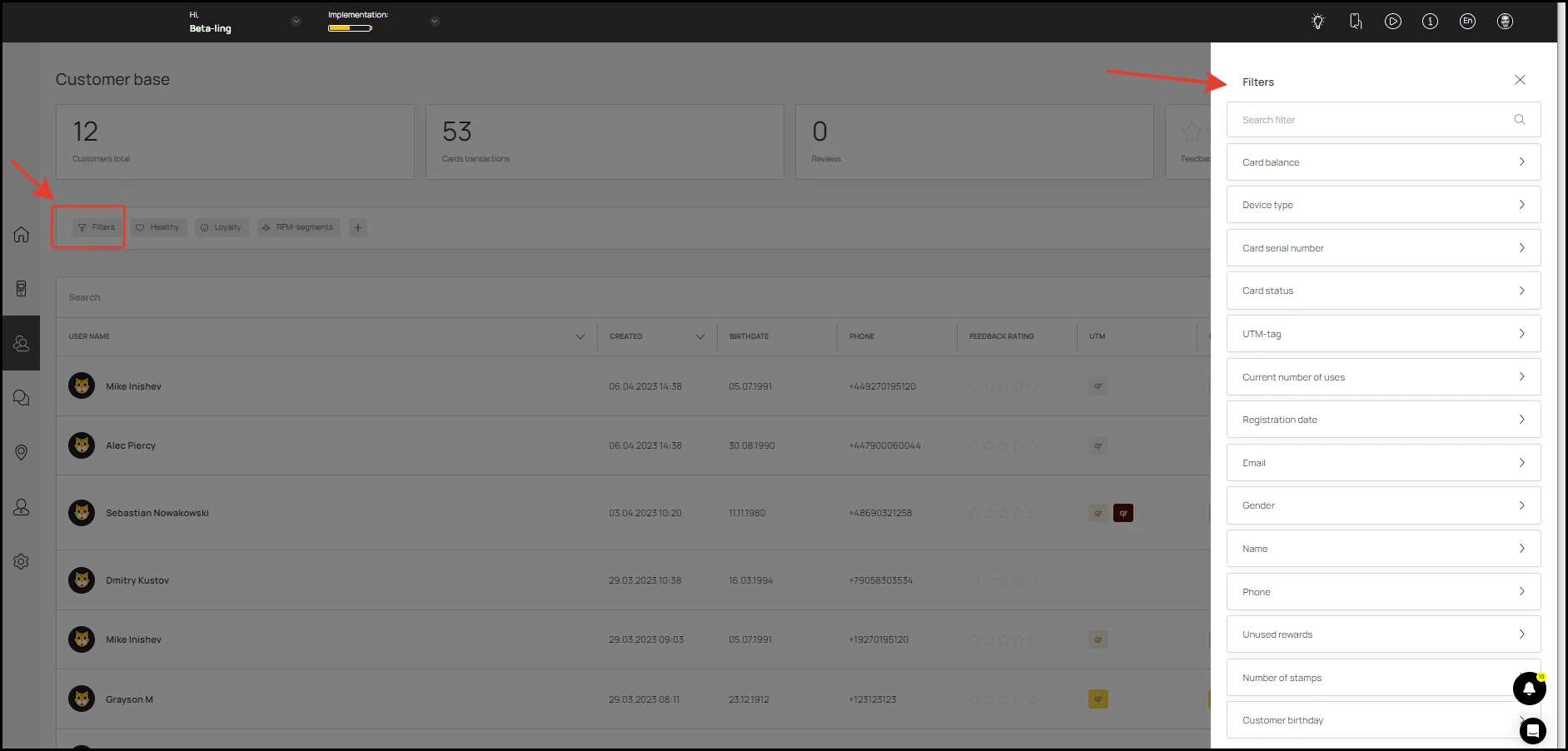
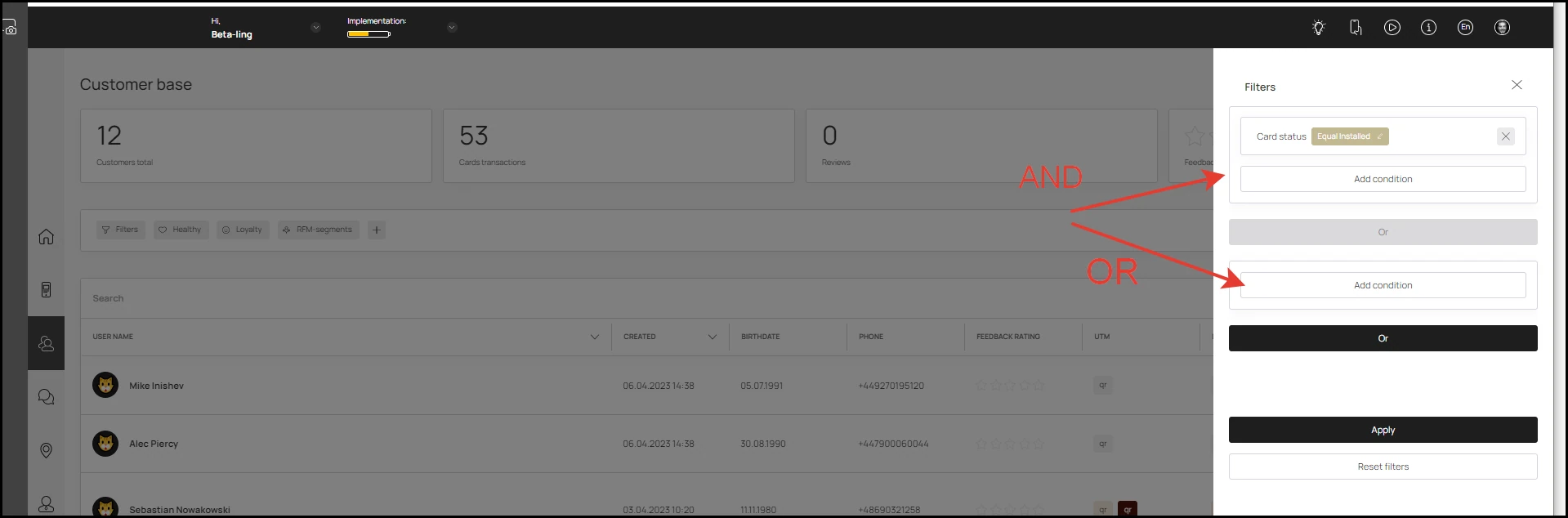
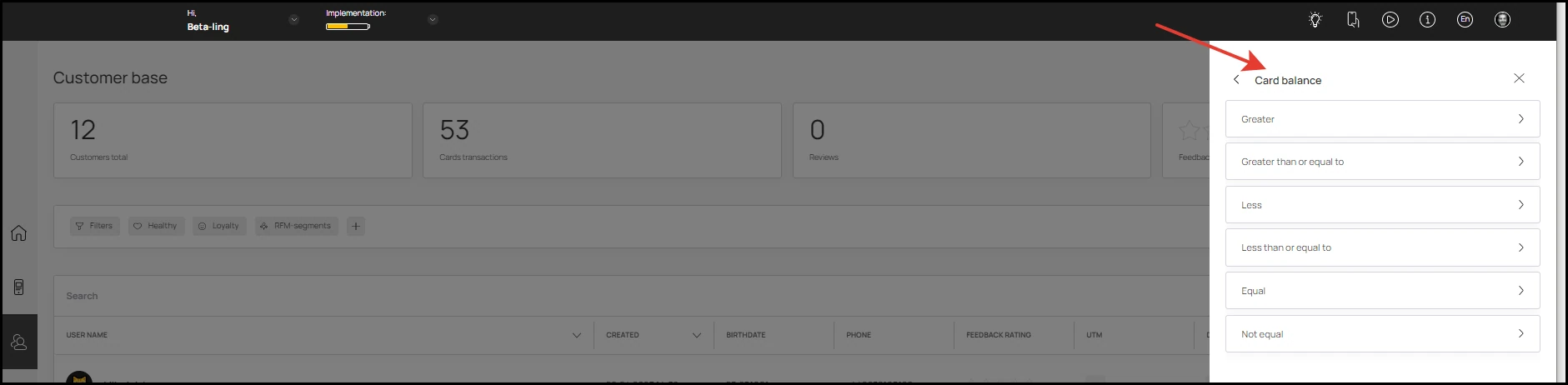
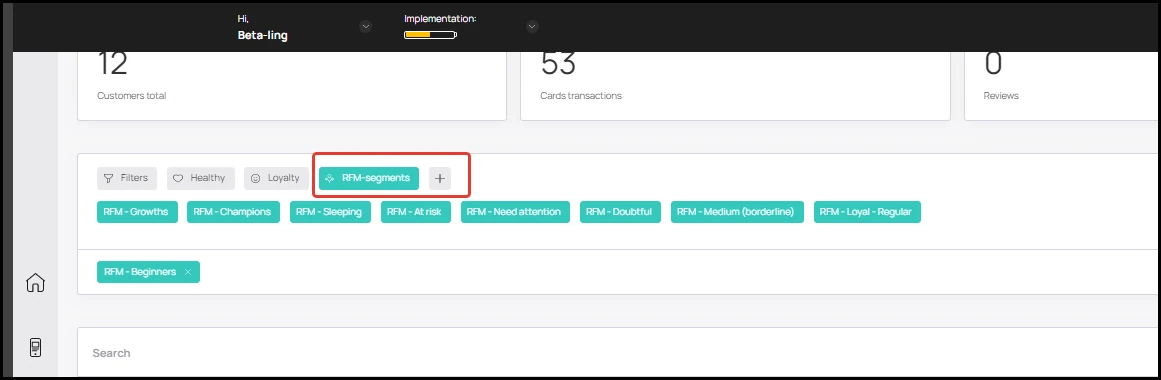
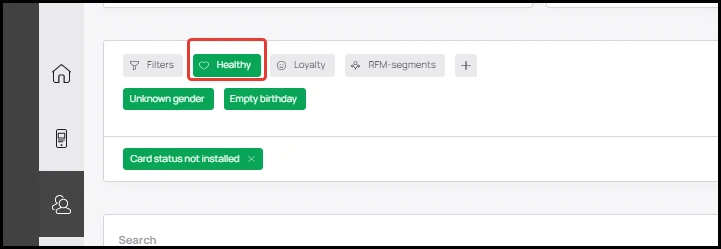
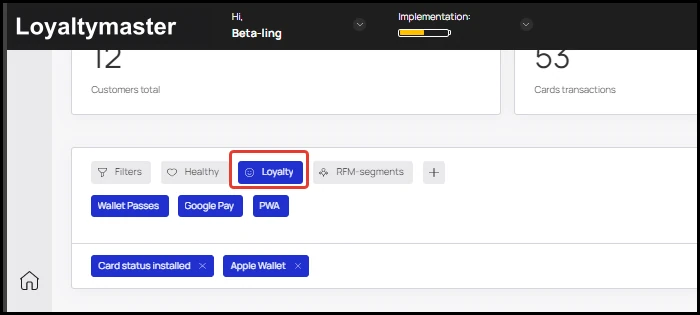
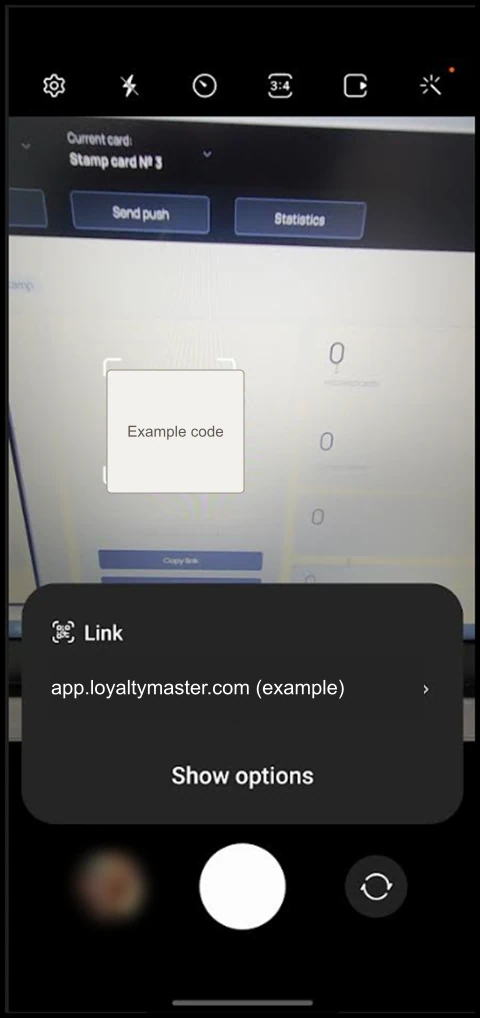
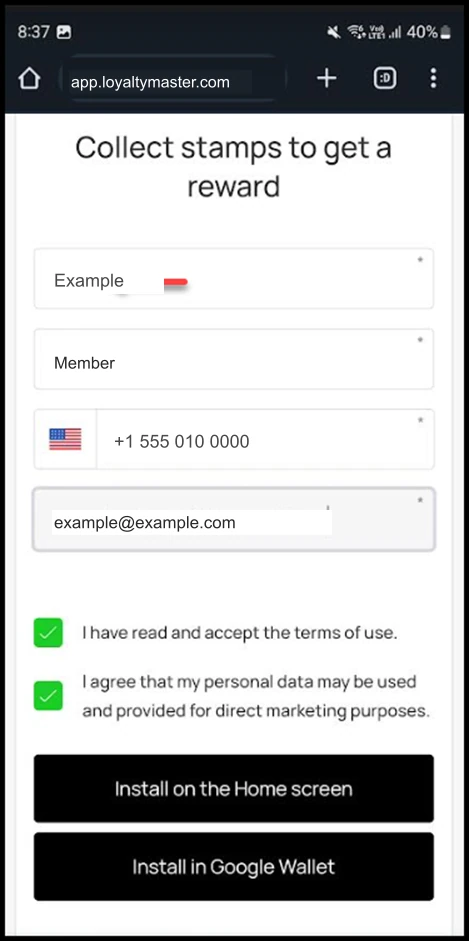
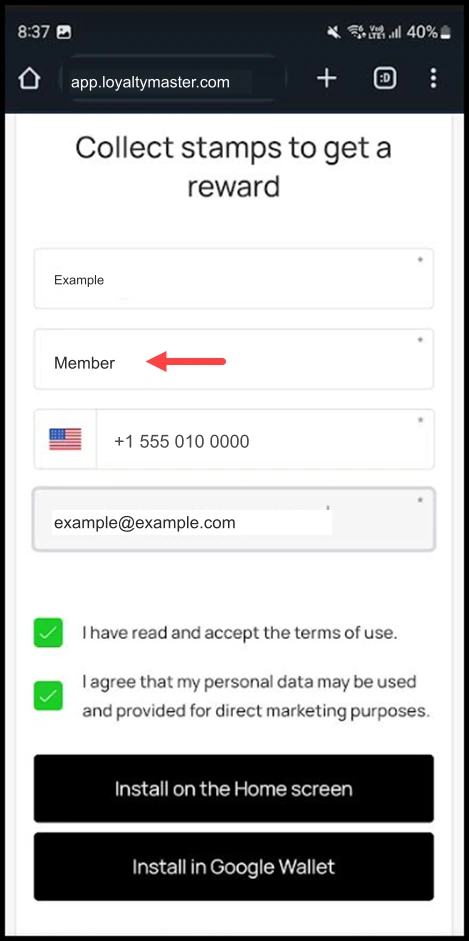
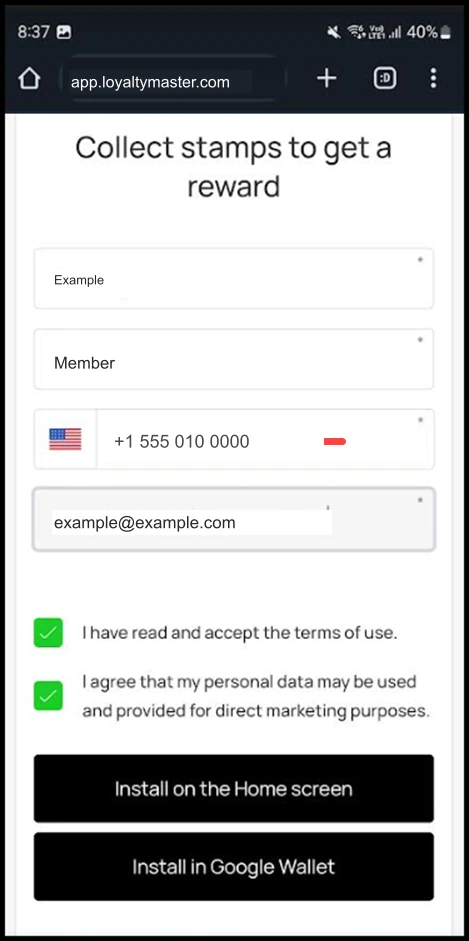
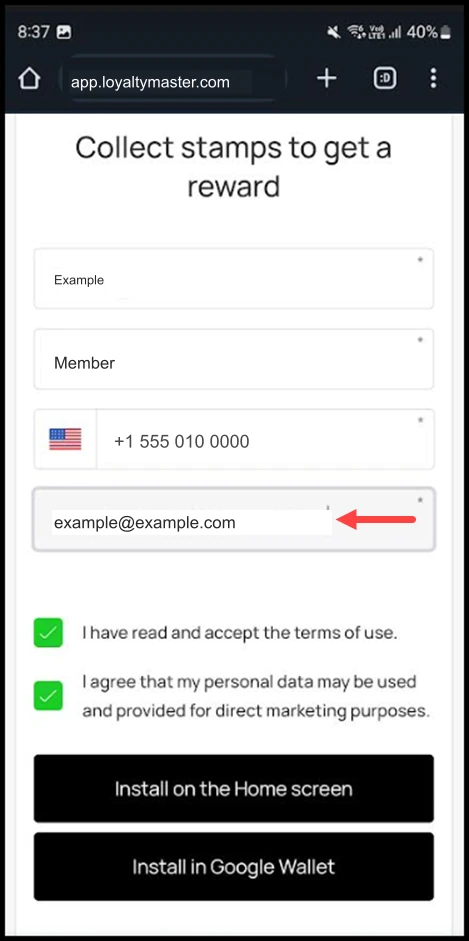
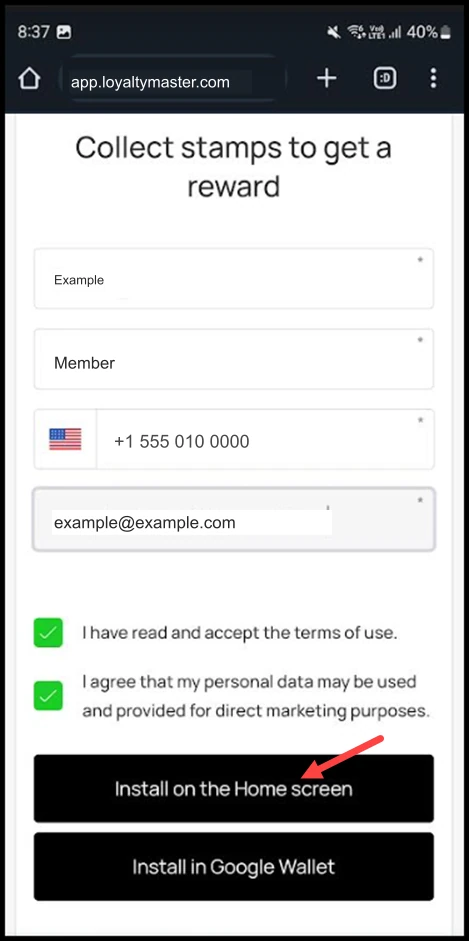
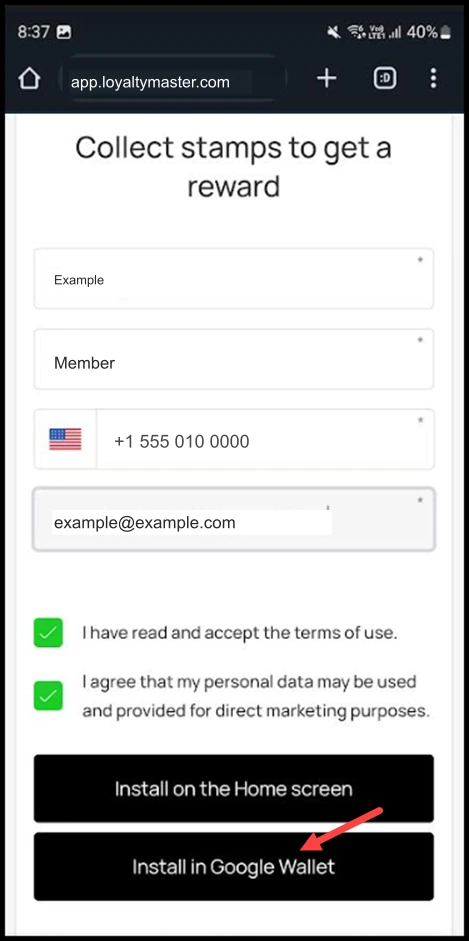
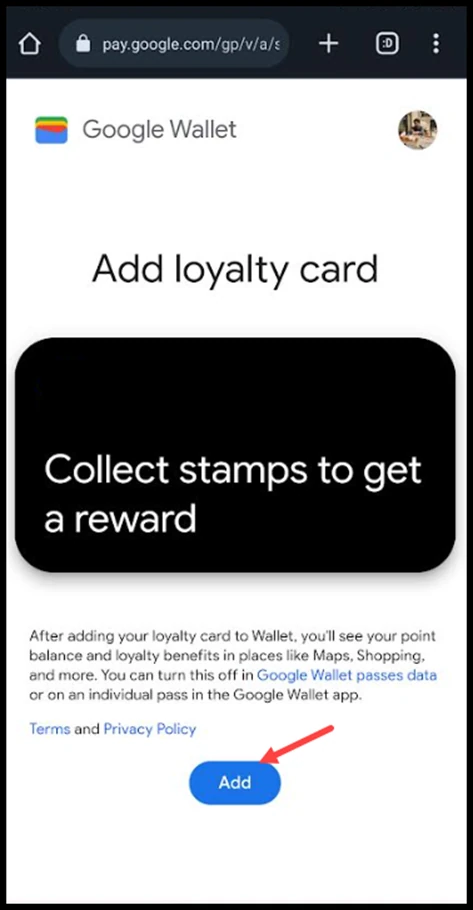
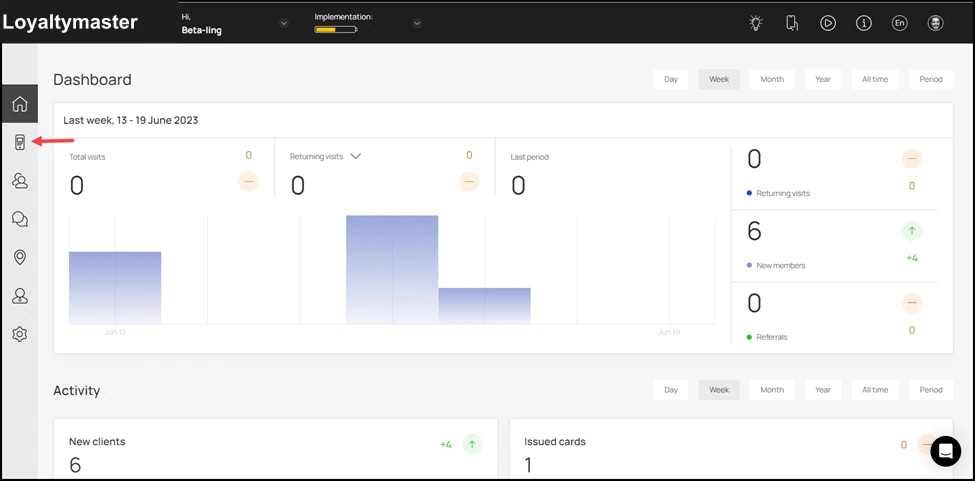
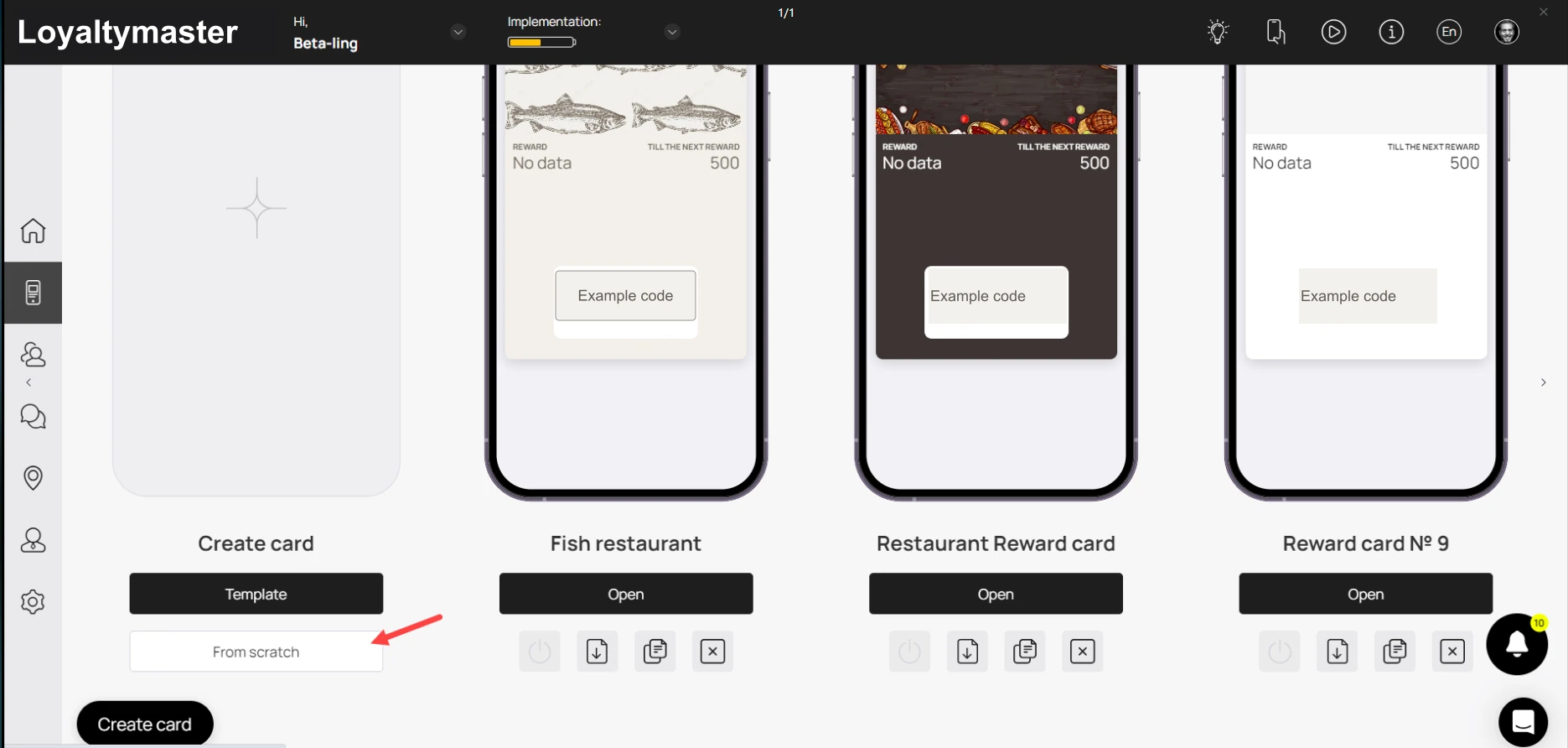
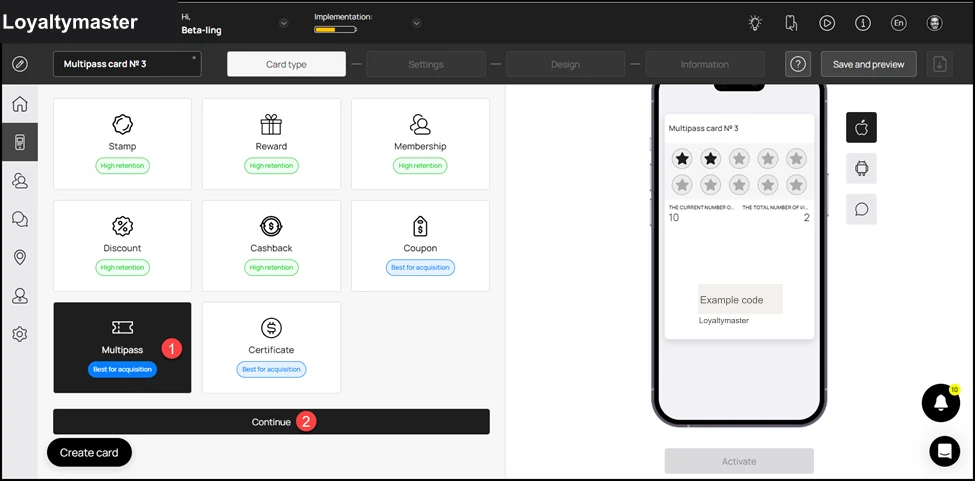
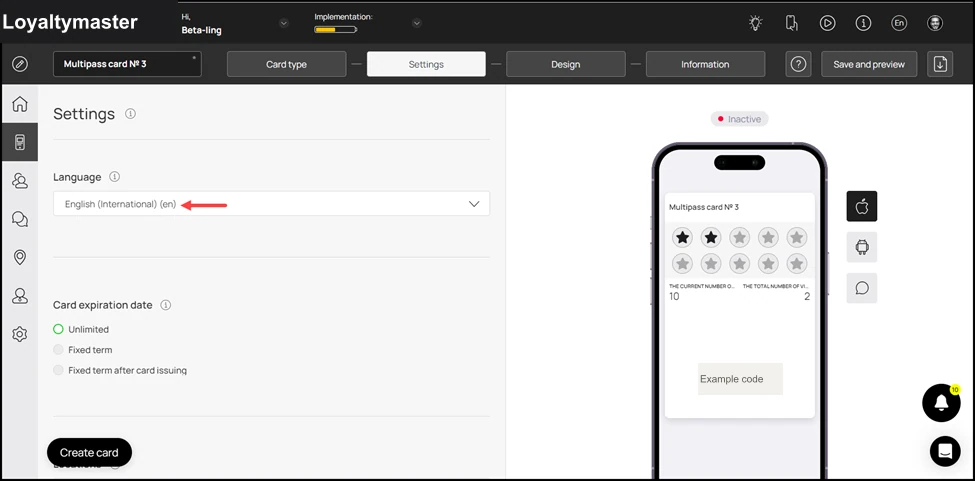
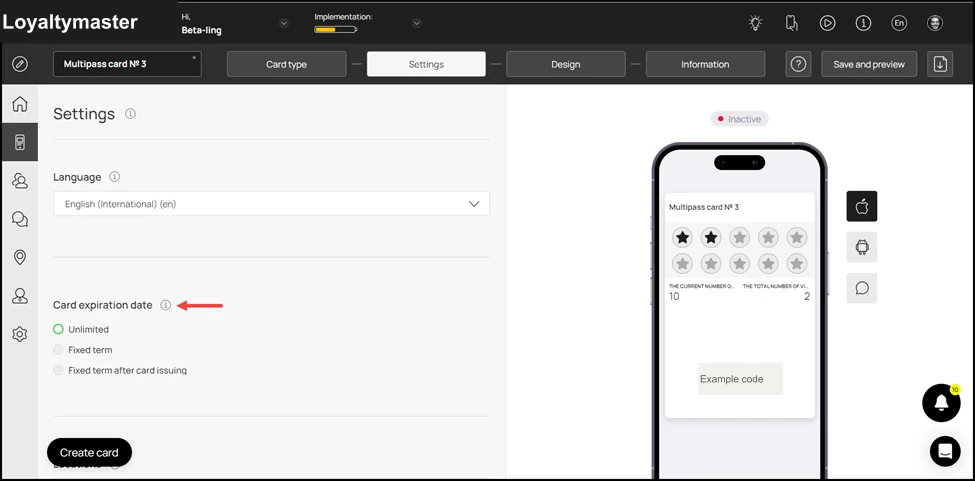
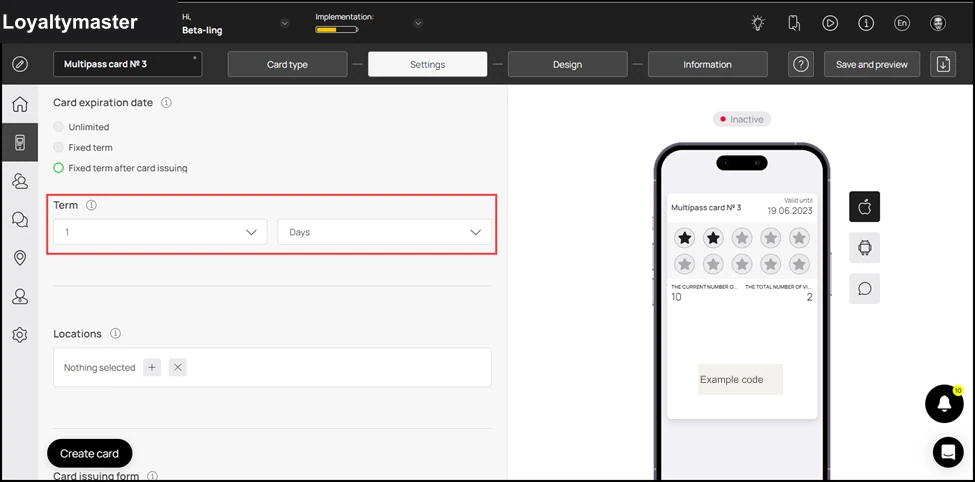
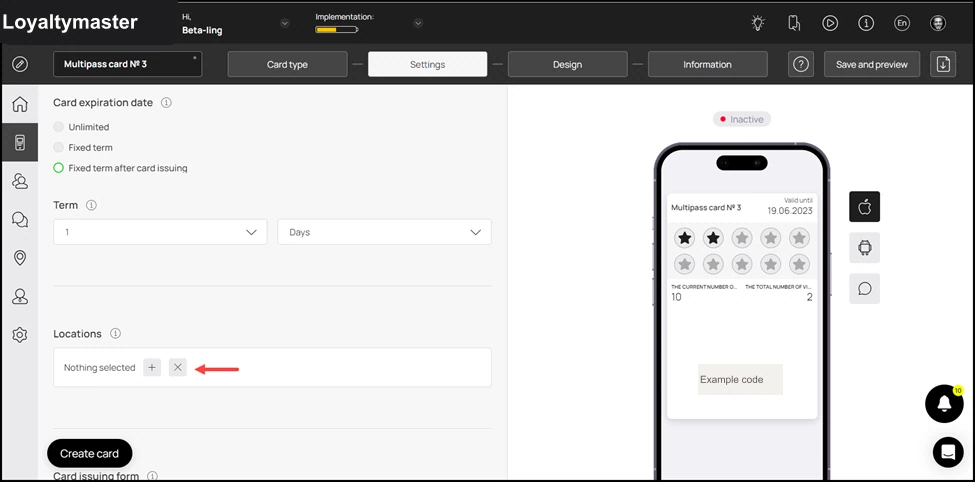
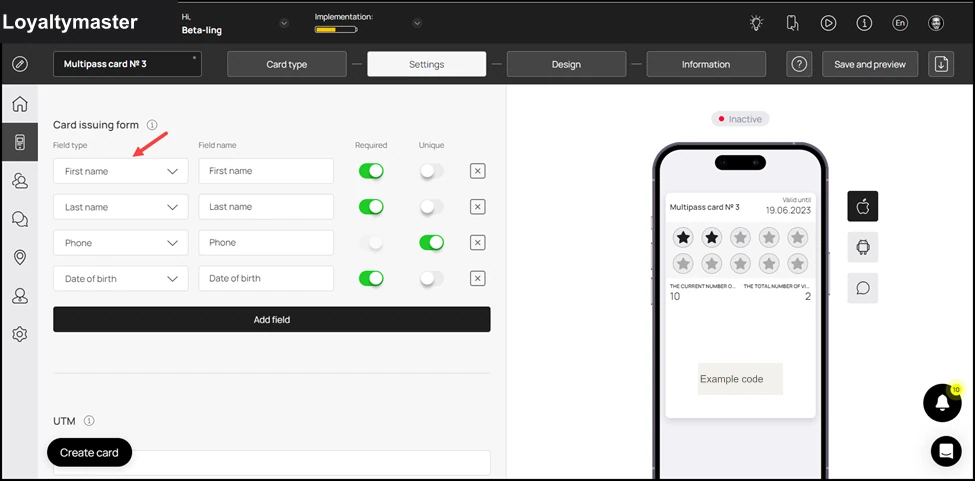
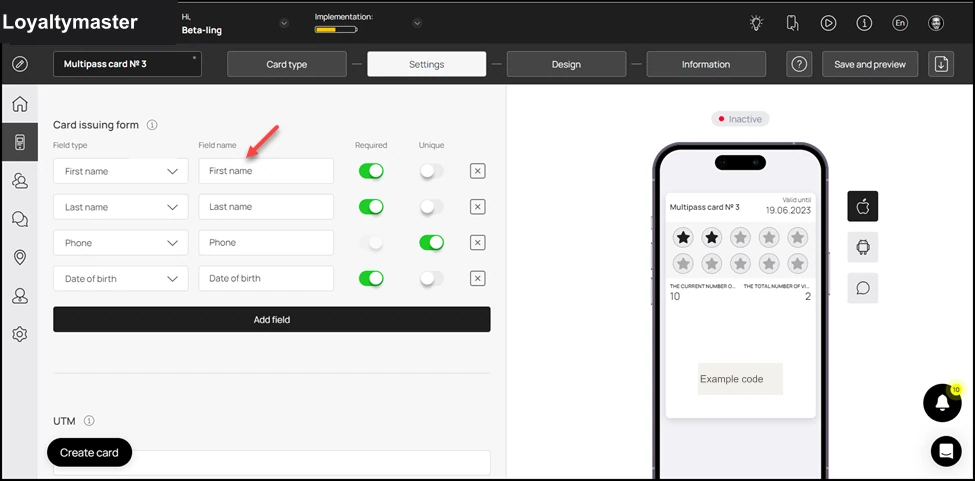
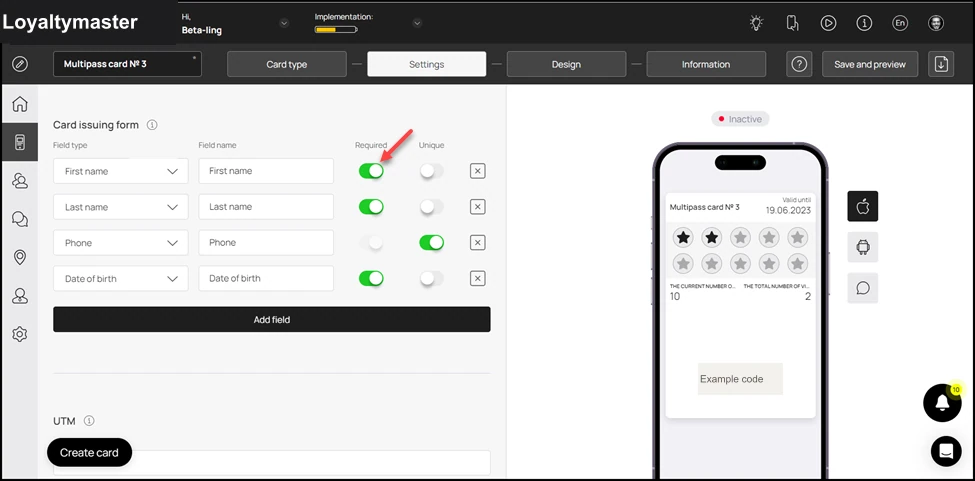
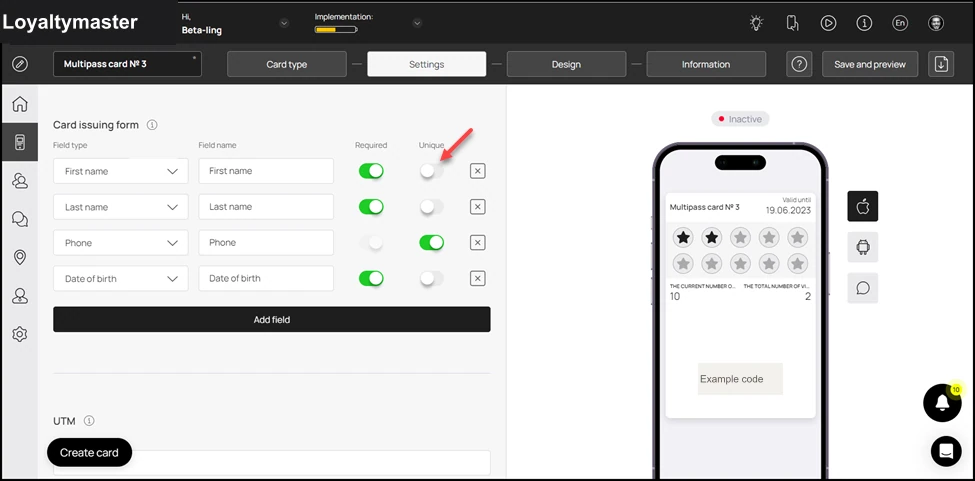
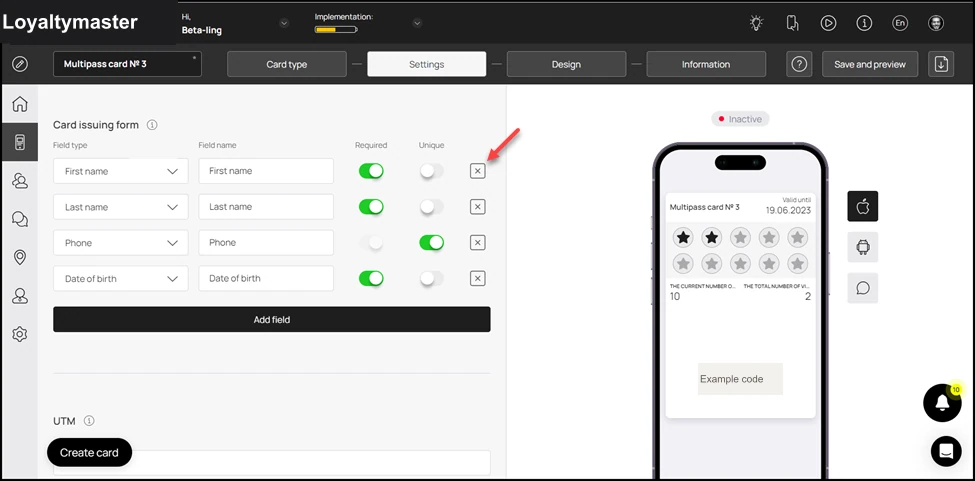
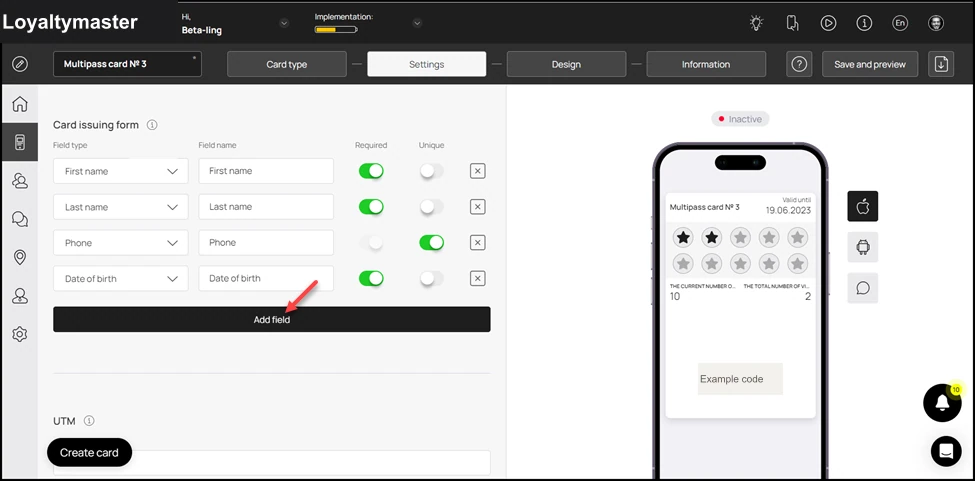
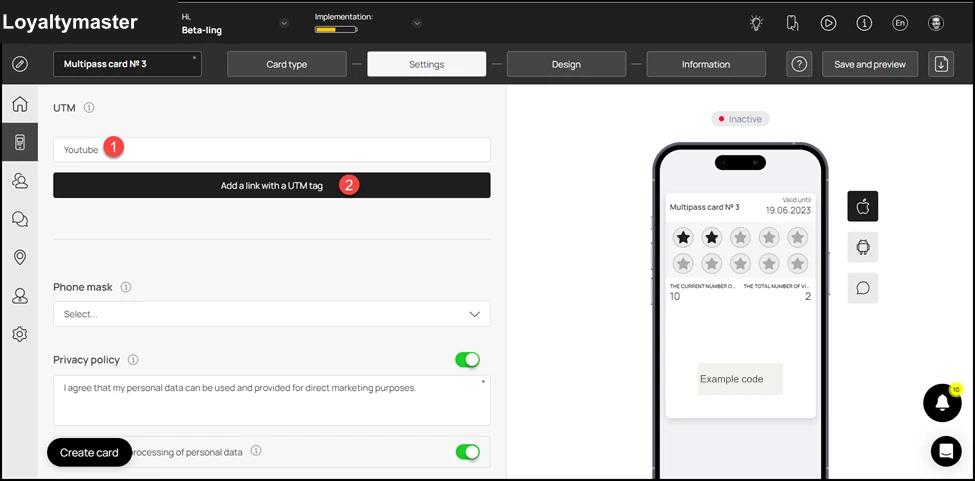
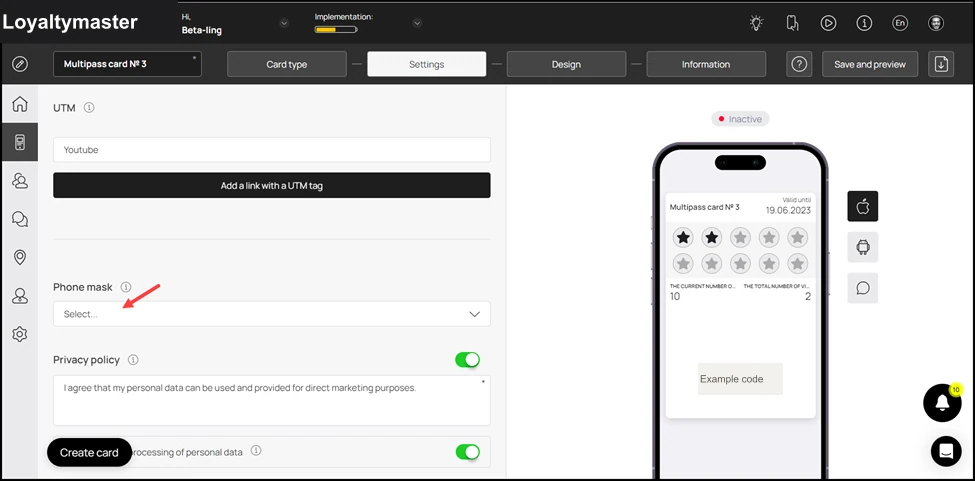
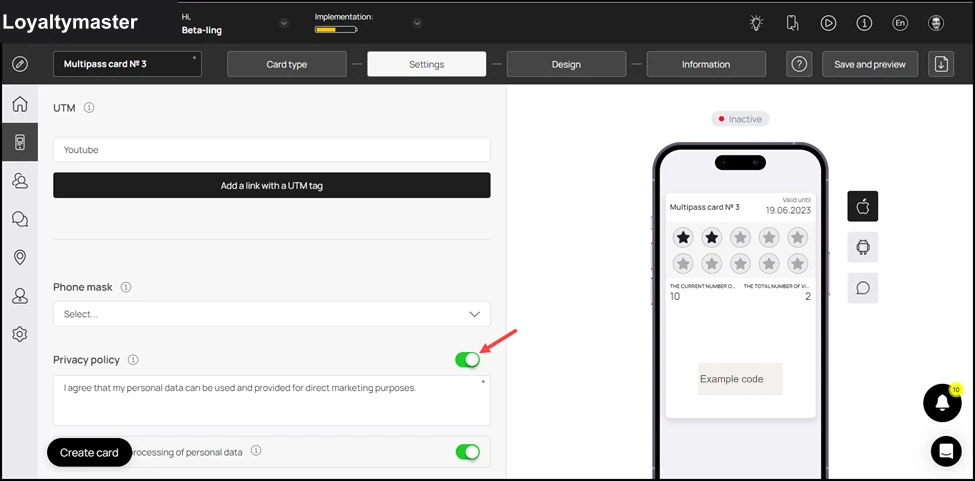
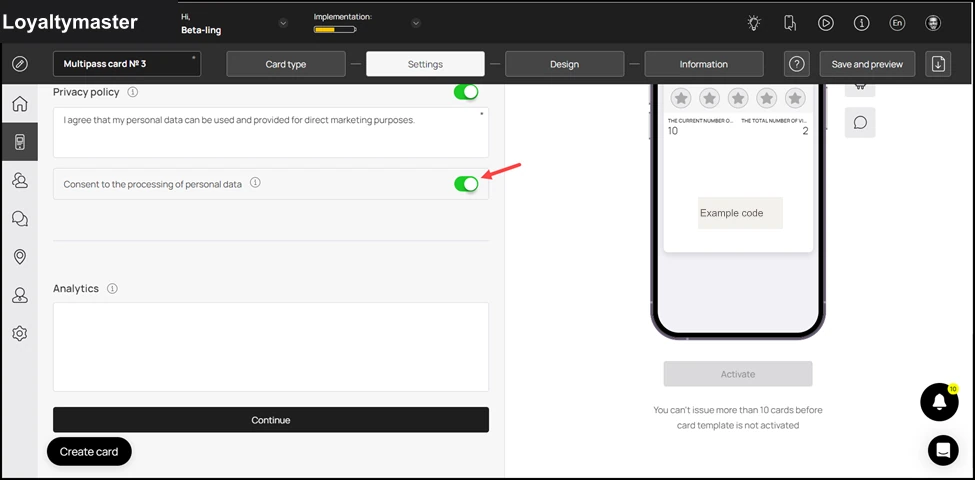
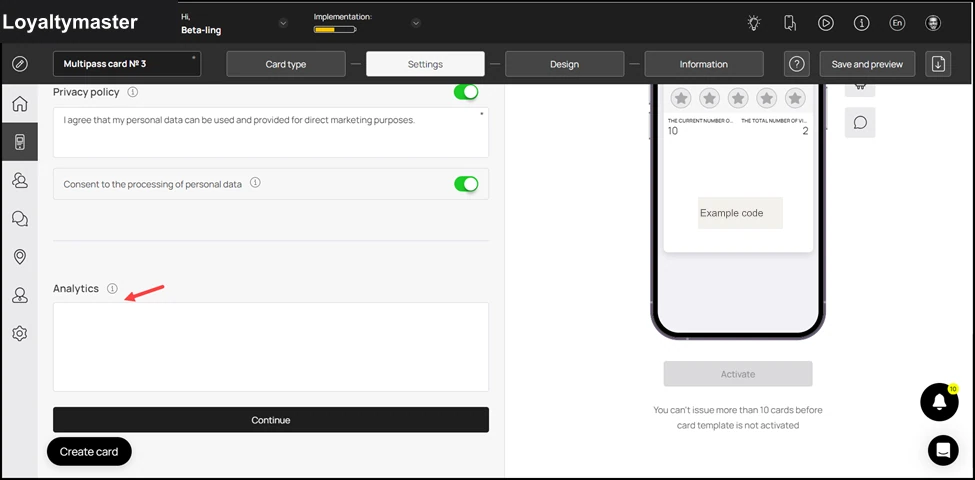
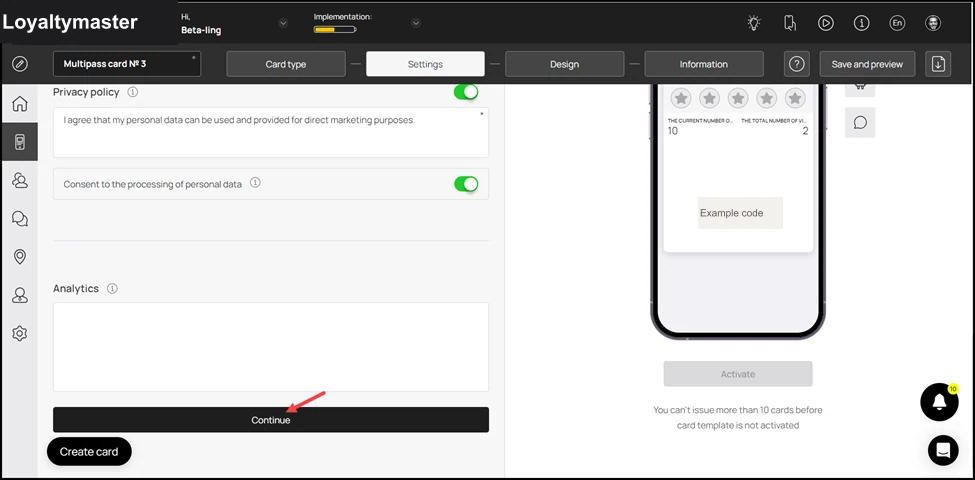
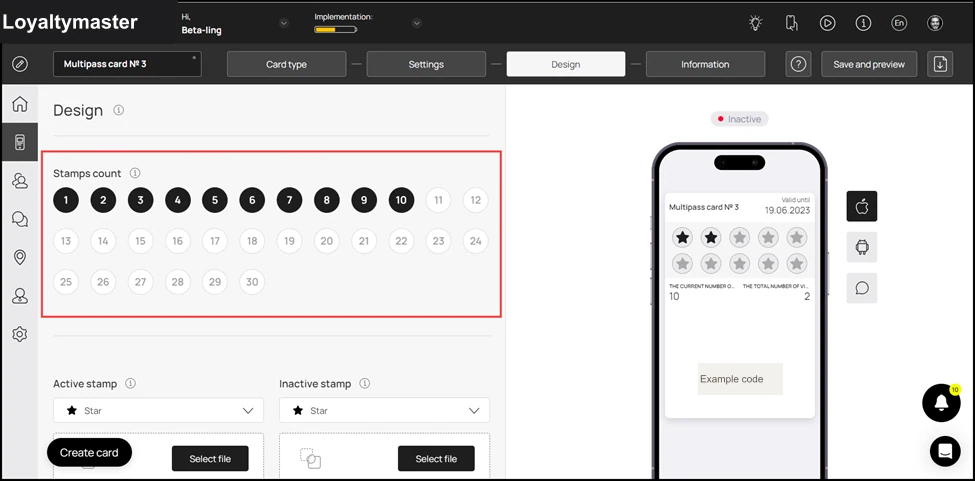
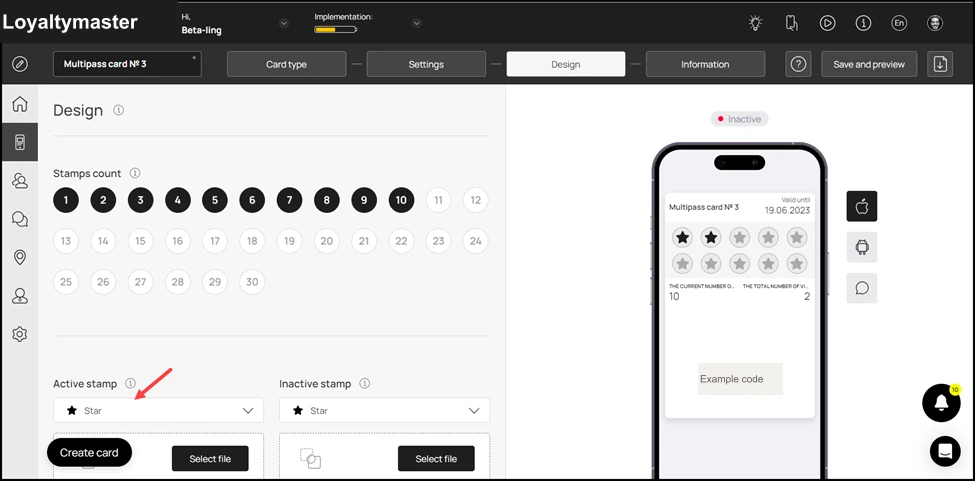
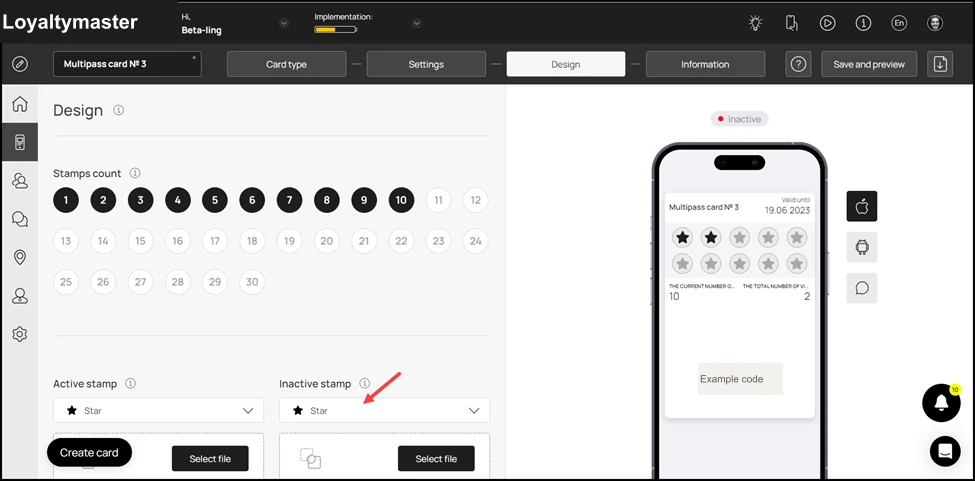
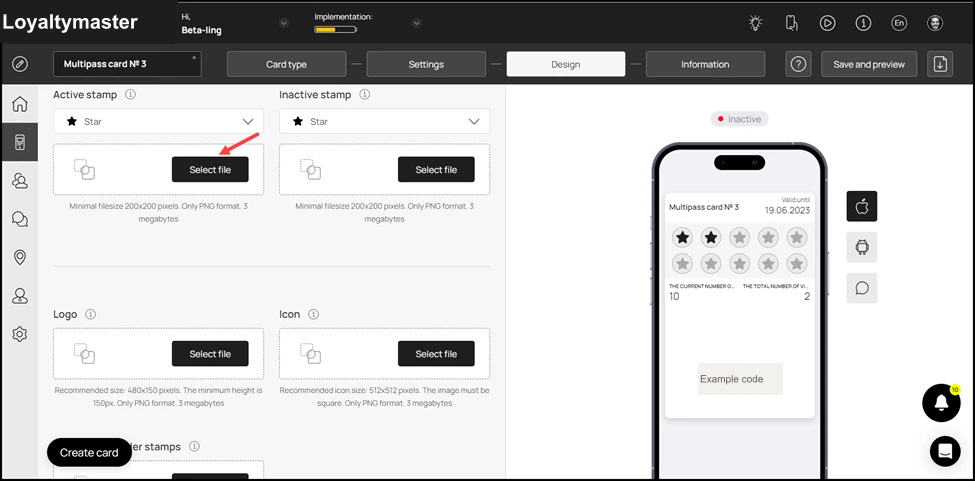
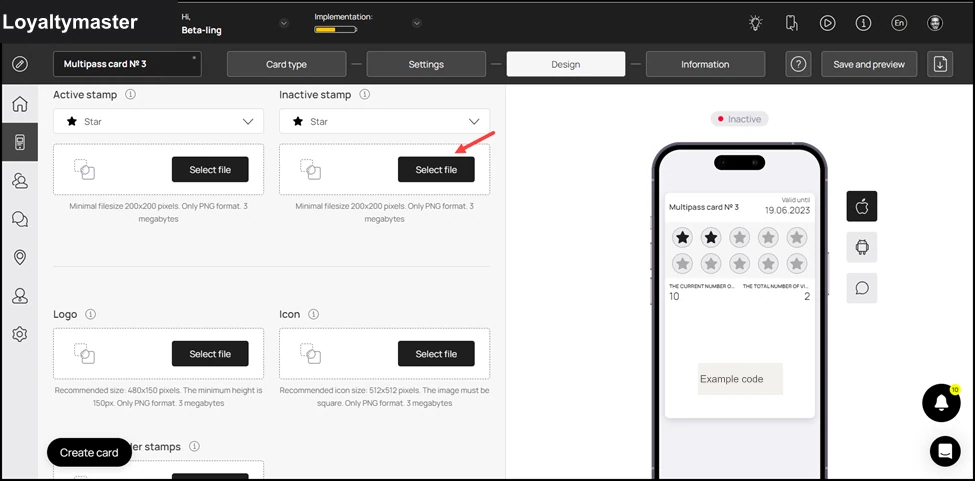
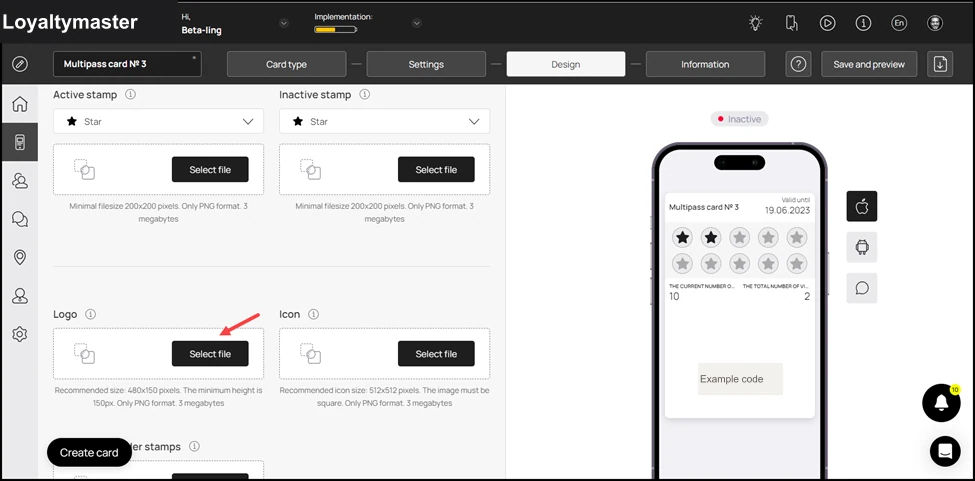
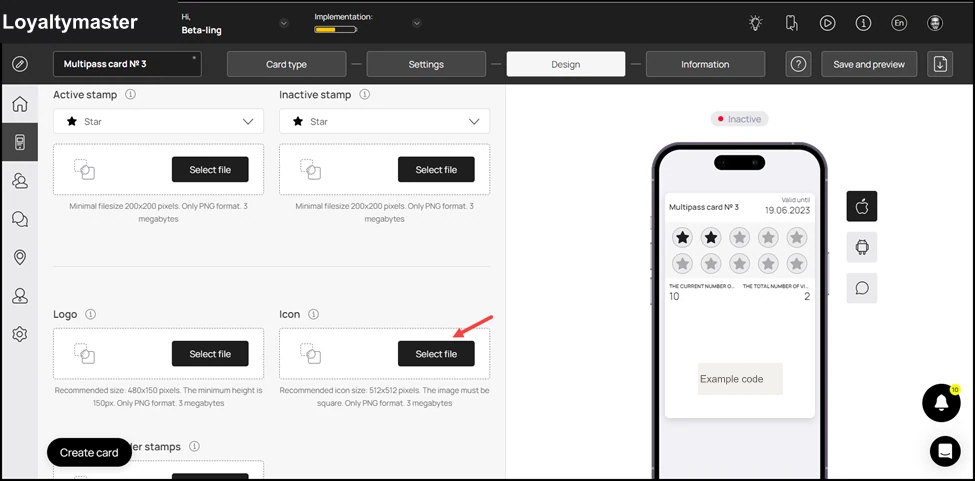
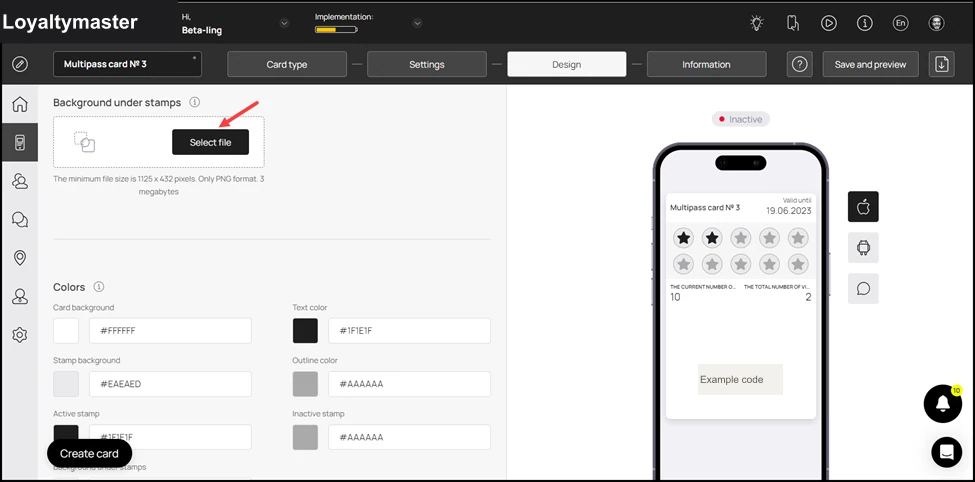
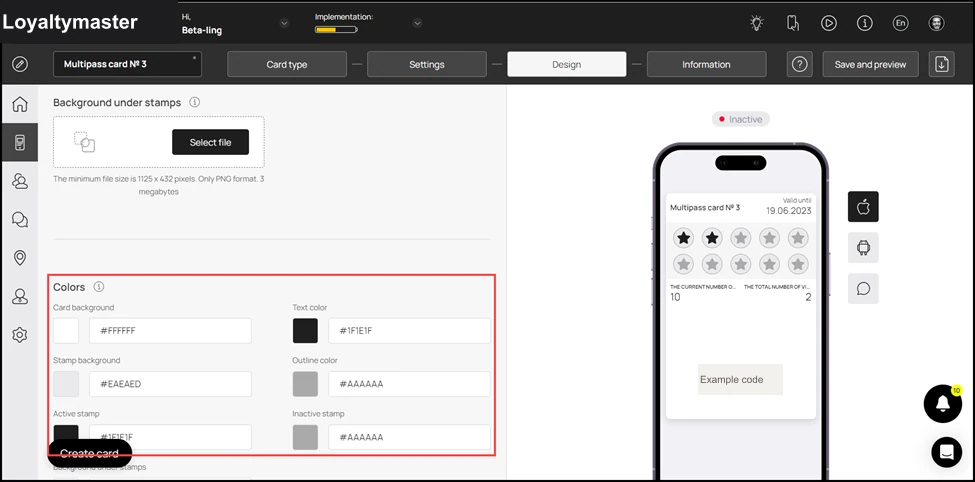
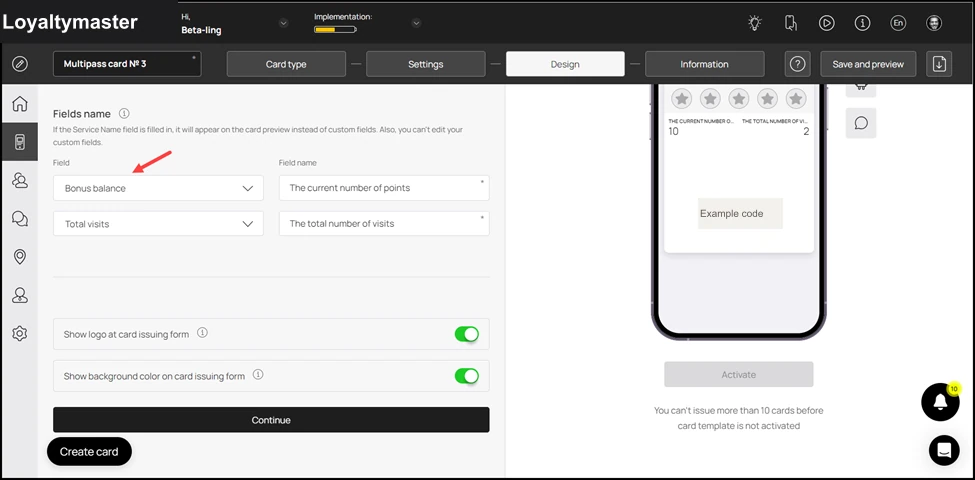
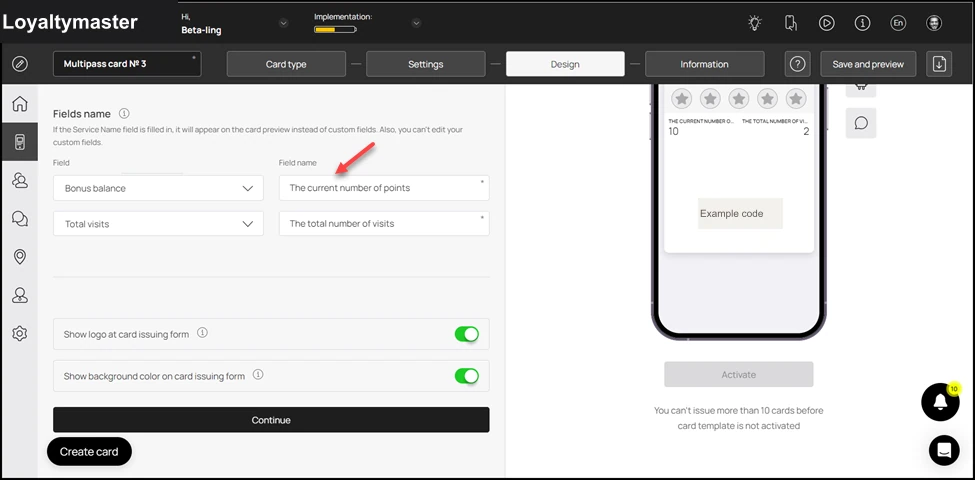
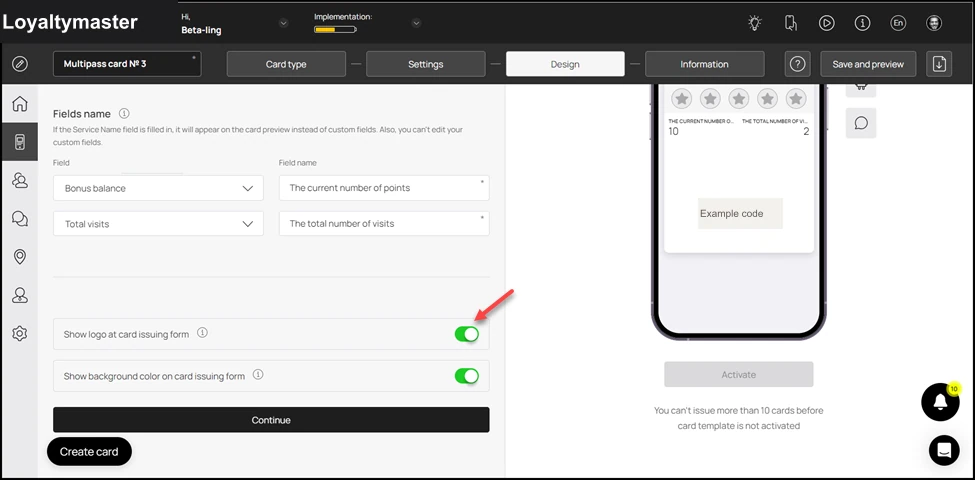
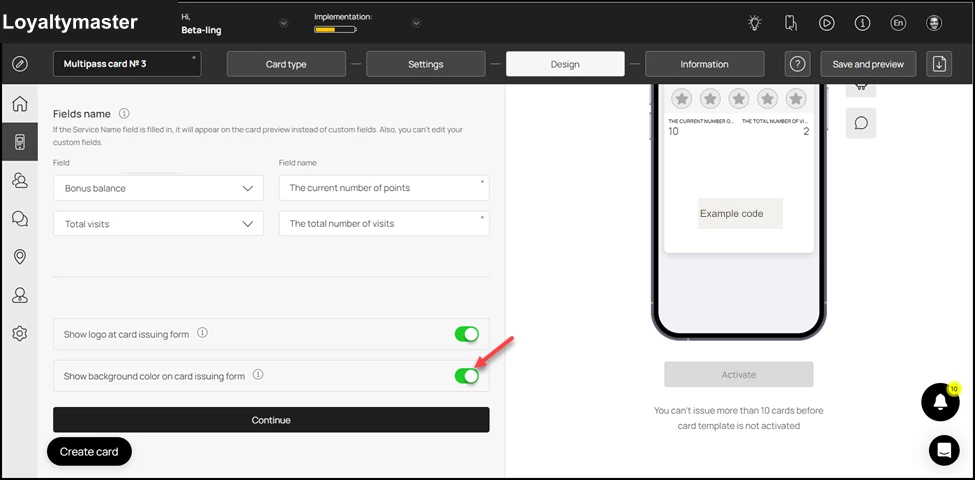
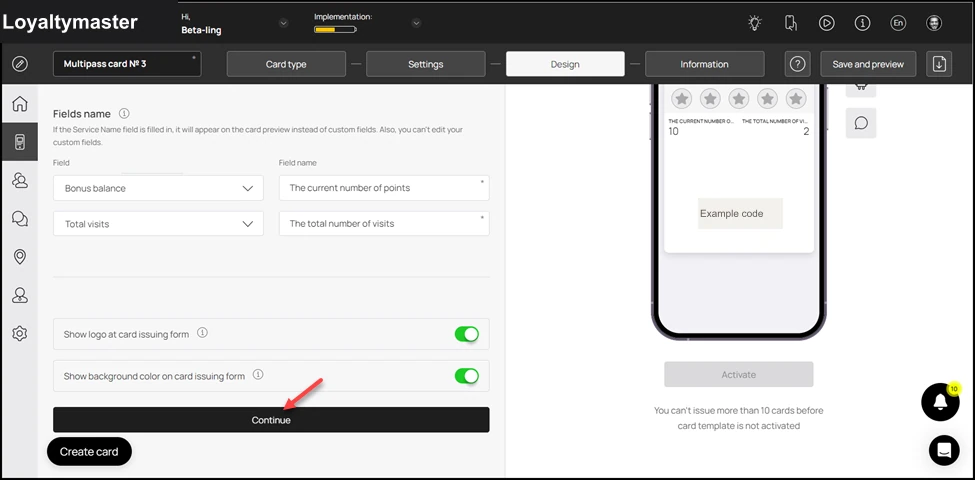
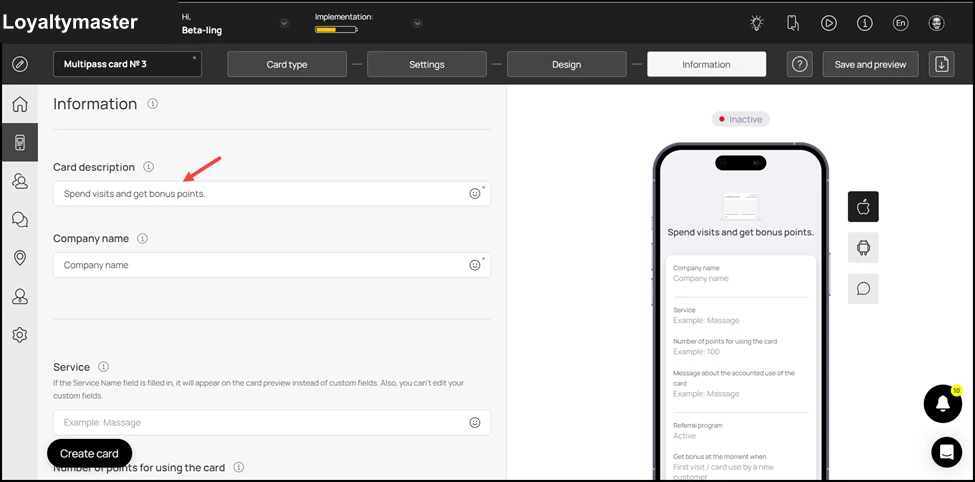
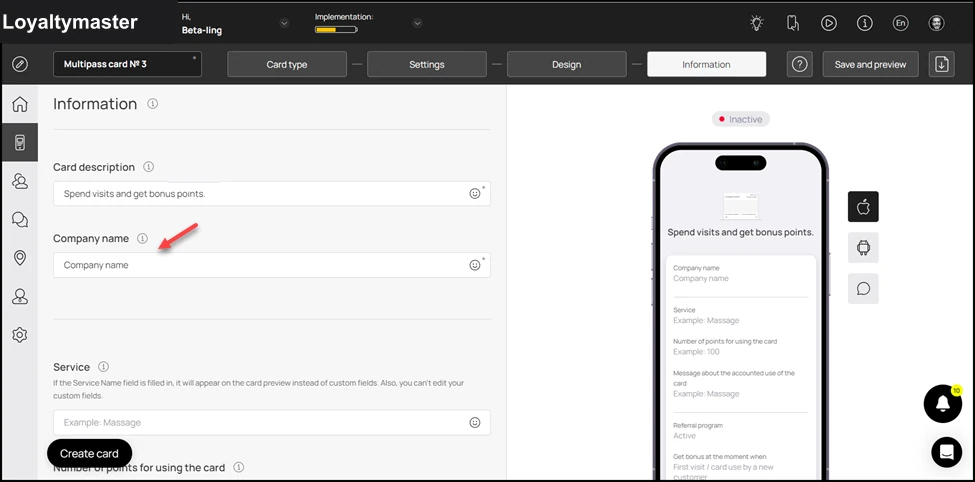
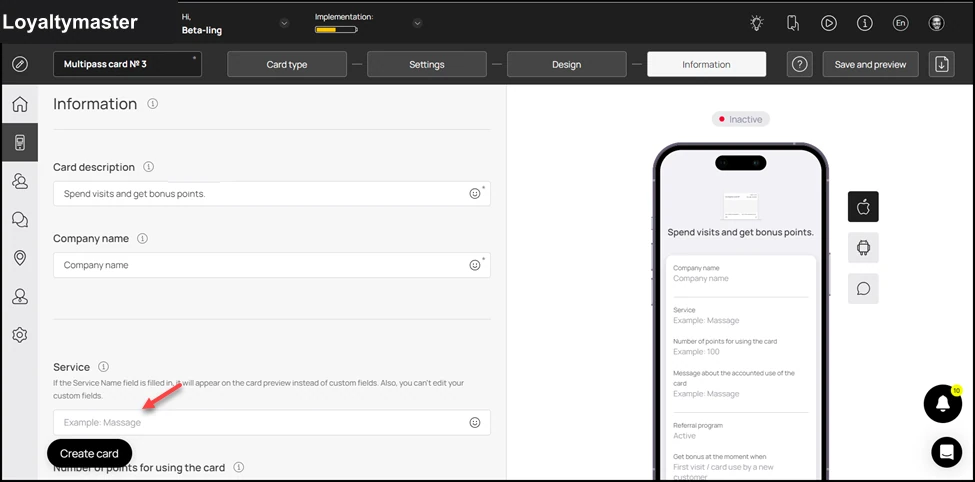
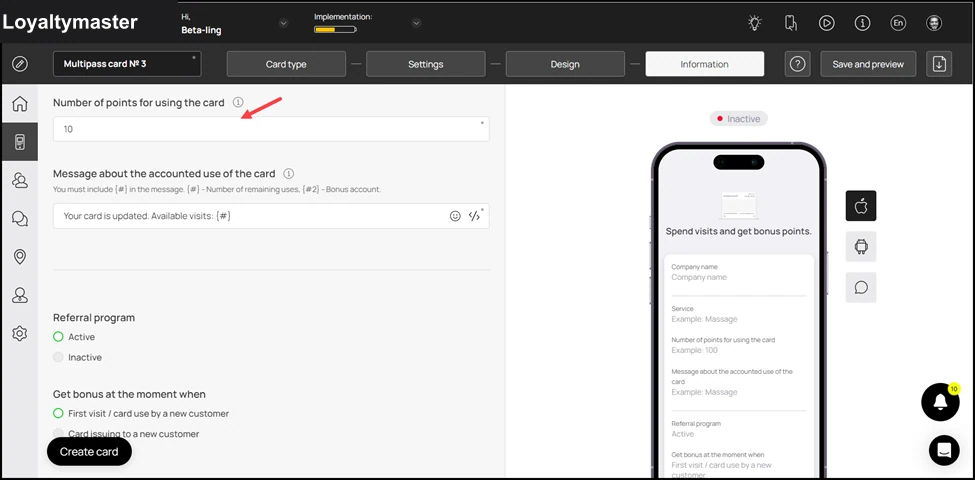
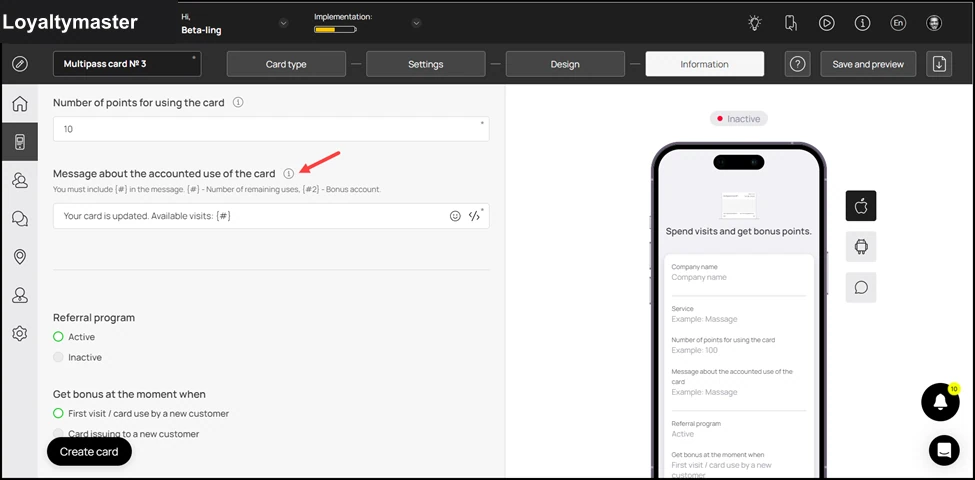
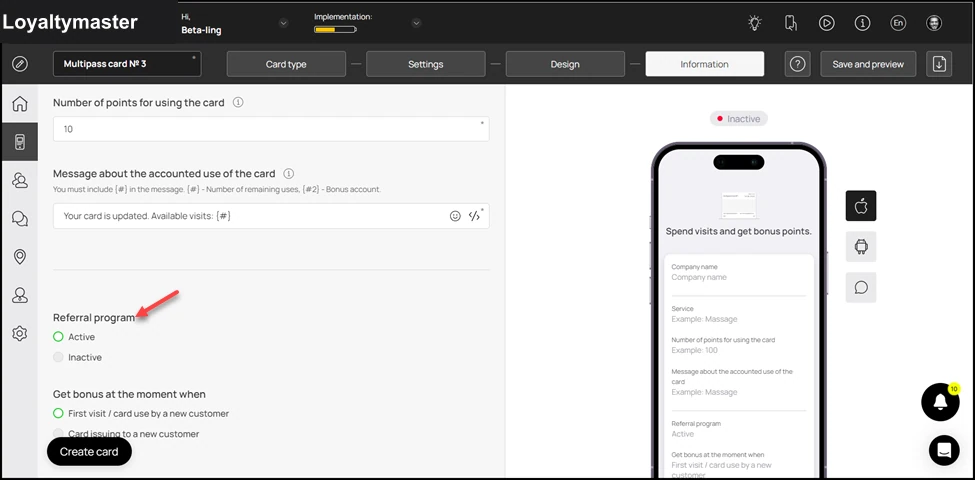
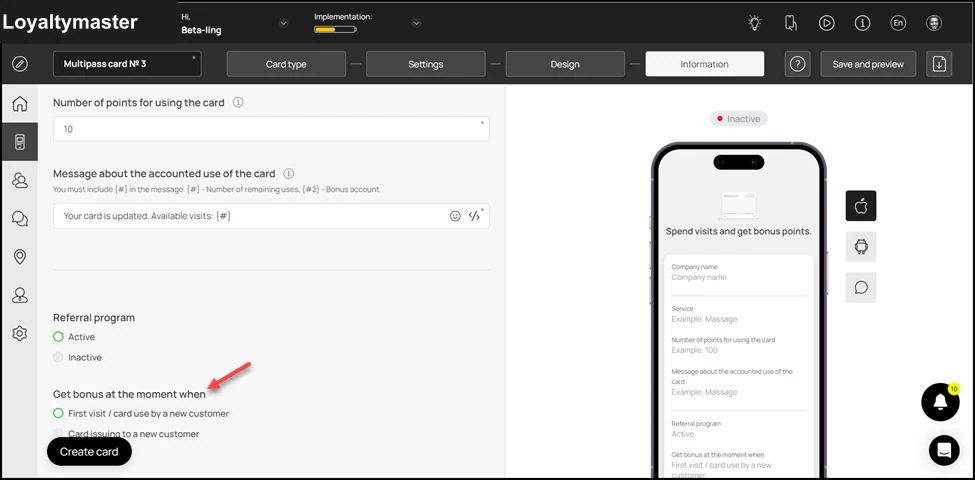
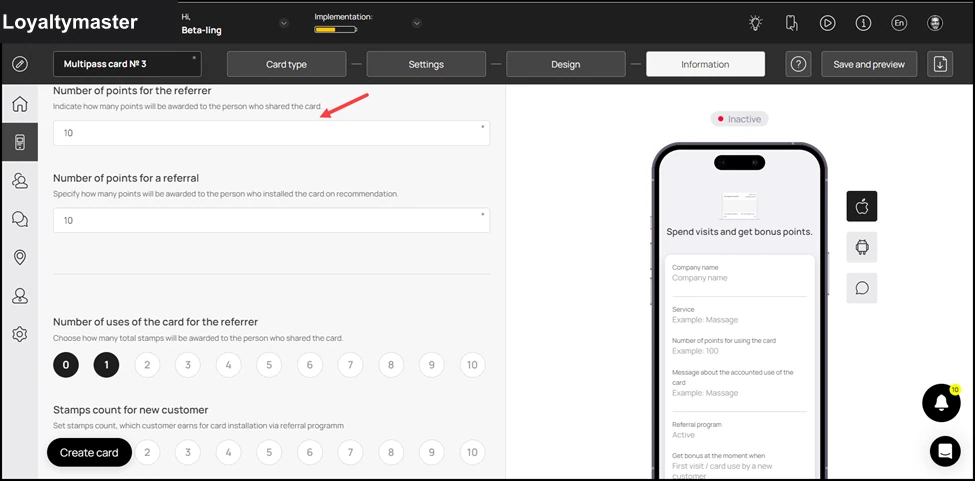
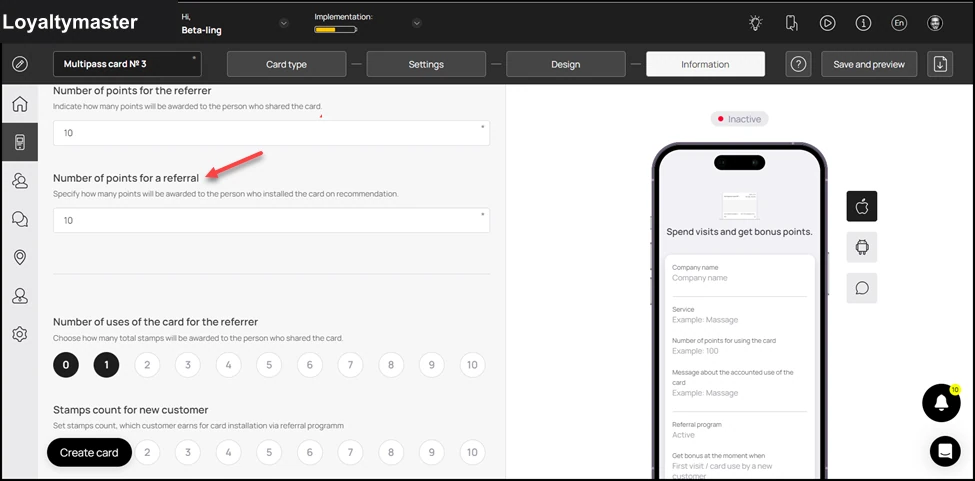
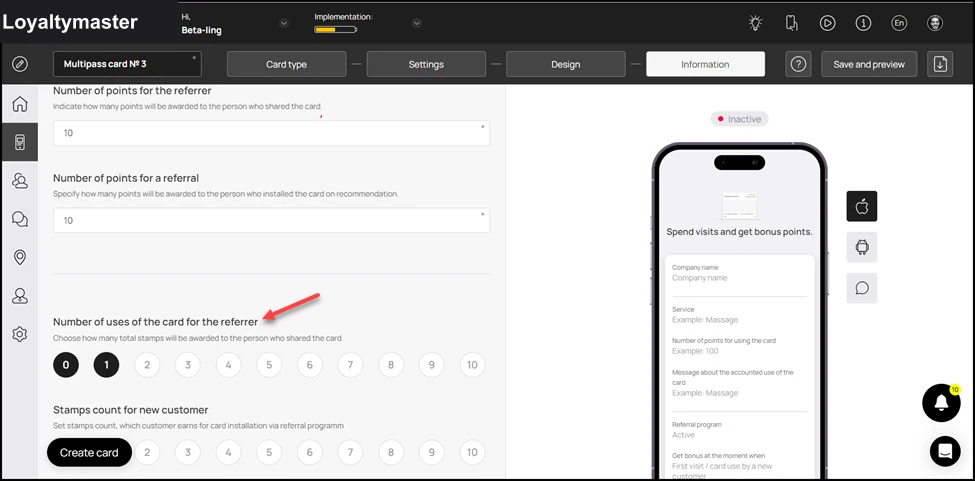
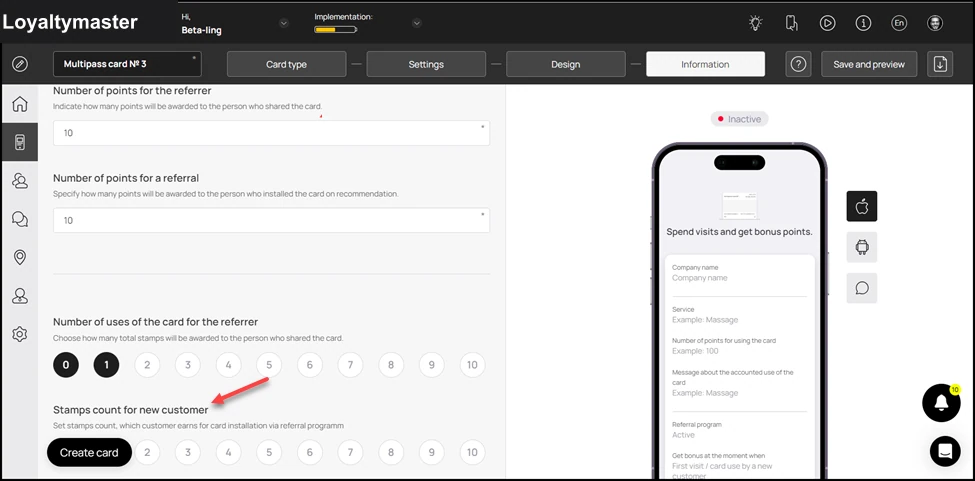
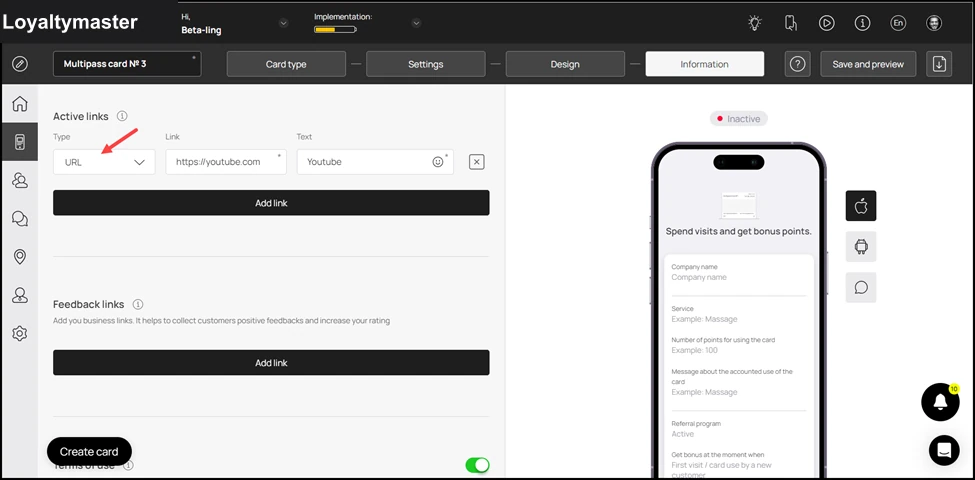
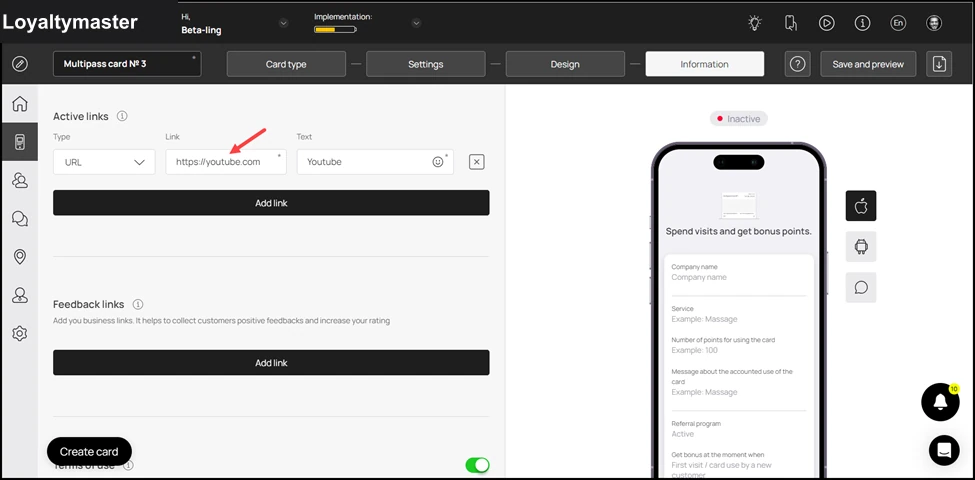
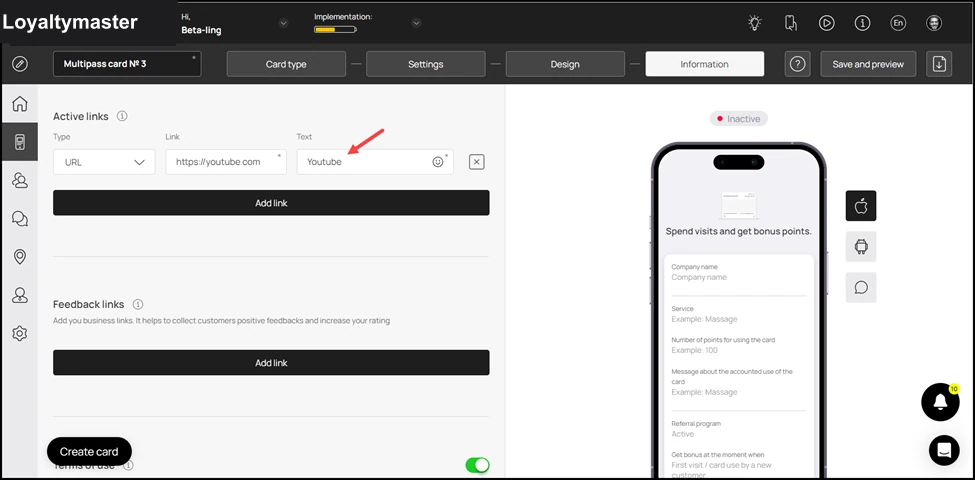
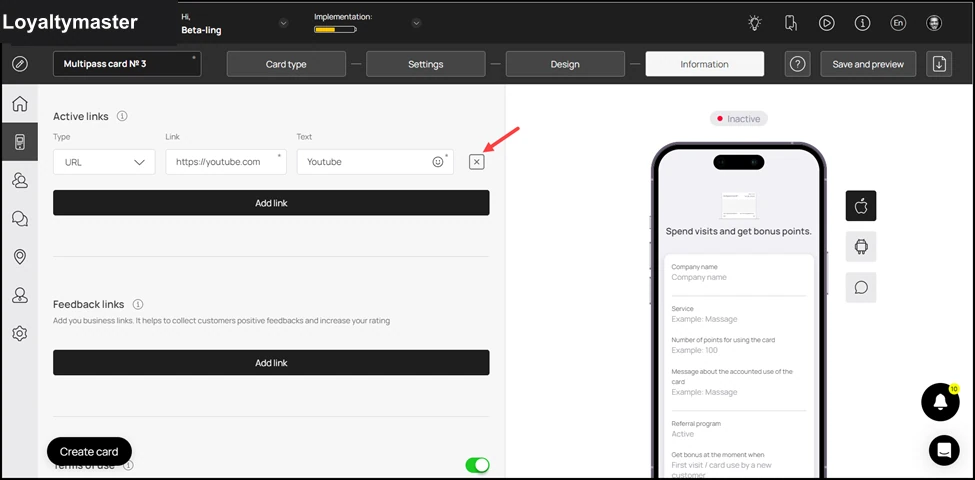
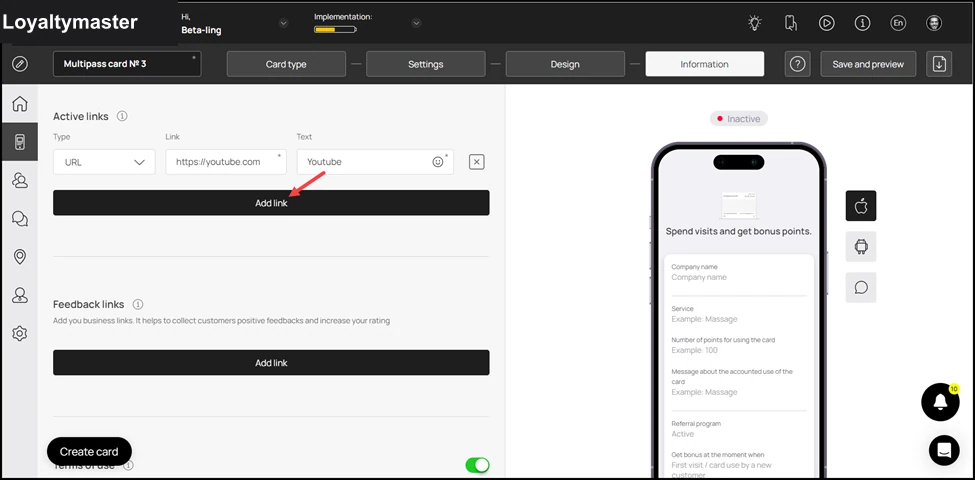
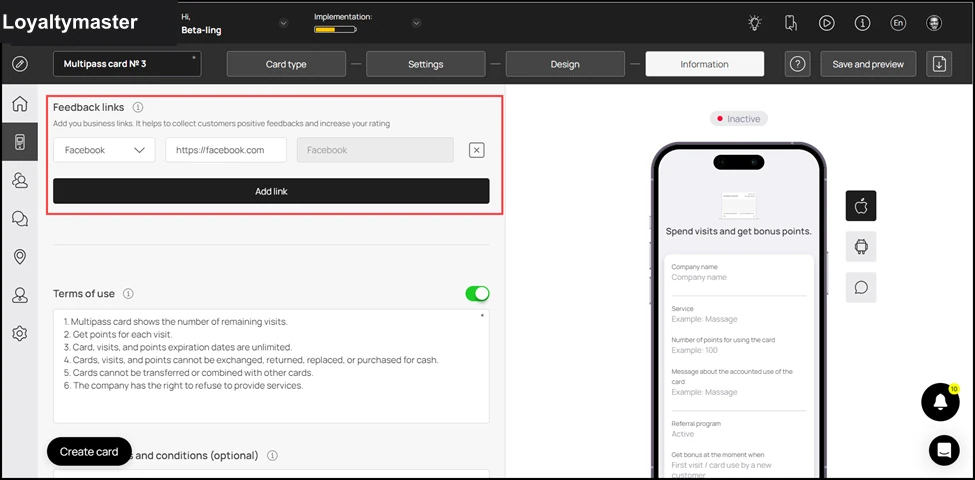
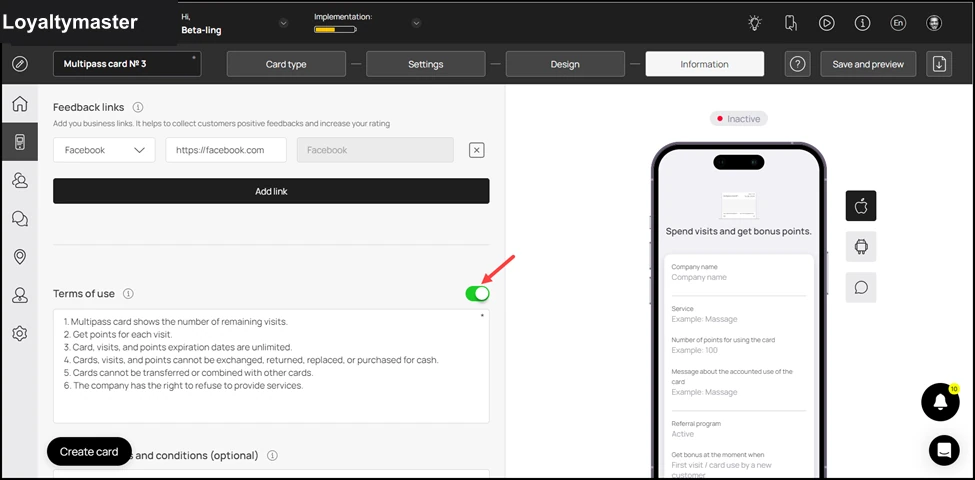
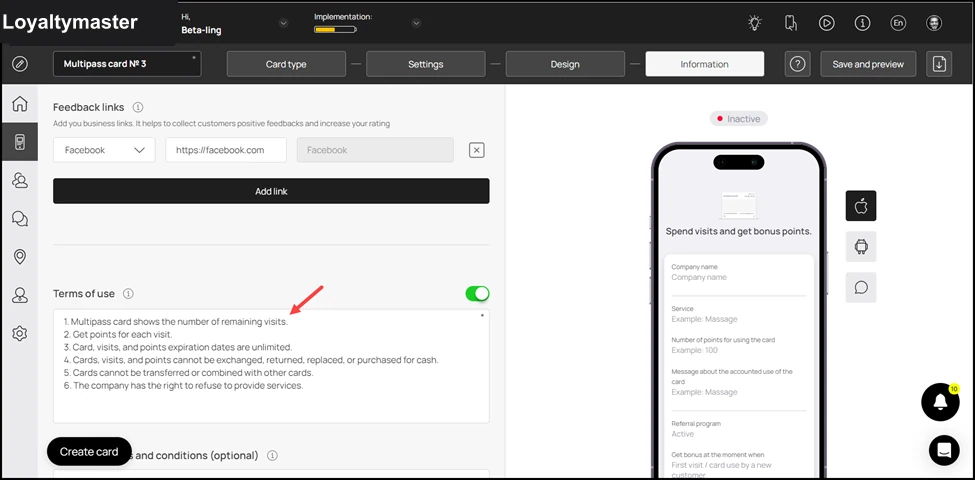
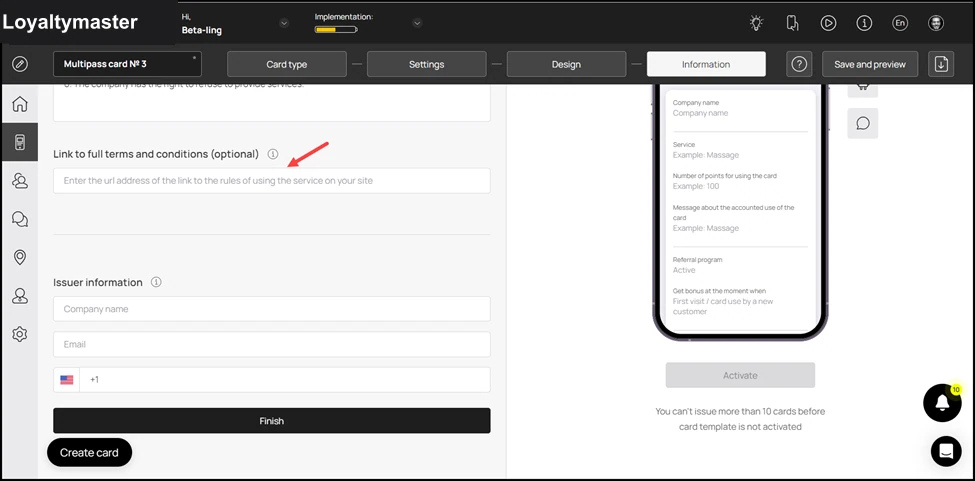
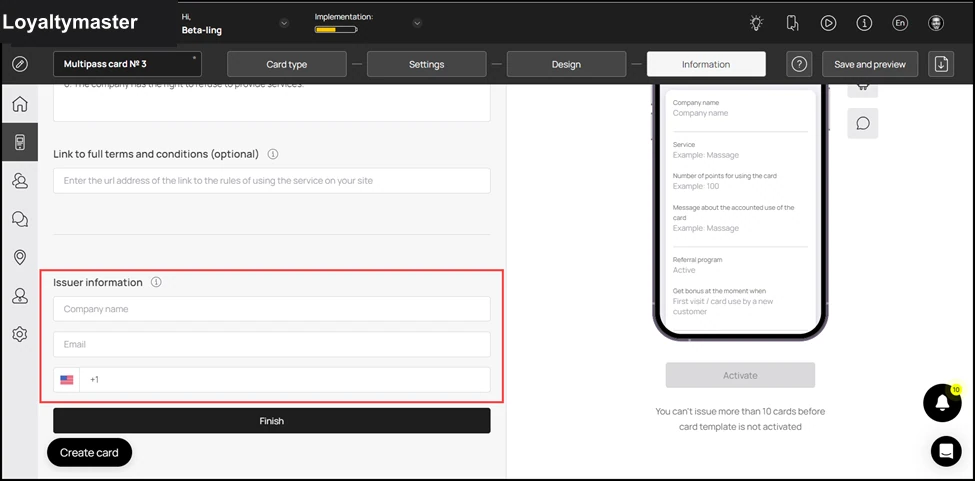
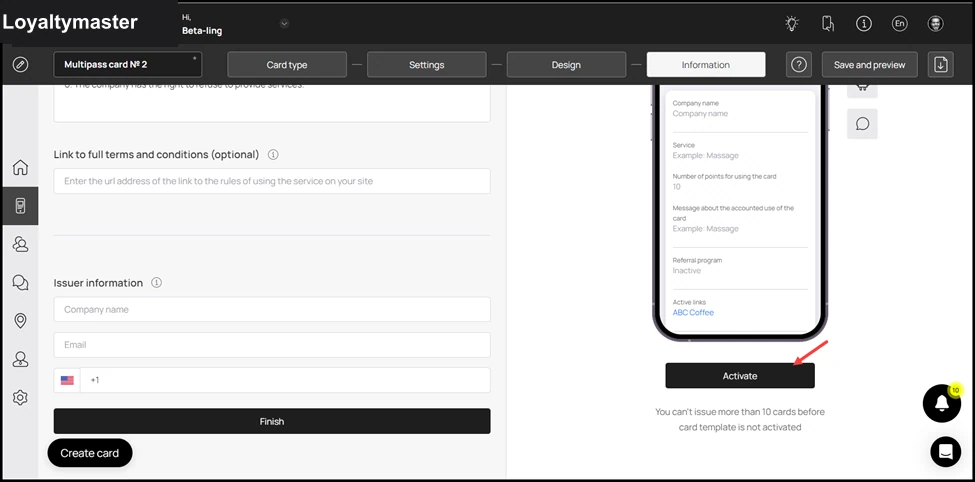
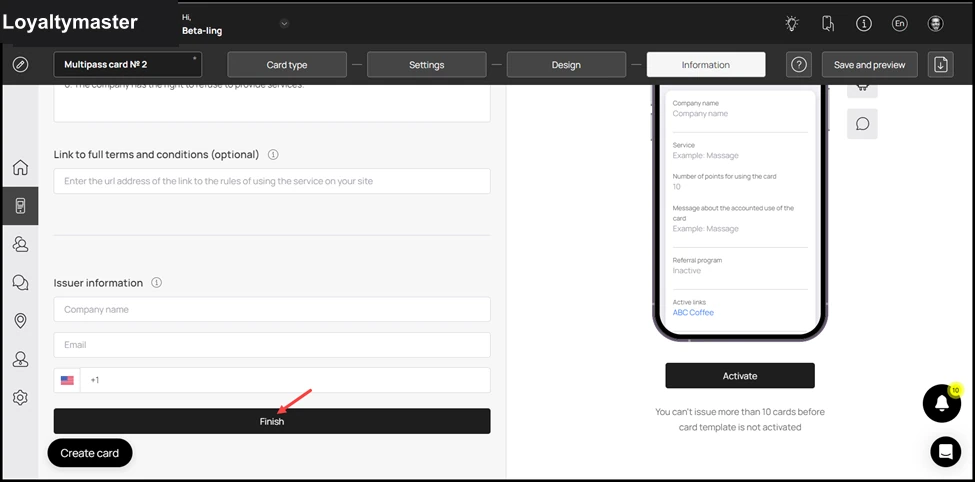
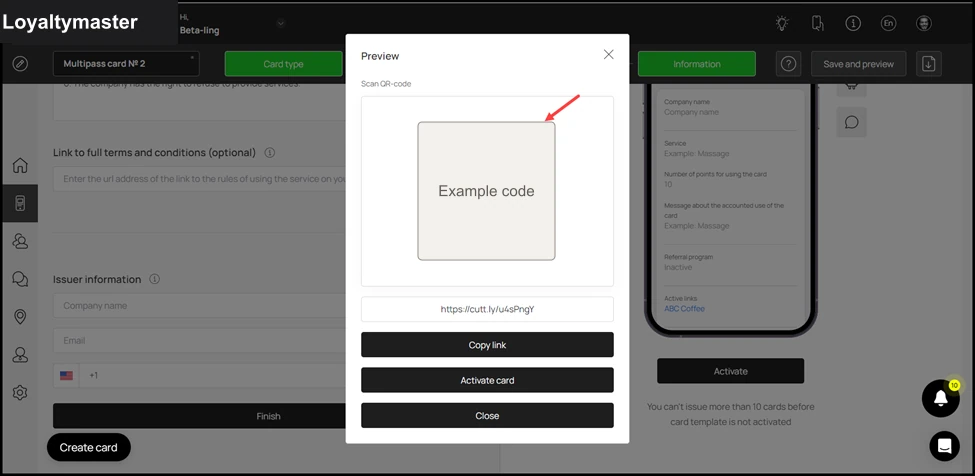
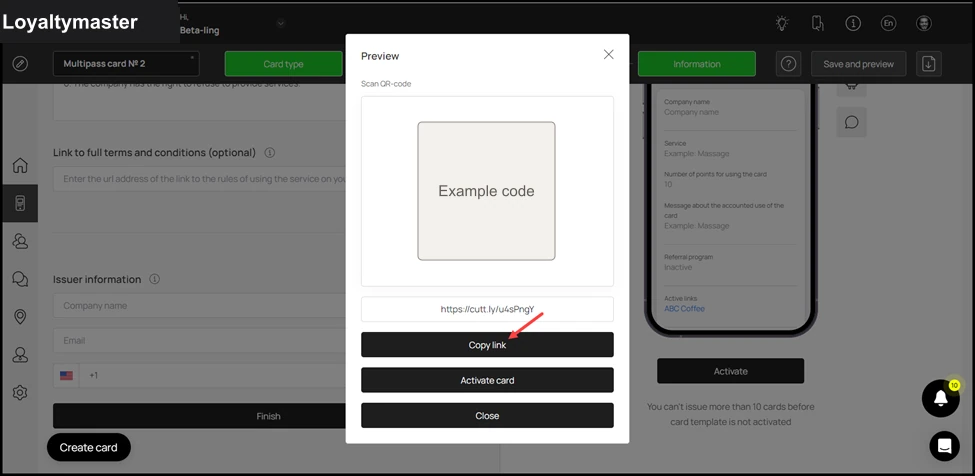
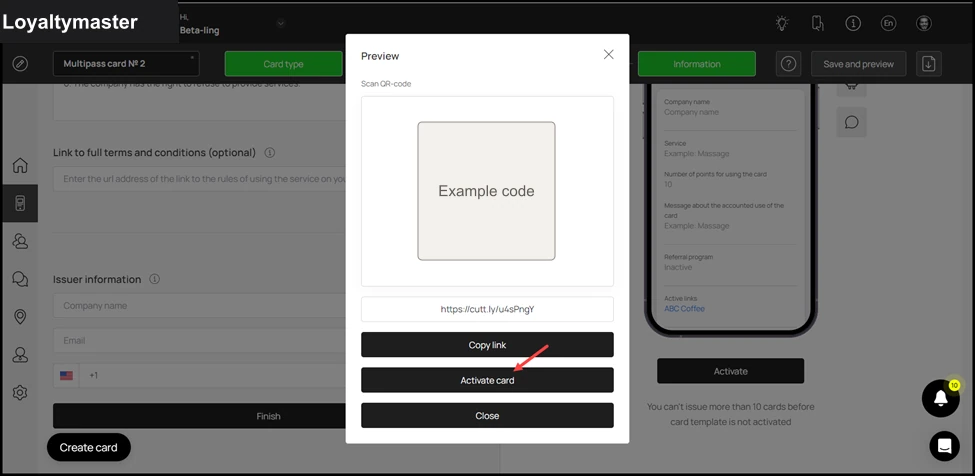
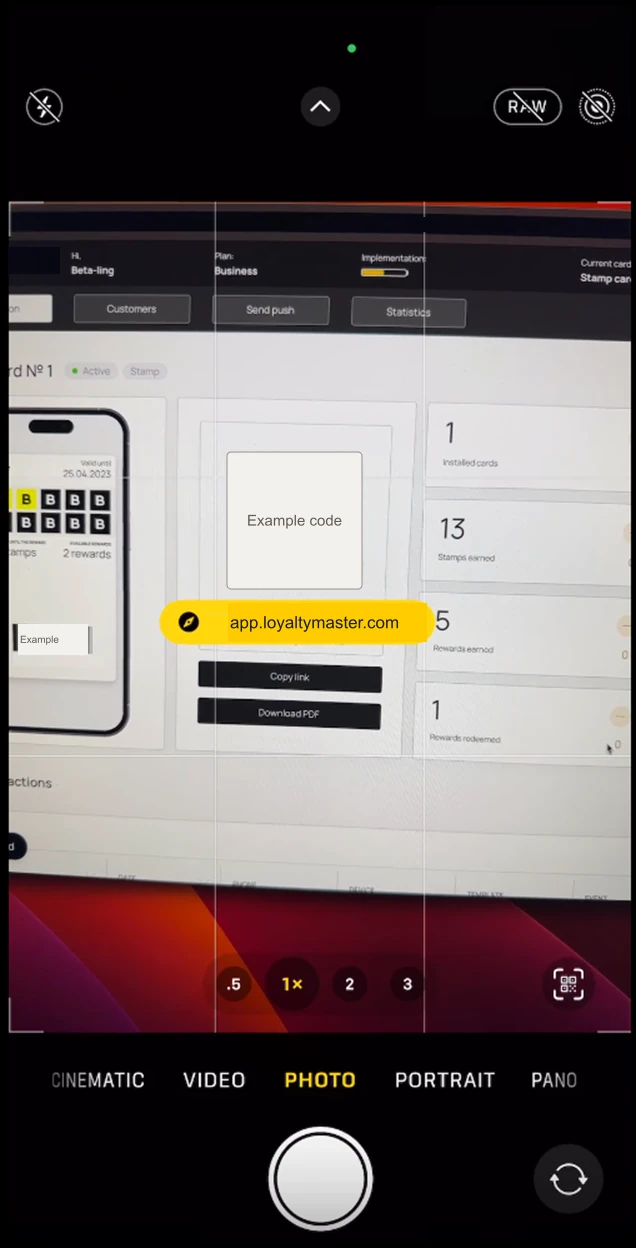
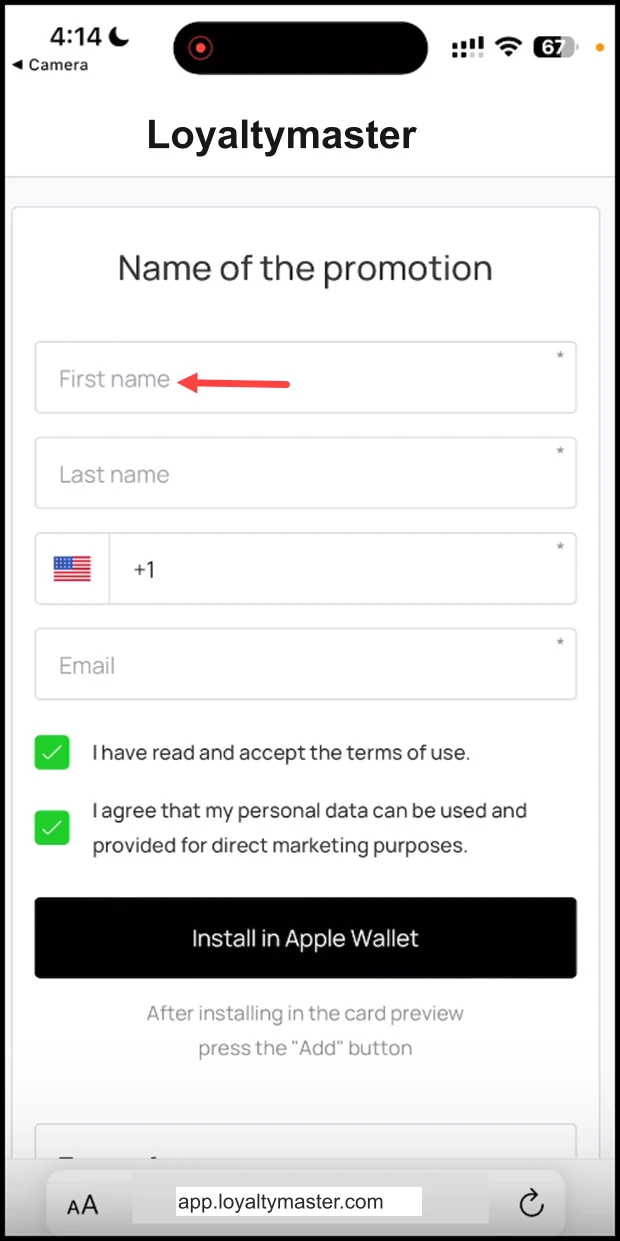
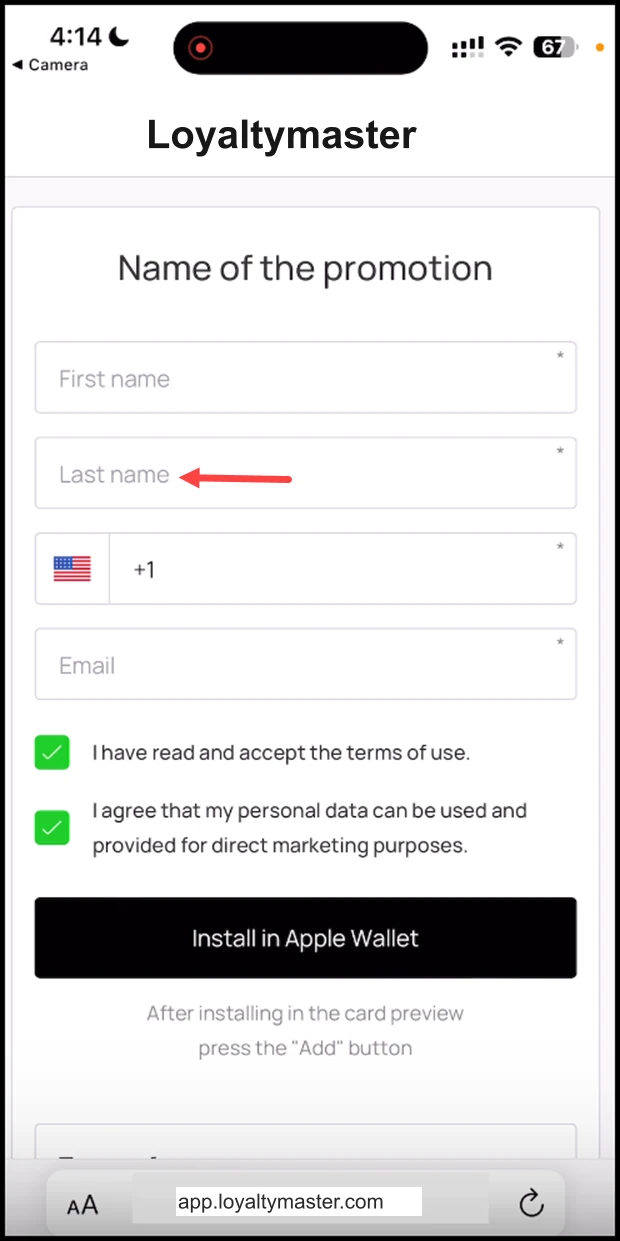
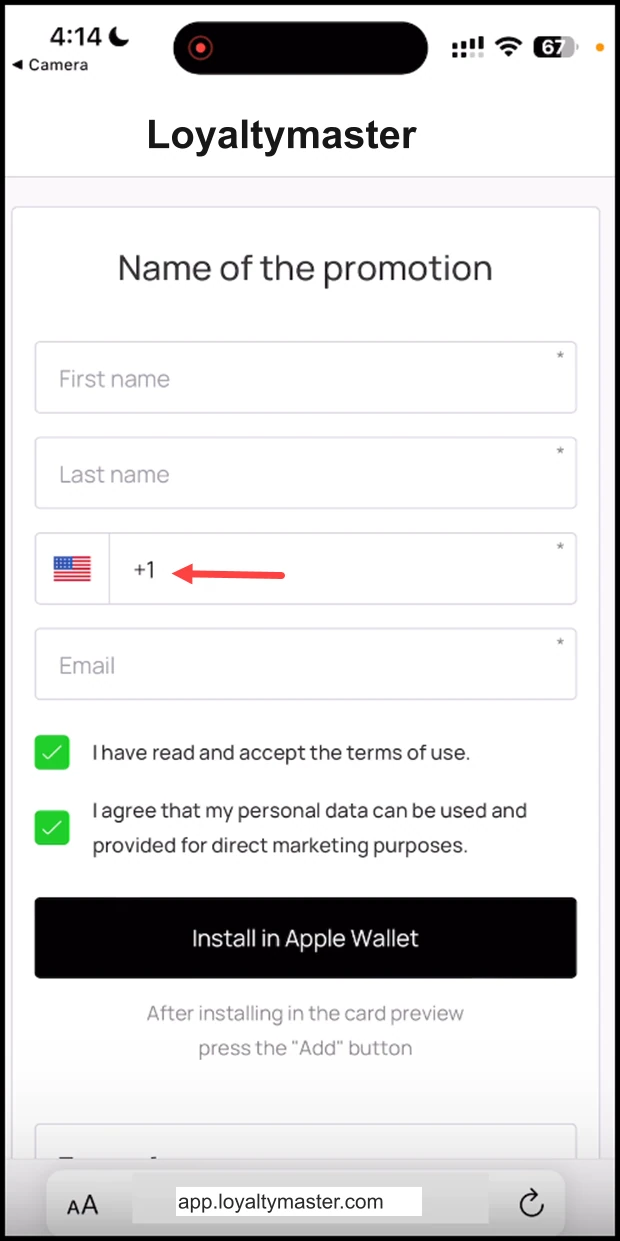
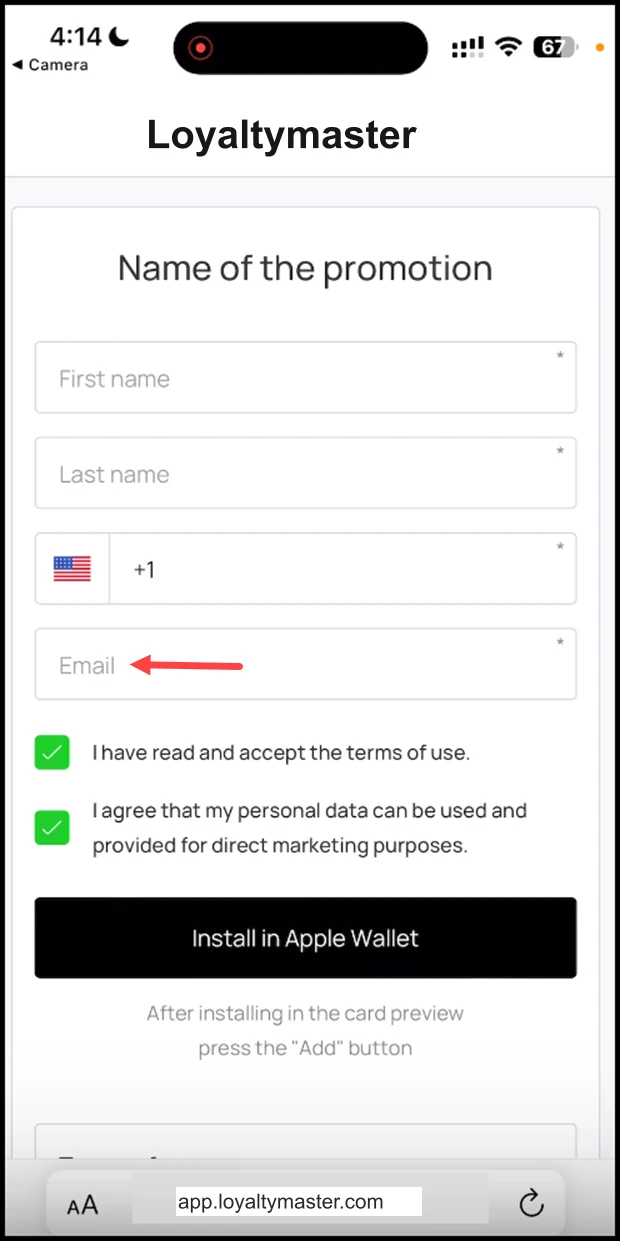
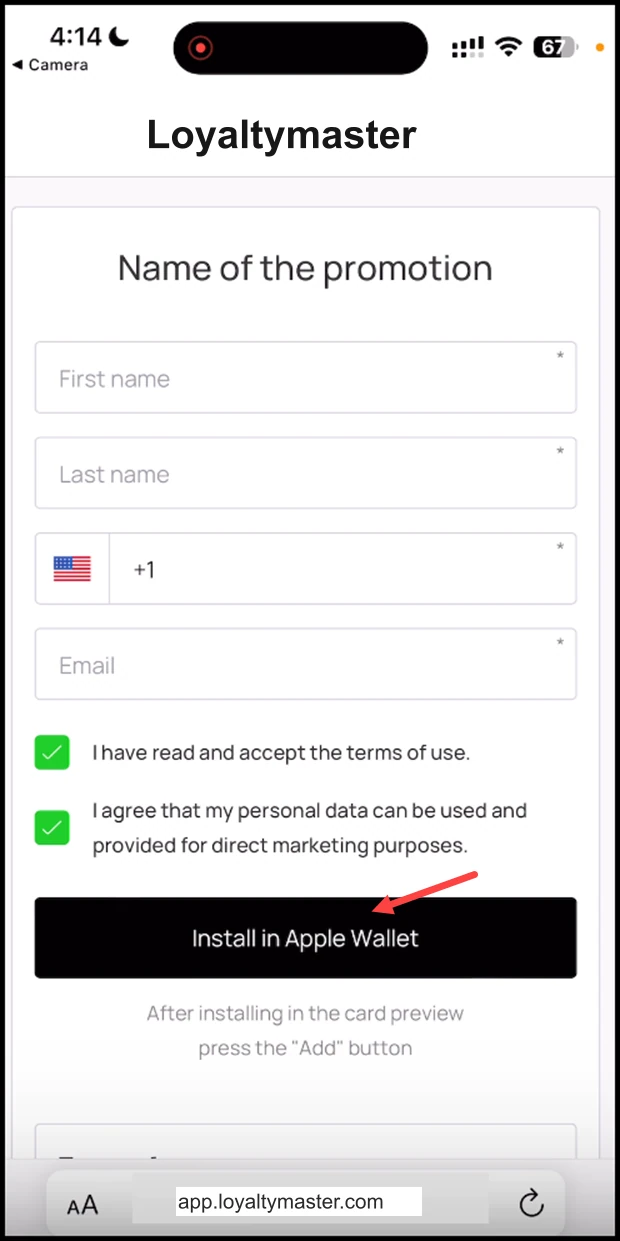
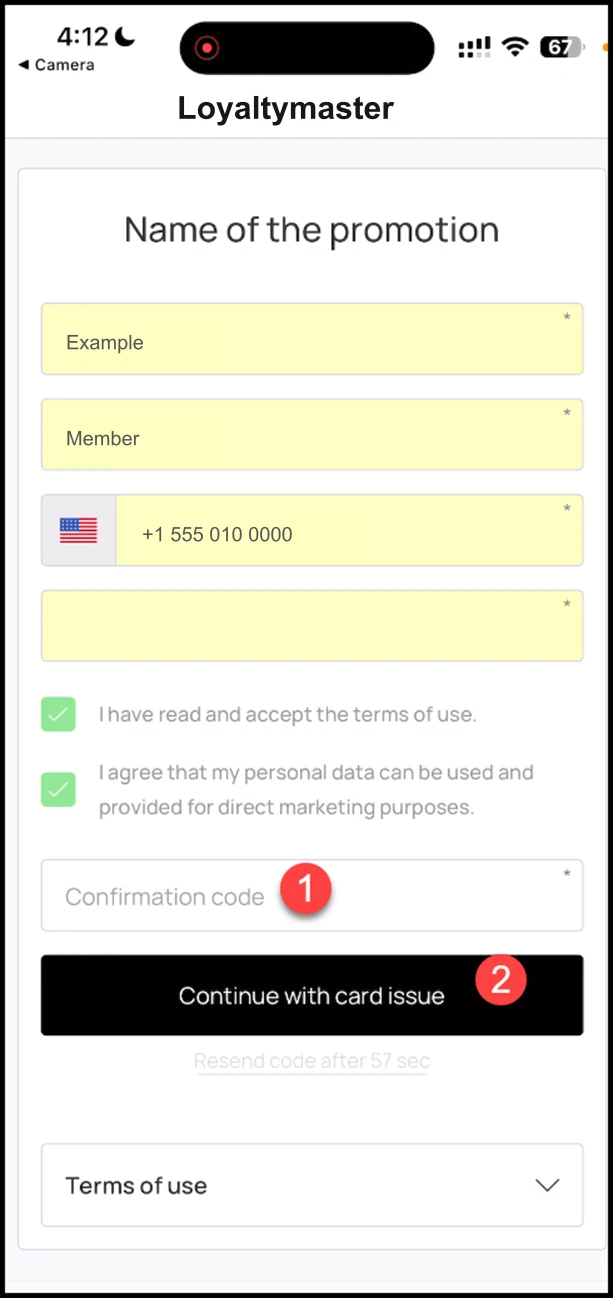
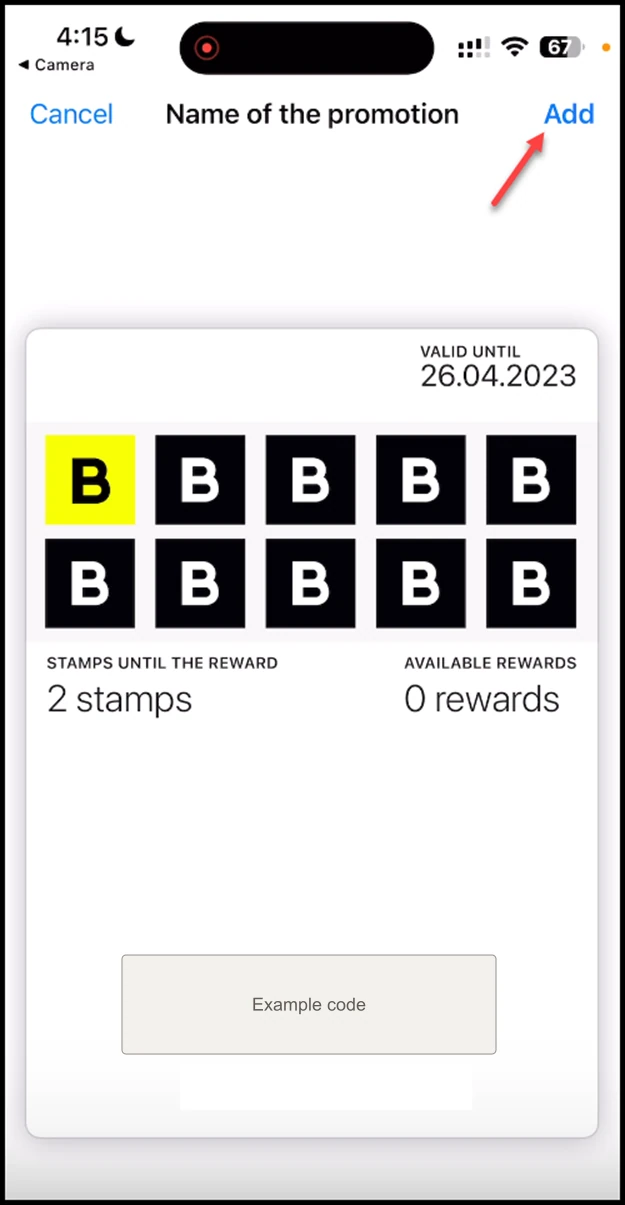
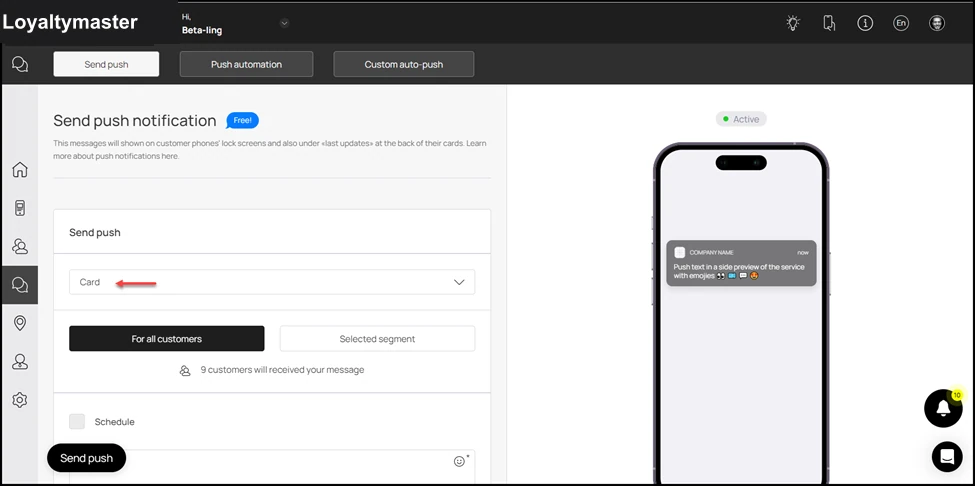
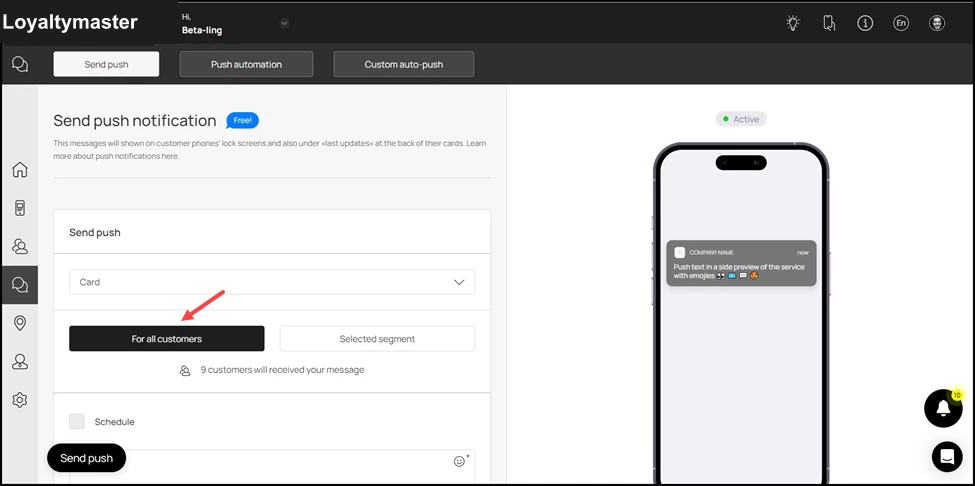
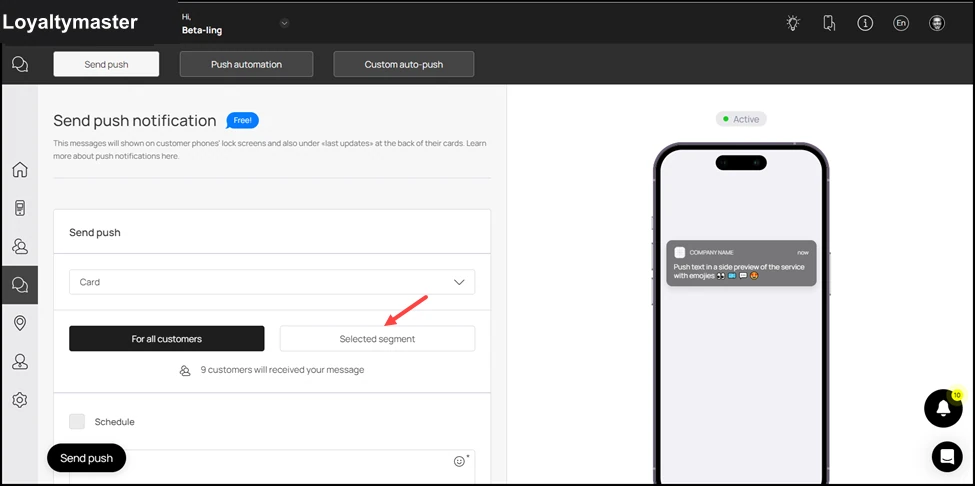
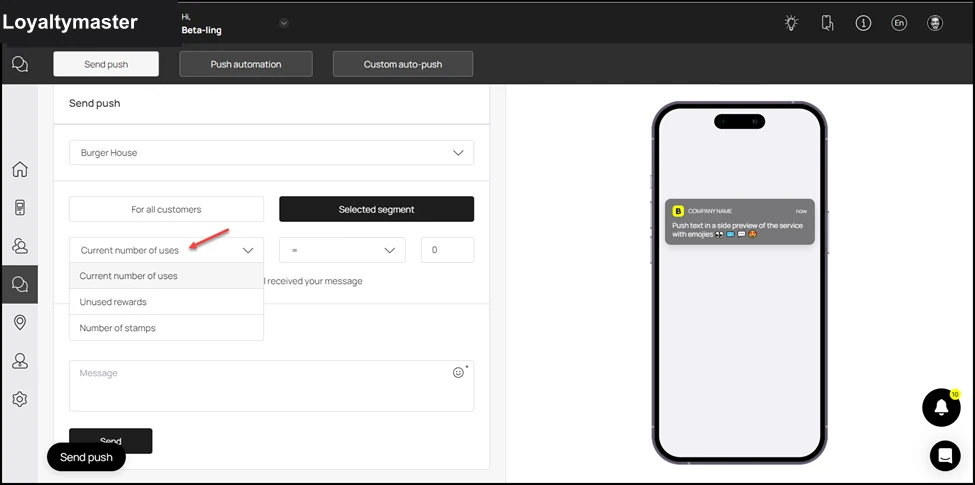
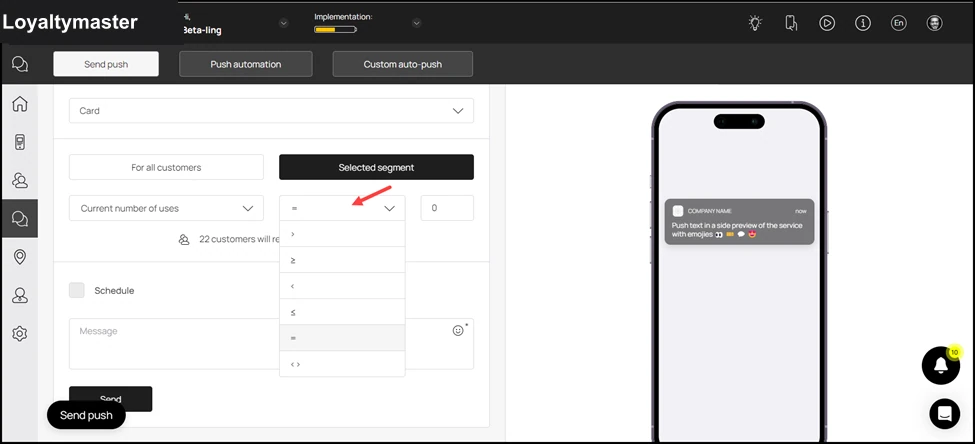
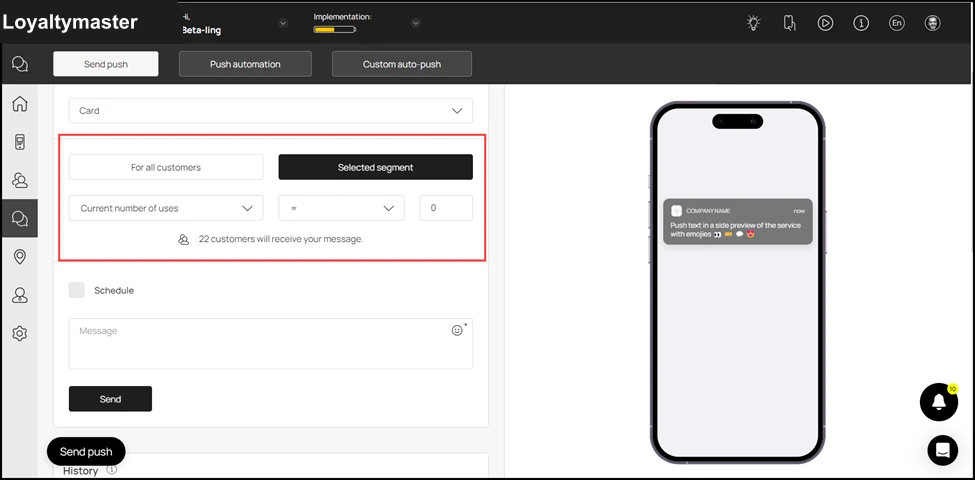
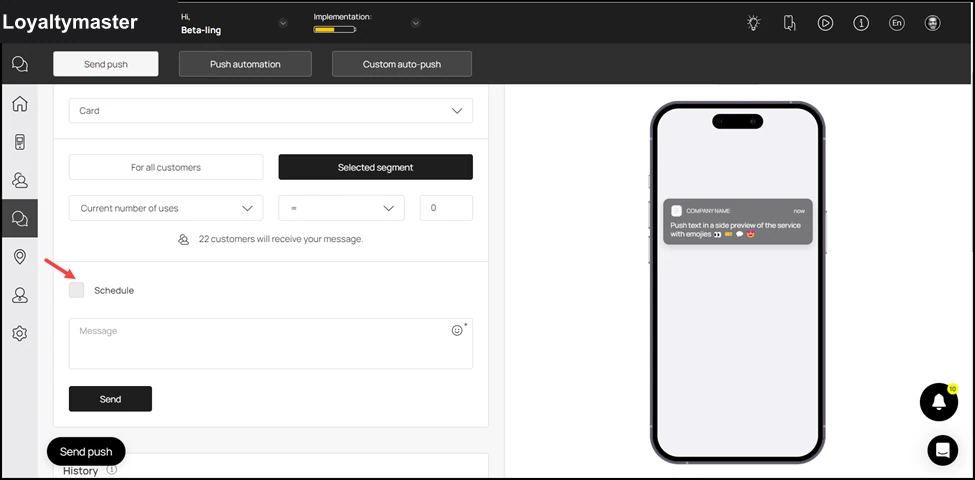
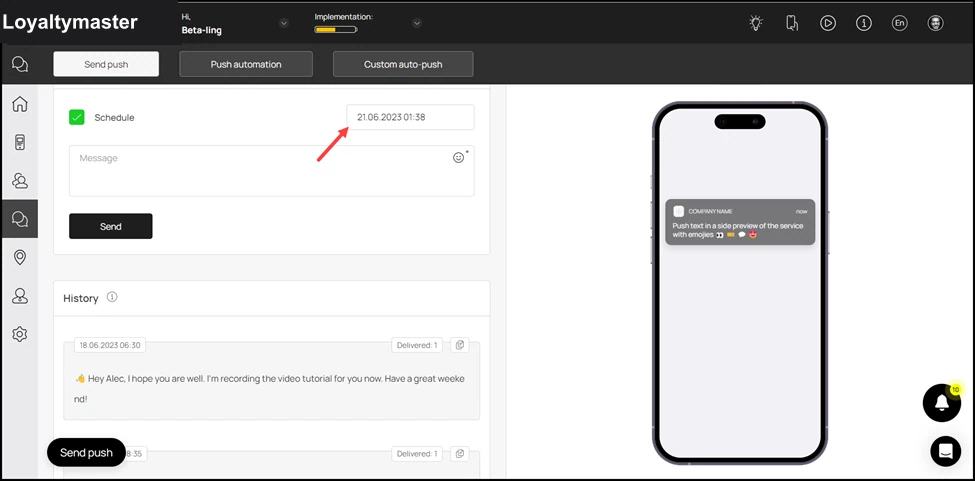
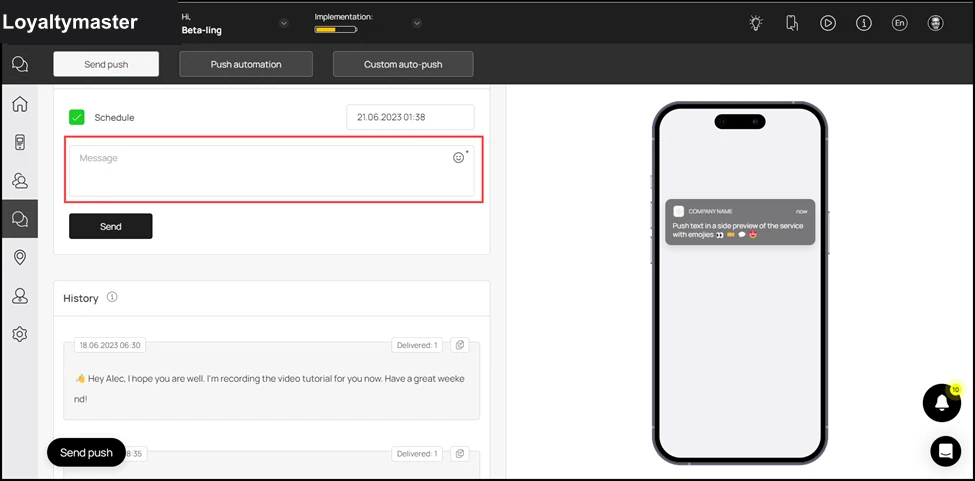
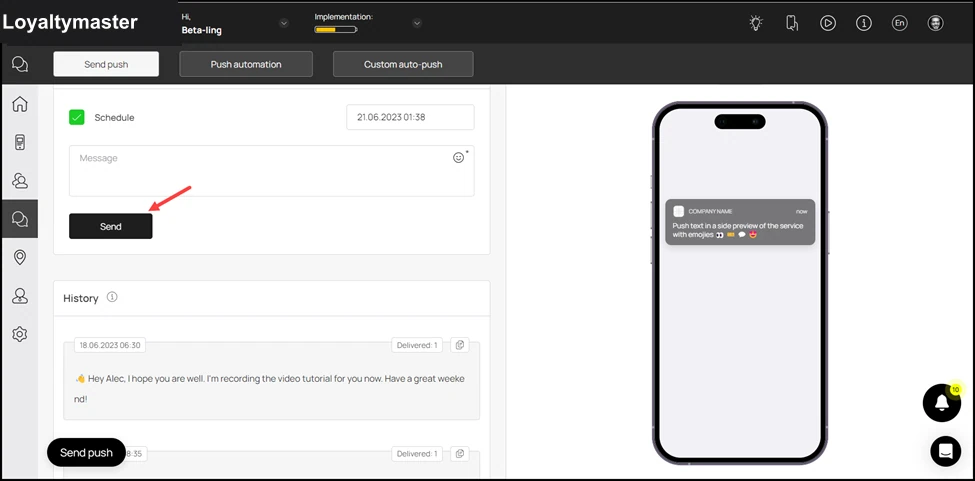
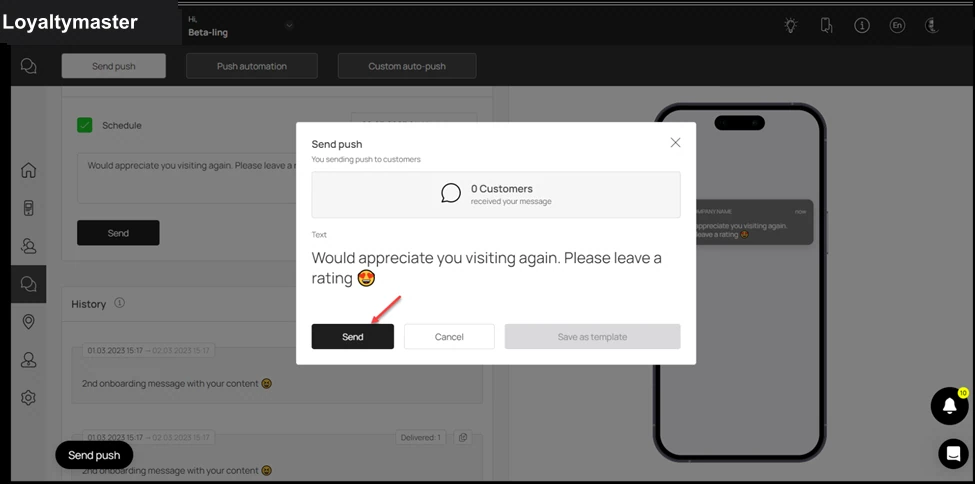
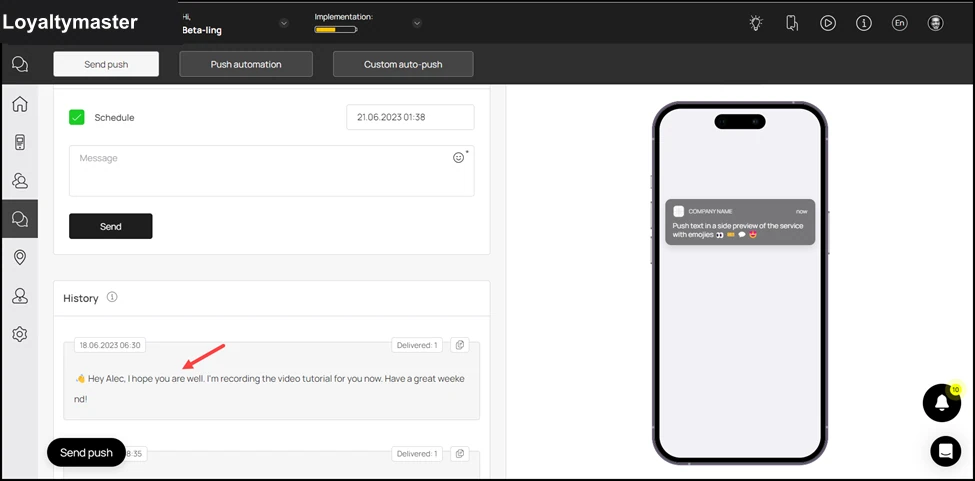
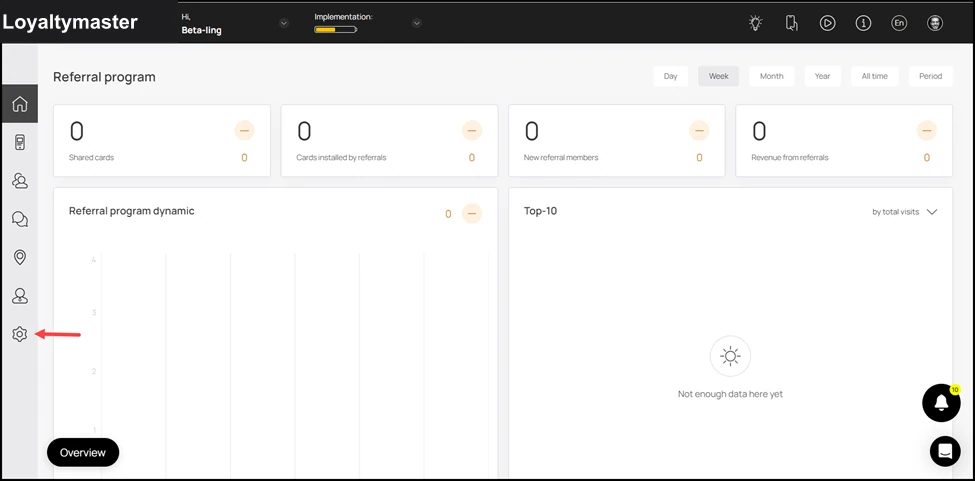
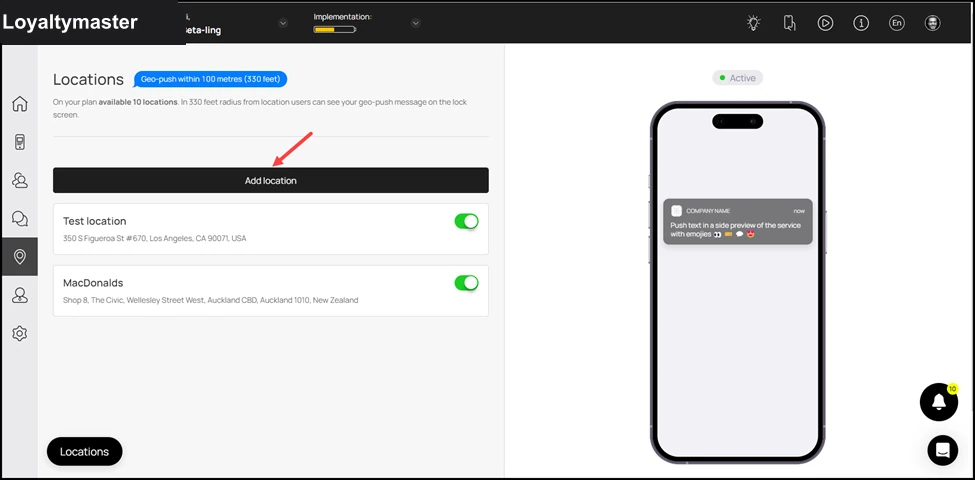
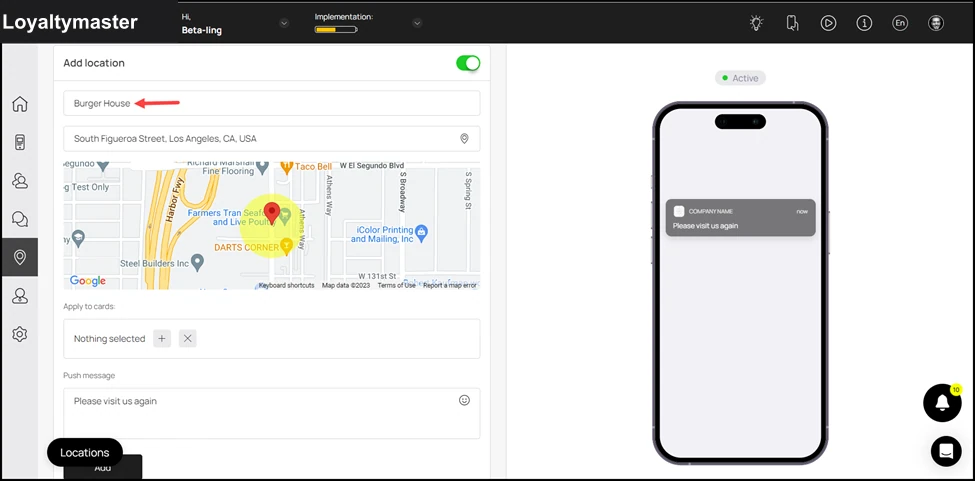
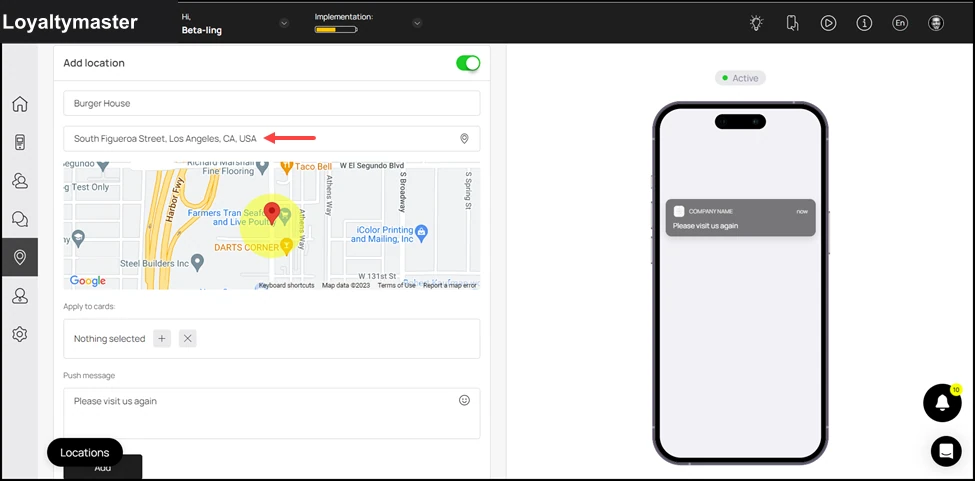
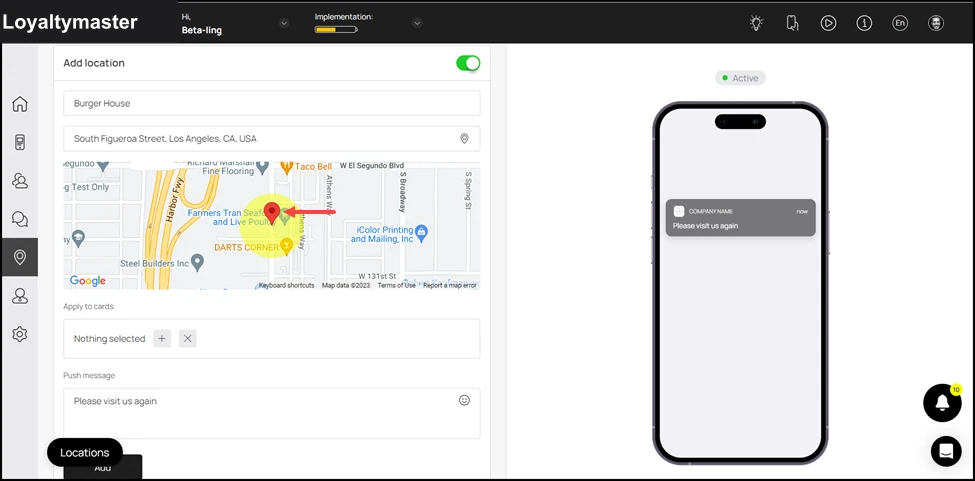
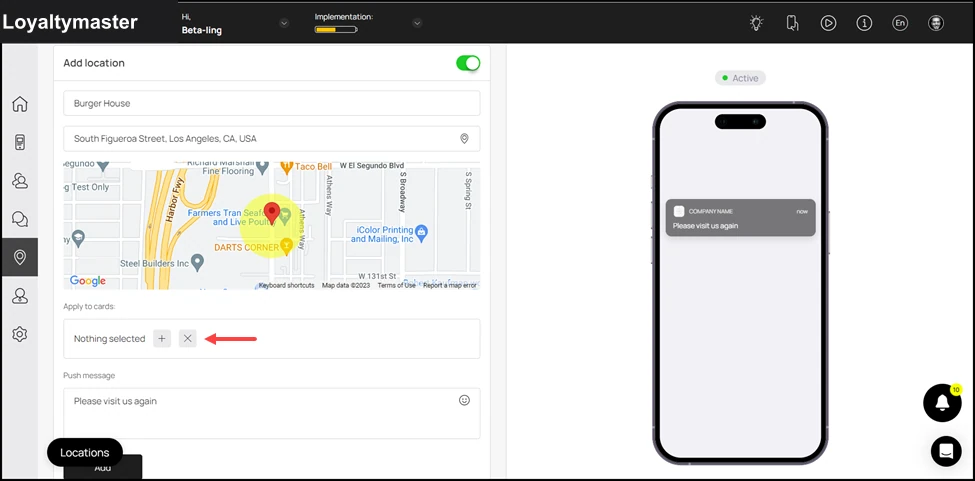
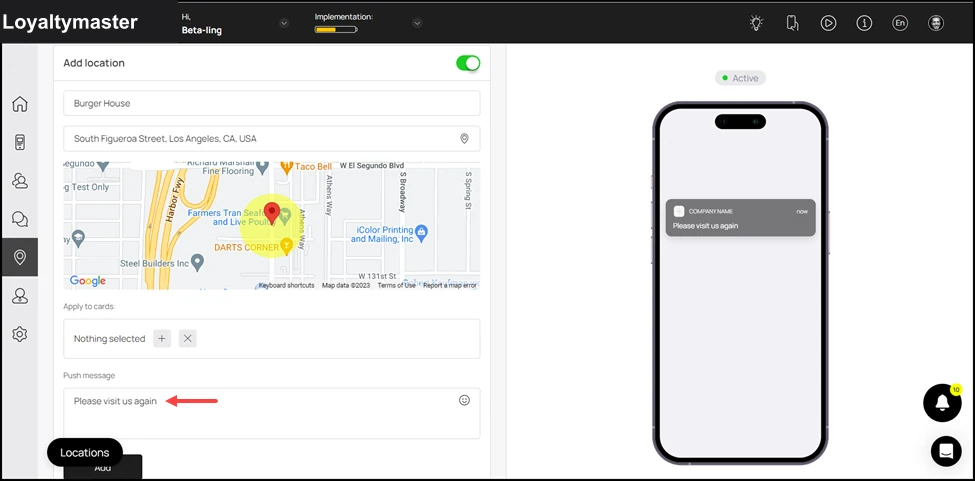
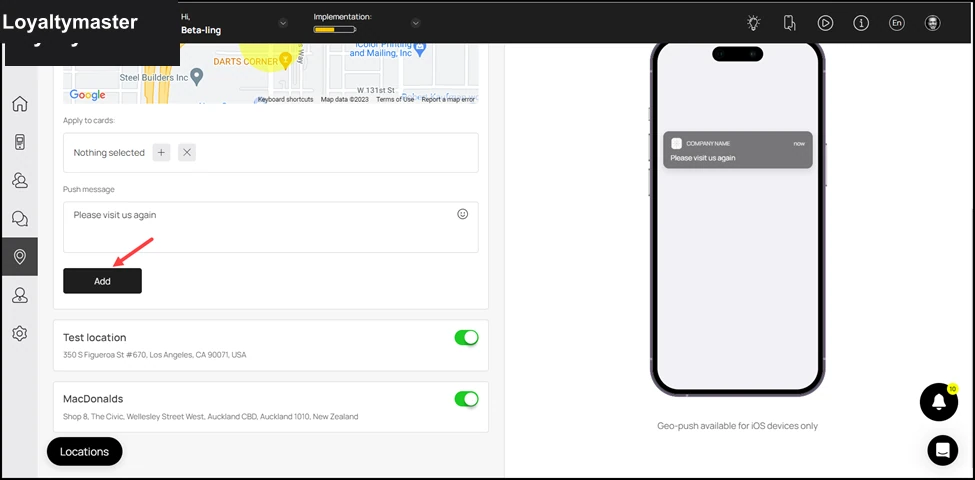
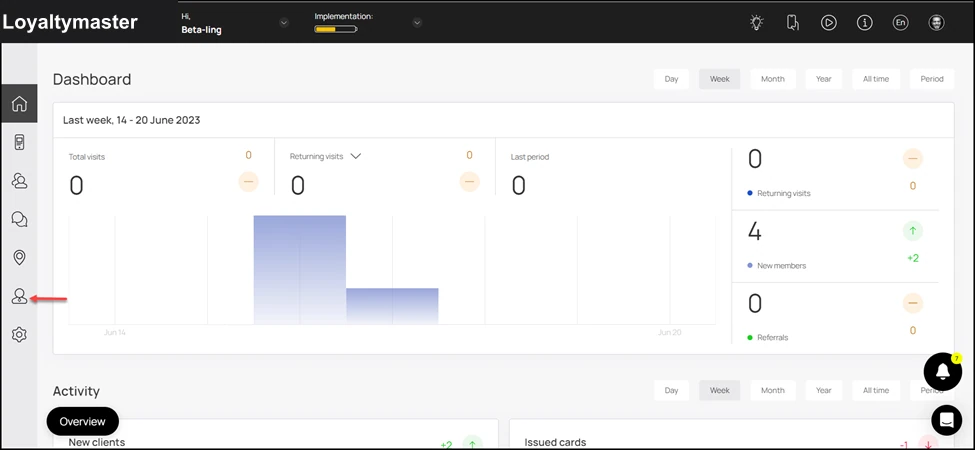
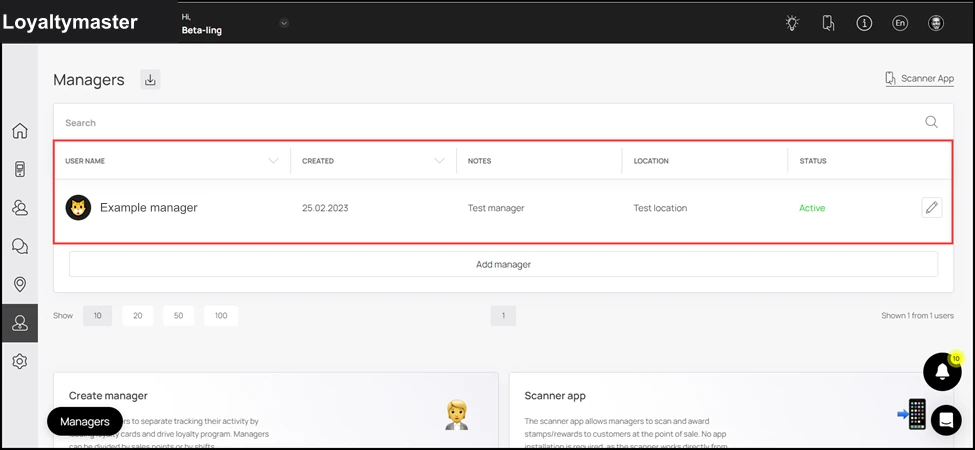
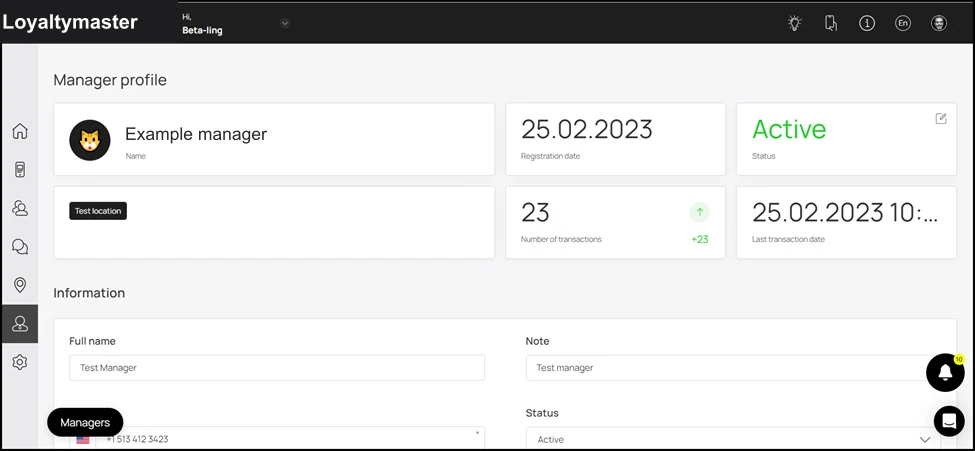
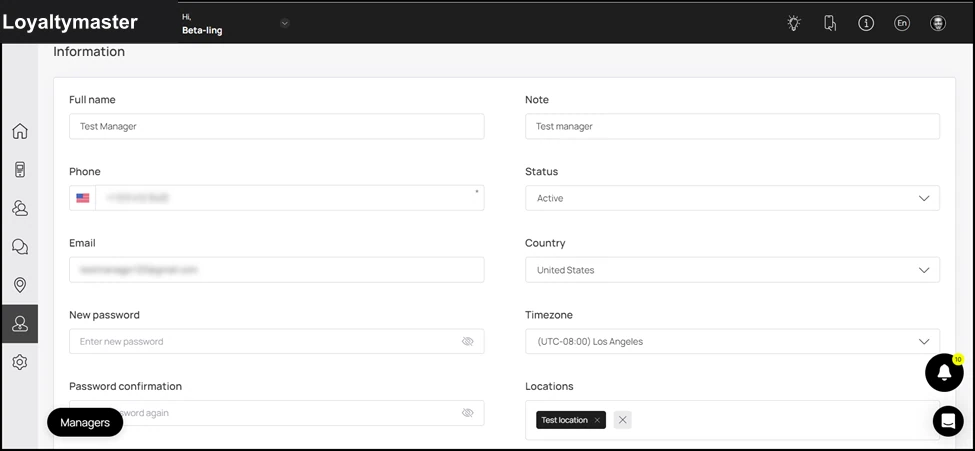
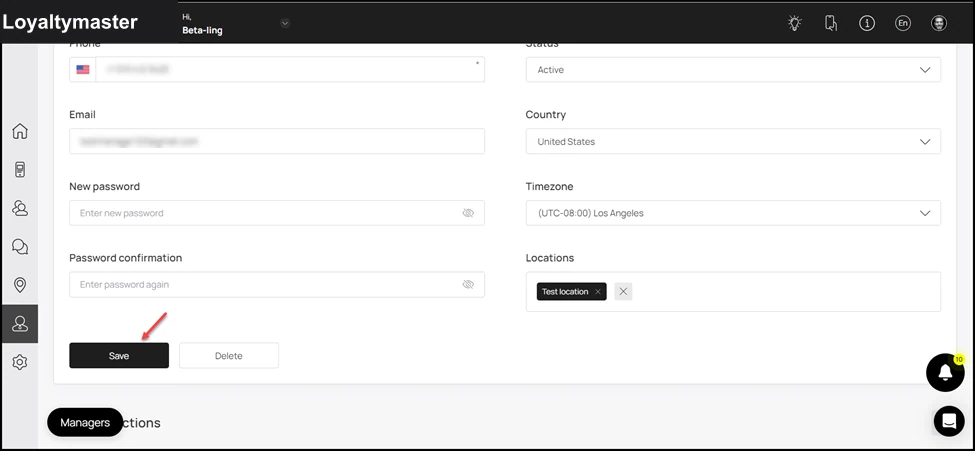
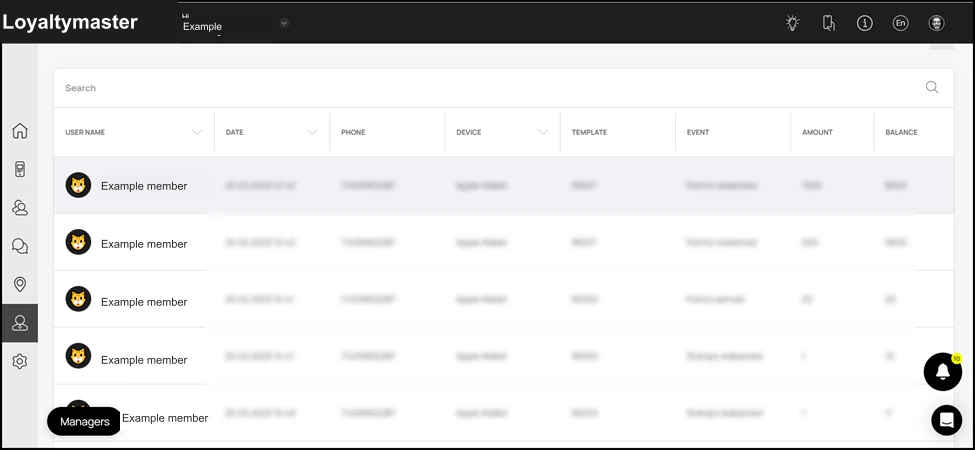
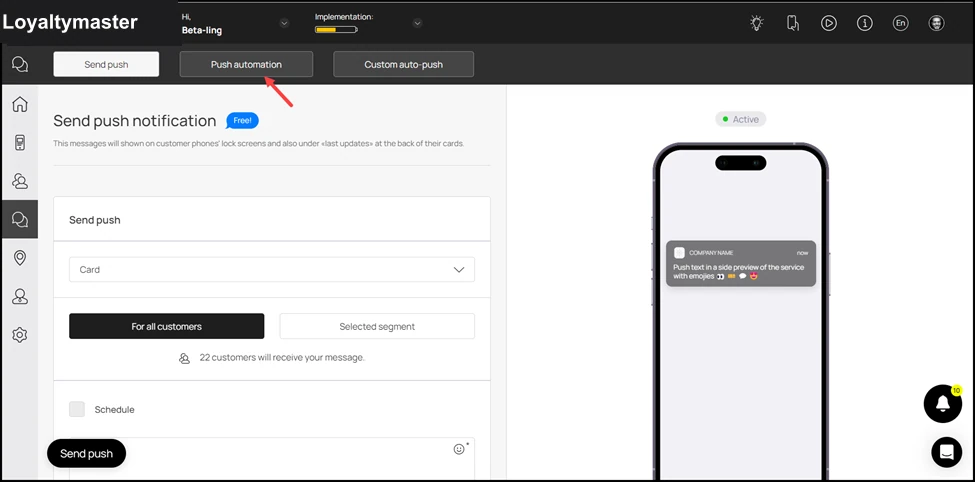
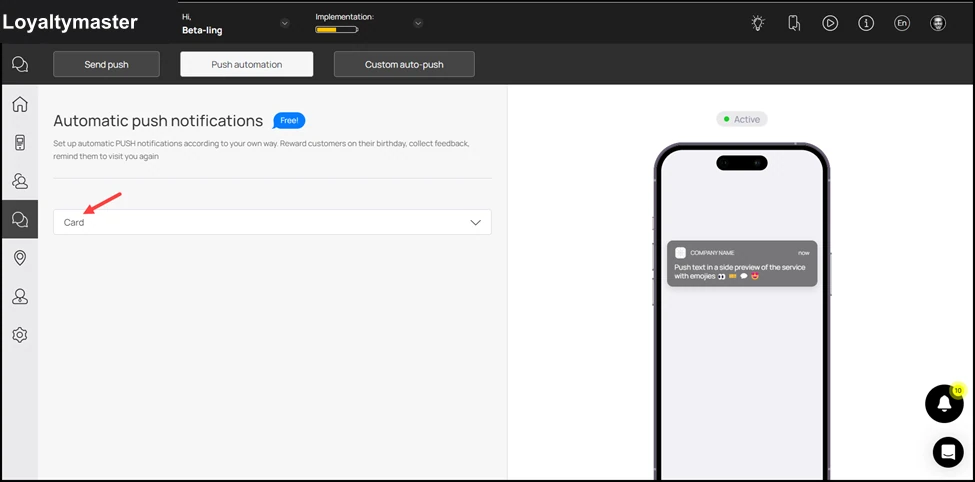
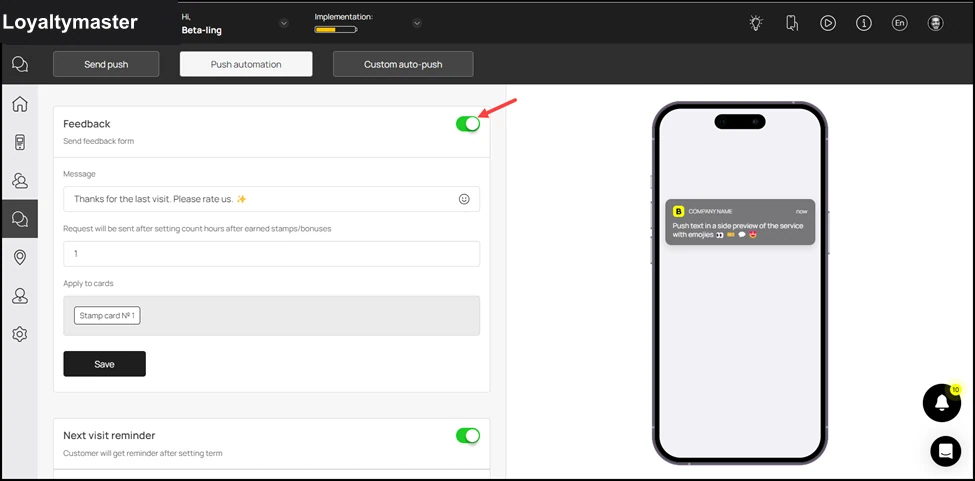
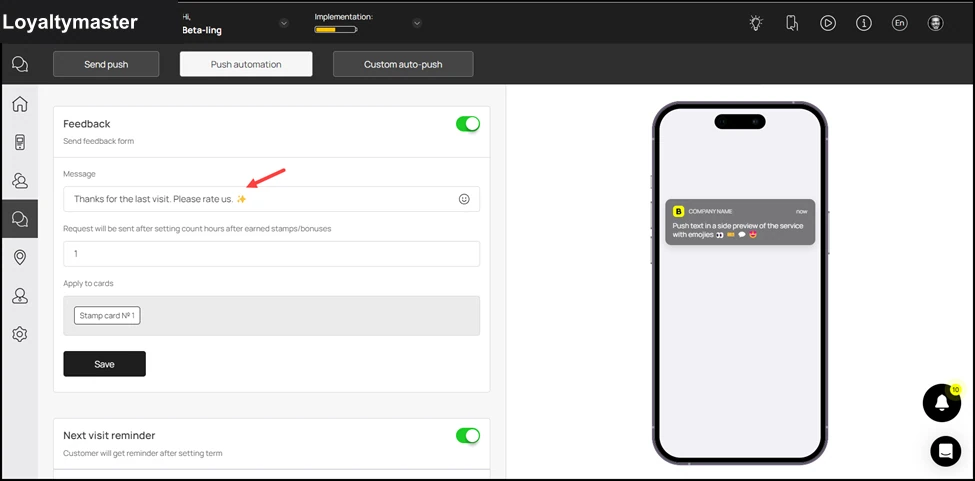
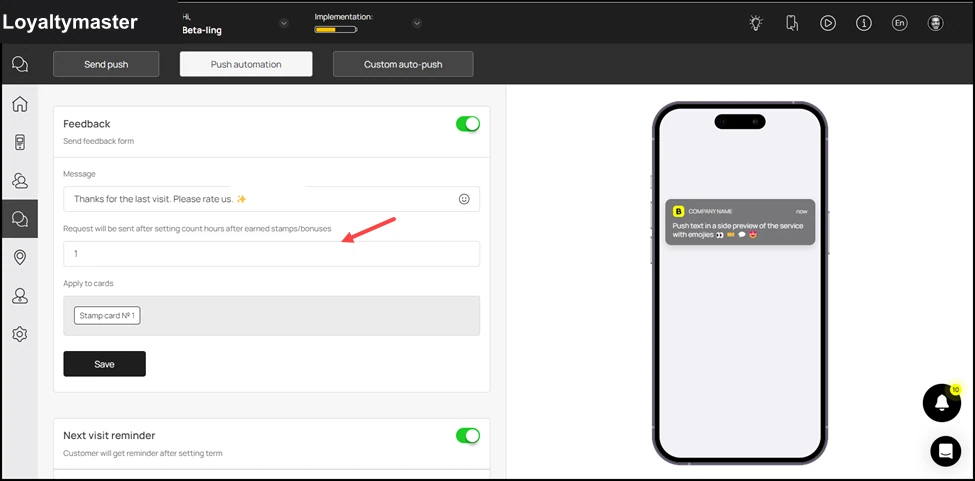
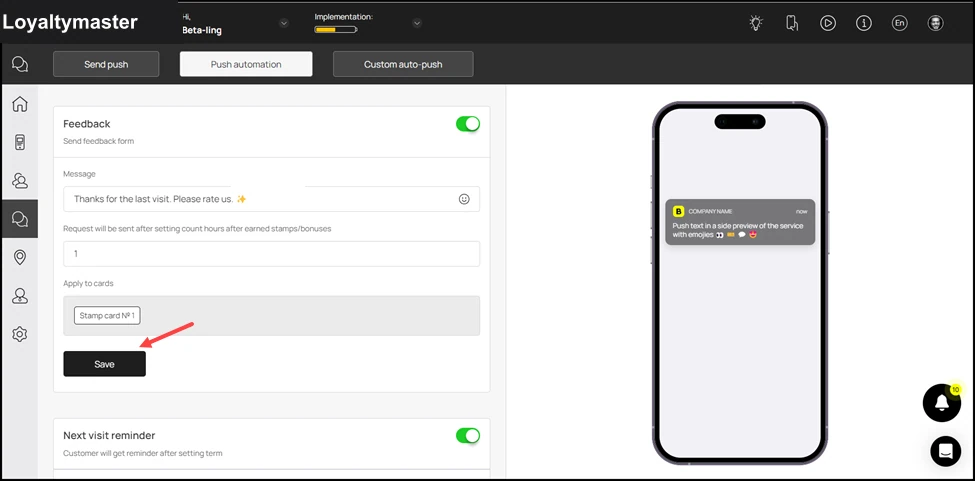
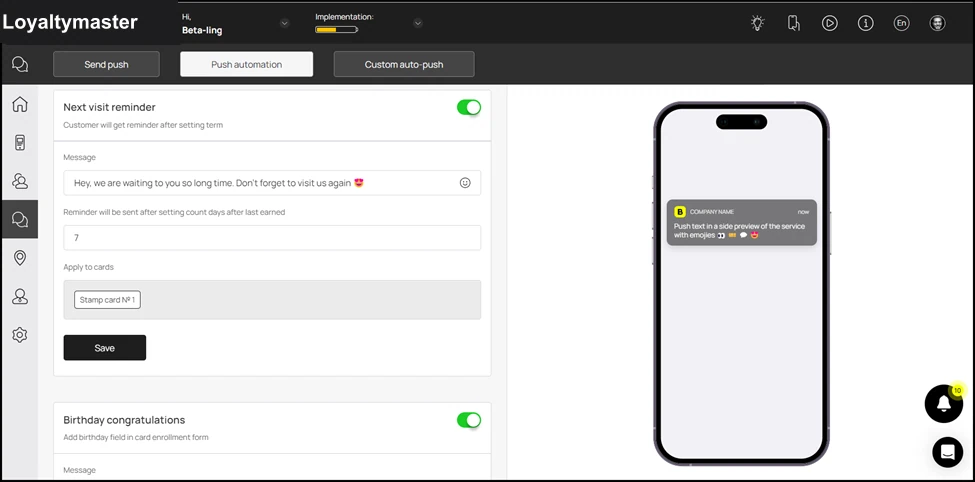
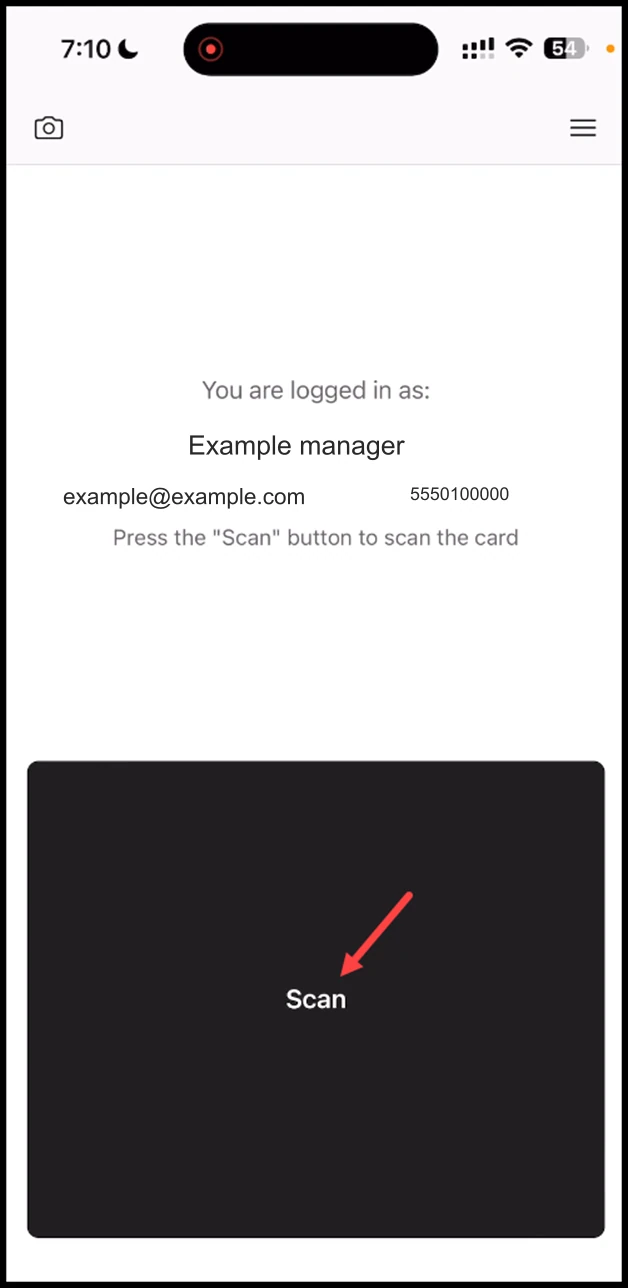
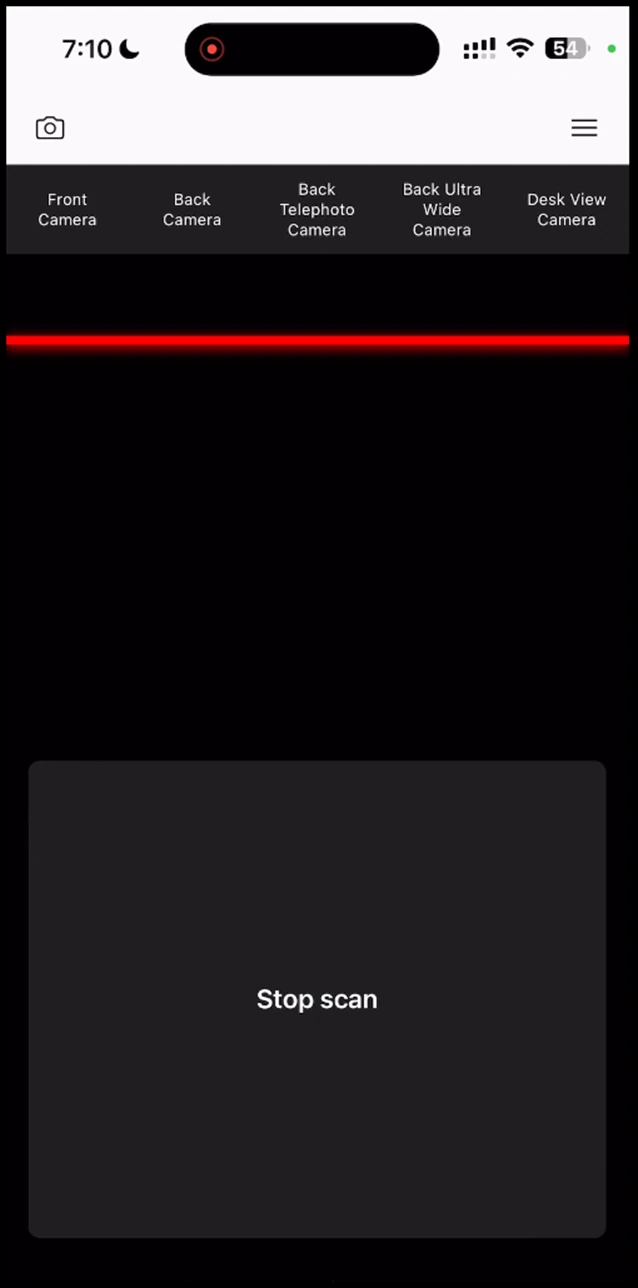
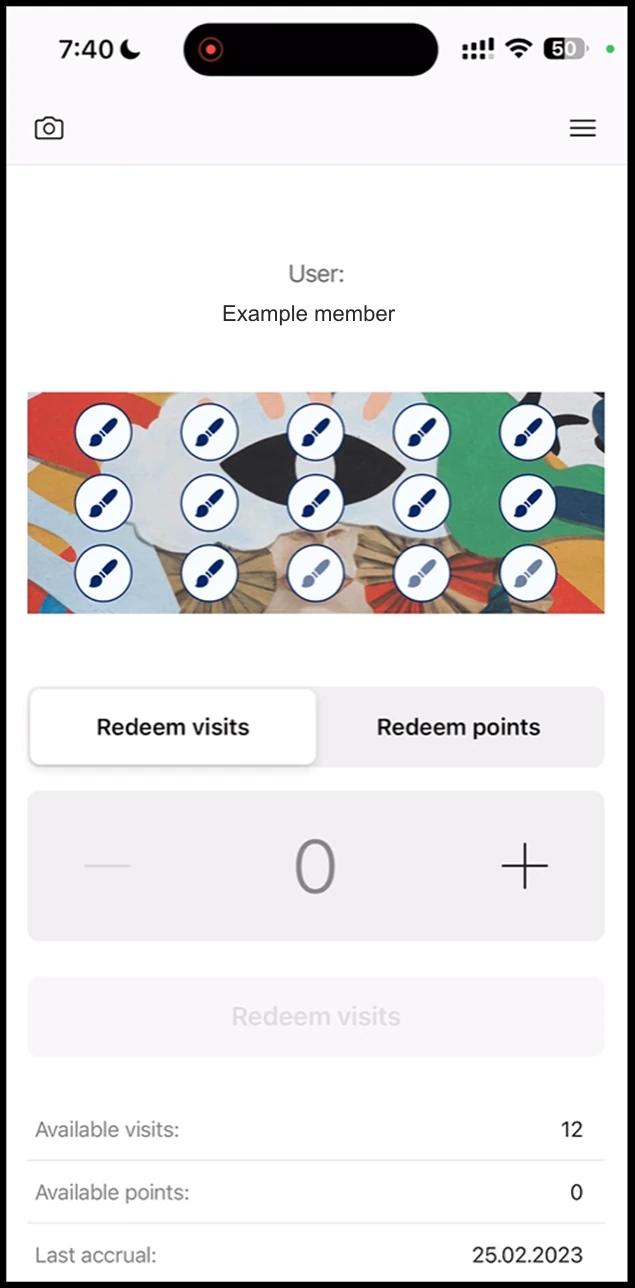
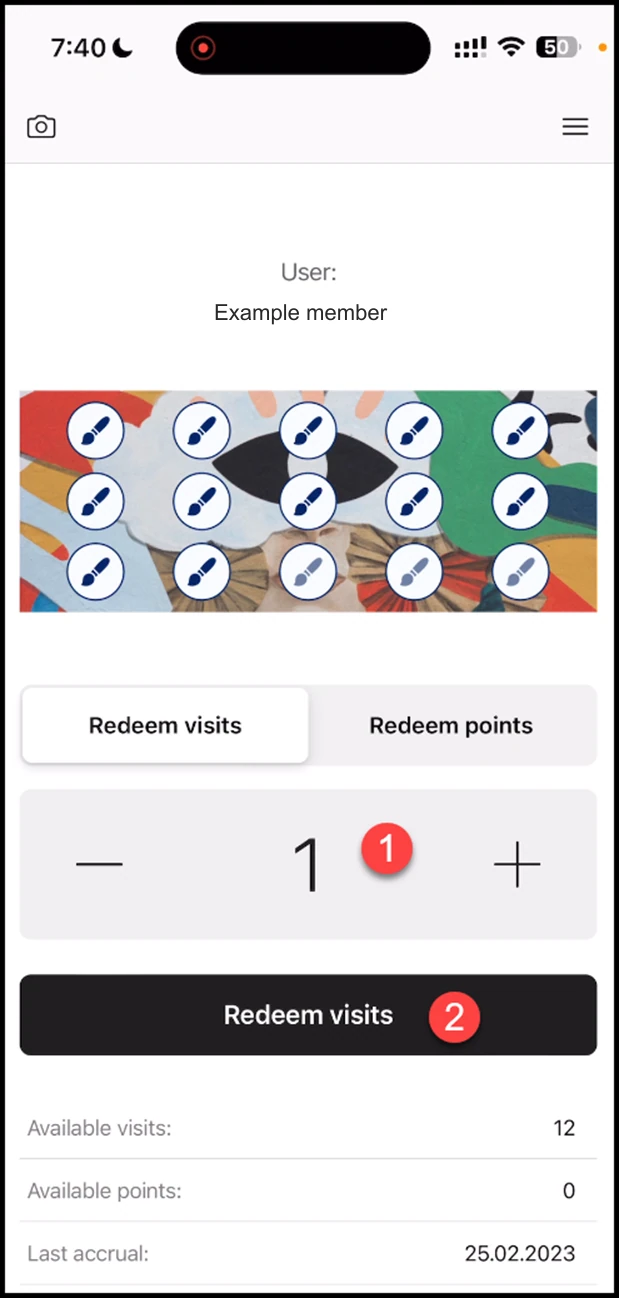
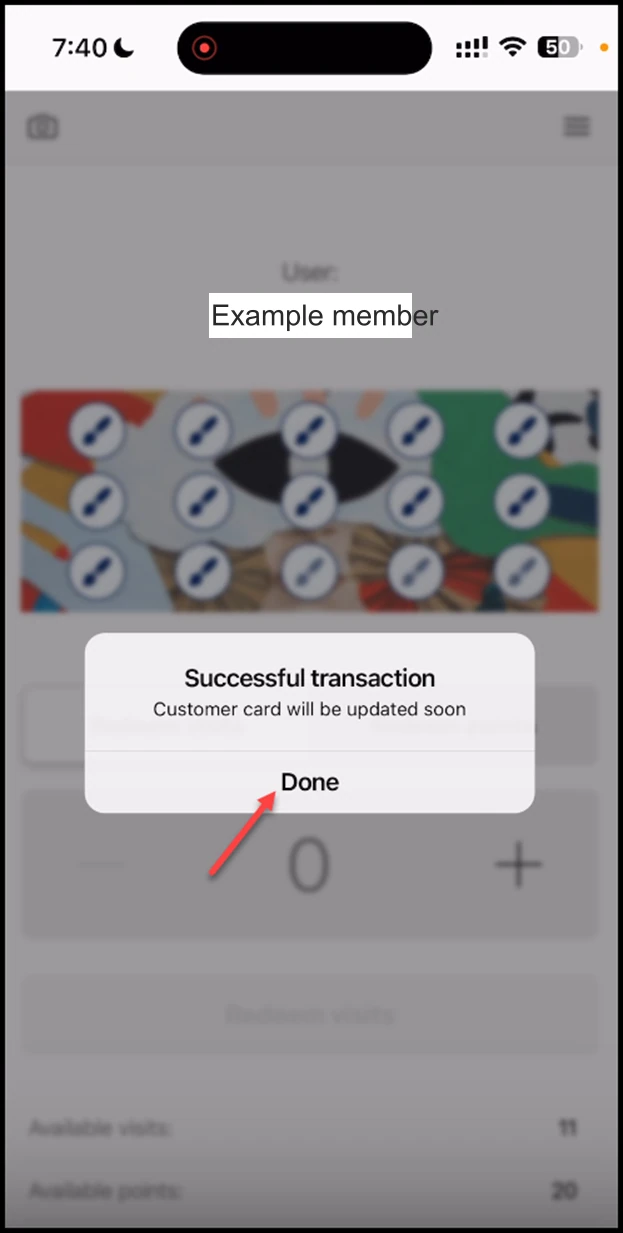
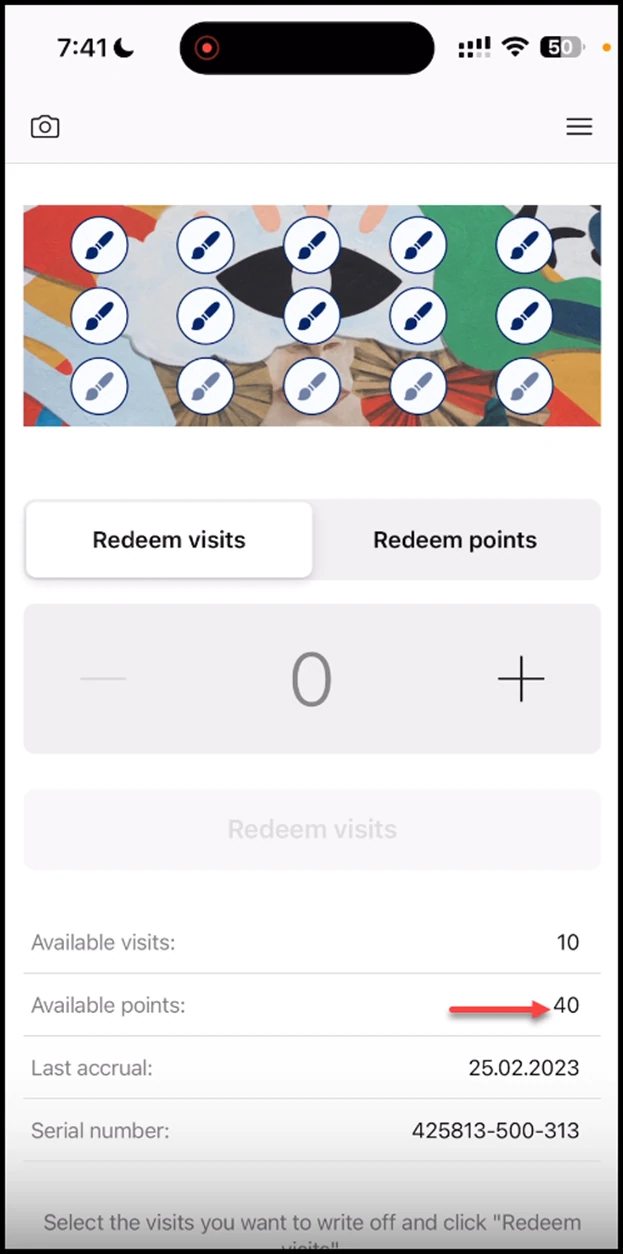
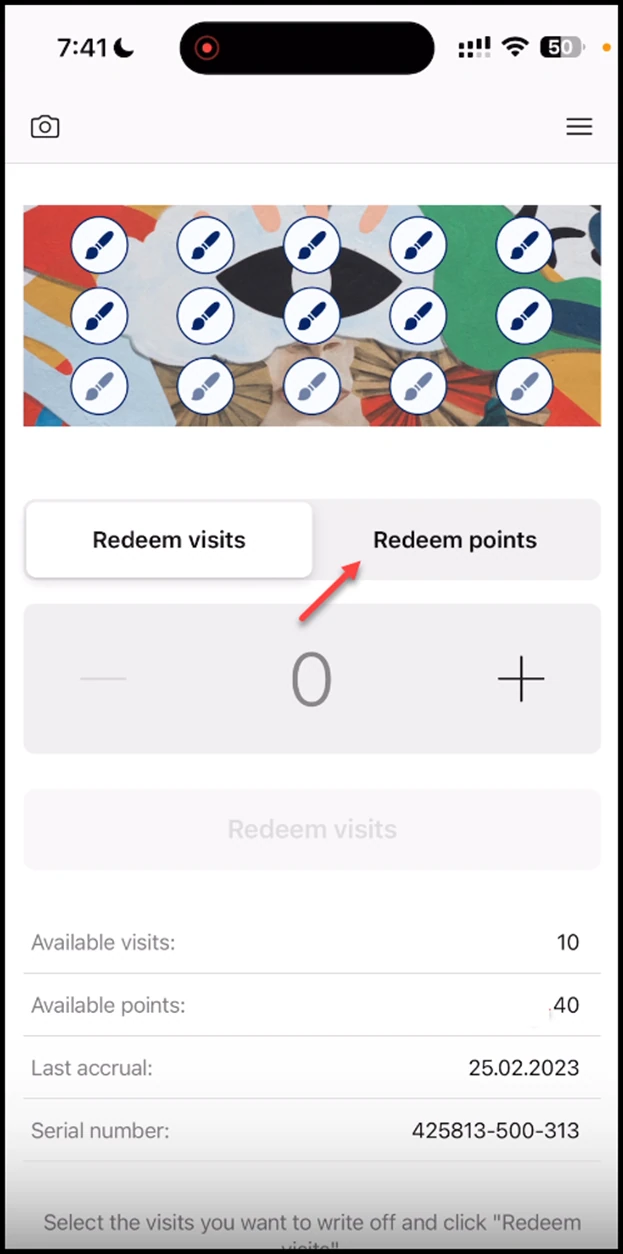
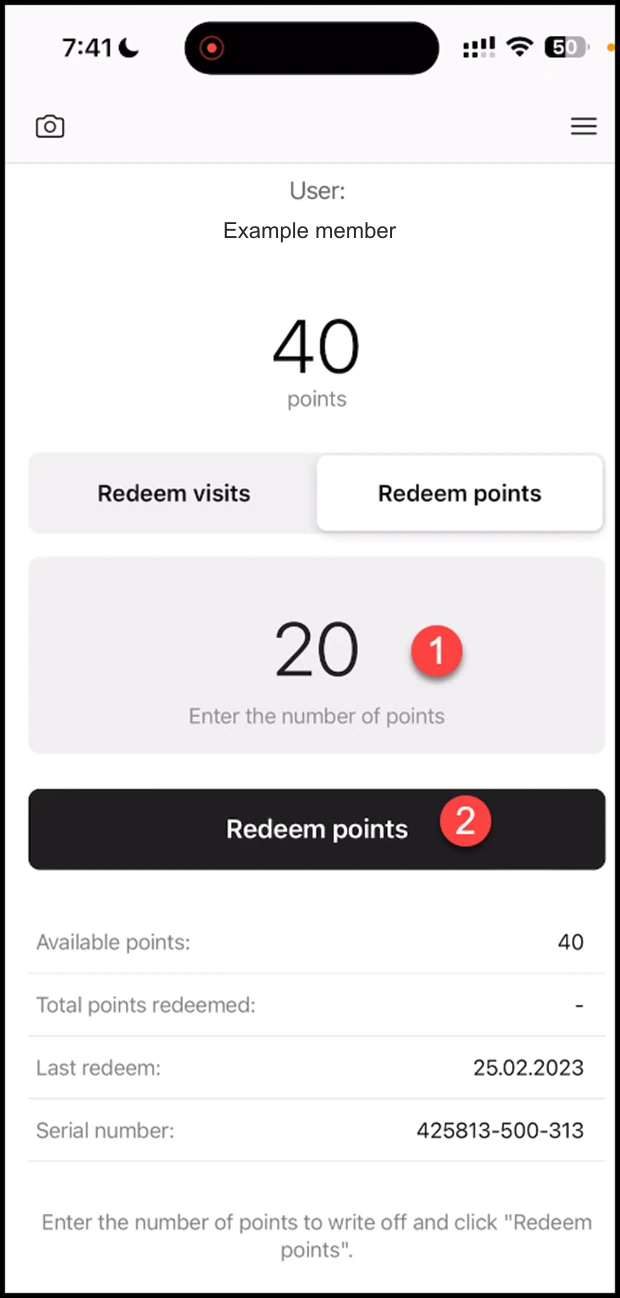
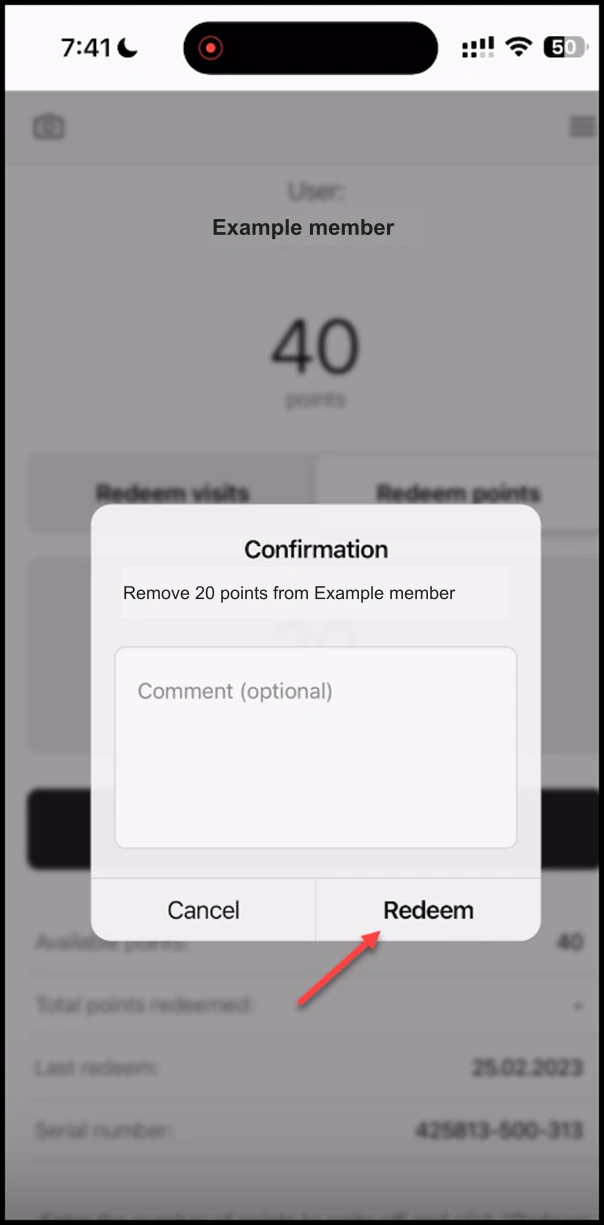






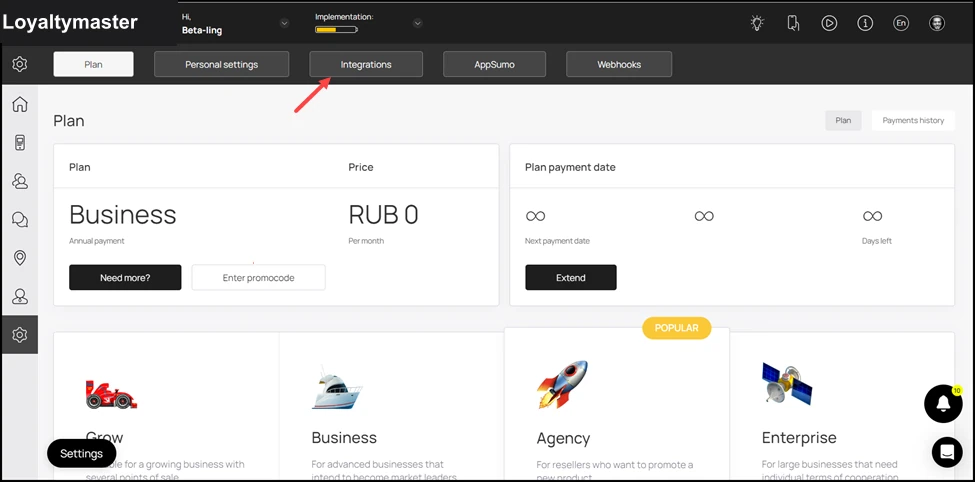
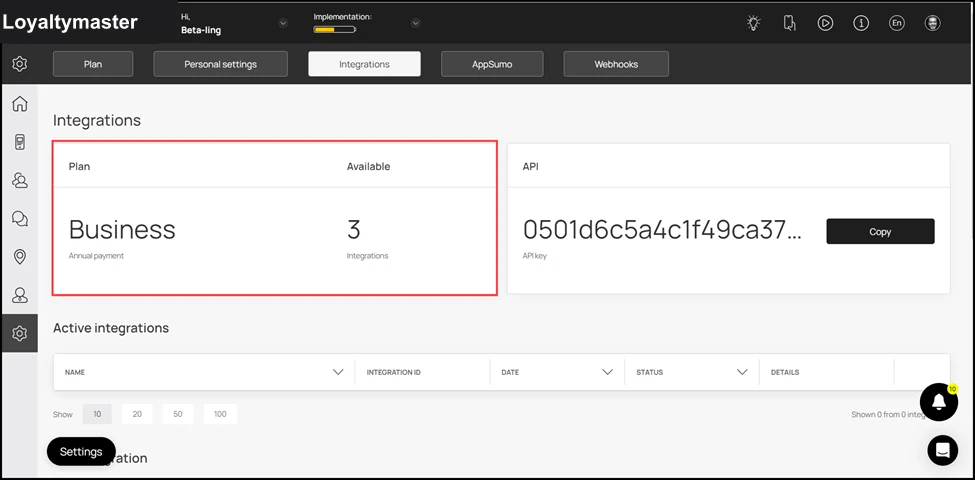
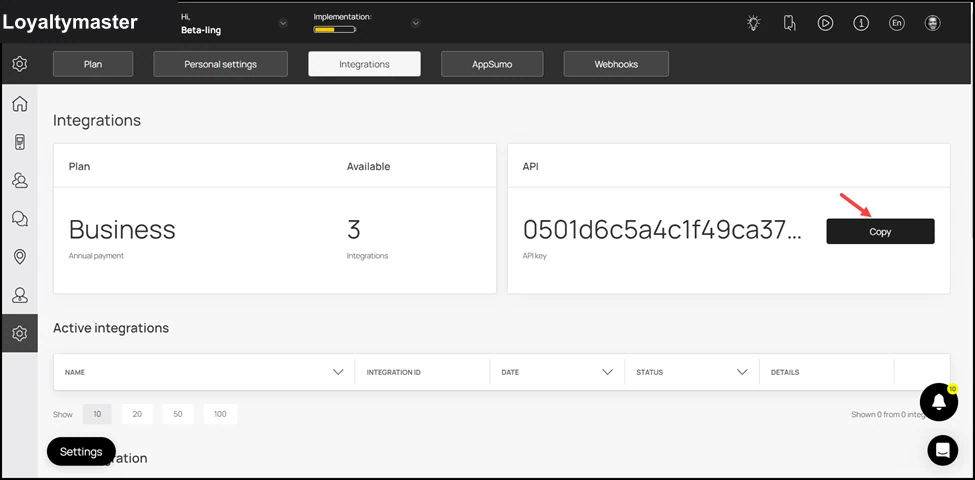
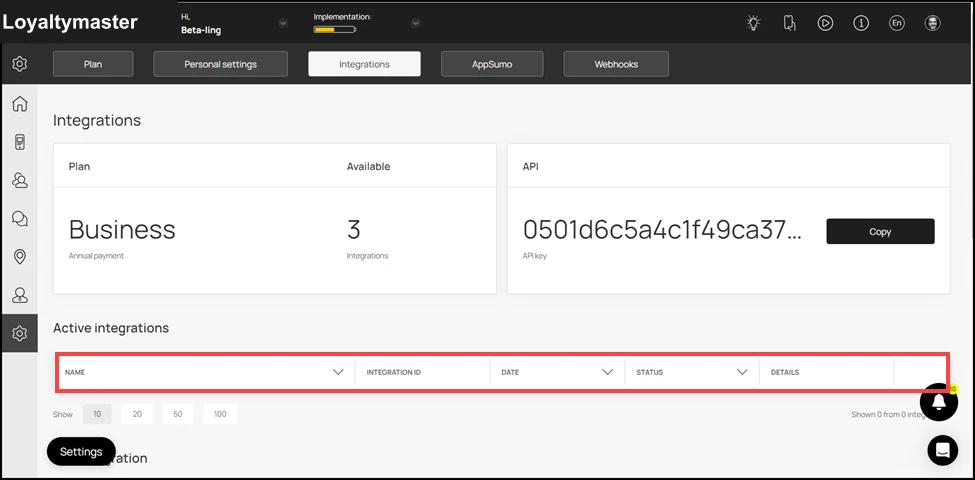
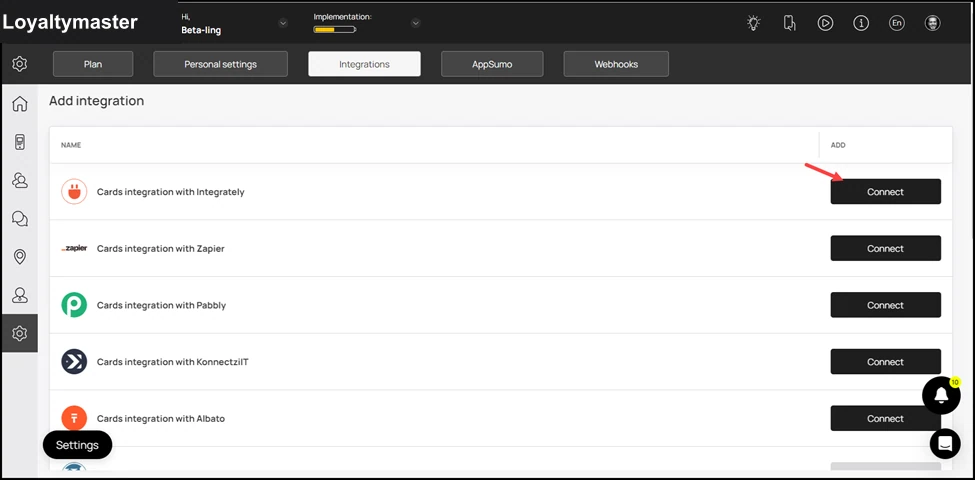
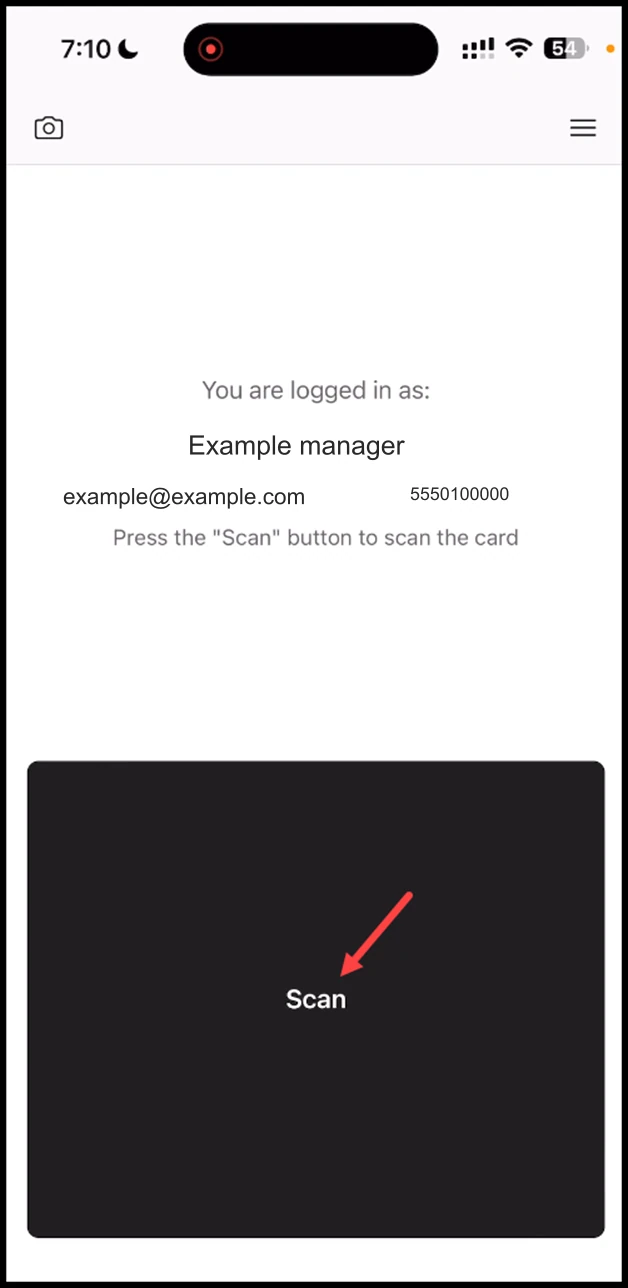
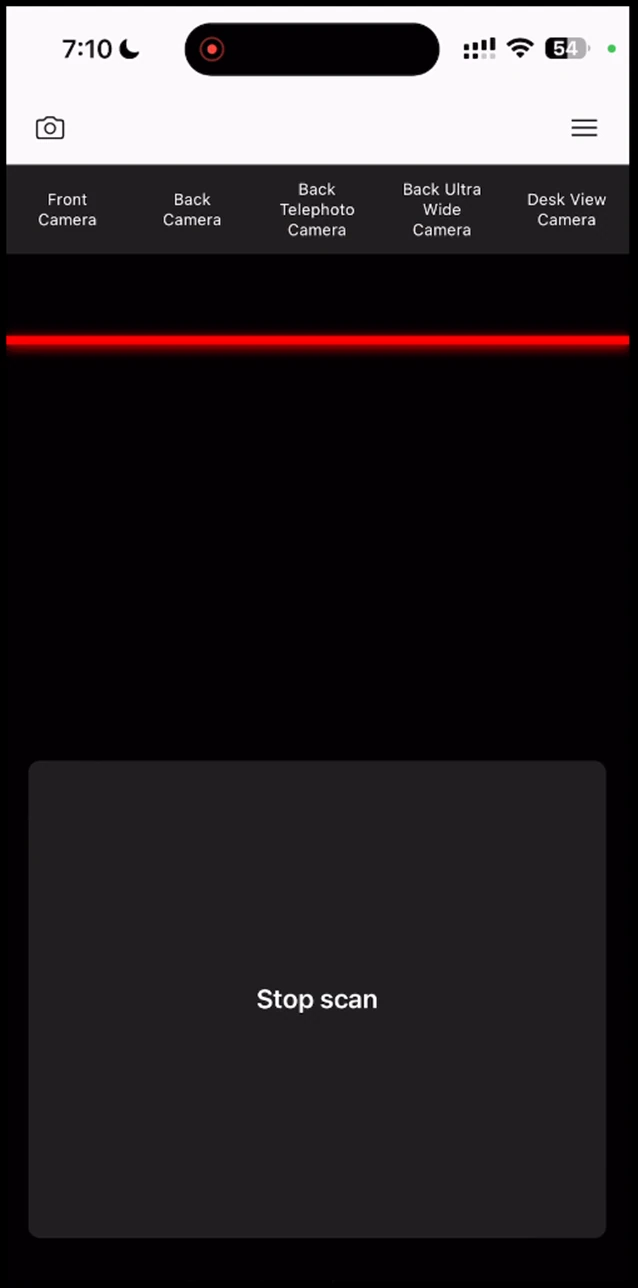
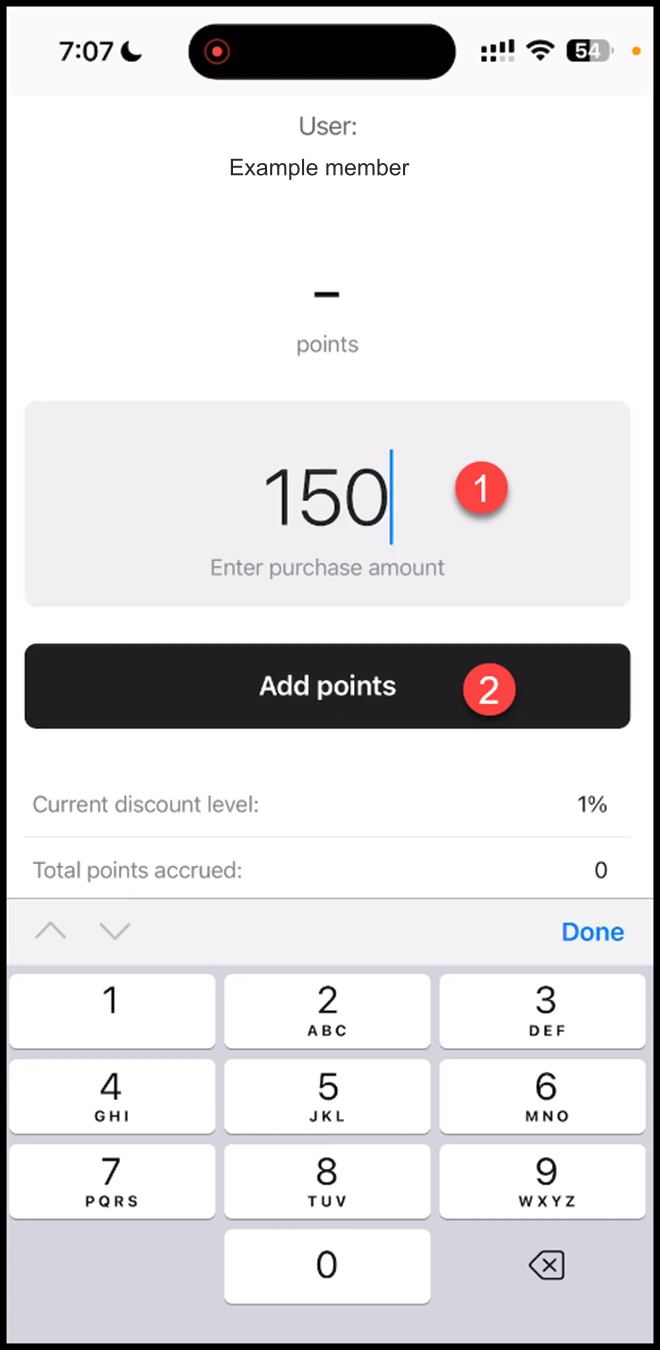
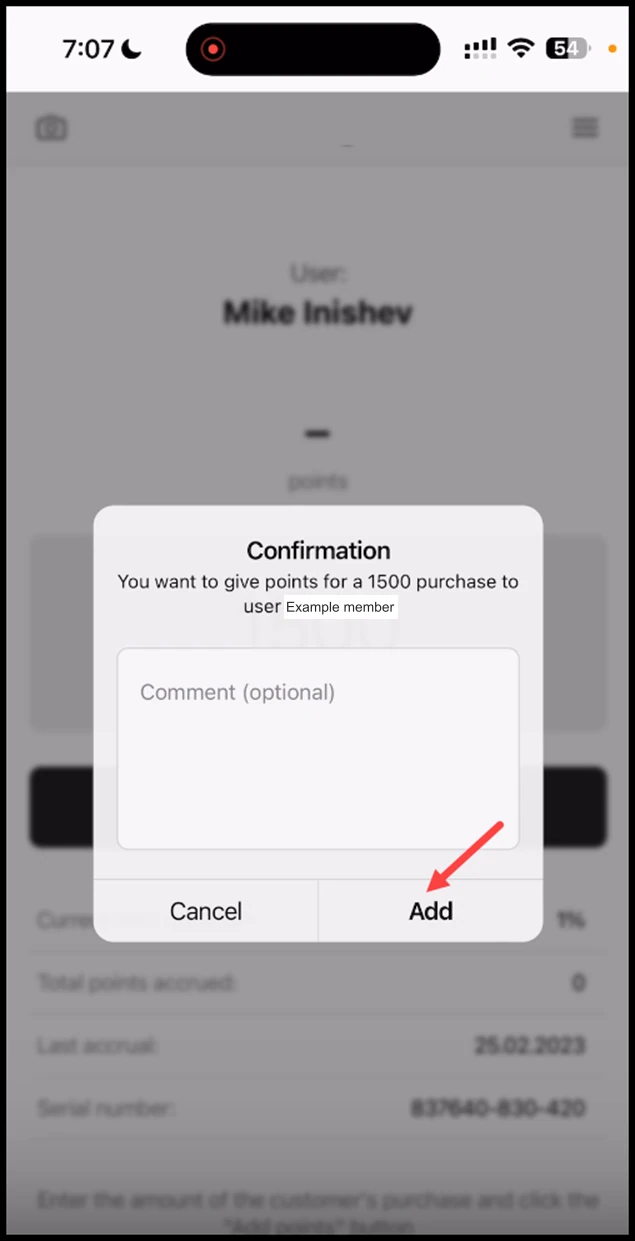
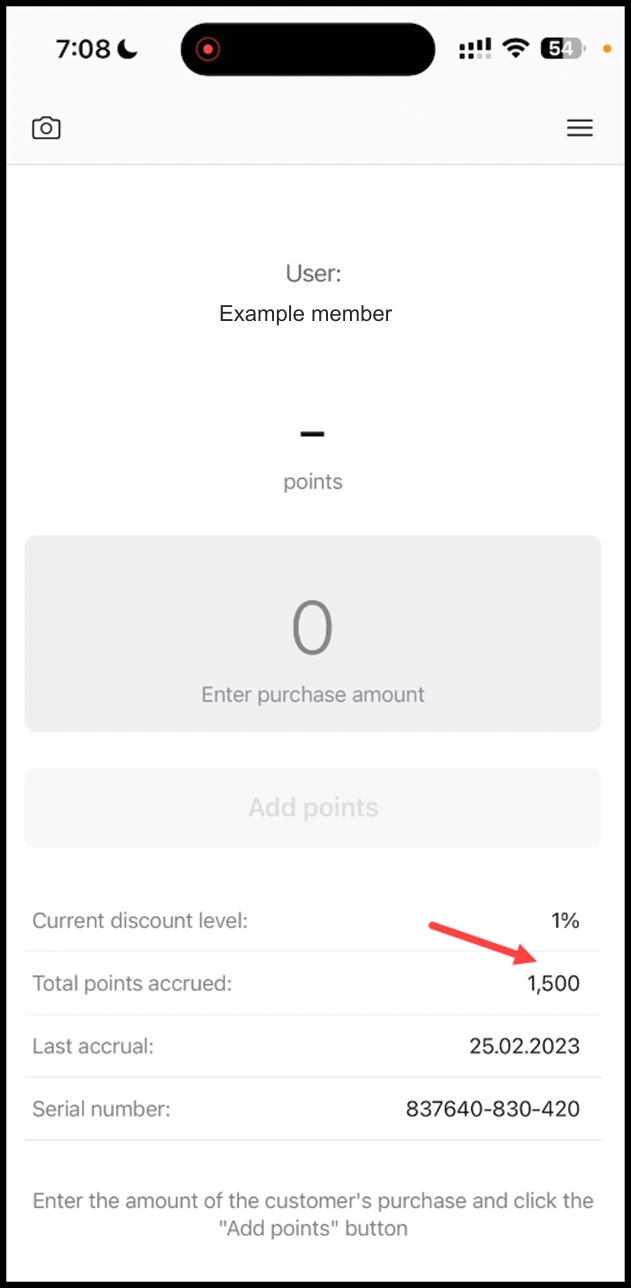
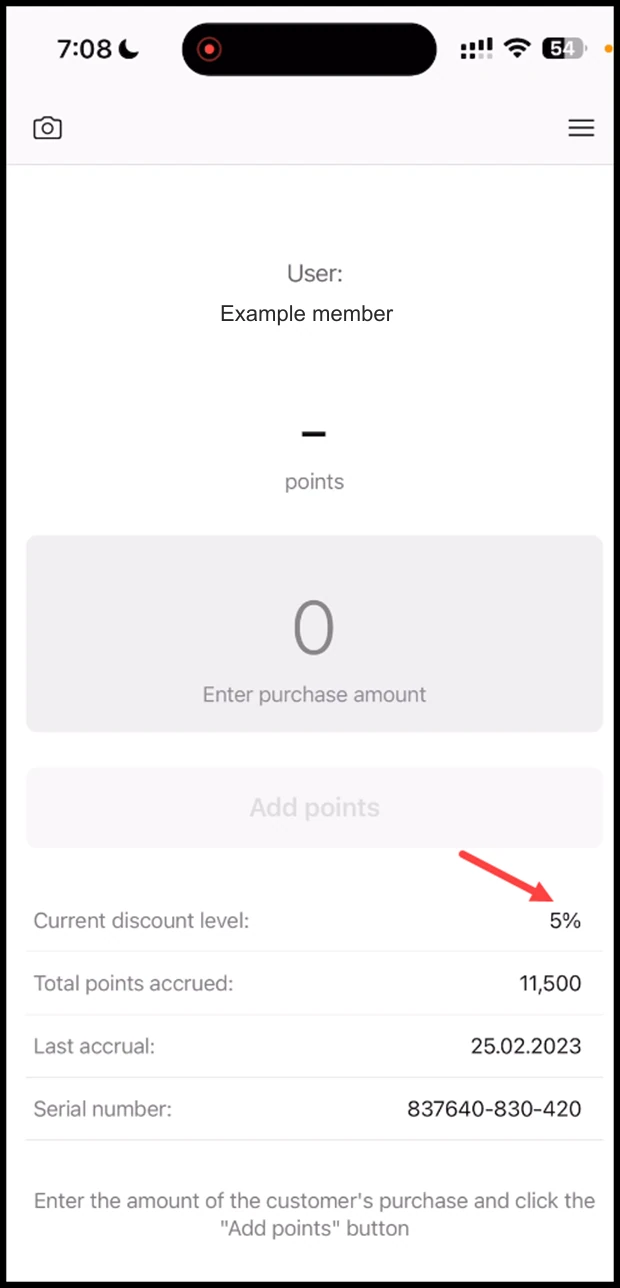
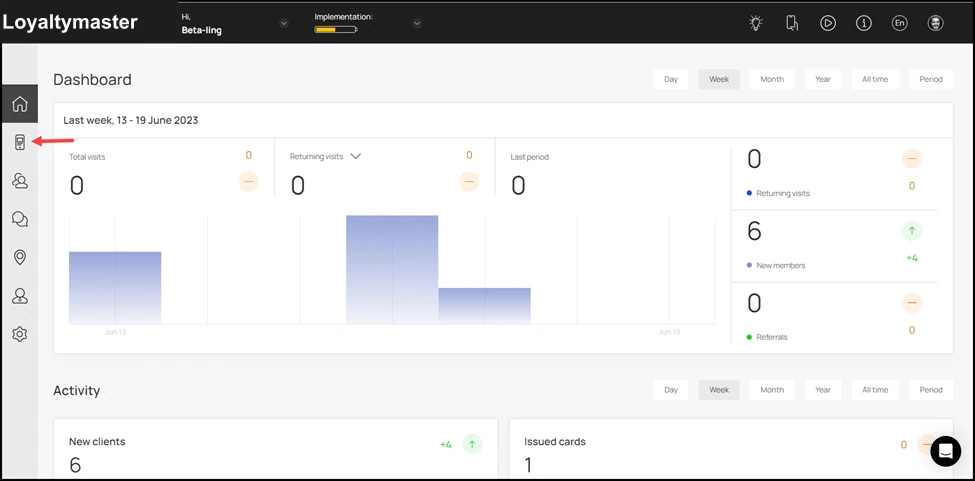
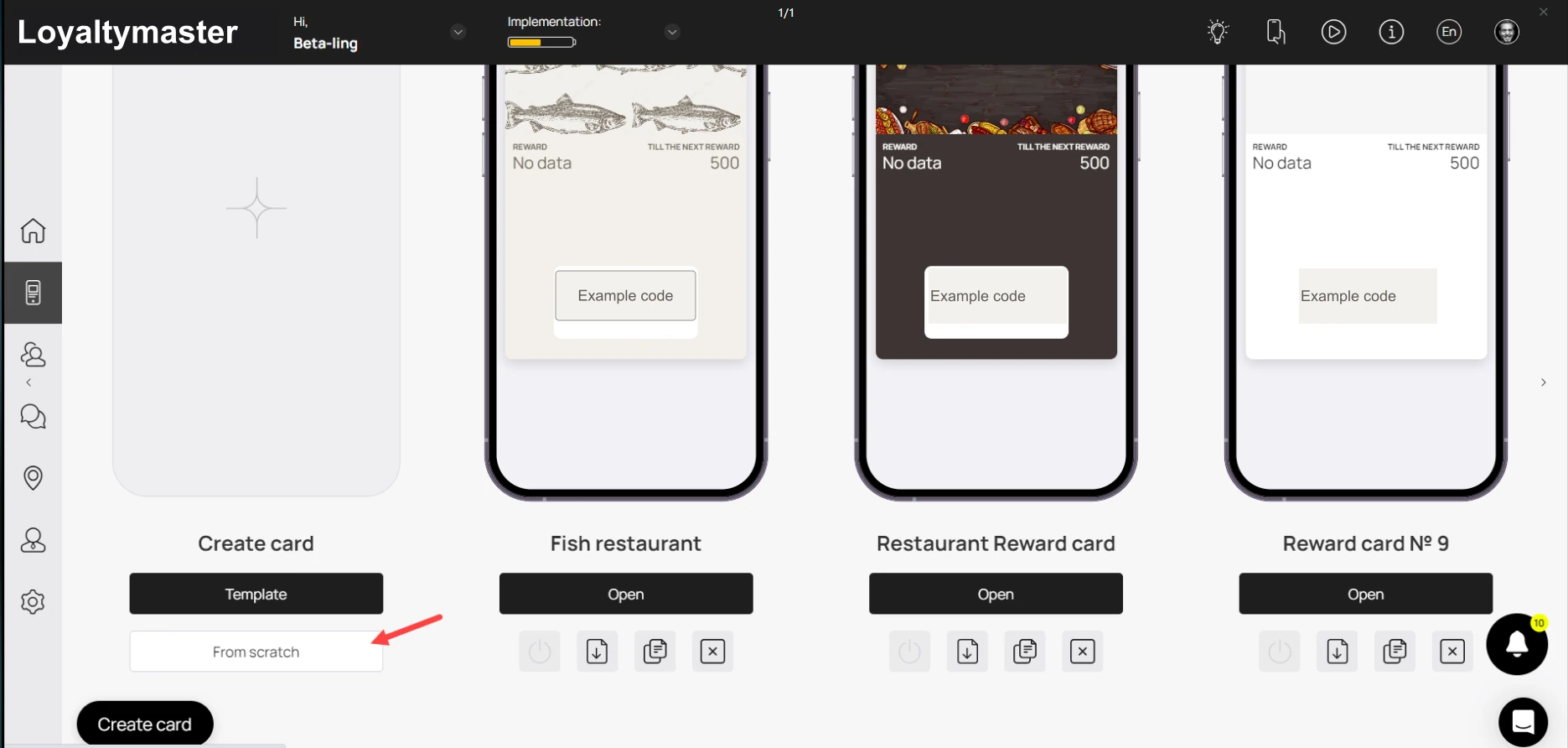
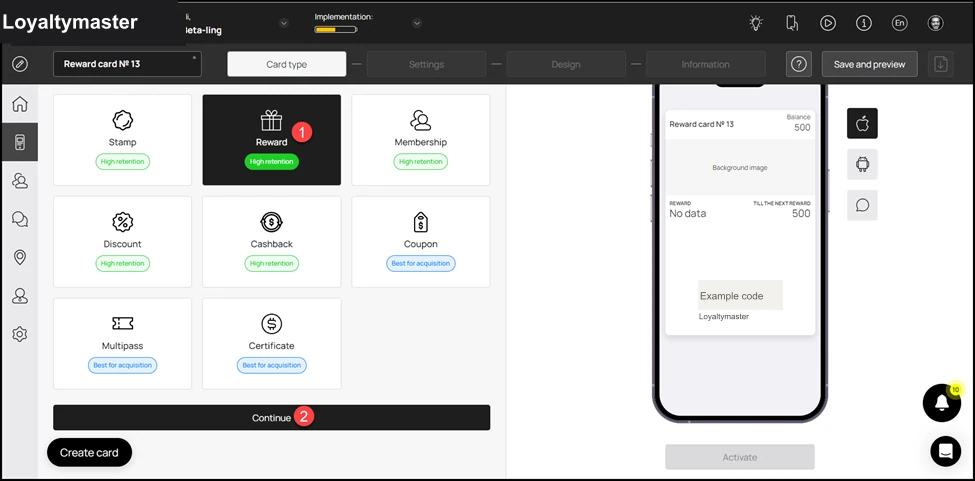



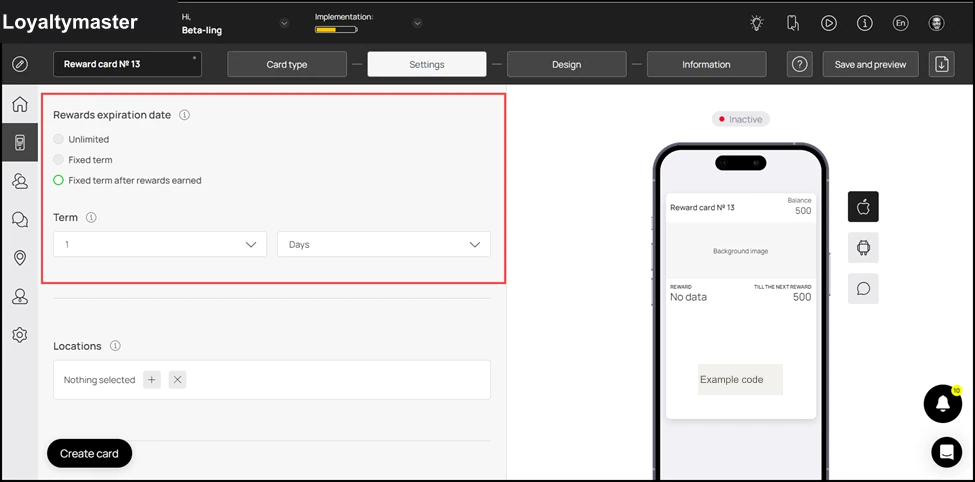
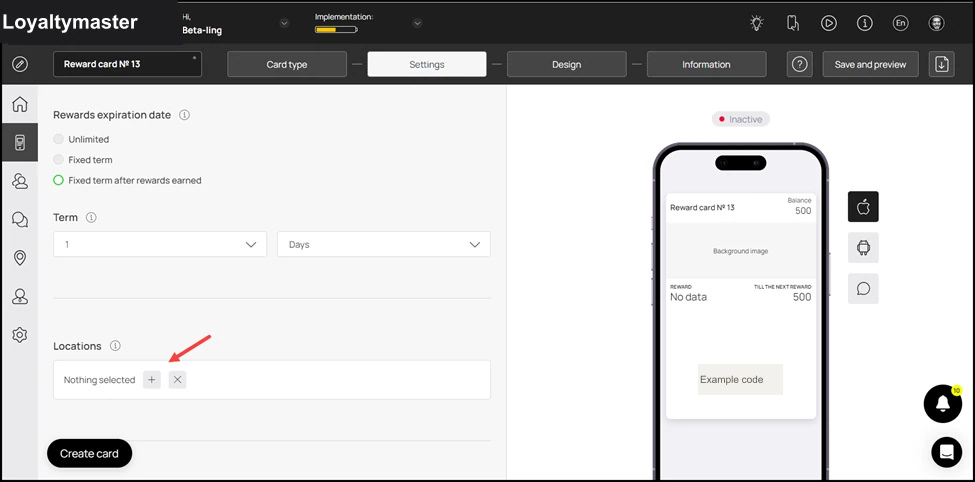
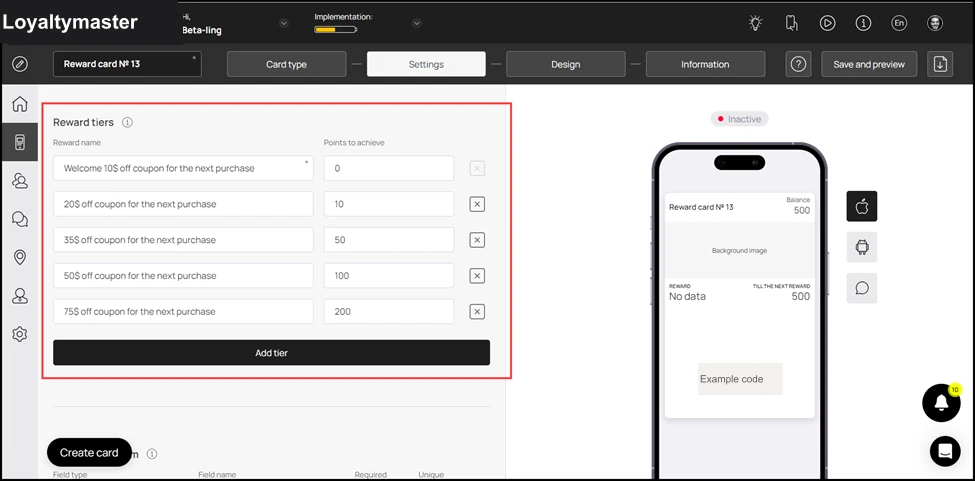












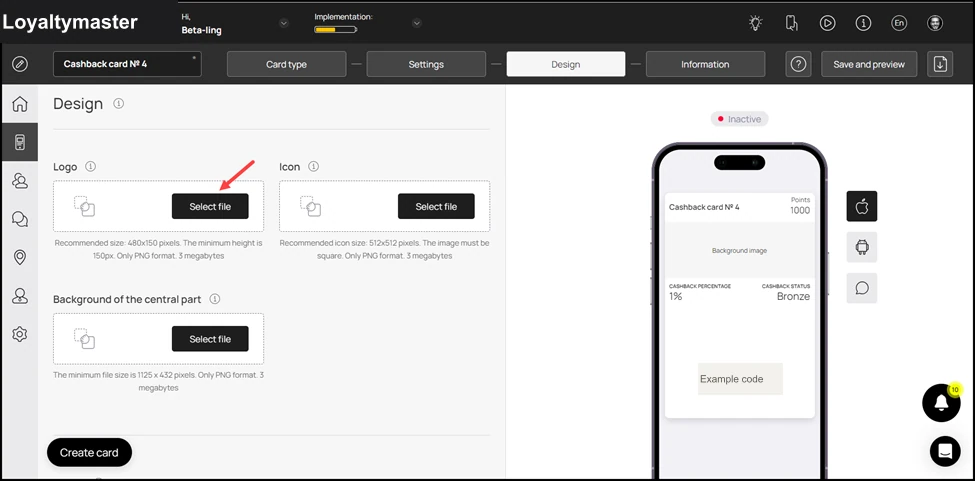
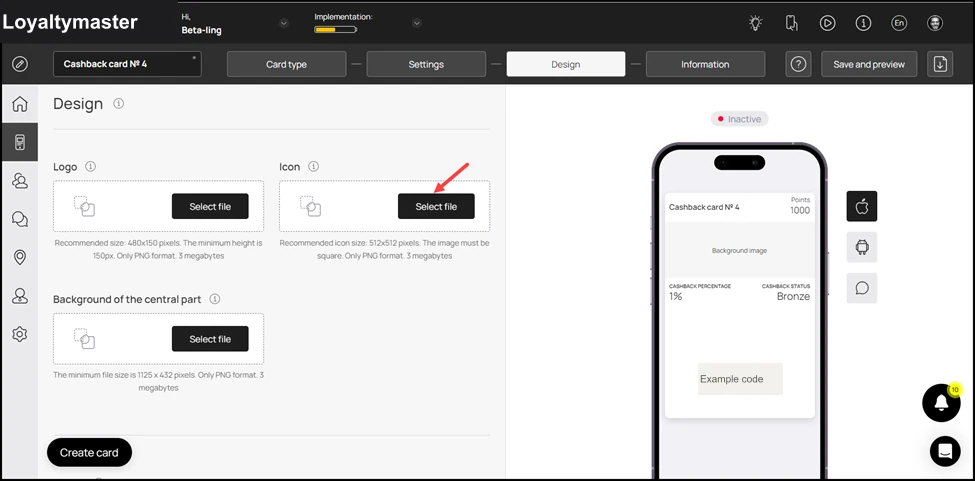
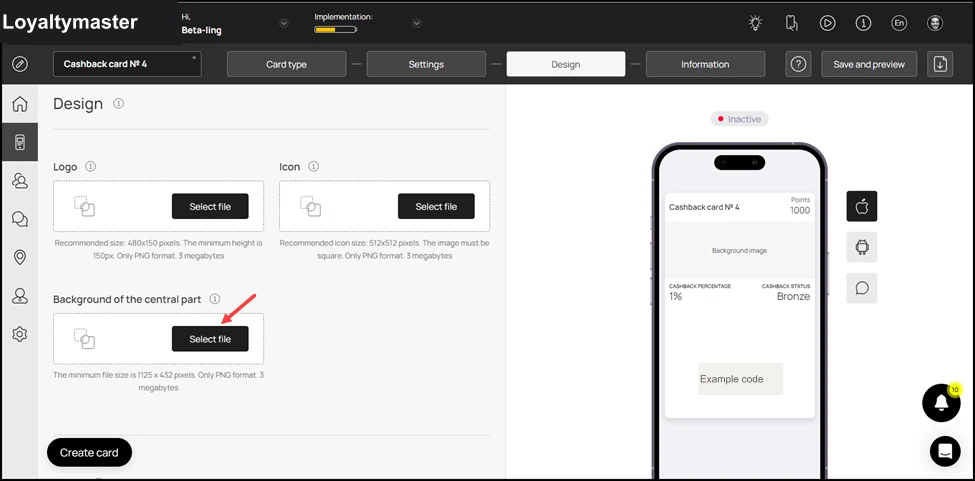
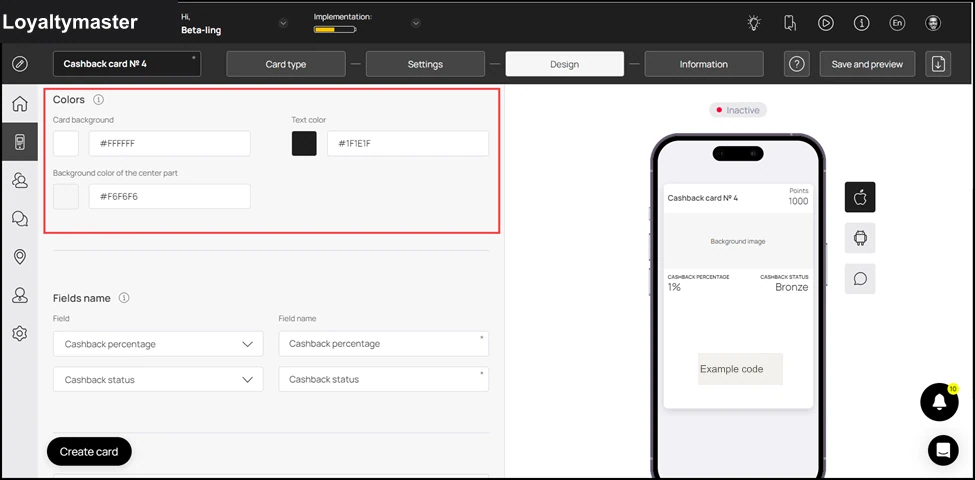
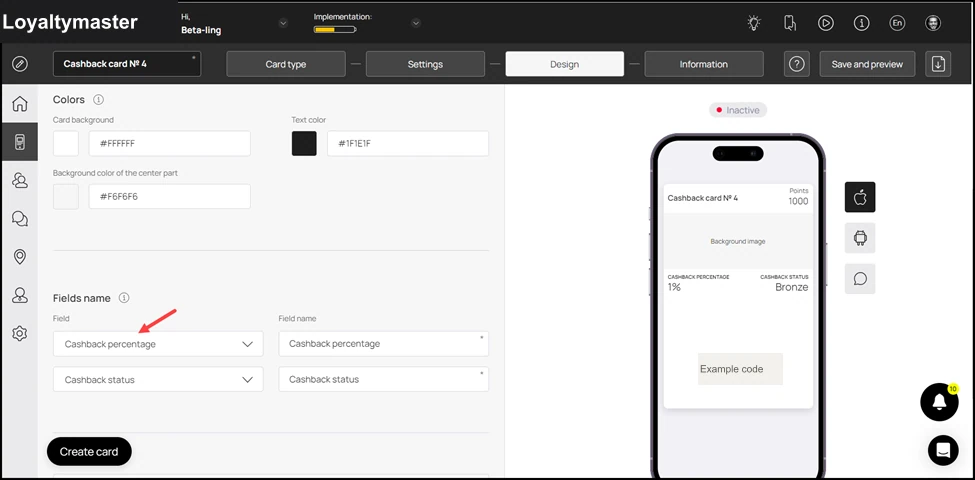
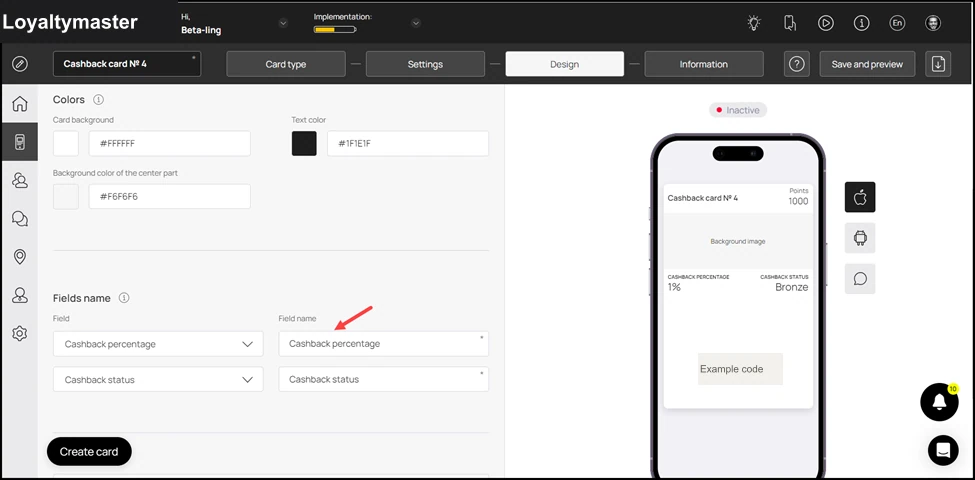



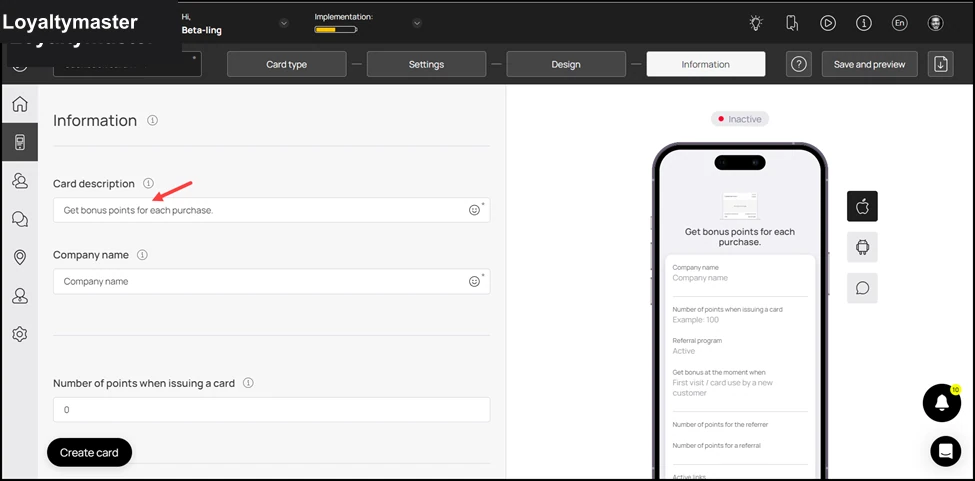
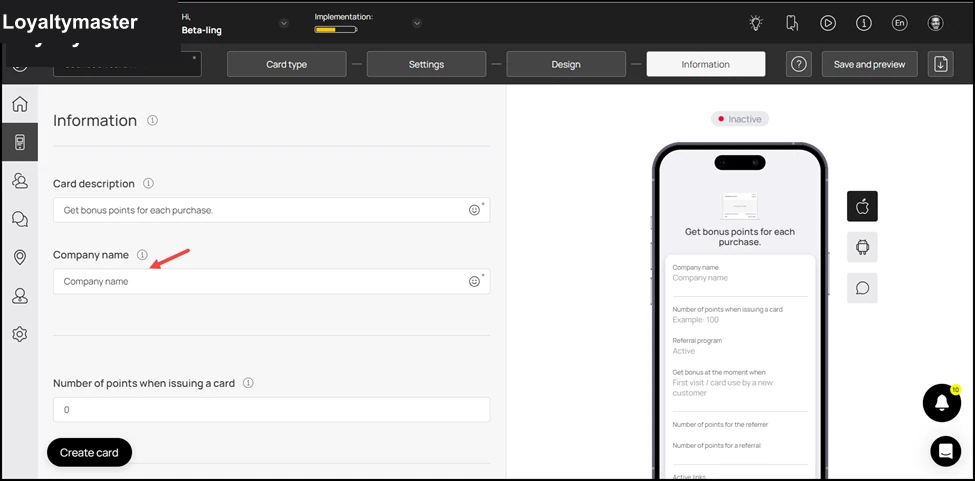
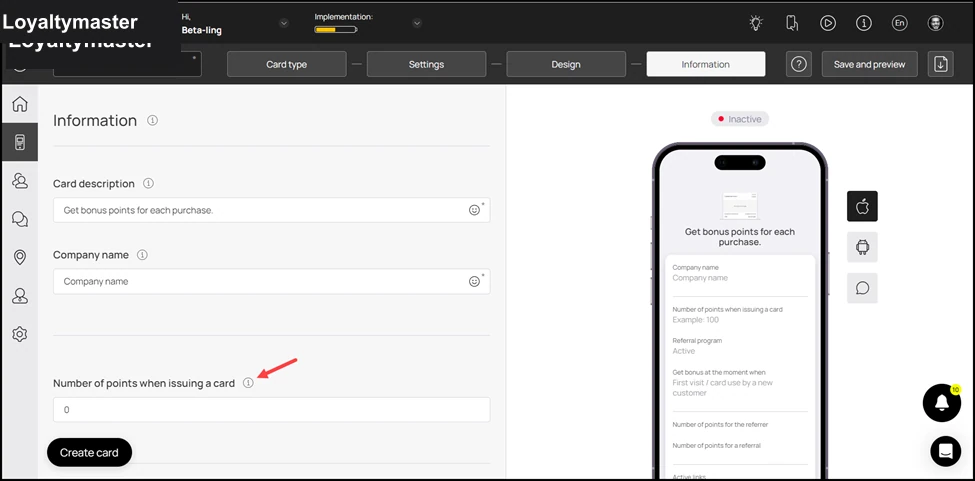
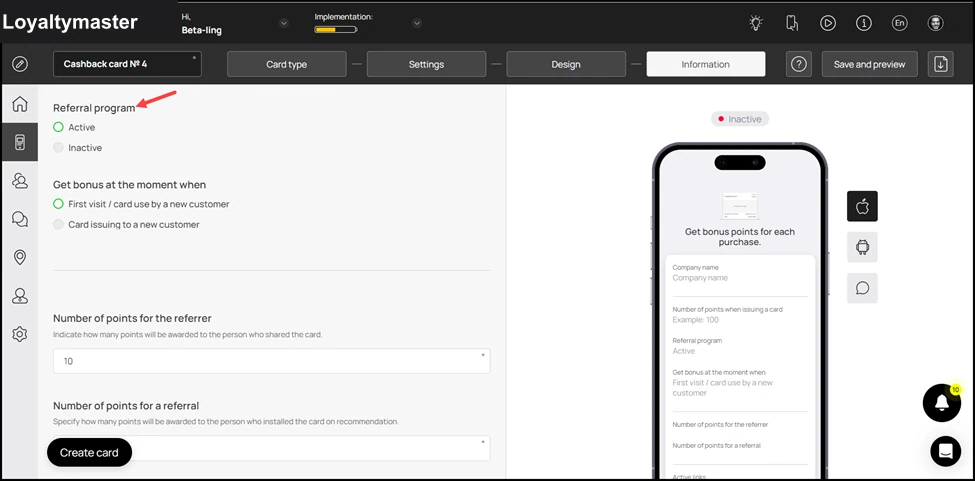
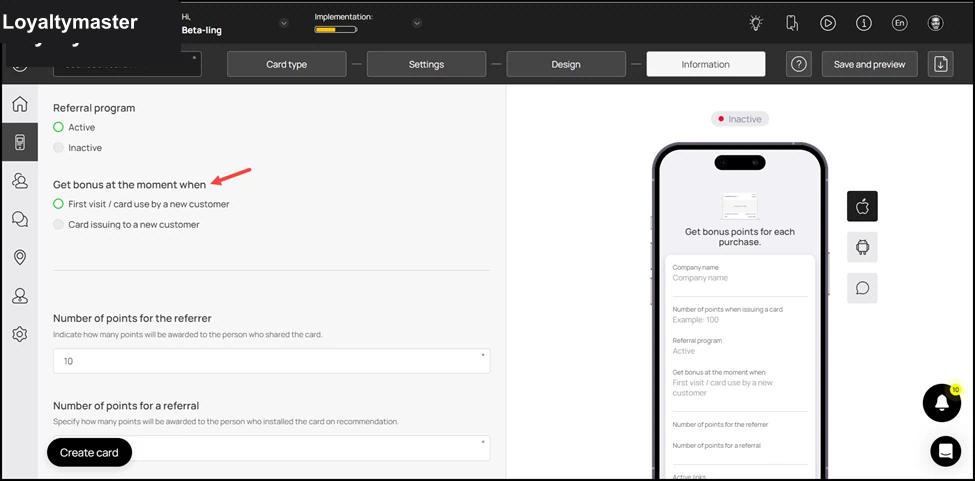
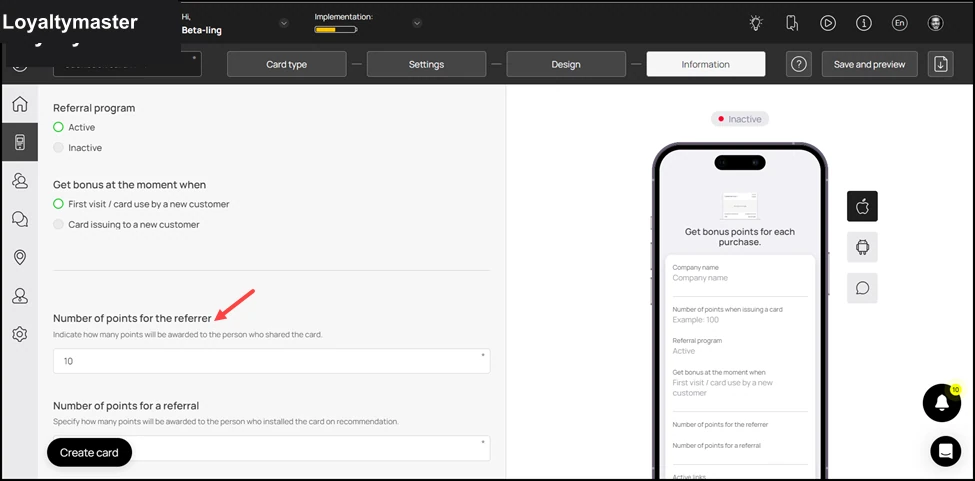
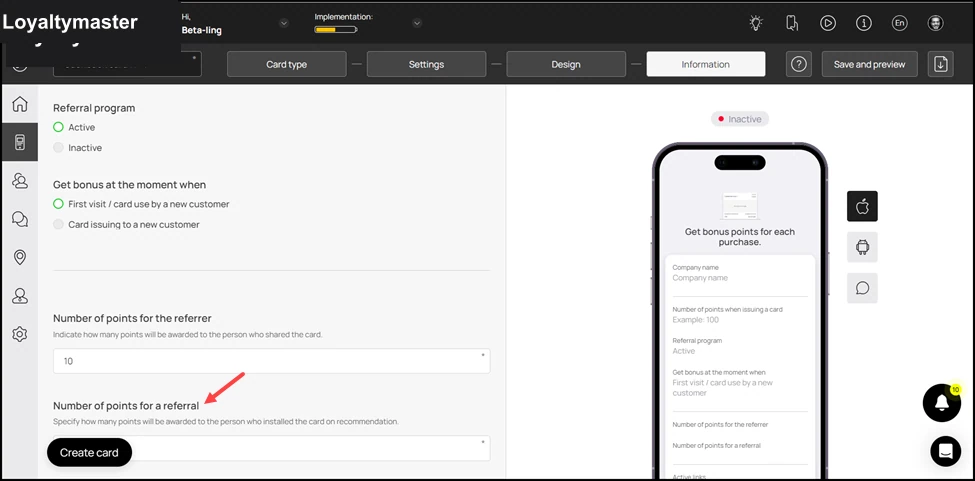















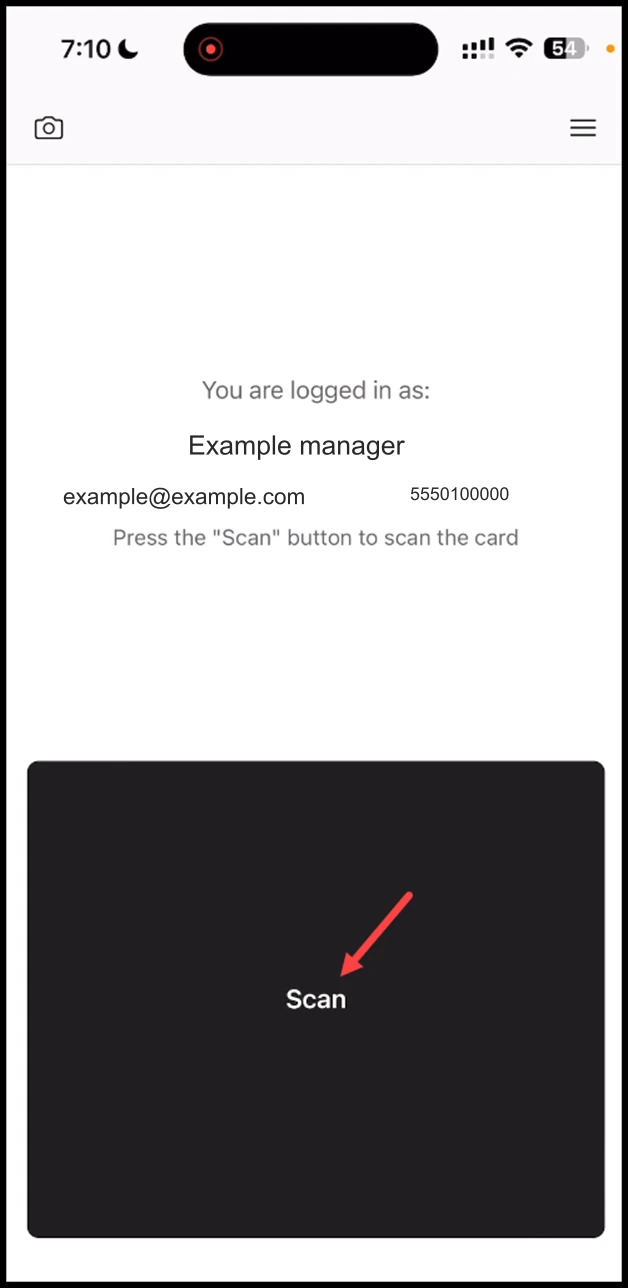
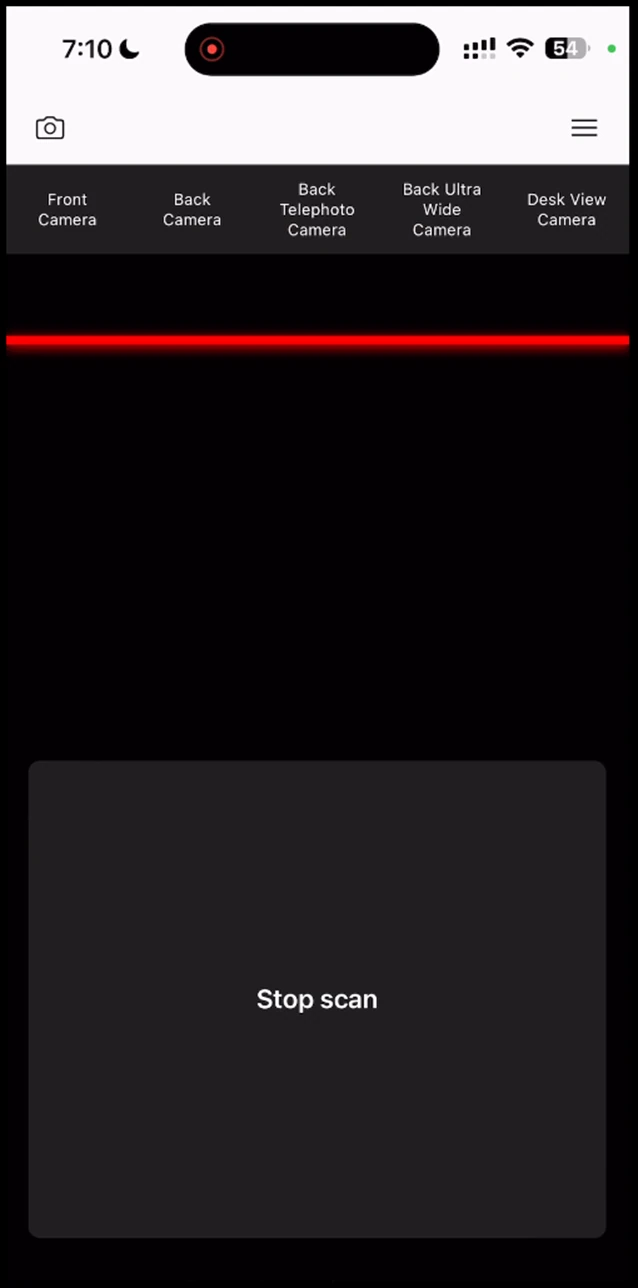
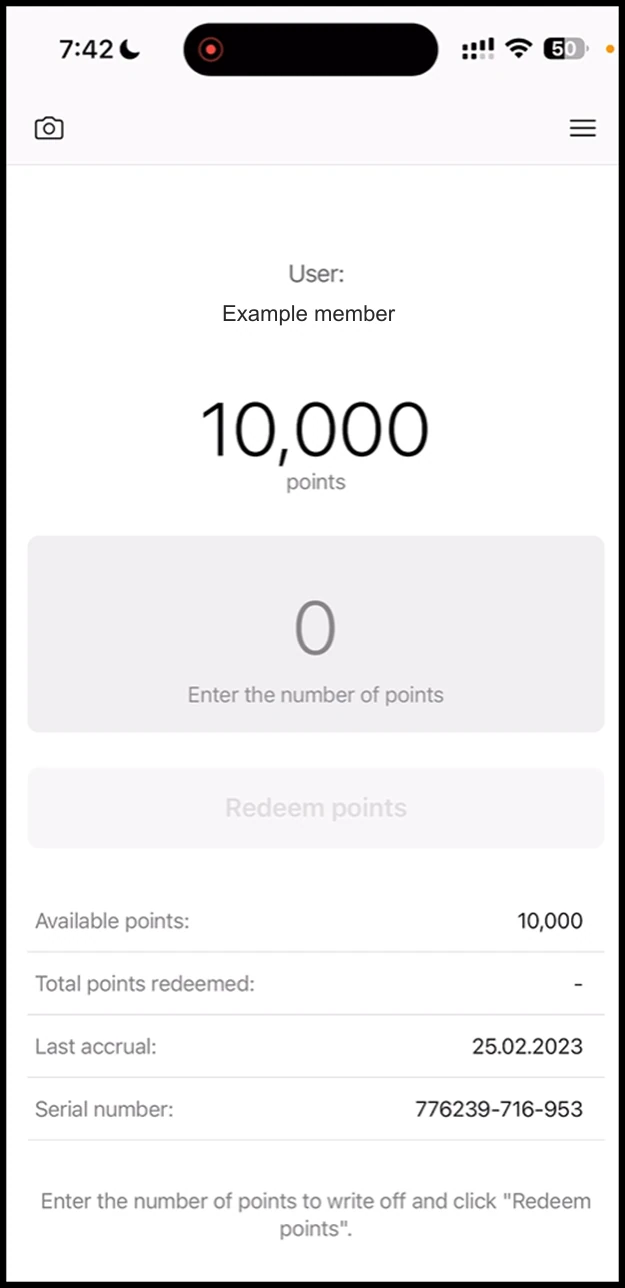
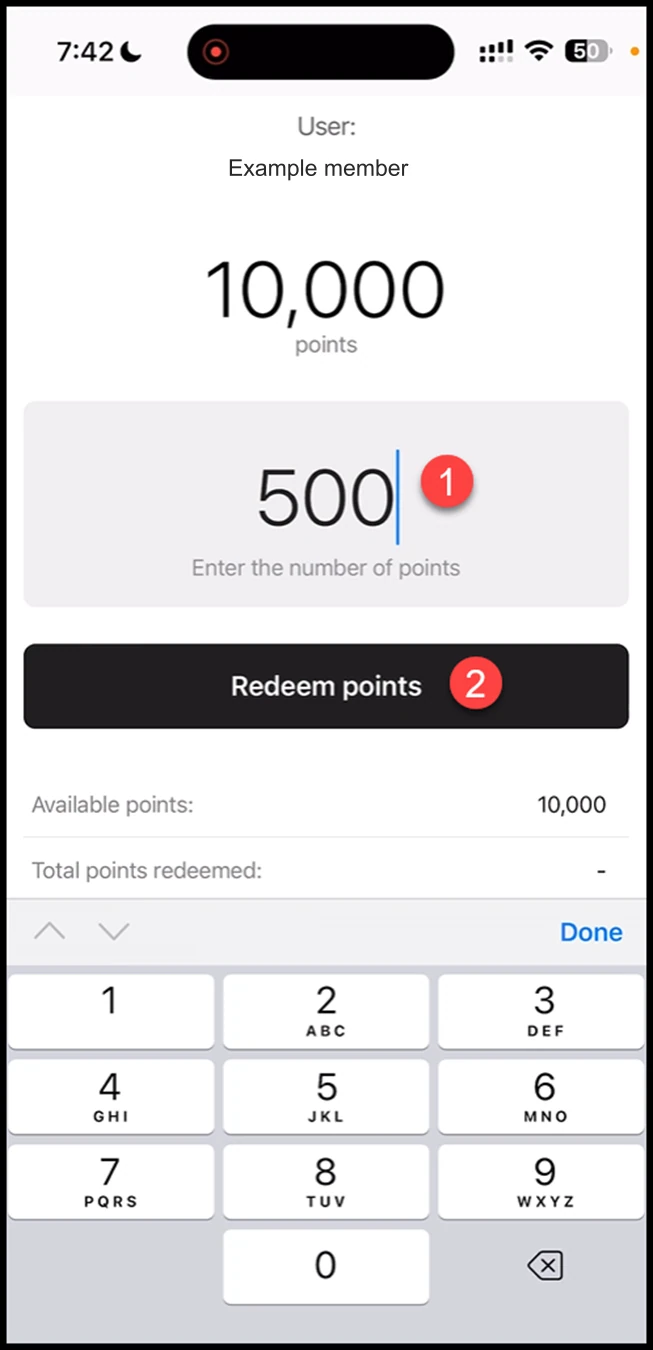
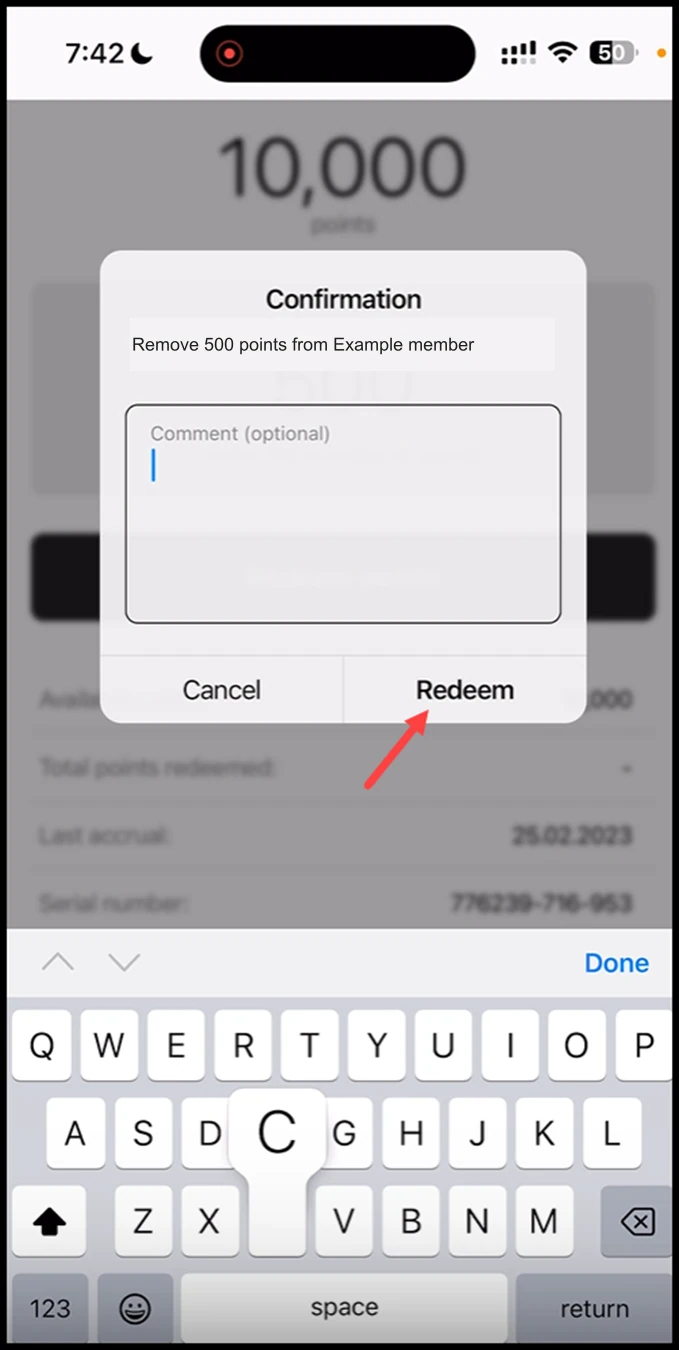
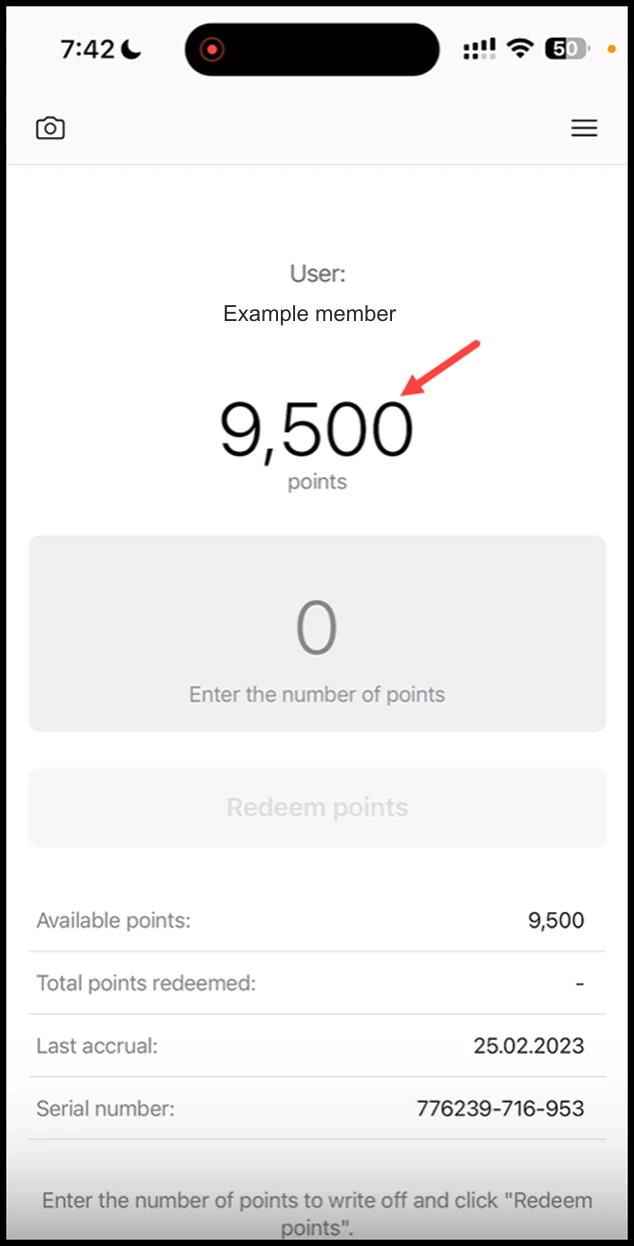
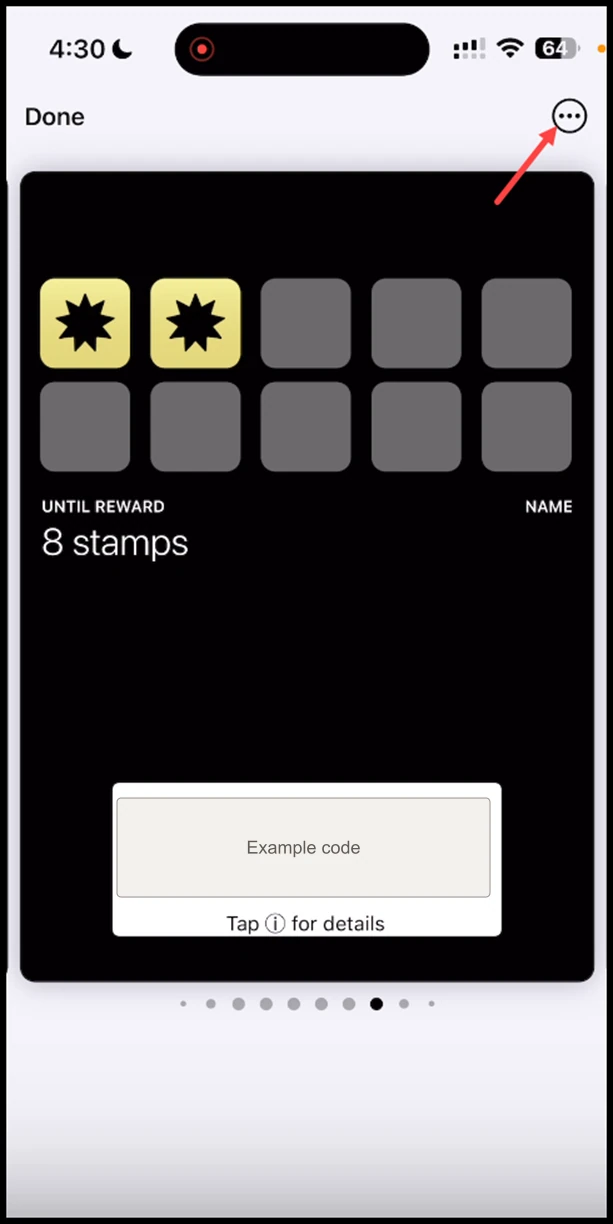
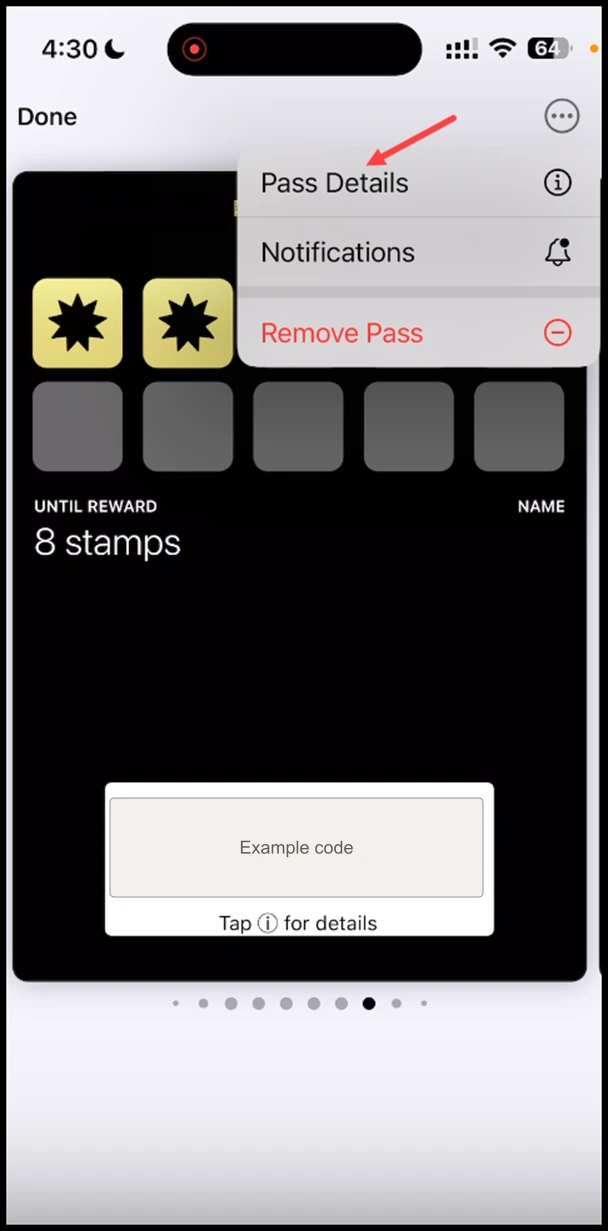
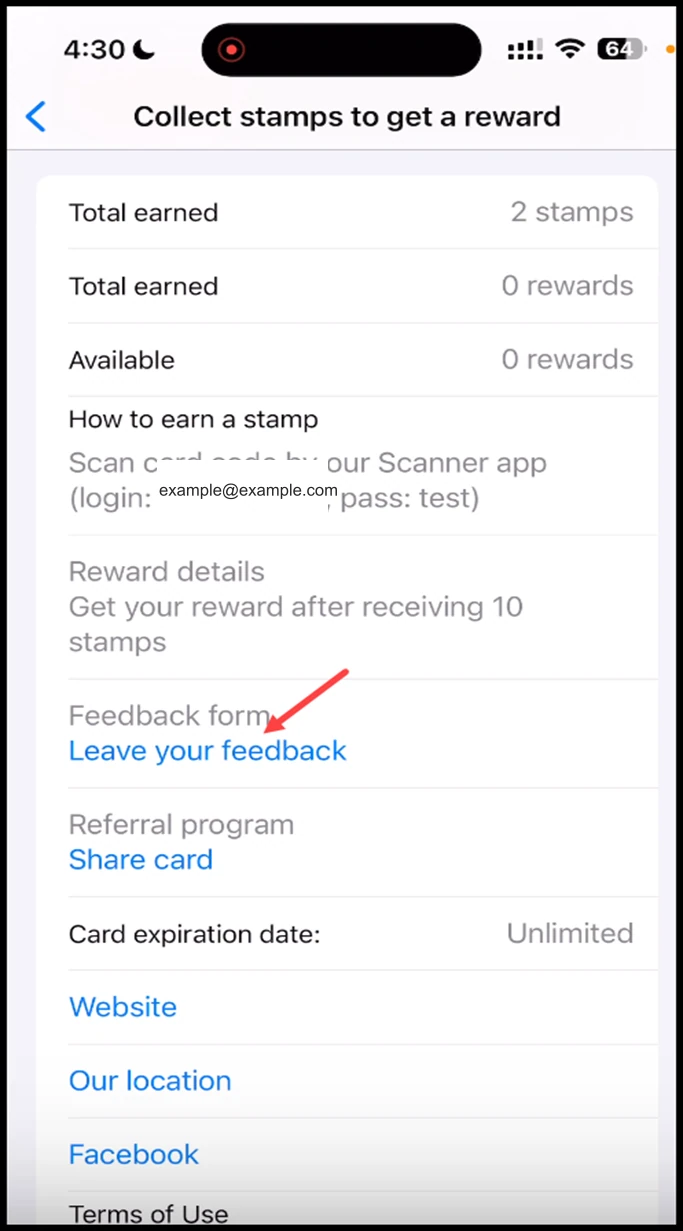
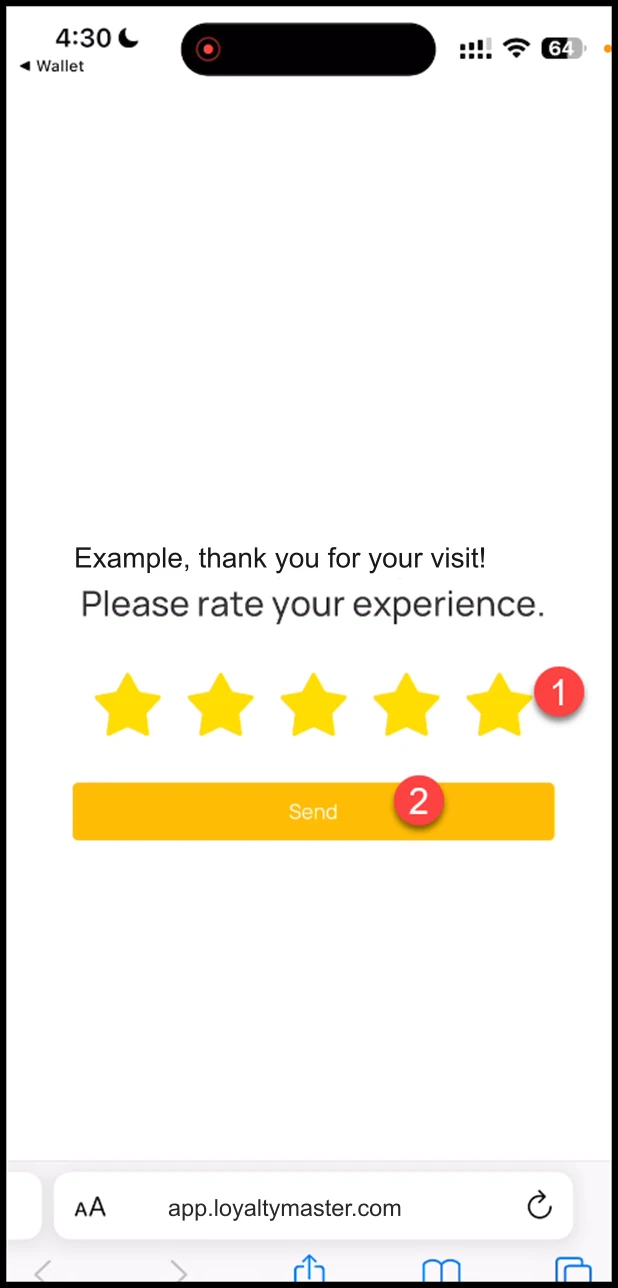
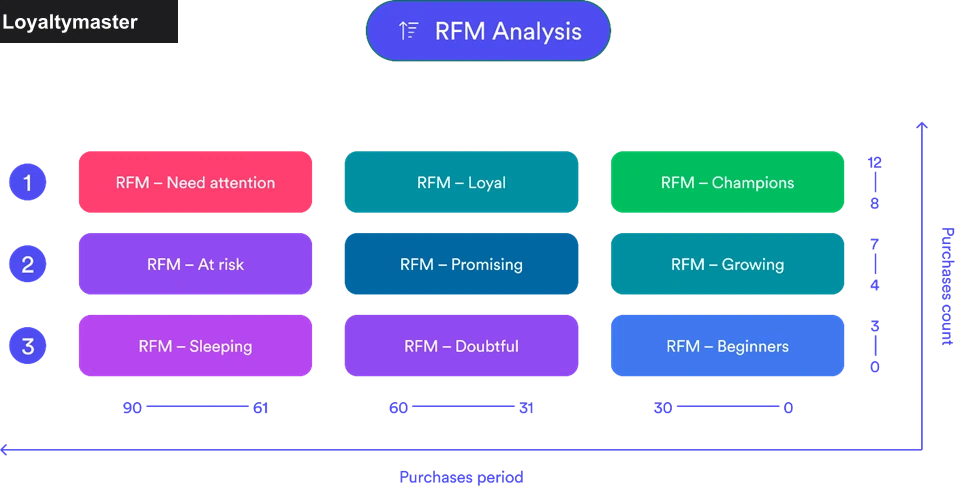
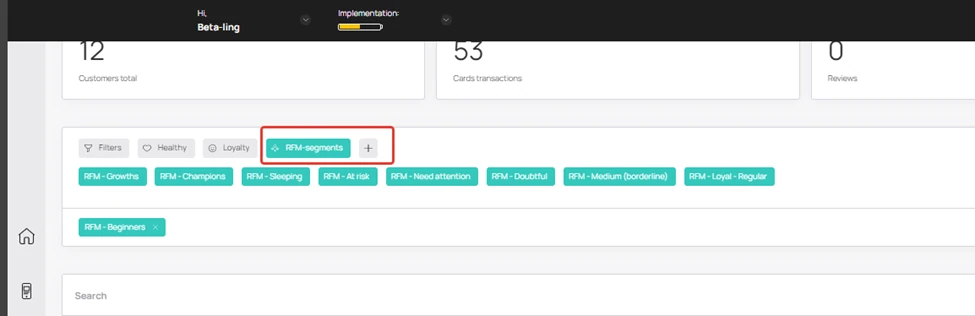
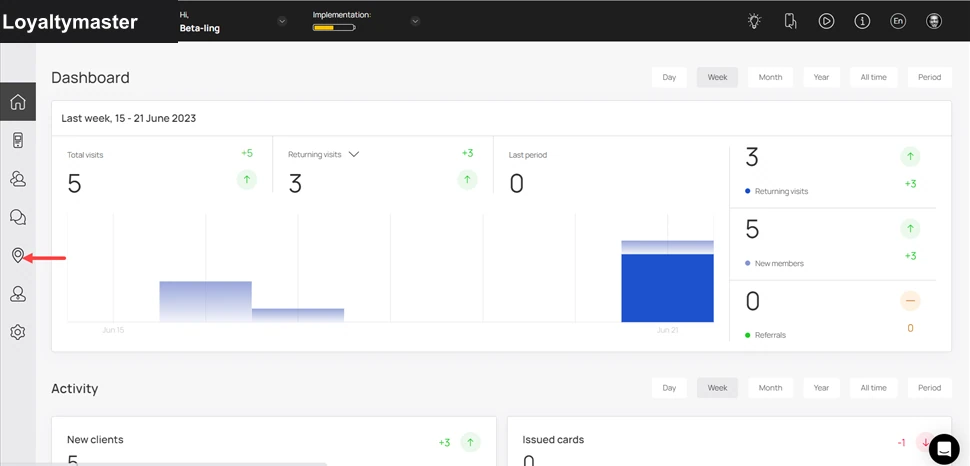
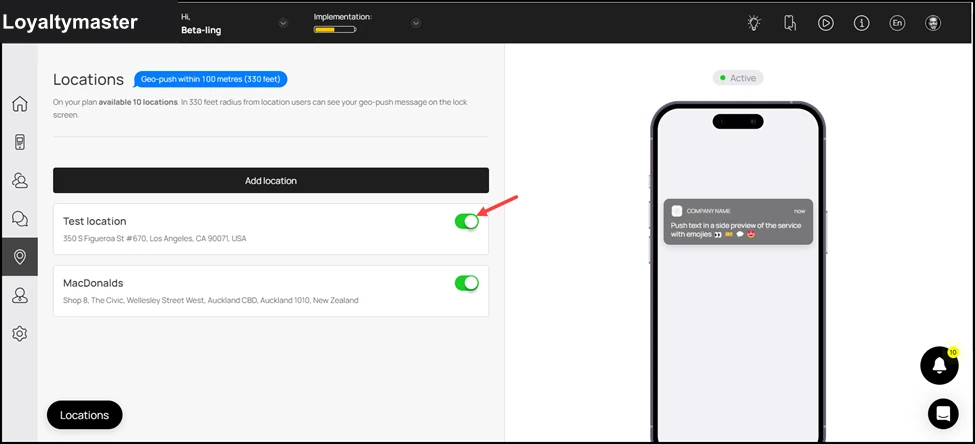
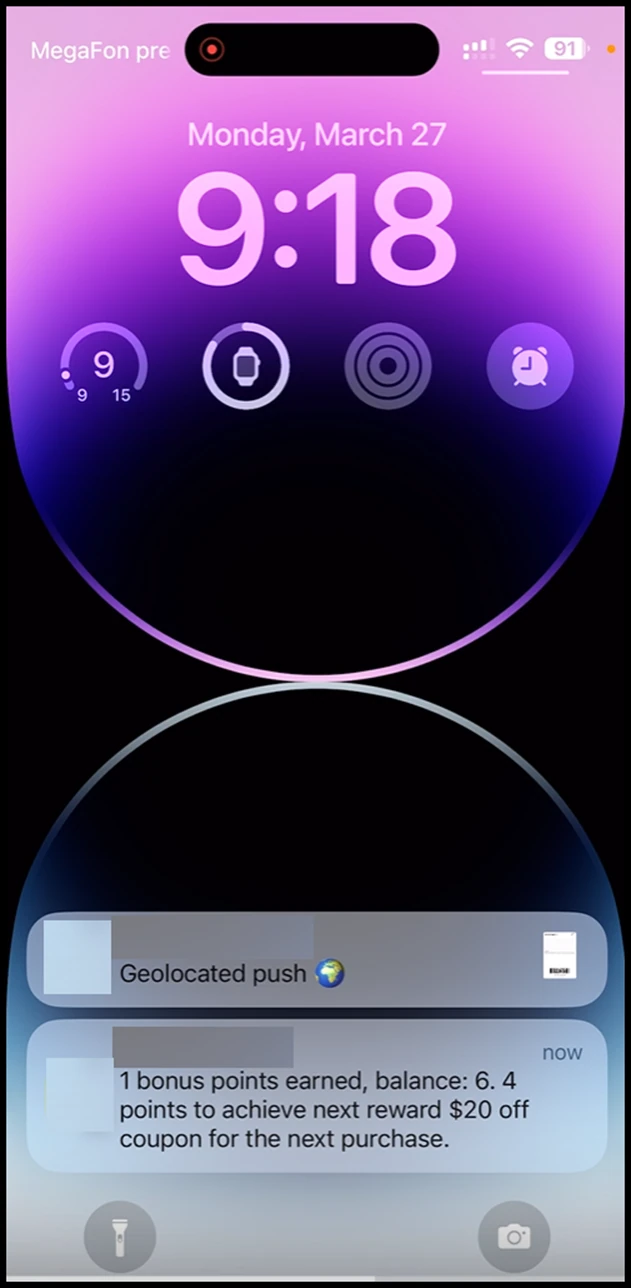
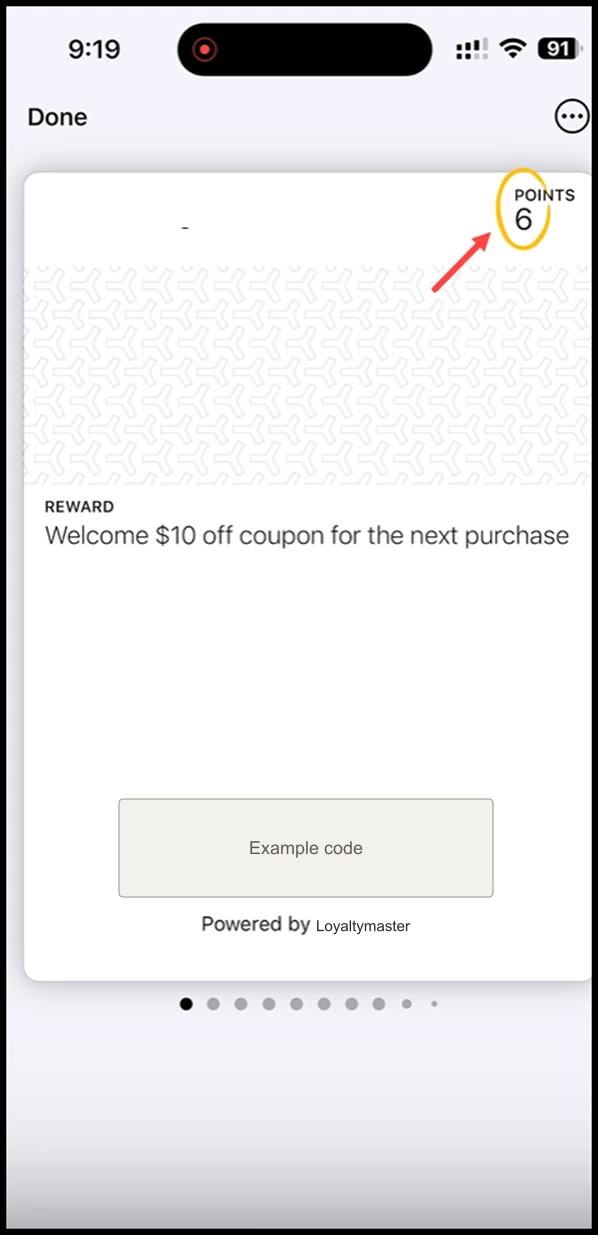

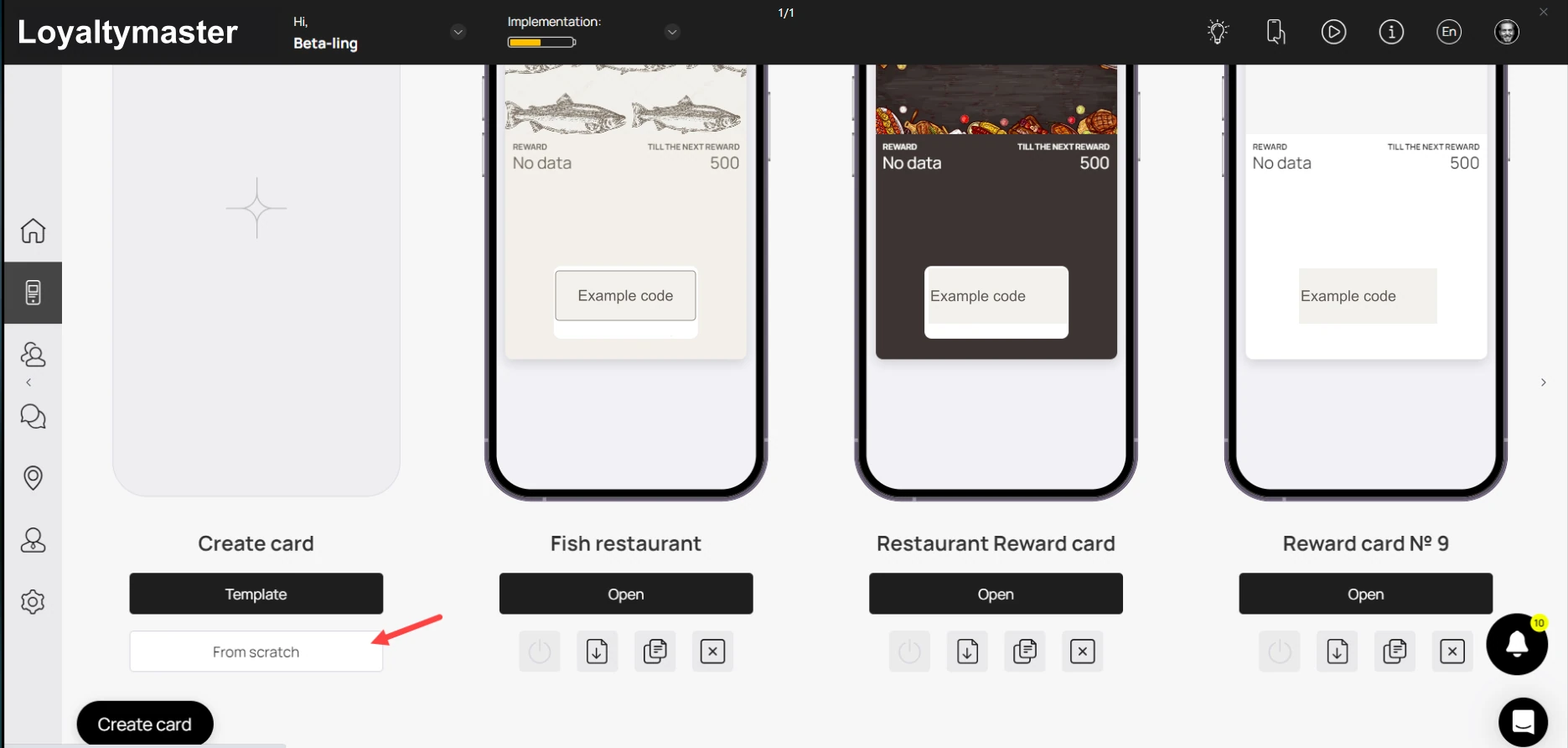
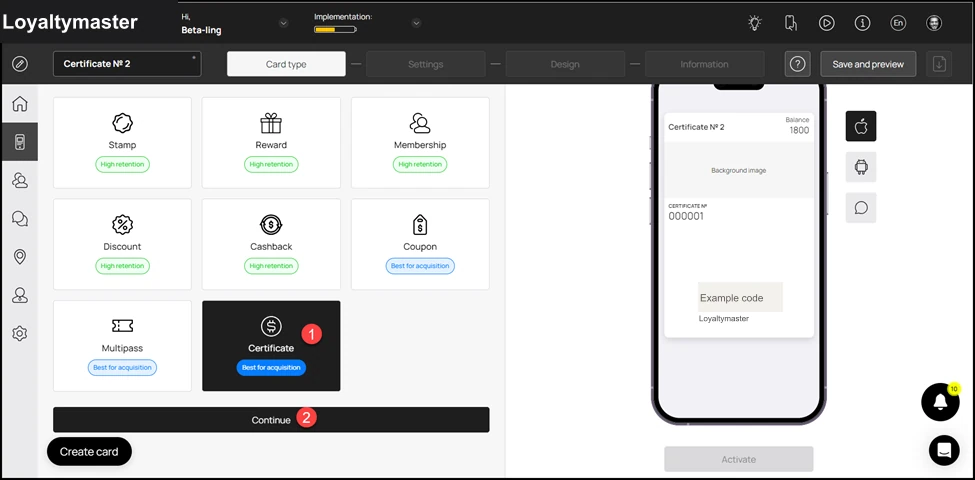



























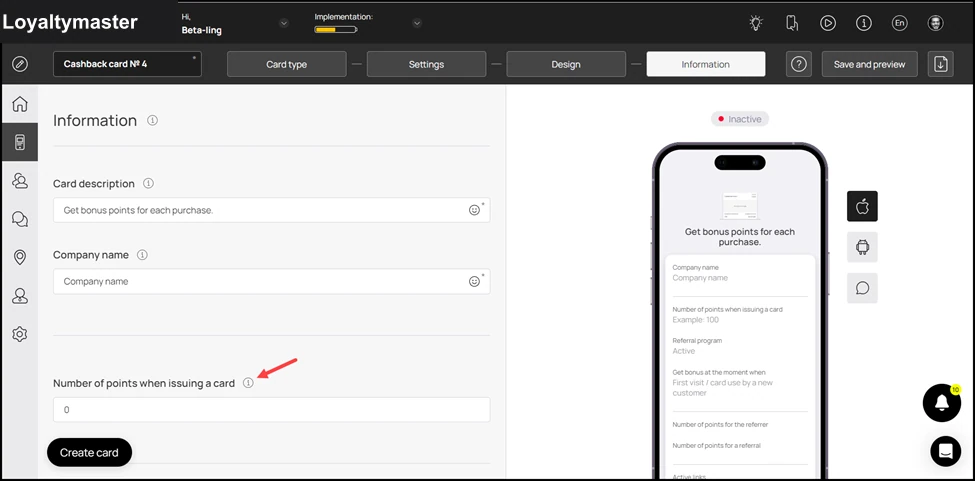

















--- # How to Create a Discount Card Create a discount card and configure its discount, design, and customer-facing information. Canonical: https://support.loyaltymaster.com/cards-creation/discount Review status: Application review pending; current permissions and product version unverified. 1. Upon successful login, navigate to the left-hand menu. 2. From the list of modules, click the **Cards** icon. Doing so opens the Cards module. ![How to Create a Discount Card: From the list of modules, click the icon. Doing so opens the Cards module.](/media/8b123a333f16dfe46923-4605f9faead10dd3e4d14b68a1438b3b732e0a3f355ae8cf3a4fb100fcc92044.webp) 3. Here, you can either create a card using a template from a list of a wide range of pre-loaded templates or create one from scratch. To develop a better understanding, we will take a look at card creation from scratch. 4. To do so, click the **From scratch**button. ![How to Create a Discount Card: To do so, click the button.](/media/ad5ac6294cbe74d22caa-47f2cb22bcc0ba6de620c518708bc5c51f77113877577a11a5ae89863c7b2b2e.webp) 5. This initiates the stamp card creation workflow. A card is created by filling in the details in 5 sections that include Card Type, Settings, Design, Information, and Save and preview. Let us take a look at how each section works. ## Card Type 1. This is the first section. Here, you make a selection regarding the type of card you want to create. 2. From the available card types, click Discount. 3. Once selected, click the Continue button. As a result, you land on the Settings section. ![How to Create a Discount Card: Once selected, click the Continue button. As a result, you land on the Settings section.](/media/eda4045d7796860c214d-377f5b6be55ea53070b1d88f1ca9c9b3c7d874f7700449884ae174508ceadca0.webp) ## Settings 1. Here, choose the language in which you want to create the Discount card using the **Language** dropdown. ![How to Create a Discount Card: Here, choose the language in which you want to create the Discount card using the Language dropdown.](/media/308aaee33563ab626518-5e040a4315afa3b43f0854958b55cfd21c9f887744fcb1659354840266474d16.webp) 2. Select the expiration date for the multipass card using the radio buttons under the **Card Expiration Date** heading. ![How to Create a Discount Card: Select the expiration date for the multipass card using the radio buttons under the Card Expiration Date heading.](/media/1f79dbc28df92fdc3547-6514a9b1af2aeedb3ac41a16cc6edffe5deae137cd7be7711852bb6919152081.webp) 3. It is recommended to select **Fixed term after card issuing** from here. As this option is selected, the **Term** dropdowns are displayed. Here, you can select the number of days upon card activation after which it expires. ![How to Create a Discount Card: It is recommended to select Fixed term after card issuing from here. As this option is selected, the Term dropdowns are displayed. Here, you can select the number of days upon card](/media/183937f61910a7b46409-907c0d80f484c6067aa40606ab39d46157a193f3fdb2bac5d492c5387fc9032a.webp) 4. Set the location(s) of your business where the card can be used from the **Locations** field. Multiple selections can be made from here. ![How to Create a Discount Card: Set the location(s) of your business where the card can be used from the Locations field. Multiple selections can be made from here.](/media/e4e644c43bb9460545f3-462caa0c5a1511f09a79f552043b1cc231ae1ff6452333a054b44151cf453e11.webp) 5. Next up is the Cardholder Status heading. Here, you can create a tier-wise segregation for the customers and offer discount percentages based on their spend. Use the Tier Name, Spend to Achieve, and Percentage % fields to define the tier type, required spend to achieve the tier, and the discount percentage offered for that tier respectively. In case you want to create an additional tier, click the Add Tier button. ![How to Create a Discount Card: Next up is the Cardholder Status heading. Here, you can create a tier-wise segregation for the customers and offer discount percentages based on their spend. Use the Tier Name, Spe](/media/34d4473db4f93fef186d-74cc141953e7f67157101386343f8c15b2f7ac8bb96388fad3789977647f4a0b.webp) 6. Next up is the Card Issuing Form heading. Here, you can define the fields you want to include on the certificate card. 7. Use the Field Type dropdown to select the type of field you are adding. ![How to Create a Discount Card: Use the Field Type dropdown to select the type of field you are adding.](/media/10dadb6b4cd2c77fd4e3-8d99168c57c5cde41442df897bfa379a0a847796f35dc9fee4b449e15c47e77e.webp) 8. Similarly, enter the name of the field in the **Field Name** text field. ![How to Create a Discount Card: Similarly, enter the name of the field in the Field Name text field.](/media/b83095bdd0e22e5f220b-0d91536a1d79f396a5dcaa49ebf61d9a2d1e9de26eb838f6889657841d74a8bb.webp) 9. In case you want to make a field mandatory, enable the **Required** toggle. ![How to Create a Discount Card: In case you want to make a field mandatory, enable the Required toggle.](/media/897e492b946119dcca21-ef8b8ec0b8b21211e51df2718da92e4069618097399e5ec6ab1388b4a73fecfd.webp) 10. Similarly, if you want to record unique data in a field, enable the **Unique** toggle. ![How to Create a Discount Card: Similarly, if you want to record unique data in a field, enable the Unique toggle.](/media/082e6c1a19464ed7f386-2b31c9fa33d5701685666726c4951b7dcd4ee2903a246a4a1af715860eed64a2.webp) 11. In case you want to remove a field, click the **Remove**button. ![How to Create a Discount Card: In case you want to remove a field, click the button.](/media/75ad48440a814206ff4a-e5276df59eea063f20217f7a7a1d54e3f737b67667fd34d4b4471ca180e64607.webp) 12. Similarly, if you want to create a new field, click the **Add field** button. This adds a new field from where you can select the field type and enter the name of the field for it to be added on the card. ![How to Create a Discount Card: Similarly, if you want to create a new field, click the button. This adds a new field from where you can select the field type and enter the name of the field for it to be added o](/media/673f125629af2b7f16e0-9d6f4e5fe436c644b87dfedec1ed53a29dc867d97891cd11e71076182f463300.webp) 13. This is followed by the **UTM** field. Here, you can create a channel link for the analytics to be tracked of the traffic generated by that channel. For instance, if you add Facebook in this field, Loyaltymaster will generate a URL automatically associated to a UTM tag. 14. Use the **Source Name** to record the name of the channel. 15. Once entered, click the **Add a link with UTM Tag** button. ![How to Create a Discount Card: Once entered, click the Add a link with UTM Tag button.](/media/73c6d029eff16198a70d-08ee0d61389948afdaa49ec844abb5bb982140fe2724aea36b7b69c75afdbcb6.webp) 16. Moving forward, the **Phone Mask** dropdown lets you choose a region via which you want to mask the communication calls. ![How to Create a Discount Card: Moving forward, the Phone Mask dropdown lets you choose a region via which you want to mask the communication calls.](/media/91571f7702df6823f006-bfd64e2b35d2ad53c527338b1d37b440124f5eb710d9252c2eeb120fb3fc44de.webp) 17. In case you want to include the privacy policy on the card, enable the toggle button next to the **Privacy Policy** heading. Moreover, you can also edit the privacy policy using the field below the heading. ![How to Create a Discount Card: In case you want to include the privacy policy on the card, enable the toggle button next to the Privacy Policy heading. Moreover, you can also edit the privacy policy using the fi](/media/01b96238201e711ed82c-91083051651891588c171115a58b3f6128efb989b6e345a90e112a1ad9780364.webp) 18. In case you want to include consent while processing personal information of the user, enable the toggle button next to **Consent to the processing of personal data** heading. ![How to Create a Discount Card: In case you want to include consent while processing personal information of the user, enable the toggle button next to Consent to the processing of personal data heading.](/media/88eea9eecdf9221d6466-0d2629a0d64e613f4209784335aac2b6bb4407789e6ff00d2f2ed7616a6dd7d5.webp) 19. If you want to include a customized script for analytics, you can include this script in the **Analytics** field. ![How to Create a Discount Card: If you want to include a customized script for analytics, you can include this script in the Analytics field.](/media/50213872593ff794ab95-2806a8841d567db8baef87a0354db471a0d98c542900253652035e7ab02735ac.webp) 20. Once the required fields are filled, click the **Continue** button. This takes you to the **Design** section. ![How to Create a Discount Card: Once the required fields are filled, click the Continue button. This takes you to the Design section.](/media/2dc066718f68372b4556-9eed09fbac34936f21e495db0391bae604e5a50ab420e5e00afbe97e1836dfb9.webp) ## Design 1. This section lets you configure the design of the discount card. 2. Click the Select File button from the Logo heading to choose a logo to be displayed on the card and on the release form from your system storage. ![How to Create a Discount Card: Click the Select File button from the Logo heading to choose a logo to be displayed on the card and on the release form from your system storage.](/media/b84a7b6289c07a357417-2fd8fbae51f629a6b566967523e5806d11f388cb72bed2ccbffe39ee2880d814.webp) 3. Similarly, click the Select File button from the **Icon** heading to choose an icon from your system storage to be displayed in the push messages. ![How to Create a Discount Card: Similarly, click the Select File button from the Icon heading to choose an icon from your system storage to be displayed in the push messages.](/media/f1bbe1f9e35a13d30618-51a3d9001a896d6f23dae81a200730c0866a47f4949b2547a50313848864b537.webp) 4. Choose an icon from your system storage for the center of the card by clicking the Select File button under the **Background of the central part** heading. ![How to Create a Discount Card: Choose an icon from your system storage for the center of the card by clicking the Select File button under the Background of the central part heading.](/media/c429a6f957809a16cd99-6cf3d181cee4dff6642e1c3323683f930156008fb448624dd871db171d2d00d3.webp) 5. From the Colors section, you can set the colors for Card Background, Text Color, and Background color of the central part. ![How to Create a Discount Card: From the Colors section, you can set the colors for Card Background, Text Color, and Background color of the central part.](/media/31c349894d8bf3ff45fc-4a17a503765f2d31f53566c138d2a875060083a87dd9248afff59229a6910c3d.webp) 6. From the Fields Name heading, you can use the **Field** dropdown to select the type of field that appears on the card. ![How to Create a Discount Card: From the Fields Name heading, you can use the Field dropdown to select the type of field that appears on the card.](/media/27d6155d0ccc025f7eb0-debc5875dfe23f18865eec17a15721249a79dd138ad700dc0cea93788ac321b5.webp) 7. Similarly, the Field Name field allows you to enter what text appears on the card in the defined field. ![How to Create a Discount Card: Similarly, the Field Name field allows you to enter what text appears on the card in the defined field.](/media/5c56751f3ad339964c41-6bf9863fa192ebd5858393bc6dec66b83abc20b8a8b2b9bdc78f88d4452b6e11.webp) 8. In case you want the logo to appear on the Card Issuing Form, enable the Show logo at card issuing form toggle button. ![How to Create a Discount Card: In case you want the logo to appear on the Card Issuing Form, enable the Show logo at card issuing form toggle button.](/media/6f29706c5b2ac73c4661-f71f9a9dd0d3ef6a049c808fad7cb9a607cae3407f21f99fcb1b18895132acde.webp) 9. Similarly, enable the Show background color on card issuing form toggle button in case you want the background color to appear on the card issuing form. ![How to Create a Discount Card: Similarly, enable the Show background color on card issuing form toggle button in case you want the background color to appear on the card issuing form.](/media/bfe2ae81667623e1682f-0c261374ec5f97bda7a3b89d856d851b95a693084f121abd89a25c178cd9cc6f.webp) 10. Once all the selections are made, click the **Continue** button. Resultantly, you land on the **Information** section. ![How to Create a Discount Card: Once all the selections are made, click the Continue button. Resultantly, you land on the Information section.](/media/c1f8535f4abbe994f2fc-6e662625f092f61d6062c1024dd501809066dcd0ff846e10eb76654959ed8be7.webp) ## Information 1. This section lets you fill relevant information in the card. The impact of each field can be viewed in the mobile screen preview displayed on the right side of the screen. 2. Use the Card Description field to enter a short description of the card. ![How to Create a Discount Card: Use the Card Description field to enter a short description of the card.](/media/a8cc557d0fb04e887e76-5b1d30b19f939c81e2151d1351e4a1fe2350efa022bc5d8a5faf62f6555494ad.webp) 3. Use the **Company Name** field to enter the name of your business. ![How to Create a Discount Card: Use the Company Name field to enter the name of your business.](/media/fbd486ece8a4262d15e4-61c22a2f93d6c123c655916d07b3e388b8e70638fa4336c30b544bba3659dc0c.webp) 4. Choose whether you want to include referral program using the Active and Inactive radio buttons under the Referral Program heading. ![How to Create a Discount Card: Choose whether you want to include referral program using the Active and Inactive radio buttons under the Referral Program heading.](/media/22e8fb29f1e61c7257e6-2809cb1fe68d5b9996cc5764ff53616f741728115e8d9f069237357fdca70647.webp) 5. Use the Type, Link, and Text fields to put active links on the membership card. Using the Type dropdown, you can choose URL, Phone, Email, and Address. To add an additional link, click the Add Link button. ![How to Create a Discount Card: Use the Type, Link, and Text fields to put active links on the membership card. Using the Type dropdown, you can choose URL, Phone, Email, and Address. To add an additional link, c](/media/242e6dcd2f1c891b9cd1-292b3ced498fdf00eb977686d81f5dc9bea78e0c91f10397a05b97d774428ae5.webp) 6. Similarly, select a service from the Service dropdown under Feedback links and provide the relevant URL in the field next to it in order to collect customer feedbacks on your service. To add additional links, click the Add Link button. ![How to Create a Discount Card: Similarly, select a service from the Service dropdown under Feedback links and provide the relevant URL in the field next to it in order to collect customer feedbacks on your servi](/media/88e6856b786b4f1dd754-0dfafded0b5cb569c3a7fbc84145f83f6a0ea28194ae6eadf9bc04ad400a0bda.webp) 7. If you do not intend to include terms of use on the card, disable the toggle button next to the Terms of Use heading. If enabled, record the terms of use using the field below the heading. ![How to Create a Discount Card: If you do not intend to include terms of use on the card, disable the toggle button next to the Terms of Use heading. If enabled, record the terms of use using the field below the ](/media/969637e447d38be3a81b-3df557d27e88a16a0022d799431ae9f31440de37ba90ad4d05171f8b58555719.webp) 8. Similarly, include a link to the full T\&Cs of your business using the Link to full terms and conditions field. ![How to Create a Discount Card: Similarly, include a link to the full T\&Cs of your business using the Link to full terms and conditions field.](/media/4b7c3f619610383cc51e-d78da50009c8424cbcc9e23a27f8c1448e9fcef061531505b1df3c1720e00b5d.webp) 9. Moving towards the end, record the information of the card issuer using the Company Name, Email Address, and Contact Number fields under the Issuer Information heading. ![How to Create a Discount Card: Moving towards the end, record the information of the card issuer using the Company Name, Email Address, and Contact Number fields under the Issuer Information heading.](/media/2f97082e1a07823d0002-cfa28625264e127e99e53410515b686f7c58df685b4f797815149f687b601109.webp) 10. To activate the template, click the **Activate** button under the card preview. ![How to Create a Discount Card: To activate the template, click the Activate button under the card preview.](/media/f7372e30bcfc07292026-71868ca5704b0215429852c2d3d827072465f7ef3f75721fd25916f411322cf3.webp) 11. Once the details are recorded, click the **Finish** button. ![How to Create a Discount Card: Once the details are recorded, click the Finish button.](/media/d28cf3fefeab5e0b50f9-442bfb455da23a2b78863b3afd1589c97da0b3cd25bbfbf82d296d992b4f80dd.webp) ## Save & Preview 1. As the Finish button is clicked, the Preview popup is displayed. 2. From here, you can scan the QR code of the card. ![How to Create a Discount Card: From here, you can scan the QR code of the card.](/media/c94e9b32a4223a6162de-96bffc0990c7cdf112ad449c043177b61e0e808b70797fedfd75e6e9c5433309.webp) 3. To copy the link of the car, click the **Copy link** button. ![How to Create a Discount Card: To copy the link of the car, click the Copy link button.](/media/ca8f1133e977b5522ece-8e110f3893b94ee3058edfb1d5ceec94e759ab38b2cb8b2e89b2d9088e6e5df0.webp) 4. Click the **Activate Card** button to activate the card. ![How to Create a Discount Card: Click the Activate Card button to activate the card.](/media/40b8cf119f328a60b21a-f8a40716b2173d7d6ed5267123651d581db4270fbf0b5d76679e5f5262b8db36.webp) --- # Birthday congratulation Learn how to setup push notifications for birthday congratulations Canonical: https://support.loyaltymaster.com/push-notifications/push-section/push-automation/birthday-congratulation Review status: Application review pending; current permissions and product version unverified. > **Loyaltymaster > Left-Hand Menu > Push** 1. Follow the workflow mentioned above to land on the Push notifications screen. 2. From the tabs listed atop the screen, click Push Automation. This takes you to the Push Automation screen. ![Birthday congratulation: From the tabs listed atop the screen, click Push Automation. This takes you to the Push Automation screen.](/media/c73a0ed092d9d95a06b3-2840d2d93309b628d92132bf219923120f3728c0587a4081d15e6d252f22f0d1.webp) 3. Navigate to the Birthday Congratulations tile. Here, use the Message field to record the birthday wish you want to be displayed to the customer via the push notification. ![Birthday congratulation: Navigate to the Birthday Congratulations tile. Here, use the Message field to record the birthday wish you want to be displayed to the customer via the push notification.](/media/575f1a30c2bf6b79721b-ef6e91288d79f8378065771409dcb92366a90db879ddf4e0f03646b15dfe5258.webp) 4. Enter the number of days prior to the customer's birthday for the birthday wish to be sent using the Congratulation will be sent after setting count days before birthday field. ![Birthday congratulation: Enter the number of days prior to the customer's birthday for the birthday wish to be sent using the Congratulation will be sent after setting count days before birthday field.](/media/8ed6d05c792b802a63dc-e3e162cb823ae46afa74968c0f28729bff4a4ff23450f27a471ee08d12d4a29f.webp) 5. The card(s) to which this applies are displayed in the Apply to Cards field. ![Birthday congratulation: The card(s) to which this applies are displayed in the Apply to Cards field.](/media/fe58ade7242a22d5394f-b6e7142241081c45a82f559871ceb5c70f277e030a3c097d9ae5d9f89dfca3ac.webp) 6. Once the selections are made, click the Save button. ![Birthday congratulation: Once the selections are made, click the Save button.](/media/e996cedfdbc8d64cae74-fc956fd9096432b911e99e7cc338f52c87c68fc027535396acdc43a559f37612.webp) --- # Scanner app - Stamp How to charge stamp cards using Scanner App Canonical: https://support.loyaltymaster.com/scanner-app/scan-and-make-transactions/scanner-app-stamp Review status: Application review pending; current permissions and product version unverified. 1. Upon successful login, tap the Scan button. ![Scanner app - Stamp: Upon successful login, tap the Scan button.](/media/bf9b829b54011d90e4cb-7f43efe9205c6542ab947a9c936ace8589c4f2ce2e8efff72843943e8cab9637.webp) 2. This initiates the scan process by opening the camera of your mobile device. If this is the first time, the scanner app will ask you to allow permission to access your device camera. ![Scanner app - Stamp: This initiates the scan process by opening the camera of your mobile device. If this is the first time, the scanner app will ask you to allow permission to access your device camer](/media/c18ed094dc97dc9d4640-7fd0ec7b348879d202205136d6fff714f637b6b43f271609cf9f59c2e5c2a26f.webp) 3. After a successful scan, the stamp card is displayed in the scanner app. ![Scanner app - Stamp: After a successful scan, the stamp card is displayed in the scanner app.](/media/07ce9153884c8428cf31-e3bc2bb1738647eda75efc262e5d6295d5d6ff1d6a5e3010e1f2c7cfbbe7cfe6.webp) 4. Use the +/- buttons at right and left side of the counter to record the number of stamps you want to add. Once added, click the Add Stamps button. ![Scanner app - Stamp: Use the +/- buttons at right and left side of the counter to record the number of stamps you want to add. Once added, click the Add Stamps button.](/media/0cec3128deef215a7a3f-806650ad5e28e4fa211744c136d4fae66f35b30558105ffdaf06b8eec5016bb4.webp) 5. This opens the Confirmation popup. To confirm stamp addition, click the Add button. ![Scanner app - Stamp: This opens the Confirmation popup. To confirm stamp addition, click the Add button.](/media/af5d426be6548d63abad-ff225902ce3dfc35ca8878e6194efa732cd02fab6eb380d76935b971993c9133.webp) 6. Once added, the Successful Transaction popup is displayed. To proceed, click Done. ![Scanner app - Stamp: Once added, the Successful Transaction popup is displayed. To proceed, click Done.](/media/89a5d35d2d0771c9af9e-f2a104e5dababde48e03fb48e16f2a09e081e44da7e349358462353d43870628.webp) 7. Once the required number of stamps for a reward is reached, the available rewards reflects the upgrade after you scan the card again. ![Scanner app - Stamp: Once the required number of stamps for a reward is reached, the available rewards reflects the upgrade after you scan the card again.](/media/243dc24f3e959bb5c403-c72d3a635197a550376258d263432ac954f55dff3751dee01a97e12ffa5d328a.webp) 8. To redeem rewards, click the Redeem tab. ![Scanner app - Stamp: To redeem rewards, click the Redeem tab.](/media/02151682461765b8aa29-b5656bff7102918b645f39957f2c90825652dd9dd55d49e1531b6be0cab4d409.webp) 9. Here, use the +/- buttons to set the number of stamps you want to redeem. Once set, click the Redeem Points button. ![Scanner app - Stamp: Here, use the +/- buttons to set the number of stamps you want to redeem. Once set, click the Redeem Points button.](/media/57a476ca6ca7e350ecf1-e0c48d221d01cdf2a1ea8348cefad544517b3243e377c3222c3179c29a71b1d8.webp) 10. This opens the Confirmation popup. To confirm, click the Redeem button. ![Scanner app - Stamp: This opens the Confirmation popup. To confirm, click the Redeem button.](/media/df69339acdcbe185a302-0a3295ddc6d53423d6d35c615f88cc4e2ca0a5519e20c084acb44e7defffff84.webp) --- # Install the Scanner App Just a couple of taps and there is the scanner app right on your home screen Canonical: https://support.loyaltymaster.com/scanner-app/installation Review status: Application review pending; current permissions and product version unverified. 1. Use the provided URL from your mobile device to land on the scanner app login page. ![Install the Scanner App: Use the provided URL from your mobile device to land on the scanner app login page.](/media/b4d9edf36142dc4f0cdc-9854aefc2750a846fd395b2be59eb9ecee7f0e4116e8e826e1e6d267cee31b9b.webp) 2. As you login, the scanner app is also added to your home screen and you can click the Scanner App icon to access the application. ![Install the Scanner App: As you login, the scanner app is also added to your home screen and you can click the Scanner App icon to access the application.](/media/e64fb85c3b4e3a749a7c-67f0894ac2483bb7572ff7accde048351b9a3da1ce5ced944fffd068a735f6f9.webp) --- # Get Help Through In-App Chat How to get support anytime Canonical: https://support.loyaltymaster.com/support/intercom-chat Review status: Application review pending; current permissions and product version unverified. Intercom chat integrated with Loyaltymaster allows you to contact our support team instantaneously. 1. Upon successful login, navigate to the bottom-right corner of the screen. 2. From here, click the **Chat**button. Doing so opens a popup. ![Get Help Through In-App Chat: From here, click the button. Doing so opens a popup.](/media/6b7884dbf74334e8ec6d-06524dfa465d60b7ef959d465eb2880d8e7bfe35c458f043b16021b2ab746803.webp) 3. From the bottom of this popup, click Messages. ![Get Help Through In-App Chat: From the bottom of this popup, click Messages.](/media/979b924936b60a27b358-52339c9778f508f06ed337ef1cc41f07ada18ae25ae6d6843753ed73b0b0029d.webp) 4. All the messages you have sent previously are displayed in the chat popup that opens. In case you are chatting for the first time, click the Send us a message button. ![Get Help Through In-App Chat: All the messages you have sent previously are displayed in the chat popup that opens. In case you are chatting for the first time, click the Send us a message button.](/media/c6d47620ae1dd59edced-9b11e7ea91cb6da406b0b63c5b7ad629ca37a547afc06442ecfe86d9ce36dad6.webp) 5. As a result, the chat window is displayed. You can type in the message in the Enter a message field. You can also include GIFs, emojis, and attachments using the three icons at the end of this field. ![Get Help Through In-App Chat: As a result, the chat window is displayed. You can type in the message in the Enter a message field. You can also include GIFs, emojis, and attachments using the three icons at the](/media/7d14245d85c4e5fffc0d-1b20e683574a7cb587b77d29c42f8bcb6c3abb56bc63f62e0ab19a3c0e253ea2.webp) --- # How to Register on Loyaltymaster Learn how you can register on Loyaltymaster Canonical: https://support.loyaltymaster.com/getting-started/login-and-registration/how-to-register-on-loyaltymaster Review status: Application review pending; current permissions and product version unverified. ## Registration 1. Use the provided URL from your web browser address bar to land on the login page. 2. To register as a new user, click the Registration button. Doing so takes you to the Registration screen. ![How to Register on Loyaltymaster: To register as a new user, click the Registration button. Doing so takes you to the Registration screen.](/media/3b21255063c9cdc8994e-c0a1b299828b3ee3b71c612706efe54e50e271e3984d0479fa8c2b443aff7b56.webp) 3. Here, enter your first name using the **First Name** field. ![How to Register on Loyaltymaster: Here, enter your first name using the First Name field.](/media/a186edffd35ce1f8277c-7139541f39eff0d7b0c8abb8ef75b81c58770c3917804fe00a1aa9db7ffbbe71.webp) 4. Use the **Last Name** field to record your last name. ![How to Register on Loyaltymaster: Use the Last Name field to record your last name.](/media/111f33087808948c15d8-695aa84f1190c411d6bde417ecb3a60ae3a49352d1a41e44f908f71a84636d90.webp) 5. Enter the name of your organization using the **Company Name** field. ![How to Register on Loyaltymaster: Enter the name of your organization using the Company Name field.](/media/d9265b7c855f07af3354-dc1826ca23d2c43f95fdd5cd9aba6aec5a80e2d0effa196c3147e73ab2518c1d.webp) 6. Use the **Contact Number** field to enter your contact number. ![How to Register on Loyaltymaster: Use the Contact Number field to enter your contact number.](/media/bfc170253393b43d4ab7-e0d6715589465a40bb250db0337c7857545b5936a9d0e5191a32c226cd2107bb.webp) 7. Enter the email address with which you want to register on the Loyaltymaster in the **Email Address** field. ![How to Register on Loyaltymaster: Enter the email address with which you want to register on the Loyaltymaster in the Email Address field.](/media/09da4b610de9b5293831-15eb5fe7ff45c8757eaa55edcd9bc4abc235d76a7f966008f438b09f3be1955e.webp) 8. Set a password for your account using the **Password** field. ![How to Register on Loyaltymaster: Set a password for your account using the Password field.](/media/b6ae415ecf2b8ee86907-05ca83decf01504ed8c81e157a026d74574845d089c73b643cb8282e8157a4e9.webp) 9. Confirm your set password by re-entering it in the **Repeat Password** field. ![How to Register on Loyaltymaster: Confirm your set password by re-entering it in the Repeat Password field.](/media/1cdc46781fd172874103-c1157a5d524d7d8779c15fedc179b9a5992cb62eb61da214932d23610052f449.webp) 10. Choose the Loyaltymaster plan as per your business need using the **Plan** dropdown. ![How to Register on Loyaltymaster: Choose the Loyaltymaster plan as per your business need using the Plan dropdown.](/media/e426a0fc3f2af4334eb5-e498ea9389daa5603f864f388be6cb96c8d984139cd7a108890a1ec4140de11e.webp) 11. If you have any promo code, enter it in the **Promo Code** field. ![How to Register on Loyaltymaster: If you have any promo code, enter it in the Promo Code field.](/media/9faf6f8b75fdc26bde45-e55e237fa10eed16ef11b946f5fa93b459caf48653f49cab9ef84a3b1d6bd2b8.webp) 12. Acknowledge the terms and conditions by marking the “**I accept the terms of the agreement**” checkbox. ![How to Register on Loyaltymaster: Acknowledge the terms and conditions by marking the “I accept the terms of the agreement” checkbox.](/media/465b291892516bf25a1a-262b43e6a3870c4f86df33ab43ea49bea4cd1cad0a5331c814eec428ebea36eb.webp) 13. Once the required fields are filled, click the **Registration** button. ![How to Register on Loyaltymaster: Once the required fields are filled, click the Registration button.](/media/db6a383c55511909e057-cb046830eb80ae16f022e38324b9f64ea7391f59bed7c9f3fa9db842e71fb625.webp) ![How to Register on Loyaltymaster: ](/media/8acbdd7a575ff195bfae-a384e1e30ffd30f89fa7ce0cda4342aeb66602d0390422099ea2a2db20fe8b74.webp) --- # How to Login with Email Learn how to login to Loyaltymaster with Email Canonical: https://support.loyaltymaster.com/getting-started/login-and-registration/how-to-login-with-email Review status: Application review pending; current permissions and product version unverified. 1. Once on the Login page, navigate to the Login with email heading. 2. Enter your registered email address in the Email field. ![How to Login with Email: Enter your registered email address in the Email field.](/media/10959fb8d8aad92c96a7-4f17cdbdcfff3b4ad014e78e5ee8e2843eef3afc8f7a6167af0ad7882b6de37f.webp) 3. Use the **Password** field to enter the password associated with your registered email address. ![How to Login with Email: Use the Password field to enter the password associated with your registered email address.](/media/17e9b86c6f07c206b7d5-23998d7395d9cb03f7a8c3f0fdc55c6b8ef8b31e45c1d78600c9f1acfbc35451.webp) 4. Upon entering the credentials, click the **Login** button. ![How to Login with Email: Upon entering the credentials, click the Login button.](/media/8d37b58eb4a9e1870b2f-750cf904b2b06be47366c81be47a7abb71a2fcb5206ce7ab887ac547fb76da09.webp) --- # Push Notifications on iPhone Learn more about how push-notifications work on iOS devices Canonical: https://support.loyaltymaster.com/push-notifications/how-it-works/iphone-ios Review status: Application review pending; current permissions and product version unverified. 1. Once enabled, push notifications are automatically displayed on the lock screen of your iOS device. ![Push Notifications on iPhone: Once enabled, push notifications are automatically displayed on the lock screen of your iOS device.](/media/df6d287ed2fc10793566-2cf9c56011c55179615a7e5f8a02b920cff1cfc39a8770fb151540690ca6550f.webp) 2. Tapping a notification opens the card and if there is any change in the points you have earned, it is highlighted in the top-right corner of the screen. ![Push Notifications on iPhone: Tapping a notification opens the card and if there is any change in the points you have earned, it is highlighted in the top-right corner of the screen.](/media/f1a71ffb8e522a41dee7-d9937ee32b3dcdc5683facc188e56755fa3760dbb96e05053bd9601d0ae4c679.webp) --- # View Your Subscription Plan Learn how to access the Plan section and view subscription plans Canonical: https://support.loyaltymaster.com/settings/settings/plan Review status: Application review pending; current permissions and product version unverified. > **Loyaltymaster > Left-Hand Menu > Settings** 1. Follow the workflow mentioned above to land on the Plan tab. 2. Here, the plan details are displayed via two sections that include Plan and Payment History. 3. In the Plan section, the current plan you have subscribed to is displayed alongside its price in a tile. ![View Your Subscription Plan: In the Plan section, the current plan you have subscribed to is displayed alongside its price in a tile.](/media/dd91a204a7feb038d02d-f85efd074d90b514a05c1fcf853e43a9d8e96a29a135930c69b1f9ccd133e40c.webp) 4. To enter a promo code, click the Enter promocode button. This displays the Promo Code popup where you can enter the promo code for the subscription plan. ![View Your Subscription Plan: To enter a promo code, click the Enter promocode button. This displays the Promo Code popup where you can enter the promo code for the subscription plan.](/media/8211df2b836fb9c22442-7d9c98d7fa27c91669120918cca0916f3606162ce5a4b82fc9656e212fc4a2e4.webp) 5. Once added, click the Apply button. ![View Your Subscription Plan: Once added, click the Apply button.](/media/3738197054cfd762ba4f-059263cd97fcf5ae667b60f8ce2dc1ad0c4c27546ddde285c34f5eac973c4b95.webp) 6. Next up is the Plan Payment Date tile. Here, details of the next payment date are displayed that include Next Payment Date, PST, and Days Left. ![View Your Subscription Plan: Next up is the Plan Payment Date tile. Here, details of the next payment date are displayed that include Next Payment Date, PST, and Days Left.](/media/1ff81759c7db95f264ef-ab6181acc4b25bae3ef5726b9dec81d4c9dc45dd11620d274184863a5bfd7484.webp) 7. To extend the payment date, click the Extend button. Doing so opens the Plan Payment popup. ![View Your Subscription Plan: To extend the payment date, click the Extend button. Doing so opens the Plan Payment popup.](/media/6bc2c4ce5713a330e7db-8555a305e9cf4b482816ee27b8d756cb442ae9f2fbe257f1fe9ec5dba02fe9b5.webp) 8. Here, choose the plan type from the Type dropdown. ![View Your Subscription Plan: Here, choose the plan type from the Type dropdown.](/media/fc4822d186a9d662a1f1-77fbe01960917d353f12b0d9b7ed56599c868b4fea09e054a77404cc03da8b98.webp) 9. Similarly, choose the payment frequency from the next dropdown. ![View Your Subscription Plan: Similarly, choose the payment frequency from the next dropdown.](/media/dc614fb6937e453be171-da3c35c0b9d1b70429ebb9b839ae20ee6679c12fabc1b27b72fc5450347a37e3.webp) 10. Once the required selections are made, click the Pay button. ![View Your Subscription Plan: Once the required selections are made, click the Pay button.](/media/77fa891c034c9ec4b29d-5bdeddb40968ccf855e6878f5217319cbfe3fdaf2a3cb053b162d5b9acfb4cb7.webp) 11. Scrolling down further, you can see all the available subscription plans offered by Loyaltymaster. The Buy button for your current plan is greyed out. Each plan is displayed with its price and the features it includes. To switch to a different plan, click the Buy button below it. ![View Your Subscription Plan: Scrolling down further, you can see all the available subscription plans offered by Loyaltymaster. The Buy button for your current plan is greyed out. Each plan is displayed with ](/media/8a0cac428bea1ea610ab-8e43ae27e906b284d0fa0186519b18c59cd57727003f64ffa67e27d56027713f.webp) 12. To enter a promo code, click the Enter promocode button. ![View Your Subscription Plan: To enter a promo code, click the Enter promocode button.](/media/5c1d520c3077beff1750-78663456e447da6647409522700eae2297b1b9af2a071eb70593cfee1998690b.webp) 13. Towards the end of the screen is the Compare Plans section. Here, all the available subscription plans are listed with the features each one includes. An available feature is represented by a + icon in green whereas an unavailable feature is denoted by a - button in red. ![View Your Subscription Plan: Towards the end of the screen is the Compare Plans section. Here, all the available subscription plans are listed with the features each one includes. An available feature is repre](/media/9851fd24555b61179074-74e3c14dd488ab9013596991f2182fee29b6abf5479e48e64c95406d99ada553.webp) ## Payments History 1. To access payments history, click the Payments History button located at the top-right corner. ![View Your Subscription Plan: To access payments history, click the Payments History button located at the top-right corner.](/media/721cb8bdb1dfeb9c5cba-acd16bd7c0a241023dc9cf9d3116835e7e5209da10fdb4e4990587f6d4d8db14.webp) 2. Here, all historical payments made are listed. Information for each payment is tabulated via various columns that include Status, Transaction ID, Date, Amount, and Details. ![View Your Subscription Plan: Here, all historical payments made are listed. Information for each payment is tabulated via various columns that include Status, Transaction ID, Date, Amount, and Details.](/media/ea41dd45fdebebe025cc-506661337ae5c1be60745c065fdcfe90b03f608ac590eaecf3347b4bbb8cab61.webp) --- # Login and Registration Learn how you can register and login on Loyaltymaster Canonical: https://support.loyaltymaster.com/getting-started/login-and-registration Review status: Application review pending; current permissions and product version unverified. Learn how you can register and login on Loyaltymaster --- # Push Notifications on Android Learn about android. Canonical: https://support.loyaltymaster.com/push-notifications/how-it-works/android Review status: Application review pending; current permissions and product version unverified. 1. Before you receive push notifications, please make sure that the notifications are enabled for the card on your Android device. 2. To do that, open the card from your device and tap the Details button. 3. From the details screen, tap the three-dot icon located at the top-right corner. ![Push Notifications on Android: From the details screen, tap the three-dot icon located at the top-right corner.](/media/23e00fa7c0d07b01097f-a7fd07470b3940fb61ec36f3e5cc6bdcc9759705470f4ce5ba50fbbb060b7f64.webp) 4. In case the notifications are already enabled, it will reveal the Disable Notifications option. You do not need to do anything if this is the case. However, if notifications are not enabled, this menu will display the Enable Notifications option that you need to tap to enable push notifications. 5. Once enabled, push notifications from Loyaltymaster are displayed on the Notifications panel of your Android device. ![Push Notifications on Android: Once enabled, push notifications from Loyaltymaster are displayed on the Notifications panel of your Android device.](/media/b6e5abd71995ec0cd27e-47d708b14162777bf9a03d973136df9aa2c6c6483ec115d80c4611c96302efbe.webp) --- # Next visit reminder Learn how push automation can be setup for next visit reminder Canonical: https://support.loyaltymaster.com/push-notifications/push-section/push-automation/next-visit-reminder Review status: Application review pending; current permissions and product version unverified. > **Loyaltymaster > Left-Hand Menu > Push** 1. Follow the workflow mentioned above to land on the Push notifications screen. 2. From the tabs listed atop the screen, click Push Automation. This takes you to the Push Automation screen. ![Next visit reminder: From the tabs listed atop the screen, click Push Automation. This takes you to the Push Automation screen.](/media/c73a0ed092d9d95a06b3-2840d2d93309b628d92132bf219923120f3728c0587a4081d15e6d252f22f0d1.webp) 3. Here, use the Card dropdown to select the card for which you want to setup push automation. ![Next visit reminder: Here, use the Card dropdown to select the card for which you want to setup push automation.](/media/85243f012ea792736281-359519cc2c38d9d68468d83fd371dd49f04eeff33fba9f5bd300073d8a300f82.webp) 4. Navigate to the Next Visit Reminder tile. 5. Here, use the Message field to record the message that is displayed on the push notification while sending a reminder to the user for the next visit. ![Next visit reminder: Here, use the Message field to record the message that is displayed on the push notification while sending a reminder to the user for the next visit.](/media/15042e04d04d43df7d85-c631f57621962fca18b5dfe4d53317c70def22ea124464b87fcf6af9d1e75723.webp) 6. Enter the number of days upon earning stamp after which the notification is sent using the Reminder will be sent after setting count days after last earned field. ![Next visit reminder: Enter the number of days upon earning stamp after which the notification is sent using the Reminder will be sent after setting count days after last earned field.](/media/0ed552a9b9b68343f6e8-4eaf2b29225328aca5c936a85b3e0b972d3fac91dd285b7198d52478d528ca53.webp) 7. The card(s) to which this push notification applies are displayed in the Apply to cards field. ![Next visit reminder: The card(s) to which this push notification applies are displayed in the Apply to cards field.](/media/59803eda27cf6882df46-ee368acc4e79d14032c611acebe4fbbdc4ce45536a94e87771fd7b783f3da9b3.webp) 8. As the selections are made, click the Save button. ![Next visit reminder: As the selections are made, click the Save button.](/media/f1cb5823c684d02483cf-dca8d7050a3b8bf1b23aaed7494344da63089c60ef8ead772efe25921062c63d.webp) --- # Manager Seats Learn how to create manager profiles Canonical: https://support.loyaltymaster.com/scanner-app/manager-seats Review status: Application review pending; current permissions and product version unverified. > **Loyaltymaster > Left-Hand Menu > Managers** 1. Follow the workflow mentioned above to land on the Managers screen. 2. To create a manager profile, click the Add Manager button from the bottom of the Managers grid or from the Create Manager tile. ![Manager Seats: To create a manager profile, click the Add Manager button from the bottom of the Managers grid or from the Create Manager tile.](/media/fef09f1ad7d60885063d-6ca34f5be04374bcec2dd78b212b40b678501de48639e6d88e81db97abebba93.webp) 3. This opens the Add Manager popup for the details of the manager to be recorded. Here, enter the full name of the manager in the Full Name field. ![Manager Seats: This opens the Add Manager popup for the details of the manager to be recorded. Here, enter the full name of the manager in the Full Name field.](/media/5722bb3f961b71fc2909-166ee68a48fe92304c1c2a87c516480011379e082b105bbe8da95609c1c3df76.webp) 4. Enter the email address of the manager in the Email field. ![Manager Seats: Enter the email address of the manager in the Email field.](/media/838c4f75ab9dc68c10ee-166ee68a48fe92304c1c2a87c516480011379e082b105bbe8da95609c1c3df76.webp) 5. Use the Contact Number field to enter the contact number. ![Manager Seats: Use the Contact Number field to enter the contact number.](/media/a8620887d7b83170e62e-166ee68a48fe92304c1c2a87c516480011379e082b105bbe8da95609c1c3df76.webp) 6. Create a password for the manager profile using the Password field. ![Manager Seats: Create a password for the manager profile using the Password field.](/media/52f3e7feaa9397d2fa62-eac028f1beac8778fbc10b163e394e908522760cbca2e5b11797788463047d77.webp) 7. For confirmation, re-enter the created password in the Repeat Password field. ![Manager Seats: For confirmation, re-enter the created password in the Repeat Password field.](/media/d60519f5716596c53547-3f4e837d00431ed507266fa48a966db935f366b821ff02b1bded64c58ec6fbb9.webp) 8. Select the location for the manager profile using the Location dropdown. All created locations populate in this dropdown. ![Manager Seats: Select the location for the manager profile using the Location dropdown. All created locations populate in this dropdown.](/media/5548cb76650cf1c58685-81455cf1e4689d9c29453b823a38e46f42ae2859f62fd71cbdfc55f9fcc88f3a.webp) 9. Record any additional instructions in the Notes field. ![Manager Seats: Record any additional instructions in the Notes field.](/media/25809b919ec2b64aa562-3e4082a0fd8e6abaa3f922c00cc29194fb05193d78e3775bff56ea9274aa587d.webp) 10. In case you do not want to send access invitation to the manager via email, disable the Send access to email toggle. ![Manager Seats: In case you do not want to send access invitation to the manager via email, disable the Send access to email toggle.](/media/56f359fa0b9f39b5e26c-846d08af8d61857a4fbcda87ebdd543881494edb6a807cb9ca8f76b08c9ce976.webp) 11. Once the details are recorded, click the **Add manager**button. This creates the manager profile and displays it in the Managers grid. ![Manager Seats: Once the details are recorded, click the button. This creates the manager profile and displays it in the Managers grid.](/media/1952491bb2e199d1ee1a-272e7bfbf82ed9e1fb01755055ea768ed311b9e3f22d80a4319d5d46999b1f4b.webp) 12. Users with manager profiles can login to the scanner application using their created credentials. The scanner app can be accessed by following the provided URL. --- # Google Pay on Android Learn how the card addition in Google Pay works Canonical: https://support.loyaltymaster.com/how-to-install-the-card/android/google-pay-on-android Review status: Application review pending; current permissions and product version unverified. > **Loyaltymaster > Left-Hand Menu > Cards > Select Card** 1. Follow the above-mentioned workflow to land on the Card Information section. 2. Scan the QR code from your Android device. This takes you to the Card Issuing Form. ![Google Pay on Android: Scan the QR code from your Android device. This takes you to the Card Issuing Form.](/media/c6e4c20a114f63eb3df7-7cbcae913a5f980dd05044e2a15f708a6bfb665793868553aa640faeea0b8bc7.webp) 3. Use the First Name field to record your first name. ![Google Pay on Android: Use the First Name field to record your first name.](/media/48e851f34344f87eb2a9-ea1be6d944b9222fc8ae165c2cff8e38808dca9f24596b1a5e1023011718ecb6.webp) 4. Similarly, enter your last name in the Last Name field. ![Google Pay on Android: Similarly, enter your last name in the Last Name field.](/media/915801ce25ea9bc75a12-59f36aa71c0c2c0f44a91f4d86769d8275cb23052a0a5c49268f10906f1fd830.webp) 5. Enter your contact number in the Contact Number field. ![Google Pay on Android: Enter your contact number in the Contact Number field.](/media/bb686995ded38a49a066-977cba9e883688e04bcc2d4aa2caabb137ba401560be3d823352eab11b6e1936.webp) 6. Use the Email field to record your email address. ![Google Pay on Android: Use the Email field to record your email address.](/media/e8b859420ddcf7830e31-fa2fae7d2ce94dc58fcfe39e376c5d56900e5170427aa3fabdb76310195eddf6.webp) 7. To install the card in Google Wallet, click the Install in Google Wallet button. ![Google Pay on Android: To install the card in Google Wallet, click the Install in Google Wallet button.](/media/85d3fb8fa0e66d394ca2-5454f7a76079e942304e0cefc9b8bb6c0a684fa49acdfbafe32ba7a309bbba70.webp) 8. This loads the card in Google Wallet. To add the card to wallet, click the Add button. ![Google Pay on Android: This loads the card in Google Wallet. To add the card to wallet, click the Add button.](/media/5642e573500e5b11f1d2-d9e44a5e25aeb5934292afb7b0ee99f2b013dee4c60fdf4e19675f60c159c4d8.webp) --- # Personal Settings See how you can tweak personal settings Canonical: https://support.loyaltymaster.com/settings/settings/personal-settings Review status: Application review pending; current permissions and product version unverified. Personal settings allow you to tweak your Loyaltymaster profile settings. Moving further, let us take a look at how it works. > **Loyaltymaster > Left-Hand Menu > Settings** 1. Follow the above-mentioned workflow to land on the Settings screen. 2. From the tabs listed atop the screen, click Personal Settings. Doing so takes you to the personal account settings. ![Personal Settings: From the tabs listed atop the screen, click Personal Settings. Doing so takes you to the personal account settings.](/media/a9f2ef511a603bf0ec91-0862b52eb6d2ea2a8dc1ed7811dbe51d6c755cdf31a2e3321e58f3f5fb1954d4.webp) 3. Starting off, your profile picture is displayed in a container on the left side of the screen. To remove the image, click the Remove image button. ![Personal Settings: Starting off, your profile picture is displayed in a container on the left side of the screen. To remove the image, click the Remove image button.](/media/5bbb18bb61ba664f5afc-4a41ba1f66b41e2806cf9a28bdcecd2540aaeed73d5904005538571d5332aaa9.webp) 4. Hovering over the image reveals the pencil icon that lets you edit the profile picture. ![Personal Settings: Hovering over the image reveals the pencil icon that lets you edit the profile picture.](/media/bb2f1cd166eb64a56bc1-830096b56880feb2ff4e80d72c8dd51cc8ed88956497700b5530148acb67257e.webp) 5. Moving further, basic details of the profile are displayed in an editable view. You can edit the required information using the respective field. Once the changes are made, click the Save button. ![Personal Settings: Moving further, basic details of the profile are displayed in an editable view. You can edit the required information using the respective field. Once the changes are made, click t](/media/9f0de350b2331cdafbab-d8bd7e6a5224995b5920769fc1779efeb730cfcf2dcd5310ef5fb0f3a5a38058.webp) 6. Scrolling down, you can see the Delete User section. It facilitates deleting a user profile. Choose the reason by marking the checkbox from the 3 reasons displayed. In case there is another reason for leaving, enter the reason in the Other text box. ![Personal Settings: Scrolling down, you can see the Delete User section. It facilitates deleting a user profile. Choose the reason by marking the checkbox from the 3 reasons displayed. In case there i](/media/67ddc1fd22cd38d9fe0e-62b1c8eda75017e6b1a1acc9c2a453c28ce06c9dd8fd04656ec85ea5c02bb0c5.webp) 7. Once the reason is recorded, enter your account password in the Password field for delete confirmation. ![Personal Settings: Once the reason is recorded, enter your account password in the Password field for delete confirmation.](/media/226b6a56a5b7166ceeb7-532da1f04624b7f92604a2b6994b8fc3f94c49dbcb75eacc584af4a6c3da756e.webp) 8. Once the password is entered, click the Delete button. ![Personal Settings: Once the password is entered, click the Delete button.](/media/898287f550f4253ccfc2-eccf5a142ee47fc5620a3b2e9d594c74a0198205b1e24caa853836811d1adaf9.webp) --- # Geolocations Explore how the geolocations feature works in Loyaltymaster Canonical: https://support.loyaltymaster.com/geolocations/geolocations Review status: Application review pending; current permissions and product version unverified. > **Loyaltymaster > Left-Hand Menu > Locations** 1. Follow the above-mentioned workflow to land on the Locations screen. 2. To create a geo-push, click the **Add location**button. ![Geolocations: To create a geo-push, click the button.](/media/0819cd70a0d1d3530244-aed3551479d34e88718daf9ca93c874a2ae84b3725601b67936ec9e1555f059c.webp) 3. This reveals a list of fields for the details of the location and geo-push message to be recorded. 4. Use the Location Name field to enter the name of the location. ![Geolocations: Use the Location Name field to enter the name of the location.](/media/511ceb76260b320e2735-53d0d5f7fb7dc519c8a991caaf6a2e64a537f49ffc34e672d043dddd455e22a8.webp) 5. Enter the address of the location in the Location Address field. As you type, the suggestions are auto-populated. ![Geolocations: Enter the address of the location in the Location Address field. As you type, the suggestions are auto-populated.](/media/d7b225d75b46f66f84b1-f3d0bb036deafac273ec3f61aed4c5c49bdafc4d96c57430836109529fcb40d2.webp) 6. Use the pin on the map view to set the exact location on the map. ![Geolocations: Use the pin on the map view to set the exact location on the map.](/media/59c2a53960578b658017-278c9cf64f1960bf3d9e364d4968706f5114b1cdc08fd0eb6781ea42979abd35.webp) 7. Select the card(s) to which you want to associate this location and geo-push message using the Apply to Cards field. ![Geolocations: Select the card(s) to which you want to associate this location and geo-push message using the Apply to Cards field.](/media/b8aa5b5bfd302f122455-d1c9a4c2e071aa32d1ab7a51a398a0134f56a3f08c7940b7a5abe48a931afbbe.webp) 8. Enter the geo-push message in the Push Message textbox. This push notification is sent to all the users in a specific radius of the location. ![Geolocations: Enter the geo-push message in the Push Message textbox. This push notification is sent to all the users in a specific radius of the location.](/media/70bd3860c3c547d2f00b-34eca28b019800e001bb7054a34a171d3299b9154cca58d4ecc50f7ed8af7b52.webp) 9. Once the details are recorded, click the **Add** button. This adds the location and displays it in the list. ![Geolocations: Once the details are recorded, click the button. This adds the location and displays it in the list.](/media/75e931cb98477d8722ce-b34c4c911b25ac3a56aa281b33d12a474324afd4d7c9b22f9617c418ded7ca9e.webp) --- # Add/ Edit/ Delete Follow a few simple steps to add/edit/delete manager profiles Canonical: https://support.loyaltymaster.com/managers/add-edit-delete Review status: Application review pending; current permissions and product version unverified. > **Loyaltymaster > Left-Hand Menu > Managers** 1. Follow the workflow mentioned above to land on the Managers screen. 2. To create a manager profile, click the Add Manager button from the bottom of the Managers grid or from the Create Manager tile. ![Add/ Edit/ Delete: To create a manager profile, click the Add Manager button from the bottom of the Managers grid or from the Create Manager tile.](/media/fef09f1ad7d60885063d-6ca34f5be04374bcec2dd78b212b40b678501de48639e6d88e81db97abebba93.webp) 3. This opens the Add Manager popup for the details of the manager to be recorded. Here, enter the full name of the manager in the Full Name field. ![Add/ Edit/ Delete: This opens the Add Manager popup for the details of the manager to be recorded. Here, enter the full name of the manager in the Full Name field.](/media/5722bb3f961b71fc2909-166ee68a48fe92304c1c2a87c516480011379e082b105bbe8da95609c1c3df76.webp) 4. Enter the email address of the manager in the Email field. ![Add/ Edit/ Delete: Enter the email address of the manager in the Email field.](/media/838c4f75ab9dc68c10ee-166ee68a48fe92304c1c2a87c516480011379e082b105bbe8da95609c1c3df76.webp) 5. Use the Contact Number field to enter the contact number. ![Add/ Edit/ Delete: Use the Contact Number field to enter the contact number.](/media/a8620887d7b83170e62e-166ee68a48fe92304c1c2a87c516480011379e082b105bbe8da95609c1c3df76.webp) 6. Create a password for the manager profile using the Password field. ![Add/ Edit/ Delete: Create a password for the manager profile using the Password field.](/media/52f3e7feaa9397d2fa62-eac028f1beac8778fbc10b163e394e908522760cbca2e5b11797788463047d77.webp) 7. For confirmation, re-enter the created password in the Repeat Password field. ![Add/ Edit/ Delete: For confirmation, re-enter the created password in the Repeat Password field.](/media/d60519f5716596c53547-3f4e837d00431ed507266fa48a966db935f366b821ff02b1bded64c58ec6fbb9.webp) 8. Select the location for the manager profile using the Location dropdown. All created locations populate in this dropdown. ![Add/ Edit/ Delete: Select the location for the manager profile using the Location dropdown. All created locations populate in this dropdown.](/media/5548cb76650cf1c58685-81455cf1e4689d9c29453b823a38e46f42ae2859f62fd71cbdfc55f9fcc88f3a.webp) 9. Record any additional instructions in the Notes field. ![Add/ Edit/ Delete: Record any additional instructions in the Notes field.](/media/25809b919ec2b64aa562-3e4082a0fd8e6abaa3f922c00cc29194fb05193d78e3775bff56ea9274aa587d.webp) 10. In case you do not want to send access invitation to the manager via email, disable the Send access to email toggle. ![Add/ Edit/ Delete: In case you do not want to send access invitation to the manager via email, disable the Send access to email toggle.](/media/56f359fa0b9f39b5e26c-846d08af8d61857a4fbcda87ebdd543881494edb6a807cb9ca8f76b08c9ce976.webp) 11. Once the details are recorded, click the **Add manager**button. This creates the manager profile and displays it in the Managers grid. ![Add/ Edit/ Delete: Once the details are recorded, click the button. This creates the manager profile and displays it in the Managers grid.](/media/1952491bb2e199d1ee1a-272e7bfbf82ed9e1fb01755055ea768ed311b9e3f22d80a4319d5d46999b1f4b.webp) ## Edit Manager 1. Upon landing on the Managers grid, click the pencil icon located at the end of the row for the manager whose profile you want to edit. ![Add/ Edit/ Delete: Upon landing on the Managers grid, click the pencil icon located at the end of the row for the manager whose profile you want to edit.](/media/9244385dc5b52c08cf14-b765005da2ebb8baf8535e324af86ce53ca3d2b9752ebb8819a7d945ff7b82bf.webp) 2. This opens the Edit Manager popup. Here, all the fields holding information are displayed in an editable view. 3. Once you have made the required changes, click the Save button. This saves the changes you made and closes the Edit Manager popup. ![Add/ Edit/ Delete: Once you have made the required changes, click the Save button. This saves the changes you made and closes the Edit Manager popup.](/media/30a25e968ee0974d7ca5-955652ce6b65e6ee58346308e1ab47fe94eac8afcca5b4d4039613f8b8d5c8d3.webp) ## Delete Manager 1. Upon landing on the Managers grid, click the username of the manager whose profile you want to delete. ![Add/ Edit/ Delete: Upon landing on the Managers grid, click the username of the manager whose profile you want to delete.](/media/1bc26bd1058d53f829c3-da5bcd6e9b28d8a07335c85c367d6baee6f7b006513fd80b9d5d353006d007a5.webp) 2. This takes you to the profile details screen. Here, navigate to the Information section. 3. From the bottom of this section, click the Delete button. ![Add/ Edit/ Delete: From the bottom of this section, click the Delete button.](/media/16adae2e131926e41b70-f51acd16efe15eb4cd9cc3448ac85ad7c49a17056c96c07044468706f9af2c89.webp) 4. This opens the Delete Manager popup for you to confirm the delete action. To confirm, click the Remove button. ![Add/ Edit/ Delete: This opens the Delete Manager popup for you to confirm the delete action. To confirm, click the Remove button.](/media/89a8ec3017e00acc6321-8102a9e0949fb158c4c807e5aaf28f0f74341ec759a925371780ac8188b6a169.webp) --- # Customer Profile A closer look into the customer profile access and creation Canonical: https://support.loyaltymaster.com/customers-crm/customer-profile Review status: Application review pending; current permissions and product version unverified. 1. Upon successful login, navigate to the left-hand menu. 2. From the modules listed here, click the **Customers**icon. Doing so takes you to the Customers screen. ![Customer Profile: From the modules listed here, click the icon. Doing so takes you to the Customers screen.](/media/ec99b6d0db2eee0ebca7-72baa06d83530db797084e07357d564a45f8a6582ad7f11913deef33f663c228.webp) 3. The screen starts off with the Customer base heading under which 4 tiles are present to display meaningful information. They include a count of total customers, card transactions, reviews, and an overall feedback rating. ![Customer Profile: The screen starts off with the Customer base heading under which 4 tiles are present to display meaningful information. They include a count of total customers, card transactions, ](/media/d7c9aaef8fff426966ae-4ad896483f0d4582feb038f937dc254f8b74005be9afe98c53c814c9048d40c2.webp) 4. Next up is the customers grid. Here, information for each customer is tabulated via a number of columns that include User Name, Created, Birthdate, Phone, Feedback Rating, UTM, Device, Customer Cards, and Custom Fields. ![Customer Profile: Next up is the customers grid. Here, information for each customer is tabulated via a number of columns that include User Name, Created, Birthdate, Phone, Feedback Rating, UTM, Dev](/media/b6f0cbfdde509cd89445-c0057a0be267c0c579ee2ca9768aa530115281e0e6ce0ad921b6951e2355e81a.webp) 5. From here, clicking a customer profile opens the details of the selected profile. Apart from the customer name, it has the details of the cards issued to the selected customer. ![Customer Profile: From here, clicking a customer profile opens the details of the selected profile. Apart from the customer name, it has the details of the cards issued to the selected customer.](/media/1a0bf09c50bf1d6357e3-1cfa88a7bd5916a97fc9e4e16ef6ed2a57e6b805f15c6b4b42404147a76de5cb.webp) 6. Scrolling down further, you can see the card installation and referral links. You can click the Copy button to copy and send the link to a customer. ![Customer Profile: Scrolling down further, you can see the card installation and referral links. You can click the Copy button to copy and send the link to a customer.](/media/39c97e54d10b18fd3603-18114a71ac21fbc67c58dfad6ffd663204d1ff5ea0dbac955d36d6fda293946a.webp) ![Customer Profile: ](/media/56a1b92baa7bbf896ae8-9df38f14cd95503b92800c9368abc562050263de9bd8bc376f02d8454b07e09b.webp) 7. Next up is the Customer Import tile. This allows you to import customer records in bulk via a .CSV file. Loyaltymaster keeps an import template for your ease that can be downloaded by clicking the **Download import template**button. 8. Once downloaded, you can fill in the fields as per your requirement. Once updated, choose this file from your system storage upon clicking the **Import**button. ![Customer Profile: Once downloaded, you can fill in the fields as per your requirement. Once updated, choose this file from your system storage upon clicking the button.](/media/02636fcbdce3a058c72b-35ef1369efb9f4a851194b121ec046cc6f01492c4e11d2456a3ce78f2ee6a492.webp) ## Create Customer Profile > **Loyaltymaster > Left-Hand Menu > Customers** 1. Follow the above-mentioned workflow to land on the Customers screen. 2. Navigate to the customers grid. 3. From the bottom of this grid, click the**Add Customers** button. Doing so opens the Add Customer popup. ![Customer Profile: From the bottom of this grid, click the button. Doing so opens the Add Customer popup.](/media/a7f913f8f7ba0a233a01-6042662a79d5a071962c78cf35a275b1f66f575b97a1d73f50729e894e7607aa.webp) 4. Here, enter the last name of the customer using the Last Name field. ![Customer Profile: Here, enter the last name of the customer using the Last Name field.](/media/a370335d5661ee43acb0-11b460b0c1eb359e8c88f0b17ccdf0bc327106544cb7f78e09c3c0c01f6c297d.webp) 5. Similarly, use the First Name field to record the first name of the customer. ![Customer Profile: Similarly, use the First Name field to record the first name of the customer.](/media/8f1648ee269d9b581fdd-b4b8572edc0af2d4e6625bad8337f9f9f43a08928a411ba3dec6605031159bd6.webp) 6. Use the Contact Number field to record the contact number of the customer. ![Customer Profile: Use the Contact Number field to record the contact number of the customer.](/media/02b66d40dfaefb27c482-11b460b0c1eb359e8c88f0b17ccdf0bc327106544cb7f78e09c3c0c01f6c297d.webp) 7. Enter the email address of the customer using the Email Address field. ![Customer Profile: Enter the email address of the customer using the Email Address field.](/media/8c1c8ec2a40a7aa3c4fc-11b460b0c1eb359e8c88f0b17ccdf0bc327106544cb7f78e09c3c0c01f6c297d.webp) 8. Record the date of birth of the customer using the Date of Birth date selector. ![Customer Profile: Record the date of birth of the customer using the Date of Birth date selector.](/media/d5c9ad7c374ee34b071c-11b460b0c1eb359e8c88f0b17ccdf0bc327106544cb7f78e09c3c0c01f6c297d.webp) 9. Once the required details are recorded, click the **Add Customers**button. This adds the customer profile and it is displayed in the customers grid. ![Customer Profile: Once the required details are recorded, click the button. This adds the customer profile and it is displayed in the customers grid.](/media/ad06749c1f30e55c11de-8409b3d91971978daadeb3be6801fc3e52005e7ff757a71760cd3ba976fe1a4d.webp) --- # Marketing Push Learn how the marketing push is setup Canonical: https://support.loyaltymaster.com/push-notifications/push-section/marketing-push Review status: Application review pending; current permissions and product version unverified. > **Loyaltymaster > Left-Hand Menu > Push** 1. Follow the above-mentioned workflow to land on the Send Push tab. 2. From the Card dropdown under Send Push heading, choose the card you want to send push notifications for. All the created cards are populated in this dropdown. ![Marketing Push: From the Card dropdown under Send Push heading, choose the card you want to send push notifications for. All the created cards are populated in this dropdown.](/media/db86a5e3f028e8ef2af6-52de5d1bb4837726299e1866b0f87e0a090b748973dbc1c06e575dcd3bd2c283.webp) 3. By default, the For All Customers option is selected. It means that the push notifications will be sent to all customers having the selected card. ![Marketing Push: By default, the For All Customers option is selected. It means that the push notifications will be sent to all customers having the selected card.](/media/e8c115e96c9d8fe6cfe1-968520d535c9a60ac1f8c33fe11badc14c544855a1ab813a5e8626117b939b79.webp) 4. However, if you want to send push notifications to selective customers, click the Selected Segment button. ![Marketing Push: However, if you want to send push notifications to selective customers, click the Selected Segment button.](/media/1a73b8de539e728ae8ce-33c27ea42022d3815590a68440f9aee56f81cb3307a5838fb5534798261603b7.webp) 5. This reveals another dropdown from where you can select a specific condition to define the segment you want to send push notifications to. The options include Current number of uses, unused rewards, and number of stamps. ![Marketing Push: This reveals another dropdown from where you can select a specific condition to define the segment you want to send push notifications to. The options include Current number of use](/media/e1a328dca223a2013a0c-2e64adbd3bcd4144ec6e11b4c043ebb06d9c638c2479a436d0bd840ab7202d4b.webp) 6. The next dropdown lets you choose the operator on which you want to define the condition. ![Marketing Push: The next dropdown lets you choose the operator on which you want to define the condition.](/media/9cc9b7a9783d43ec1806-dc11aef12ac6114254fcd72699832f50394c01181e29d9ca8551b8a9ccec9975.webp) 7. At the end is the count field. Here, you can define the count of the defined condition. For instance, if you enter 4 in this field, it means that push notifications will be sent to the customers who have used the selected card exactly 4 times. Moreover, the number of customers falling in the defined criteria is also displayed below the dropdowns. ![Marketing Push: At the end is the count field. Here, you can define the count of the defined condition. For instance, if you enter 4 in this field, it means that push notifications will be sent to](/media/b360153f74059a640e25-62e69a58b0a5c68107e7dd7fc855dd9e237f489c0bdb9d408d09da2a2fe3f1d7.webp) 8. Furthermore, if you want to schedule a push notification, mark the Schedule checkbox. ![Marketing Push: Furthermore, if you want to schedule a push notification, mark the Schedule checkbox.](/media/f5b7e650c7391f9dccb7-4b7bed53156ca41617a6021f1ac5eb4744cddeb81157c1f8b5e36b368cc014b8.webp) 9. This reveals a date/time selector on the right side. You can choose the date and time at which you want the scheduled push notification to be sent. ![Marketing Push: This reveals a date/time selector on the right side. You can choose the date and time at which you want the scheduled push notification to be sent.](/media/736c33b8906a47600b68-beb76a7fad174b84b869cca16efc93bc2c198a04cc99421c238cce8a749b71b9.webp) 10. Enter the message you want to send via the push notification using the Message textbox. You can also include smileys by clicking the **Emoji**icon. ![Marketing Push: Enter the message you want to send via the push notification using the Message textbox. You can also include smileys by clicking the icon.](/media/1918e60b4f9bcbd71aed-08261803a63ab6dc4ada8efb455c8ee6ad565fa83b587f2c8c6c71625aec12ce.webp) 11. Once the selections are made, click the Send button. ![Marketing Push: Once the selections are made, click the Send button.](/media/064830854d8075214060-55de7cd8f9ce002560ea0114253458c7f79f4637bba9829fc554d8e98e167068.webp) 12. This opens the Send Push popup with the selections you made displayed to you for review. To confirm, click the Send button. ![Marketing Push: This opens the Send Push popup with the selections you made displayed to you for review. To confirm, click the Send button.](/media/d7a18df141f7c977f09f-7264cc6546816b01c7e71889f54a7ab0b96646f5bcc8a678f10277ea3de5f6d9.webp) 13. This schedules the push notification and it is displayed in the History log. ![Marketing Push: This schedules the push notification and it is displayed in the History log.](/media/fd2b88d88af701ac4410-c7451973290e0f8af0e11d1822030899320b117dc03d27b37ac0bb5cf1a02e7b.webp) --- # Import/export Learn how you can import records from Customers section Canonical: https://support.loyaltymaster.com/customers-crm/import-export Review status: Application review pending; current permissions and product version unverified. > **Loyaltymaster > Left-Hand Menu > Customers** 1. Follow the above-mentioned workflow to land on the Customers screen. 2. Navigate to the Customer Import tile. Here, a .CSV template is maintained by Loyaltymaster to make the import process hassle-free. 3. To download the import template, click the **Download import template** button. ![Import/export: To download the import template, click the button.](/media/835bcf5b98f503a0c664-7aa39237c9e8344524d4c9b48149f37e9a98243e8c54faea364608479d1de4c1.webp) 4. This downloads the template. Open the file and fill in the information as per your requirement. ![Import/export: This downloads the template. Open the file and fill in the information as per your requirement.](/media/6be6cb3b131b0ab2133d-48138a9b87510ad409c356ab8b4dab80695ea255313d0a2c721151c53f788450.webp) 5. Once filled, save the file at a conveniently accessible place in your system storage. 6. To choose the saved file, click the **Import**button. ![Import/export: To choose the saved file, click the button.](/media/f5c55a28734745dcb46b-35ef1369efb9f4a851194b121ec046cc6f01492c4e11d2456a3ce78f2ee6a492.webp) 7. This opens the customer base import popup. From here, click the Select File button choose the saved file. ![Import/export: This opens the customer base import popup. From here, click the Select File button choose the saved file.](/media/e5cc740cd97bba3c382d-3796688ca08e595a1359929517e98f2a6037e0e5ed02e0b8e9a106389bd768cb.webp) 8. Once the file is selected, click the **Import**button. ![Import/export: Once the file is selected, click the button.](/media/212235b30ae919ddc8ab-56756c63dfb8c5ed9aa971bfc5c01433430c18a27bbfa98f11f25464ea30c675.webp) 9. This imports the customer profiles in the .CSV file and displays them on the Customers grid. --- # How to Create a Coupon Card Create a coupon card and configure its offer, design, and customer-facing information. Canonical: https://support.loyaltymaster.com/cards-creation/coupon Review status: Application review pending; current permissions and product version unverified. 1. Upon successful login, navigate to the left-hand menu. 2. From the list of modules, click the **Cards** icon. Doing so opens the Cards module. ![How to Create a Coupon Card: From the list of modules, click the icon. Doing so opens the Cards module.](/media/8b123a333f16dfe46923-4605f9faead10dd3e4d14b68a1438b3b732e0a3f355ae8cf3a4fb100fcc92044.webp) 3. Here, you can either create a card using a template from a list of a wide range of pre-loaded templates or create one from scratch. To develop a better understanding, we will take a look at card creation from scratch. 4. To do so, click the **From scratch** button. ![How to Create a Coupon Card: To do so, click the button.](/media/038aab418a45aaafcada-47f2cb22bcc0ba6de620c518708bc5c51f77113877577a11a5ae89863c7b2b2e.webp) 5. This initiates the stamp card creation workflow. A card is created by filling in the details in 5 sections that include Card Type, Settings, Design, Information, and Save and preview. Let us take a look at how each section works. ## Card Type 1. This is the first section. Here, you make a selection regarding the type of card you want to create. 2. From the available card types, click Coupon. 3. Once selected, click the Continue button. As a result, you land on the Settings section. ![How to Create a Coupon Card: Once selected, click the Continue button. As a result, you land on the Settings section.](/media/e5bb0bc7f92a033172ef-2dba413fe3a53181807b8d4629f217430e52f9006a4b81bd461a5edc8a9d2777.webp) ## Settings 1. Here, choose the language in which you want to create the Coupon card using the **Language** dropdown. ![How to Create a Coupon Card: Here, choose the language in which you want to create the Coupon card using the Language dropdown.](/media/308aaee33563ab626518-5e040a4315afa3b43f0854958b55cfd21c9f887744fcb1659354840266474d16.webp) 2. Select the expiration date for the multipass card using the radio buttons under the **Card Expiration Date** heading. ![How to Create a Coupon Card: Select the expiration date for the multipass card using the radio buttons under the Card Expiration Date heading.](/media/1f79dbc28df92fdc3547-6514a9b1af2aeedb3ac41a16cc6edffe5deae137cd7be7711852bb6919152081.webp) 3. It is recommended to select **Fixed term after card issuing** from here. As this option is selected, the **Term** dropdowns are displayed. Here, you can select the number of days upon card activation after which it expires. ![How to Create a Coupon Card: It is recommended to select Fixed term after card issuing from here. As this option is selected, the Term dropdowns are displayed. Here, you can select the number of days upon card](/media/183937f61910a7b46409-907c0d80f484c6067aa40606ab39d46157a193f3fdb2bac5d492c5387fc9032a.webp) 4. Set the location(s) of your business where the card can be used from the **Locations** field. Multiple selections can be made from here. ![How to Create a Coupon Card: Set the location(s) of your business where the card can be used from the Locations field. Multiple selections can be made from here.](/media/e4e644c43bb9460545f3-462caa0c5a1511f09a79f552043b1cc231ae1ff6452333a054b44151cf453e11.webp) 5. Use the Linked Card Template dropdown to define the pattern the coupon transforms into after being used. ![How to Create a Coupon Card: Use the Linked Card Template dropdown to define the pattern the coupon transforms into after being used.](/media/9588ee6907afceaddc48-c3a7ce749edddad2cc8804709e25e05997f3ca2bdcfecba2975e0fbc2e08405a.webp) 6. Next up is the Card Issuing Form heading. Here, you can define the fields you want to include on the certificate card. 7. Use the Field Type dropdown to select the type of field you are adding. ![How to Create a Coupon Card: Use the Field Type dropdown to select the type of field you are adding.](/media/10dadb6b4cd2c77fd4e3-8d99168c57c5cde41442df897bfa379a0a847796f35dc9fee4b449e15c47e77e.webp) 8. Similarly, enter the name of the field in the **Field Name** text field. ![How to Create a Coupon Card: Similarly, enter the name of the field in the Field Name text field.](/media/b83095bdd0e22e5f220b-0d91536a1d79f396a5dcaa49ebf61d9a2d1e9de26eb838f6889657841d74a8bb.webp) 9. In case you want to make a field mandatory, enable the **Required** toggle. ![How to Create a Coupon Card: In case you want to make a field mandatory, enable the Required toggle.](/media/897e492b946119dcca21-ef8b8ec0b8b21211e51df2718da92e4069618097399e5ec6ab1388b4a73fecfd.webp) 10. Similarly, if you want to record unique data in a field, enable the **Unique** toggle. ![How to Create a Coupon Card: Similarly, if you want to record unique data in a field, enable the Unique toggle.](/media/082e6c1a19464ed7f386-2b31c9fa33d5701685666726c4951b7dcd4ee2903a246a4a1af715860eed64a2.webp) 11. In case you want to remove a field, click the **Remove**button. ![How to Create a Coupon Card: In case you want to remove a field, click the button.](/media/75ad48440a814206ff4a-e5276df59eea063f20217f7a7a1d54e3f737b67667fd34d4b4471ca180e64607.webp) 12. Similarly, if you want to create a new field, click the **Add field** button. This adds a new field from where you can select the field type and enter the name of the field for it to be added on the card. ![How to Create a Coupon Card: Similarly, if you want to create a new field, click the button. This adds a new field from where you can select the field type and enter the name of the field for it to be added o](/media/673f125629af2b7f16e0-9d6f4e5fe436c644b87dfedec1ed53a29dc867d97891cd11e71076182f463300.webp) 13. This is followed by the **UTM** field. Here, you can create a channel link for the analytics to be tracked of the traffic generated by that channel. For instance, if you add Facebook in this field, Loyaltymaster will generate a URL automatically associated to a UTM tag. 14. Use the **Source Name** to record the name of the channel. 15. Once entered, click the **Add a link with UTM Tag** button. ![How to Create a Coupon Card: Once entered, click the Add a link with UTM Tag button.](/media/73c6d029eff16198a70d-08ee0d61389948afdaa49ec844abb5bb982140fe2724aea36b7b69c75afdbcb6.webp) 16. Moving forward, the **Phone Mask** dropdown lets you choose a region via which you want to mask the communication calls. ![How to Create a Coupon Card: Moving forward, the Phone Mask dropdown lets you choose a region via which you want to mask the communication calls.](/media/91571f7702df6823f006-bfd64e2b35d2ad53c527338b1d37b440124f5eb710d9252c2eeb120fb3fc44de.webp) 17. In case you want to include the privacy policy on the card, enable the toggle button next to the **Privacy Policy** heading. Moreover, you can also edit the privacy policy using the field below the heading. ![How to Create a Coupon Card: In case you want to include the privacy policy on the card, enable the toggle button next to the Privacy Policy heading. Moreover, you can also edit the privacy policy using the fi](/media/01b96238201e711ed82c-91083051651891588c171115a58b3f6128efb989b6e345a90e112a1ad9780364.webp) 18. In case you want to include consent while processing personal information of the user, enable the toggle button next to **Consent to the processing of personal data** heading. ![How to Create a Coupon Card: In case you want to include consent while processing personal information of the user, enable the toggle button next to Consent to the processing of personal data heading.](/media/88eea9eecdf9221d6466-0d2629a0d64e613f4209784335aac2b6bb4407789e6ff00d2f2ed7616a6dd7d5.webp) 19. If you want to include a customized script for analytics, you can include this script in the **Analytics** field. ![How to Create a Coupon Card: If you want to include a customized script for analytics, you can include this script in the Analytics field.](/media/50213872593ff794ab95-2806a8841d567db8baef87a0354db471a0d98c542900253652035e7ab02735ac.webp) 20. Once the required fields are filled, click the **Continue** button. This takes you to the **Design** section. ![How to Create a Coupon Card: Once the required fields are filled, click the Continue button. This takes you to the Design section.](/media/2dc066718f68372b4556-9eed09fbac34936f21e495db0391bae604e5a50ab420e5e00afbe97e1836dfb9.webp) ## Design 1. This section lets you configure the design of the coupon card. 2. Click the Select File button from the Logo heading to choose a logo to be displayed on the card and on the release form from your system storage. ![How to Create a Coupon Card: ](/media/b84a7b6289c07a357417-2fd8fbae51f629a6b566967523e5806d11f388cb72bed2ccbffe39ee2880d814.webp) 3. Similarly, click the Select File button from the **Icon** heading to choose an icon from your system storage to be displayed in the push messages. ![How to Create a Coupon Card: Similarly, click the Select File button from the Icon heading to choose an icon from your system storage to be displayed in the push messages.](/media/f1bbe1f9e35a13d30618-51a3d9001a896d6f23dae81a200730c0866a47f4949b2547a50313848864b537.webp) 4. Choose an icon from your system storage for the center of the card by clicking the Select File button under the **Background of the central part** heading. ![How to Create a Coupon Card: Choose an icon from your system storage for the center of the card by clicking the Select File button under the Background of the central part heading.](/media/c429a6f957809a16cd99-6cf3d181cee4dff6642e1c3323683f930156008fb448624dd871db171d2d00d3.webp) 5. From the Colors section, you can set the colors for Card Background, Text Color, and Background color of the central part. ![How to Create a Coupon Card: From the Colors section, you can set the colors for Card Background, Text Color, and Background color of the central part.](/media/31c349894d8bf3ff45fc-4a17a503765f2d31f53566c138d2a875060083a87dd9248afff59229a6910c3d.webp) 6. From the Fields Name heading, you can use the **Field** dropdown to select the type of field that appears on the card. ![How to Create a Coupon Card: From the Fields Name heading, you can use the Field dropdown to select the type of field that appears on the card.](/media/27d6155d0ccc025f7eb0-debc5875dfe23f18865eec17a15721249a79dd138ad700dc0cea93788ac321b5.webp) 7. Similarly, the Field Name field allows you to enter what text appears on the card in the defined field. ![How to Create a Coupon Card: Similarly, the Field Name field allows you to enter what text appears on the card in the defined field.](/media/5c56751f3ad339964c41-6bf9863fa192ebd5858393bc6dec66b83abc20b8a8b2b9bdc78f88d4452b6e11.webp) 8. In case you want the logo to appear on the Card Issuing Form, enable the Show logo at card issuing form toggle button. ![How to Create a Coupon Card: In case you want the logo to appear on the Card Issuing Form, enable the Show logo at card issuing form toggle button.](/media/6f29706c5b2ac73c4661-f71f9a9dd0d3ef6a049c808fad7cb9a607cae3407f21f99fcb1b18895132acde.webp) 9. Similarly, enable the Show background color on card issuing form toggle button in case you want the background color to appear on the card issuing form. ![How to Create a Coupon Card: Similarly, enable the Show background color on card issuing form toggle button in case you want the background color to appear on the card issuing form.](/media/bfe2ae81667623e1682f-0c261374ec5f97bda7a3b89d856d851b95a693084f121abd89a25c178cd9cc6f.webp) 10. Once all the selections are made, click the **Continue** button. Resultantly, you land on the **Information** section. ![How to Create a Coupon Card: Once all the selections are made, click the Continue button. Resultantly, you land on the Information section.](/media/c1f8535f4abbe994f2fc-6e662625f092f61d6062c1024dd501809066dcd0ff846e10eb76654959ed8be7.webp) ## Information 1. This section lets you fill relevant information in the card. The impact of each field can be viewed in the mobile screen preview displayed on the right side of the screen. 2. To begin, name the promotion you want to offer via the coupon using the Promotion Name field. ![How to Create a Coupon Card: To begin, name the promotion you want to offer via the coupon using the Promotion Name field.](/media/79e1964b6719d7a70ae3-448a3e99a644b5035f23935ee1eddcee54dbeb729b14913728cd5be8b433c24a.webp) 3. Enter the name of your business in the Company Name field. ![How to Create a Coupon Card: Enter the name of your business in the Company Name field.](/media/0275eb896bded037ab2b-e29987c85a7bd95a2c10f5ede2255c1b3b46161621d3c1915ae5590e44b2d2b0.webp) 4. In case you want to activate referral program on the coupon card, choose the Active radio button under the Referral Program heading. ![How to Create a Coupon Card: In case you want to activate referral program on the coupon card, choose the Active radio button under the Referral Program heading.](/media/1713e9dc8921e85d1486-053603017c7abdb6fef6d64402260bd5bafe18c848cb874371b311ec477e3fe7.webp) 5. This reveals the **Get bonus at the moment when** heading. Here, you can select when the bonus is awarded to the referrer. ![How to Create a Coupon Card: This reveals the Get bonus at the moment when heading. Here, you can select when the bonus is awarded to the referrer.](/media/c0d5a6c6f295d7d909f8-135ddbc448c08b35503b852f079e045969c9f51ffb0b081dc289c7f108c79b23.webp) 6. Use the Type, Link, and Text fields to put active links on the coupon card. Using the Type dropdown, you can choose URL, Phone, Email, and Address. To add an additional link, click the Add Link button. ![How to Create a Coupon Card: Use the Type, Link, and Text fields to put active links on the coupon card. Using the Type dropdown, you can choose URL, Phone, Email, and Address. To add an additional link, click](/media/3b05998c43eb5c4fc809-5754b25479dcfd77d4580fa9dfb280e00ba505af9cf7d9311f985b1ae3afc621.webp) 7. Similarly, select a service from the Service dropdown under Feedback links and provide the relevant URL in the field next to it in order to collect customer feedbacks on your service. To add additional links, click the Add Link button. ![How to Create a Coupon Card: Similarly, select a service from the Service dropdown under Feedback links and provide the relevant URL in the field next to it in order to collect customer feedbacks on your servi](/media/cf644e098e7b08a80fb1-85c214a06c8d7b0406ab2a2a7b9b177483f68b8a9f1f1194495afb9ed02fe04b.webp) 8. Moving forward, if you do not intend to include terms of use on the card, disable the toggle button next to the Terms of use heading. If enabled, use the text field below the heading to record the terms of use. ![How to Create a Coupon Card: Moving forward, if you do not intend to include terms of use on the card, disable the toggle button next to the Terms of use heading. If enabled, use the text field below the headi](/media/969637e447d38be3a81b-3df557d27e88a16a0022d799431ae9f31440de37ba90ad4d05171f8b58555719.webp) 9. Use the Link to full terms and conditions field to place a link to your full T\&Cs. ![How to Create a Coupon Card: Use the Link to full terms and conditions field to place a link to your full T\&Cs.](/media/4b7c3f619610383cc51e-d78da50009c8424cbcc9e23a27f8c1448e9fcef061531505b1df3c1720e00b5d.webp) 10. Use the Company Name, Email, and Contact Number fields under the Issuer Information heading to record respective details of the card issuer. ![How to Create a Coupon Card: Use the Company Name, Email, and Contact Number fields under the Issuer Information heading to record respective details of the card issuer.](/media/2f97082e1a07823d0002-cfa28625264e127e99e53410515b686f7c58df685b4f797815149f687b601109.webp) 11. To activate the template, click the **Activate** button under the card preview. ![How to Create a Coupon Card: To activate the template, click the Activate button under the card preview.](/media/f7372e30bcfc07292026-71868ca5704b0215429852c2d3d827072465f7ef3f75721fd25916f411322cf3.webp) 12. Once the details are recorded, click the **Finish** button. ![How to Create a Coupon Card: Once the details are recorded, click the Finish button.](/media/d28cf3fefeab5e0b50f9-442bfb455da23a2b78863b3afd1589c97da0b3cd25bbfbf82d296d992b4f80dd.webp) ## Save & Preview 1. As the Finish button is clicked, the Preview popup is displayed. 2. From here, you can scan the QR code of the card. ![How to Create a Coupon Card: From here, you can scan the QR code of the card.](/media/c94e9b32a4223a6162de-96bffc0990c7cdf112ad449c043177b61e0e808b70797fedfd75e6e9c5433309.webp) 3. To copy the link of the car, click the **Copy link** button. ![How to Create a Coupon Card: To copy the link of the car, click the Copy link button.](/media/ca8f1133e977b5522ece-8e110f3893b94ee3058edfb1d5ceec94e759ab38b2cb8b2e89b2d9088e6e5df0.webp) 4. Click the **Activate Card** button to activate the card. ![How to Create a Coupon Card: Click the Activate Card button to activate the card.](/media/40b8cf119f328a60b21a-f8a40716b2173d7d6ed5267123651d581db4270fbf0b5d76679e5f5262b8db36.webp) --- # Install a Loyalty Card on iPhone Learn how to install the card in iOS devices Canonical: https://support.loyaltymaster.com/how-to-install-the-card/iphone-ios Review status: Application review pending; current permissions and product version unverified. > **Loyaltymaster > Left-Hand Menu > Cards > Select Card** 1. Follow the above-mentioned workflow to land on the Card Information section. 2. Scan the QR code of the card from your mobile phone. ![Install a Loyalty Card on iPhone: Scan the QR code of the card from your mobile phone.](/media/ad2f9449011e158bc50b-77c90a798e0ae4249af9ac79b9509b0c7dd726e320caf1d77ebd114d3468e23c.webp) 3. This opens the card issuing form in your mobile phone. Here, enter your first name in the First Name field. ![Install a Loyalty Card on iPhone: This opens the card issuing form in your mobile phone. Here, enter your first name in the First Name field.](/media/3869612994173be0ba8f-98e1b82147f86e5a7677a6c77a5076f9981e774473ea9084ead366db92f8cc2a.webp) 4. Use the Last Name field to record your last name. ![Install a Loyalty Card on iPhone: Use the Last Name field to record your last name.](/media/fa5f1f072286f06ed13a-74bd7d3b66d4f57309e23ba8834d7a34dd7551d262de043e6126239a2a75a1fd.webp) 5. Enter your contact number in the Contact Number field. ![Install a Loyalty Card on iPhone: Enter your contact number in the Contact Number field.](/media/4024069b568f8c5ec3e9-c41e3ca5ea4ee2e849ed1be4bc9fcf576f59b47646439eb6219d716dfdcf91ba.webp) 6. Use the Email field to enter your email address. ![Install a Loyalty Card on iPhone: Use the Email field to enter your email address.](/media/336ec965dab95a44c7cc-da00b548143ee7655a227ad2bf443f394cf0343fb2c638516ccebc66c3b00ce0.webp) 7. Once the required details are entered, click the Install in Apple Wallet button. ![Install a Loyalty Card on iPhone: Once the required details are entered, click the Install in Apple Wallet button.](/media/beda04bd3dcc86f65816-82ebed473bb168d26924f4dc04f3951b65215912b772adc5657b62dd9663c680.webp) 8. This loads the card in apple wallet. To add the card, click the Add button at the top-right corner of the screen. ![Install a Loyalty Card on iPhone: This loads the card in apple wallet. To add the card, click the Add button at the top-right corner of the screen.](/media/af39070f615c6d02d317-a4a7670a4d7f2d49e19c58a3ec6c4e46ff277f5d59f8e55b13983cbf1ec1c3f4.webp) --- # Dashboard Learn about what the main dashboard reflects and the actions you can perform Canonical: https://support.loyaltymaster.com/dashboard/dashboard Review status: Application review pending; current permissions and product version unverified. 1. The Loyaltymaster dashboard provides you with an overview of the relevant stats that reflect how your business is doing. 2. To make it meaningful, displayed information is segregated into Visits, Activity, Retention, Feedback Rating, Referral Program, and Customer Profiles. ## Visits 1. Starting off, the Visits card is displayed. It includes weekly stats for the Total visits, Returning visits, and Last Period. A count for each of these is displayed at the top. ![Dashboard: Starting off, the Visits card is displayed. It includes weekly stats for the Total visits, Returning visits, and Last Period. A count for each of these is displayed at the top.](/media/0ed8d2ad40ff96b26729-13f3f482d30f5d0b25bb7376a5eebce6d7ec1b170aefd68fb28c330c1c1c52e2.webp) 2. By default, the time period is set to Week. However, you can change it to Day, Month, Year, All Time, and Period (Custom Range) using the action buttons on the top-right corner. ![Dashboard: By default, the time period is set to Week. However, you can change it to Day, Month, Year, All Time, and Period (Custom Range) using the action buttons on the top-right corner.](/media/65ce746fcfd3c8aa5a1c-73ef6de4538a91e7ec15dd16d664b41922d0fba09b17542d688a1feaac71ecb9.webp) 3. On the right side of the graph are three more indicators that include Returning visits, New members, and Referrals. Each of these is displayed via a graphical representation at the center. ![Dashboard: On the right side of the graph are three more indicators that include Returning visits, New members, and Referrals. Each of these is displayed via a graphical representation at the](/media/1c9d48120fb4654525ba-cfe02a70cd181c1fb65fca9323d1cc70d9c61a4007787ae8799d6b0f73279794.webp) 4. Hovering over a bar reveals a tooltip displaying the count for each indicator for the selected date. Each stat in this tooltip is color-coded for easier identification. ![Dashboard: Hovering over a bar reveals a tooltip displaying the count for each indicator for the selected date. Each stat in this tooltip is color-coded for easier identification.](/media/51a3bc1bf4f24f317956-7b6926ac4b6cde63a66a8c59067a78476c690731eb7180b9b432d25e2a2932c3.webp) ## Activity 1. The Activity section includes a couple of graphs named New Clients and Issued Cards. 2. Displaying the activity stats for your business, the New Clients graph has the number of new clients on boarded via Loyaltymaster against each day of the week. ![Dashboard: Displaying the activity stats for your business, the New Clients graph has the number of new clients on boarded via Loyaltymaster against each day of the week.](/media/4063214cdc430aa26c90-bd6ded615b505c756b7f09002a571778c1b84aaf386b905c6e78ace93b4fa01a.webp) 3. Hovering over a date displays a tooltip displaying the number of new clients registered on the app on the specific date. ![Dashboard: Hovering over a date displays a tooltip displaying the number of new clients registered on the app on the specific date.](/media/ba1f05e6b63ef2188a2e-947985dd4e87854df31f709fb0d748b9a774f79ac7cbd4179309af279c883f36.webp) 4. Similarly, Issued Cards is a graph that has the number of issued cards mapped against each day of the week. ![Dashboard: Similarly, Issued Cards is a graph that has the number of issued cards mapped against each day of the week.](/media/5c935c83f642953607e0-17b0e4380fceaa682111a59d9b800a2c56cdcd192f62bbe715168d0c83780505.webp) 5. Hovering over a date reveals a tooltip displaying the number of cards issued on that specific date. ![Dashboard: Hovering over a date reveals a tooltip displaying the number of cards issued on that specific date.](/media/858dc8524968068e3274-9197d2031841c43d75803ac575602883e42aeb6b63002ec0697a1a6453ee2552.webp) ## Retention 1. This section includes the Retention Rate graph. In this graph, the retention rate of the customers is mapped against a time period of 60, 120, and 240 days. ![Dashboard: This section includes the Retention Rate graph. In this graph, the retention rate of the customers is mapped against a time period of 60, 120, and 240 days.](/media/e3535507f08618f99b4b-70a6288a266f6b6ced529fa5fba14190bebc906b3dfd698a241d5f3af0c884c5.webp) 2. By default, retention rate for 60 days is displayed. However, you can change it to 120 and 240 using the action buttons at the top-right corner. ![Dashboard: By default, retention rate for 60 days is displayed. However, you can change it to 120 and 240 using the action buttons at the top-right corner.](/media/1dabf395a9c77f81e720-bb78c551d627ecba599806fe7ab4e8074e11eccc5bfc9dfa089c88266e83ecfe.webp) 3. Moreover, hovering over a bar reveals a tooltip displaying the retention rate for the current period and previous period on the specific date. The retention rate for the current period is displayed in blue-color whereas the orange color is used to represent the retention rate for the previous period. ![Dashboard: Moreover, hovering over a bar reveals a tooltip displaying the retention rate for the current period and previous period on the specific date. The retention rate for the current pe](/media/81f7696ea6e315014807-4252f48393d7c4c95ead91f323a7f536097230918092796776c263cd479ae2b2.webp) ## Feedback Rating 1. This section includes a number of tiles to represent the satisfaction level of your customers. 2. It starts off with a count each for the members who left feedback, Positive Feedbacks, and Reviews on Cards during the selected time period displayed via individual tiles. ![Dashboard: It starts off with a count each for the members who left feedback, Positive Feedbacks, and Reviews on Cards during the selected time period displayed via individual tiles.](/media/0889777c17eae63aa292-6a676b0ec75501028dc337ad89944b68879693b749c66493d9a9c6a16af83e47.webp) 3. This is followed by the Average Loyalty Level tile that represents the loyalty level of the customers via a star rating. ![Dashboard: This is followed by the Average Loyalty Level tile that represents the loyalty level of the customers via a star rating.](/media/aa7597b59ba619ba8ee1-7ae28aaa7802f41195a9a808d04c138421b63d2e08a1bfbdbf1a5b2d5ce89e77.webp) 4. Towards the end of this section are a couple of graphs that display the Loyalty Level and Dissatisfied members during the selected time duration. ![Dashboard: Towards the end of this section are a couple of graphs that display the Loyalty Level and Dissatisfied members during the selected time duration.](/media/959aa5d7a5b8898b2bc1-c146acb19d9779144fc15336b3d13468fbe9ada498dc5512e1829af263becc62.webp) 5. By default, Week is selected as the time duration. However, you can change it to Day, Month, Year, All Time, and Period (Custom Range) using the action buttons at the top-right corner. ![Dashboard: By default, Week is selected as the time duration. However, you can change it to Day, Month, Year, All Time, and Period (Custom Range) using the action buttons at the top-right cor](/media/0fe6da996a61697e17d1-8cba41f8a0035e2c6cbc8b67de59359d988dced2e76df007f916b3b7b40e0f04.webp) ## Referral Program 1. To start off, the Shared Cards tile displays the count of cards shared by the customers as referral during the selected timeframe. 2. As the name says, this section includes all the stats relevant to the referral program offered by your business. ![Dashboard: As the name says, this section includes all the stats relevant to the referral program offered by your business.](/media/e165e7182fffcc3aabe2-d70e1a9b88b817734766ebc2dccb785291e003ab2975a27b11dd6f49a46be8d5.webp) 3. Similarly, Cards installed by referrals tile displays the count of cards installed by customers via a referral. ![Dashboard: Similarly, Cards installed by referrals tile displays the count of cards installed by customers via a referral.](/media/e344a0604d2b8a083fcb-f5afc6fdcd794573ec5e277c67c8dd57a71321b20a14dbfd007fa7b41399d82a.webp) 4. New Referral Members tile displays the count of the members that have been on boarded via referrals during the defined time period. ![Dashboard: New Referral Members tile displays the count of the members that have been on boarded via referrals during the defined time period.](/media/1922cc83aef6bcd1f34e-28dc6d418a71eded62df9e22f0820337f4b7329740e5513d7e2a47984f7b6559.webp) 5. Revenue from Referrals tile shows the amount in revenue generated from the referrals. ![Dashboard: Revenue from Referrals tile shows the amount in revenue generated from the referrals.](/media/f48b2c734ecf79cba9d0-b5d3a704e456cc5960e3dff958986df5f9601f2748de665a66b28fe3e394323e.webp) 6. This is followed by the Referral Program Dynamic graph which maps the performance of the referral program against each day of the week. ![Dashboard: This is followed by the Referral Program Dynamic graph which maps the performance of the referral program against each day of the week.](/media/a2bcfef665f4a561bf76-1acb9a0772679cefcfe5cc026b02eada85269b04bcf02d586b560a2bef65a4bf.webp) 7. Hovering over a bar reveals a tooltip displaying the referral program performance on the specific date. ![Dashboard: Hovering over a bar reveals a tooltip displaying the referral program performance on the specific date.](/media/7dab793bc30525fdee2c-14bf495bf664e2b3a2687d4b8c9b5955f88af58cd612ec8e4a1757a06ea5b52b.webp) 8. Towards the end is the New Referral Members graph. This maps the number of new referral members against each date of the week. ![Dashboard: Towards the end is the New Referral Members graph. This maps the number of new referral members against each date of the week.](/media/285983bfd62979fda7bf-82e481439e934bb89375a9a40417c503b221e636051ff48cf95e71f6ab88d4c0.webp) 9. By default, the time period is set to Week. However, you can change it to Day, Month, Year, All Time, and Period (Custom Range) using the action buttons at the top-right corner. ![Dashboard: By default, the time period is set to Week. However, you can change it to Day, Month, Year, All Time, and Period (Custom Range) using the action buttons at the top-right corner.](/media/d2c99016bb825605c4e2-716a2d0d33b955ec3c4d02ca624c2b6ad576cfa633a9d5310903512370de310b.webp) ## Customer Profile 1. This section provides insights into existing customer profiles for your business. 2. Starting from the Gender pie chart, it displays a segregation of the customer profiles w\.r.t their gender. ![Dashboard: Starting from the Gender pie chart, it displays a segregation of the customer profiles w\.r.t their gender.](/media/b5924182e5967bfcb756-72d1ad9db02dd21036374654bf9014f76d25089650f09c925efb08216228d33b.webp) 3. Moving forward, the Devices pie chart displays a segregation of customer profiles w\.r.t the devices they used for add loyalty cards. ![Dashboard: Moving forward, the Devices pie chart displays a segregation of customer profiles w\.r.t the devices they used for add loyalty cards.](/media/72ab003701803d1f049f-35168f062b954422f5885ed128a1c79b9846a46cc03532e54022df1828bd48d9.webp) 4. This is followed by the Age graph that displays the customer profiles falling in each age range with an separate color to reflect gender. ![Dashboard: This is followed by the Age graph that displays the customer profiles falling in each age range with an separate color to reflect gender.](/media/4f1486c53d753f2de413-eb2f060c4a295b2b86878930c235bab4d7308045575d64d31fe1d8c93e3b3717.webp) 5. Hovering over the age range bar reveals a tooltip displaying the number of customer profiles in each gender. ![Dashboard: Hovering over the age range bar reveals a tooltip displaying the number of customer profiles in each gender.](/media/350b1fc197f066994c4f-3b1f9a54ef9cd1aac30d11b010b5226113fa64afe169dcebd87d9468a859c363.webp) --- # How long does it take for push messages to be received by our customers Learn more about push delivery time Canonical: https://support.loyaltymaster.com/push-notifications/how-it-works/how-long-does-it-take-for-push-messages-to-be-received-by-our-customers Review status: Application review pending; current permissions and product version unverified. Push messages typically are delivered within a few (20-30) seconds. However, Android and iOS handle the messages differently. Sometimes if the user has the card open or uses the phone, a message may not automatically trigger. Unfortunately, this user experience is controlled by Apple and Google and is beyond our control. A simple way to check if the message has been received is to check the ‘Latest Updates’ section on your Customer’s card. If the phone has already received and processed the message, you will see it there. Please note that **card preview will not receive push updates**. These passes are simply there to allow you to test how your design looks on a phone. --- # Login in the Scanner App Fill in your registered credentials and a tap on the Sign In button. You are into the scanner application Canonical: https://support.loyaltymaster.com/scanner-app/login-in-the-scanner-app Review status: Application review pending; current permissions and product version unverified. 1. Use the provided URL to land on the login screen. 2. Navigate to the Sign in via Email heading. 3. Here, use the Email field to enter your registered email address for Loyaltymaster. ![Login in the Scanner App: Here, use the Email field to enter your registered email address for Loyaltymaster.](/media/235a2545b64056b3784e-c8c1f242a740340e04e83a2edc1ea4c940b40c300b01c2033aabf1bd91c6c75c.webp) 4. Enter the password associated with the email address in the Password field. ![Login in the Scanner App: Enter the password associated with the email address in the Password field.](/media/94e3c0b3f692fb77f1a1-155209c23e56d8e198496b0444b2f6940b5958c3f730231d5631f7280b7b497e.webp) 5. Once the required information is filled, click the Sign In button. ![Login in the Scanner App: Once the required information is filled, click the Sign In button.](/media/06bf8310652367fc957d-6d668efcc3b4c224c4f3dbe873dd33f9d97f6c623b8b98733c0d9a7cc2084d86.webp) --- # Triggered auto-push Learn how the triggered auto-push feature works Canonical: https://support.loyaltymaster.com/push-notifications/push-section/triggered-auto-push Review status: Application review pending; current permissions and product version unverified. Custom auto-push facilitates sending push notifications at an event and time of your choosing. You For instance, you can define what is sent to the customer when they install a card or a coupon. Moving further, let us take a look at how this feature is used. > **Loyaltymaster > Left-Hand Menu > Push** 1. Following the workflow mentioned above, you land on the Push screen. 2. From the tabs listed atop the screen, click Custom Auto-Push. ![Triggered auto-push: From the tabs listed atop the screen, click Custom Auto-Push.](/media/30badb85b23a98435b7e-78c108c6303541f5063d01b200bfe2ccbe6a30ca976776bd97b767849baf240e.webp) 3. Navigate to the Add auto-push heading. Here, choose the event to trigger the push automation from the Select trigger to start auto-push dropdown. ![Triggered auto-push: Navigate to the Add auto-push heading. Here, choose the event to trigger the push automation from the Select trigger to start auto-push dropdown.](/media/b6b81042c00b62efb861-5c87cfa78fec1cee2358cc43bba214d3534078c2011cc0d96cdc20febd6b8829.webp) 4. Doing so reveals a number of fields to define the criteria for the selected condition. 5. Enter the message you want to be displayed in the push notification using the Message textbox. ![Triggered auto-push: Enter the message you want to be displayed in the push notification using the Message textbox.](/media/cc20b57719e0331a7a1b-155715586648d7580167eab58803daf227168b1530d67253ae7426cf14319369.webp) 6. Enter the count of time upon trigger event after which the push notification is sent using the Message to be displayed after field. ![Triggered auto-push: Enter the count of time upon trigger event after which the push notification is sent using the Message to be displayed after field.](/media/d7ff94303ceea6ebd12a-a6e6c9ab8bedd4ef473de14b7118aa4a8b8280e1491461a09075769e18e7031d.webp) 7. Select the measure of time (minutes, hours, days, etc.) from the time dropdown. ![Triggered auto-push: Select the measure of time (minutes, hours, days, etc.) from the time dropdown.](/media/392448e81f924ee69865-e99b9e42f85e6eae040ca4a6fd4ba50671969eba0cb49813e23fdcede67f151b.webp) 8. Add the card to which you want to apply the card install trigger using the cards field. ![Triggered auto-push: Add the card to which you want to apply the card install trigger using the cards field.](/media/a94ed3fd6ceef3f39959-3bfe2c0663e80755bb782235d49ad75578e0a34ec91255374e42bdf9cc275944.webp) 9. Once the selections are made, click the Save button. ![Triggered auto-push: Once the selections are made, click the Save button.](/media/bce0fdb2ad8a7d2da835-34d5009f9d606cc79650524bd323d66ae636df73f5257bfad78aa43fa0b113f5.webp) --- # Scanner app - Membership How to charge membership cards using Scanner App Canonical: https://support.loyaltymaster.com/scanner-app/scan-and-make-transactions/scanner-app-membership Review status: Application review pending; current permissions and product version unverified. 1. Upon successful login, tap the Scan button. ![Scanner app - Membership: Upon successful login, tap the Scan button.](/media/9b8d594fb7aa7620b872-7f43efe9205c6542ab947a9c936ace8589c4f2ce2e8efff72843943e8cab9637.webp) 2. This initiates the scan process by opening the camera of your mobile device. If this is the first time, the scanner app will ask you to allow permission to access your device camera. ![Scanner app - Membership: This initiates the scan process by opening the camera of your mobile device. If this is the first time, the scanner app will ask you to allow permission to access your device camer](/media/1fb0848e169bd56caeba-7fd0ec7b348879d202205136d6fff714f637b6b43f271609cf9f59c2e5c2a26f.webp) 3. Upon a successful scan, the membership card is displayed in the scanner app with its current status. ![Scanner app - Membership: Upon a successful scan, the membership card is displayed in the scanner app with its current status.](/media/af34bf4f6fc77a45962a-51b25fcb2a482788ca53395a3607cb32242588f814c0bb9f40bdd50e15af4581.webp) --- # How to Create a Membership Card Create a membership card and work through its settings, design, and preview. Canonical: https://support.loyaltymaster.com/cards-creation/membership Review status: Application review pending; current permissions and product version unverified. 1. Upon successful login, navigate to the left-hand menu. 2. From the list of modules, click the **Cards** icon. Doing so opens the Cards module. ![How to Create a Membership Card: From the list of modules, click the icon. Doing so opens the Cards module.](/media/8b123a333f16dfe46923-4605f9faead10dd3e4d14b68a1438b3b732e0a3f355ae8cf3a4fb100fcc92044.webp) 3. Here, you can either create a card using a template from a list of a wide range of pre-loaded templates or create one from scratch. To develop a better understanding, we will take a look at card creation from scratch. 4. To do so, click the **From scratch** button. ![How to Create a Membership Card: To do so, click the button.](/media/6f062b5b2fc5058c064d-47f2cb22bcc0ba6de620c518708bc5c51f77113877577a11a5ae89863c7b2b2e.webp) 5. This initiates the stamp card creation workflow. A card is created by filling in the details in 5 sections that include Card Type, Settings, Design, Information, and Save and preview. Let us take a look at how each section works. ## Card Type 1. This is the first section. Here, you make a selection regarding the type of card you want to create. 2. From the available card types, click Membership. 3. Once selected, click the Continue button. As a result, you land on the Settings section. ![How to Create a Membership Card: Once selected, click the Continue button. As a result, you land on the Settings section.](/media/d8ac57663a6ff9b94e48-f9362e40d11cd04360e68fb79c0981fca2ea413059285751c43b49af3720384d.webp) ## Settings 1. Here, choose the language in which you want to create the Membership card using the **Language** dropdown. ![How to Create a Membership Card: Here, choose the language in which you want to create the Membership card using the Language dropdown.](/media/308aaee33563ab626518-5e040a4315afa3b43f0854958b55cfd21c9f887744fcb1659354840266474d16.webp) 2. Select the expiration date for the multipass card using the radio buttons under the **Card Expiration Date** heading. ![How to Create a Membership Card: Select the expiration date for the multipass card using the radio buttons under the Card Expiration Date heading.](/media/1f79dbc28df92fdc3547-6514a9b1af2aeedb3ac41a16cc6edffe5deae137cd7be7711852bb6919152081.webp) 3. It is recommended to select **Fixed term after card issuing** from here. As this option is selected, the **Term** dropdowns are displayed. Here, you can select the number of days upon card activation after which it expires. ![How to Create a Membership Card: It is recommended to select Fixed term after card issuing from here. As this option is selected, the Term dropdowns are displayed. Here, you can select the number of days upon card](/media/183937f61910a7b46409-907c0d80f484c6067aa40606ab39d46157a193f3fdb2bac5d492c5387fc9032a.webp) 4. Set the location(s) of your business where the card can be used from the **Locations** field. Multiple selections can be made from here. ![How to Create a Membership Card: Set the location(s) of your business where the card can be used from the Locations field. Multiple selections can be made from here.](/media/e4e644c43bb9460545f3-462caa0c5a1511f09a79f552043b1cc231ae1ff6452333a054b44151cf453e11.webp) 5. Next up is the Card Issuing Form heading. Here, you can define the fields you want to include on the certificate card. 6. Use the Field Type dropdown to select the type of field you are adding. ![How to Create a Membership Card: Use the Field Type dropdown to select the type of field you are adding.](/media/10dadb6b4cd2c77fd4e3-8d99168c57c5cde41442df897bfa379a0a847796f35dc9fee4b449e15c47e77e.webp) 7. Similarly, enter the name of the field in the **Field Name** text field. ![How to Create a Membership Card: Similarly, enter the name of the field in the Field Name text field.](/media/b83095bdd0e22e5f220b-0d91536a1d79f396a5dcaa49ebf61d9a2d1e9de26eb838f6889657841d74a8bb.webp) 8. In case you want to make a field mandatory, enable the **Required** toggle. ![How to Create a Membership Card: In case you want to make a field mandatory, enable the Required toggle.](/media/897e492b946119dcca21-ef8b8ec0b8b21211e51df2718da92e4069618097399e5ec6ab1388b4a73fecfd.webp) 9. Similarly, if you want to record unique data in a field, enable the **Unique** toggle. ![How to Create a Membership Card: Similarly, if you want to record unique data in a field, enable the Unique toggle.](/media/082e6c1a19464ed7f386-2b31c9fa33d5701685666726c4951b7dcd4ee2903a246a4a1af715860eed64a2.webp) 10. In case you want to remove a field, click the **Remove** button. ![How to Create a Membership Card: In case you want to remove a field, click the button.](/media/75ad48440a814206ff4a-e5276df59eea063f20217f7a7a1d54e3f737b67667fd34d4b4471ca180e64607.webp) 11. Similarly, if you want to create a new field, click the **Add field** button. This adds a new field from where you can select the field type and enter the name of the field for it to be added on the card. ![How to Create a Membership Card: Similarly, if you want to create a new field, click the button. This adds a new field from where you can select the field type and enter the name of the field for it to be added o](/media/673f125629af2b7f16e0-9d6f4e5fe436c644b87dfedec1ed53a29dc867d97891cd11e71076182f463300.webp) 12. This is followed by the **UTM** field. Here, you can create a channel link for the analytics to be tracked of the traffic generated by that channel. For instance, if you add Facebook in this field, Loyaltymaster will generate a URL automatically associated to a UTM tag. 13. Use the **Source Name** to record the name of the channel. 14. Once entered, click the **Add a link with UTM Tag** button. ![How to Create a Membership Card: Once entered, click the Add a link with UTM Tag button.](/media/73c6d029eff16198a70d-08ee0d61389948afdaa49ec844abb5bb982140fe2724aea36b7b69c75afdbcb6.webp) 15. Moving forward, the **Phone Mask** dropdown lets you choose a region via which you want to mask the communication calls. ![How to Create a Membership Card: Moving forward, the Phone Mask dropdown lets you choose a region via which you want to mask the communication calls.](/media/91571f7702df6823f006-bfd64e2b35d2ad53c527338b1d37b440124f5eb710d9252c2eeb120fb3fc44de.webp) 16. In case you want to include the privacy policy on the card, enable the toggle button next to the **Privacy Policy** heading. Moreover, you can also edit the privacy policy using the field below the heading. ![How to Create a Membership Card: In case you want to include the privacy policy on the card, enable the toggle button next to the Privacy Policy heading. Moreover, you can also edit the privacy policy using the fi](/media/01b96238201e711ed82c-91083051651891588c171115a58b3f6128efb989b6e345a90e112a1ad9780364.webp) 17. In case you want to include consent while processing personal information of the user, enable the toggle button next to **Consent to the processing of personal data** heading. ![How to Create a Membership Card: In case you want to include consent while processing personal information of the user, enable the toggle button next to Consent to the processing of personal data heading.](/media/88eea9eecdf9221d6466-0d2629a0d64e613f4209784335aac2b6bb4407789e6ff00d2f2ed7616a6dd7d5.webp) 18. If you want to include a customized script for analytics, you can include this script in the **Analytics** field. ![How to Create a Membership Card: If you want to include a customized script for analytics, you can include this script in the Analytics field.](/media/50213872593ff794ab95-2806a8841d567db8baef87a0354db471a0d98c542900253652035e7ab02735ac.webp) 19. Once the required fields are filled, click the **Continue** button. This takes you to the **Design** section. ![How to Create a Membership Card: Once the required fields are filled, click the Continue button. This takes you to the Design section.](/media/2dc066718f68372b4556-9eed09fbac34936f21e495db0391bae604e5a50ab420e5e00afbe97e1836dfb9.webp) ## Design 1. This section lets you configure the design of the membership card. 2. Click the Select File button from the Logo heading to choose a logo to be displayed on the card and on the release form from your system storage. ![How to Create a Membership Card: Click the Select File button from the Logo heading to choose a logo to be displayed on the card and on the release form from your system storage.](/media/b84a7b6289c07a357417-2fd8fbae51f629a6b566967523e5806d11f388cb72bed2ccbffe39ee2880d814.webp) 3. Similarly, click the Select File button from the **Icon** heading to choose an icon from your system storage to be displayed in the push messages. ![How to Create a Membership Card: Similarly, click the Select File button from the Icon heading to choose an icon from your system storage to be displayed in the push messages.](/media/f1bbe1f9e35a13d30618-51a3d9001a896d6f23dae81a200730c0866a47f4949b2547a50313848864b537.webp) 4. Choose an icon from your system storage for the center of the card by clicking the Select File button under the **Background of the central part** heading. ![How to Create a Membership Card: Choose an icon from your system storage for the center of the card by clicking the Select File button under the Background of the central part heading.](/media/c429a6f957809a16cd99-6cf3d181cee4dff6642e1c3323683f930156008fb448624dd871db171d2d00d3.webp) 5. From the Colors section, you can set the colors for Card Background, Text Color, and Background color of the central part. ![How to Create a Membership Card: From the Colors section, you can set the colors for Card Background, Text Color, and Background color of the central part.](/media/31c349894d8bf3ff45fc-4a17a503765f2d31f53566c138d2a875060083a87dd9248afff59229a6910c3d.webp) 6. From the Fields Name heading, you can use the **Field** dropdown to select the type of field that appears on the card. ![How to Create a Membership Card: From the Fields Name heading, you can use the Field dropdown to select the type of field that appears on the card.](/media/27d6155d0ccc025f7eb0-debc5875dfe23f18865eec17a15721249a79dd138ad700dc0cea93788ac321b5.webp) 7. Similarly, the Field Name field allows you to enter what text appears on the card in the defined field. ![How to Create a Membership Card: Similarly, the Field Name field allows you to enter what text appears on the card in the defined field.](/media/5c56751f3ad339964c41-6bf9863fa192ebd5858393bc6dec66b83abc20b8a8b2b9bdc78f88d4452b6e11.webp) 8. In case you want the logo to appear on the Card Issuing Form, enable the Show logo at card issuing form toggle button. ![How to Create a Membership Card: In case you want the logo to appear on the Card Issuing Form, enable the Show logo at card issuing form toggle button.](/media/6f29706c5b2ac73c4661-f71f9a9dd0d3ef6a049c808fad7cb9a607cae3407f21f99fcb1b18895132acde.webp) 9. Similarly, enable the Show background color on card issuing form toggle button in case you want the background color to appear on the card issuing form. ![How to Create a Membership Card: Similarly, enable the Show background color on card issuing form toggle button in case you want the background color to appear on the card issuing form.](/media/bfe2ae81667623e1682f-0c261374ec5f97bda7a3b89d856d851b95a693084f121abd89a25c178cd9cc6f.webp) 10. Once all the selections are made, click the **Continue** button. Resultantly, you land on the **Information** section. ![How to Create a Membership Card: Once all the selections are made, click the Continue button. Resultantly, you land on the Information section.](/media/c1f8535f4abbe994f2fc-6e662625f092f61d6062c1024dd501809066dcd0ff846e10eb76654959ed8be7.webp) ## Information 1. This section lets you fill relevant information in the card. The impact of each field can be viewed in the mobile screen preview displayed on the right side of the screen. 2. Use the Card Description field to enter a short description of the card. ![How to Create a Membership Card: Use the Card Description field to enter a short description of the card.](/media/a8cc557d0fb04e887e76-5b1d30b19f939c81e2151d1351e4a1fe2350efa022bc5d8a5faf62f6555494ad.webp) 3. Use the **Company Name** field to enter the name of your business. ![How to Create a Membership Card: Use the Company Name field to enter the name of your business.](/media/fbd486ece8a4262d15e4-61c22a2f93d6c123c655916d07b3e388b8e70638fa4336c30b544bba3659dc0c.webp) 4. Choose whether you want to include referral program using the Active and Inactive radio buttons under the Referral Program heading. ![How to Create a Membership Card: Choose whether you want to include referral program using the Active and Inactive radio buttons under the Referral Program heading.](/media/22e8fb29f1e61c7257e6-2809cb1fe68d5b9996cc5764ff53616f741728115e8d9f069237357fdca70647.webp) 5. Use the Type, Link, and Text fields to put active links on the membership card. Using the Type dropdown, you can choose URL, Phone, Email, and Address. To add an additional link, click the Add Link button. ![How to Create a Membership Card: Use the Type, Link, and Text fields to put active links on the membership card. Using the Type dropdown, you can choose URL, Phone, Email, and Address. To add an additional link, c](/media/242e6dcd2f1c891b9cd1-292b3ced498fdf00eb977686d81f5dc9bea78e0c91f10397a05b97d774428ae5.webp) 6. Similarly, select a service from the Service dropdown under Feedback links and provide the relevant URL in the field next to it in order to collect customer feedbacks on your service. To add additional links, click the Add Link button. ![How to Create a Membership Card: Similarly, select a service from the Service dropdown under Feedback links and provide the relevant URL in the field next to it in order to collect customer feedbacks on your servi](/media/88e6856b786b4f1dd754-0dfafded0b5cb569c3a7fbc84145f83f6a0ea28194ae6eadf9bc04ad400a0bda.webp) 7. If you do not intend to include terms of use on the card, disable the toggle button next to the Terms of Use heading. If enabled, record the terms of use using the field below the heading. ![How to Create a Membership Card: If you do not intend to include terms of use on the card, disable the toggle button next to the Terms of Use heading. If enabled, record the terms of use using the field below the ](/media/969637e447d38be3a81b-3df557d27e88a16a0022d799431ae9f31440de37ba90ad4d05171f8b58555719.webp) 8. Similarly, include a link to the full T\&Cs of your business using the Link to full terms and conditions field. ![How to Create a Membership Card: Similarly, include a link to the full T\&Cs of your business using the Link to full terms and conditions field.](/media/4b7c3f619610383cc51e-d78da50009c8424cbcc9e23a27f8c1448e9fcef061531505b1df3c1720e00b5d.webp) 9. Moving towards the end, record the information of the card issuer using the Company Name, Email Address, and Contact Number fields under the Issuer Information heading. ![How to Create a Membership Card: Moving towards the end, record the information of the card issuer using the Company Name, Email Address, and Contact Number fields under the Issuer Information heading.](/media/2f97082e1a07823d0002-cfa28625264e127e99e53410515b686f7c58df685b4f797815149f687b601109.webp) 10. To activate the template, click the **Activate** button under the card preview. ![How to Create a Membership Card: To activate the template, click the Activate button under the card preview.](/media/f7372e30bcfc07292026-71868ca5704b0215429852c2d3d827072465f7ef3f75721fd25916f411322cf3.webp) 11. Once the details are recorded, click the **Finish** button. ![How to Create a Membership Card: Once the details are recorded, click the Finish button.](/media/d28cf3fefeab5e0b50f9-442bfb455da23a2b78863b3afd1589c97da0b3cd25bbfbf82d296d992b4f80dd.webp) ## Save & Preview 1. As the Finish button is clicked, the Preview popup is displayed. 2. From here, you can scan the QR code of the card. ![How to Create a Membership Card: From here, you can scan the QR code of the card.](/media/c94e9b32a4223a6162de-96bffc0990c7cdf112ad449c043177b61e0e808b70797fedfd75e6e9c5433309.webp) 3. To copy the link of the car, click the **Copy link** button. ![How to Create a Membership Card: To copy the link of the car, click the Copy link button.](/media/ca8f1133e977b5522ece-8e110f3893b94ee3058edfb1d5ceec94e759ab38b2cb8b2e89b2d9088e6e5df0.webp) 4. Click the **Activate Card** button to activate the card. ![How to Create a Membership Card: Click the Activate Card button to activate the card.](/media/40b8cf119f328a60b21a-f8a40716b2173d7d6ed5267123651d581db4270fbf0b5d76679e5f5262b8db36.webp) --- # Scanner app - Cashback How to charge cashback cards using Scanner App Canonical: https://support.loyaltymaster.com/scanner-app/scan-and-make-transactions/scanner-app-cashback Review status: Application review pending; current permissions and product version unverified. 1. Upon successful login, tap the Scan button. ![Scanner app - Cashback: Upon successful login, tap the Scan button.](/media/f7f1dc7b6645baa19c76-7f43efe9205c6542ab947a9c936ace8589c4f2ce2e8efff72843943e8cab9637.webp) 2. This initiates the scan process by opening the camera of your mobile device. If this is the first time, the scanner app will ask you to allow permission to access your device camera. ![Scanner app - Cashback: This initiates the scan process by opening the camera of your mobile device. If this is the first time, the scanner app will ask you to allow permission to access your device camer](/media/2bfcb12119e68ff65b51-7fd0ec7b348879d202205136d6fff714f637b6b43f271609cf9f59c2e5c2a26f.webp) 3. Upon successful scan, the cashback card is displayed in the scanner app. Use the Enter Purchase Amount field to enter the points you want to add. Once added, click the Add Points button. ![Scanner app - Cashback: Upon successful scan, the cashback card is displayed in the scanner app. Use the Enter Purchase Amount field to enter the points you want to add. Once added, click the Add Points b](/media/9dd6adbf2a4f9b3d827b-f1e02f08d3dd789d91730e1dd1c6714f356bbeec28161635d78e500974036bd3.webp) 4. This opens the Confirmation popup. To confirm the points addition, click the Add button. ![Scanner app - Cashback: This opens the Confirmation popup. To confirm the points addition, click the Add button.](/media/7378ebdd06bc50d5bc40-f98a2265d939a7af7dbff31001af96f1806b88f57346a0fceefdbd7faba3eb5a.webp) 5. As a certain level of points is reached as per the tiers defined, the cashback level increases. ![Scanner app - Cashback: As a certain level of points is reached as per the tiers defined, the cashback level increases.](/media/27dd51b462caf97b8c8a-7d5aef9707128173bfe53772c35e56ae563c9eeb6fa5fa20df6fd545760d6e60.webp) --- # Referral program Learn how the referral program works and how you can setup Canonical: https://support.loyaltymaster.com/referral-program/referral-program Review status: Application review pending; current permissions and product version unverified. 1. From the list of modules, click the **Cards** icon. Doing so opens the Cards module. 2. Upon successful login, navigate to the left-hand menu. ![Referral program: Upon successful login, navigate to the left-hand menu.](/media/854f9dd84c14376bfbc2-4605f9faead10dd3e4d14b68a1438b3b732e0a3f355ae8cf3a4fb100fcc92044.webp) 3. Here, you can either create a card using a template from a list of a wide range of pre-loaded templates or create one from scratch. To develop a better understanding, we will take a look at card creation from scratch. 4. To do so, click the **From scratch**button. ![Referral program: To do so, click the button.](/media/a00ff3153c3394dd23ca-47f2cb22bcc0ba6de620c518708bc5c51f77113877577a11a5ae89863c7b2b2e.webp) 5. This initiates the stamp card creation workflow. From the tabs listed atop the screen, select Information. ![Referral program: This initiates the stamp card creation workflow. From the tabs listed atop the screen, select Information.](/media/8788e0519f57d41bdb4f-82d47398ad1da8ca8923739d13c1529f1245f02e3f72a99aad8b77d0807aa8a4.webp) 6. Here, choose whether you want to activate the referral program using the Active and Inactive radio buttons under the Referral Program heading. ![Referral program: Here, choose whether you want to activate the referral program using the Active and Inactive radio buttons under the Referral Program heading.](/media/b1dd85cb12487a3d0bb7-fd8606d2ee78347804dcd425e11794aefcdded1796fa55078e73bb2b8ae06c27.webp) 7. Define when the bonus is issued to a customer from the options available under the **Get bonus at the moment when** heading. ![Referral program: Define when the bonus is issued to a customer from the options available under the Get bonus at the moment when heading.](/media/3fda2933c665880dca4e-554a00562d794546d9d9efffb2578ca5bca0c2b9b38d06e996f08dda09d7bda8.webp) 8. Choose how many stamps a customer earns upon sharing their card via the referral program using the **Stamps count for referrer** heading. ![Referral program: Choose how many stamps a customer earns upon sharing their card via the referral program using the Stamps count for referrer heading.](/media/76b2ca0843b83e0663da-ef5faafb4121c2910a775bdd34288709b161b21fef1090498dcb6b5fc4b6326d.webp) 9. Similarly, choose the number of steps a new customer earns upon registering via the referral program using the count icons under the **Stamps count for new customer** heading. ![Referral program: Similarly, choose the number of steps a new customer earns upon registering via the referral program using the count icons under the Stamps count for new customer heading.](/media/734194959985e854c64d-63f453482a3a3e9a3f1736ee0359263d1d2bfdac39ac89b0793c38dd424bb739.webp) ## Card in Apple Wallet 1. Open the card from where you have added it in Apple Wallet. 2. From the top-right corner, tap the three-dot icon. Doing so reveals a list of options. ![Referral program: From the top-right corner, tap the three-dot icon. Doing so reveals a list of options.](/media/e18fe20d40697fe9017b-be9248cba41fa6219b269a71117a745285ec3c8c5265ab46975fe6e82e1a98f4.webp) 3. From the list of options, tap Pass Details. This opens the details of the selected pass. ![Referral program: From the list of options, tap Pass Details. This opens the details of the selected pass.](/media/a05fea6e199f4d6e329b-760f769ca27877223bffb263a50f5ea1d78e12cdbf839dc0c05dde606451cdb3.webp) 4. Here, tap the Share card button. ![Referral program: Here, tap the Share card button.](/media/c2af8ac9d53d25df1e9d-896844a9830cd77d8f9d0bb3943e6621d7529e5517dba91287ca4d3b45b51e40.webp) 5. This opens the QR code of the card with a number of social media platforms displayed. You can tap on the desired channel in order to share your card via that platform. ![Referral program: This opens the QR code of the card with a number of social media platforms displayed. You can tap on the desired channel in order to share your card via that platform.](/media/11f087b29b6d0c3a93d2-1b694676e69655b7dfb9f2febf236222eca5388f1bc35e977161ac5fdb107195.webp) ## Card Sharing on Android 1. Open the card you want to share from the Android device home screen. 2. As the card opens, tap the Details button to view the details of the card. ![Referral program: As the card opens, tap the Details button to view the details of the card.](/media/4018ce24865109fc5c3e-4879f977a6b2f8f4888f98559e2880e679868916fc494da773635e05017c7502.webp) 3. From the Details screen, tap the Share card button. ![Referral program: From the Details screen, tap the Share card button.](/media/41ff1d65a66d154f6fdd-b45fd3616413e988288147d4ac220453bc198b8e04eb0fa25704820a73f8659d.webp) 4. This opens the QR code of the card with a number of social media platforms icons. Tap the desired icon to share the card via that platform. ![Referral program: This opens the QR code of the card with a number of social media platforms icons. Tap the desired icon to share the card via that platform.](/media/fd3e37d1126dce1f66cc-06ad40d0a3625e8edf555a8761435dd8e9b8e13c2fdaff992425f0080b57cced.webp) --- # Scanner app -Coupon How to charge coupon cards using Scanner App Canonical: https://support.loyaltymaster.com/scanner-app/scan-and-make-transactions/scanner-app-coupon Review status: Application review pending; current permissions and product version unverified. 1. Upon successful login, tap the Scan button. ![Scanner app -Coupon: Upon successful login, tap the Scan button.](/media/fddf3d997c8b93d22c61-7f43efe9205c6542ab947a9c936ace8589c4f2ce2e8efff72843943e8cab9637.webp) 2. This initiates the scan process by opening the camera of your mobile device. If this is the first time, the scanner app will ask you to allow permission to access your device camera. ![Scanner app -Coupon: This initiates the scan process by opening the camera of your mobile device. If this is the first time, the scanner app will ask you to allow permission to access your device camer](/media/2211a220c88d892c74f8-7fd0ec7b348879d202205136d6fff714f637b6b43f271609cf9f59c2e5c2a26f.webp) 3. Upon a successful scan, the card status is displayed. To redeem the coupon, click the Redeem Coupon button. ![Scanner app -Coupon: Upon a successful scan, the card status is displayed. To redeem the coupon, click the Redeem Coupon button.](/media/cc55ed187671f13e94d0-083a2f4f404cc538e51c67937e1c77982c887980ece5e5386d8eefdd28d95549.webp) 4. Doing so opens the Confirmation popup. Here, you are asked to confirm you want to redeem the coupon. To confirm, click the Redeem button. ![Scanner app -Coupon: Doing so opens the Confirmation popup. Here, you are asked to confirm you want to redeem the coupon. To confirm, click the Redeem button.](/media/7290fbed4c4b85cb3e9d-600586c26357353fec1207f6a6a4e73849897877cdab2b2bf129c7bd728b71e7.webp) 5. As a result, the Successful Transaction popup is displayed. To proceed further, click Done. ![Scanner app -Coupon: As a result, the Successful Transaction popup is displayed. To proceed further, click Done.](/media/fc71a956fdf39f3a91c6-a3352007630963e67c54816fa3f1880dd5c8ce3faf94b9deab664bcf4a40cb18.webp) 6. This redeems the coupon and it the included stamps are displayed. ![Scanner app -Coupon: This redeems the coupon and it the included stamps are displayed.](/media/b183e35cabdbc7c2cb2a-b50cf37fc0d52fab3e4b65ee443404edffc9d24e0281a33f27ed8f00704ea74a.webp) --- # Push Section Push notifications can be created from the Loyaltymaster app in order to send push notifications to the customer on any specific event. Moving further, let us take a look at how can you access the push notifications section. Canonical: https://support.loyaltymaster.com/push-notifications/push-section Review status: Application review pending; current permissions and product version unverified. 1. Upon successful login, navigate to the left-hand menu.

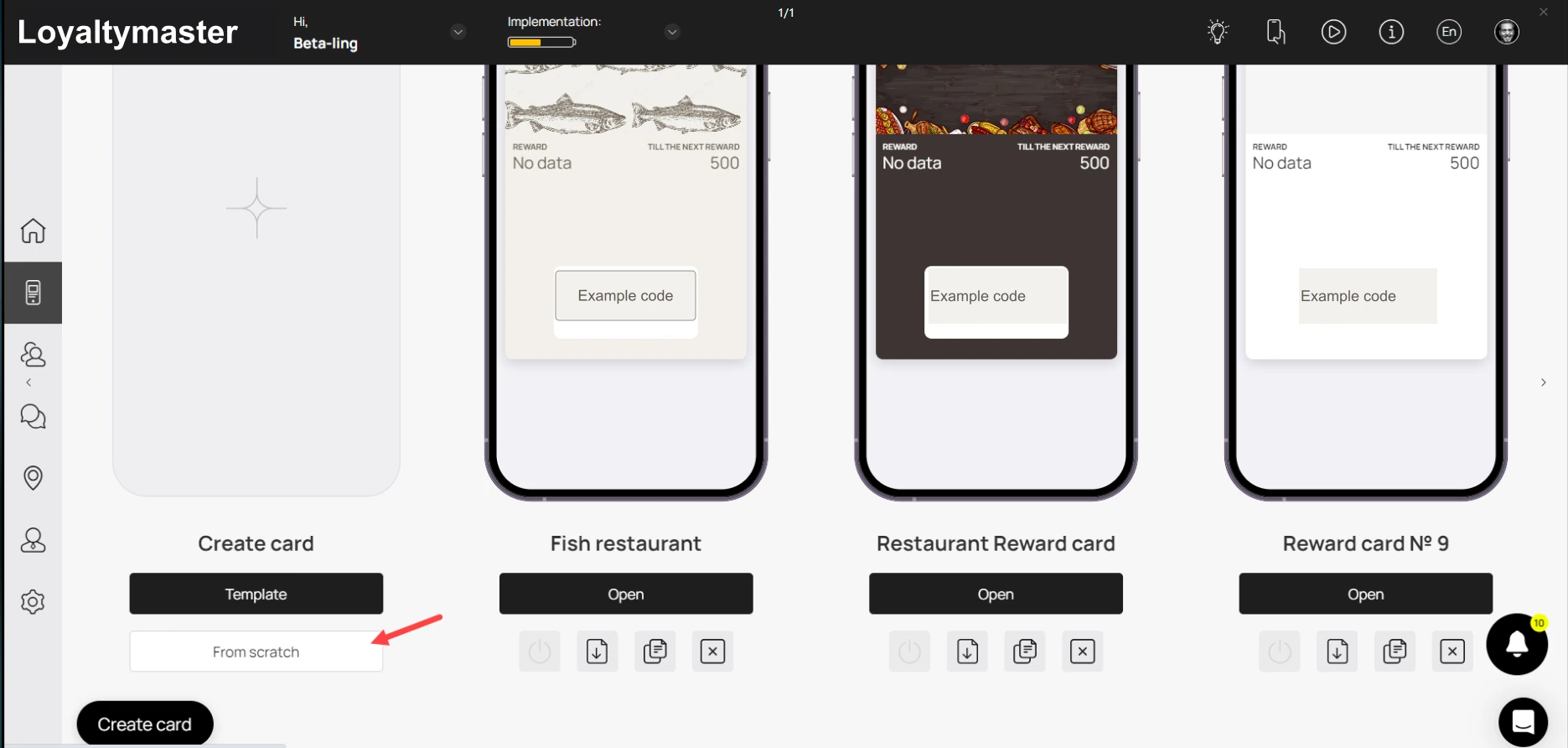
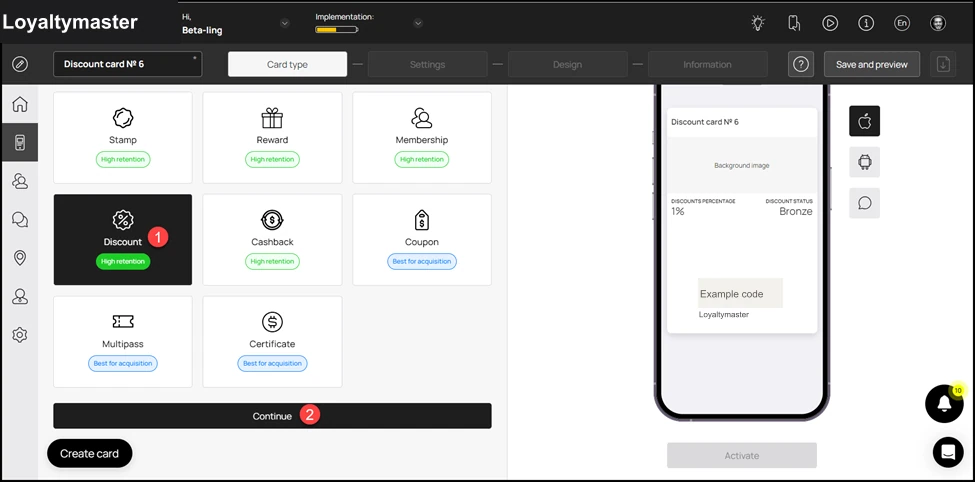




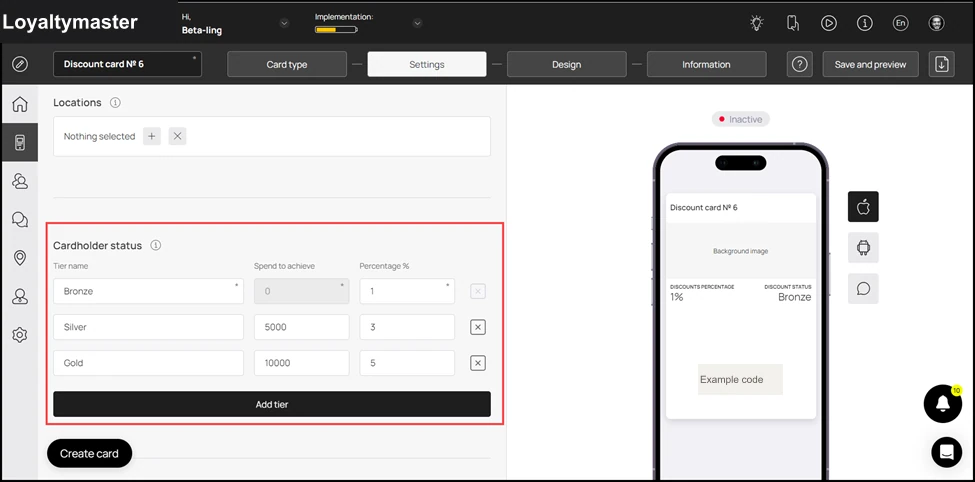





















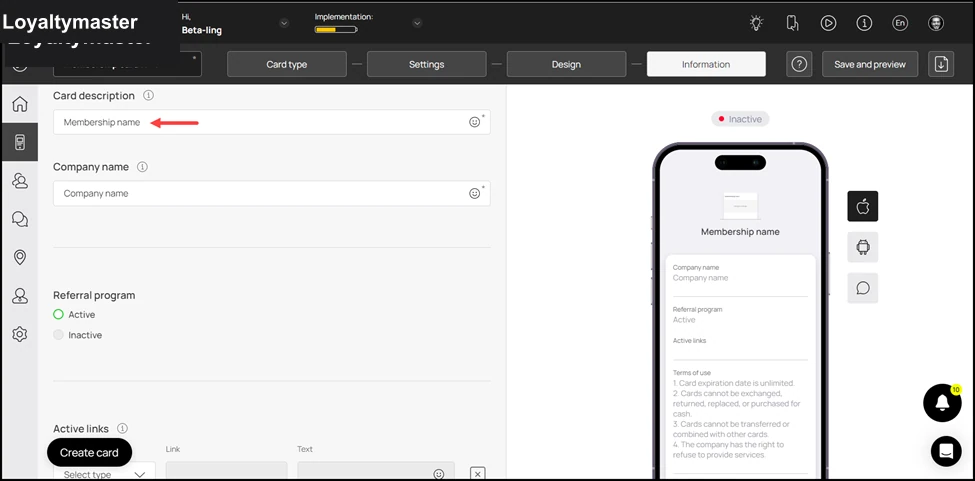
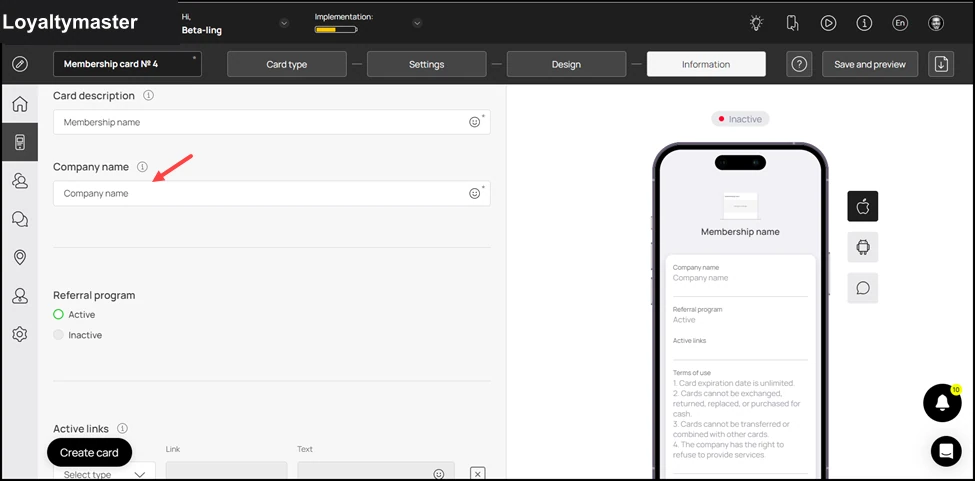
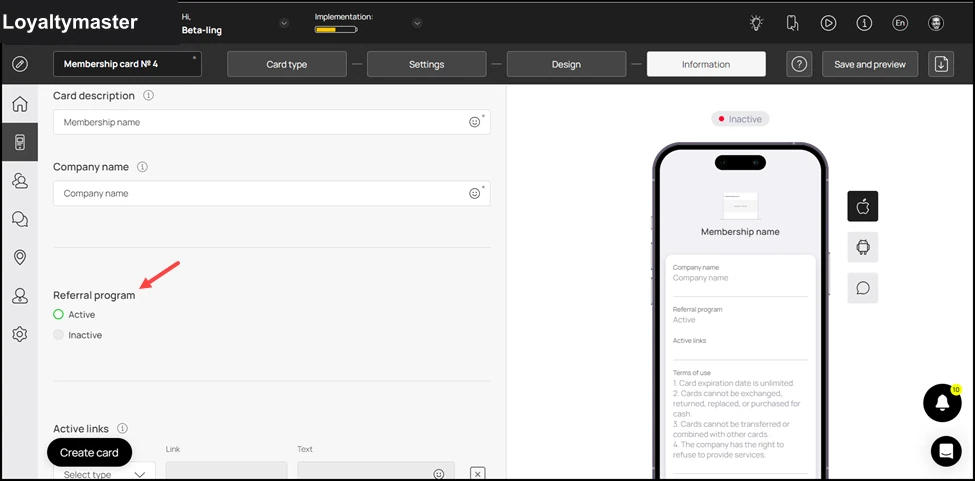
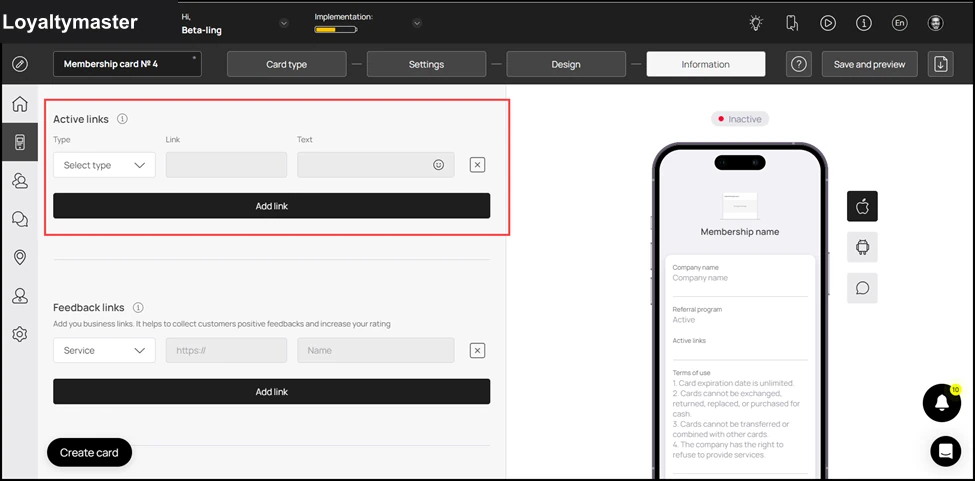
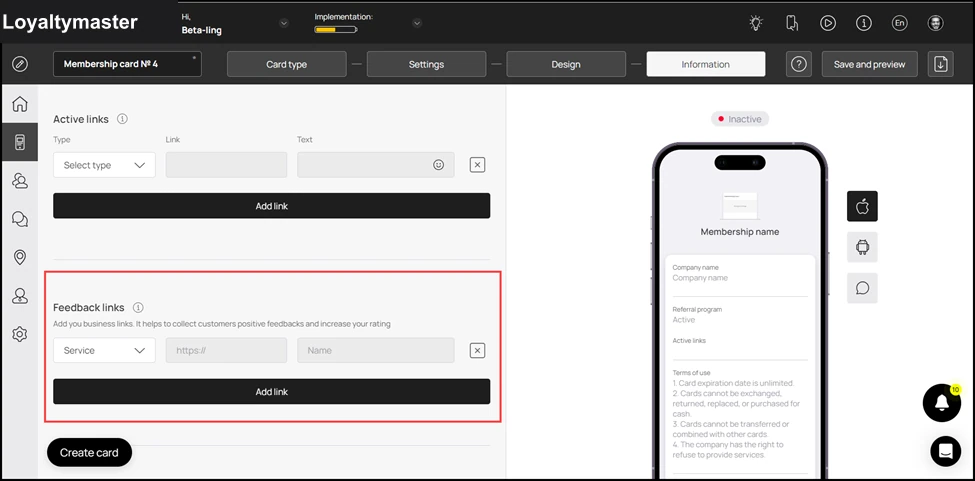









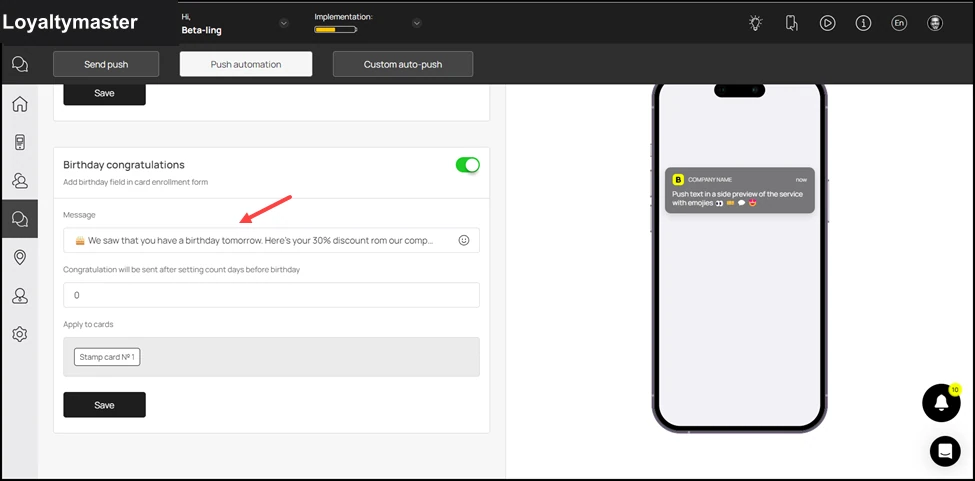
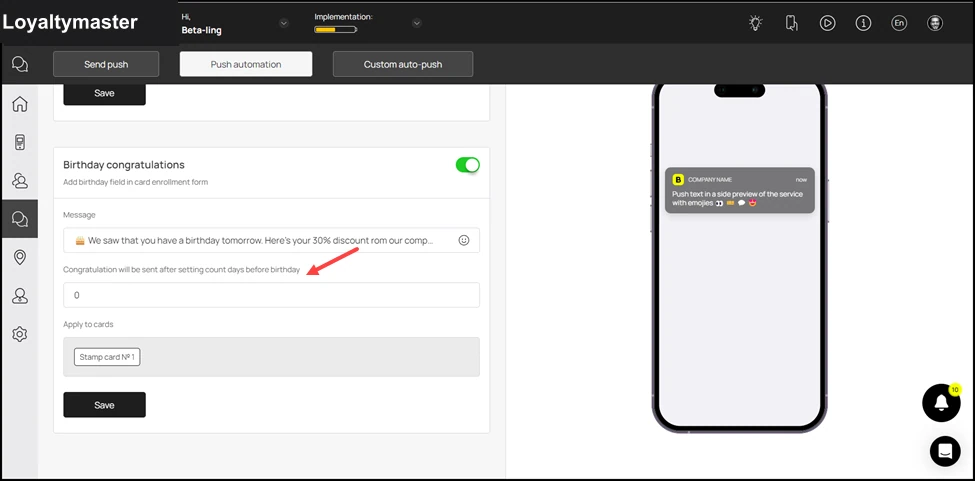
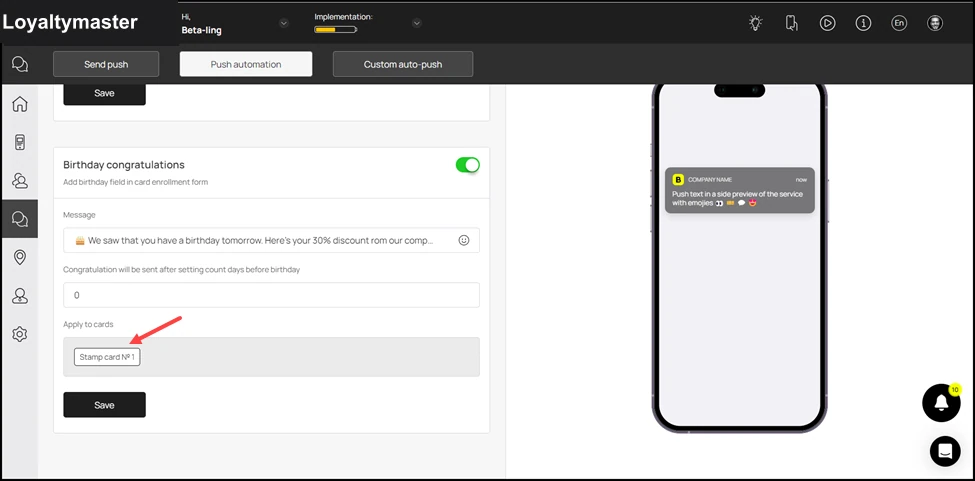
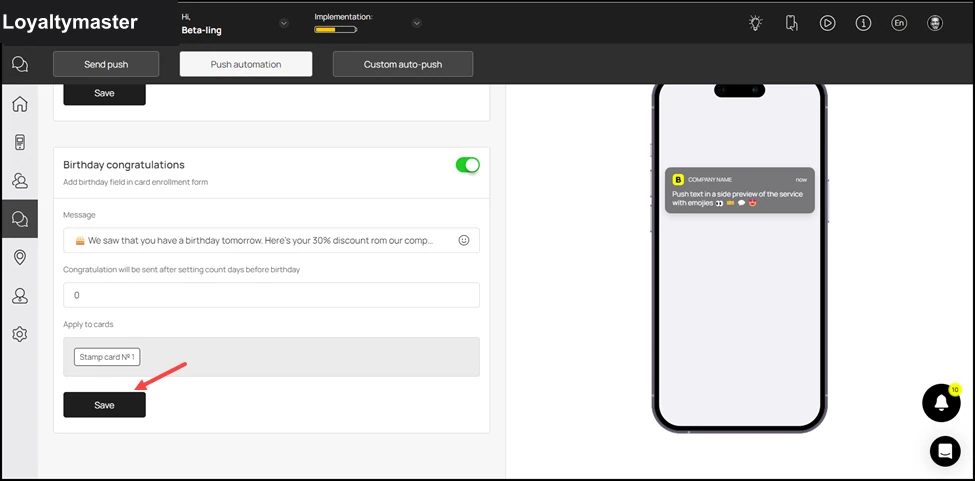
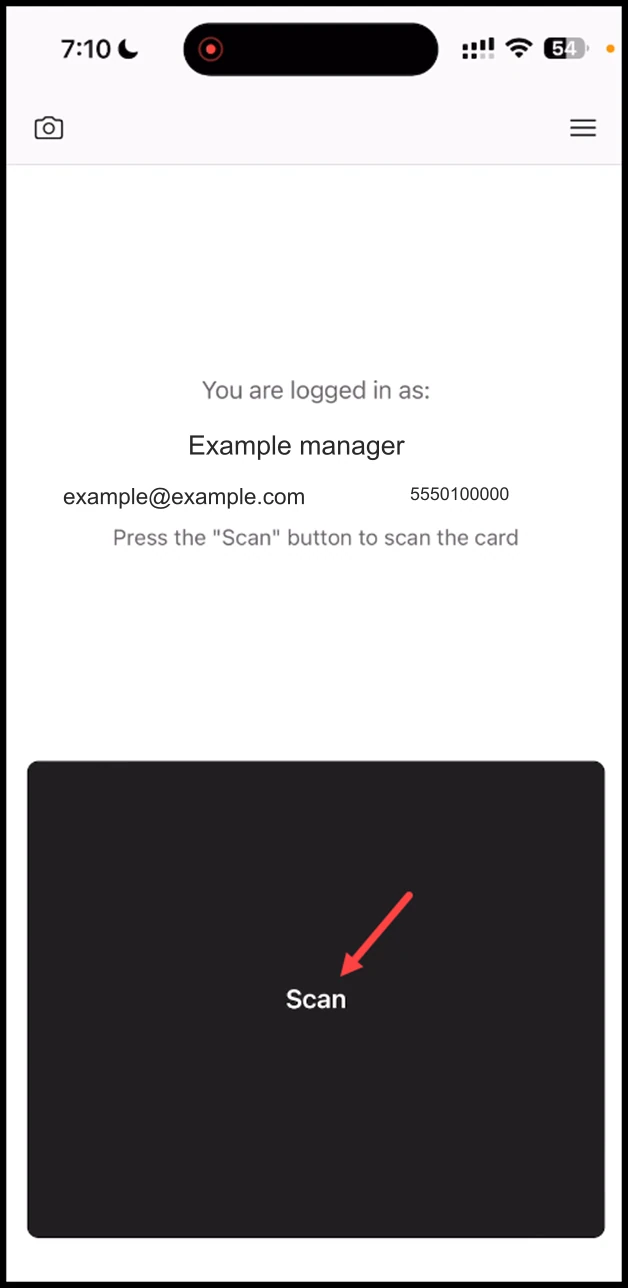
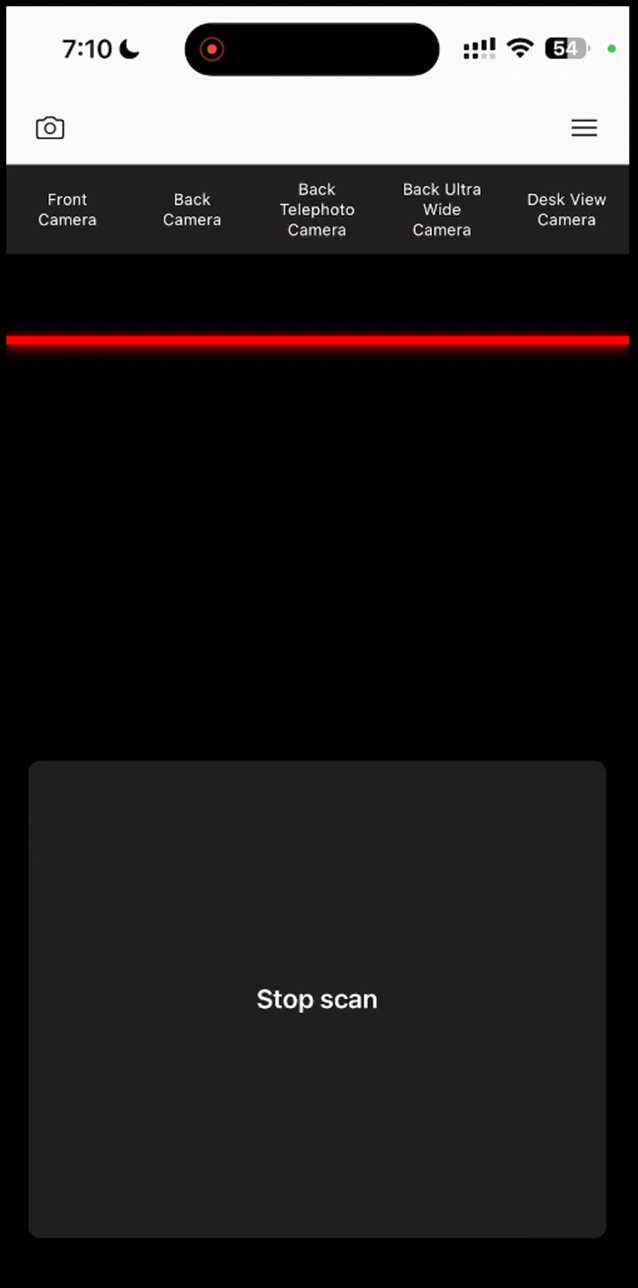
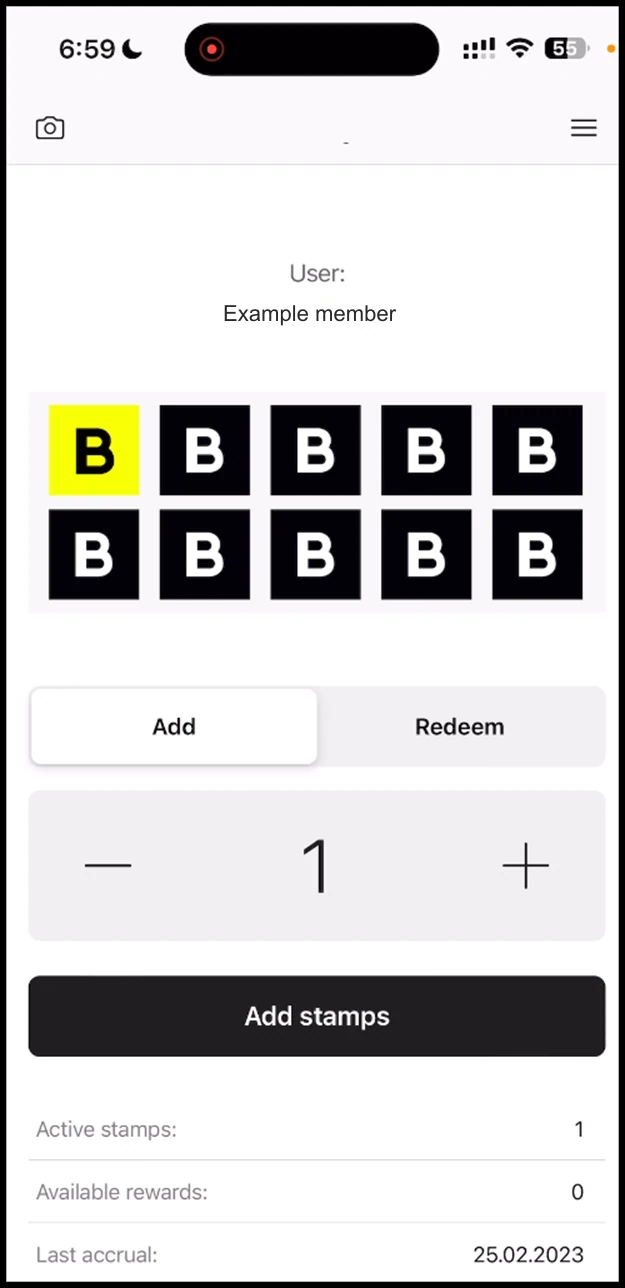
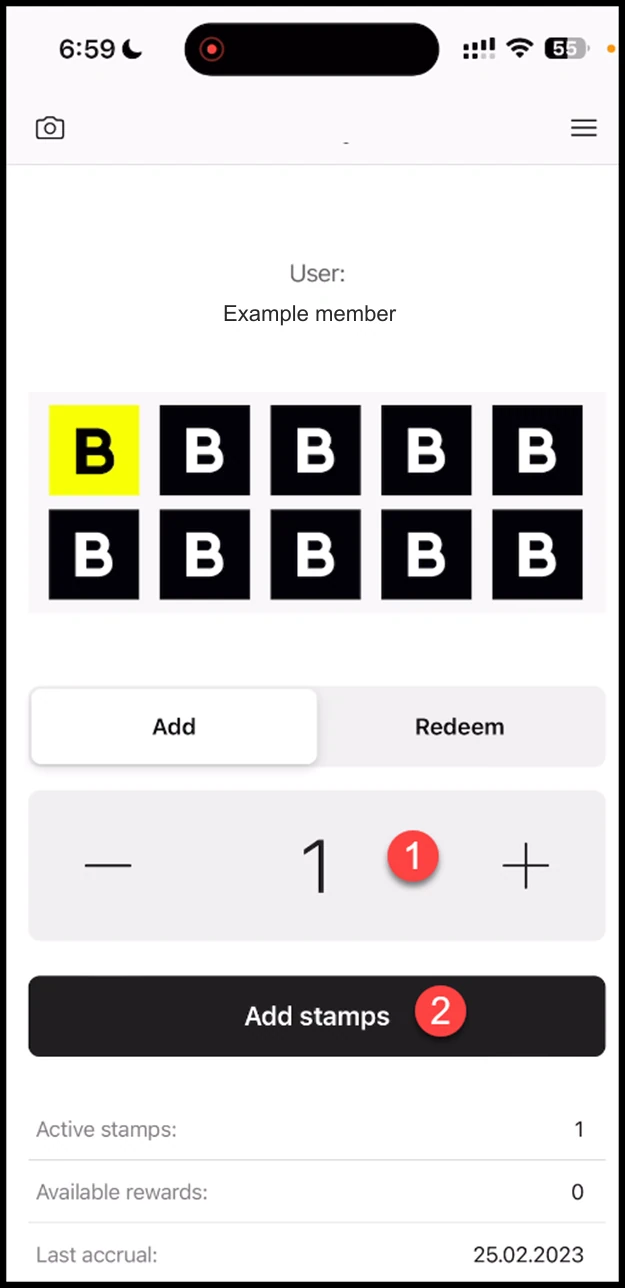
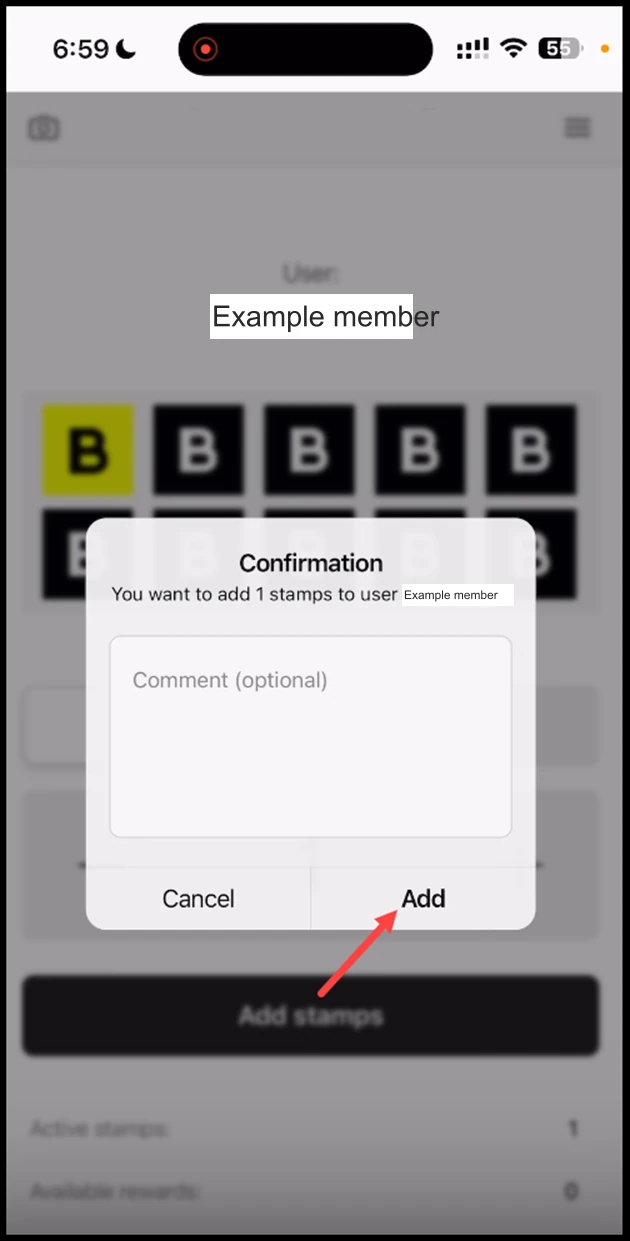
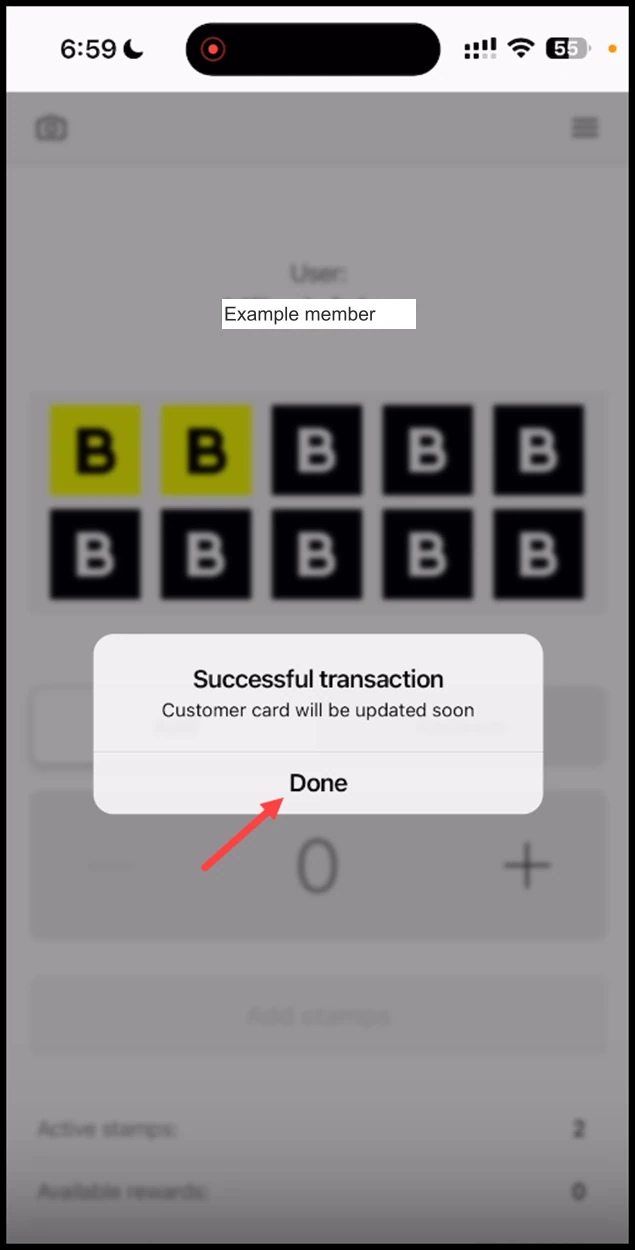
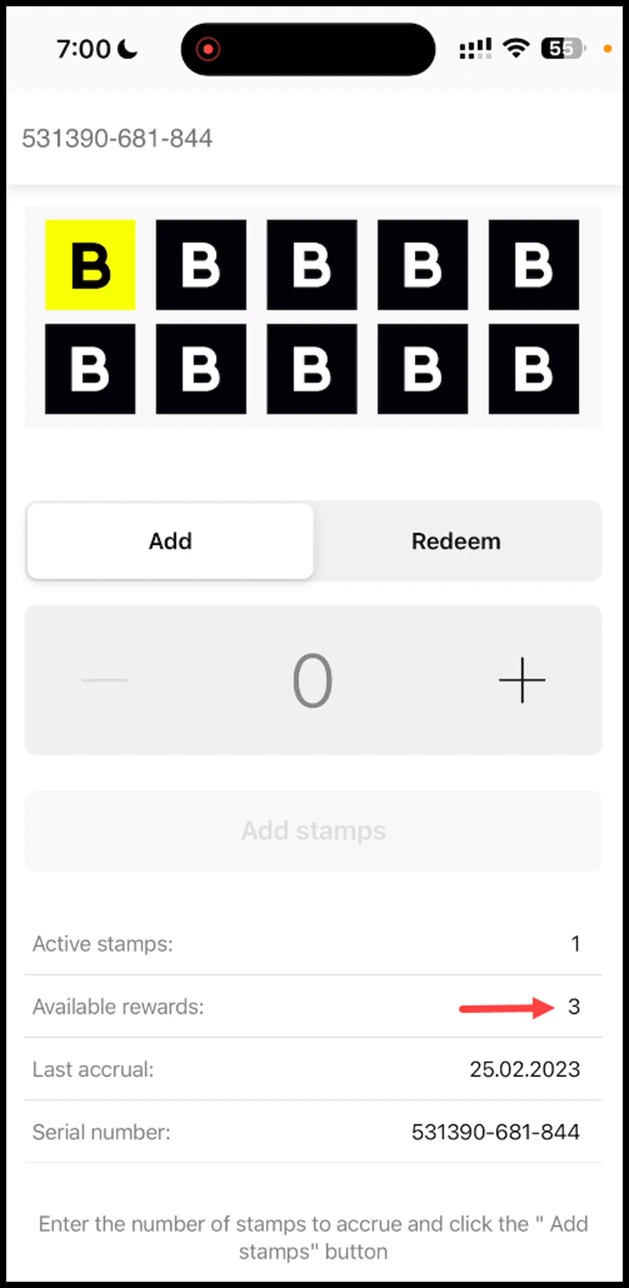
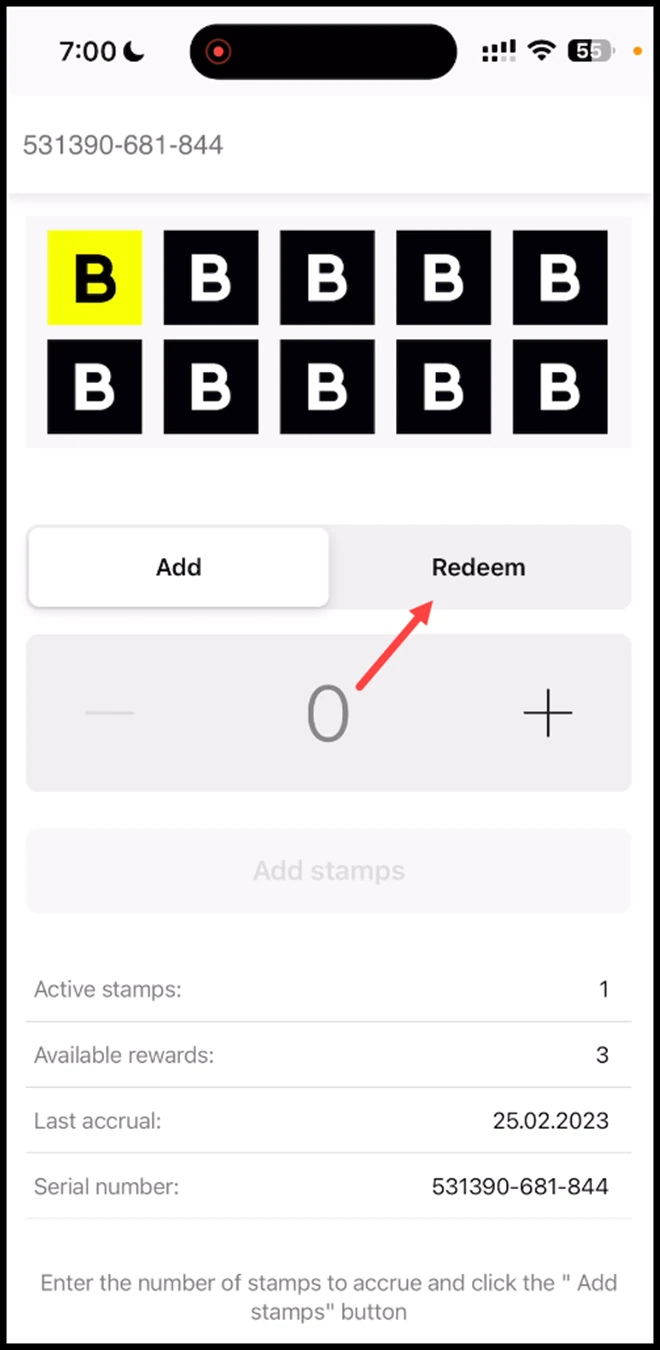
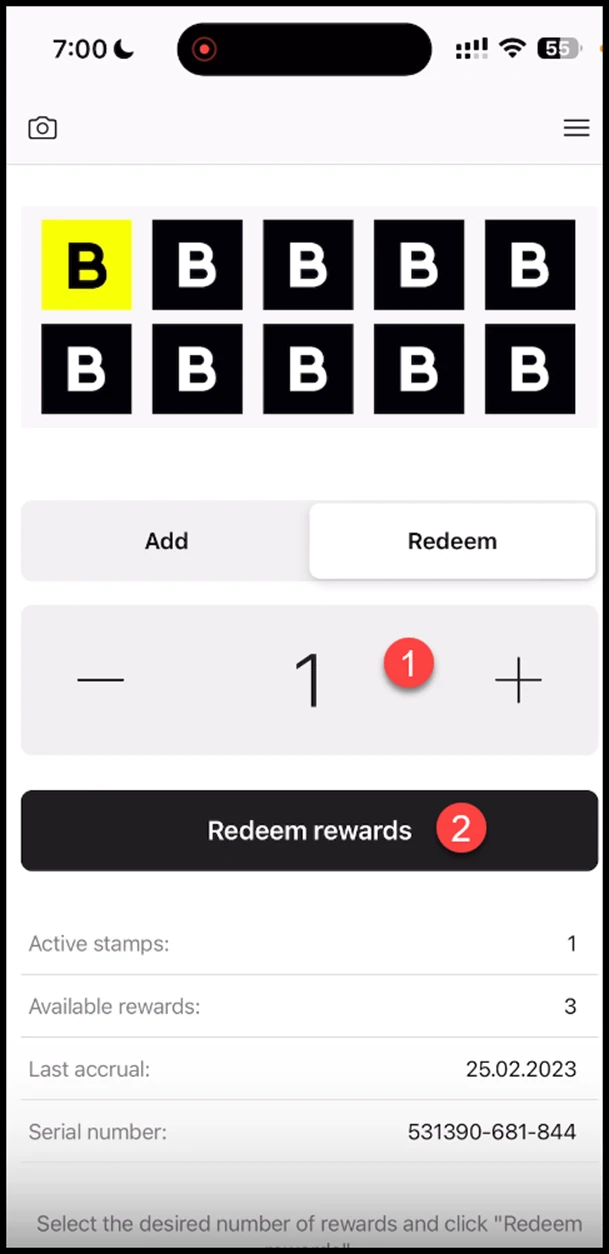
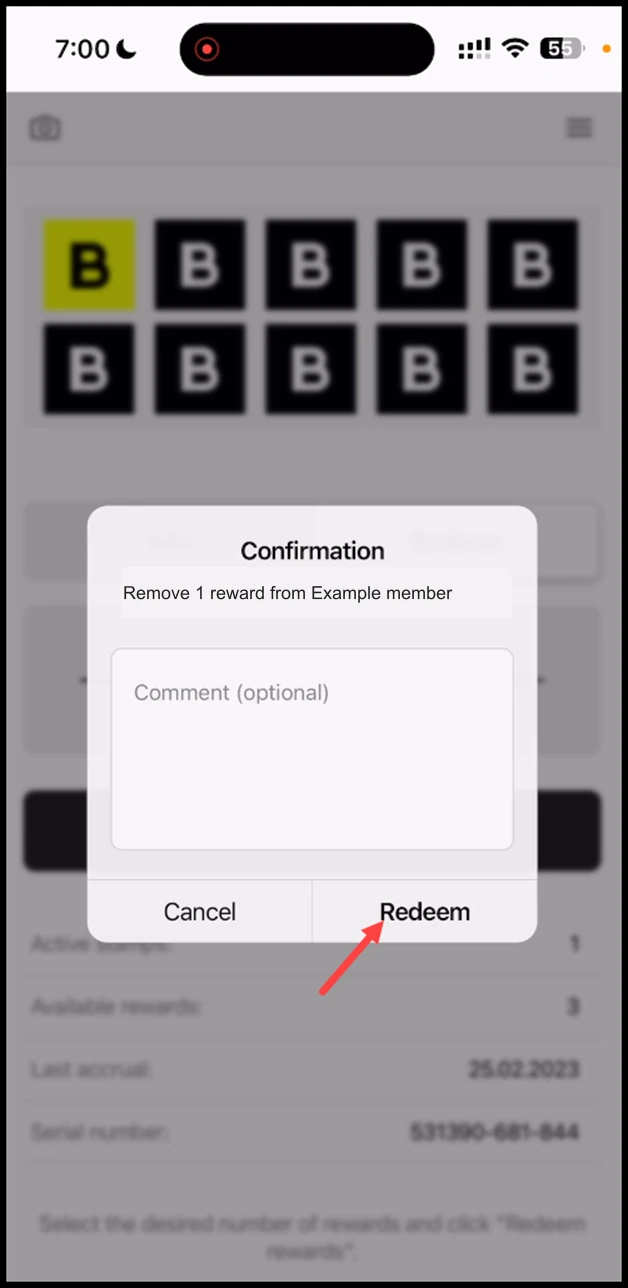
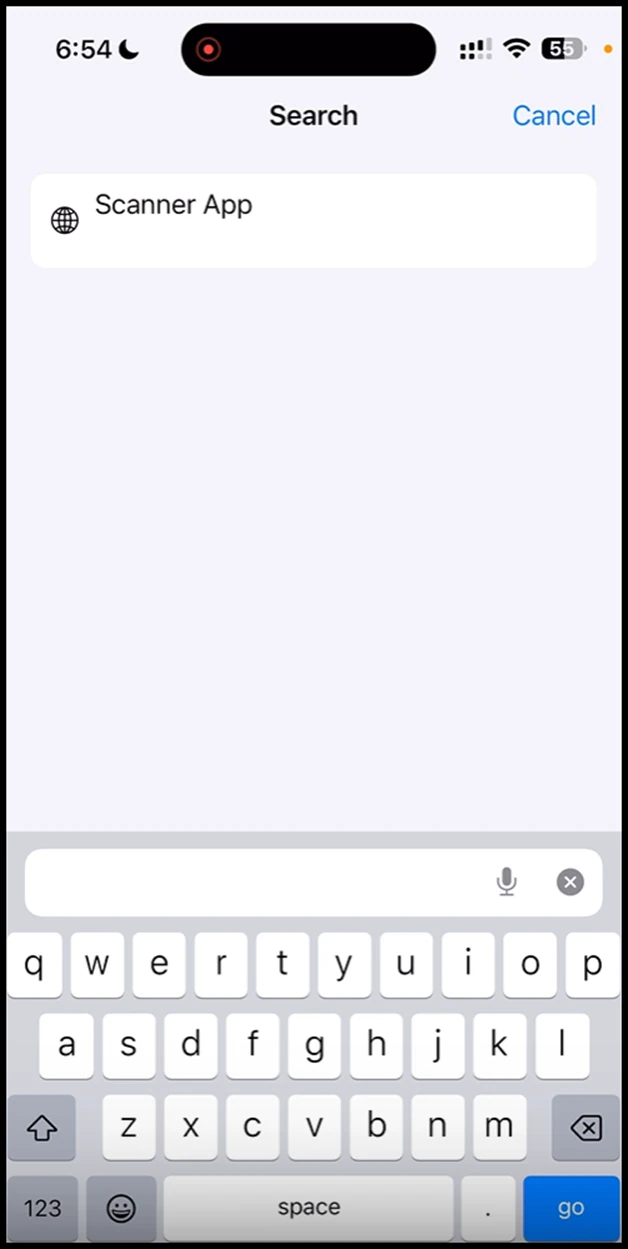
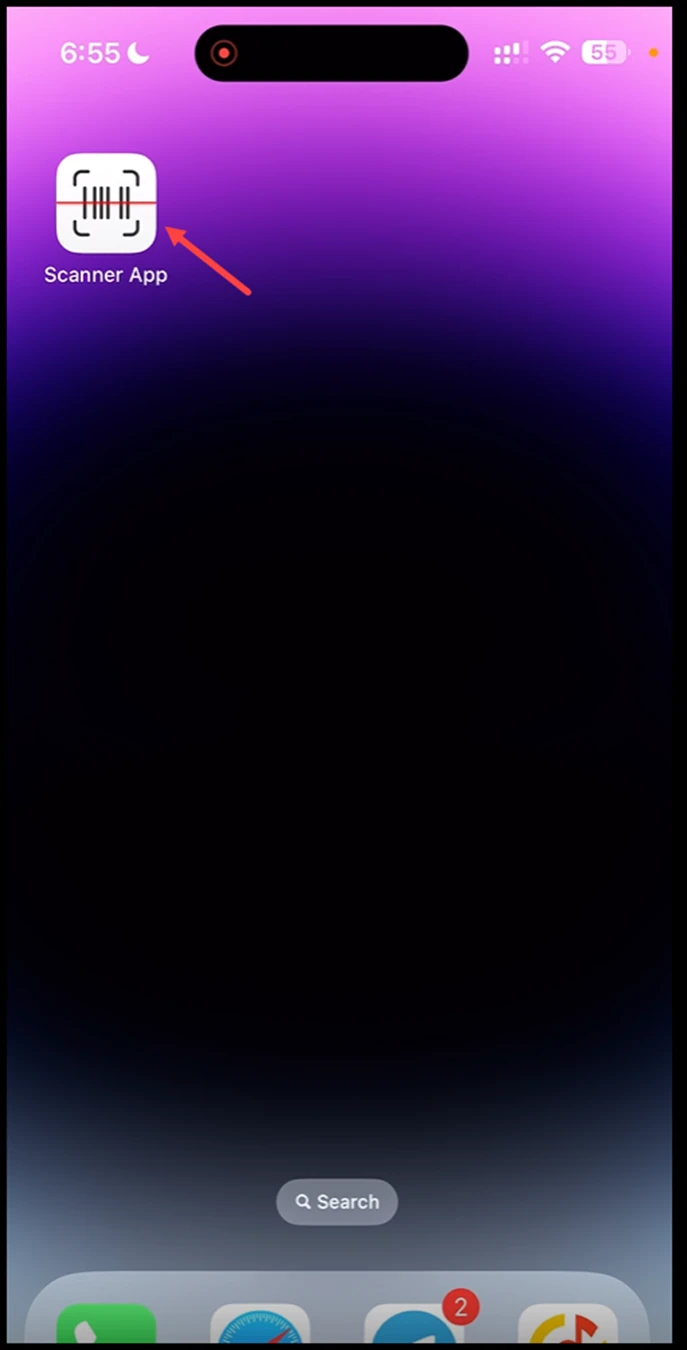
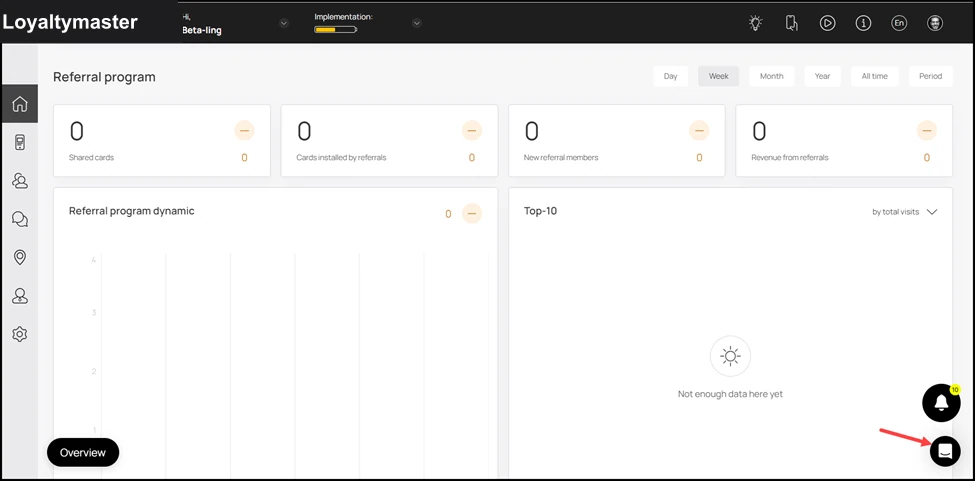
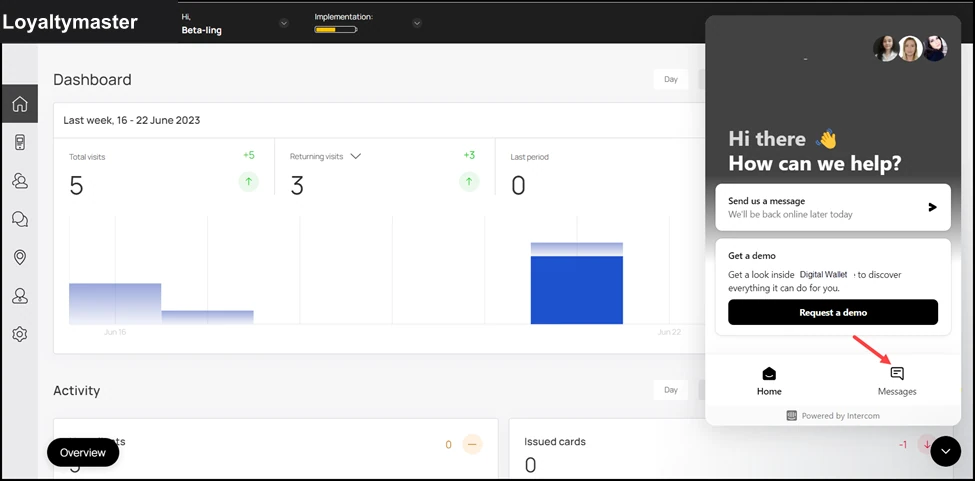
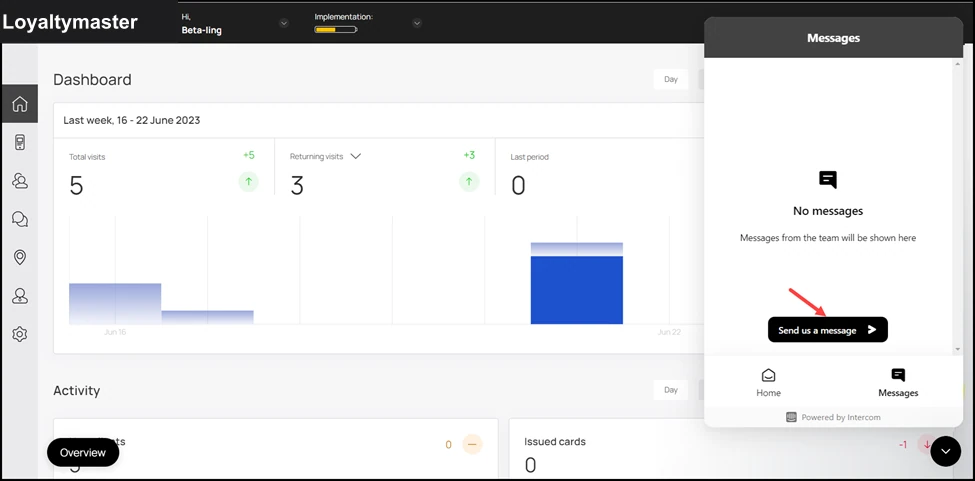
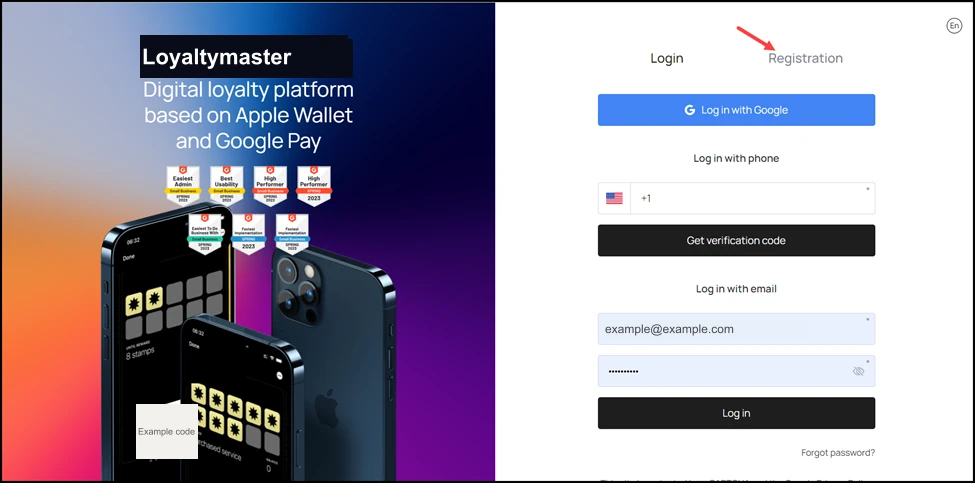
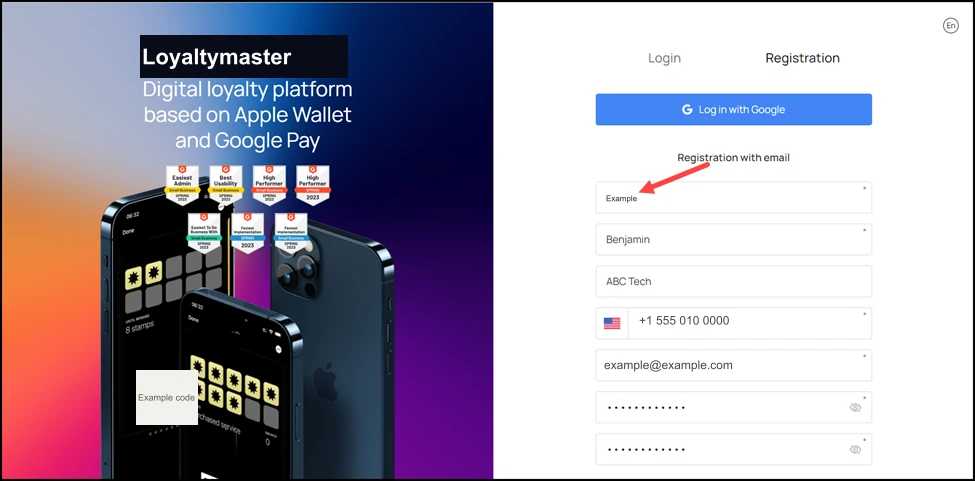
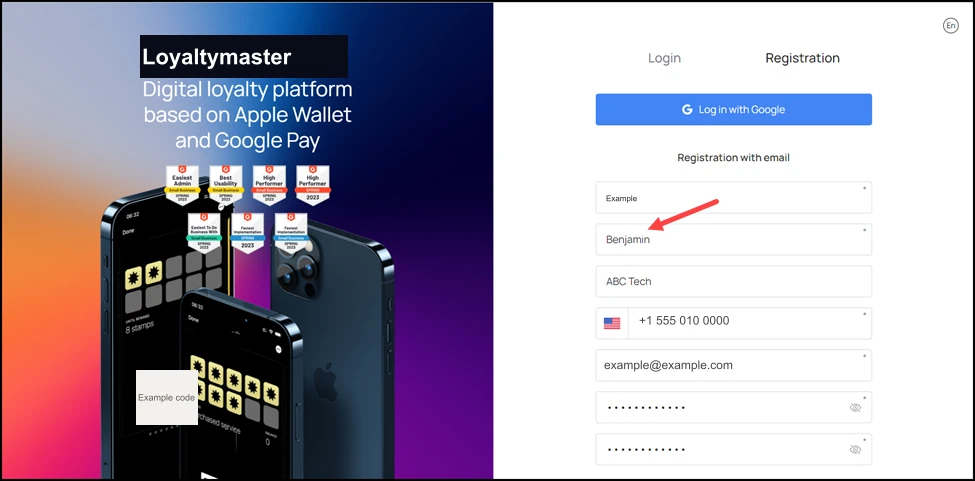
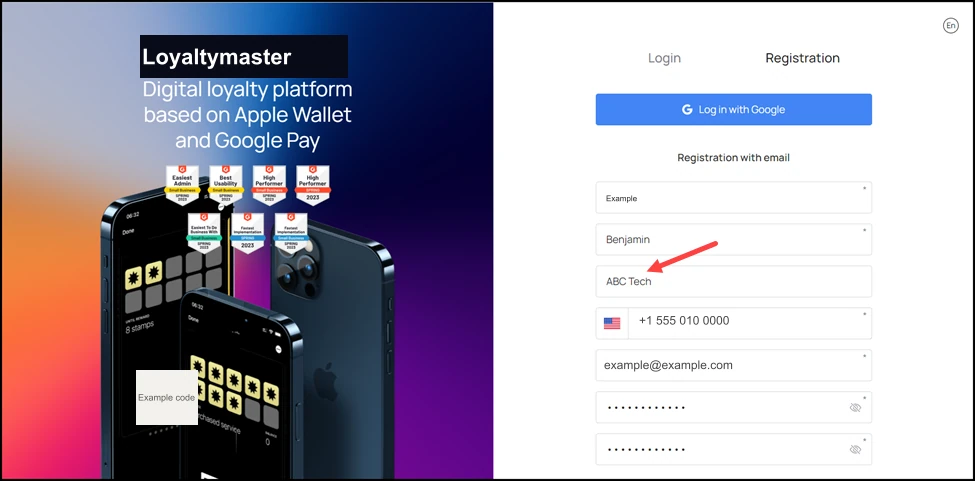
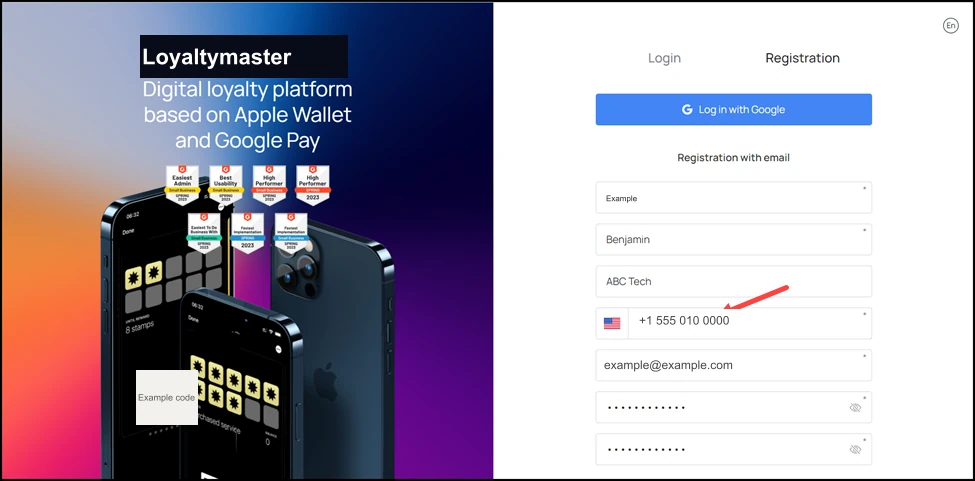
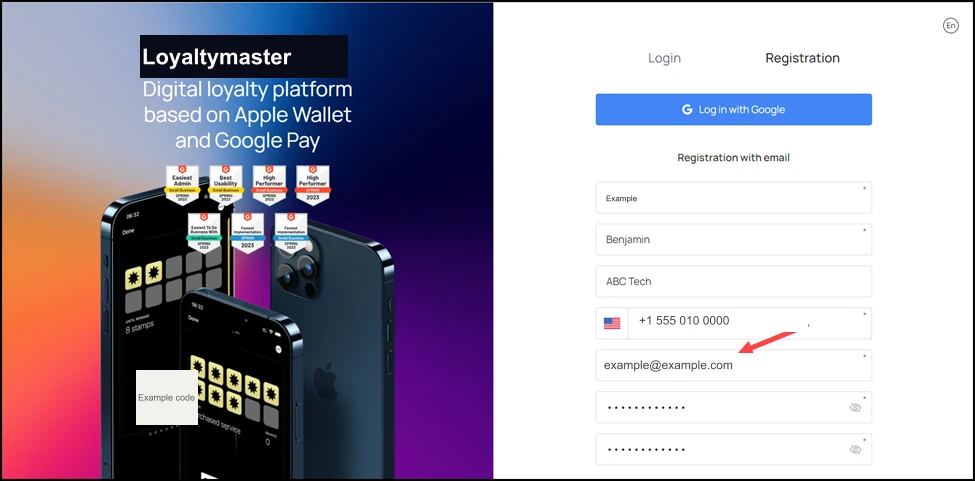
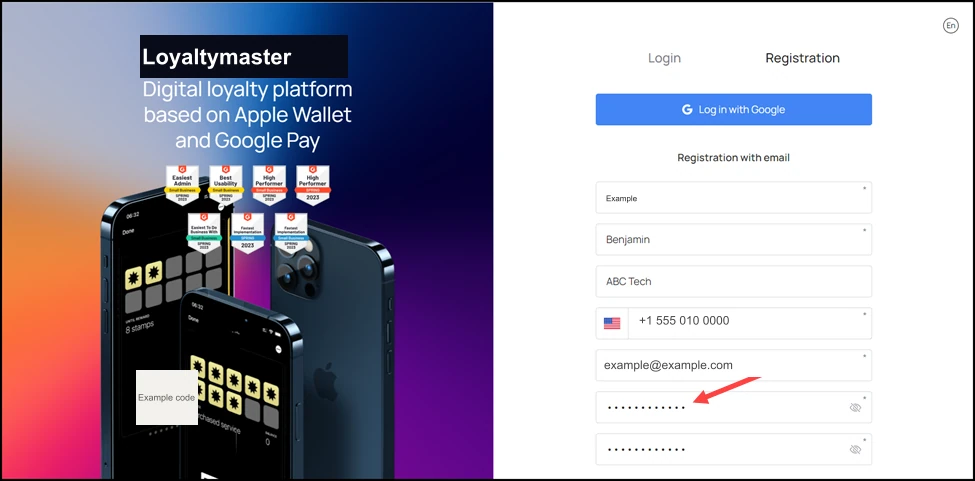
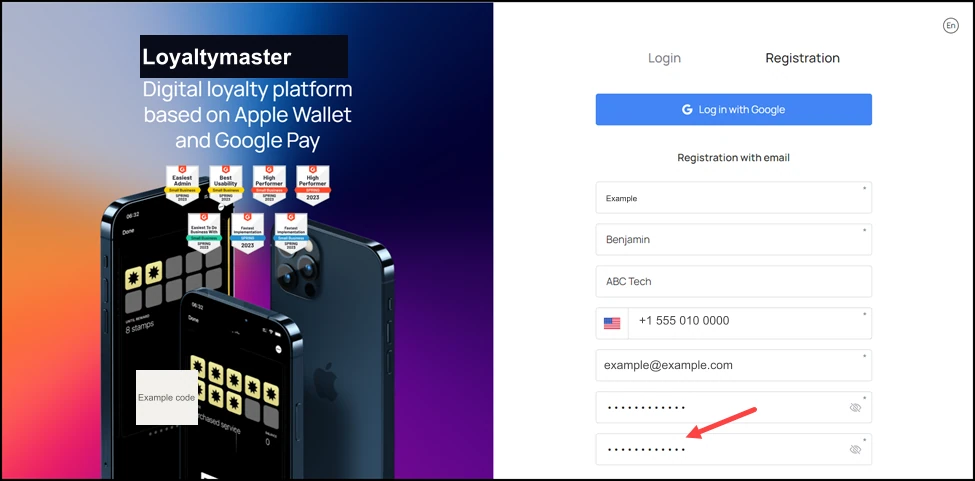
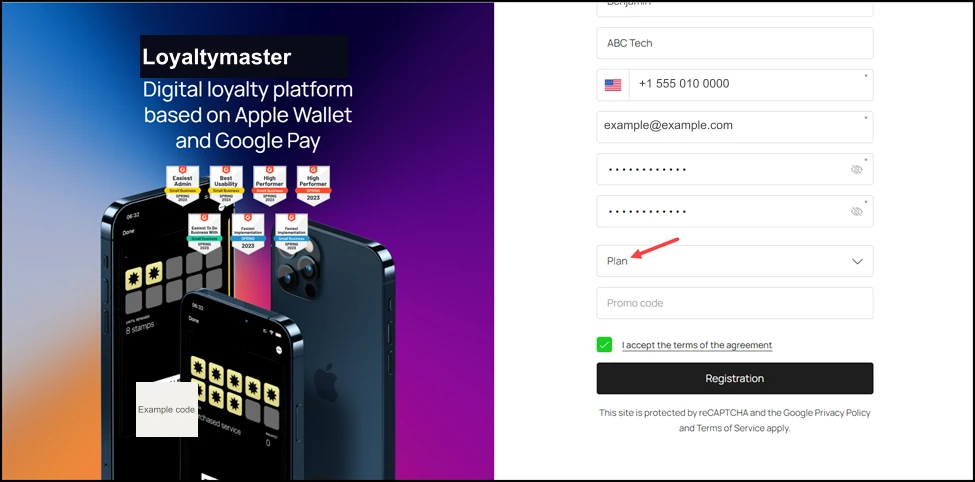
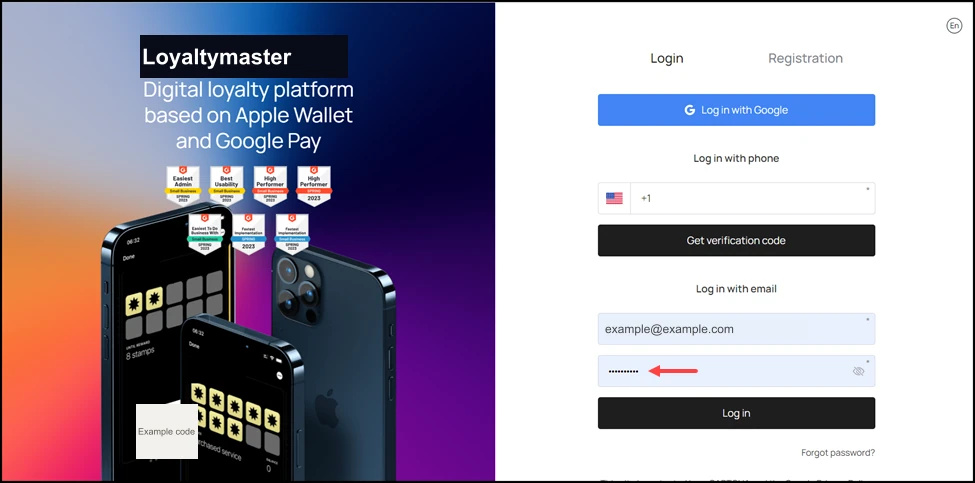
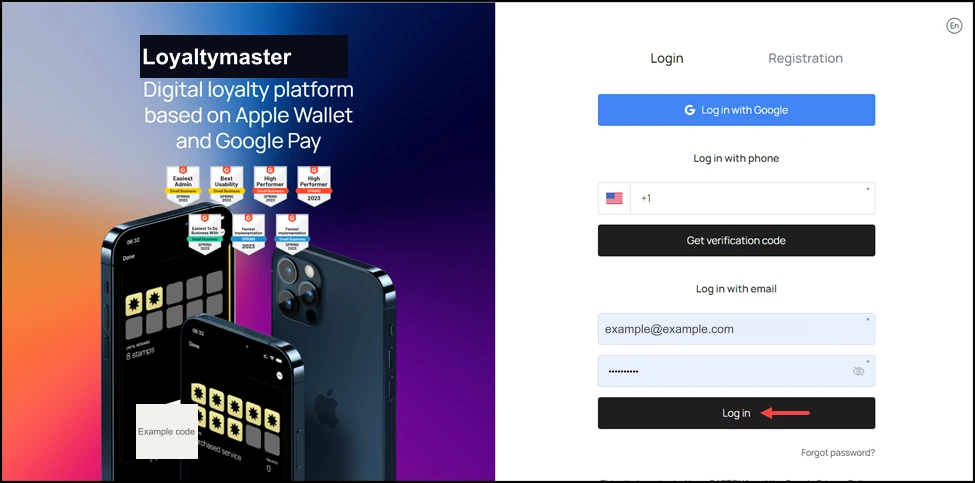
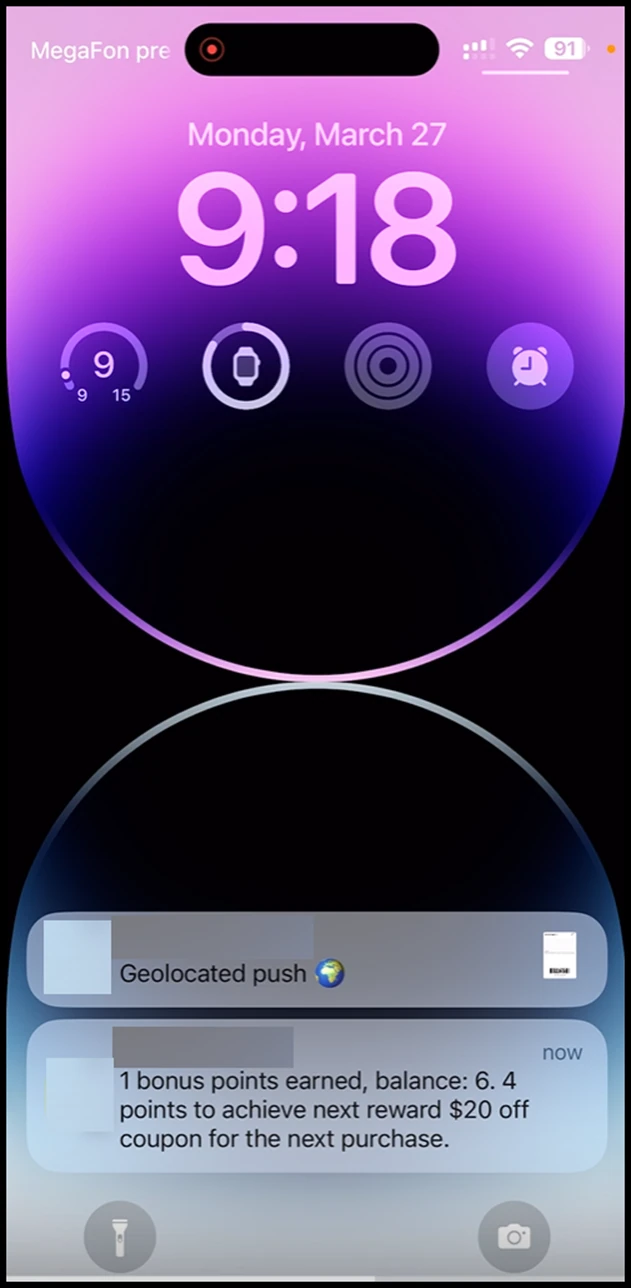
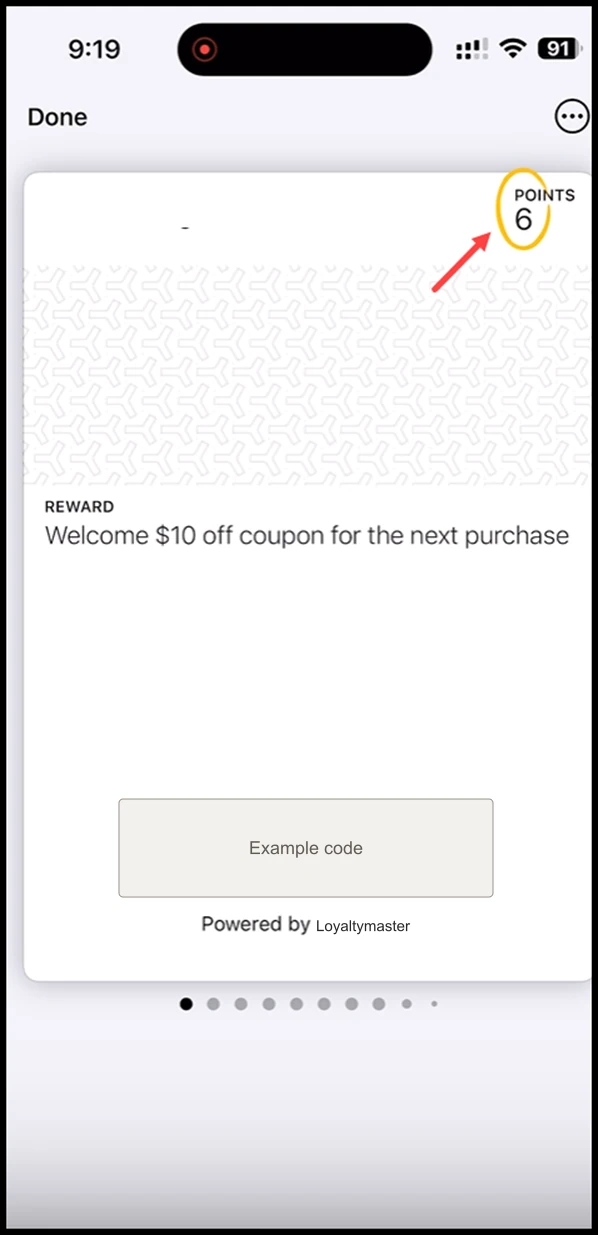
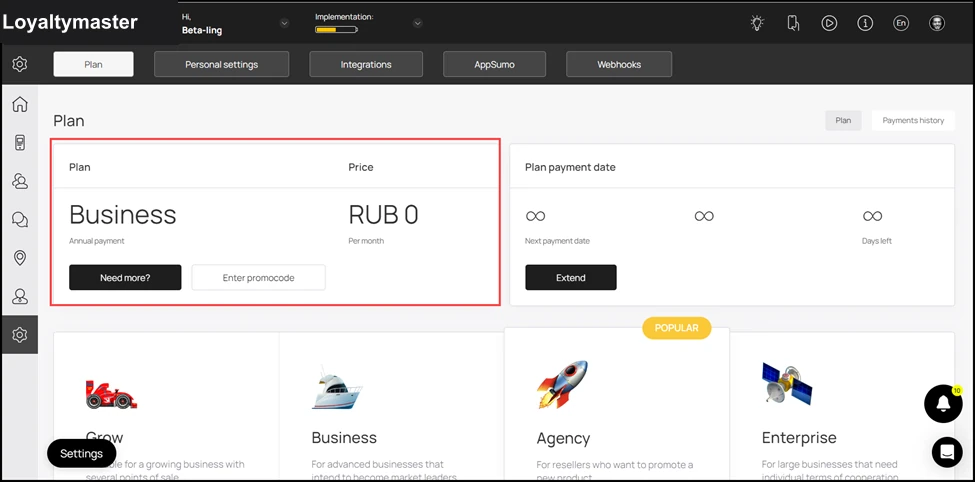
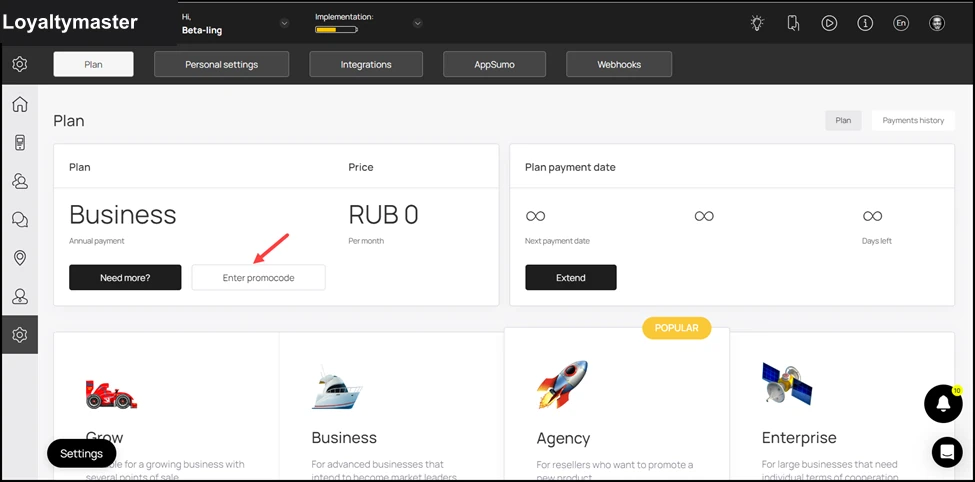
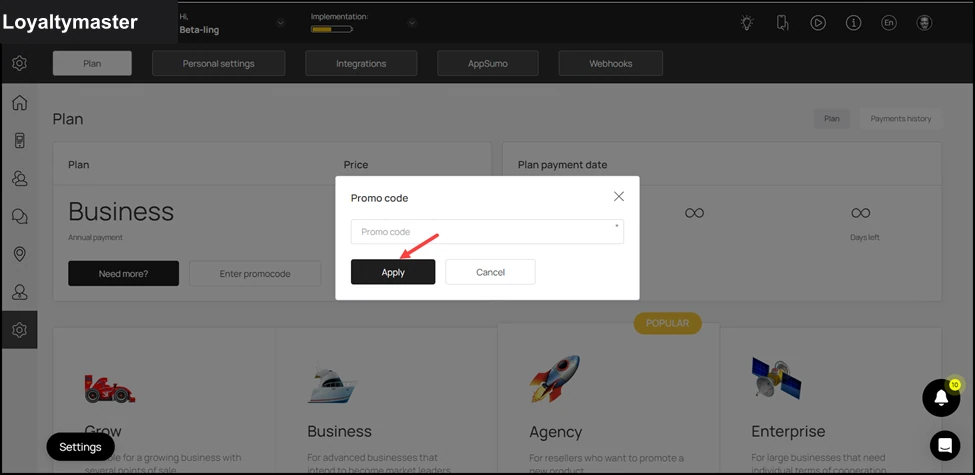
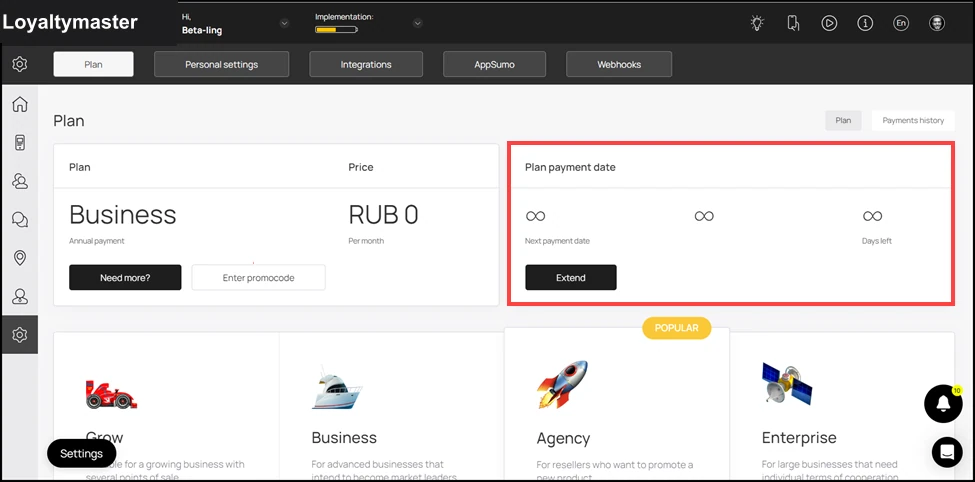
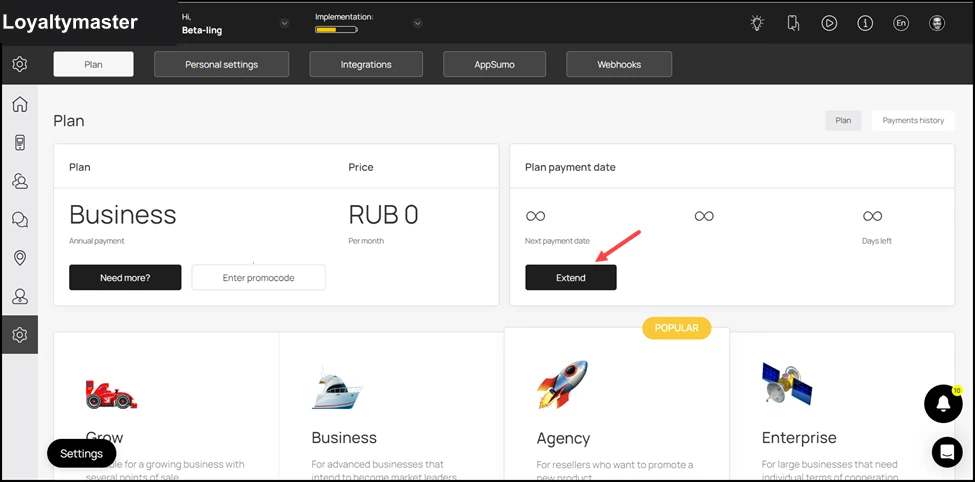
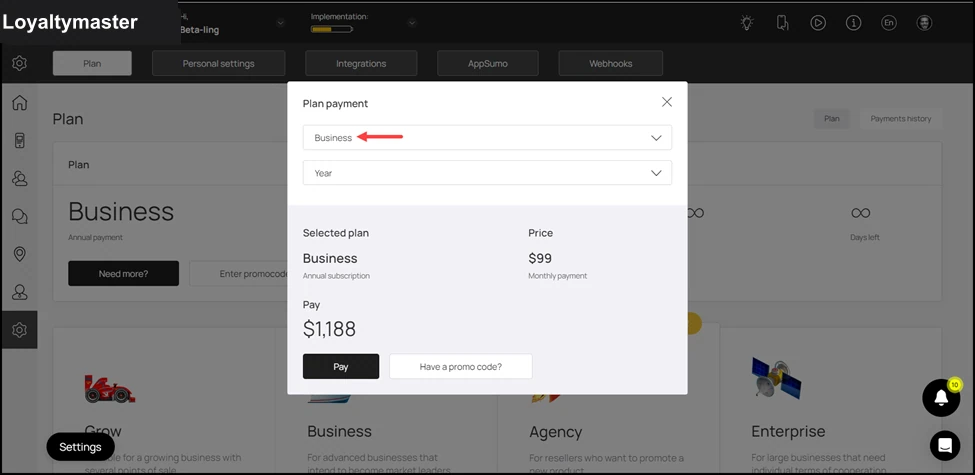
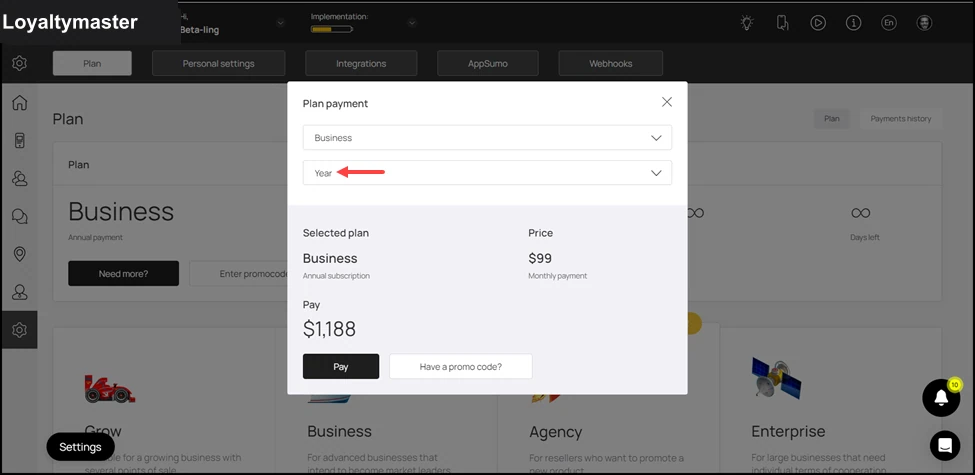
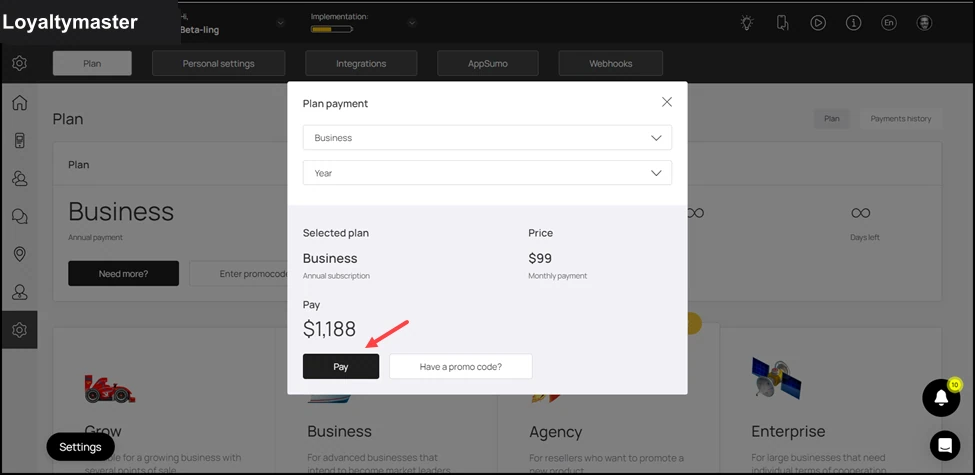
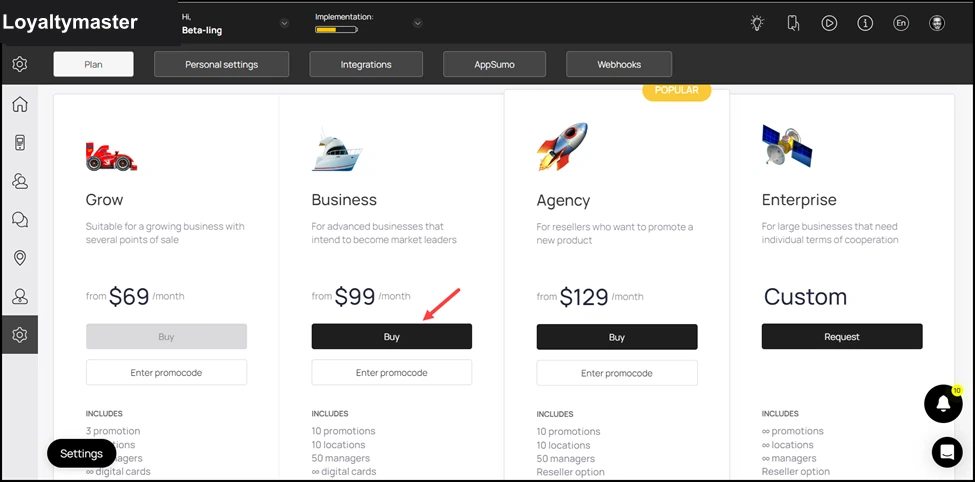
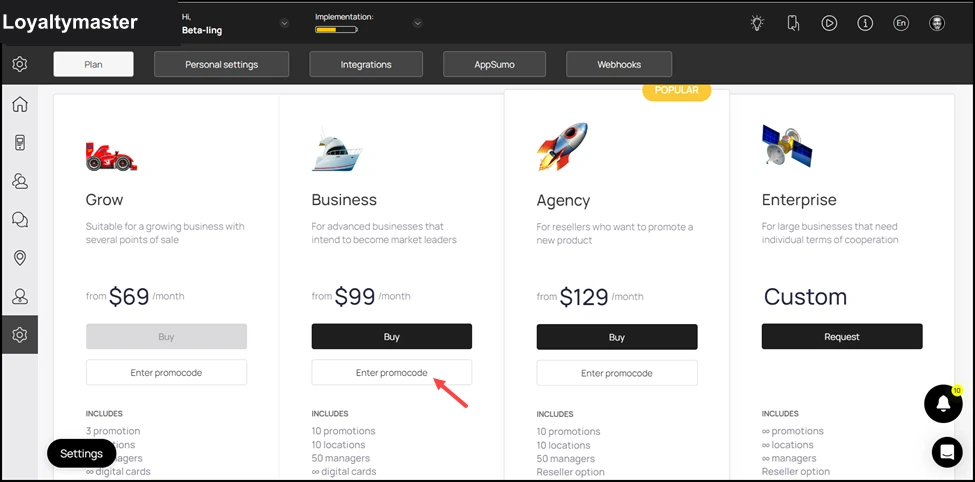
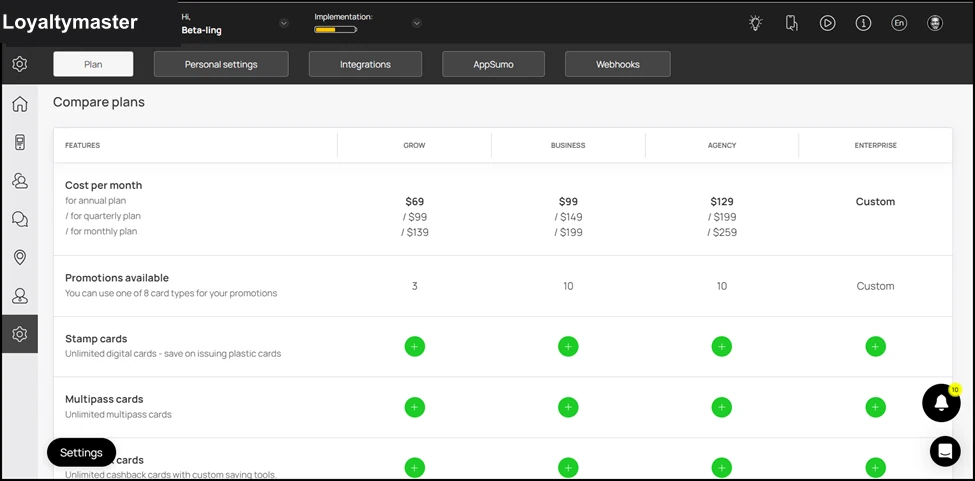
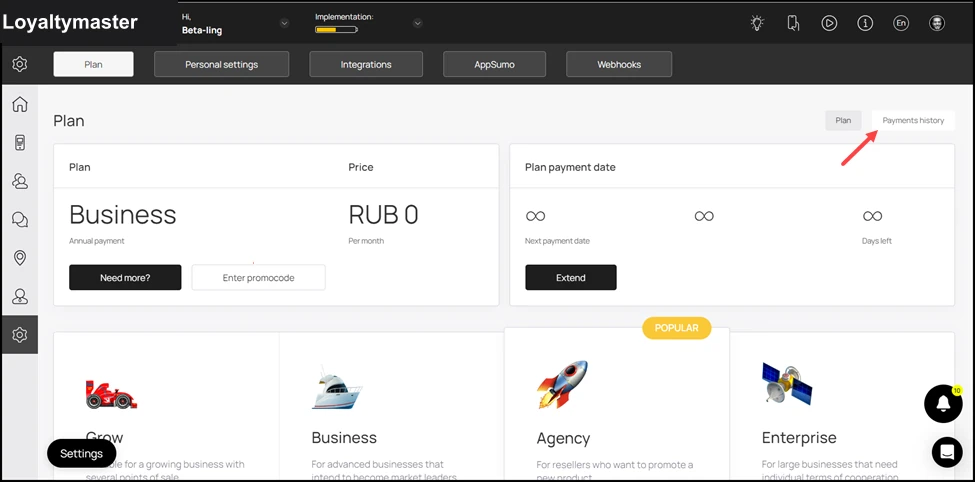
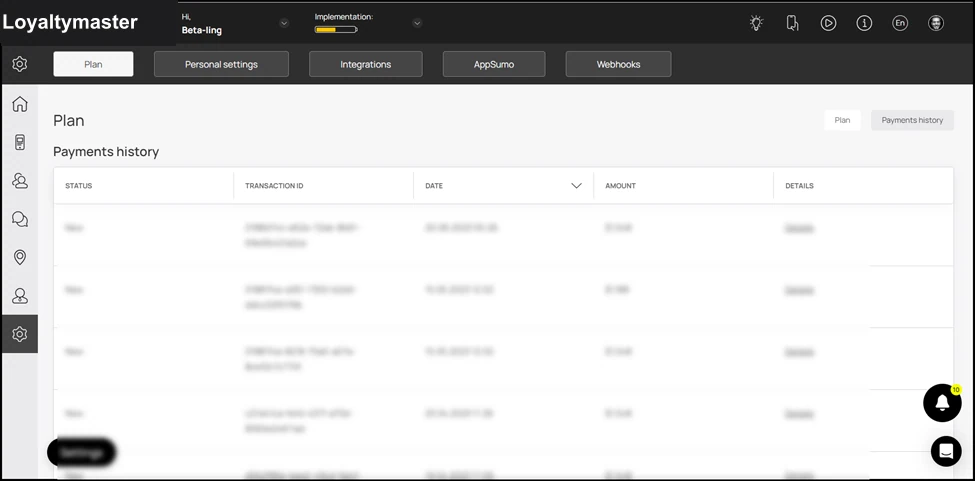
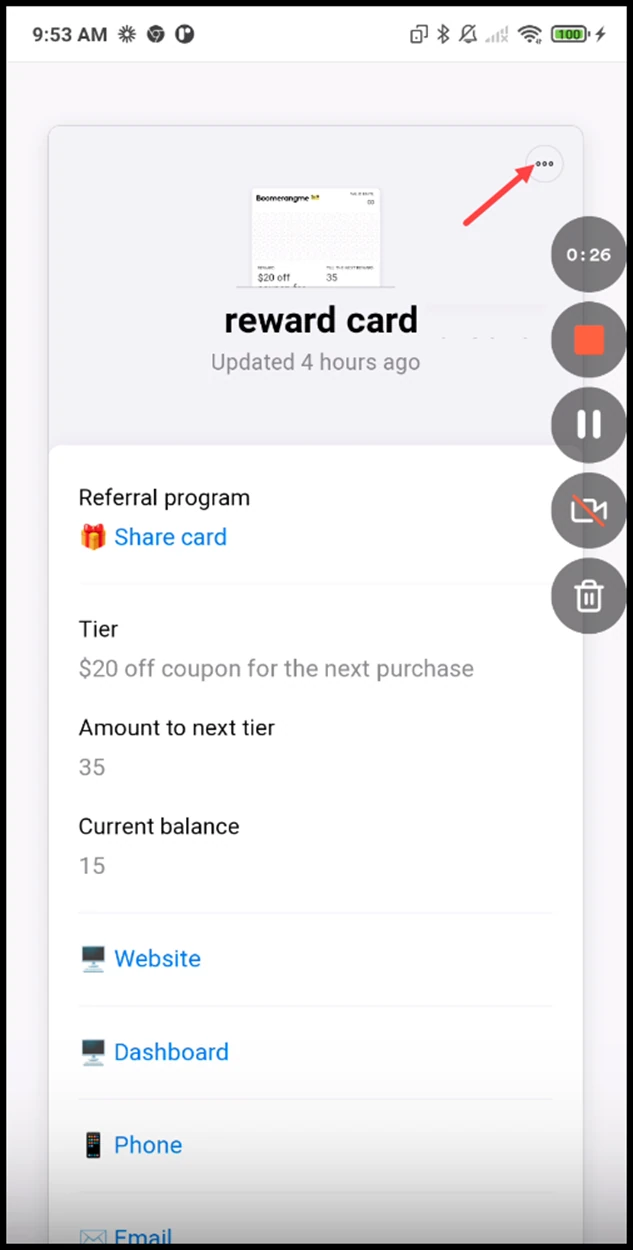
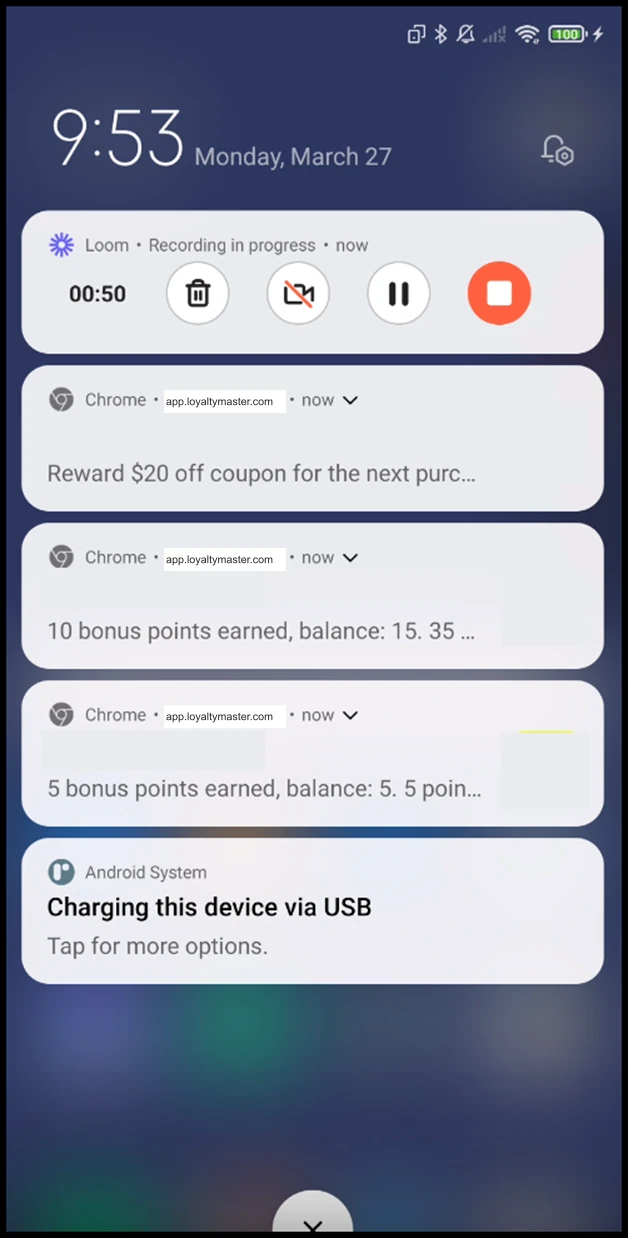


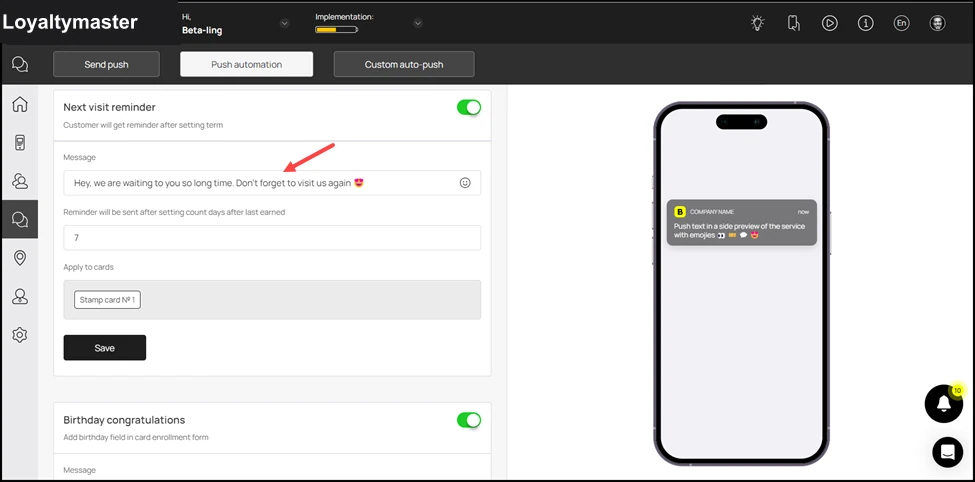
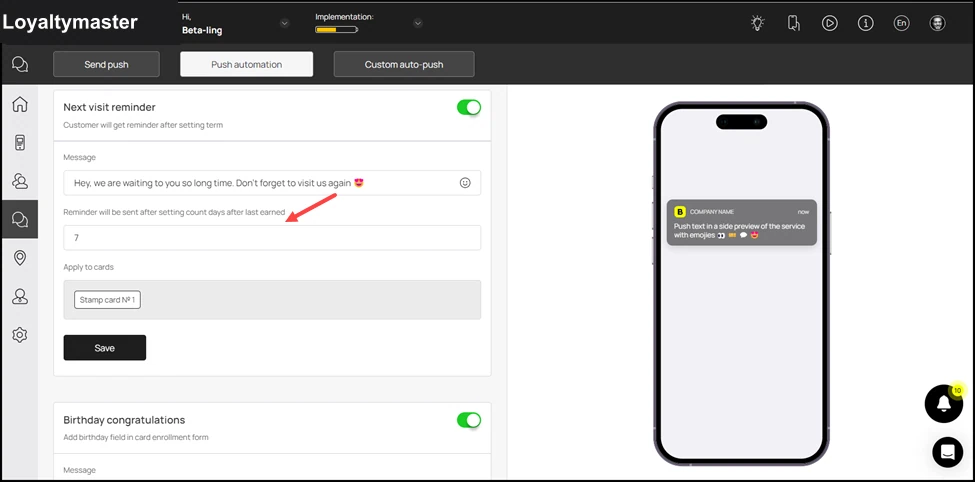
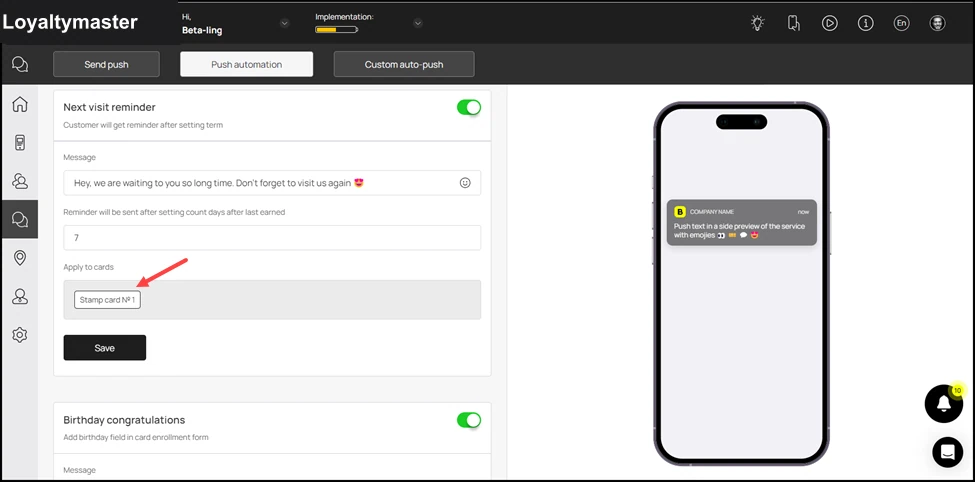
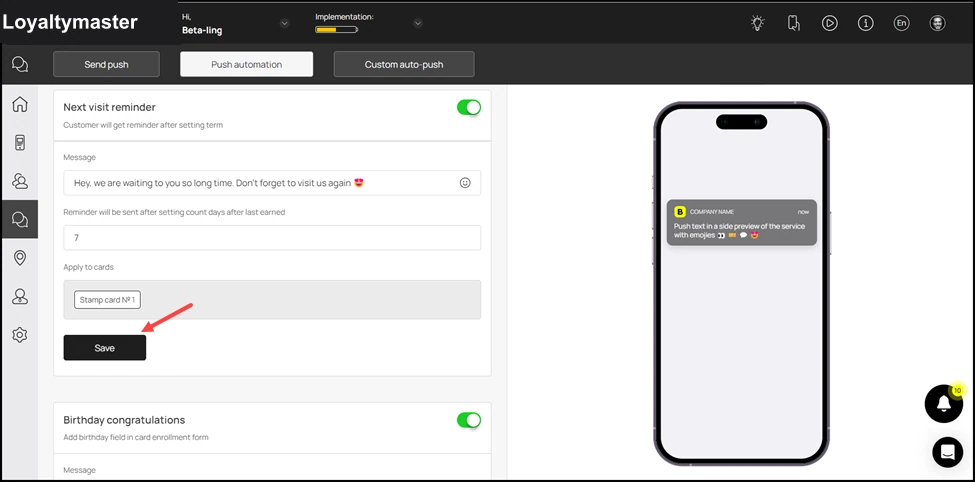
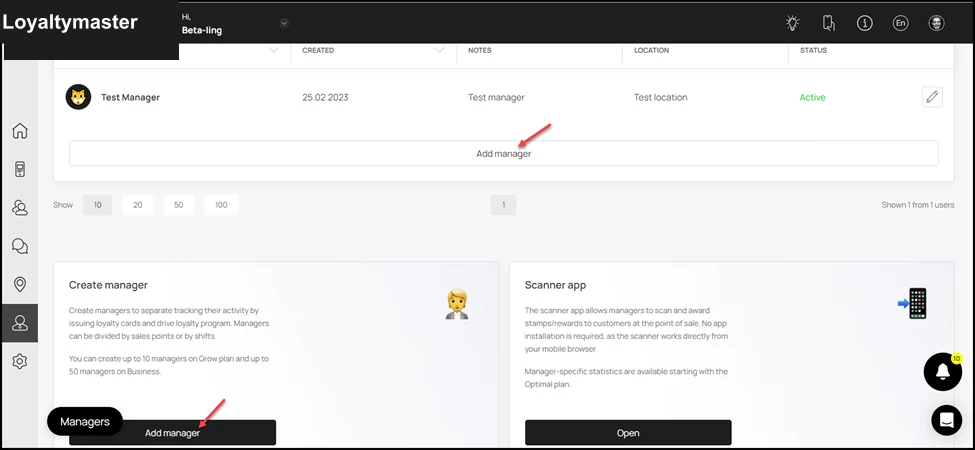
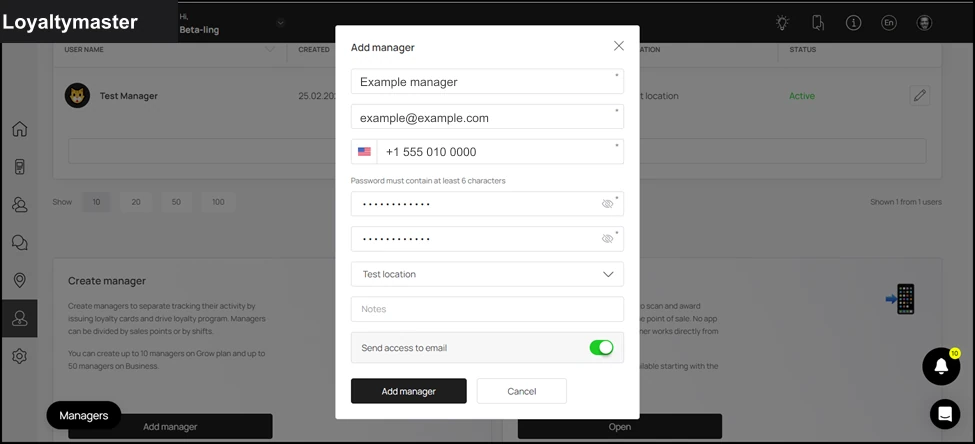
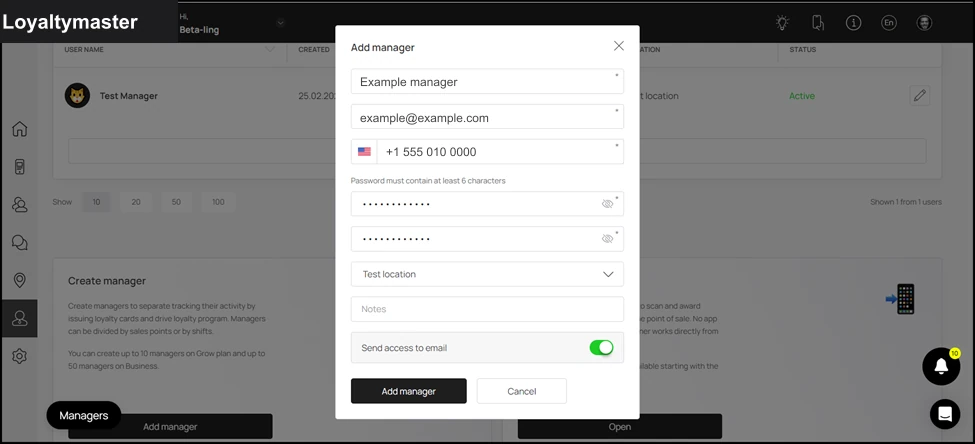
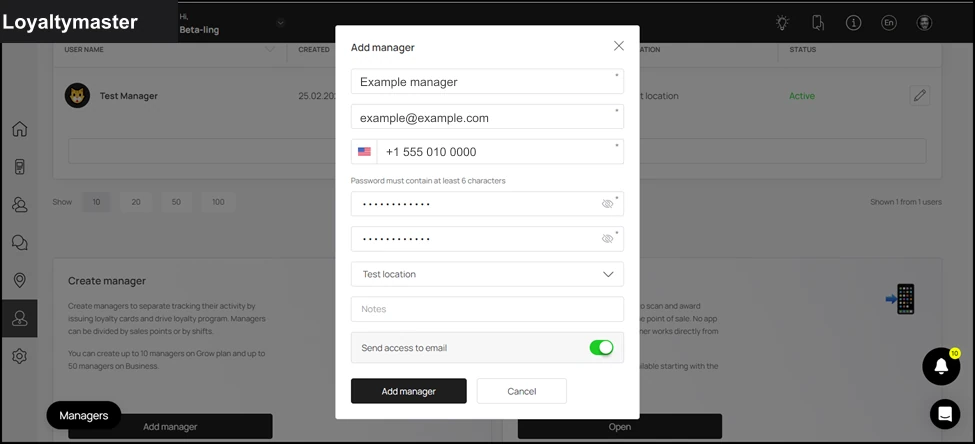
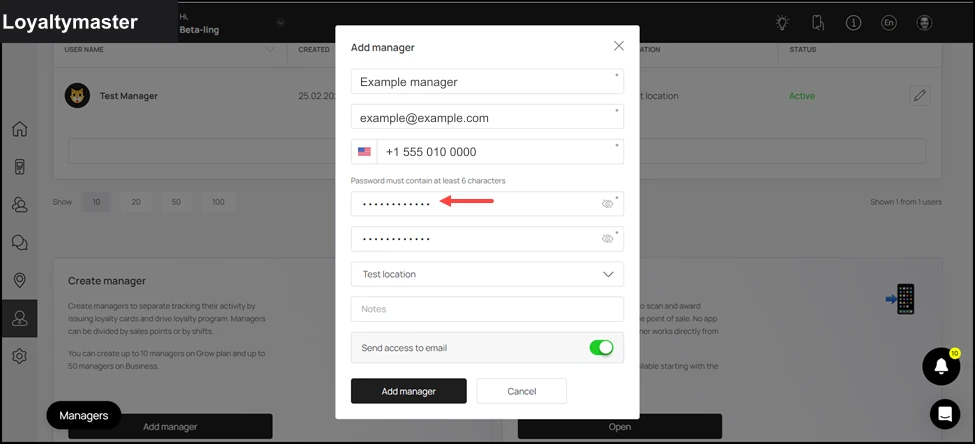
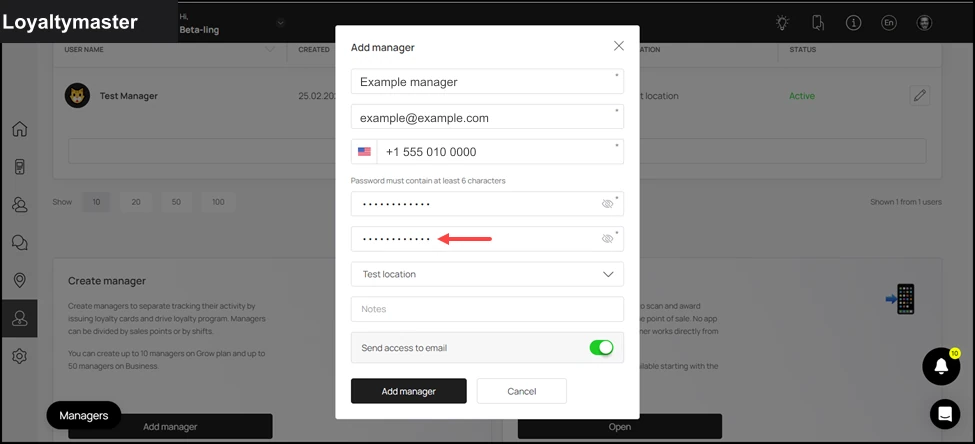
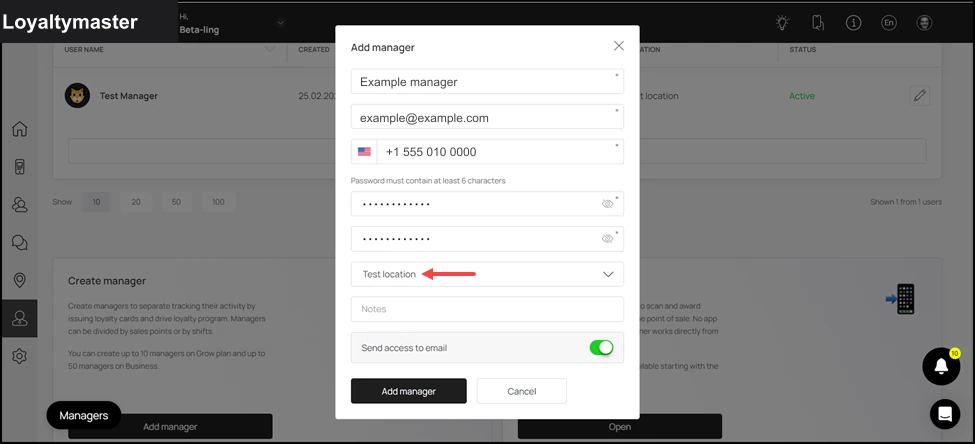
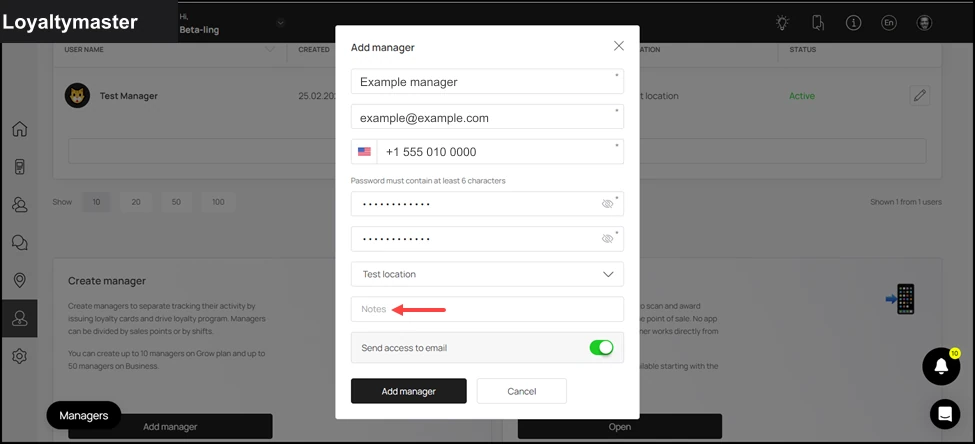
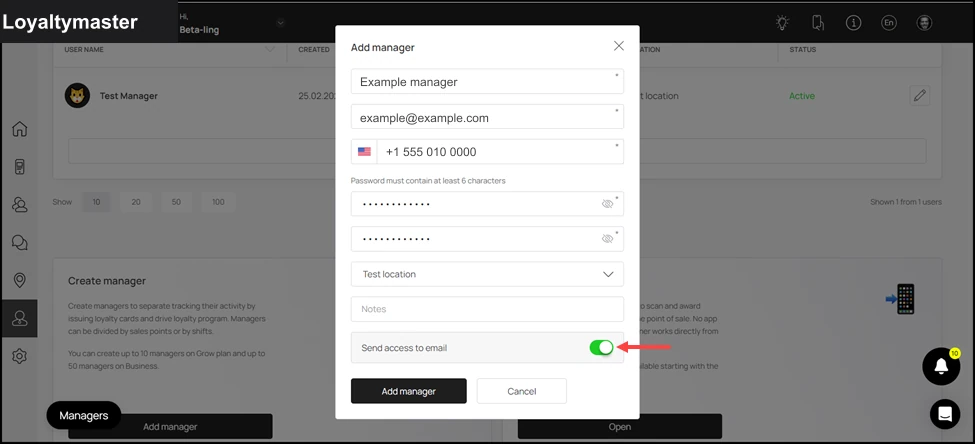
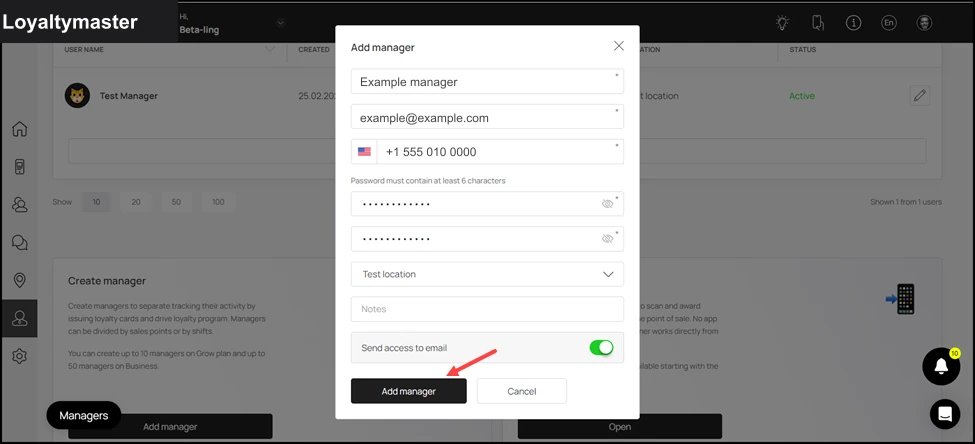
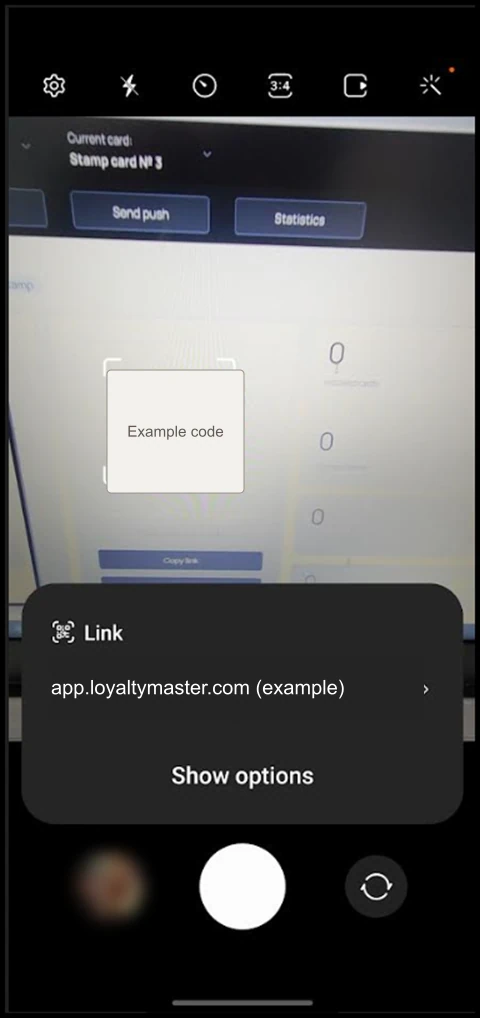
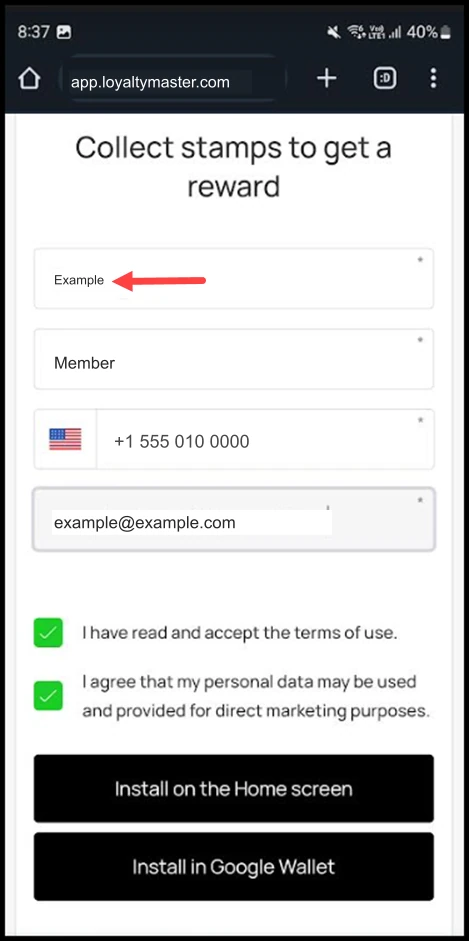
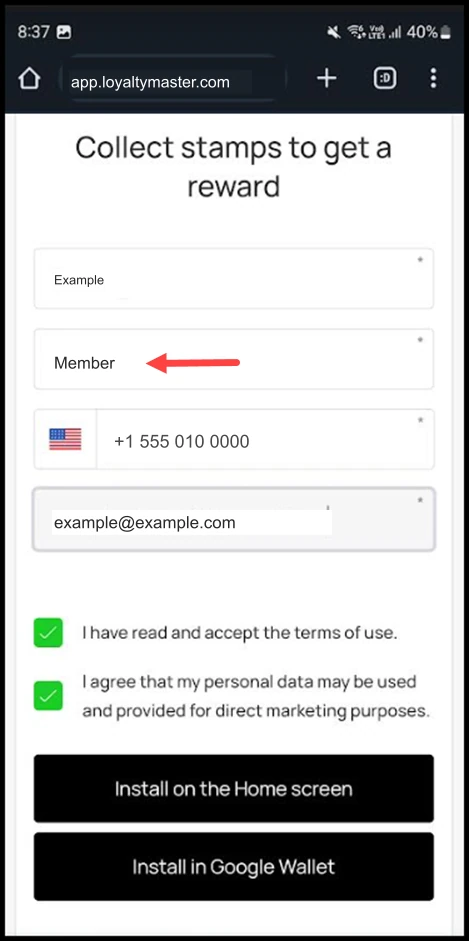
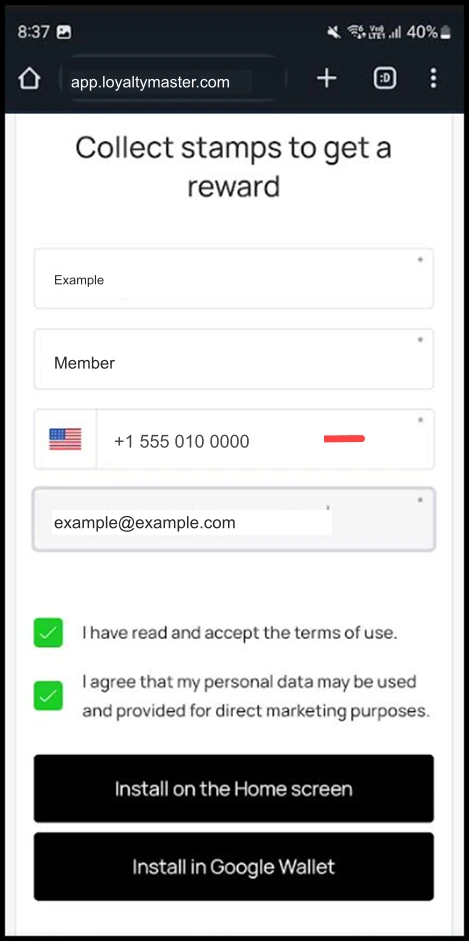
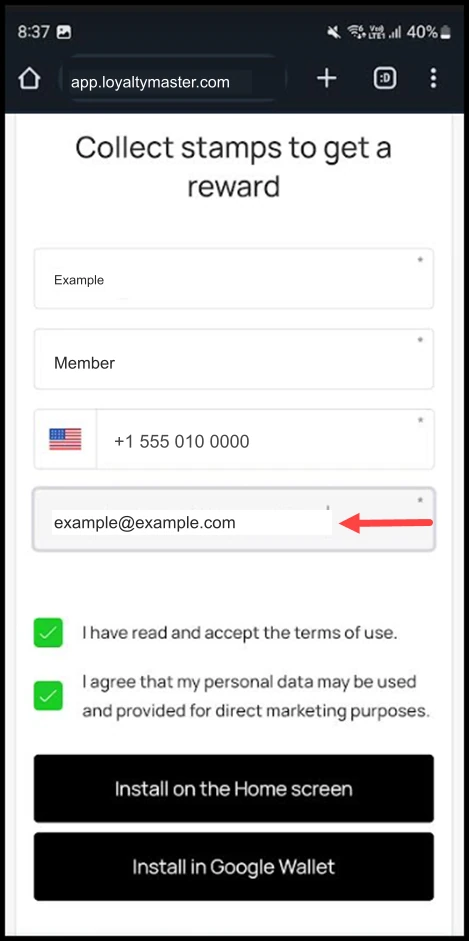
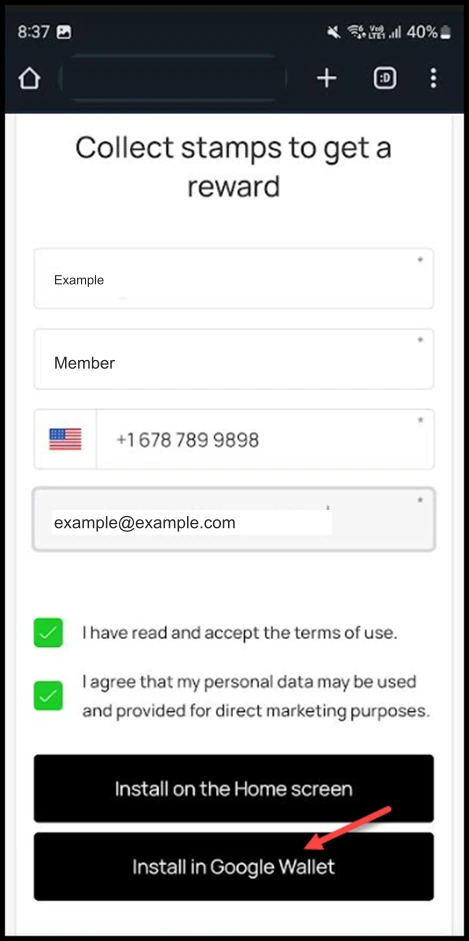
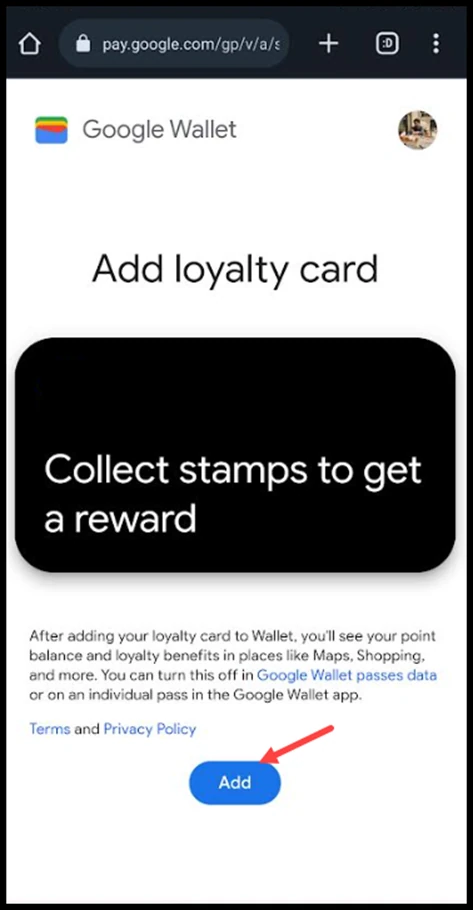
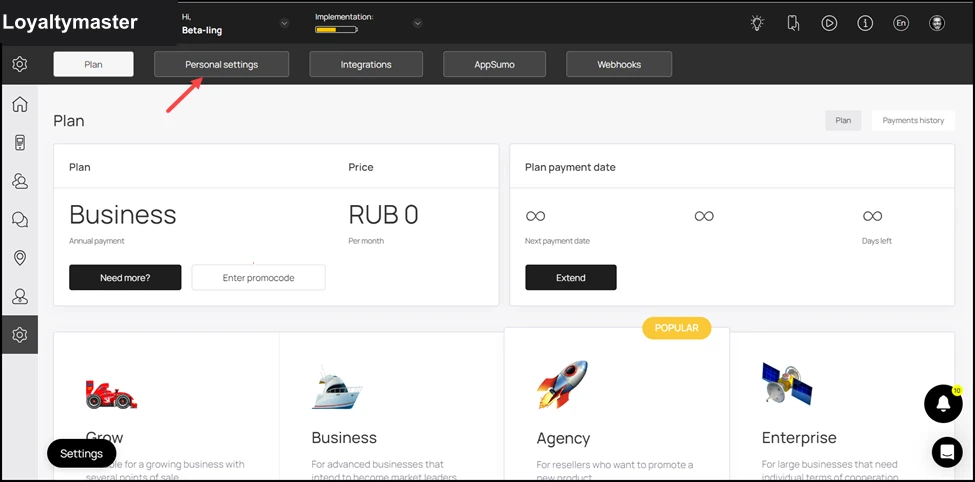
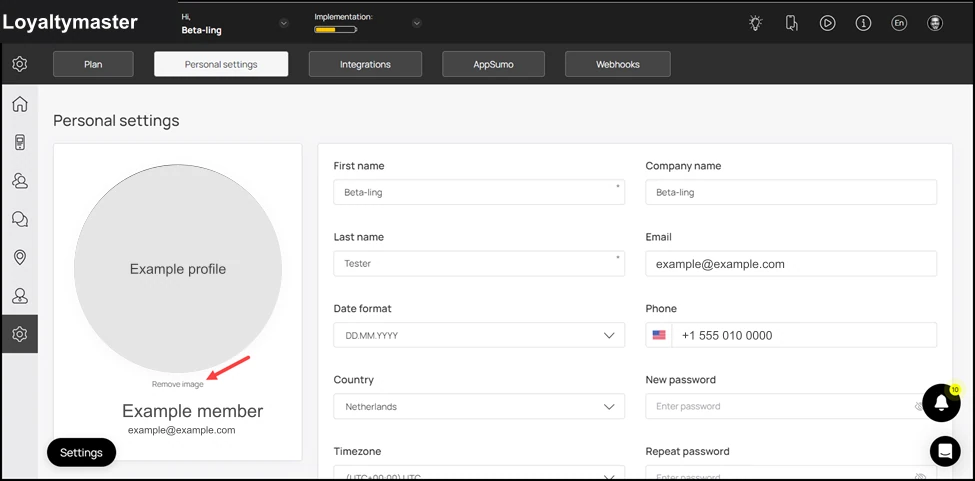
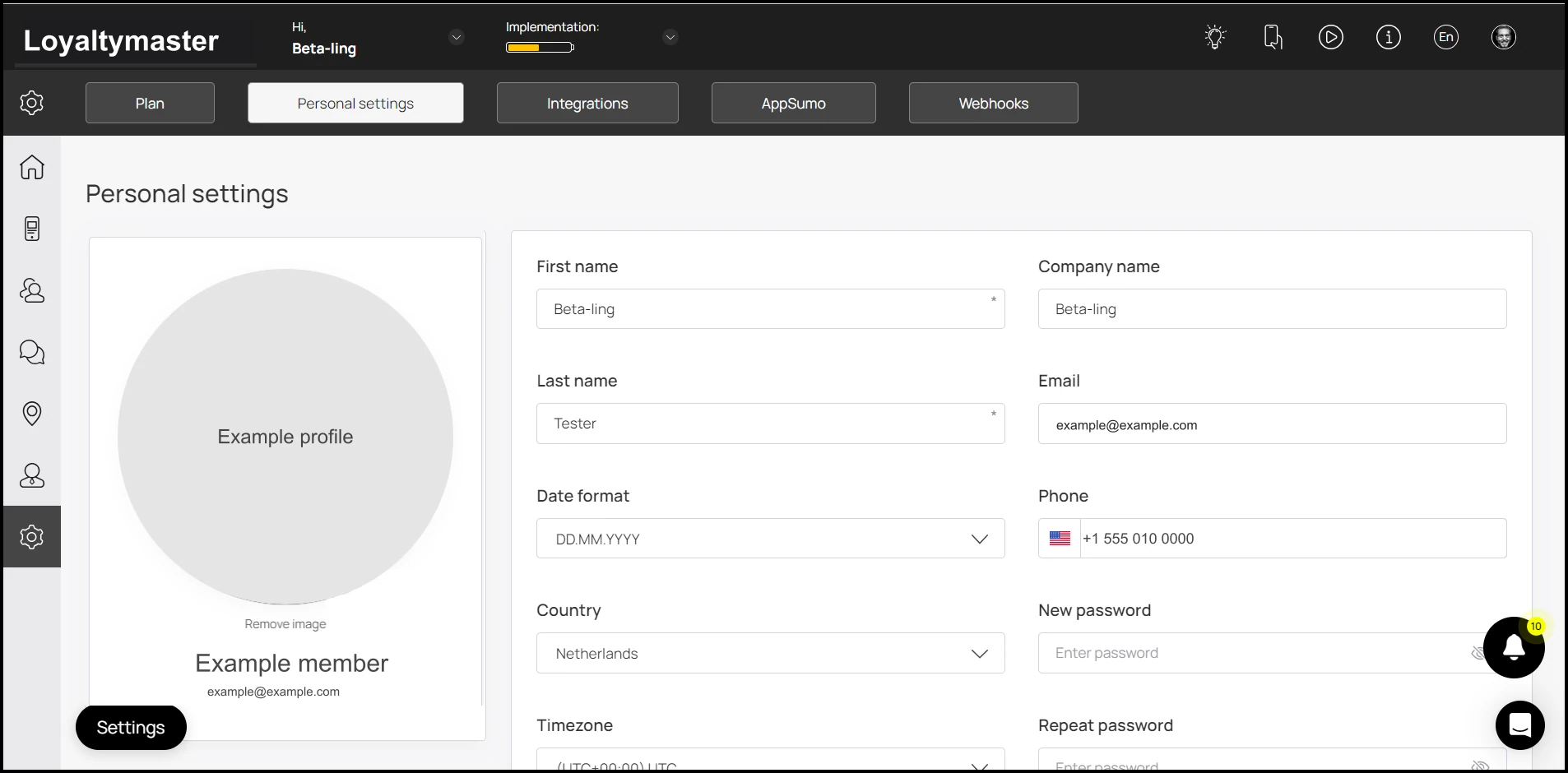
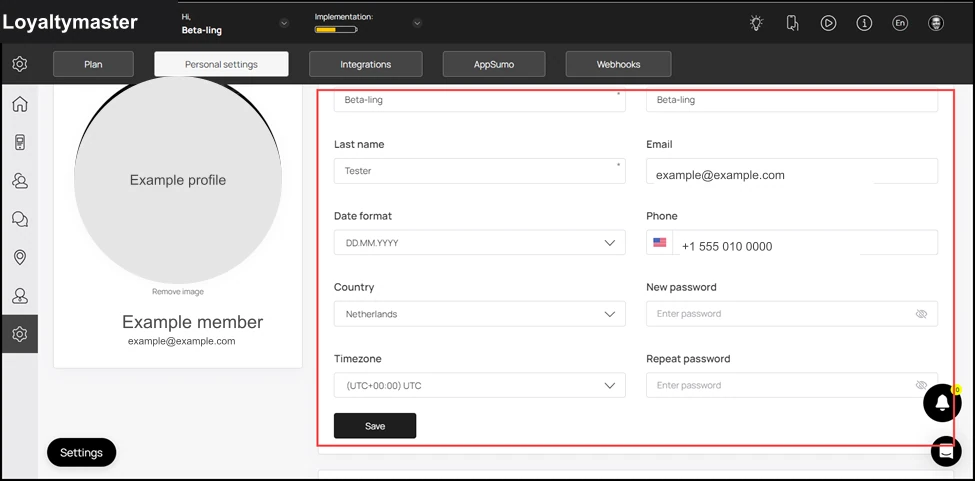
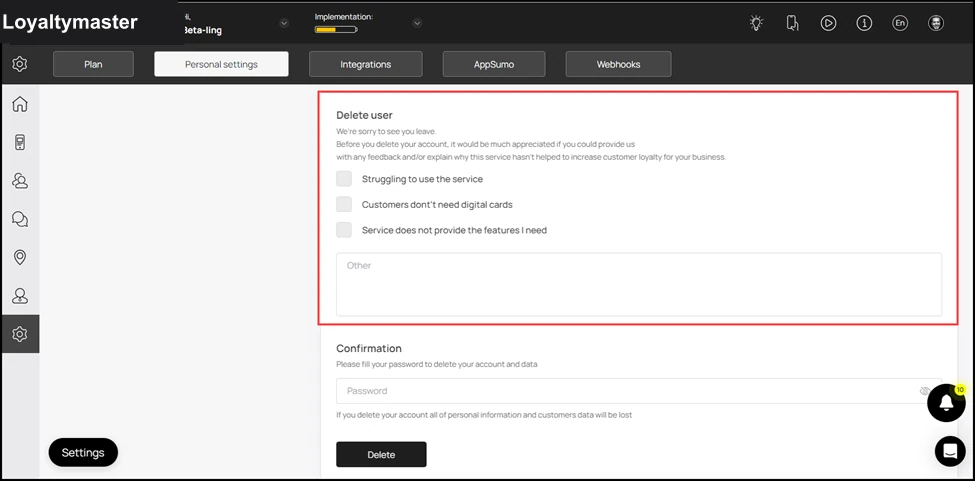
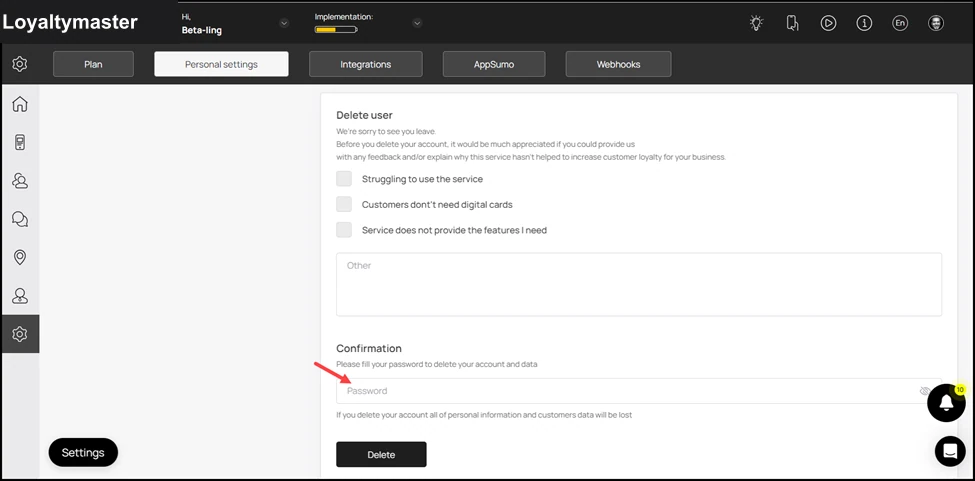
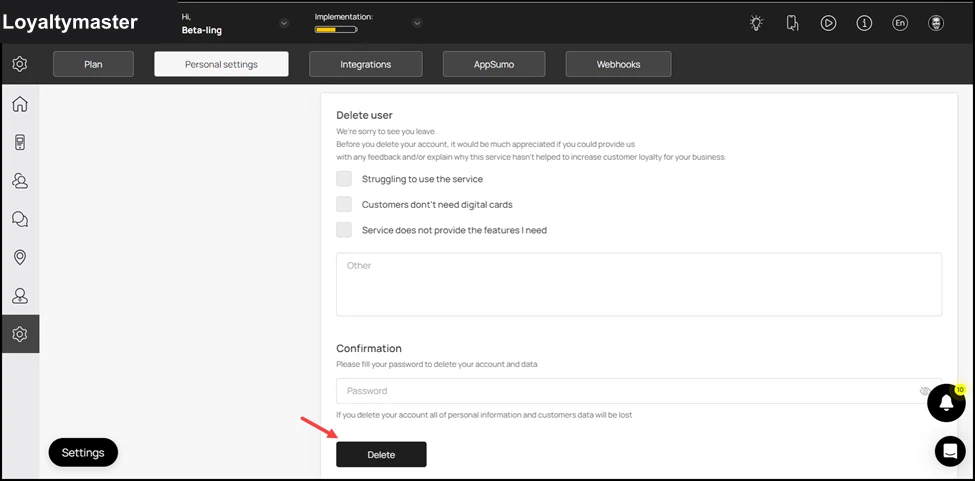

















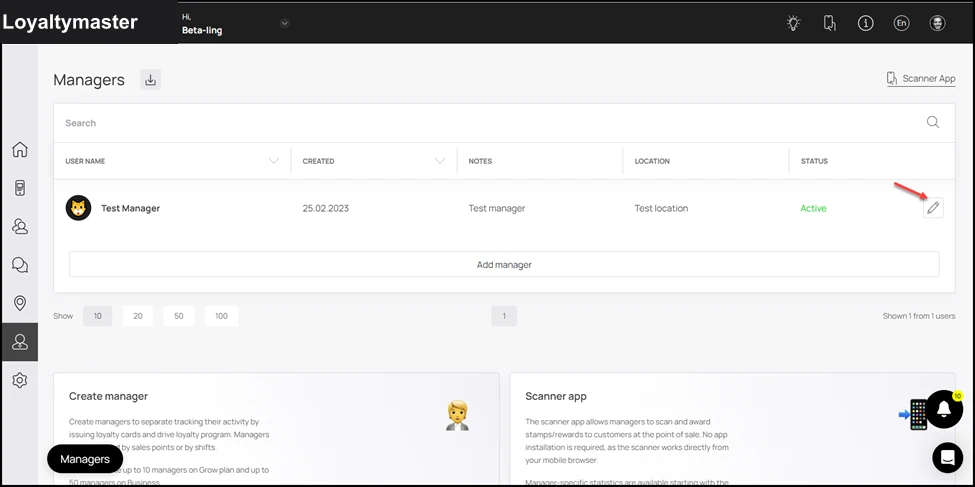
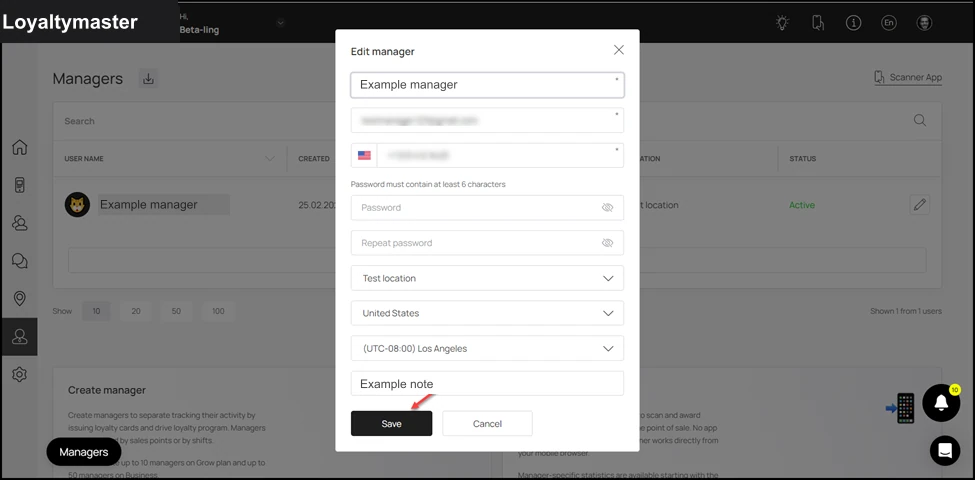
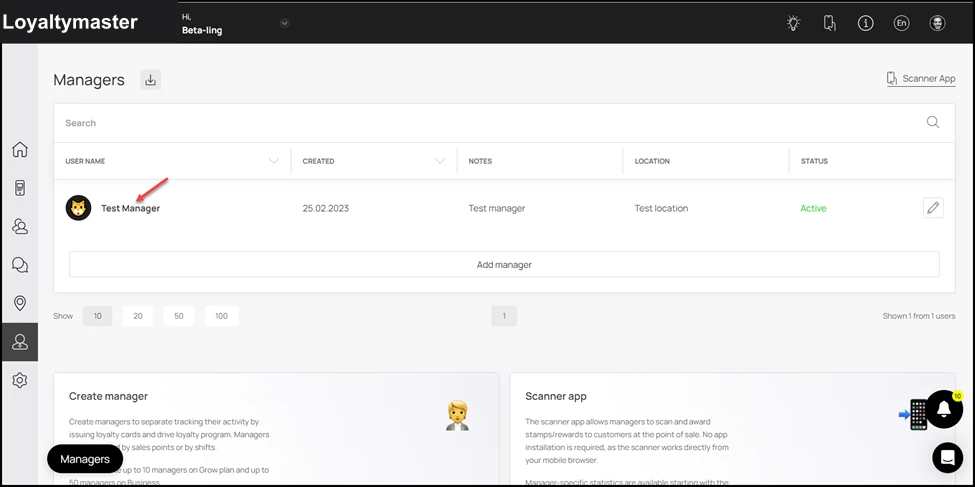
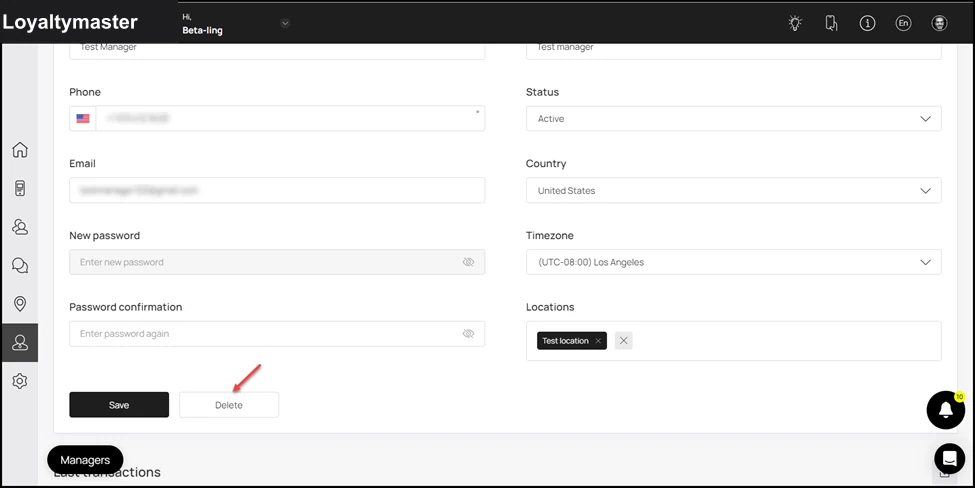
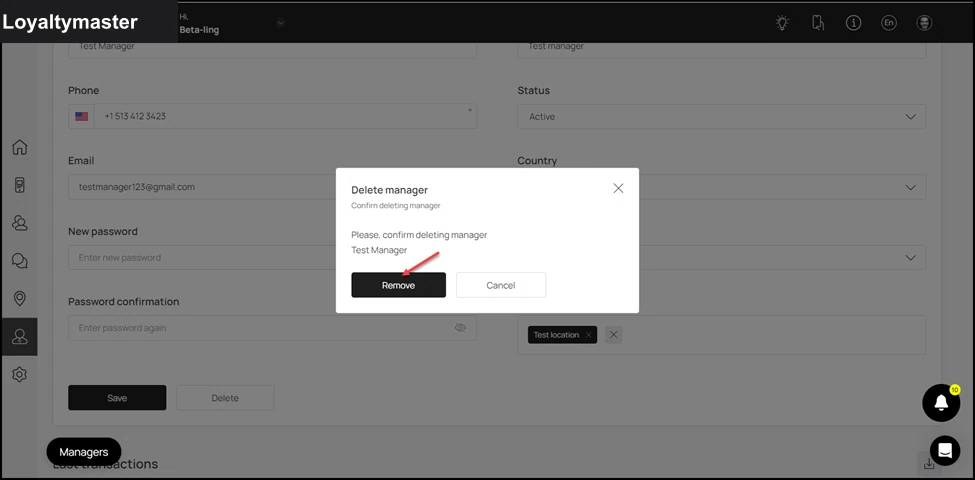
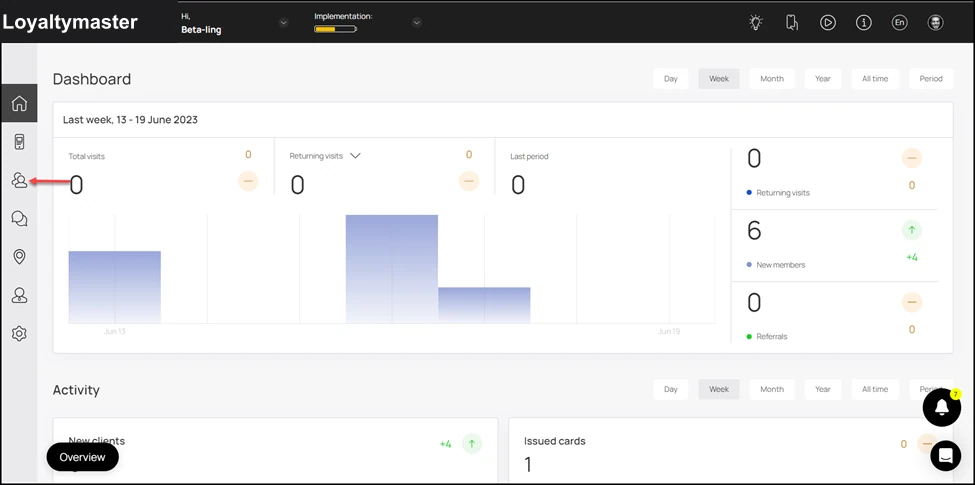
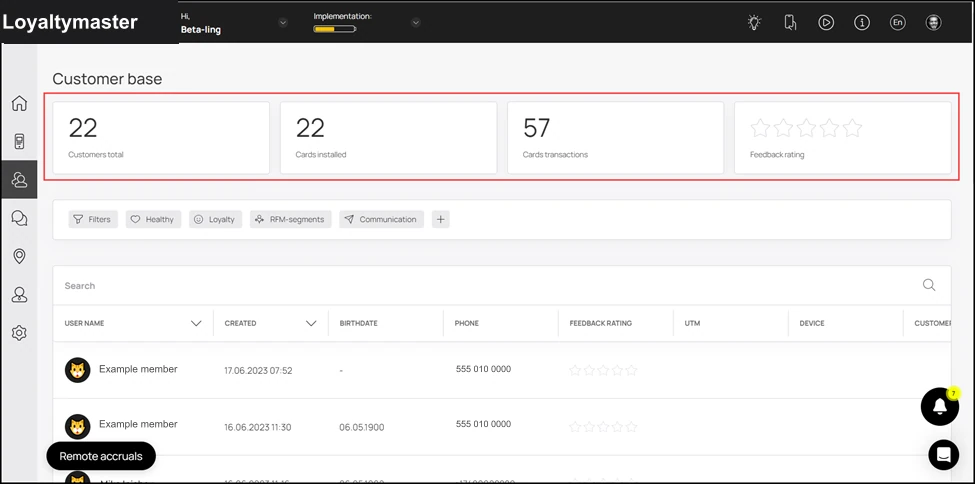
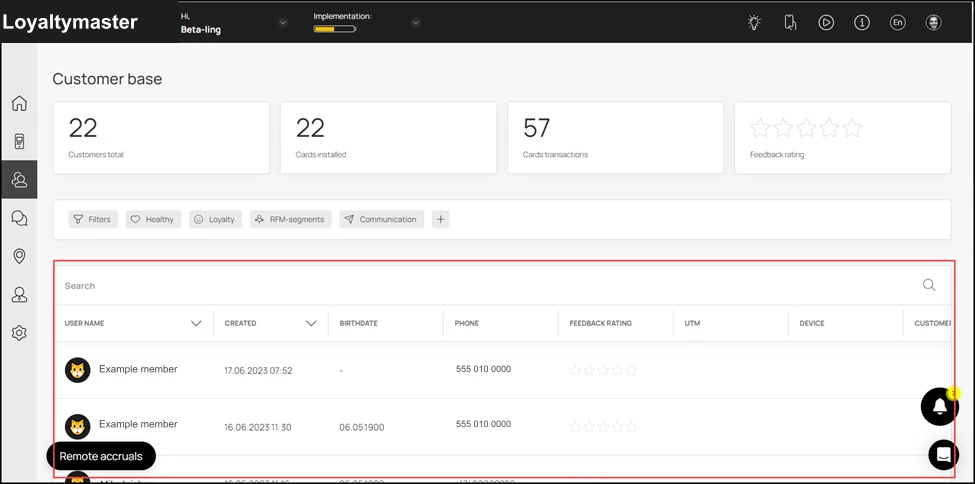
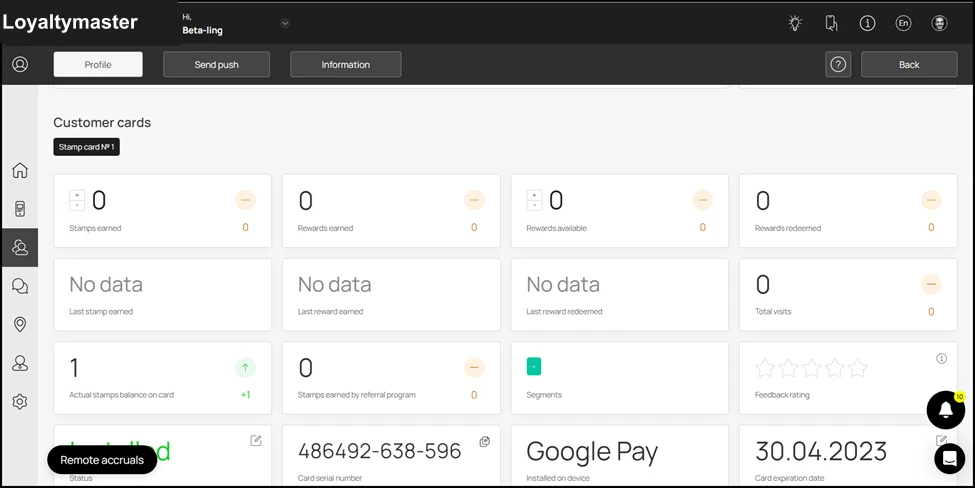
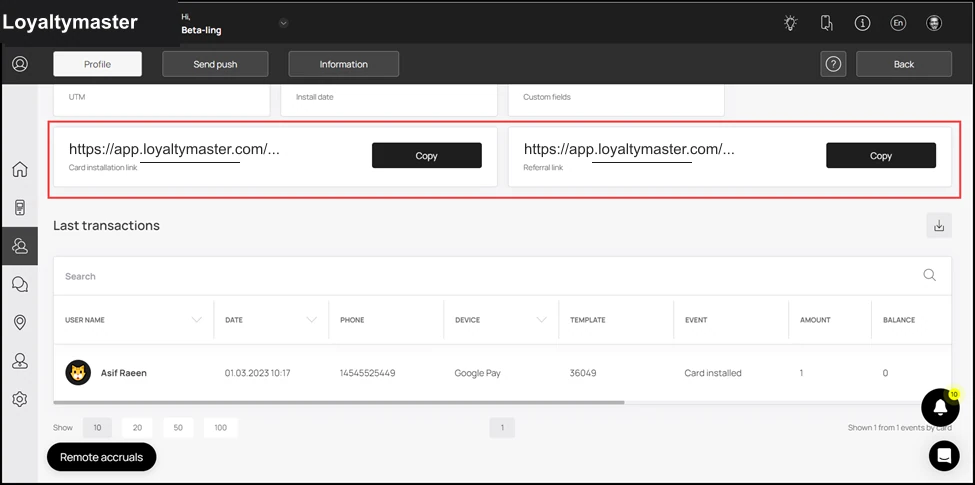
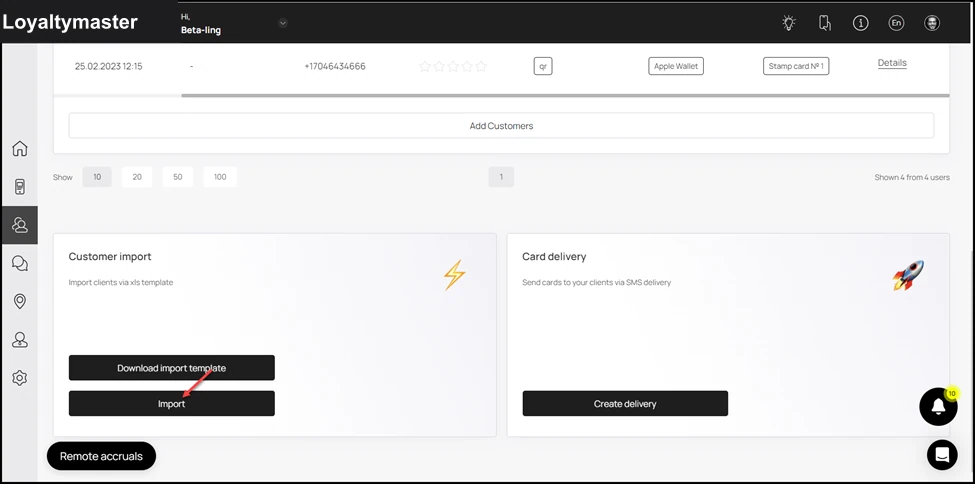
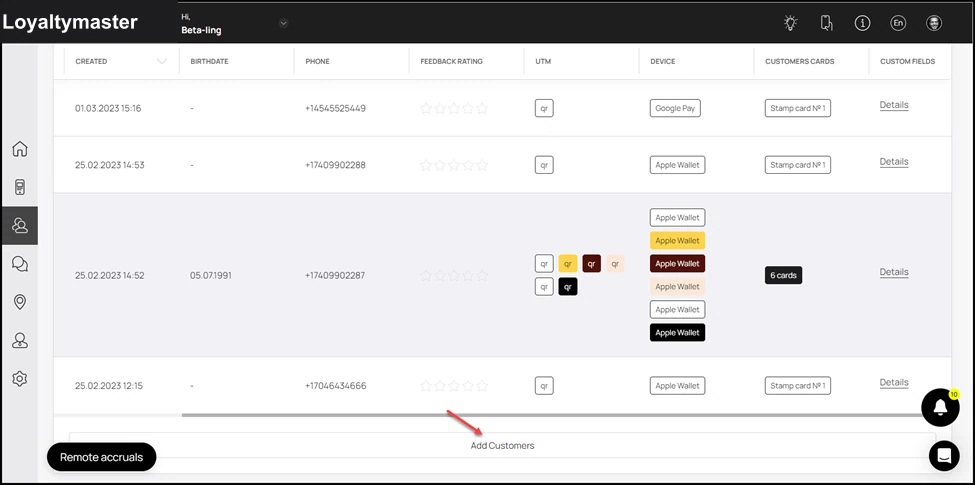
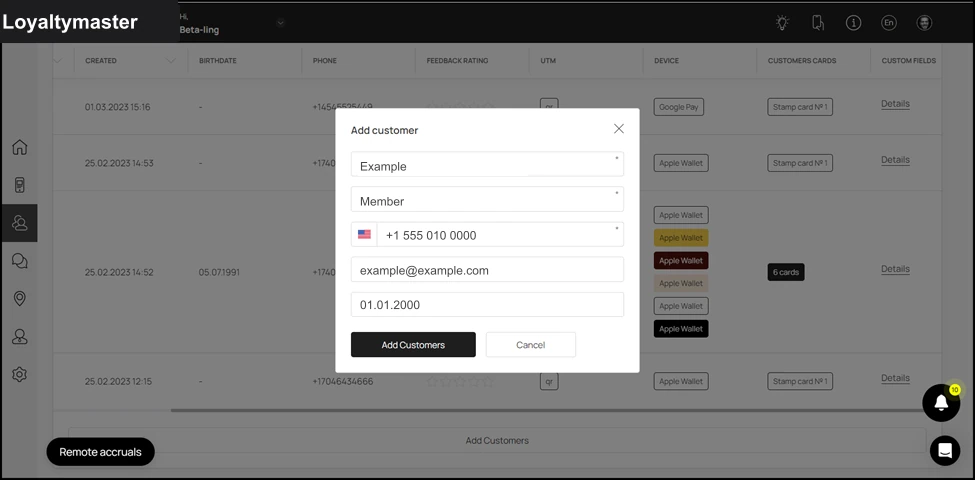
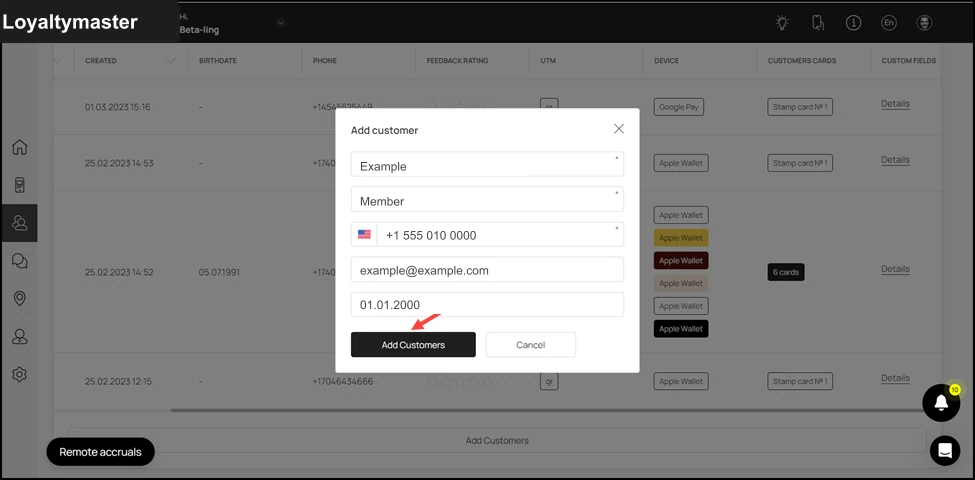












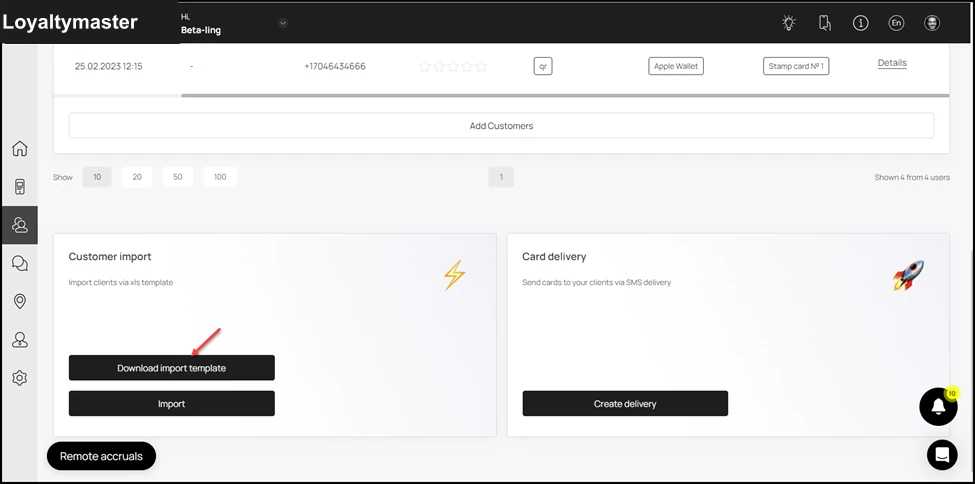
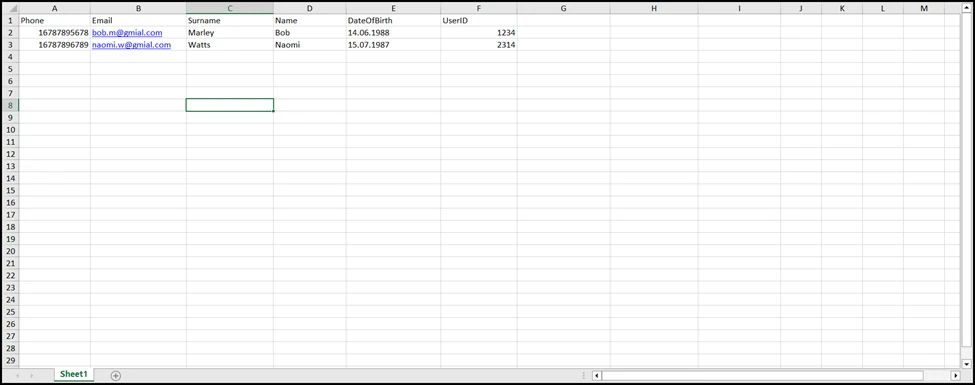
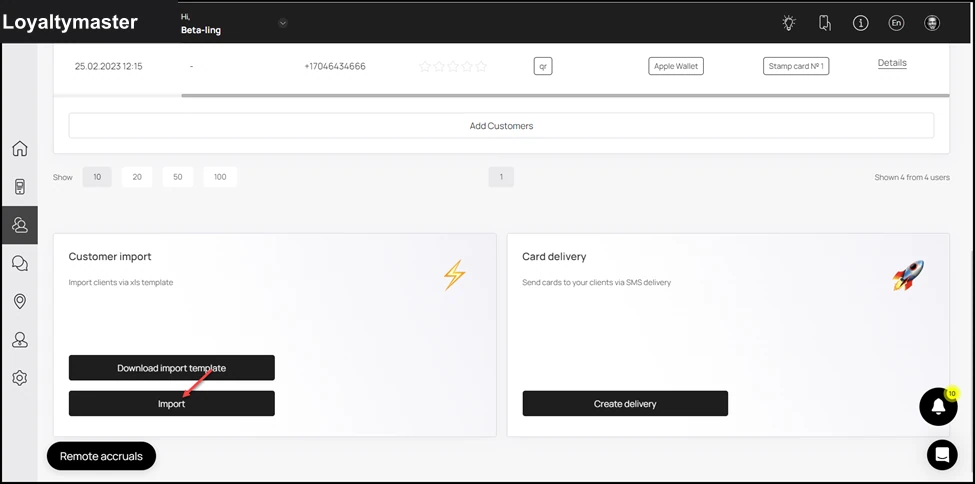
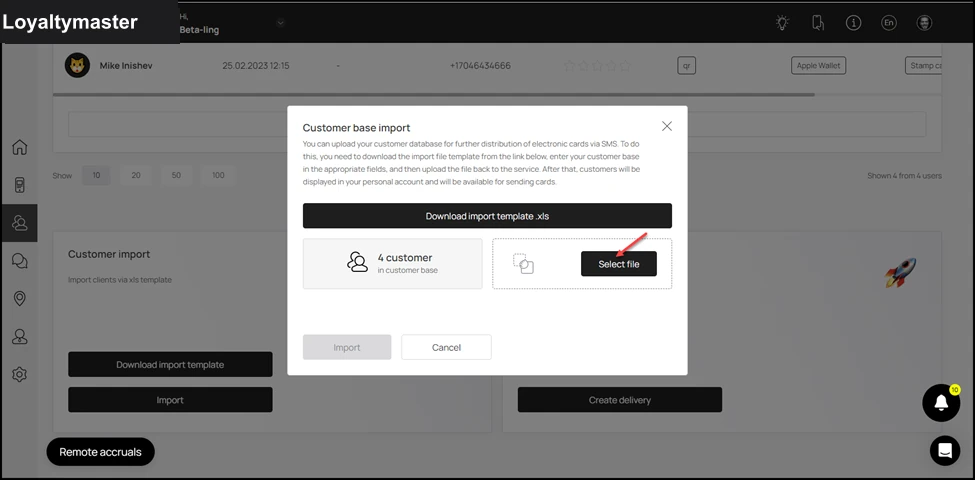
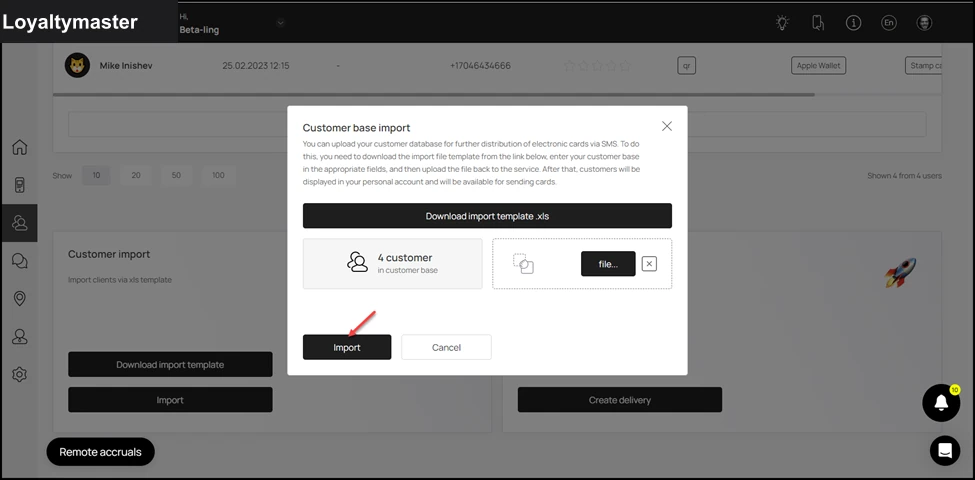

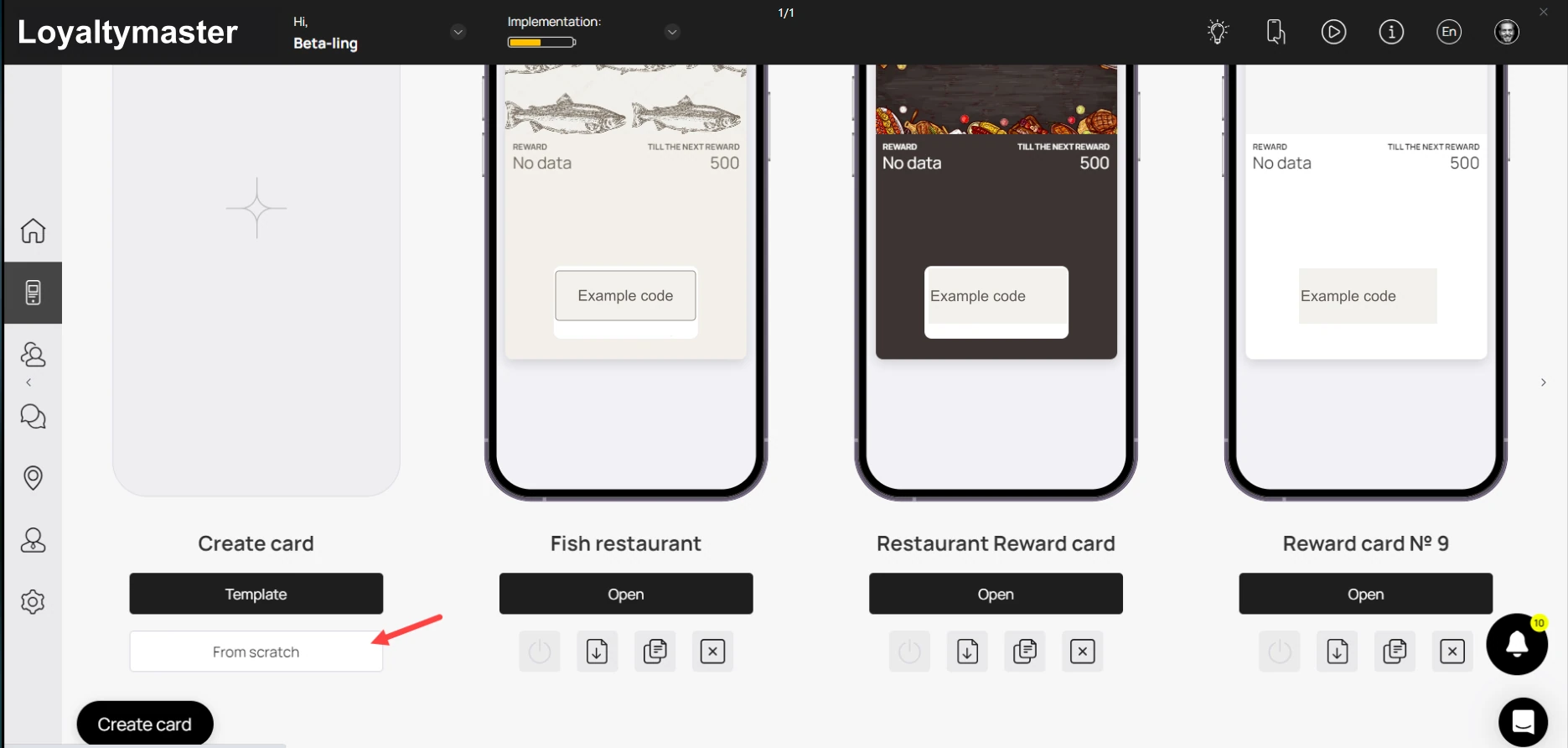
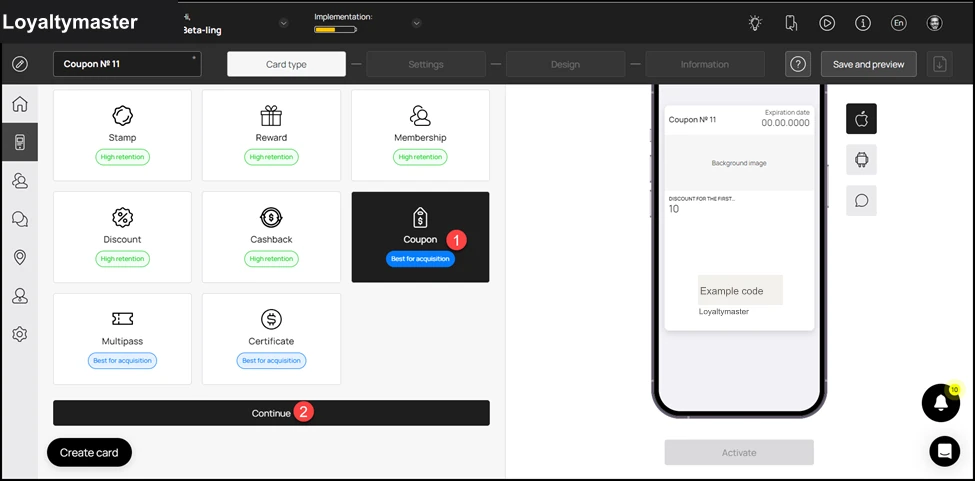




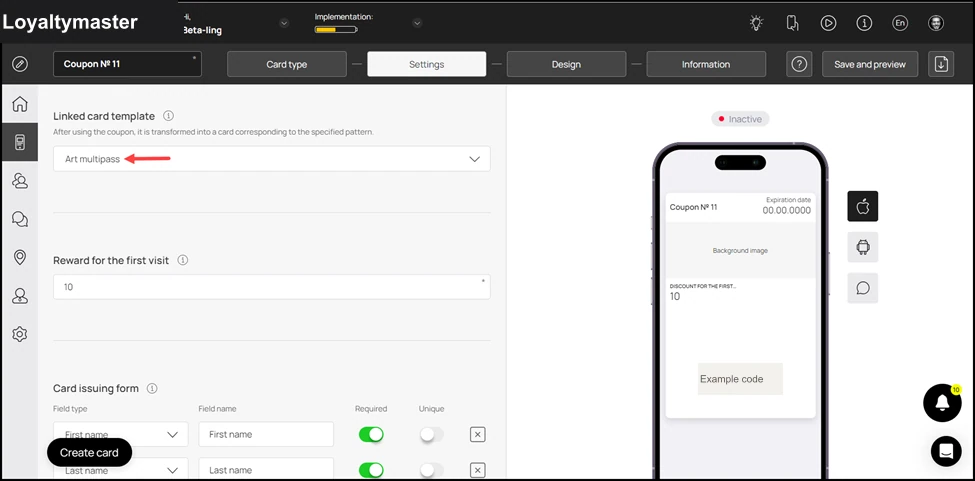





















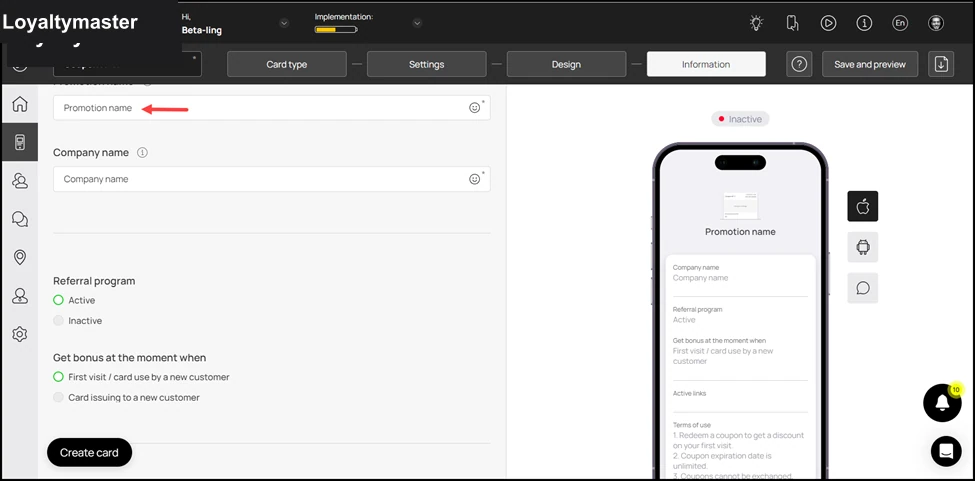
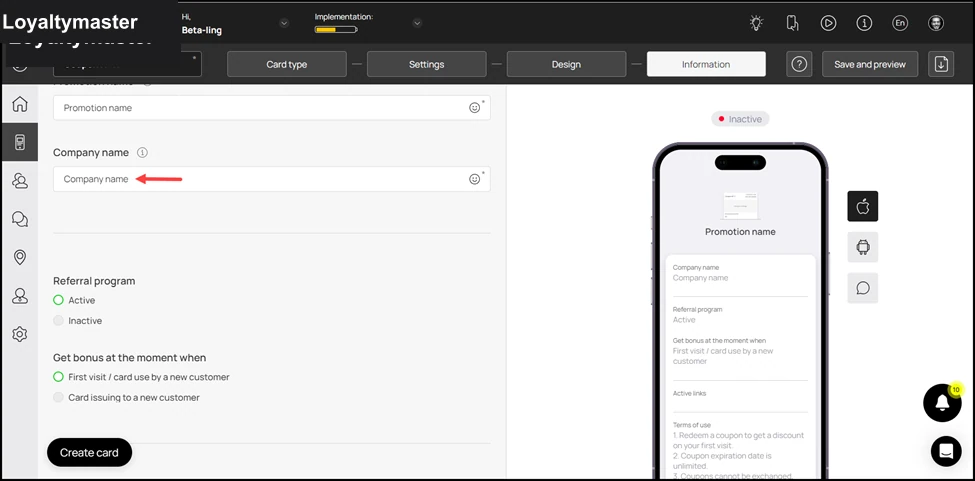
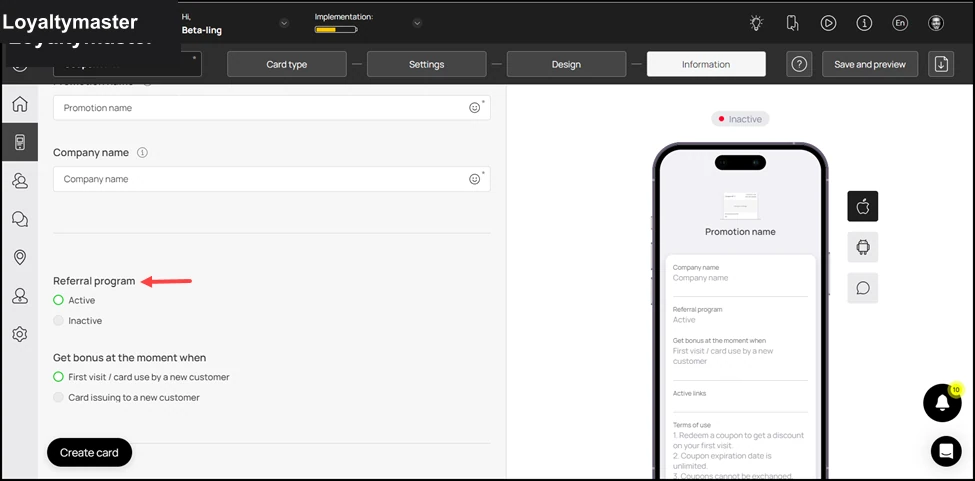
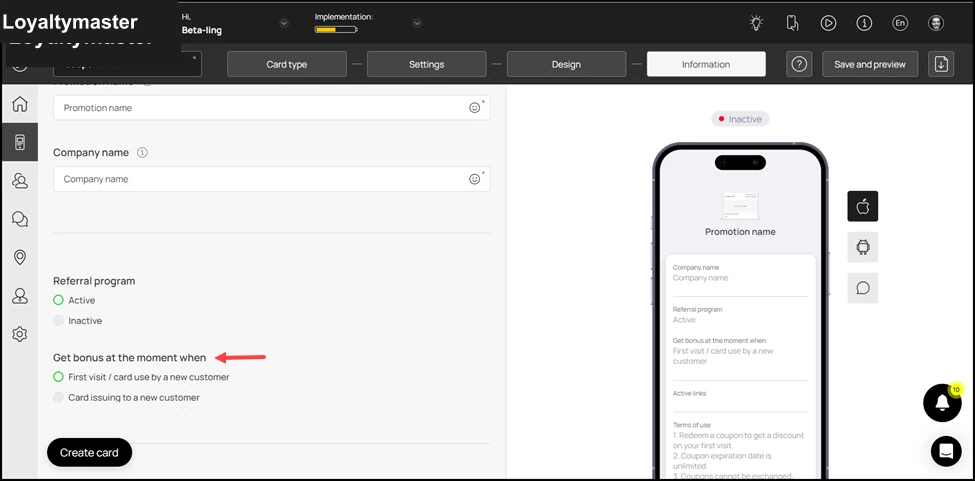

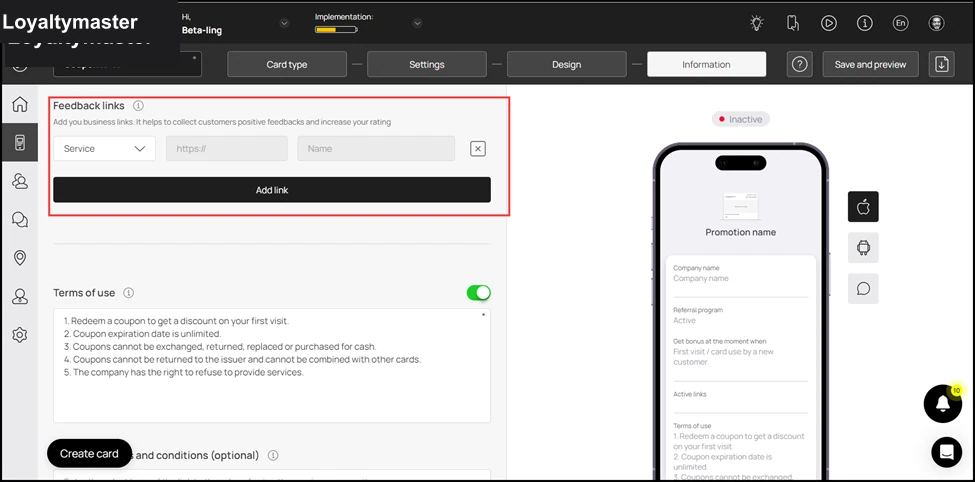








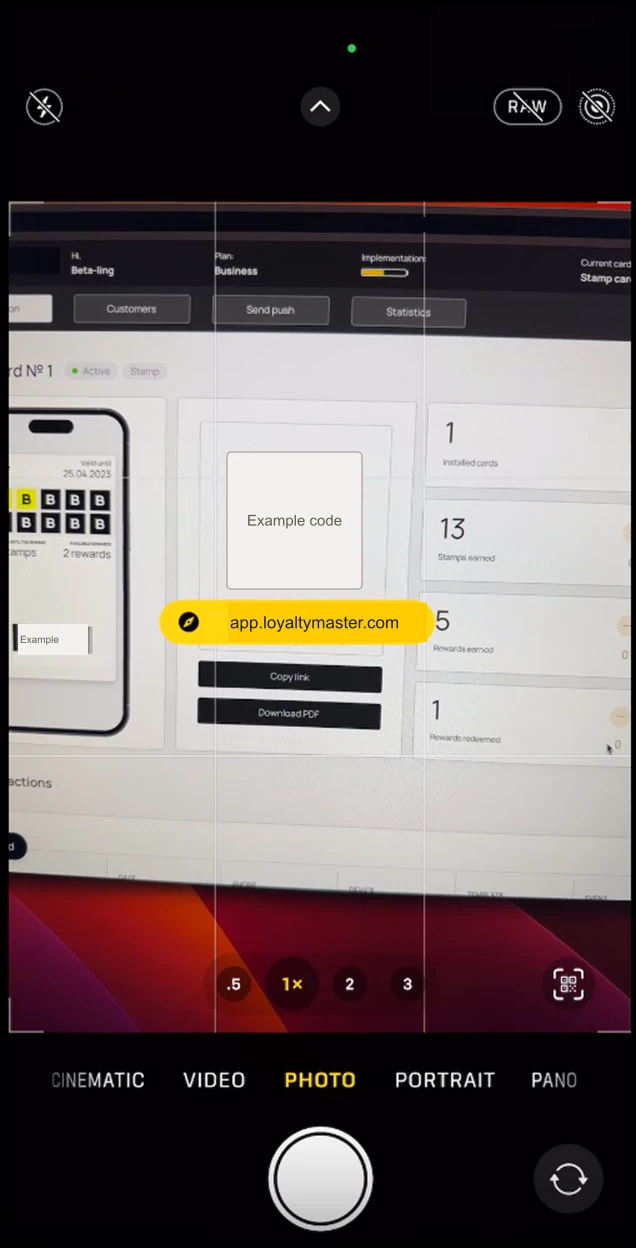
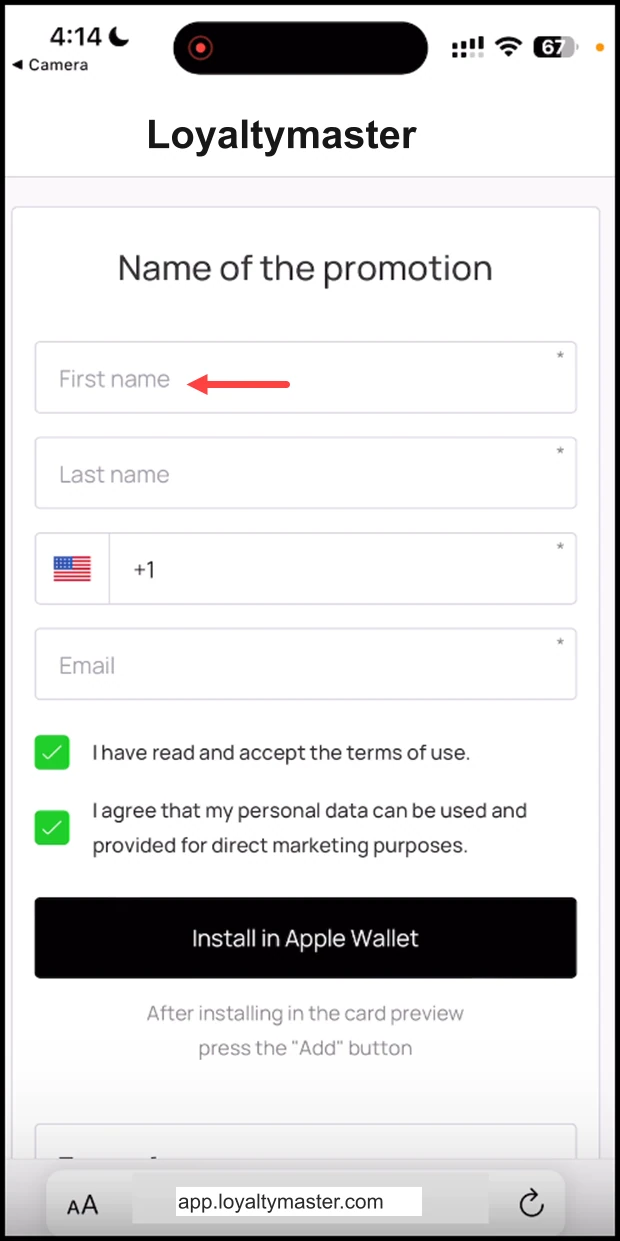
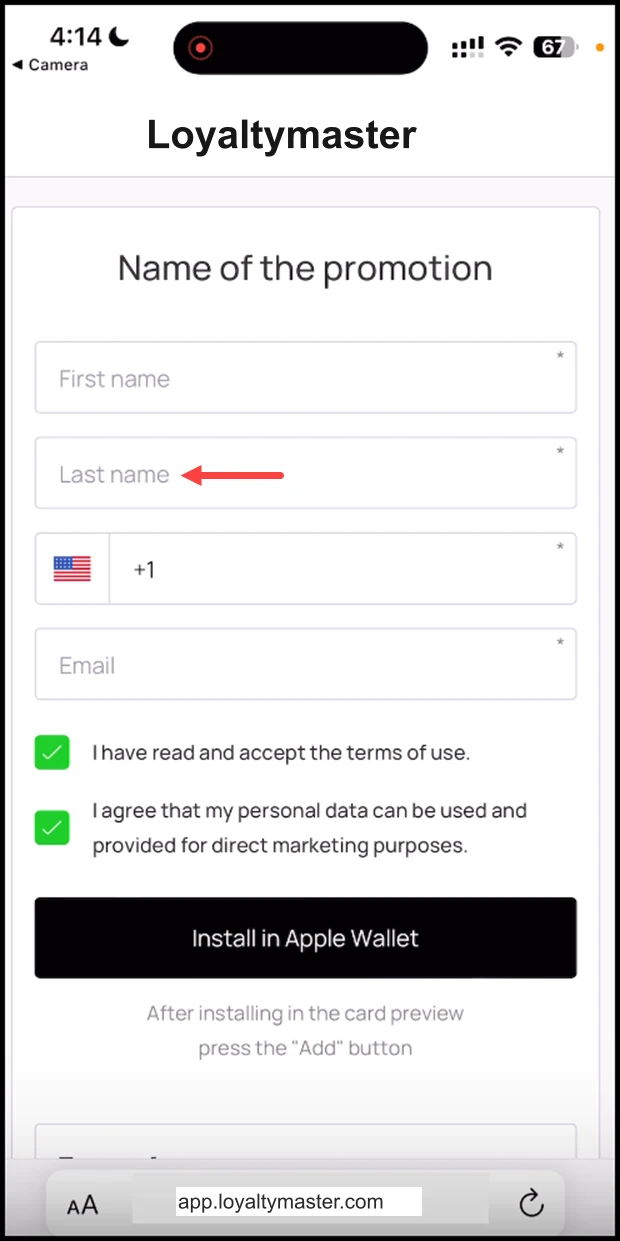
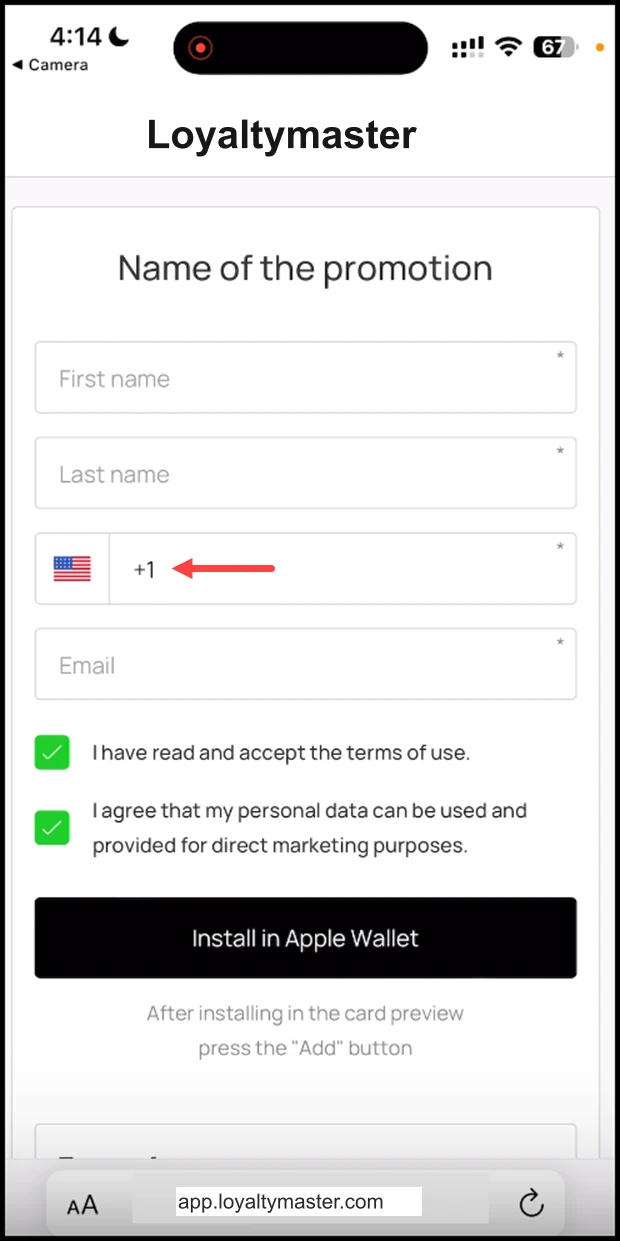
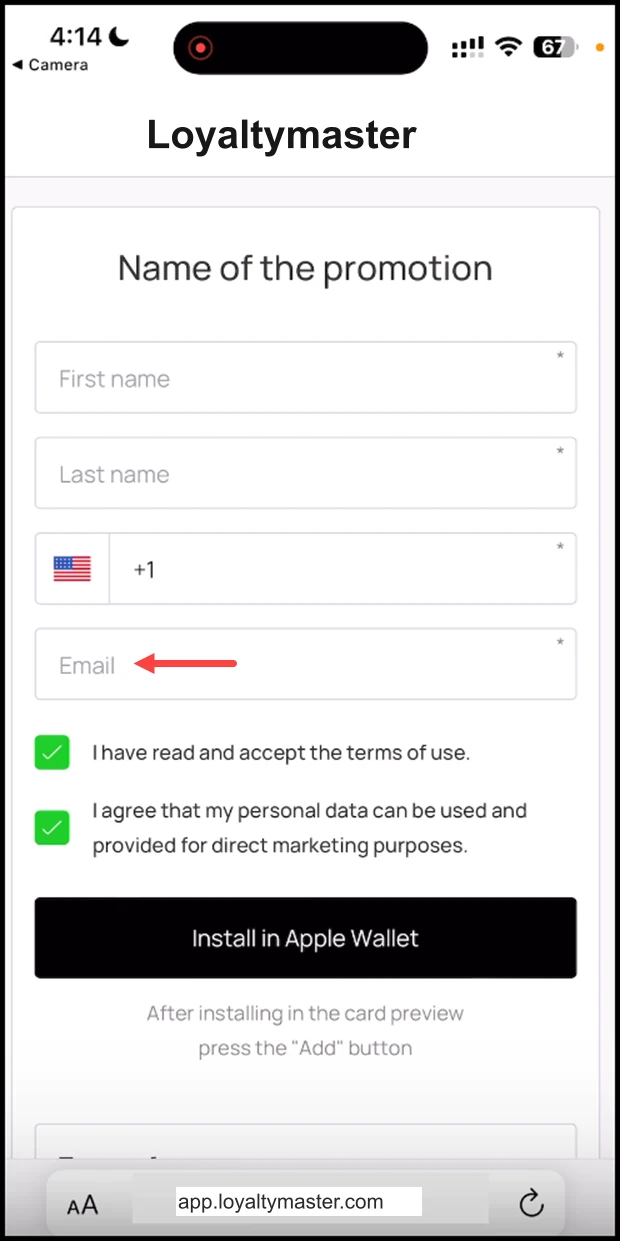
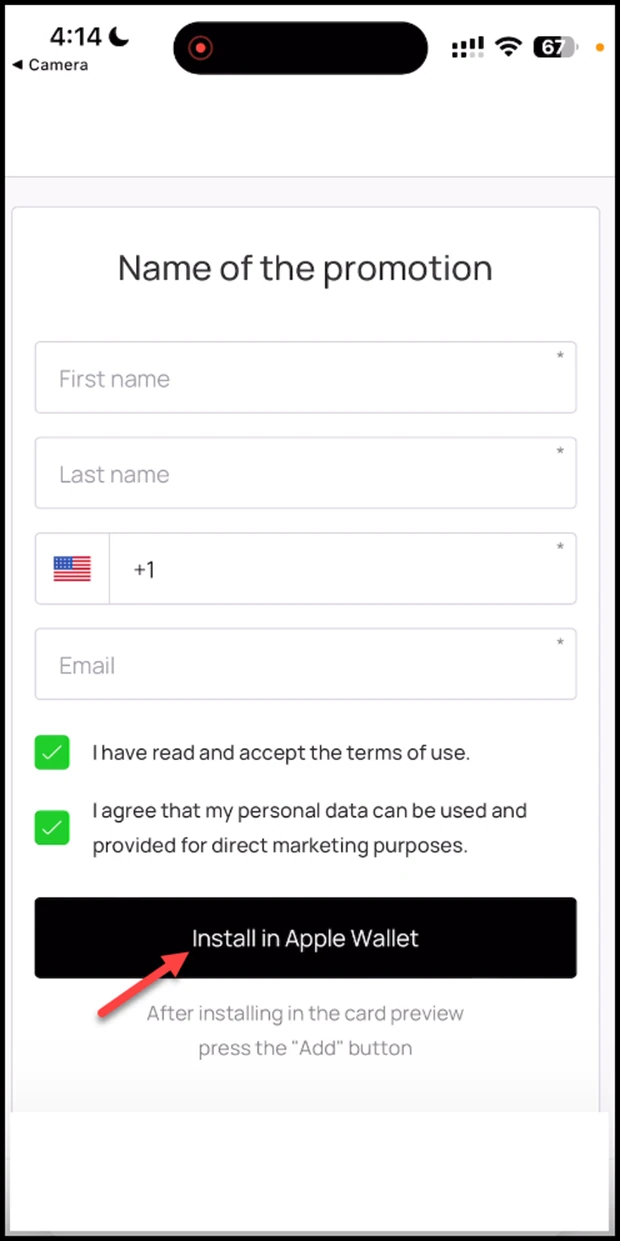
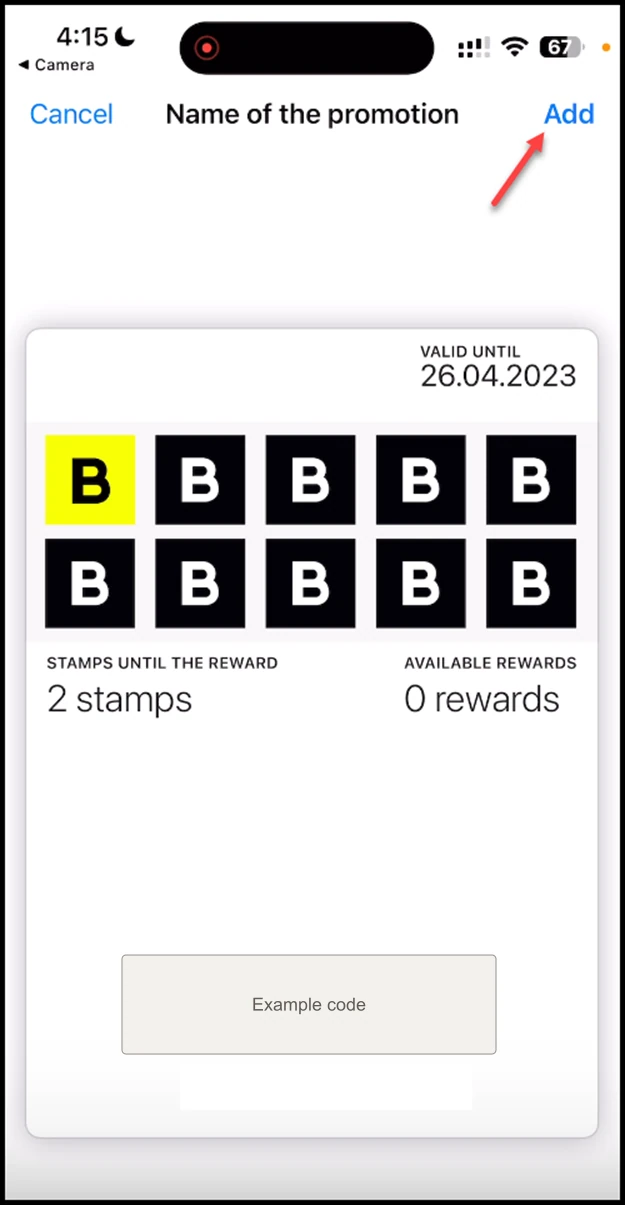
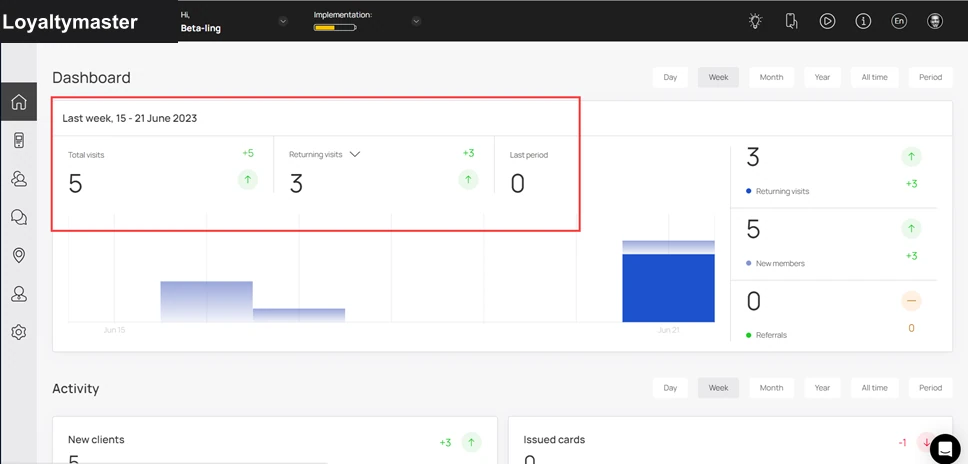
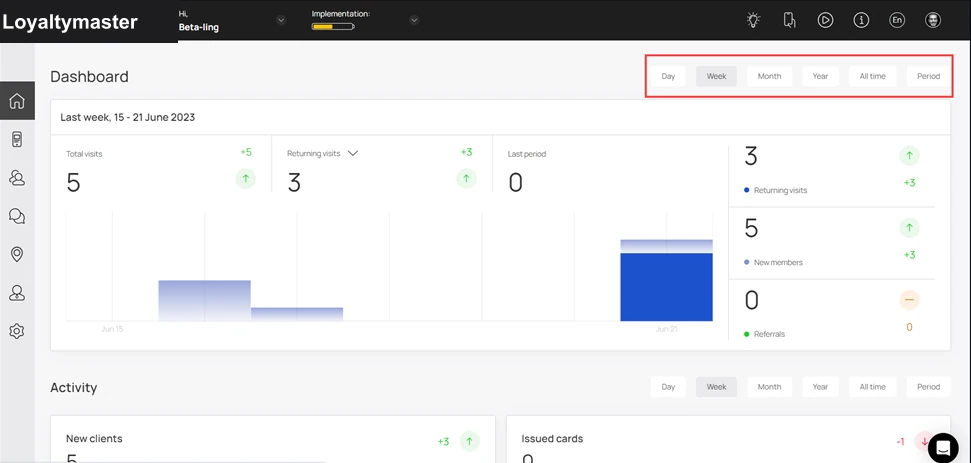
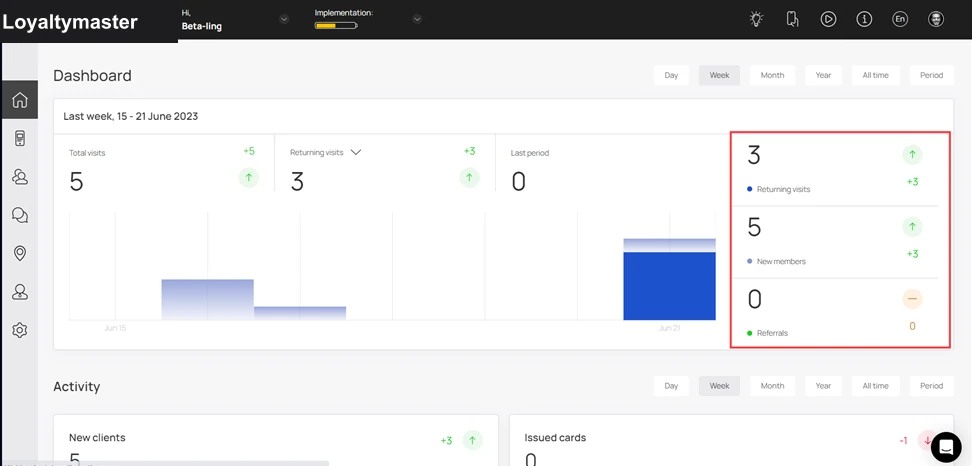
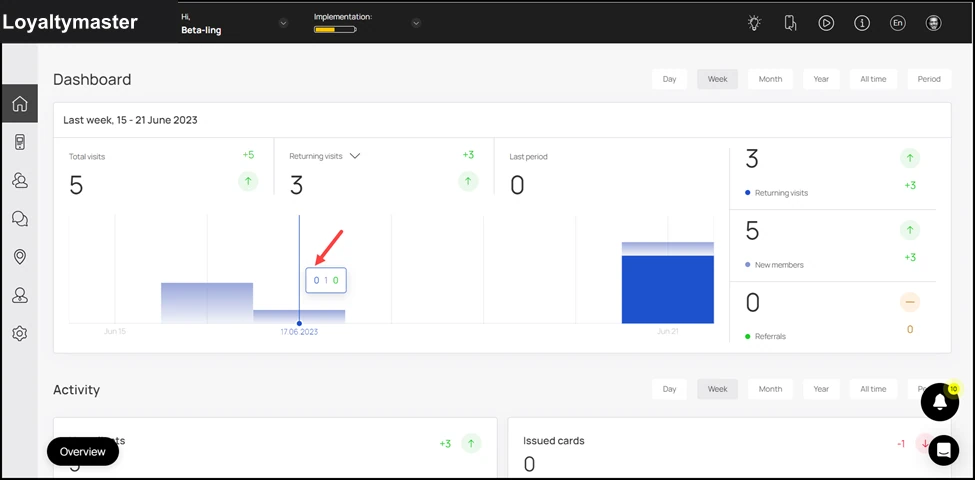
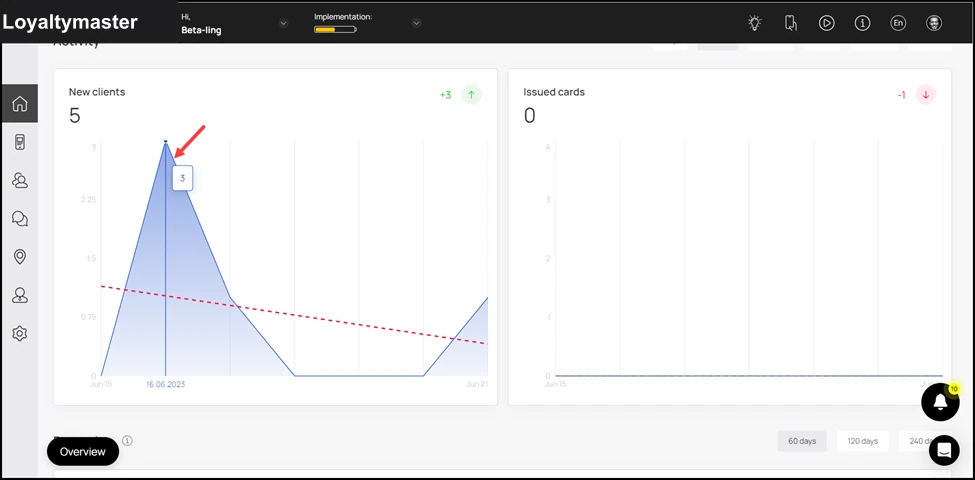
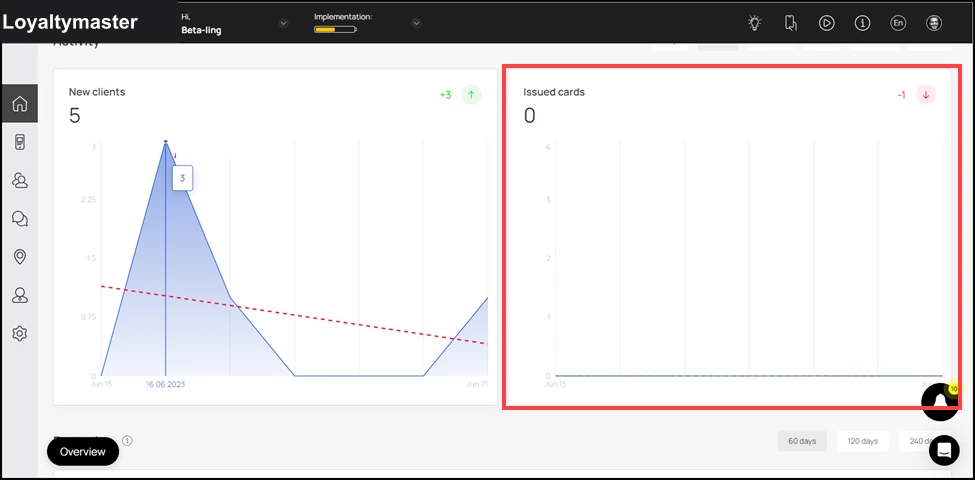
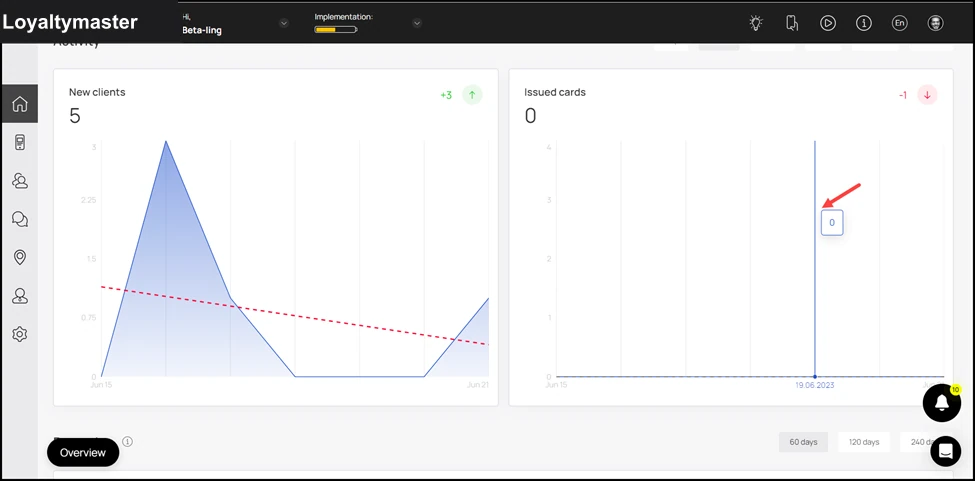
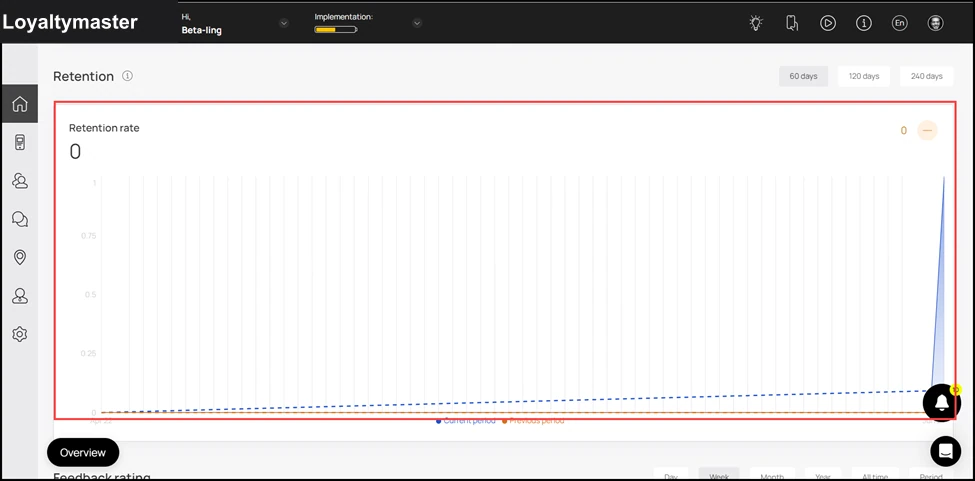
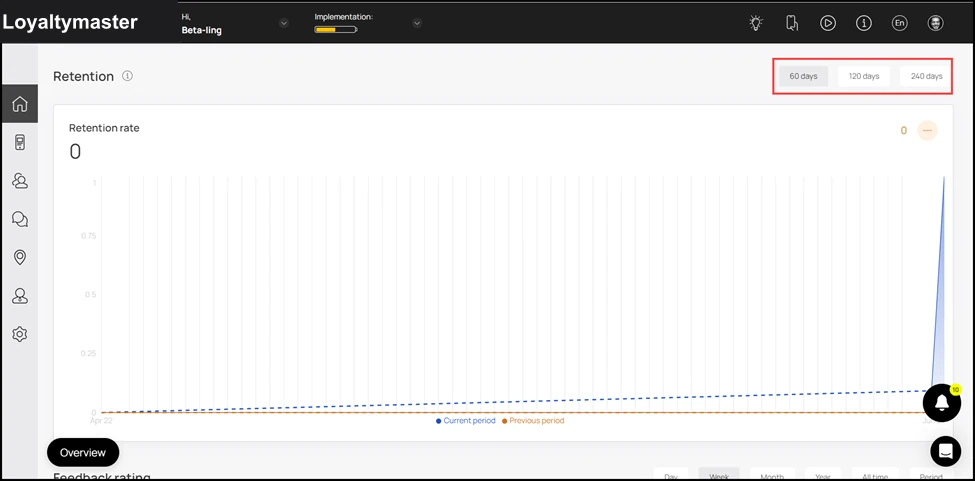
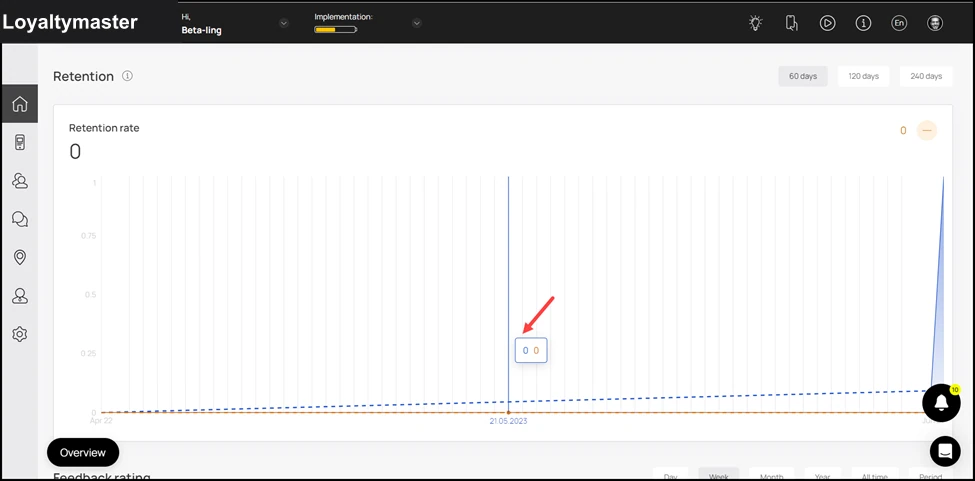
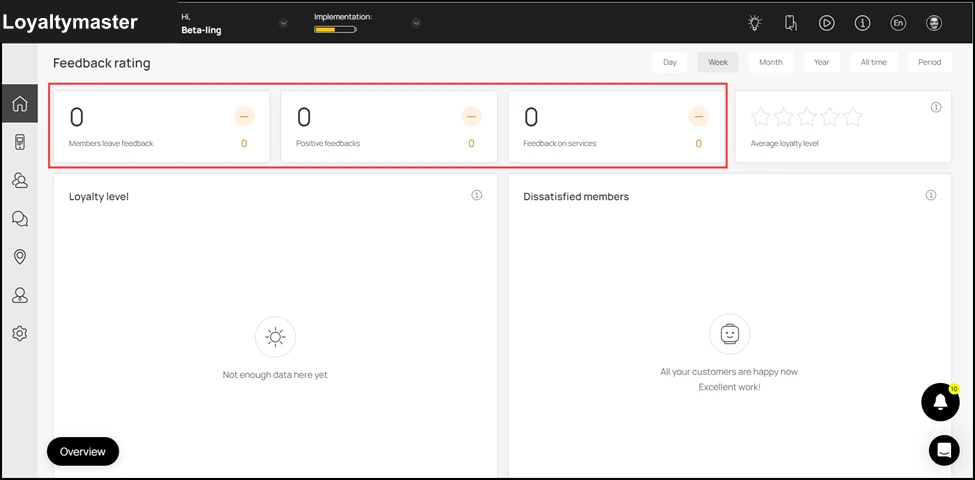
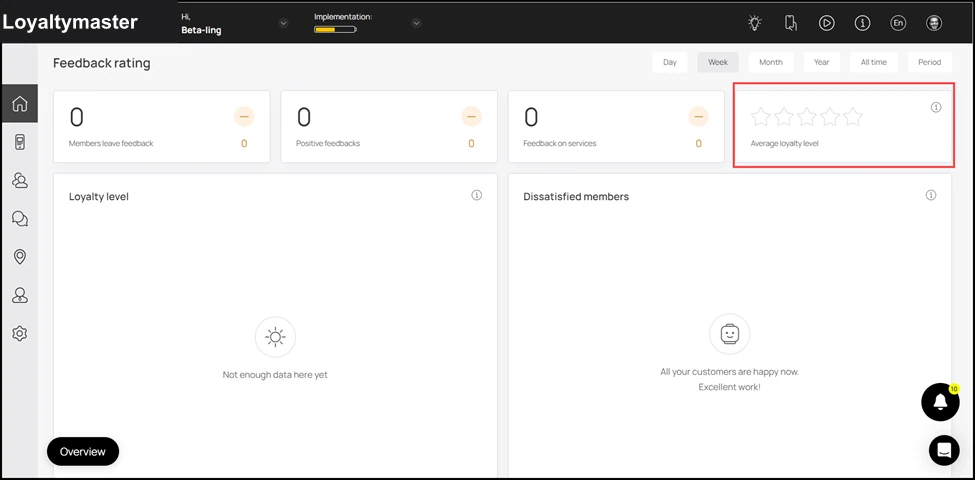
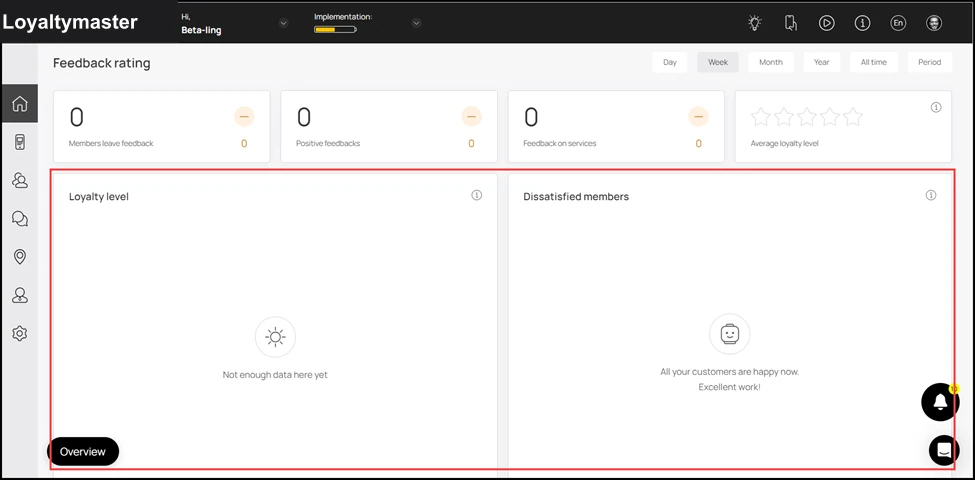
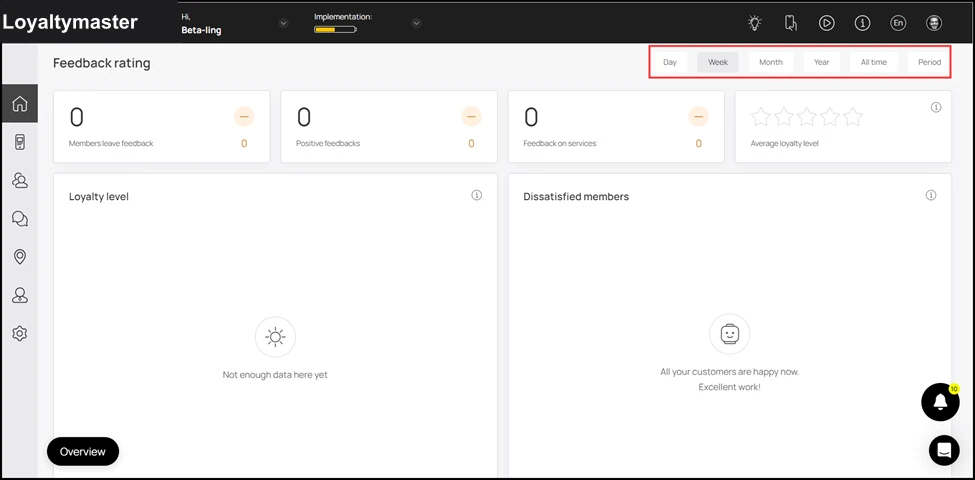
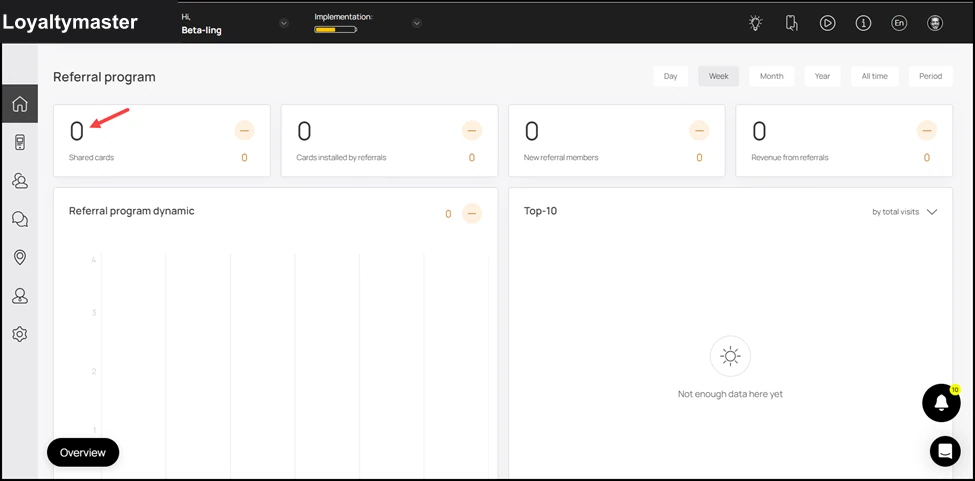
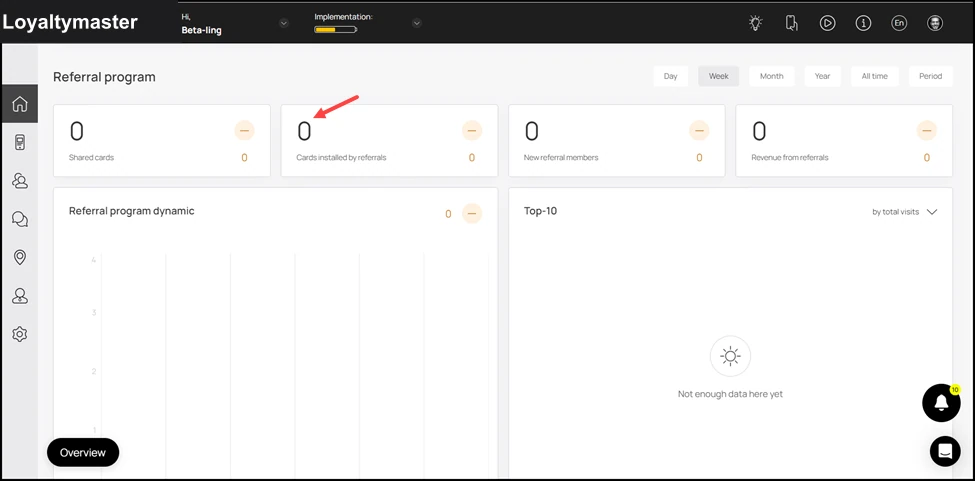
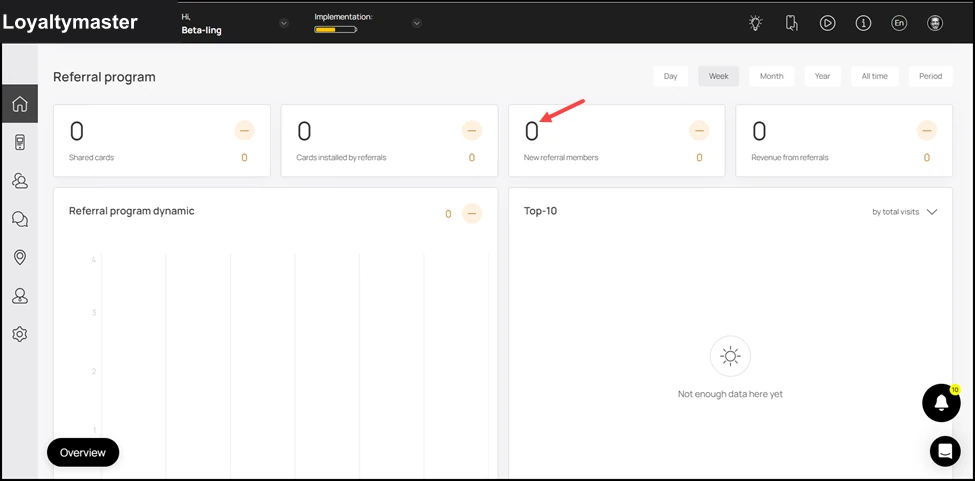
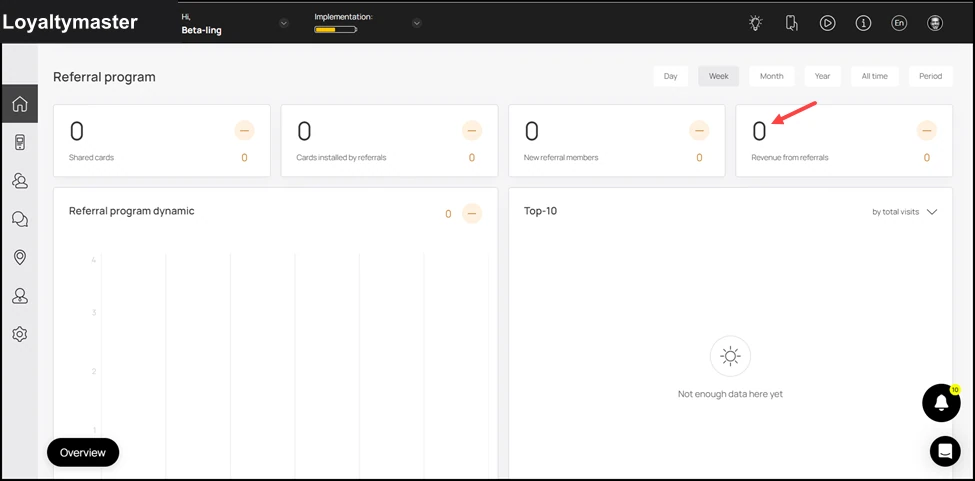
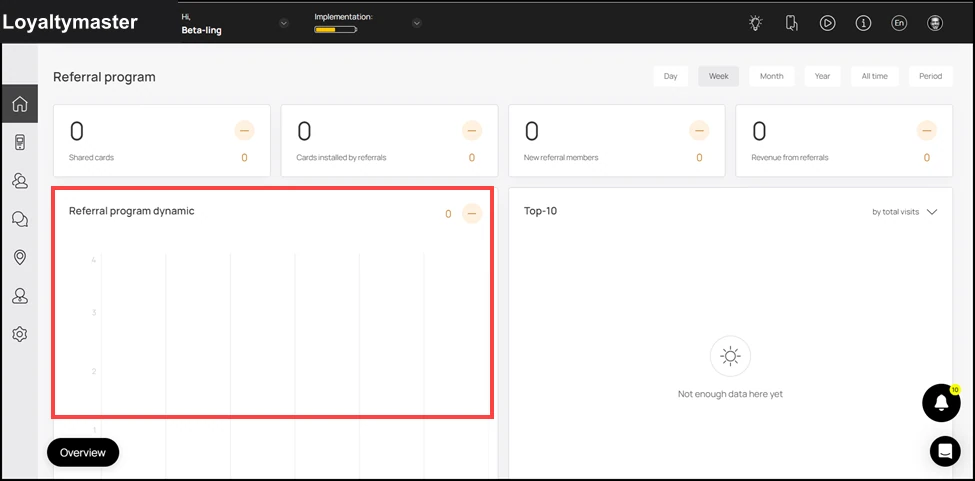
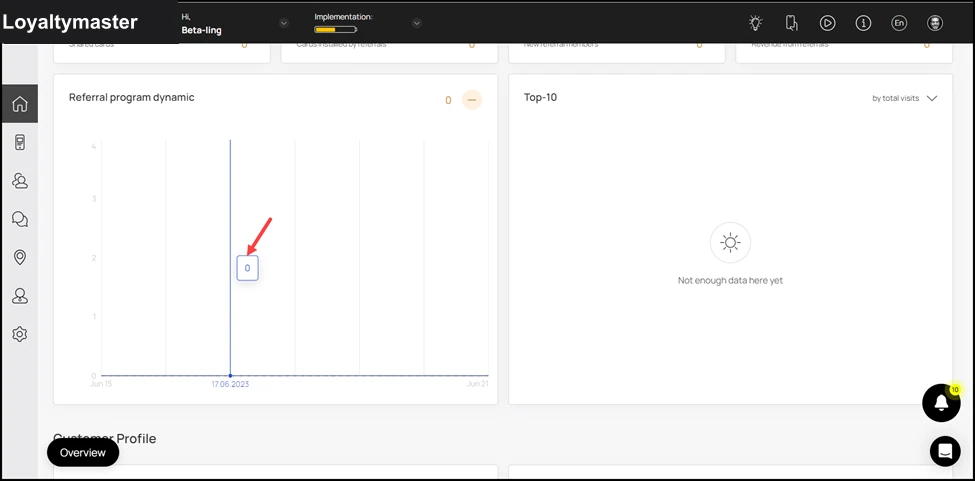
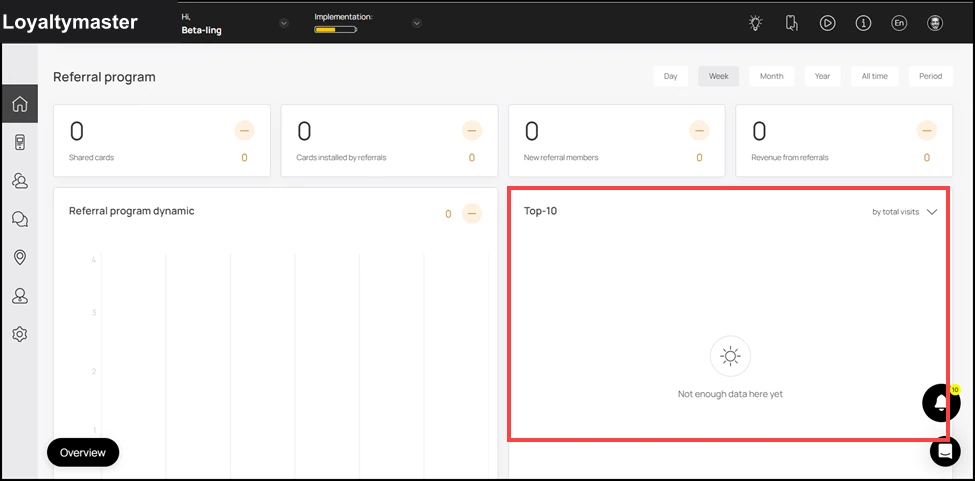
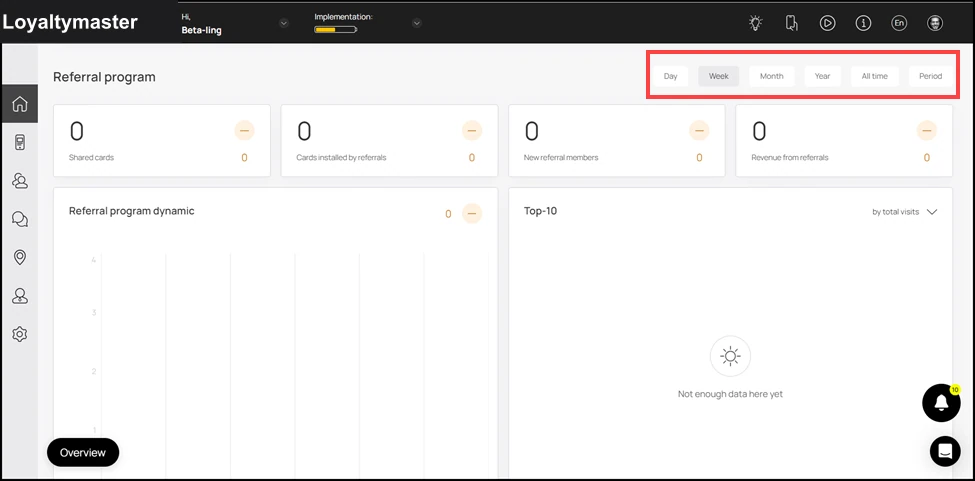
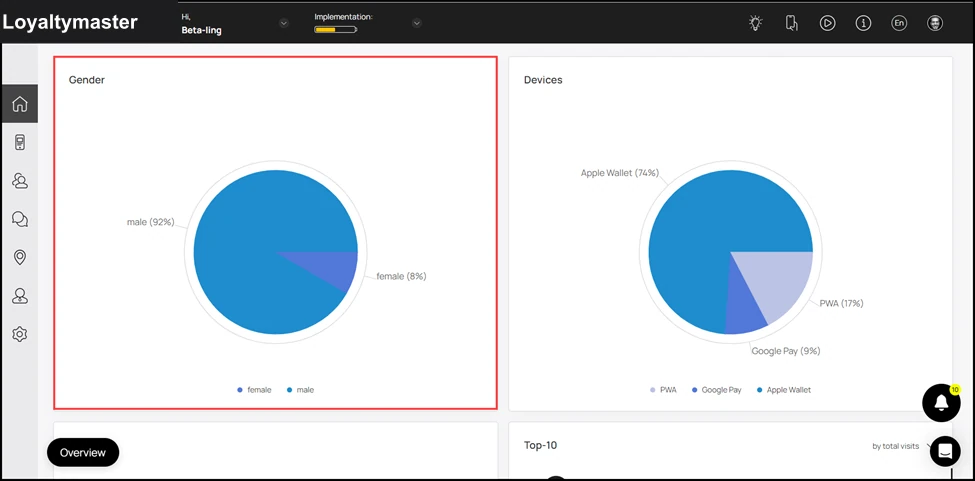
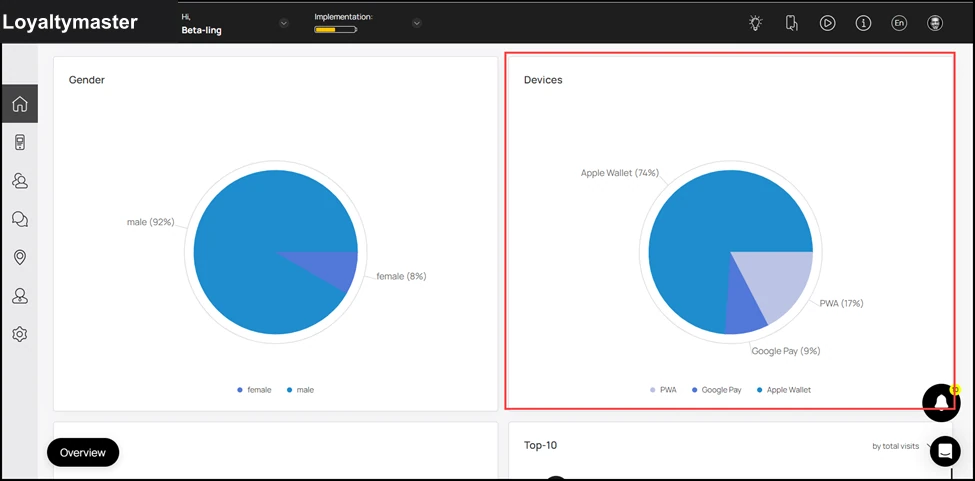
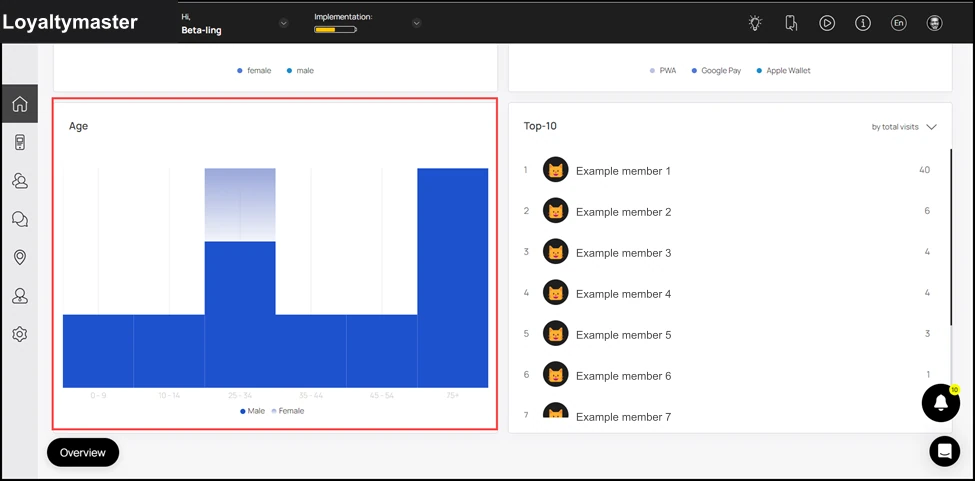
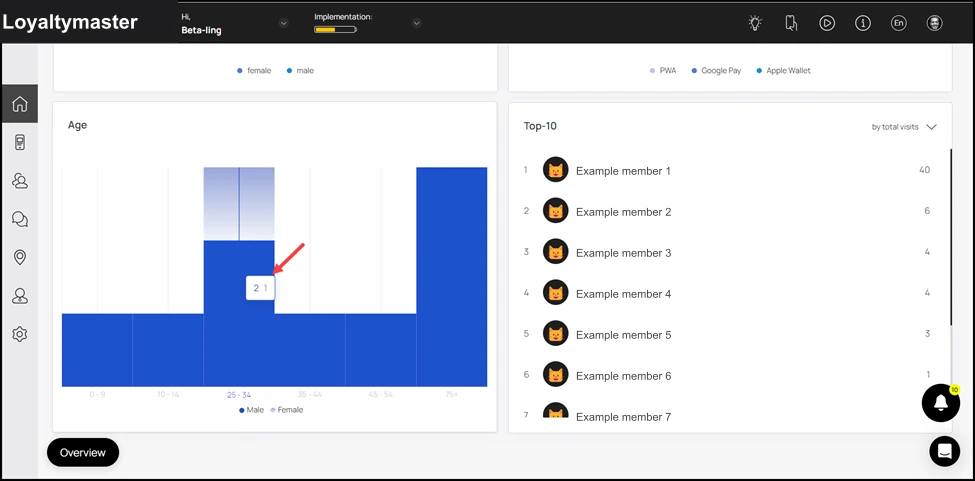
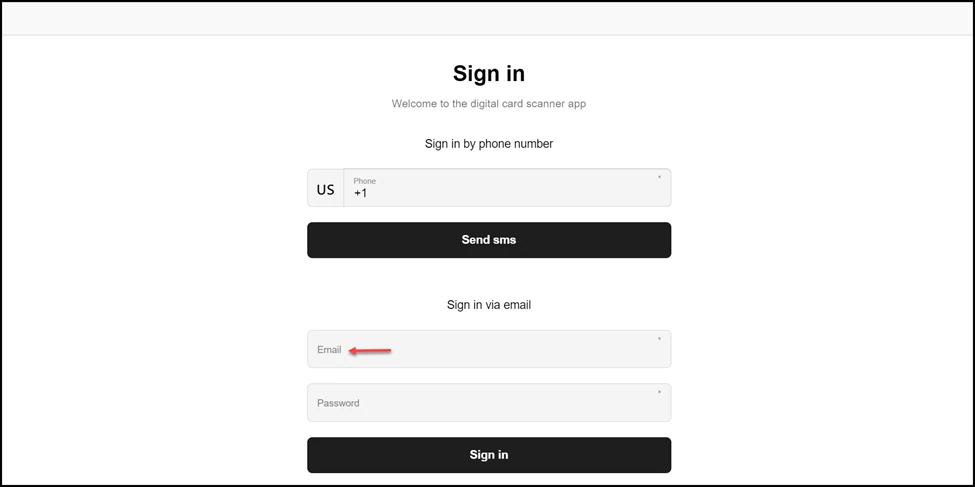
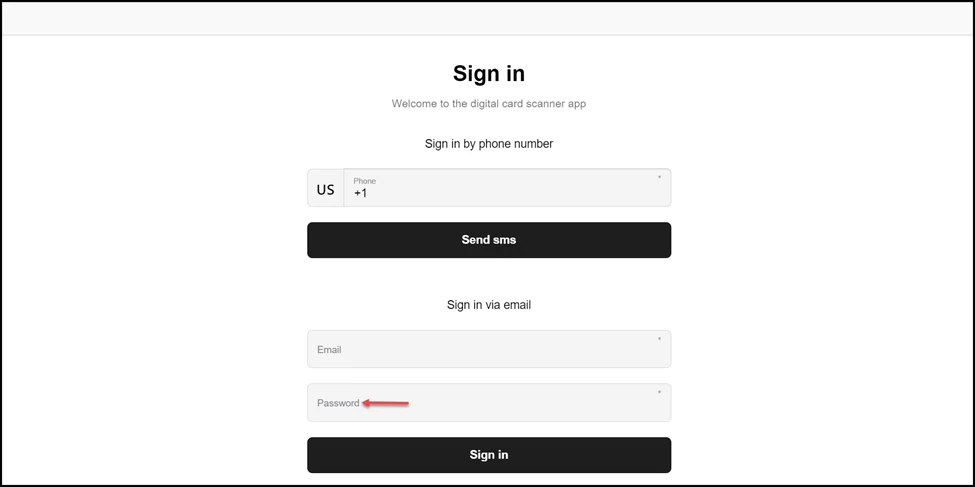
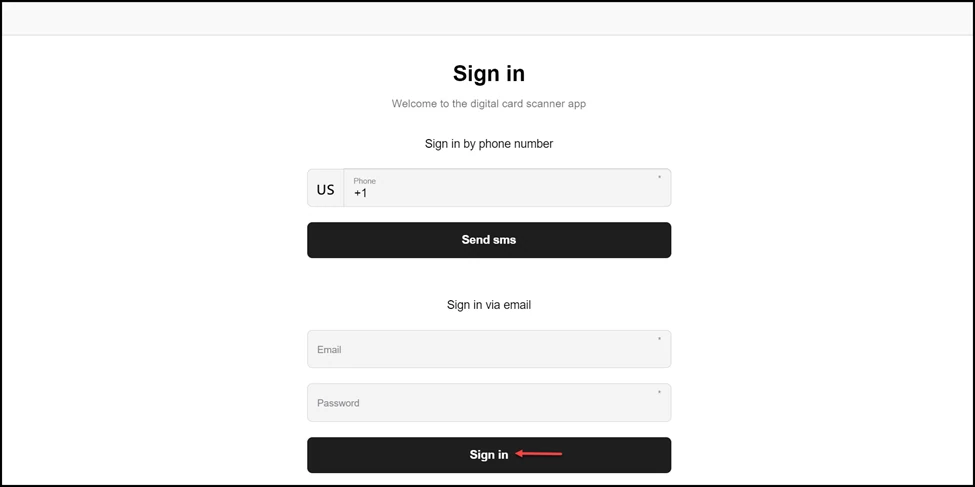
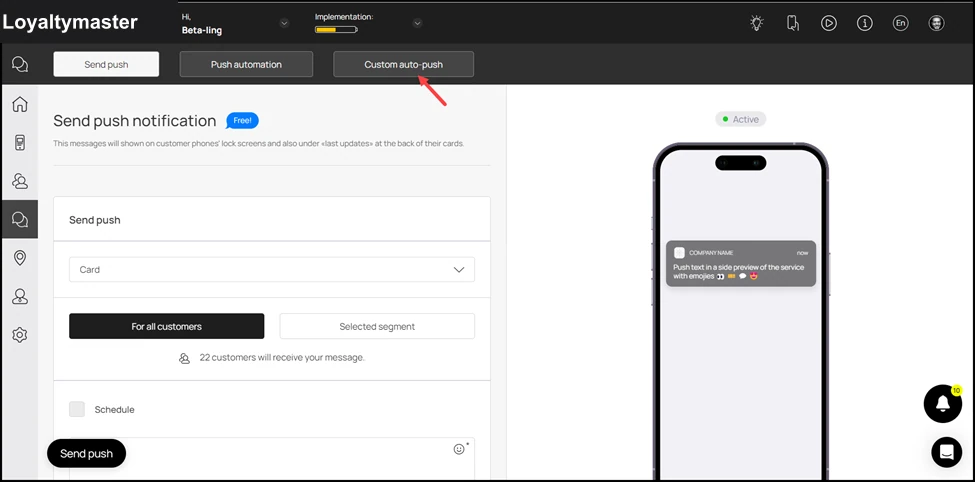
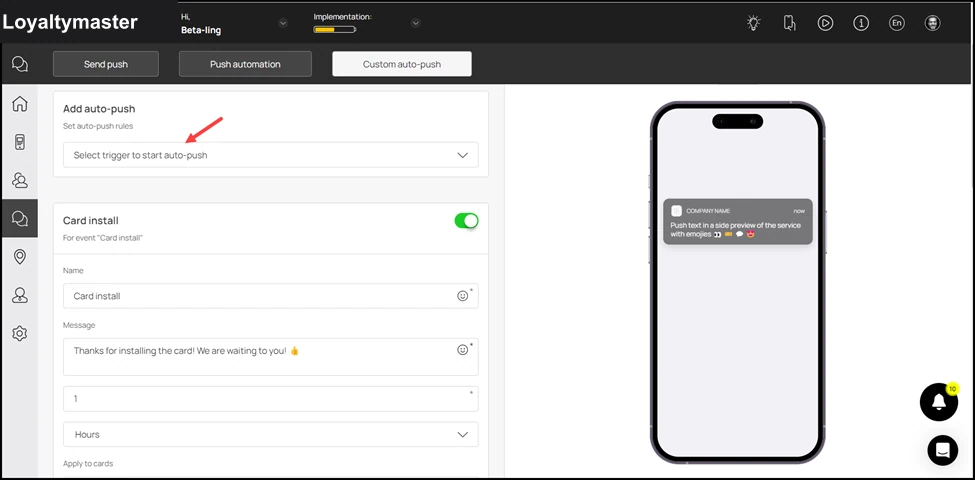
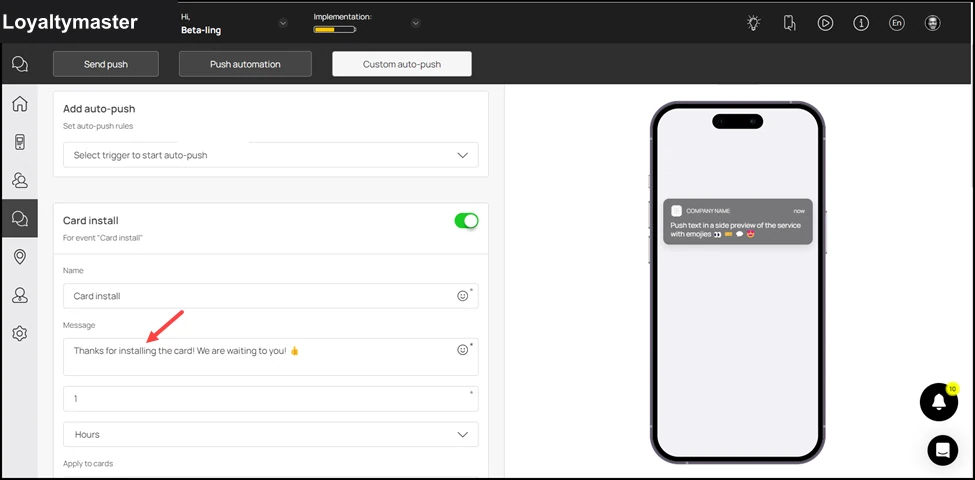
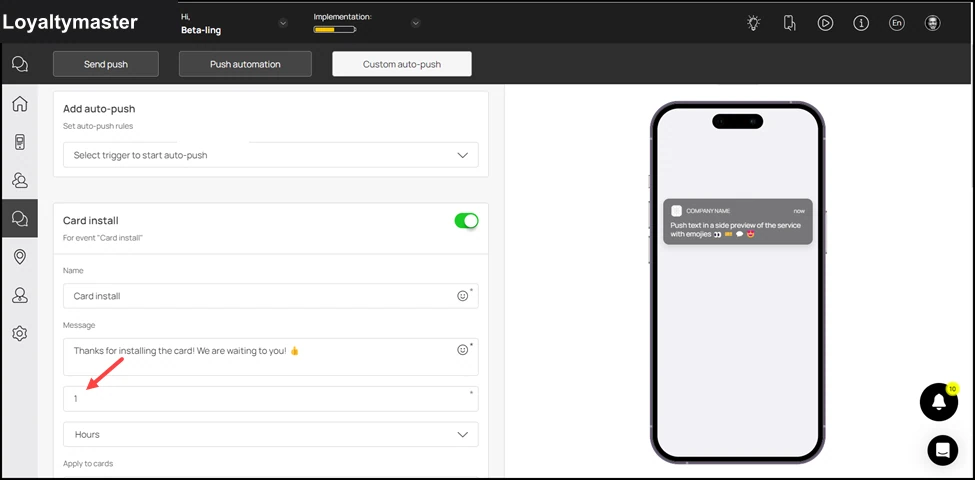
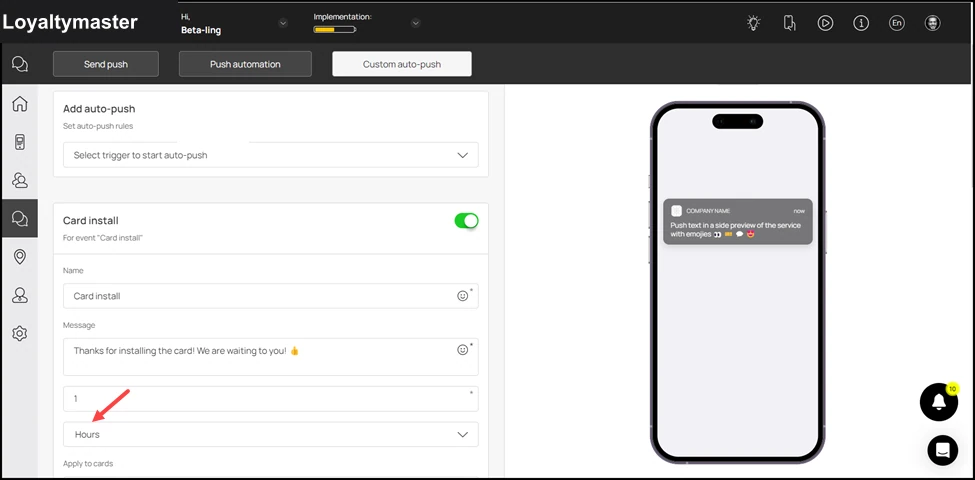
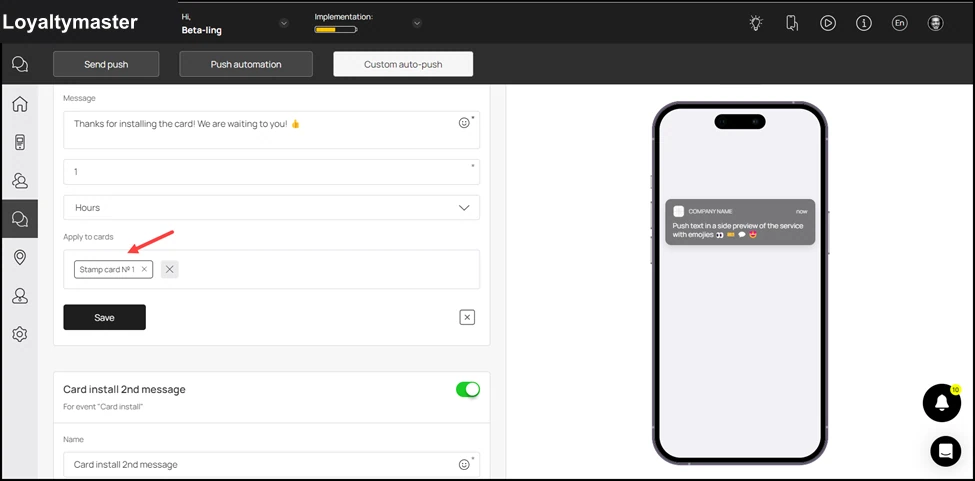
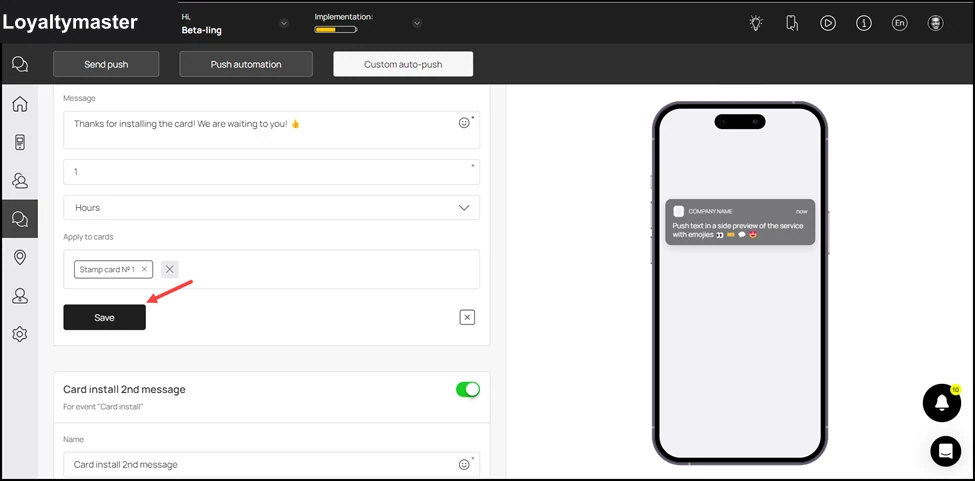
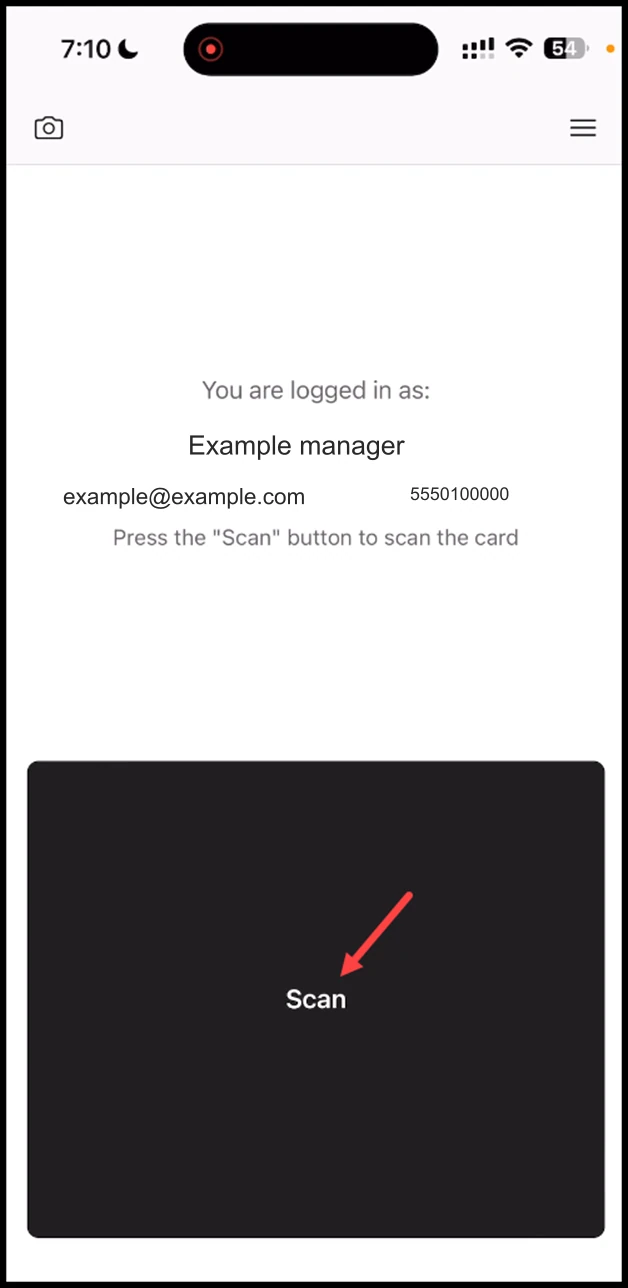
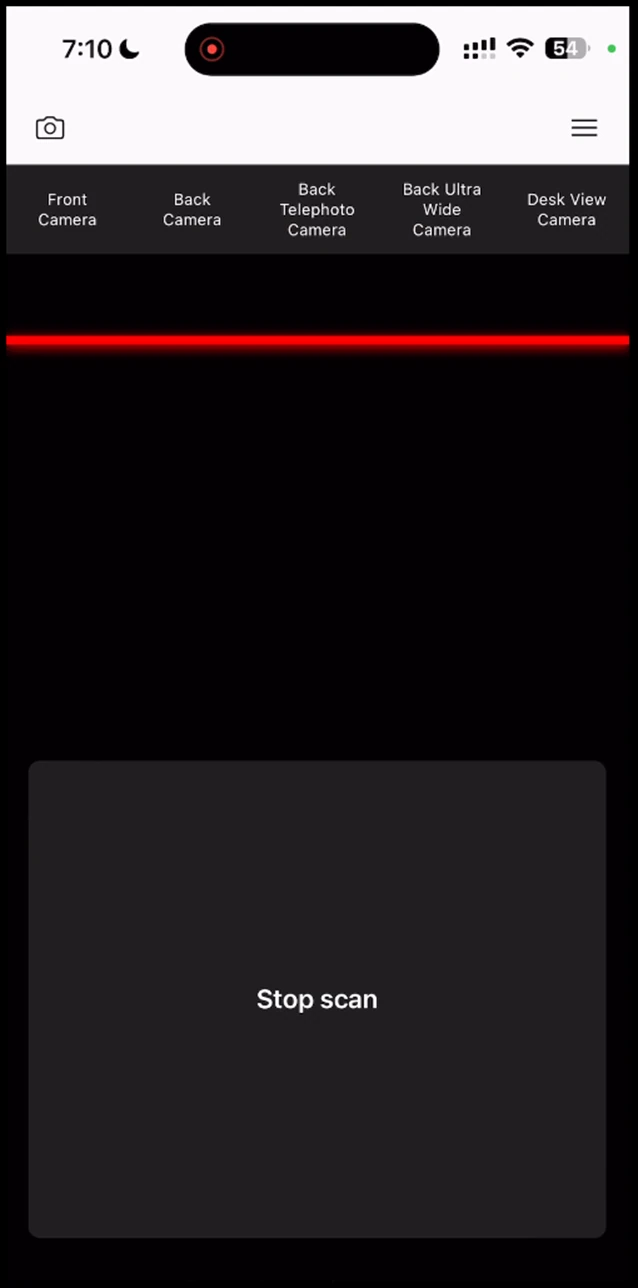
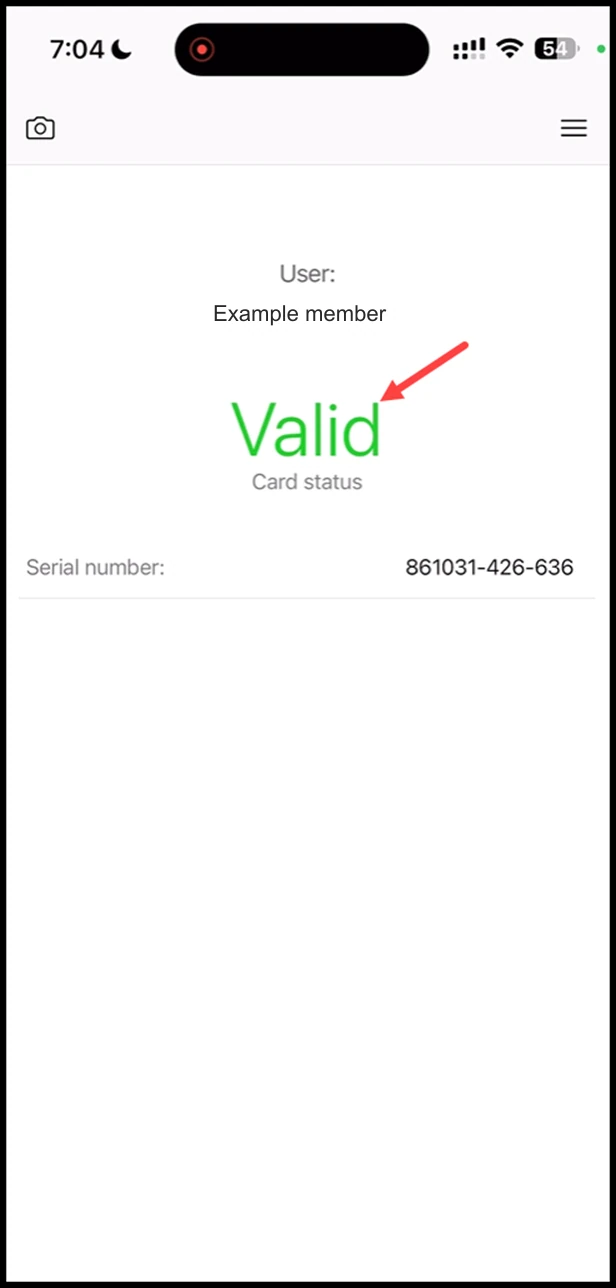

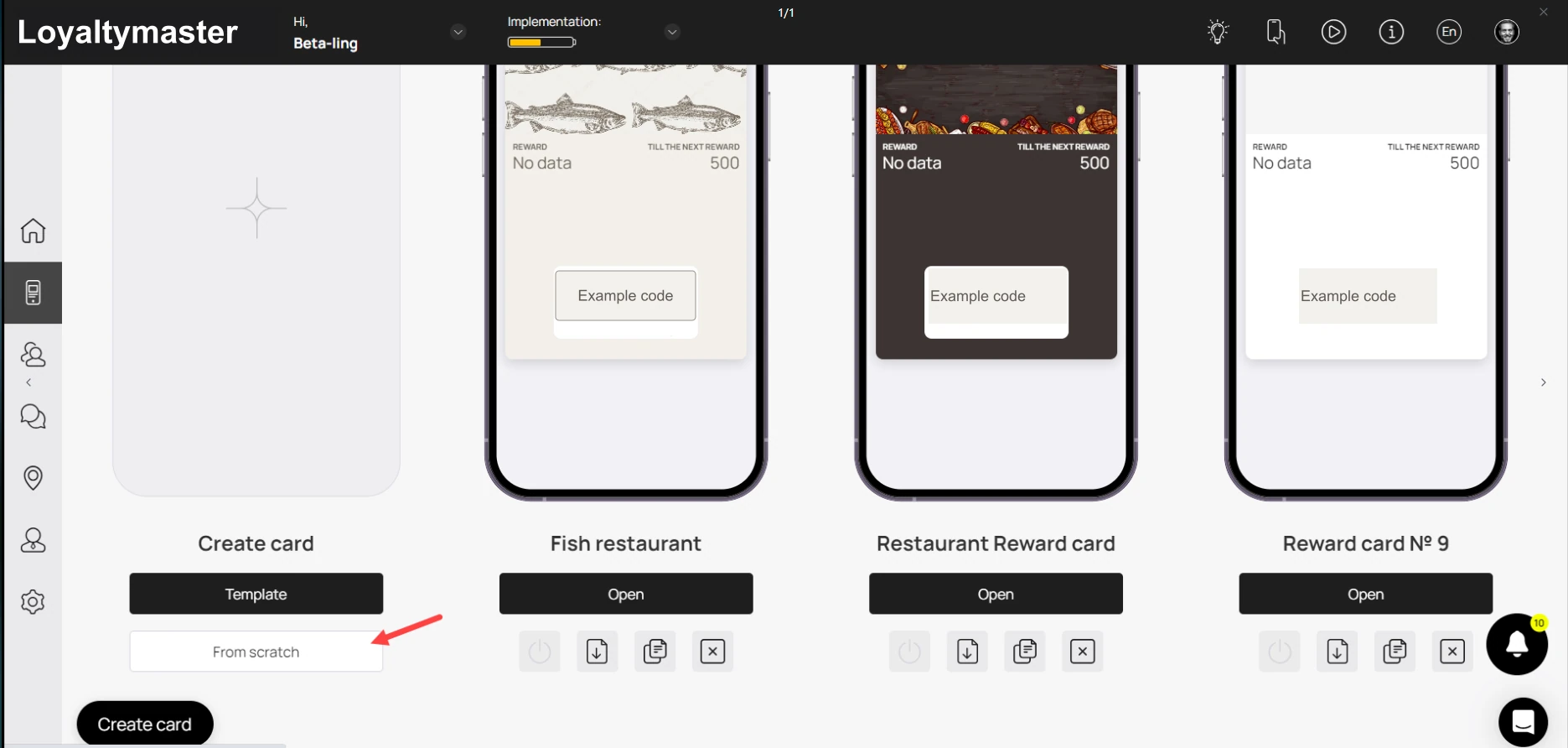
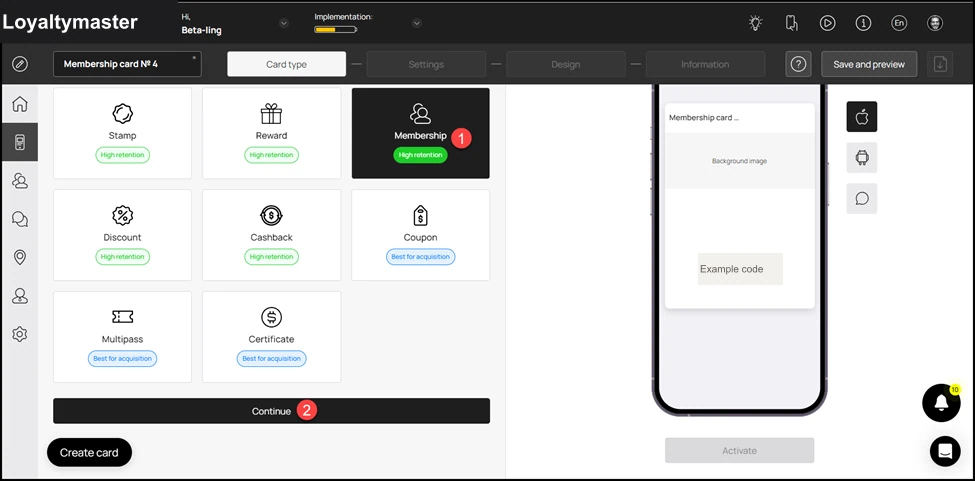






































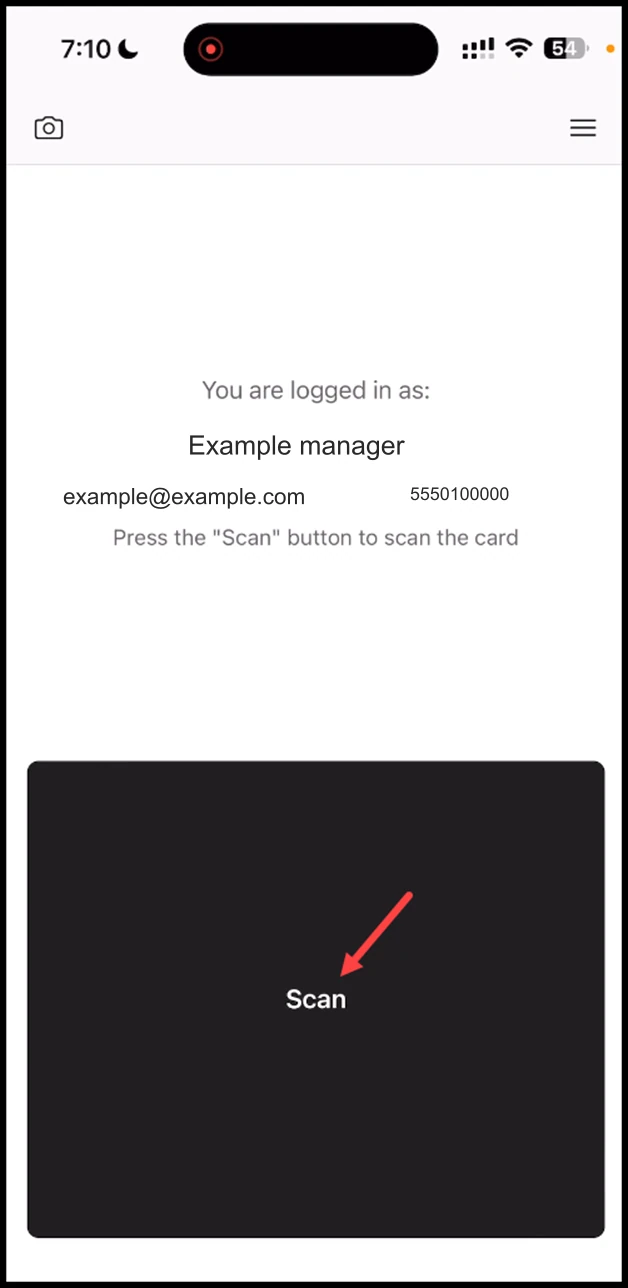
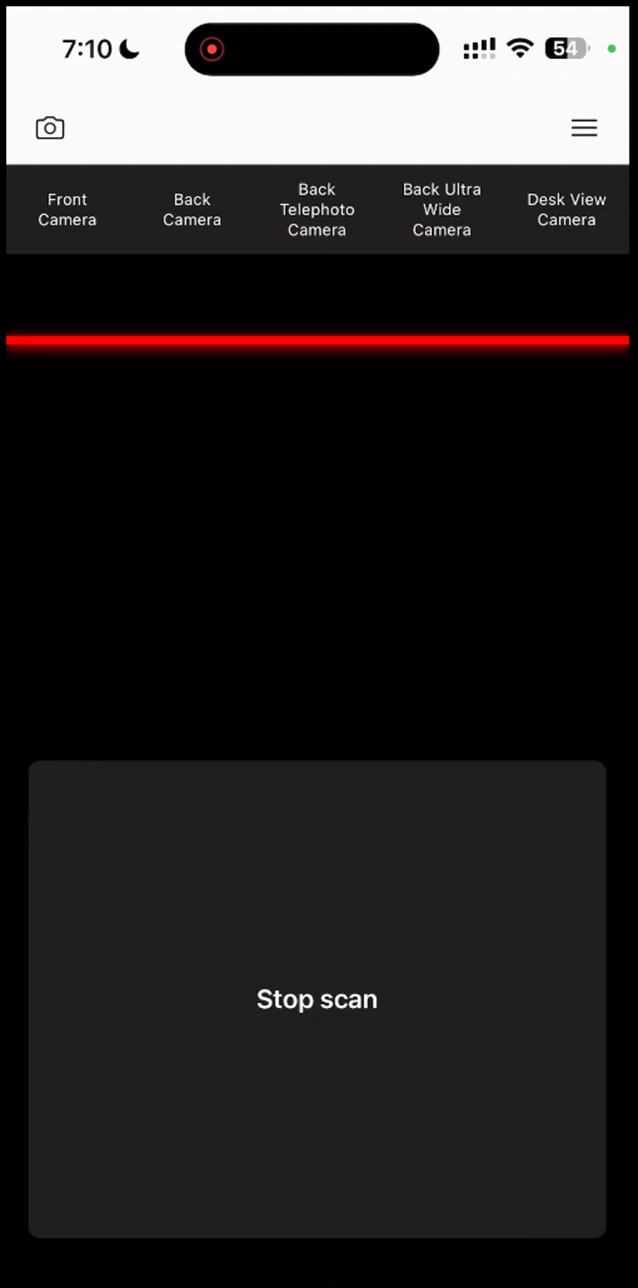
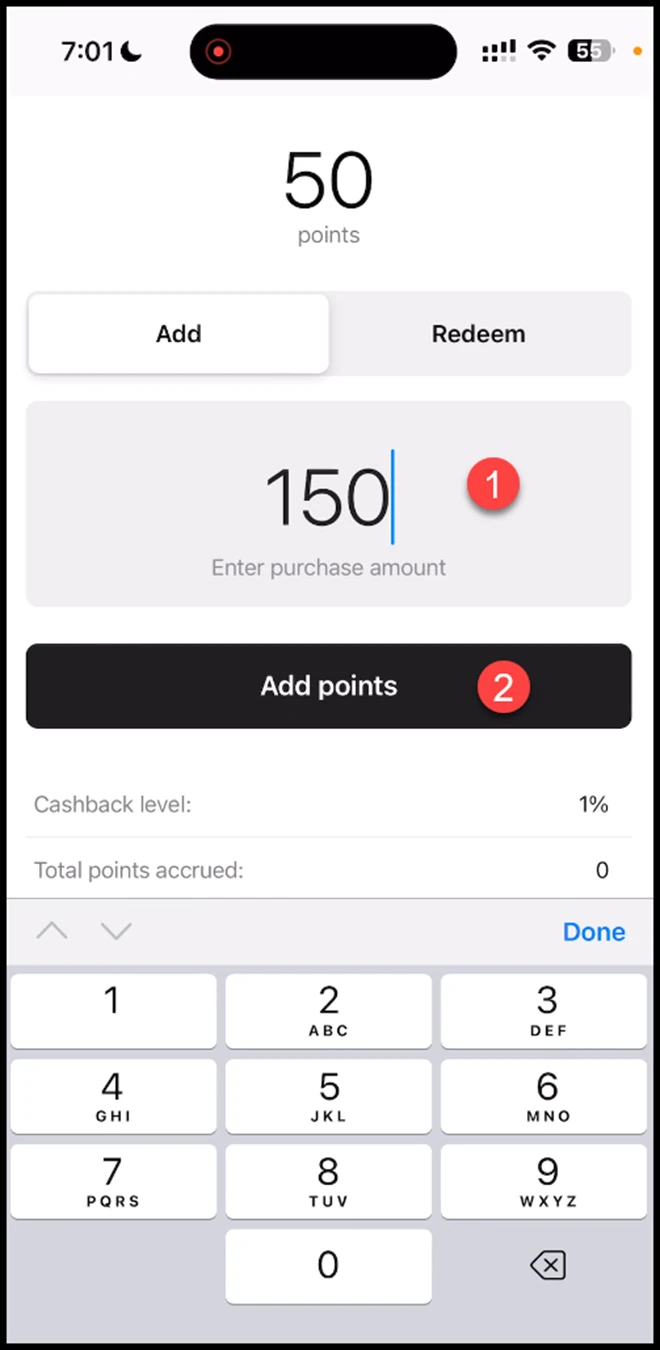
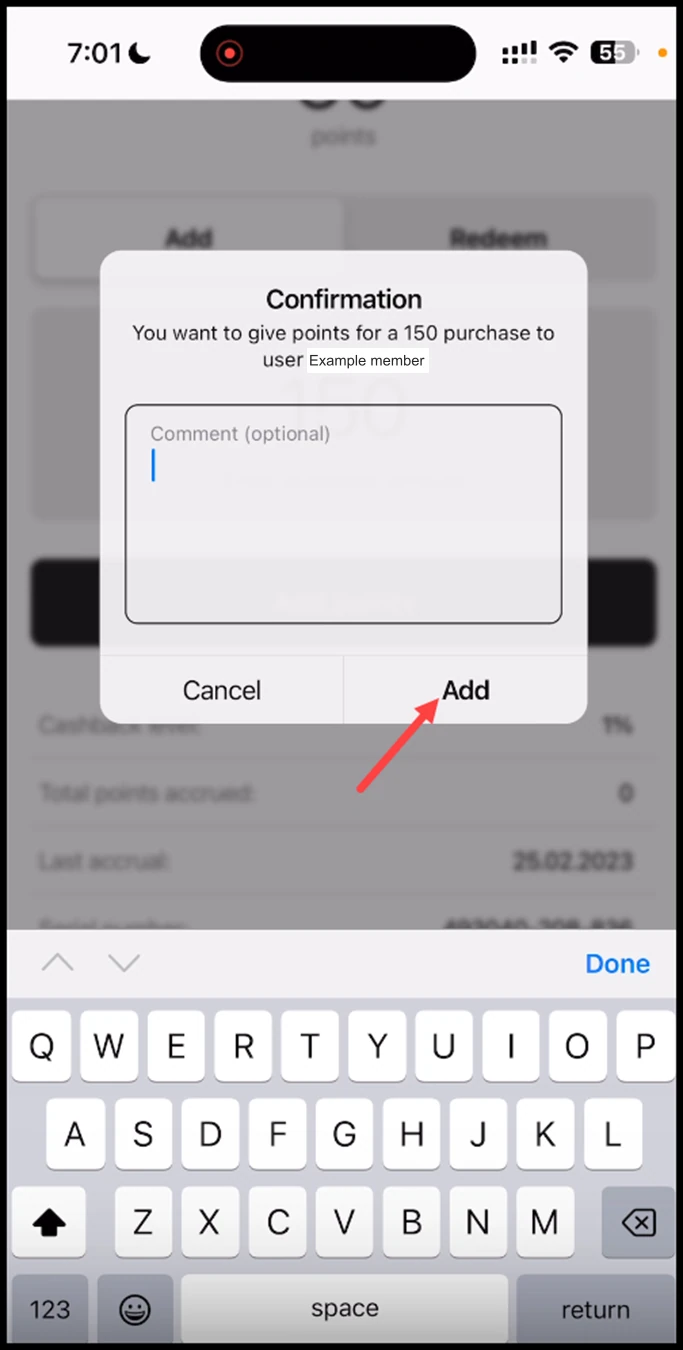
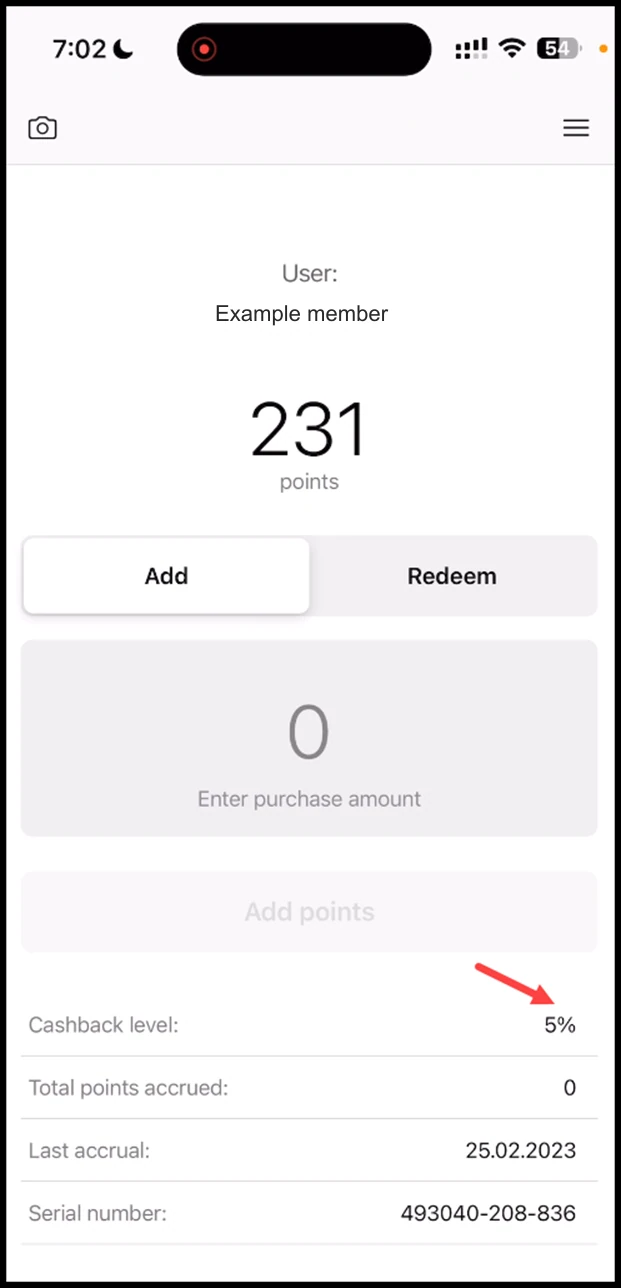
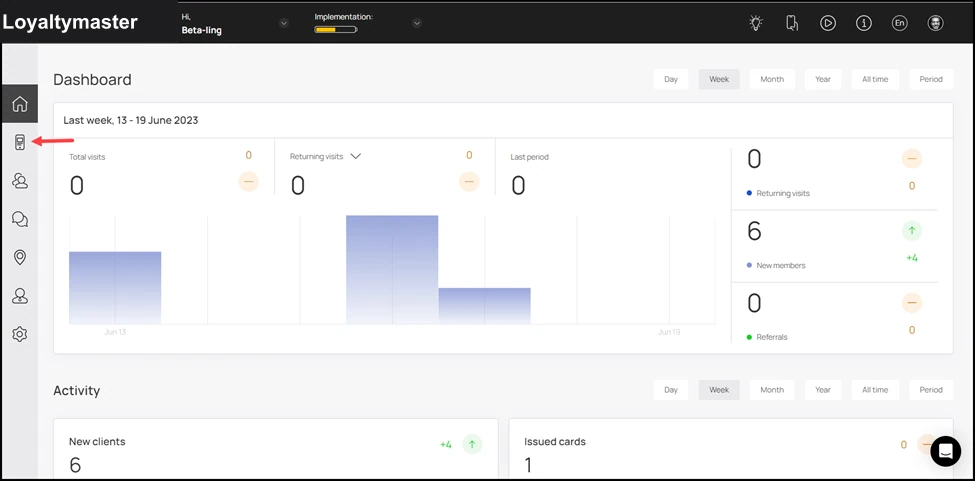
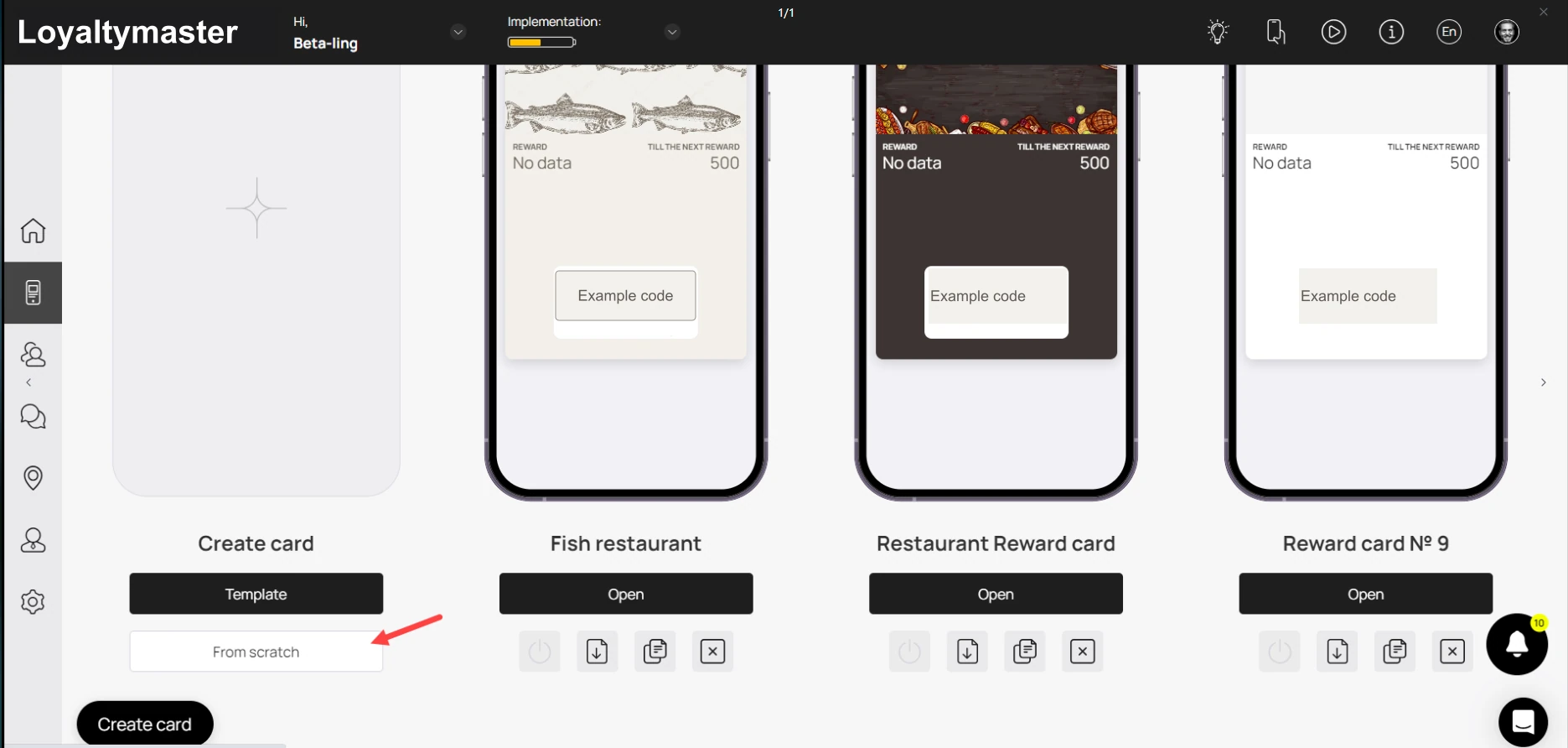
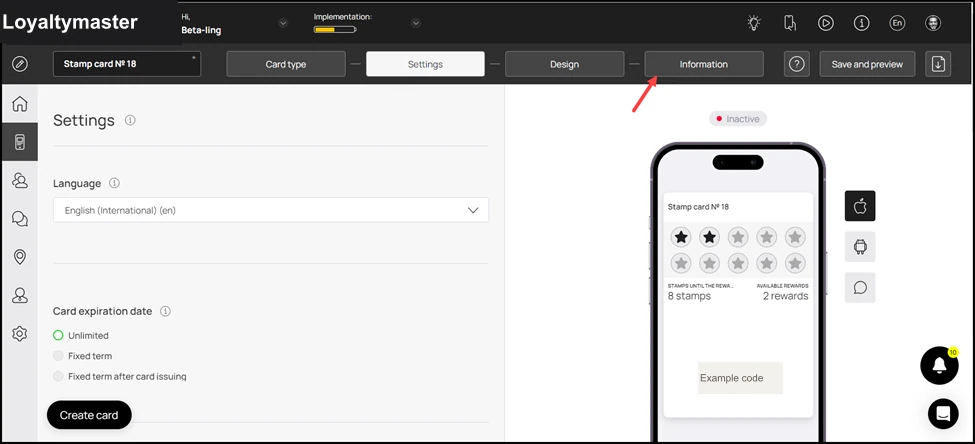
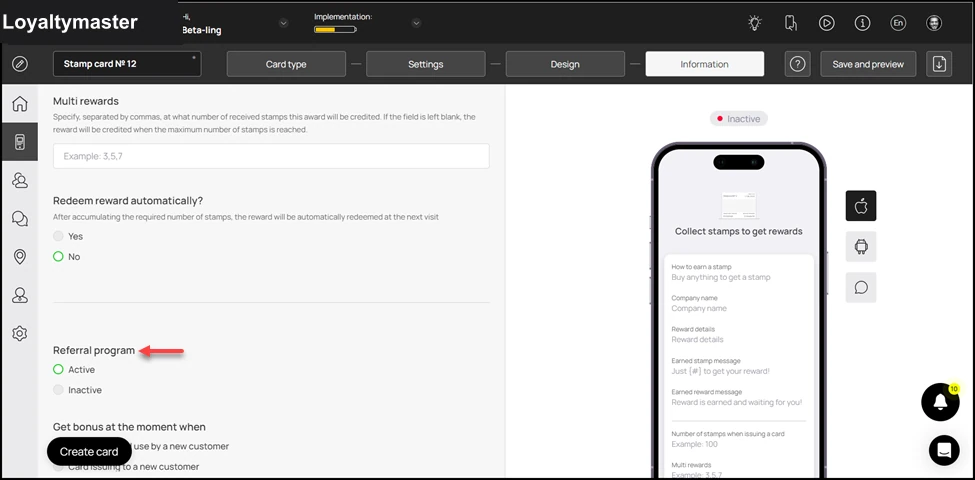
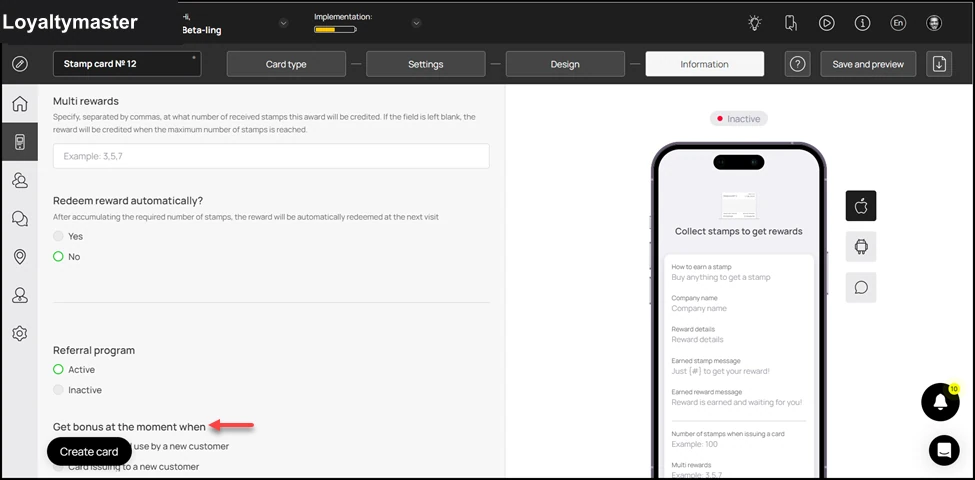
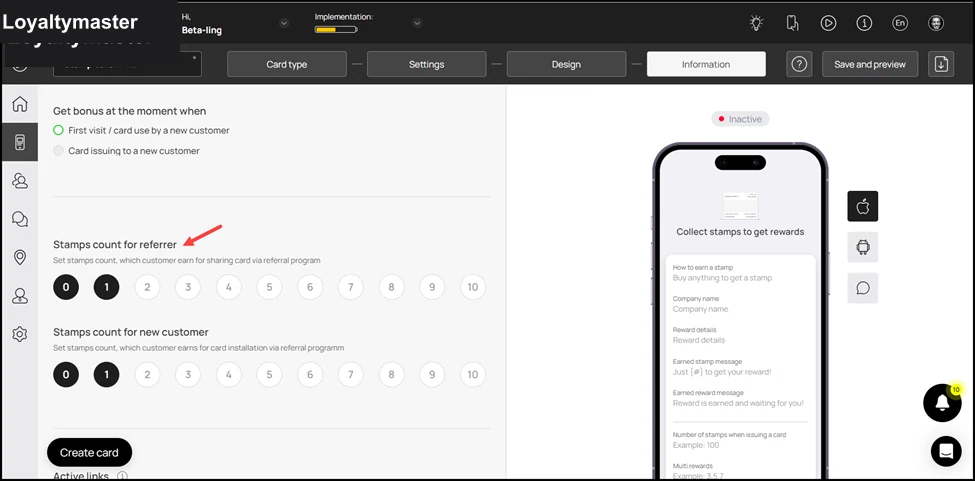
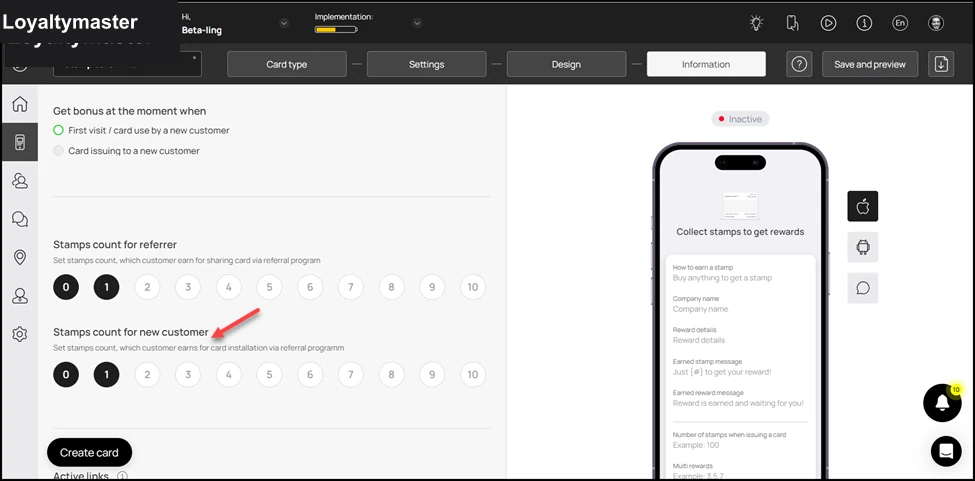
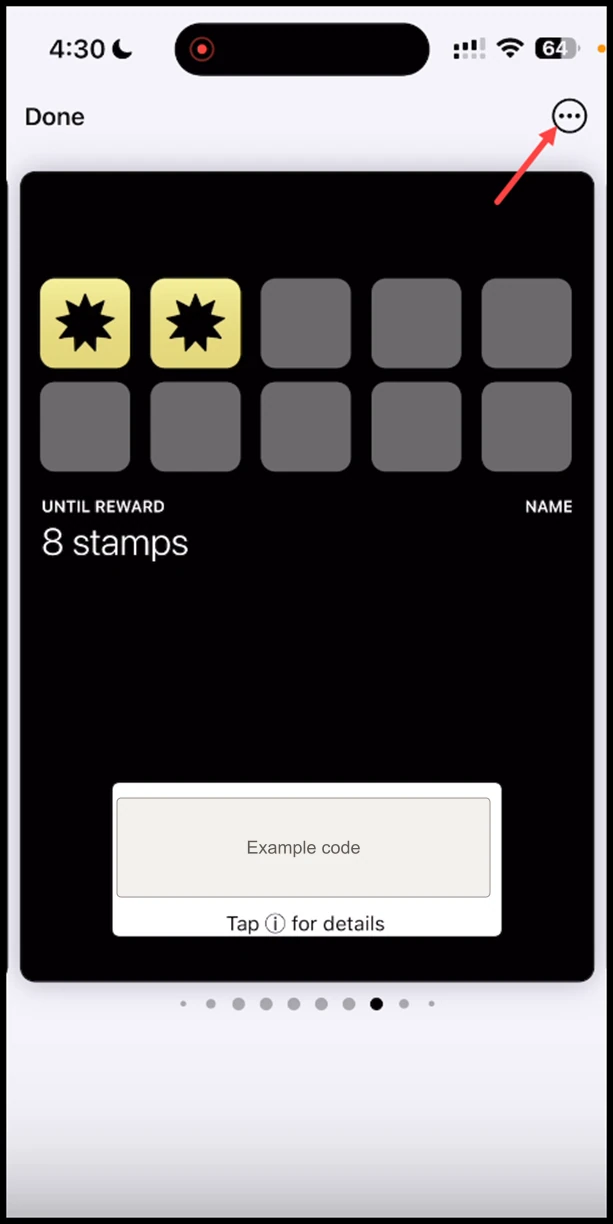
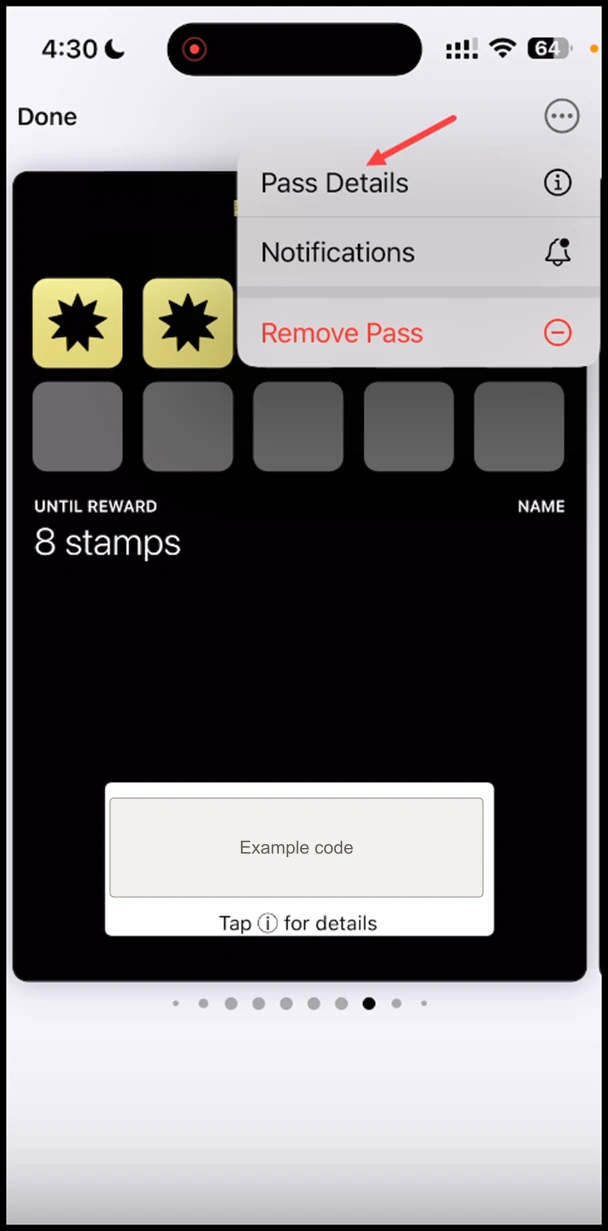
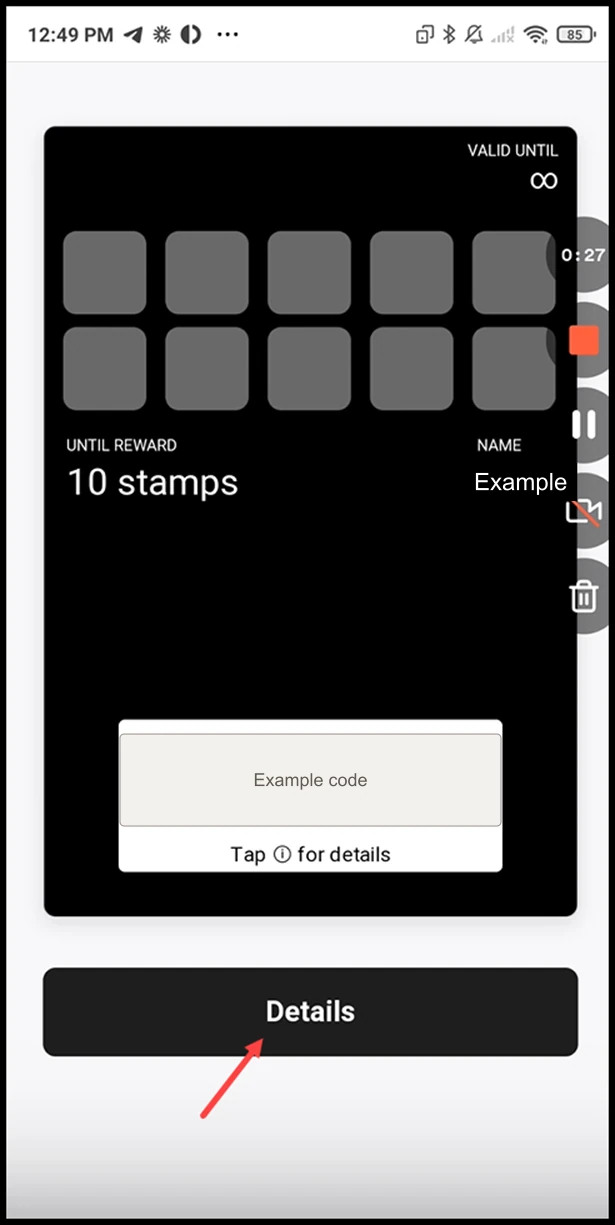
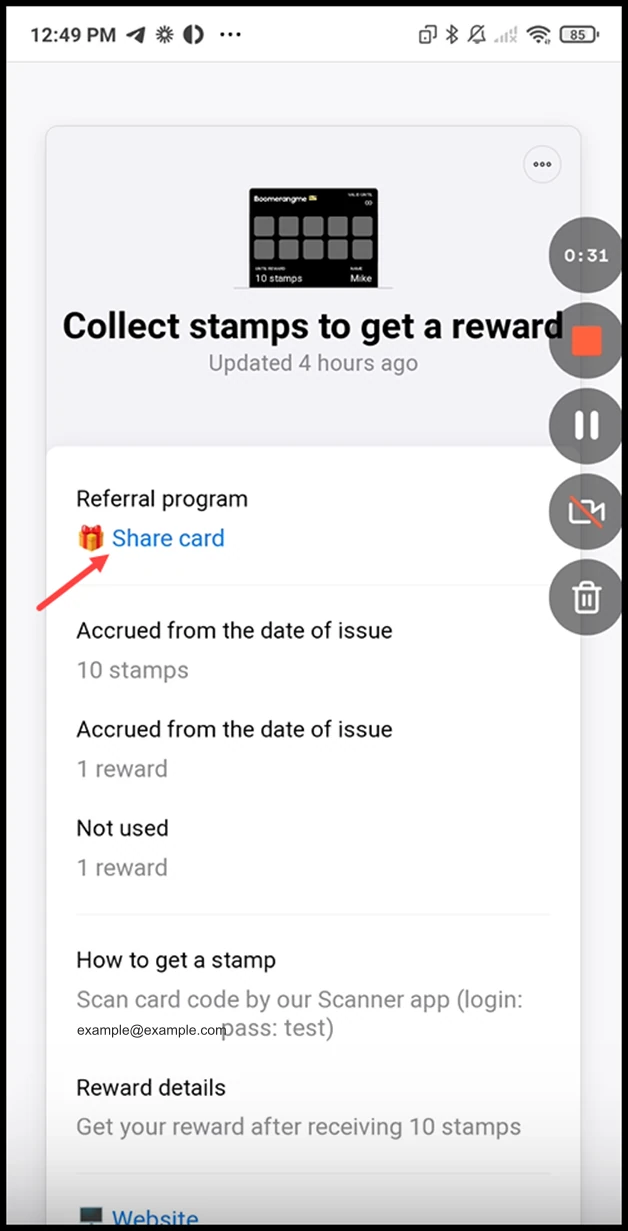
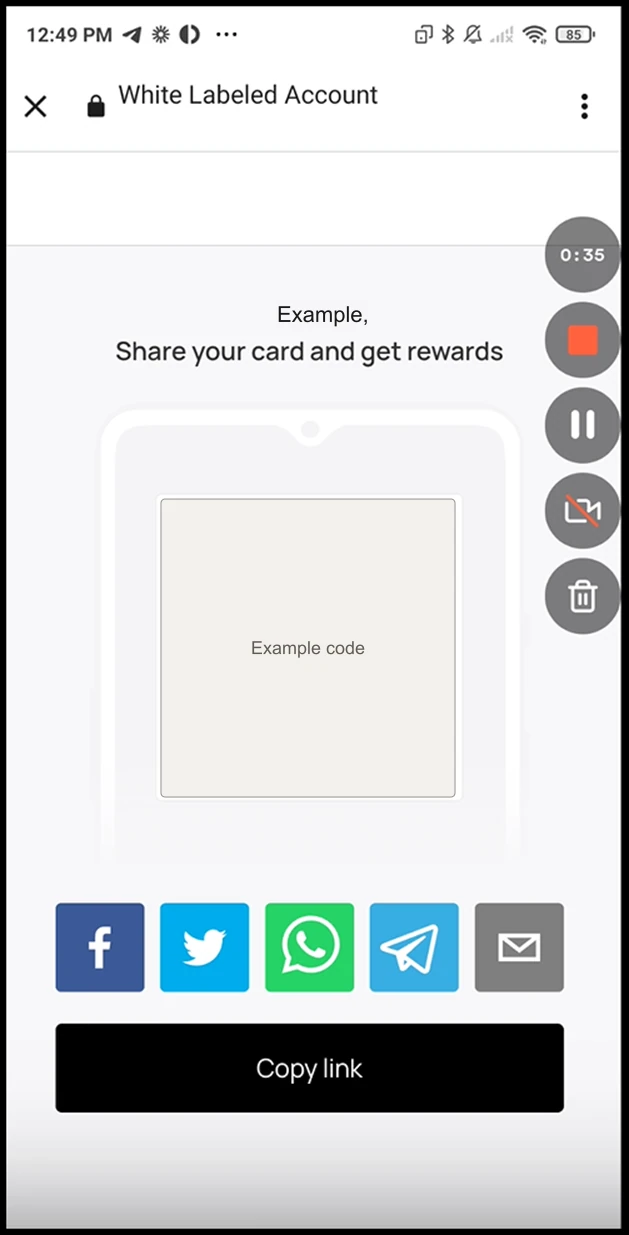
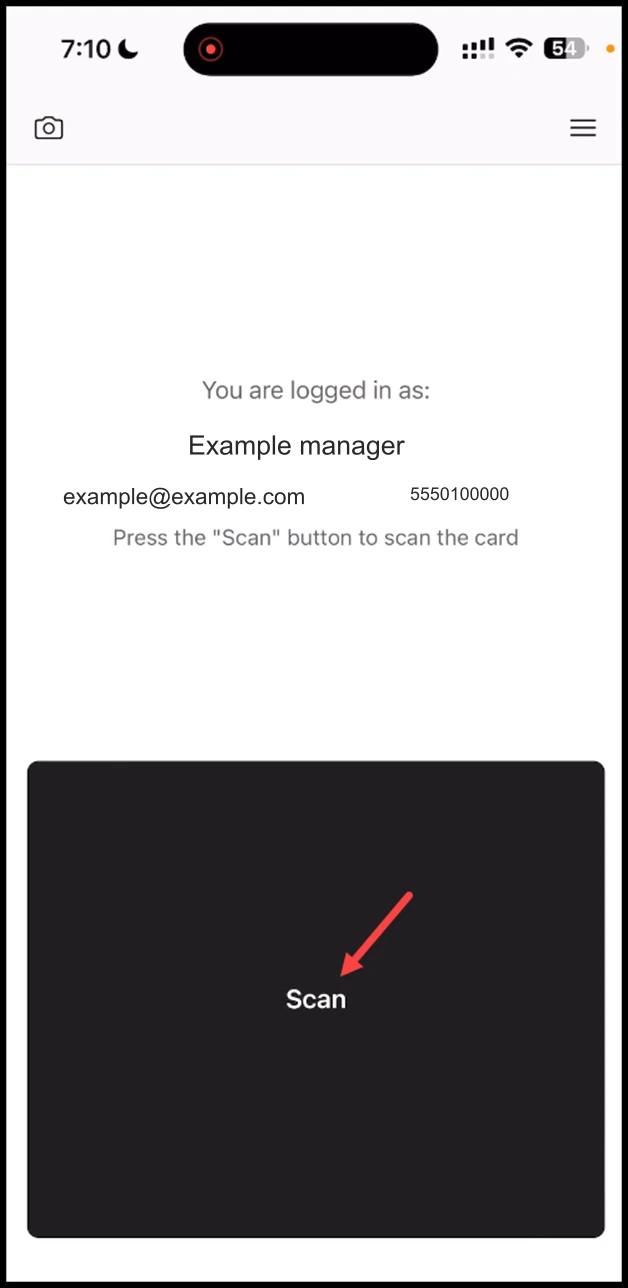
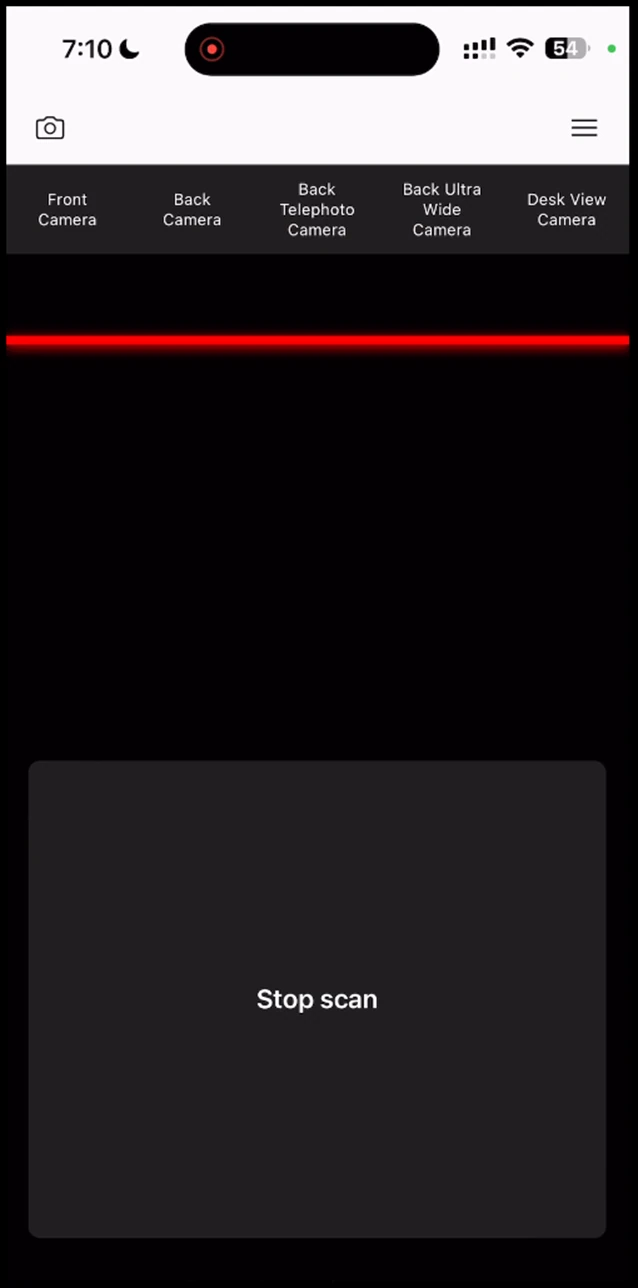
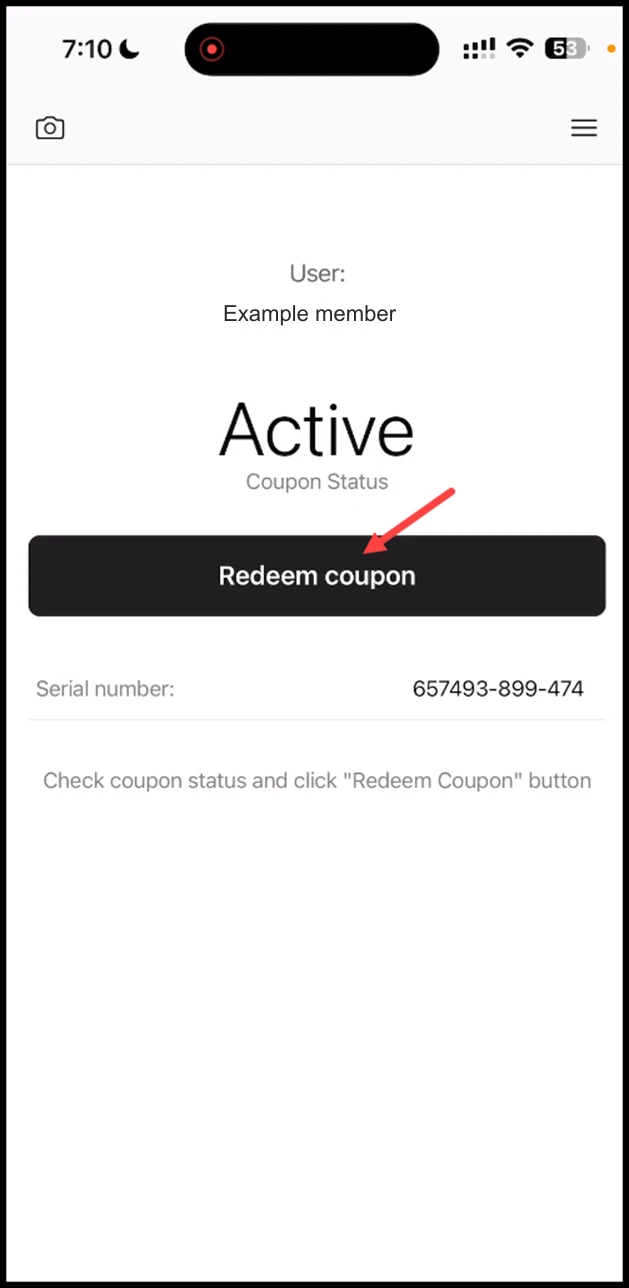
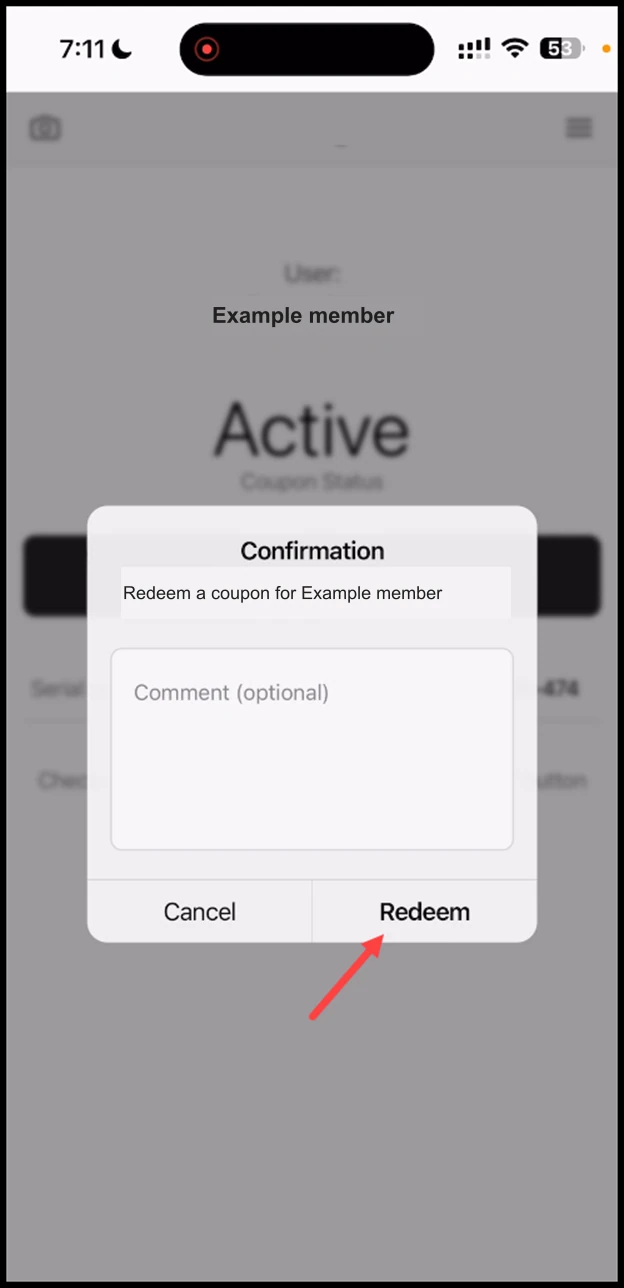
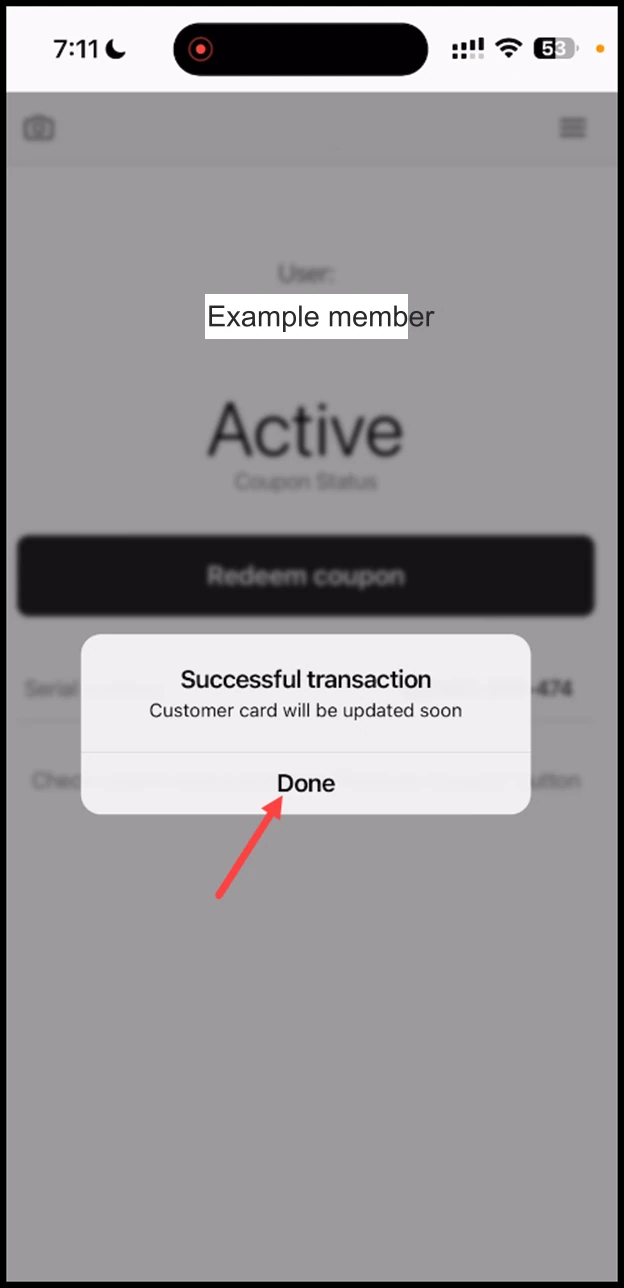
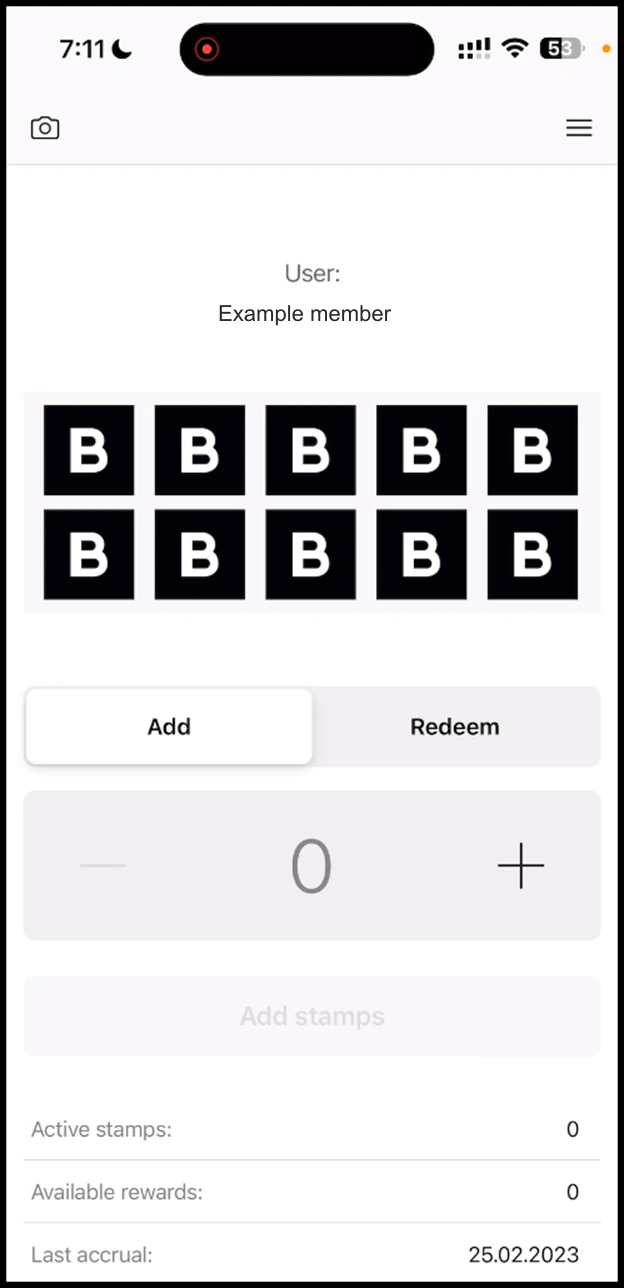
2. From the list of modules, click the **Push Notifications**icon. Doing so takes you to the Push Notifications screen. ![Push Section: From the list of modules, click the icon. Doing so takes you to the Push Notifications screen.](/media/8e2beb801a51827b5058-53e9bbbf91cf51e3e87f347ddbf66af0170e73190f966e6468ba17f8dceebc5a.webp) 3. By default, you land on the Send Push section. Here, you can create push notifications to be displayed on customer's lock screen when a specific event for a specific card is triggered. ![Push Section: By default, you land on the Send Push section. Here, you can create push notifications to be displayed on customer's lock screen when a specific event for a specific card is trigge](/media/cf44a5838c0af58e0edc-677e5cfb3c2e9e20de7994d8a145bc4047f5e606e4b7a16d564de723baa1a9a4.webp) --- # How to Login with Phone Learn how you can login to Loyaltymaster with Phone Canonical: https://support.loyaltymaster.com/getting-started/login-and-registration/how-to-login-with-phone Review status: Application review pending; current permissions and product version unverified. 1. Use the provided URL from your web browser address bar to land on the login page. 2. Enter your registered phone number in the field below the Login with Phone heading. ![How to Login with Phone: Enter your registered phone number in the field below the Login with Phone heading.](/media/61de34c500fbb2cd83a2-9239271663e31317938db9b39fd20e03aaf01c4894126eb5edf7e56ca4442f1d.webp) 3. Once entered, click the **Get Verification Code** button. This sends a verification code to your registered mobile number. ![How to Login with Phone: Once entered, click the Get Verification Code button. This sends a verification code to your registered mobile number.](/media/1bd882b8fd78dba3e788-35121ac8bd2aa06dfae1e503c6d18be7ffa3bd155354d4a9fb83838c5f2c6504.webp) 4. Enter the verification code received on your phone in the Verification Code field. 5. Click the Login button. --- # How the Scanner App Works Learn how the scanner app works Canonical: https://support.loyaltymaster.com/scanner-app/how-it-works Review status: Application review pending; current permissions and product version unverified. Scanner app lets you scan the cards created in Loyaltymaster. A simple scan takes you to the login page where you can login and scan any card with just a click or a tap from your mobile device. 1. Use the provided URL from your mobile device to land on the scanner app login page. ![How the Scanner App Works: Use the provided URL from your mobile device to land on the scanner app login page.](/media/111def9cca8918b8d6a9-9854aefc2750a846fd395b2be59eb9ecee7f0e4116e8e826e1e6d267cee31b9b.webp) 2. From the login screen, enter your email address in the Email field. 3. Use the Password field to enter the password. 4. Once the credentials are entered, click the Sign In button. ![How the Scanner App Works: Once the credentials are entered, click the Sign In button.](/media/403d12e8e132a8495c3b-83ecf78fc506e7ecf9d768bda41e27dece9da13bf954c3cf1f2f0863628b6142.webp) 5. As you login, the scanner app is also added to your home screen and you can click the Scanner App icon to access the application. ![How the Scanner App Works: As you login, the scanner app is also added to your home screen and you can click the Scanner App icon to access the application.](/media/f70bad6111bf610a511d-67f0894ac2483bb7572ff7accde048351b9a3da1ce5ced944fffd068a735f6f9.webp) 6. As you open the application, the home page is displayed to you. ![How the Scanner App Works: As you open the application, the home page is displayed to you.](/media/3498a42e19be8f42f7c2-95c025cb957c8867fbf346c9db13ec5da0037cd348830d31787215480dbea367.webp) 7. To access the application menu, click the three-line icon at the top-right corner of the screen. ![How the Scanner App Works: To access the application menu, click the three-line icon at the top-right corner of the screen.](/media/9ea9cd0722eb98acfa9a-10f5317bfeda868b9c35c7c3b6f20cdcaa0a455a190edeae377f3f03a25f5926.webp) 8. To access application settings, click the Settings button. ![How the Scanner App Works: To access application settings, click the Settings button.](/media/8583954faec229dbc966-2b7e9d228812cff035b9414333684fa340c01cc113c175e6f0fffbbfee1d7d89.webp) 9. Here, you can define how the app behaves when a QR code is scanned. You can set a beep, show result, copy QR code to clipboard, and open the debug mode on the QR scan by using the toggle buttons here. ![How the Scanner App Works: Here, you can define how the app behaves when a QR code is scanned. You can set a beep, show result, copy QR code to clipboard, and open the debug mode on the QR scan by using the ](/media/fe24d4c24a65d23eff12-447d65b0d84399533ee22d450395a0e48b48b530edb2a336c9ea66fa755fa3a2.webp) 10. To reach out to support, click the Support button from application menu. ![How the Scanner App Works: To reach out to support, click the Support button from application menu.](/media/5d9dc9b84a5eb79d98b3-372f5eb75dcf7a8947be17a3a1f1c79676784153f1717c64abe2befdc2fedbc3.webp) 11. This opens the Support page. ![How the Scanner App Works: This opens the Support page.](/media/337365342a25b9184d19-3810557866e0b1f475fd8ed510e2834fd8805b38eb2b833d2531dfed31024579.webp) --- # Sending messages to all customers Learn how you can send push notification message to all customers Canonical: https://support.loyaltymaster.com/push-notifications/push-section/marketing-push/sending-messages-to-all-customers Review status: Application review pending; current permissions and product version unverified. > **Loyaltymaster > Left-Hand Menu > Push** 1. Follow the above-mentioned workflow to land on the Send Push tab. 2. From the Card dropdown under Send Push heading, choose the card you want to send push notifications for. All the created cards are populated in this dropdown. ![Sending messages to all customers: From the Card dropdown under Send Push heading, choose the card you want to send push notifications for. All the created cards are populated in this dropdown.](/media/db86a5e3f028e8ef2af6-52de5d1bb4837726299e1866b0f87e0a090b748973dbc1c06e575dcd3bd2c283.webp) 3. By default, the For All Customers option is selected. It means that the push notifications will be sent to all customers having the selected card. ![Sending messages to all customers: By default, the For All Customers option is selected. It means that the push notifications will be sent to all customers having the selected card.](/media/e8c115e96c9d8fe6cfe1-968520d535c9a60ac1f8c33fe11badc14c544855a1ab813a5e8626117b939b79.webp) 4. Furthermore, if you want to schedule a push notification, mark the Schedule checkbox. ![Sending messages to all customers: Furthermore, if you want to schedule a push notification, mark the Schedule checkbox.](/media/f5b7e650c7391f9dccb7-4b7bed53156ca41617a6021f1ac5eb4744cddeb81157c1f8b5e36b368cc014b8.webp) 5. This reveals a date/time selector on the right side. You can choose the date and time at which you want the scheduled push notification to be sent. ![Sending messages to all customers: This reveals a date/time selector on the right side. You can choose the date and time at which you want the scheduled push notification to be sent.](/media/736c33b8906a47600b68-beb76a7fad174b84b869cca16efc93bc2c198a04cc99421c238cce8a749b71b9.webp) 6. Enter the message you want to send via the push notification using the Message textbox. You can also include smileys by clicking the **Emoji**icon. ![Sending messages to all customers: Enter the message you want to send via the push notification using the Message textbox. You can also include smileys by clicking the icon.](/media/1918e60b4f9bcbd71aed-08261803a63ab6dc4ada8efb455c8ee6ad565fa83b587f2c8c6c71625aec12ce.webp) 7. Once the selections are made, click the Send button. ![Sending messages to all customers: Once the selections are made, click the Send button.](/media/064830854d8075214060-55de7cd8f9ce002560ea0114253458c7f79f4637bba9829fc554d8e98e167068.webp) 8. This opens the Send Push popup with the selections you made displayed to you for review. To confirm, click the Send button. ![Sending messages to all customers: This opens the Send Push popup with the selections you made displayed to you for review. To confirm, click the Send button.](/media/d7a18df141f7c977f09f-7264cc6546816b01c7e71889f54a7ab0b96646f5bcc8a678f10277ea3de5f6d9.webp) 9. This schedules the push notification and it is displayed in the History log. ![Sending messages to all customers: This schedules the push notification and it is displayed in the History log.](/media/fd2b88d88af701ac4410-c7451973290e0f8af0e11d1822030899320b117dc03d27b37ac0bb5cf1a02e7b.webp) --- # Sending message to an individual customer Learn how you can send a push notification message to an individual customer Canonical: https://support.loyaltymaster.com/push-notifications/push-section/marketing-push/sending-message-to-an-individual-customer Review status: Application review pending; current permissions and product version unverified. > **Loyaltymaster > Left-Hand Menu > Push** 1. Follow the above-mentioned workflow to land on the Send Push tab. 2. From the Card dropdown under Send Push heading, choose the card you want to send push notifications for. All the created cards are populated in this dropdown. ![Sending message to an individual customer: From the Card dropdown under Send Push heading, choose the card you want to send push notifications for. All the created cards are populated in this dropdown.](/media/db86a5e3f028e8ef2af6-52de5d1bb4837726299e1866b0f87e0a090b748973dbc1c06e575dcd3bd2c283.webp) 3. By default, the For All Customers option is selected. It means that the push notifications will be sent to all customers having the selected card. ![Sending message to an individual customer: By default, the For All Customers option is selected. It means that the push notifications will be sent to all customers having the selected card.](/media/e8c115e96c9d8fe6cfe1-968520d535c9a60ac1f8c33fe11badc14c544855a1ab813a5e8626117b939b79.webp) 4. To send push notifications to selective customers, click the Selected Segment button. ![Sending message to an individual customer: To send push notifications to selective customers, click the Selected Segment button.](/media/1a73b8de539e728ae8ce-33c27ea42022d3815590a68440f9aee56f81cb3307a5838fb5534798261603b7.webp) 5. This reveals another dropdown from where you can select a specific condition to define the segment you want to send push notifications to. The options include Current number of uses, unused rewards, and number of stamps. ![Sending message to an individual customer: This reveals another dropdown from where you can select a specific condition to define the segment you want to send push notifications to. The options include Current number of use](/media/e1a328dca223a2013a0c-2e64adbd3bcd4144ec6e11b4c043ebb06d9c638c2479a436d0bd840ab7202d4b.webp) 6. The next dropdown lets you choose the operator on which you want to define the condition. ![Sending message to an individual customer: The next dropdown lets you choose the operator on which you want to define the condition.](/media/9cc9b7a9783d43ec1806-dc11aef12ac6114254fcd72699832f50394c01181e29d9ca8551b8a9ccec9975.webp) 7. At the end is the count field. Here, you can define the count of the defined condition. For instance, if you enter 4 in this field, it means that push notifications will be sent to the customers who have used the selected card exactly 4 times. Moreover, the number of customers falling in the defined criteria is also displayed below the dropdowns. ![Sending message to an individual customer: At the end is the count field. Here, you can define the count of the defined condition. For instance, if you enter 4 in this field, it means that push notifications will be sent to](/media/b360153f74059a640e25-62e69a58b0a5c68107e7dd7fc855dd9e237f489c0bdb9d408d09da2a2fe3f1d7.webp) 8. Furthermore, if you want to schedule a push notification, mark the Schedule checkbox. ![Sending message to an individual customer: Furthermore, if you want to schedule a push notification, mark the Schedule checkbox.](/media/f5b7e650c7391f9dccb7-4b7bed53156ca41617a6021f1ac5eb4744cddeb81157c1f8b5e36b368cc014b8.webp) 9. This reveals a date/time selector on the right side. You can choose the date and time at which you want the scheduled push notification to be sent. ![Sending message to an individual customer: This reveals a date/time selector on the right side. You can choose the date and time at which you want the scheduled push notification to be sent.](/media/736c33b8906a47600b68-beb76a7fad174b84b869cca16efc93bc2c198a04cc99421c238cce8a749b71b9.webp) 10. Enter the message you want to send via the push notification using the Message textbox. You can also include smileys by clicking the **Emoji**icon. ![Sending message to an individual customer: Enter the message you want to send via the push notification using the Message textbox. You can also include smileys by clicking the icon.](/media/1918e60b4f9bcbd71aed-08261803a63ab6dc4ada8efb455c8ee6ad565fa83b587f2c8c6c71625aec12ce.webp) 11. Once the selections are made, click the Send button. ![Sending message to an individual customer: Once the selections are made, click the Send button.](/media/064830854d8075214060-55de7cd8f9ce002560ea0114253458c7f79f4637bba9829fc554d8e98e167068.webp) 12. This opens the Send Push popup with the selections you made displayed to you for review. To confirm, click the Send button. ![Sending message to an individual customer: This opens the Send Push popup with the selections you made displayed to you for review. To confirm, click the Send button.](/media/d7a18df141f7c977f09f-7264cc6546816b01c7e71889f54a7ab0b96646f5bcc8a678f10277ea3de5f6d9.webp) 13. This schedules the push notification and it is displayed in the History log. ![Sending message to an individual customer: This schedules the push notification and it is displayed in the History log.](/media/fd2b88d88af701ac4410-c7451973290e0f8af0e11d1822030899320b117dc03d27b37ac0bb5cf1a02e7b.webp) --- # Manager Statistics A closer look at the statistics Canonical: https://support.loyaltymaster.com/managers/statistics Review status: Application review pending; current permissions and product version unverified. 1. Upon successful login, navigate to the left-hand menu. 2. From the list of modules displayed, click the **Managers** icon. Doing so takes you to the Managers screen. ![Manager Statistics: From the list of modules displayed, click the icon. Doing so takes you to the Managers screen.](/media/a30f78c5d33047ae7c01-457d2036da0297903829f609c2b8eff4093b2b6cab3ff96d3f48cb776ed8d86d.webp) 3. Here, information for all existing managers is tabulated via a number of columns that include User Name, Created, Notes, Location, and Status. ![Manager Statistics: Here, information for all existing managers is tabulated via a number of columns that include User Name, Created, Notes, Location, and Status.](/media/5a4adee94e3237bbbd36-f292eb483235ffa68101e14fdb42f233a0e4d566697bfd9e539e686946909989.webp) 4. Clicking the username of a manager displays the details of the selected manager profile. Here, the basic details of the selected manager profile are displayed via separate tiles under the Manager Profile heading. They include Name, Registration Date, Status, Location, Number of Transactions, and Last Transaction Date. ![Manager Statistics: Clicking the username of a manager displays the details of the selected manager profile. Here, the basic details of the selected manager profile are displayed via separate tiles un](/media/3a6daf83bd867c750c81-f13f99709fb16139d3fc15b4bb0784f7ab87c0422760fafa51b007241057fac6.webp) 5. Next up is the Information section where the details of the manager account are displayed in editable view. ![Manager Statistics: Next up is the Information section where the details of the manager account are displayed in editable view.](/media/f2cab45c6366447ad82a-d8e8dfcf2ae9f8e1c30dda1304d99c7daf479d8649fc823b07e1fef0d9bc56d6.webp) 6. Once you have edited the required fields, click the Save button. ![Manager Statistics: Once you have edited the required fields, click the Save button.](/media/48813bc2def251c3992f-2adf13df55973e0e908162e186d0624d73ca054c6b499920e27551bbf0050034.webp) 7. At the end is the Last Transactions grid. Here, the last transactions of the manager are tabulated via several columns that include User Name, Date, Phone, Device, Template, Event, Amount, and Balance. ![Manager Statistics: At the end is the Last Transactions grid. Here, the last transactions of the manager are tabulated via several columns that include User Name, Date, Phone, Device, Template, Event,](/media/563040a439d73c7c36cf-3f257a48d45f9020c34713850074e39b9fef2f1c1be63dbe785f9d454ac2e4ba.webp) 8.To create a manager profile, click the Add Manager button from the bottom of the Managers grid or from the Create Manager tile. ![Manager Statistics: To create a manager profile, click the Add Manager button from the bottom of the Managers grid or from the Create Manager tile.](/media/fef09f1ad7d60885063d-6ca34f5be04374bcec2dd78b212b40b678501de48639e6d88e81db97abebba93.webp) 9. This opens the Add Manager popup for the details of the manager to be recorded. Here, enter the full name of the manager in the Full Name field. ![Manager Statistics: This opens the Add Manager popup for the details of the manager to be recorded. Here, enter the full name of the manager in the Full Name field.](/media/5722bb3f961b71fc2909-166ee68a48fe92304c1c2a87c516480011379e082b105bbe8da95609c1c3df76.webp) 10. Enter the email address of the manager in the Email field. ![Manager Statistics: Enter the email address of the manager in the Email field.](/media/838c4f75ab9dc68c10ee-166ee68a48fe92304c1c2a87c516480011379e082b105bbe8da95609c1c3df76.webp) 11. Use the Contact Number field to enter the contact number. ![Manager Statistics: Use the Contact Number field to enter the contact number.](/media/a8620887d7b83170e62e-166ee68a48fe92304c1c2a87c516480011379e082b105bbe8da95609c1c3df76.webp) 12. Create a password for the manager profile using the Password field. ![Manager Statistics: Create a password for the manager profile using the Password field.](/media/52f3e7feaa9397d2fa62-eac028f1beac8778fbc10b163e394e908522760cbca2e5b11797788463047d77.webp) 13. For confirmation, re-enter the created password in the Repeat Password field. ![Manager Statistics: For confirmation, re-enter the created password in the Repeat Password field.](/media/d60519f5716596c53547-3f4e837d00431ed507266fa48a966db935f366b821ff02b1bded64c58ec6fbb9.webp) 14. Select the location for the manager profile using the Location dropdown. All created locations populate in this dropdown. ![Manager Statistics: Select the location for the manager profile using the Location dropdown. All created locations populate in this dropdown.](/media/5548cb76650cf1c58685-81455cf1e4689d9c29453b823a38e46f42ae2859f62fd71cbdfc55f9fcc88f3a.webp) 15. Record any additional instructions in the Notes field. ![Manager Statistics: Record any additional instructions in the Notes field.](/media/25809b919ec2b64aa562-3e4082a0fd8e6abaa3f922c00cc29194fb05193d78e3775bff56ea9274aa587d.webp) 16. In case you do not want to send access invitation to the manager via email, disable the Send access to email toggle. ![Manager Statistics: In case you do not want to send access invitation to the manager via email, disable the Send access to email toggle.](/media/56f359fa0b9f39b5e26c-846d08af8d61857a4fbcda87ebdd543881494edb6a807cb9ca8f76b08c9ce976.webp) 17. Once the details are recorded, click the **Add manager** button. This creates the manager profile and displays it in the Managers grid. ![Manager Statistics: Once the details are recorded, click the button. This creates the manager profile and displays it in the Managers grid.](/media/1952491bb2e199d1ee1a-272e7bfbf82ed9e1fb01755055ea768ed311b9e3f22d80a4319d5d46999b1f4b.webp) ## Edit Manager 1. Upon landing on the Managers grid, click the pencil icon located at the end of the row for the manager whose profile you want to edit. ![Manager Statistics: Upon landing on the Managers grid, click the pencil icon located at the end of the row for the manager whose profile you want to edit.](/media/9244385dc5b52c08cf14-b765005da2ebb8baf8535e324af86ce53ca3d2b9752ebb8819a7d945ff7b82bf.webp) 2. This opens the Edit Manager popup. Here, all the fields holding information are displayed in an editable view. 3. Once you have made the required changes, click the Save button. This saves the changes you made and closes the Edit Manager popup. ![Manager Statistics: Once you have made the required changes, click the Save button. This saves the changes you made and closes the Edit Manager popup.](/media/30a25e968ee0974d7ca5-955652ce6b65e6ee58346308e1ab47fe94eac8afcca5b4d4039613f8b8d5c8d3.webp) ## Delete Manager 1. Upon landing on the Managers grid, click the username of the manager whose profile you want to delete. ![Manager Statistics: Upon landing on the Managers grid, click the username of the manager whose profile you want to delete.](/media/1bc26bd1058d53f829c3-da5bcd6e9b28d8a07335c85c367d6baee6f7b006513fd80b9d5d353006d007a5.webp) 2. This takes you to the profile details screen. Here, navigate to the Information section. 3. From the bottom of this section, click the Delete button. ![Manager Statistics: From the bottom of this section, click the Delete button.](/media/16adae2e131926e41b70-f51acd16efe15eb4cd9cc3448ac85ad7c49a17056c96c07044468706f9af2c89.webp) 4. This opens the Delete Manager popup for you to confirm the delete action. To confirm, click the Remove button. ![Manager Statistics: This opens the Delete Manager popup for you to confirm the delete action. To confirm, click the Remove button.](/media/89a8ec3017e00acc6321-8102a9e0949fb158c4c807e5aaf28f0f74341ec759a925371780ac8188b6a169.webp) --- # Scan and make Transactions Learn how to make the best use of scanner app Canonical: https://support.loyaltymaster.com/scanner-app/scan-and-make-transactions Review status: Application review pending; current permissions and product version unverified. Learn how to make the best use of scanner app --- # Webhooks Learn how you can add Webhooks using Loyaltymaster Canonical: https://support.loyaltymaster.com/settings/settings/webhooks Review status: Application review pending; current permissions and product version unverified. Webhooks section allows you to view the existing as well as create new Webhooks. Let us take a look at how this is done. > **Loyaltymaster > Left-Hand Menu > Settings** 1. Follow the above-mentioned workflow to land on the Settings screen. 2. From the tabs listed at the top, click Webhooks. Doing so takes you to the Webhooks screen. ![Webhooks: From the tabs listed at the top, click Webhooks. Doing so takes you to the Webhooks screen.](/media/a8994b970586b2568327-43e1e76f9af8e91ef305ac3d82a019c6318a3d18a7b7593caf5da0ab8a900d95.webp) 3. Here, all the existing Webhooks are tabulated via a number of columns that include URL, Status, and Event Count. ![Webhooks: Here, all the existing Webhooks are tabulated via a number of columns that include URL, Status, and Event Count.](/media/be798bb572d8b205c2da-868add37af0acf49fa58062813cd8df25cfad01cc635e0c5c23a9a3c93ed1e85.webp) 4. To create a webhook, click the Add webhook button. This opens the Add webhook popup. ![Webhooks: To create a webhook, click the Add webhook button. This opens the Add webhook popup.](/media/2e7f5a8fe7c443516c7c-9fbde362e1423a51f3114f0f43c1321f86ba2a11dfa0c349044e1be71498d801.webp) 5. Here, enter the URL in the field displayed at the top of the popup. ![Webhooks: Here, enter the URL in the field displayed at the top of the popup.](/media/ef52c7fba0a3c621dd5a-ab5176853ed2d0f3fc9cce820528723e704214ae823196034c06e3eb8ad96ace.webp) 6. Mark the checkbox for the event(s) for which you want to trigger the webhook. ![Webhooks: Mark the checkbox for the event(s) for which you want to trigger the webhook.](/media/2d66d1f7b8d6191ccd59-aa6e26f0c9ff79053960673d481162c41c6746bd4d9f30d35c23da1ade4ca8e6.webp) 7. As the selections are made, mark the status as enabled using the Status toggle button. ![Webhooks: As the selections are made, mark the status as enabled using the Status toggle button.](/media/d4eb7e21e8150270f016-257fe04eec133ec5882594f35e902f527e18df1f6ccbedb580d27bac7bb3d6d2.webp) 8. Once the required selections are made, click the Add Webhook button. This adds the webhook and displays it in the Webhooks list. ![Webhooks: Once the required selections are made, click the Add Webhook button. This adds the webhook and displays it in the Webhooks list.](/media/9f487f6d331f593c5b47-1e58d04c5e57dc8256b151c698fe8ef473db3db0fdd1449a897d77eb76d482ce.webp) --- # How to Create a Cashback Card Create a cashback card and configure its rewards, design, and customer-facing information. Canonical: https://support.loyaltymaster.com/cards-creation/cashback Review status: Application review pending; current permissions and product version unverified. 1. Upon successful login, navigate to the left-hand menu. 2. From the list of modules, click the **Cards** icon. Doing so opens the Cards module. ![How to Create a Cashback Card: From the list of modules, click the icon. Doing so opens the Cards module.](/media/8b123a333f16dfe46923-4605f9faead10dd3e4d14b68a1438b3b732e0a3f355ae8cf3a4fb100fcc92044.webp) 3. Here, you can either create a card using a template from a list of a wide range of pre-loaded templates or create one from scratch. To develop a better understanding, we will take a look at card creation from scratch. 4. To do so, click the **From scratch**button. ![How to Create a Cashback Card: To do so, click the button.](/media/0f00d311e039d3460169-47f2cb22bcc0ba6de620c518708bc5c51f77113877577a11a5ae89863c7b2b2e.webp) 5. This initiates the stamp card creation workflow. A card is created by filling in the details in 5 sections that include Card Type, Settings, Design, Information, and Save and preview. Let us take a look at how each section works. ## Card Type 1. This is the first section. Here, you make a selection regarding the type of card you want to create. 2. From the available card types, click Cashback. 3. Once selected, click the Continue button. As a result, you land on the Settings section. ![How to Create a Cashback Card: Once selected, click the Continue button. As a result, you land on the Settings section.](/media/54e048122fd0359f12da-29a9d8defb9dc624c9a99904537451b0aa8c11e1ec799d5aff80b7ed8448e009.webp) 4. Use the Language dropdown to select the language in which you want to create the card. ![How to Create a Cashback Card: Use the Language dropdown to select the language in which you want to create the card.](/media/308aaee33563ab626518-5e040a4315afa3b43f0854958b55cfd21c9f887744fcb1659354840266474d16.webp) 5. Set the validity of the lifetime points of the cashback card using the options available under the Lifetime points heading. The Fixed term after bonuses earned works in a similar manner by revealing the Term dropdowns. ![How to Create a Cashback Card: Set the validity of the lifetime points of the cashback card using the options available under the Lifetime points heading. The Fixed term after bonuses earned works in a similar m](/media/1f79dbc28df92fdc3547-6514a9b1af2aeedb3ac41a16cc6edffe5deae137cd7be7711852bb6919152081.webp) 6. Set the location(s) of your business where the card can be used from the **Locations** field. Multiple selections can be made from here. ![How to Create a Cashback Card: Set the location(s) of your business where the card can be used from the Locations field. Multiple selections can be made from here.](/media/e4e644c43bb9460545f3-462caa0c5a1511f09a79f552043b1cc231ae1ff6452333a054b44151cf453e11.webp) 7. This is followed by the Cardholder Status heading. Here, you can create multiple categories of the cashback cardholders with respect to their spend amount. This is facilitated by the Tier Name, Spend to Achieve, and Percentage fields. ![How to Create a Cashback Card: This is followed by the Cardholder Status heading. Here, you can create multiple categories of the cashback cardholders with respect to their spend amount. This is facilitated by t](/media/a16237512a4e94f3ef9e-f4e69ad02a76afa7630ae88e2684239634e69ae9ff8c2d3bfaffb7bf38a2adeb.webp) 8. You can remove a tier by clicking the **Remove**button. ![How to Create a Cashback Card: You can remove a tier by clicking the button.](/media/576074f02ef8e3761f27-61cd3ae4ad91b731863dc74fe0c1c266c11365d669c09667b8e2850ce08fb37e.webp) 9. Moreover, you can also add an additional tier by clicking the Add Tier button. This adds a new row for the additional tier details to be recorded. ![How to Create a Cashback Card: Moreover, you can also add an additional tier by clicking the Add Tier button. This adds a new row for the additional tier details to be recorded.](/media/84536b8777a06740bc10-f6cc40d1363a2e0701f8ed0cc2f09e184c52beb576178ad84a94bf120eadb98a.webp) 10. Next up is the Card Issuing Form heading. Here, you can define the fields you want to include on the cashback card. 11. Use the Field Type dropdown to select the type of field you are adding. ![How to Create a Cashback Card: Use the Field Type dropdown to select the type of field you are adding.](/media/10dadb6b4cd2c77fd4e3-8d99168c57c5cde41442df897bfa379a0a847796f35dc9fee4b449e15c47e77e.webp) 12. Similarly, enter the name of the field in the **Field Name** text field. ![How to Create a Cashback Card: Similarly, enter the name of the field in the Field Name text field.](/media/b83095bdd0e22e5f220b-0d91536a1d79f396a5dcaa49ebf61d9a2d1e9de26eb838f6889657841d74a8bb.webp) 13. In case you want to make a field mandatory, enable the **Required** toggle. ![How to Create a Cashback Card: In case you want to make a field mandatory, enable the Required toggle.](/media/897e492b946119dcca21-ef8b8ec0b8b21211e51df2718da92e4069618097399e5ec6ab1388b4a73fecfd.webp) 14. Similarly, if you want to record unique data in a field, enable the **Unique** toggle. ![How to Create a Cashback Card: Similarly, if you want to record unique data in a field, enable the Unique toggle.](/media/082e6c1a19464ed7f386-2b31c9fa33d5701685666726c4951b7dcd4ee2903a246a4a1af715860eed64a2.webp) 15. In case you want to remove a field, click the **Remove**button. ![How to Create a Cashback Card: In case you want to remove a field, click the button.](/media/75ad48440a814206ff4a-e5276df59eea063f20217f7a7a1d54e3f737b67667fd34d4b4471ca180e64607.webp) 16. Similarly, if you want to create a new field, click the **Add field** button. This adds a new field from where you can select the field type and enter the name of the field for it to be added on the card. ![How to Create a Cashback Card: Similarly, if you want to create a new field, click the button. This adds a new field from where you can select the field type and enter the name of the field for it to be added o](/media/673f125629af2b7f16e0-9d6f4e5fe436c644b87dfedec1ed53a29dc867d97891cd11e71076182f463300.webp) 17. This is followed by the UTM field. Here, you can create a channel link for the analytics to be tracked of the traffic generated by that channel. For instance, if you add Facebook in this field, Loyaltymaster will generate a URL automatically associated to a UTM tag. 18. Use the Source Name to record the name of the channel. 19. Once entered, click the **Add a link with UTM Tag** button. ![How to Create a Cashback Card: Once entered, click the Add a link with UTM Tag button.](/media/73c6d029eff16198a70d-08ee0d61389948afdaa49ec844abb5bb982140fe2724aea36b7b69c75afdbcb6.webp) 20. Moving forward, the **Phone Mask** dropdown lets you choose a region via which you want to mask the communication calls. ![How to Create a Cashback Card: Moving forward, the Phone Mask dropdown lets you choose a region via which you want to mask the communication calls.](/media/91571f7702df6823f006-bfd64e2b35d2ad53c527338b1d37b440124f5eb710d9252c2eeb120fb3fc44de.webp) 21. In case you want to include the privacy policy on the card, enable the toggle button next to the **Privacy Policy** heading. Moreover, you can also edit the privacy policy using the field below the heading. ![How to Create a Cashback Card: In case you want to include the privacy policy on the card, enable the toggle button next to the Privacy Policy heading. Moreover, you can also edit the privacy policy using the fi](/media/01b96238201e711ed82c-91083051651891588c171115a58b3f6128efb989b6e345a90e112a1ad9780364.webp) 22. In case you want to include consent while processing personal information of the user, enable the toggle button next to **Consent to the processing of personal data** heading. ![How to Create a Cashback Card: In case you want to include consent while processing personal information of the user, enable the toggle button next to Consent to the processing of personal data heading.](/media/88eea9eecdf9221d6466-0d2629a0d64e613f4209784335aac2b6bb4407789e6ff00d2f2ed7616a6dd7d5.webp) 23. If you want to include a customized script for analytics, you can include this script in the **Analytics** field. ![How to Create a Cashback Card: If you want to include a customized script for analytics, you can include this script in the Analytics field.](/media/50213872593ff794ab95-2806a8841d567db8baef87a0354db471a0d98c542900253652035e7ab02735ac.webp) 24. Once the required fields are filled, click the **Continue** button. This takes you to the **Design** section. ![How to Create a Cashback Card: Once the required fields are filled, click the Continue button. This takes you to the Design section.](/media/2dc066718f68372b4556-9eed09fbac34936f21e495db0391bae604e5a50ab420e5e00afbe97e1836dfb9.webp) ## Design 1. This section lets you configure the design of the cashback card. 2. Click the Select File button from the Logo heading to choose a logo to be displayed on the card and on the release form from your system storage. ![How to Create a Cashback Card: Click the Select File button from the Logo heading to choose a logo to be displayed on the card and on the release form from your system storage.](/media/b84a7b6289c07a357417-2fd8fbae51f629a6b566967523e5806d11f388cb72bed2ccbffe39ee2880d814.webp) 3. Similarly, click the Select File button from the **Icon** heading to choose an icon from your system storage to be displayed in the push messages. ![How to Create a Cashback Card: Similarly, click the Select File button from the Icon heading to choose an icon from your system storage to be displayed in the push messages.](/media/f1bbe1f9e35a13d30618-51a3d9001a896d6f23dae81a200730c0866a47f4949b2547a50313848864b537.webp) 4. Choose an icon from your system storage for the center of the card by clicking the Select File button under the **Background of the central part** heading. ![How to Create a Cashback Card: Choose an icon from your system storage for the center of the card by clicking the Select File button under the Background of the central part heading.](/media/c429a6f957809a16cd99-6cf3d181cee4dff6642e1c3323683f930156008fb448624dd871db171d2d00d3.webp) 5. From the Colors section, you can set the colors for Card Background, Text Color, and Background color of the central part. ![How to Create a Cashback Card: From the Colors section, you can set the colors for Card Background, Text Color, and Background color of the central part.](/media/31c349894d8bf3ff45fc-4a17a503765f2d31f53566c138d2a875060083a87dd9248afff59229a6910c3d.webp) 6. From the Fields Name heading, you can use the **Field** dropdown to select the type of field that appears on the card. ![How to Create a Cashback Card: From the Fields Name heading, you can use the Field dropdown to select the type of field that appears on the card.](/media/27d6155d0ccc025f7eb0-debc5875dfe23f18865eec17a15721249a79dd138ad700dc0cea93788ac321b5.webp) 7. Similarly, the Field Name field allows you to enter what text appears on the card in the defined field. ![How to Create a Cashback Card: Similarly, the Field Name field allows you to enter what text appears on the card in the defined field.](/media/5c56751f3ad339964c41-6bf9863fa192ebd5858393bc6dec66b83abc20b8a8b2b9bdc78f88d4452b6e11.webp) 8. In case you want the logo to appear on the Card Issuing Form, enable the Show logo at card issuing form toggle button. ![How to Create a Cashback Card: In case you want the logo to appear on the Card Issuing Form, enable the Show logo at card issuing form toggle button.](/media/6f29706c5b2ac73c4661-f71f9a9dd0d3ef6a049c808fad7cb9a607cae3407f21f99fcb1b18895132acde.webp) 9. Similarly, enable the Show background color on card issuing form toggle button in case you want the background color to appear on the card issuing form. ![How to Create a Cashback Card: Similarly, enable the Show background color on card issuing form toggle button in case you want the background color to appear on the card issuing form.](/media/bfe2ae81667623e1682f-0c261374ec5f97bda7a3b89d856d851b95a693084f121abd89a25c178cd9cc6f.webp) 10. Once all the selections are made, click the **Continue** button. Resultantly, you land on the **Information** section. ![How to Create a Cashback Card: Once all the selections are made, click the Continue button. Resultantly, you land on the Information section.](/media/c1f8535f4abbe994f2fc-6e662625f092f61d6062c1024dd501809066dcd0ff846e10eb76654959ed8be7.webp) ## Information 1. This section lets you fill relevant information in the card. The impact of each field can be viewed in the mobile screen preview displayed on the right side of the screen. 2. Use the Card Description field to enter a short description of the card. ![How to Create a Cashback Card: Use the Card Description field to enter a short description of the card.](/media/b3c7627aa3a8416fe846-03cf0d626ece3b8dd34f8ccee22f2aebbe8f002042bae179fc9b9e85c43eb6c3.webp) 3. Use the **Company Name** field to enter the name of your business. ![How to Create a Cashback Card: Use the Company Name field to enter the name of your business.](/media/30b8e496b69bdbc11298-44280be1872dd79f0d565a28355f1fd9d02da024922c5c1e17ff1130b2185c0a.webp) 4. Use the **Number of points for using the card** field to define the number of points awarded to the customer on using the card. ![How to Create a Cashback Card: Use the Number of points for using the card field to define the number of points awarded to the customer on using the card.](/media/ffc1a4c1f14b385e50a7-7286ac2f521c5640c6cef0f8df29dc2a9ab82bbfa84bc2dab948927f82b36dd1.webp) 5. Choose whether you want to activate the referral program using the Active and Inactive radio buttons under the **Referral Program** heading. ![How to Create a Cashback Card: Choose whether you want to activate the referral program using the Active and Inactive radio buttons under the Referral Program heading.](/media/64045c1157d35518dc80-cb745de5b091aa1d20a7bfa3ce5a6073f0958751f0e68dbdb90f39dba575fa32.webp) 6. Define when the bonus is issued to a customer from the options available under the **Get bonus at the moment when** heading. ![How to Create a Cashback Card: Define when the bonus is issued to a customer from the options available under the Get bonus at the moment when heading.](/media/0f9e56568bec68c74f4c-e0e67e3174ad60c1c855b7252c997d4603d4482917c0ac5b0c79e640234a92f7.webp) 7. Choose the number of points a customer earns upon sharing their card via the referral program using the **Number of points for the referrer** heading. ![How to Create a Cashback Card: Choose the number of points a customer earns upon sharing their card via the referral program using the Number of points for the referrer heading.](/media/3cc0d155841aaaff4b06-64cc37ae8e14e1a95342e8660085d6226dd1aeb8c2da246ceca3603380cc46ef.webp) 8. Similarly, choose the number of points a new customer earns upon registering via the referral program using the count icons under the **Number of points for a referral** field. ![How to Create a Cashback Card: Similarly, choose the number of points a new customer earns upon registering via the referral program using the count icons under the Number of points for a referral field.](/media/dfcc2ee5a6d240e7423e-4e8138c8f87eb03ebfbf0b1963c0eeb68e0afd68f65e8266c3005436806b985c.webp) 9. From the Active Links heading, choose the type of link you want to include on the card using the **Type** dropdown. The available options include URL, Phone, Email, and Address. ![How to Create a Cashback Card: From the Active Links heading, choose the type of link you want to include on the card using the Type dropdown. The available options include URL, Phone, Email, and Address.](/media/3b05998c43eb5c4fc809-5754b25479dcfd77d4580fa9dfb280e00ba505af9cf7d9311f985b1ae3afc621.webp) 10. Enter the website URL in the **Link** field. ![How to Create a Cashback Card: Enter the website URL in the Link field.](/media/c8ea5e68ad236c9c278c-ff45e35e935e57e6129948f0def02c8ca4b7badb779ad2b13961ee1d21233f83.webp) 11. Enter the text to appear on the card using the **Text** field. ![How to Create a Cashback Card: Enter the text to appear on the card using the Text field.](/media/9f3e1eb82aeaa5e28f7f-5d12db98a810386028e7062320852b9562c97113ba99c10072bdc1f14479e6ef.webp) 12. To remove an active link, click the **Remove** button. ![How to Create a Cashback Card: To remove an active link, click the button.](/media/24669f34d4ffc4108e28-ff5c09fa3947c40c8c18a2516b9a969e4fe510d732d9af96870e8c4d2349e517.webp) 13. To add another link, click the **Add Link** button. This adds a new row for another link to be recorded. ![How to Create a Cashback Card: To add another link, click the Add Link button. This adds a new row for another link to be recorded.](/media/02fdf29f14bb9ae614e8-ff0ed91ff3ef6cb5f64772f062d54b602f848ffc247d9584220fee9db1435323.webp) 14. Similarly, use the link type dropdown and link fields under the Feedback Links heading to add your business links for the customer reviews to be recorded. ![How to Create a Cashback Card: Similarly, use the link type dropdown and link fields under the Feedback Links heading to add your business links for the customer reviews to be recorded.](/media/cf9adc8c408709d32463-f5d48cad1da2d8a292a5ed5e49e6d6c8eec4bb19e9edb4a4eea05b942b769c52.webp) 15. In case you want to include Terms of use on the card, enable the toggle button next to Terms of Use heading. ![How to Create a Cashback Card: In case you want to include Terms of use on the card, enable the toggle button next to Terms of Use heading.](/media/969637e447d38be3a81b-3df557d27e88a16a0022d799431ae9f31440de37ba90ad4d05171f8b58555719.webp) 16. Enter any terms of use you want to include on the card using the Terms of Use field. ![How to Create a Cashback Card: Enter any terms of use you want to include on the card using the Terms of Use field.](/media/e6466c592c908408c8c5-8e0352e0673fafd9de1c7835807df3b75a531904fa66ae6bbe12563894e32bcd.webp) 17. Use the Link to full terms and conditions field to provide a link to the complete T\&Cs of your business. ![How to Create a Cashback Card: Use the Link to full terms and conditions field to provide a link to the complete T\&Cs of your business.](/media/4b7c3f619610383cc51e-d78da50009c8424cbcc9e23a27f8c1448e9fcef061531505b1df3c1720e00b5d.webp) 18. Use the Company Name, Email, and Contact Number fields under the Issuer Information heading to record the card issuer details to be displayed at the back of the card. ![How to Create a Cashback Card: Use the Company Name, Email, and Contact Number fields under the Issuer Information heading to record the card issuer details to be displayed at the back of the card.](/media/2f97082e1a07823d0002-cfa28625264e127e99e53410515b686f7c58df685b4f797815149f687b601109.webp) 19. To activate the template, click the **Activate** button under the card preview. ![How to Create a Cashback Card: To activate the template, click the Activate button under the card preview.](/media/f7372e30bcfc07292026-71868ca5704b0215429852c2d3d827072465f7ef3f75721fd25916f411322cf3.webp) 20. Once the details are recorded, click the **Finish** button. ![How to Create a Cashback Card: Once the details are recorded, click the Finish button.](/media/d28cf3fefeab5e0b50f9-442bfb455da23a2b78863b3afd1589c97da0b3cd25bbfbf82d296d992b4f80dd.webp) ## Save & Preview 1. As the Finish button is clicked, the Preview popup is displayed. 2. From here, you can scan the QR code of the card. ![How to Create a Cashback Card: From here, you can scan the QR code of the card.](/media/c94e9b32a4223a6162de-96bffc0990c7cdf112ad449c043177b61e0e808b70797fedfd75e6e9c5433309.webp) 3. To copy the link of the car, click the **Copy link** button. ![How to Create a Cashback Card: To copy the link of the car, click the Copy link button.](/media/ca8f1133e977b5522ece-8e110f3893b94ee3058edfb1d5ceec94e759ab38b2cb8b2e89b2d9088e6e5df0.webp) 4. Click the **Activate Card** button to activate the card. ![How to Create a Cashback Card: Click the Activate Card button to activate the card.](/media/40b8cf119f328a60b21a-f8a40716b2173d7d6ed5267123651d581db4270fbf0b5d76679e5f5262b8db36.webp) --- # How to Create a Stamp Card Create a stamp card: configure stamps and rewards, add your design, and preview the result. Canonical: https://support.loyaltymaster.com/cards-creation/stamp Review status: Application review pending; current permissions and product version unverified. ## Reading guide Follow the published guide from choosing Stamp through the Save & Preview screen. Sign in, then open Cards → From scratch. The guide also mentions templates; this walkthrough uses From scratch. Decide your stamp count, earning rules, reward details and validity before entering them. The guide’s suggested values are choices for the programme owner. The guide describes optional custom icons, referral activation, links and additional settings. It does not establish every field’s current required/optional status. The guide describes a Preview popup after Finish, with a QR code and Copy link. Review these before choosing Activate Card. Activate and Activate Card are consequential account actions. Confirm the intended card and owner approval before using them. Current role permissions, required fields, activation effects and completion time still need application verification. 1. Upon successful login, navigate to the left-hand menu. 2. From the list of modules, click the **Cards** icon. Doing so opens the Cards module. ![How to Create a Stamp Card: From the list of modules, click the icon. Doing so opens the Cards module.](/media/854f9dd84c14376bfbc2-4605f9faead10dd3e4d14b68a1438b3b732e0a3f355ae8cf3a4fb100fcc92044.webp) 3. Here, you can either create a card using a template from a list of a wide range of pre-loaded templates or create one from scratch. To develop a better understanding, we will take a look at card creation from scratch. 4. To do so, click the **From scratch** button. ![How to Create a Stamp Card: To do so, click the button.](/media/d66f54e561460fb9fbcc-47f2cb22bcc0ba6de620c518708bc5c51f77113877577a11a5ae89863c7b2b2e.webp) 5. This initiates the stamp card creation workflow. A card is created by filling in the details in 5 sections that include Card Type, Settings, Design, Information, and Save and preview. Let us take a look at how each section works. ## Card Type 1. This is the first section. Here, you make a selection regarding the type of card you want to create. 2. From the available card types, click Stamp. 3. Once selected, click the Continue button. As a result, you land on the Settings section. ![How to Create a Stamp Card: Once selected, click the Continue button. As a result, you land on the Settings section.](/media/5123e222686af3c14520-d880e64a7d1036de4aaf0b3c7450f4017e1060113279c083d54f4319940f38fb.webp) ## Settings ### Choose language and validity 1. Here, choose the language in which you want to create the stamp card using the **Language** dropdown. ![How to Create a Stamp Card: Here, choose the language in which you want to create the stamp card using the Language dropdown.](/media/53e8cbd14061afee7859-a78c118c45373130807382b1ca7c3ee70aa209cdb72ff24f8c2321a926066a29.webp) 2. Select the expiration date for the stamp card using the radio buttons under the **Card Expiration Date** heading. ![How to Create a Stamp Card: Select the expiration date for the stamp card using the radio buttons under the Card Expiration Date heading.](/media/06326df767f56d37e20f-85f306c0621d56230e466058fcd5086a1cab258d17299ec5b09205f319717c59.webp) 3. It is recommended to select **Fixed term after card issuing** from here. As this option is selected, the Term dropdowns are displayed. Here, you can select the number of days upon card activation after which it expires. 4. Similarly, select the stamp validity using the radio buttons under **Stamp Life** heading. In case you choose Fixed term after stamp earned, the **Term** dropdowns are displayed. 5. Here, you can define the number of days for which a stamp remains valid after it is earned. ![How to Create a Stamp Card: Here, you can define the number of days for which a stamp remains valid after it is earned.](/media/be184ddcd6da6221dee6-00f9fd6cd68463a4e4a05c2b781ee8feb4b36f20de132a5fe5ebc73d4097b90f.webp) ### Choose locations and customer fields 6. Set the location(s) of your business where the card can be used from the **Locations** field. Multiple selections can be made from here. ![How to Create a Stamp Card: Set the location(s) of your business where the card can be used from the Locations field. Multiple selections can be made from here.](/media/628bece38279c7551a98-88e2cc5d22e12e564b4842257a7a041a69f5e16ab51a1de17d43bf2be6d4aeff.webp) 7. Next up is the Card Issuing Form heading. Here, you can define the fields you want to include on the stamp card. 8. Use the Field Type dropdown to select the type of field you are adding. ![How to Create a Stamp Card: Use the Field Type dropdown to select the type of field you are adding.](/media/a56cc202f82d06c66c95-82c86b74f5516f96298c1bcebd10b80103763a62002249cea457127d56a3dee0.webp) 9. Similarly, enter the name of the field in the **Field Name** text field. ![How to Create a Stamp Card: Similarly, enter the name of the field in the Field Name text field.](/media/fe73ae0d82ff5b7b1f41-861ffebb4142cdf39d34c3e39db4d83e2190343ebc5b7d6d2a31eaae1800c589.webp) 10. In case you want to make a field mandatory, enable the **Required** toggle. ![How to Create a Stamp Card: In case you want to make a field mandatory, enable the Required toggle.](/media/d976c37a6a6c268e627d-ab20e2b6a97c702332544b11b50da214ed509127628c9ab5222932bb0fc889c0.webp) 11. Similarly, if you want to record unique data in a field, enable the **Unique** toggle. ![How to Create a Stamp Card: Similarly, if you want to record unique data in a field, enable the Unique toggle.](/media/0de3c3195aa83c66fe2c-0b8ed92ac86381eabacdc3b5bdd320a5991e39d3546d08196b2c0e8be03768de.webp) 12. In case you want to remove a field, click the **Remove** button. ![How to Create a Stamp Card: In case you want to remove a field, click the button.](/media/b7c8b5ac2a72891b0f0b-3288cbbe06e6a195b2b6e17d6b569a38772c8e1947da71dc3b79ee16ea2dac19.webp) 13. Similarly, if you want to create a new field, click the **Add field** button. This adds a new field from where you can select the field type and enter the name of the field for it to be added on the card. ![How to Create a Stamp Card: Similarly, if you want to create a new field, click the button. This adds a new field from where you can select the field type and enter the name of the field for it to be added o](/media/42186d80731d8e26d1c8-f9920f443d2ba583830b3ce7d9d6398923ec07958b335c565e856c31c8de2d7f.webp) ### Optional channel links and additional settings 14. This is followed by the **UTM** field. Here, you can create a channel link for the analytics to be tracked of the traffic generated by that channel. For instance, if you add Facebook in this field, Loyaltymaster will generate a URL automatically associated to a UTM tag. 15. Use the **Source Name** to record the name of the channel. 16. Once entered, click the **Add a link with UTM Tag** button. ![How to Create a Stamp Card: Once entered, click the Add a link with UTM Tag button.](/media/cee65734252de5dd7e40-096f80e703ced603689c237a980c80dab2ae944e8b271654fe406d2f68c294ff.webp) 17. Moving forward, the **Phone Mask** dropdown lets you choose a region via which you want to mask the communication calls. ![How to Create a Stamp Card: Moving forward, the Phone Mask dropdown lets you choose a region via which you want to mask the communication calls.](/media/dec3ddfe192d4555e81d-9e89e2a3a3f2e979fe294171722ea7528e99122712f8ebccdb40bba165e13385.webp) 18. In case you want to include the privacy policy on the card, enable the toggle button next to the **Privacy Policy** heading. Moreover, you can also edit the privacy policy using the field below the heading. ![How to Create a Stamp Card: In case you want to include the privacy policy on the card, enable the toggle button next to the Privacy Policy heading. Moreover, you can also edit the privacy policy using the fi](/media/cf4214607134daa996b2-16eb7a8713634314cb160ae58059957a15cc4cbc835029d55ea0a19baa449a58.webp) 19. In case you want to include consent while processing personal information of the user, enable the toggle button next to **Consent to the processing of personal data** heading. ![How to Create a Stamp Card: In case you want to include consent while processing personal information of the user, enable the toggle button next to Consent to the processing of personal data heading.](/media/0b6d85e00d5d9d28a606-7d1eb4861a1b5fa6434ae68695c0ed913ccc05a7b1c954252d281a7f4ab4237d.webp) 20. If you want to include a customized script for analytics, you can include this script in the **Analytics** field. ![How to Create a Stamp Card: If you want to include a customized script for analytics, you can include this script in the Analytics field.](/media/69b4b3546d5b092c75d8-965abb478aa67336677dfab6071dee7c7ba23e5f13d279924c87d44189bd13cb.webp) 21. Once the required fields are filled, click the **Continue** button. This takes you to the **Design** section. ![How to Create a Stamp Card: Once the required fields are filled, click the Continue button. This takes you to the Design section.](/media/56ea5b9cdf8d986c35da-8dc27f0feb1e7ba3c9996dd49d88ec1afd91a7efc8a85c2569e991111b0c7ec7.webp) ## Design 1. This section lets you configure the design of the stamp card. ### Choose stamp count and appearance 2. Starting off, choose the number of stamps at which the reward can be redeemed from the Stamp Count heading. ![How to Create a Stamp Card: Starting off, choose the number of stamps at which the reward can be redeemed from the Stamp Count heading.](/media/5e36a59d256146f76383-3f549cd5c3807ca273e256c4b92e4010a19f7ae28a45f85d77481b31e3403bbf.webp) 3. Use the **Active Stamp** dropdown to select the icon for representing how the active stamp would appear. ![How to Create a Stamp Card: Use the Active Stamp dropdown to select the icon for representing how the active stamp would appear.](/media/a6c03f1e32abf5268326-7406ac4e40c2975822a612f0b3f20ad9eeed0867dd46399073e7af0c96a99842.webp) 4. Similarly, use the **Inactive Stamp** dropdown to choose the icon representing an inactive stamp. ![How to Create a Stamp Card: Similarly, use the Inactive Stamp dropdown to choose the icon representing an inactive stamp.](/media/82bcd88245d224d997a1-47f9d477d306178e437de10dd770a1e37d538a7b12bc7192ee6d3ab44765eff8.webp) 5. In case you want to upload an icon from your system storage for an active stamp, click the Select File button under the Active Stamp dropdown. ![How to Create a Stamp Card: In case you want to upload an icon from your system storage for an active stamp, click the Select File button under the Active Stamp dropdown.](/media/9c0da9aed3517a108916-32f369a8049bfc463c28f918797febb08035de2470db63bcddaba3bbc3259650.webp) 6. Similarly, clicking the Select File button under the Inactive Stamp dropdown lets you choose an icon for inactive stamp from your system storage. ![How to Create a Stamp Card: Similarly, clicking the Select File button under the Inactive Stamp dropdown lets you choose an icon for inactive stamp from your system storage.](/media/df7e7b9acf161a49fbd5-52d268a92f5195d16183902ec1febdf0c566b0c1fc2e0de13b80e8c49dfdab78.webp) ### Add brand images and colours 7. Click the **Select File** button from the **Logo** heading to choose a logo to be displayed on the card and on the release form from your system storage. ![How to Create a Stamp Card: Click the Select File button from the Logo heading to choose a logo to be displayed on the card and on the release form from your system storage.](/media/5ff3ff87b802261cf723-6abb01cb8b82dc30cbf3f6b4049bc66a63bfae7e2c28a86e88b80f7b3ae40426.webp) 8. Similarly, click the Select File button from the **Icon** heading to choose an icon from your system storage to be displayed in the push messages. ![How to Create a Stamp Card: Similarly, click the Select File button from the Icon heading to choose an icon from your system storage to be displayed in the push messages.](/media/2c73fdaecb4abef8ebcf-c1fd36554e235b7bde01fa47107f7dd11ef6e19559e3724fd35b00e883c7f5a4.webp) 9. Choose an icon from your system storage for the background under the stamps by clicking the Select File button under the **Background under stamps** heading. ![How to Create a Stamp Card: Choose an icon from your system storage for the background under the stamps by clicking the Select File button under the Background under stamps heading.](/media/6d9b50156a591487de22-9c64c529a69c2b97c723fddeab88ac409777a33fdfa31ef3b941b2c7f89d7662.webp) 10. From the Colors section, you can set the colors for Card Background, Text Color, Stamp Background, Outline Color, Active Stamp, Inactive Stamp, and Background under stamp. ![How to Create a Stamp Card: From the Colors section, you can set the colors for Card Background, Text Color, Stamp Background, Outline Color, Active Stamp, Inactive Stamp, and Background under stamp.](/media/3f61513ef10891db45de-76b0d342d23b1bb6aaeb3686c051034dd98a2d4b51f9610121e26c5462d2cc8b.webp) ### Choose displayed fields 11. From the Fields Name heading, you can use the Field dropdown to select the type of field that appears on the card. ![How to Create a Stamp Card: From the Fields Name heading, you can use the Field dropdown to select the type of field that appears on the card.](/media/04b96e682d12bc3f5430-751b692e0f8b39833f863807151658568a0de6bf0e0daec9c3558f89e6758c14.webp) 12. Similarly, the Field Name field allows you to enter what text appears on the card in the defined field. ![How to Create a Stamp Card: Similarly, the Field Name field allows you to enter what text appears on the card in the defined field.](/media/841bb09e8c2d500e6a56-67fb24798509226c16ee7a59dcd9ecded9516f3ce585d32140bc34bfb3e26db3.webp) 13. In case you want the logo to appear on the Card Issuing Form, enable the Show logo at card issuing form toggle button. ![How to Create a Stamp Card: In case you want the logo to appear on the Card Issuing Form, enable the Show logo at card issuing form toggle button.](/media/2105927a57c2a61f8d09-8db6da2f0ff2dcb0c88fa50d7b08ef44b8c3661c7743631beb72e13dcffdcdbc.webp) 14. Similarly, enable the Show background color on card issuing form toggle button in case you want the background color to appear on the card issuing form. ![How to Create a Stamp Card: Similarly, enable the Show background color on card issuing form toggle button in case you want the background color to appear on the card issuing form.](/media/1c796e424b053da33d56-3c49c487009da266f22bda67c725d294cd12d54b2ab282cbb0d79dea23cbe1b5.webp) 15. Once all the selections are made, click the **Continue** button. Resultantly, you land on the **Information** section. ![How to Create a Stamp Card: Once all the selections are made, click the Continue button. Resultantly, you land on the Information section.](/media/132a2a89130a036b6d1a-dd483808365d554cc7c8d5ff0d363938ac6179a35535ca5dd9bb5865e82f18ea.webp) ## Information 1. This section lets you fill relevant information in the card. The impact of each field can be viewed in the mobile screen preview displayed on the right side of the screen. ### Describe earning rules and rewards 2. Use the Card Description field to enter a short description of the card. ![How to Create a Stamp Card: Use the Card Description field to enter a short description of the card.](/media/967a677aa2ac5557ca50-12baf0445b8bf83205c7573eca7a2fb4646a40afeb419988db3324872dca3227.webp) 3. Use the **How to earn a stamp** to define how a customer would earn a stamp. ![How to Create a Stamp Card: Use the How to earn a stamp to define how a customer would earn a stamp.](/media/15fc8c76669faee57408-59b488767d70c652d216c899d975fb77c124665965e752ef603912228613f916.webp) 4. Use the **Company Name** field to enter the name of your business. ![How to Create a Stamp Card: Use the Company Name field to enter the name of your business.](/media/b4c4c70985aabc5b2078-d5789935565ff4e1f24cc8cccddf2dfa58992c2958dd2d09916399c874b7ce18.webp) 5. Enter the details of the reward using the **Reward Details** field. ![How to Create a Stamp Card: Enter the details of the reward using the Reward Details field.](/media/70c0a6ef61635a4e78b6-ffa0842bab67c121773e9265f7b9bdeae0fb4af82905e2fa047e1844adf95158.webp) 6. Use the **Earned Stamp Message** field to enter the message to be displayed when customer earns a stamp. ![How to Create a Stamp Card: Use the Earned Stamp Message field to enter the message to be displayed when customer earns a stamp.](/media/f971b1fcbd8e87ed9a25-79c30038811d8f346c434fb5ec58a0b5dfb15db550bd8680d585efc7b5f41e1f.webp) 7. Similarly, enter the message to be displayed when customer earns a reward using the **Earned reward message** field. ![How to Create a Stamp Card: Similarly, enter the message to be displayed when customer earns a reward using the Earned reward message field.](/media/9f75e4c9f30fc83b61f0-8f35dd826e6b8814d9f5ff935c54a3e75dfbee478da206047c6f904e54582ef5.webp) ### Choose issuing stamps and reward options 8. Moving further, define the number of stamps a customer should earn for a card to be issued using the **Number of stamps when issuing a card** field. ![How to Create a Stamp Card: Moving further, define the number of stamps a customer should earn for a card to be issued using the Number of stamps when issuing a card field.](/media/bbcec0e2e3e6335f195a-9c924f8dfb06cef69f1f18e495e245a368c9ff632000f9d503dec727b76ffafb.webp) 9. Use the Multi Rewards field to enter the number of stamps separated by a comma (3,6,9) to issue multiple rewards on a defined number of earned stamps. ![How to Create a Stamp Card: Use the Multi Rewards field to enter the number of stamps separated by a comma (3,6,9) to issue multiple rewards on a defined number of earned stamps.](/media/94abdcff1a43a47813e2-afc364bc44b6096e64b5dde923cd7730d817376cb6d3ac8030279d5738363869.webp) 10. In case you want the earned rewards to be redeemed automatically, select Yes from the Redeem Rewards Automatically? heading. ![How to Create a Stamp Card: In case you want the earned rewards to be redeemed automatically, select Yes from the Redeem Rewards Automatically? heading.](/media/9c12c42625f3569e2eca-75a58861e6bf05df496668b26920d78b42ccfe29a1e52da354ed8ea06eafaf9e.webp) ### Optional referral programme 11. Choose whether you want to activate the referral program using the Active and Inactive radio buttons under the Referral Program heading. ![How to Create a Stamp Card: Choose whether you want to activate the referral program using the Active and Inactive radio buttons under the Referral Program heading.](/media/b1dd85cb12487a3d0bb7-fd8606d2ee78347804dcd425e11794aefcdded1796fa55078e73bb2b8ae06c27.webp) 12. Define when the bonus is issued to a customer from the options available under the **Get bonus at the moment when** heading. ![How to Create a Stamp Card: Define when the bonus is issued to a customer from the options available under the Get bonus at the moment when heading.](/media/3fda2933c665880dca4e-554a00562d794546d9d9efffb2578ca5bca0c2b9b38d06e996f08dda09d7bda8.webp) 13. Choose how many stamps a customer earns upon sharing their card via the referral program using the **Stamps count for referrer** heading. ![How to Create a Stamp Card: Choose how many stamps a customer earns upon sharing their card via the referral program using the Stamps count for referrer heading.](/media/76b2ca0843b83e0663da-ef5faafb4121c2910a775bdd34288709b161b21fef1090498dcb6b5fc4b6326d.webp) 14. Similarly, choose the number of stamps a new customer earns upon registering via the referral program using the count icons under the **Stamps count for new customer** heading. ![How to Create a Stamp Card: Similarly, choose the number of stamps a new customer earns upon registering via the referral program using the count icons under the Stamps count for new customer heading.](/media/734194959985e854c64d-63f453482a3a3e9a3f1736ee0359263d1d2bfdac39ac89b0793c38dd424bb739.webp) ### Add links and terms 15. From the Active Links heading, choose the type of link you want to include on the card using the **Type** dropdown. The available options include URL, Phone, Email, and Address. ![How to Create a Stamp Card: From the Active Links heading, choose the type of link you want to include on the card using the Type dropdown. The available options include URL, Phone, Email, and Address.](/media/6ca4d56d92475c545283-7be143c1899ed3f799ad5ce93c4e66755c86553d4d9cbb6187b3fff7065da947.webp) 16. Enter the website URL in the **Link** field. ![How to Create a Stamp Card: Enter the website URL in the Link field.](/media/93596c0f3eeac84c59dd-a5796124c4ae40c4698ff1b661fab7a4078f5967dc0c8aad57984aea6751d7fc.webp) 17. Enter the text to appear on the card using the **Text** field. ![How to Create a Stamp Card: Enter the text to appear on the card using the Text field.](/media/f08faf31b0c8737a1302-966e9d7442a495a424fcd14ca9a45979c71c3cbc130ac7c19408e601e91da498.webp) 18. To remove an active link, click the **Remove** button. ![How to Create a Stamp Card: To remove an active link, click the button.](/media/3a48568416afa223ec38-a805b565de714f6b1357b2dc2784bdd81a66b14259fcf90cf557898fa2e324e6.webp) 19. To add another link, click the **Add Link** button. This adds a new row for another link to be recorded. ![How to Create a Stamp Card: To add another link, click the Add Link button. This adds a new row for another link to be recorded.](/media/66cb8f02d6e0b9fb2e9f-c7ceee2e3075d4bf31e703394dfd8891fef6ebd0a6501e0da8625deba22f1a4a.webp) 20. Similarly, use the link type dropdown and link fields under the Feedback Links heading to add your business links for the customer reviews to be recorded. ![How to Create a Stamp Card: Similarly, use the link type dropdown and link fields under the Feedback Links heading to add your business links for the customer reviews to be recorded.](/media/5f4edc8d4f94d2059d91-7e2c632262ead1f833c7b62f79f1456ef5dd0e6c8eb35988aa41e39640900d72.webp) 21. In case you want to include Terms of use on the card, enable the toggle button next to Terms of Use heading. 22. Enter any terms of use you want to include on the card using the Terms of Use field. ![How to Create a Stamp Card: Enter any terms of use you want to include on the card using the Terms of Use field.](/media/c3c0d7fb6b4de506885a-2a9d21995ffc562557f060a7a3c371b34b5fca0a26d3db97dc5bfa64fca18bd7.webp) 23. Use the Link to full terms and conditions field to provide a link to the complete T\&Cs of your business. ![How to Create a Stamp Card: Use the Link to full terms and conditions field to provide a link to the complete T\&Cs of your business.](/media/813ebb44f0f226aed768-386fe0d5cd21111d97711c89c477245b33246a5c0eccf719d234adb297e6cf92.webp) ### Issuer details and activation 24. Use the Company Name, Email, and Contact Number fields under the Issuer Information heading to record the card issuer details to be displayed at the back of the card. ![How to Create a Stamp Card: Use the Company Name, Email, and Contact Number fields under the Issuer Information heading to record the card issuer details to be displayed at the back of the card.](/media/35f84042af6a67d4d049-19bd066900268d69e1d0fa97815fa94414ef0ec6753bf8e69a684438f871385d.webp) 25. To activate the template, click the **Activate** button under the card preview. ![How to Create a Stamp Card: To activate the template, click the Activate button under the card preview.](/media/85bdb23806e7f7e463e2-bb9eea8e273bbef79113a7f2121b9fa4dd4abb66a72d6381a7da6d96695adabf.webp) 26. Once the details are recorded, click the **Finish** button. ![How to Create a Stamp Card: Once the details are recorded, click the Finish button.](/media/91b81092ee701e8662ba-0ece7eb2d5b9837ccb2281a7edf5b7f82c38892270728add016053418c241ae0.webp) ## Save & Preview 1. As the Finish button is clicked, the Preview popup is displayed. 2. From here, you can scan the QR code of the card. ![How to Create a Stamp Card: From here, you can scan the QR code of the card.](/media/ae6d4564148114d1bb1e-0bdb00736713aba5d7ae66ffaab0710da1ca729ac6ca37fa9e9b5705bf30bb72.webp) 3. To copy the link of the card, click the **Copy link** button. ![How to Create a Stamp Card: To copy the link of the card, click the Copy link button.](/media/5764247e044e39f40799-4fe476375b336e12bb024b06348abff12da363dd5ca8e0a8ad132d1ce5461966.webp) 4. Click the **Activate Card** button to activate the card. ![How to Create a Stamp Card: Click the Activate Card button to activate the card.](/media/30c676720880a33cbf62-3d6c012b0f18072447a7677547ccd1bfe584e6fd4197a5ea3ef94285d407e156.webp) --- # PWA Cards on Android Learn how to install PWA cards on your Android device Canonical: https://support.loyaltymaster.com/how-to-install-the-card/android/pwa-cards-on-android Review status: Application review pending; current permissions and product version unverified. > **Loyaltymaster > Left-Hand Menu > Cards > Select Card** 1. Follow the above-mentioned workflow to land on the Card Information section. 2. Scan the QR code from your Android device. This takes you to the Card Issuing Form. ![PWA Cards on Android: Scan the QR code from your Android device. This takes you to the Card Issuing Form.](/media/dba76124ee2cb3f3d881-7cbcae913a5f980dd05044e2a15f708a6bfb665793868553aa640faeea0b8bc7.webp) 3. Use the First Name field to record your first name. ![PWA Cards on Android: Use the First Name field to record your first name.](/media/d9e7e47769d3e5be977d-e14ce1d43f288b5af660b047339139411875f47f919ee189387804920f407ff6.webp) 4. Similarly, enter your last name in the Last Name field. ![PWA Cards on Android: Similarly, enter your last name in the Last Name field.](/media/a9ff0d5ccf24092f02be-2e11e4ce5a75c8a9e2113704e1c1ead3672912ef714e4fada5e98cbbf1bb3fa3.webp) 5. Enter your contact number in the Contact Number field. ![PWA Cards on Android: Enter your contact number in the Contact Number field.](/media/dce1ff8791582e33ae9a-41313fe33bd533865388771680eda54a78144aed2ea274ac51e409d5a8e07b9f.webp) 6. Use the Email field to record your email address. ![PWA Cards on Android: Use the Email field to record your email address.](/media/88d05644a90bbba3da22-8673fcd1118ff633d97facb6d5714aa01b8713d35343c9ca3e6d29492a0d1b85.webp) 7. To install the card on your home screen, click the Install on Home Screen button. ![PWA Cards on Android: To install the card on your home screen, click the Install on Home Screen button.](/media/d55a8e8575a01de299b8-93abc5f826b57046e1b90c94d7171081780aae230cf438d45dfdf2ef97bab17e.webp) 8. This opens the push notifications confirmation screen. To enable, click the Enable button. ![PWA Cards on Android: This opens the push notifications confirmation screen. To enable, click the Enable button.](/media/2c1bc272ef1744d2a0a7-267a1c41d9f95e75e7cd542ea8d77b63c94b796d915156db4b9eacfa26dd1856.webp) 9. To install the link to your homepage, click the Install button. ![PWA Cards on Android: To install the link to your homepage, click the Install button.](/media/8e1746746cc685310218-017b151f1b6018b8da0e36c78077578af03a319ac63fcb1e546936141276294c.webp) 10. This opens the Install app popup. To install, click the Install button. ![PWA Cards on Android: This opens the Install app popup. To install, click the Install button.](/media/e0fe207c19f825c19844-60fe10536ece86575875bff143e3ec5f4330564bbe7447879383c6cdfcb3de38.webp) --- # Why aren't my customers receiving push messages The most popular reasons for non-delivery Canonical: https://support.loyaltymaster.com/push-notifications/how-it-works/why-arent-my-customers-receiving-push-messages Review status: Application review pending; current permissions and product version unverified. Here are some reasons why your customers may not receive push messages from you. 1. Your customers don't have your card installed in Apple Wallet. Only customers with the 'Card Status' of 'Installed' can receive push messages. Simply go to your 'Customers' section and check the 'Card Status' ![Why aren't my customers receiving push messages: Only customers with the 'Card Status' of 'Installed' can receive push messages. Simply go to your 'Customers' section and check the 'Card Status'](/media/0f81dab49575b0559e80-32db0483be803ab47f057b270028a035943ed79285b14bd54e143d538c476015.webp) If you notice that your customer's card status is 'not installed' (meaning they have signed up but have not installed their card), here's how you can send them their unique card link and tell them to install their card. 2. Google Wallet does not currently support push notifications. However, when you send a message to customers, they will still be able to see the message you sent under the 'Latest Updates' field on their card 3. Your customers have 'Automatic Updates' turned off on iOS devices ![Why aren't my customers receiving push messages: Your customers have 'Automatic Updates' turned off on iOS devices](/media/137913d86e655fb68e51-69a2afb769090c536e796d5fdb359c2f89156fd632816fd7b2b68220e19afec5.webp) 4. Your customers disabled push notifications on Android devices (PWA cards) ![Why aren't my customers receiving push messages: Your customers disabled push notifications on Android devices (PWA cards)](/media/b784f1da0a035174dc3b-30196d8c34ef5c8eb482eec9505b316cbf59f9753831e5b2dc3a82cb857337ad.webp) --- # How to Recover your Account Password Learn how to recover your account password Canonical: https://support.loyaltymaster.com/getting-started/login-and-registration/how-to-recover-your-account-password Review status: Application review pending; current permissions and product version unverified. 1. Upon landing on the Login screen, click the **Forgot password?** button located at the bottom-right corner. ![How to Recover your Account Password: Upon landing on the Login screen, click the Forgot password? button located at the bottom-right corner.](/media/4447ed13f61e77bf93ca-4dc59caca099c058e7974f64799536517e2ef1e3cbc38660dd67e714dda84f42.webp) 2. As a result, you land on the **Password recovery** screen. 3. Here, enter your registered email address in the **Email** field. ![How to Recover your Account Password: Here, enter your registered email address in the Email field.](/media/5b13b7fd3a5570cc9466-5fda5db88f2db536751952c853b45c893ecb65142a5de853e690f0f18cfb7ad6.webp) 4. Click the **Recover password** button. This sends a password recovery link to the provided email address. You can follow the link from there to set a new password. ![How to Recover your Account Password: Click the Recover password button. This sends a password recovery link to the provided email address. You can follow the link from there to set a new password.](/media/5b8629b2a55d95b84113-2b093612ca702065da3f8f55b95564211072e8e72fc748cc0a504434badadc1c.webp)