How to Restore the Card
If you lose your device or delete the card by mistake – just restore
Application review pending. Current permissions and product version are unverified.
Loyaltymaster > Left-Hand Menu > Cards > Select Card
-
Follow the above-mentioned workflow to land on the Card Information screen.
-
Scan the QR code of the card.
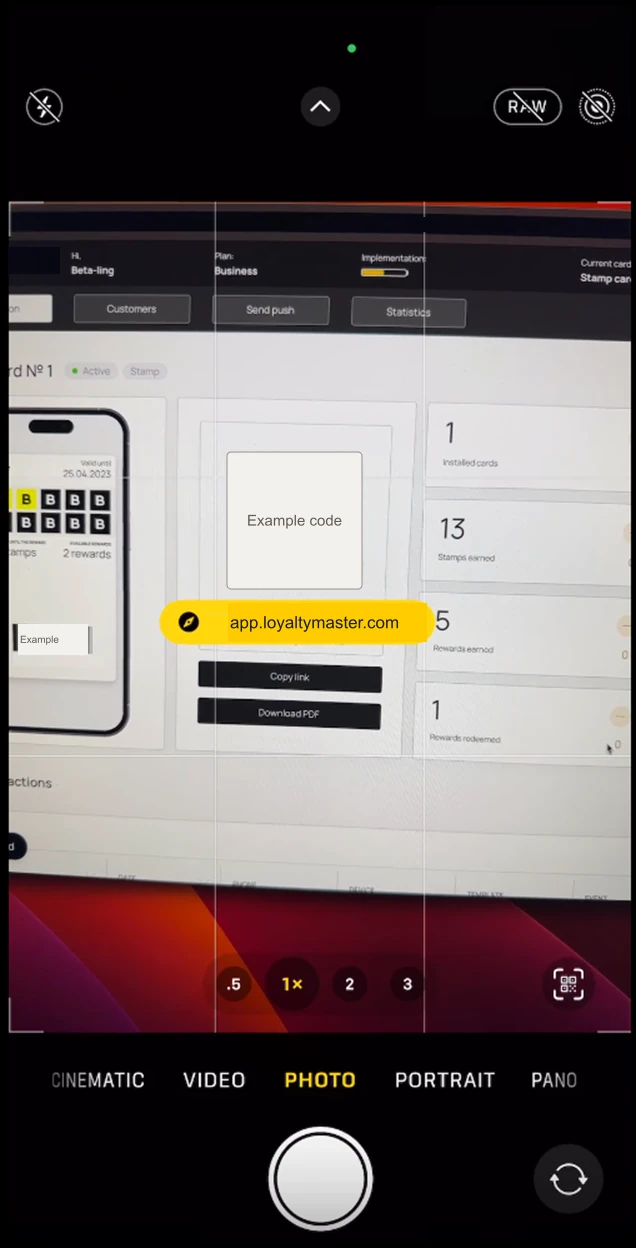
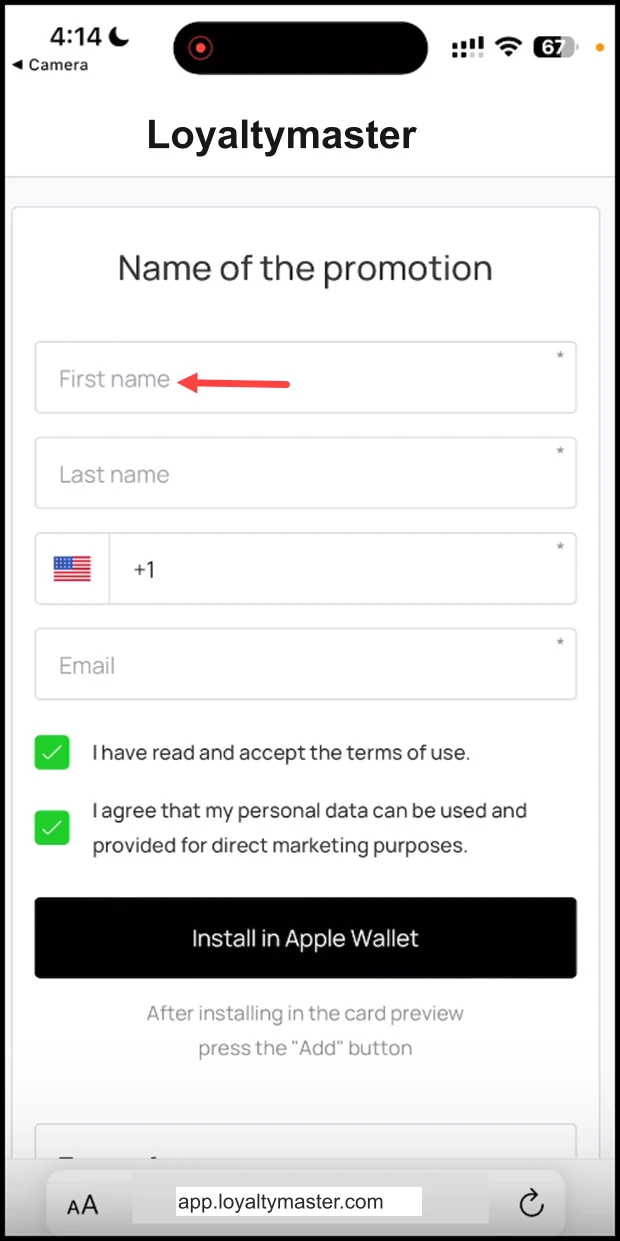
- This opens the card issuing form in your mobile phone. Here, enter your first name in the First Name field.
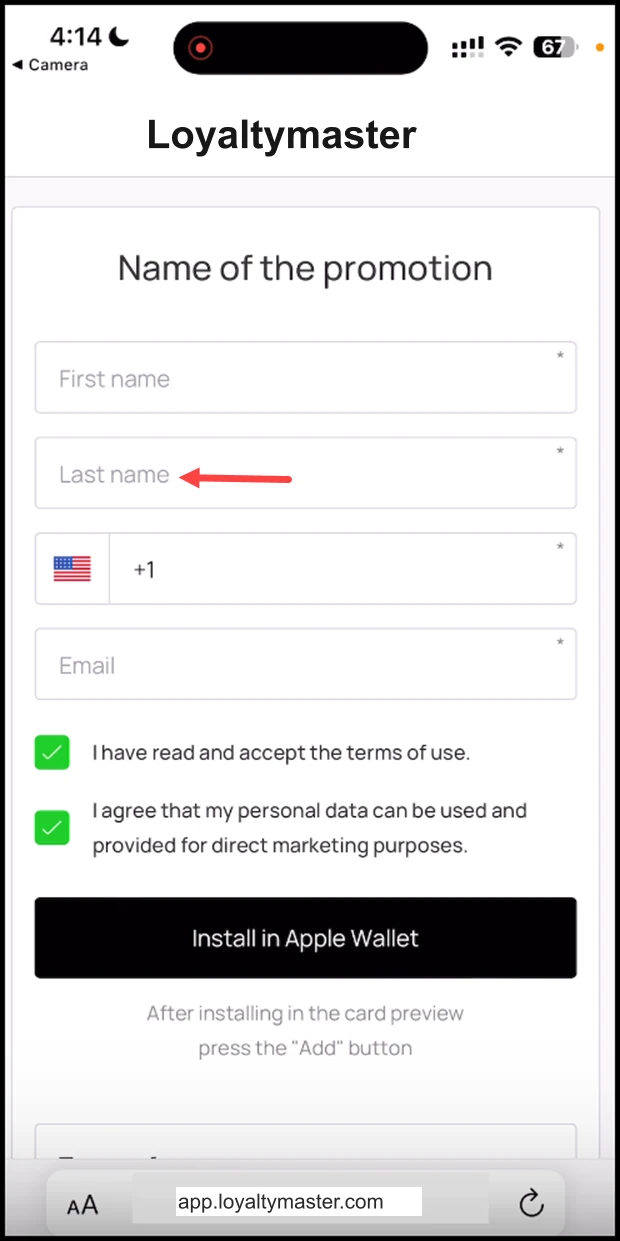
- Use the Last Name field to record your last name.
- Enter your contact number in the Contact Number field.
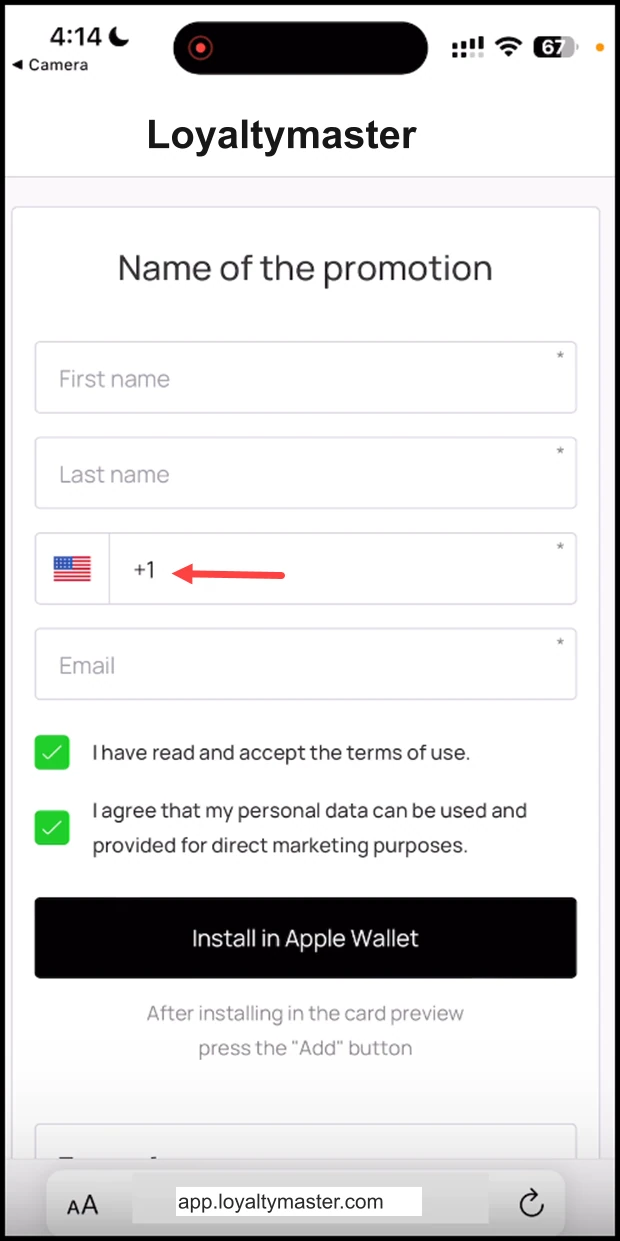
- Use the Email field to enter your email address.
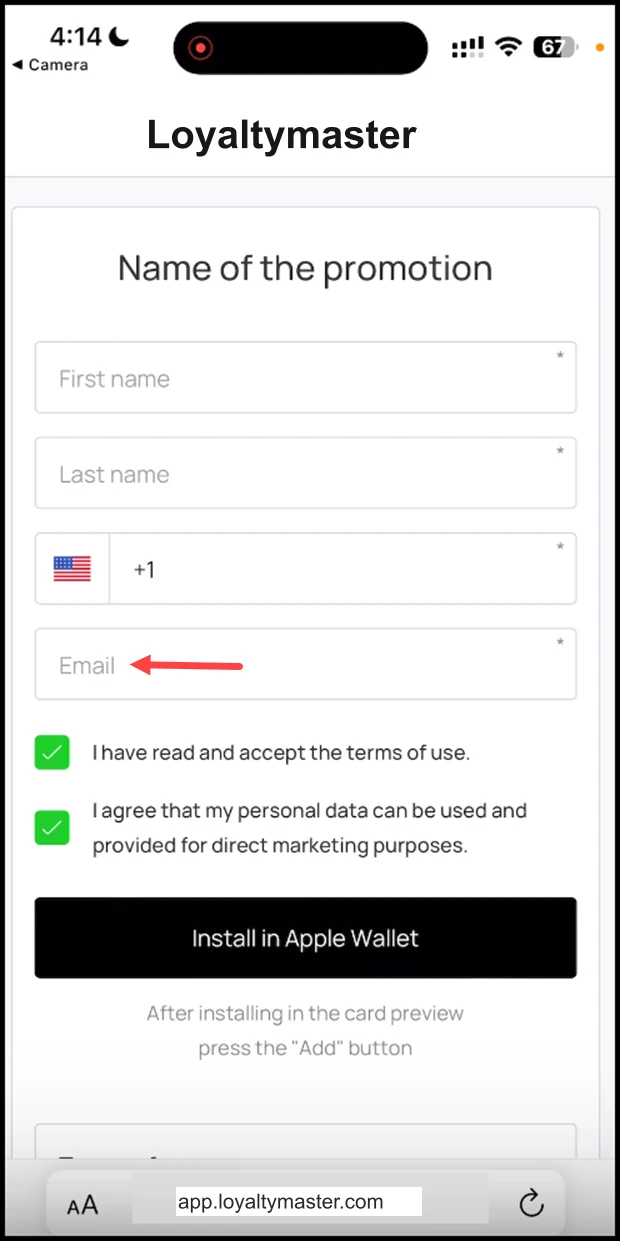
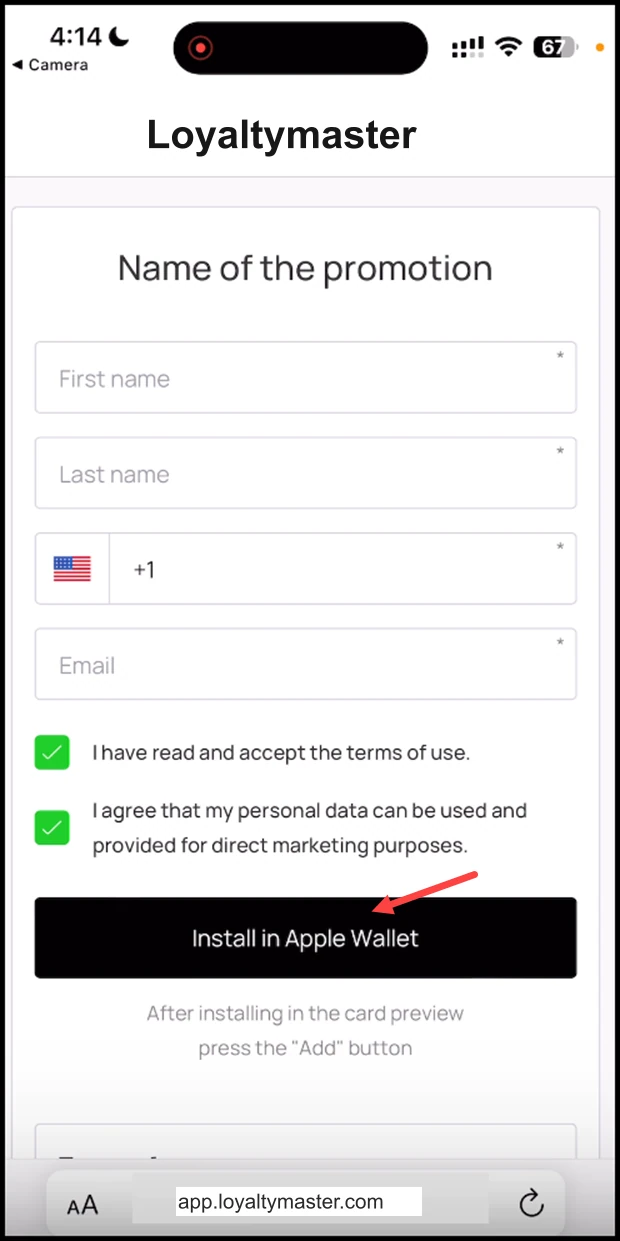
- Once the required details are entered, click the Install in Apple Wallet button.
-
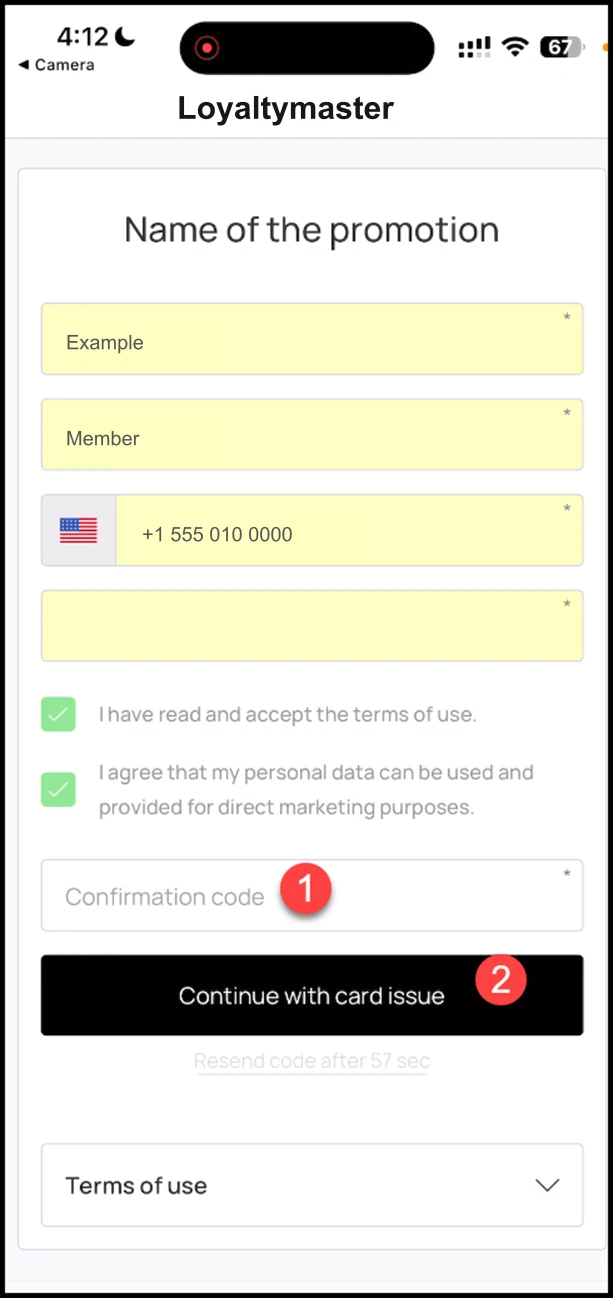
As the card credentials are pulled and it is identified that it is a lost card, the Continue with Card Issue button is displayed. As it is clicked, the Confirmation Code field appears.
-
Here, enter the confirmation code received on your contact number. Once entered, click the Continue with Card Issue button.
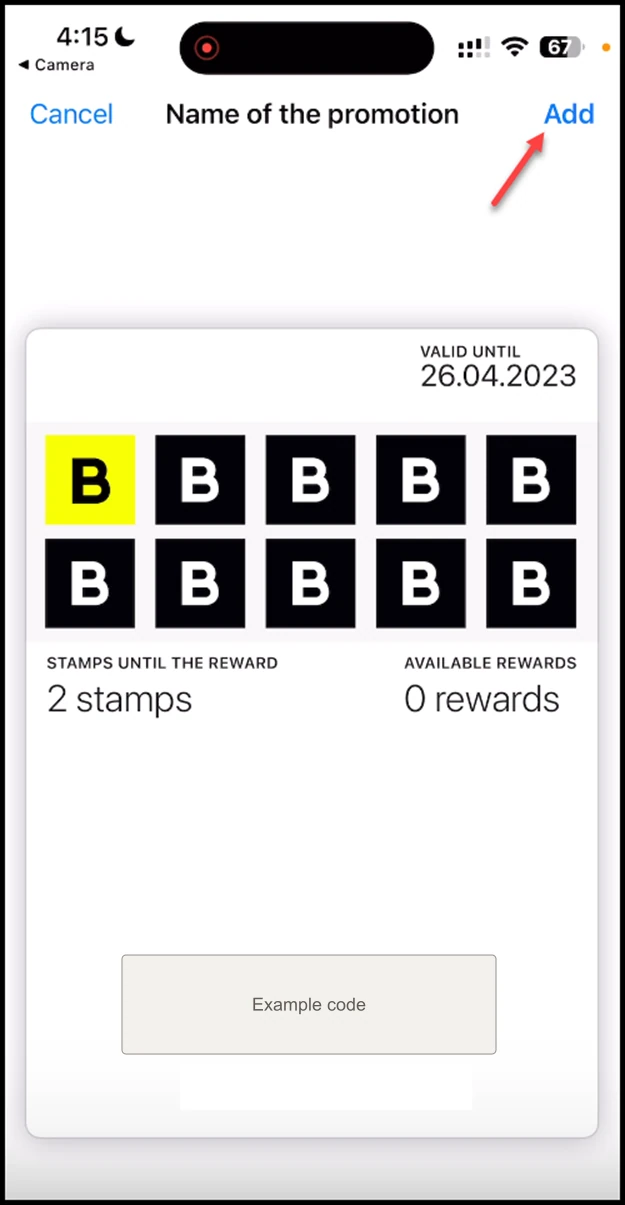
- This recovers the card and loads it in apple wallet. To add the card, click the Add button at the top-right corner.