Scanner App

Scanner app - Stamp

How to charge stamp cards using Scanner App

Application review pending. Current permissions and product version are unverified.

  1. Upon successful login, tap the Scan button.
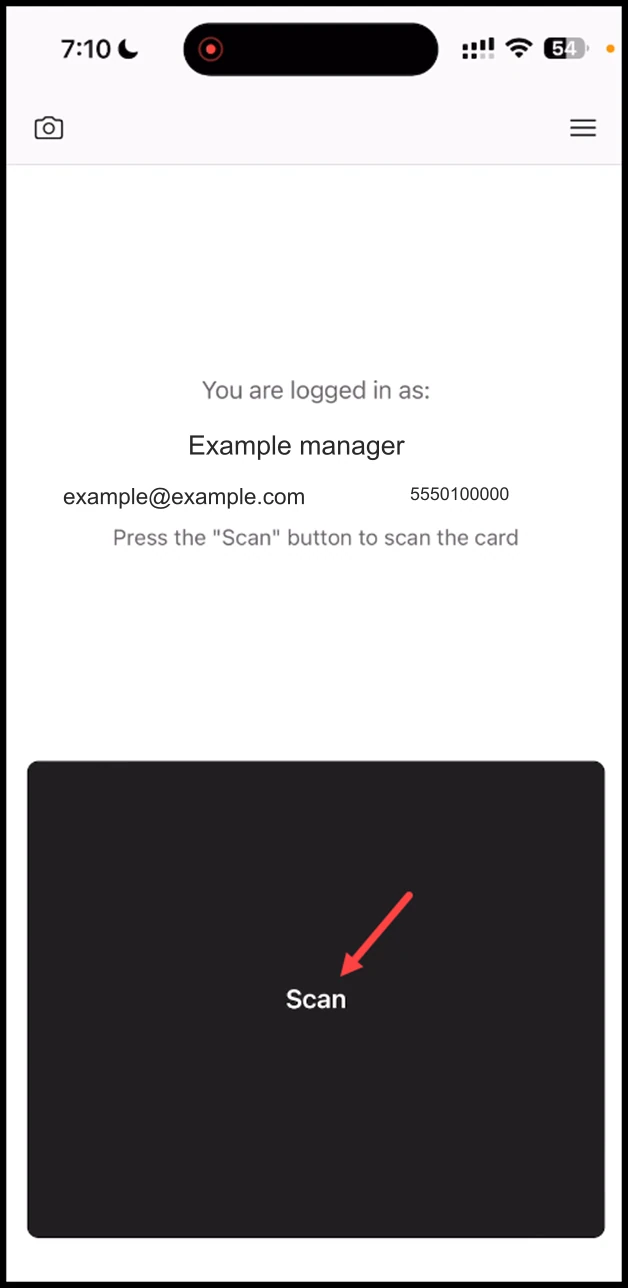
Scanner app - Stamp: Upon successful login, tap the Scan button.

  1. This initiates the scan process by opening the camera of your mobile device. If this is the first time, the scanner app will ask you to allow permission to access your device camera.
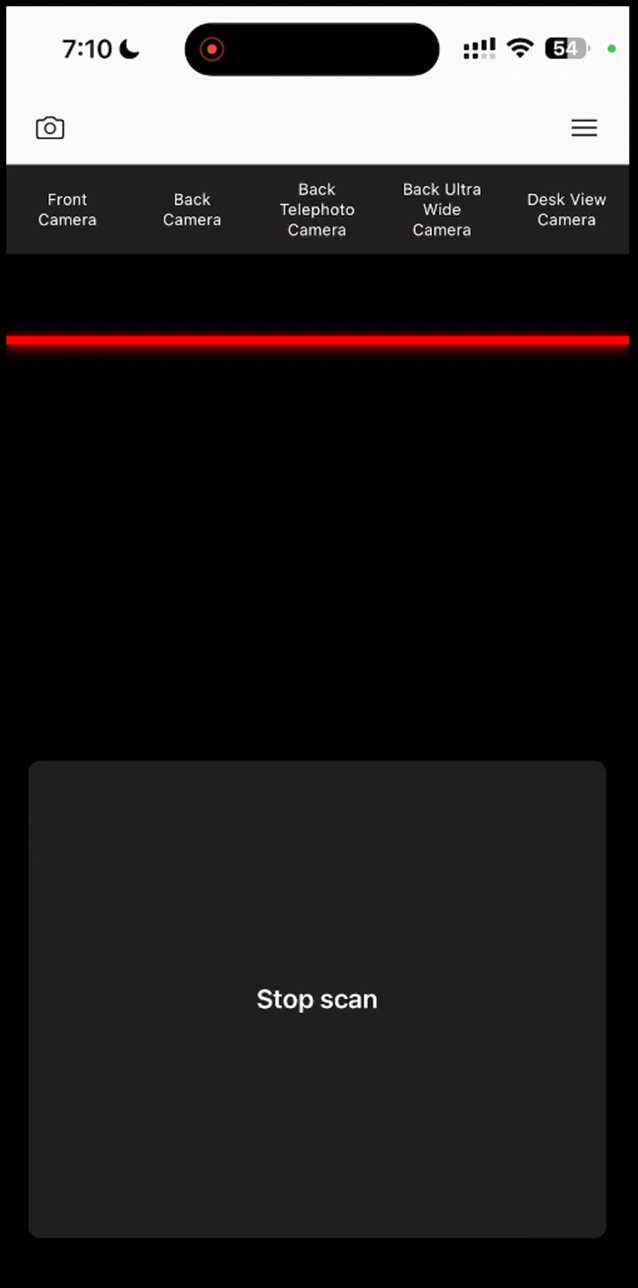
Scanner app - Stamp: This initiates the scan process by opening the camera of your mobile device. If this is the first time, the scanner app will ask you to allow permission to access your device camer

  1. After a successful scan, the stamp card is displayed in the scanner app.
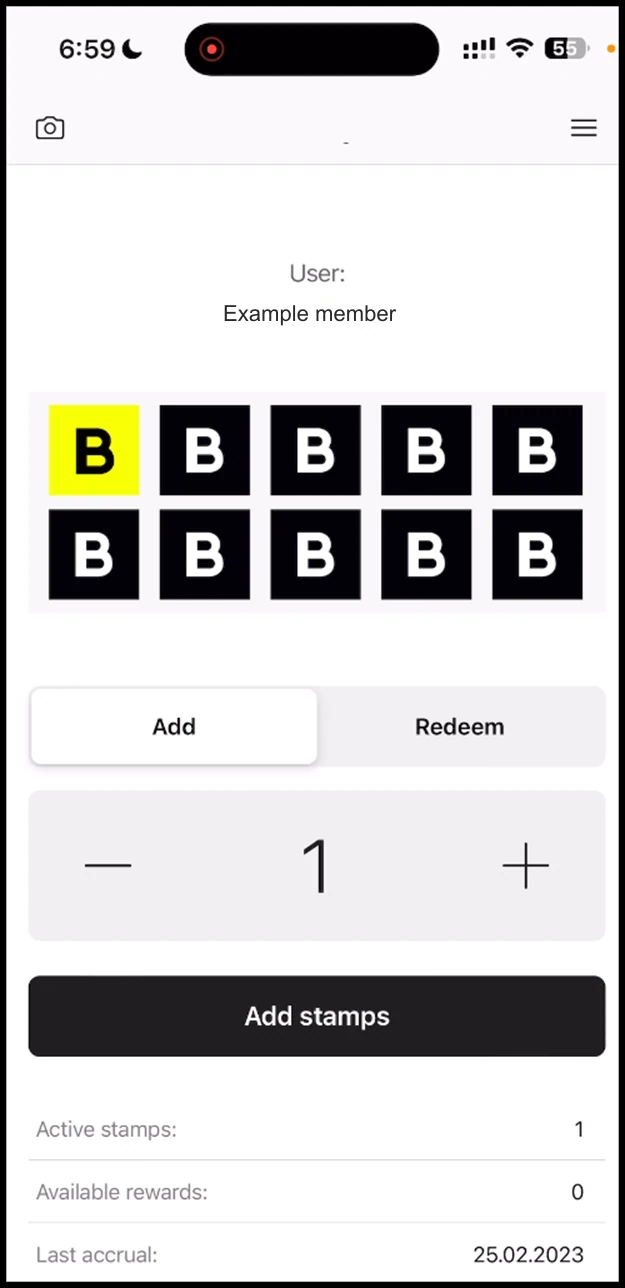
Scanner app - Stamp: After a successful scan, the stamp card is displayed in the scanner app.

  1. Use the +/- buttons at right and left side of the counter to record the number of stamps you want to add. Once added, click the Add Stamps button.
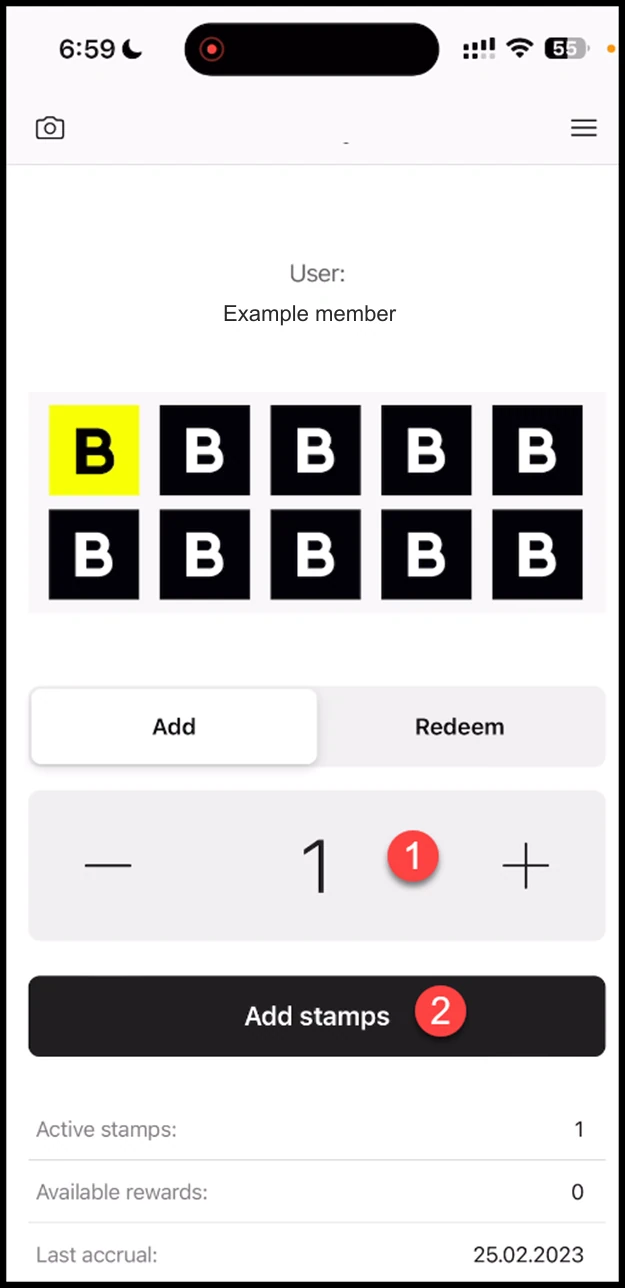
Scanner app - Stamp: Use the +/- buttons at right and left side of the counter to record the number of stamps you want to add. Once added, click the Add Stamps button.

  1. This opens the Confirmation popup. To confirm stamp addition, click the Add button.
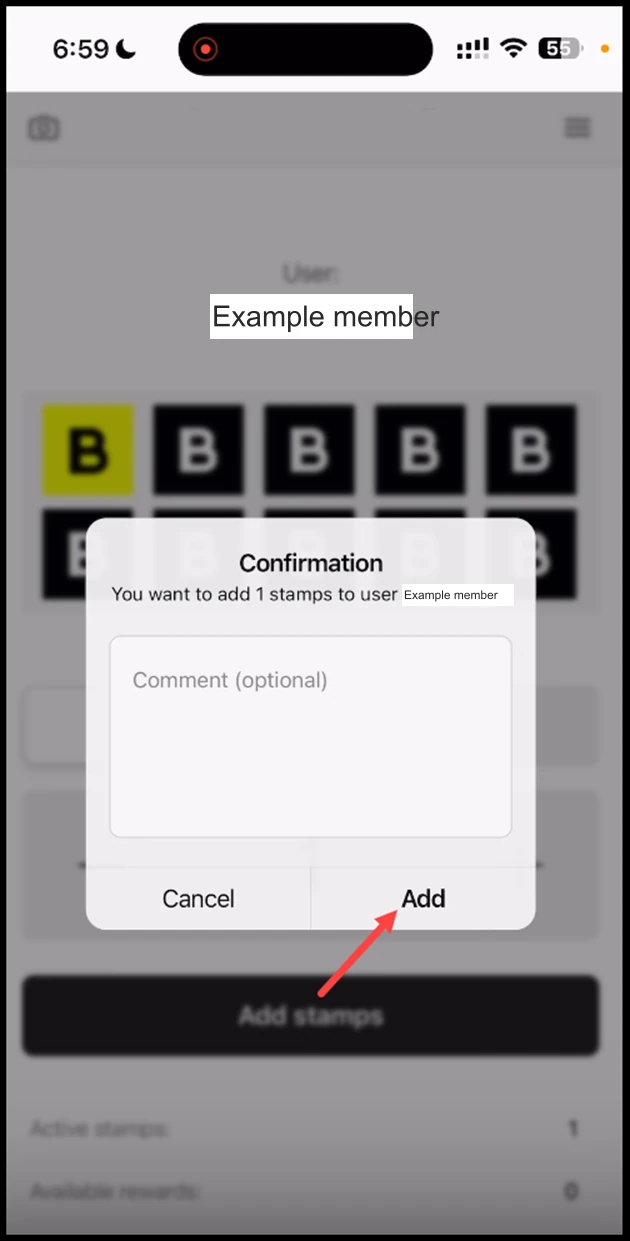
Scanner app - Stamp: This opens the Confirmation popup. To confirm stamp addition, click the Add button.

  1. Once added, the Successful Transaction popup is displayed. To proceed, click Done.
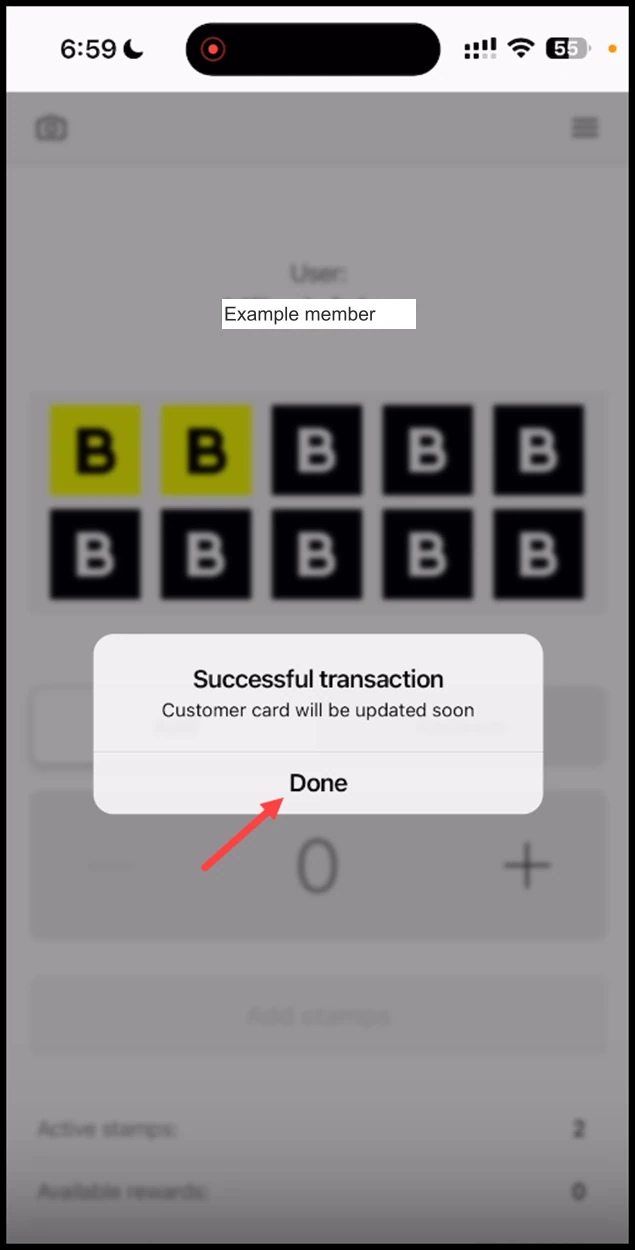
Scanner app - Stamp: Once added, the Successful Transaction popup is displayed. To proceed, click Done.

  1. Once the required number of stamps for a reward is reached, the available rewards reflects the upgrade after you scan the card again.
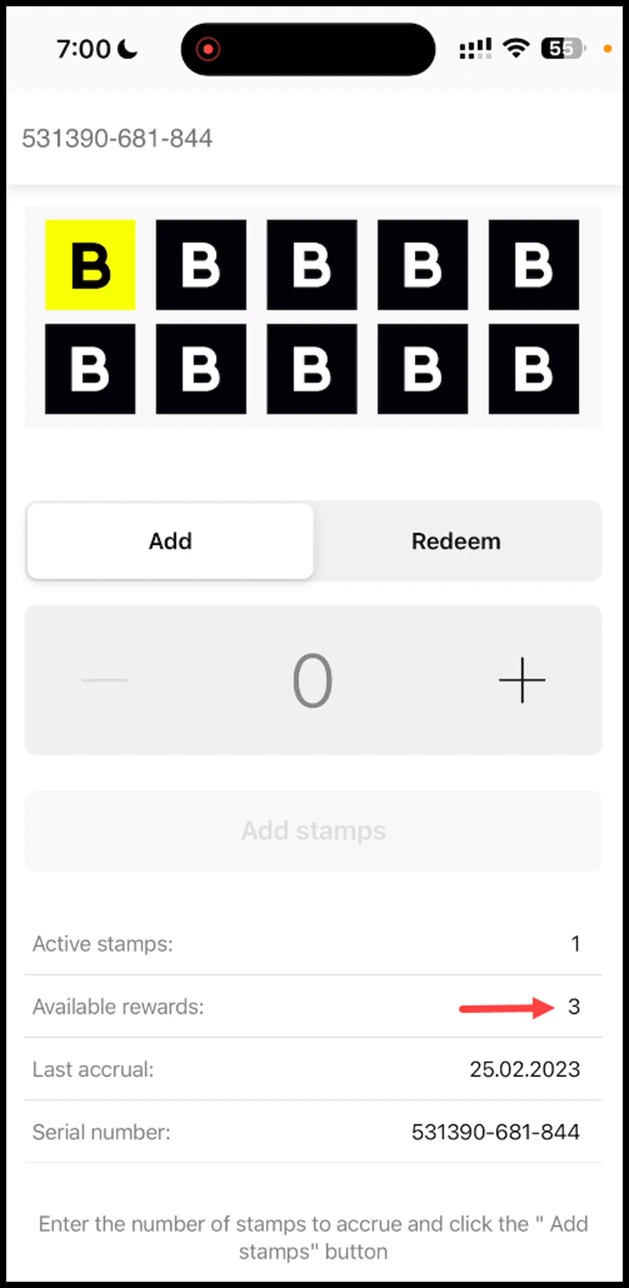
Scanner app - Stamp: Once the required number of stamps for a reward is reached, the available rewards reflects the upgrade after you scan the card again.

  1. To redeem rewards, click the Redeem tab.
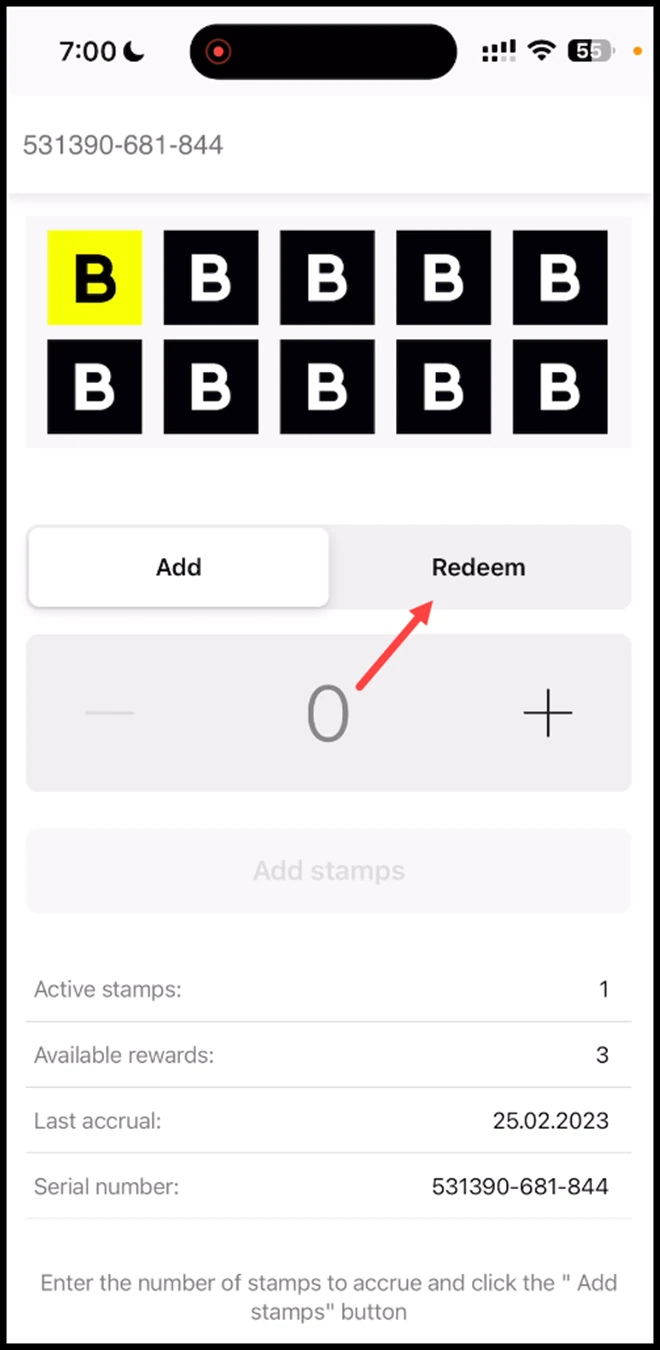
Scanner app - Stamp: To redeem rewards, click the Redeem tab.

  1. Here, use the +/- buttons to set the number of stamps you want to redeem. Once set, click the Redeem Points button.
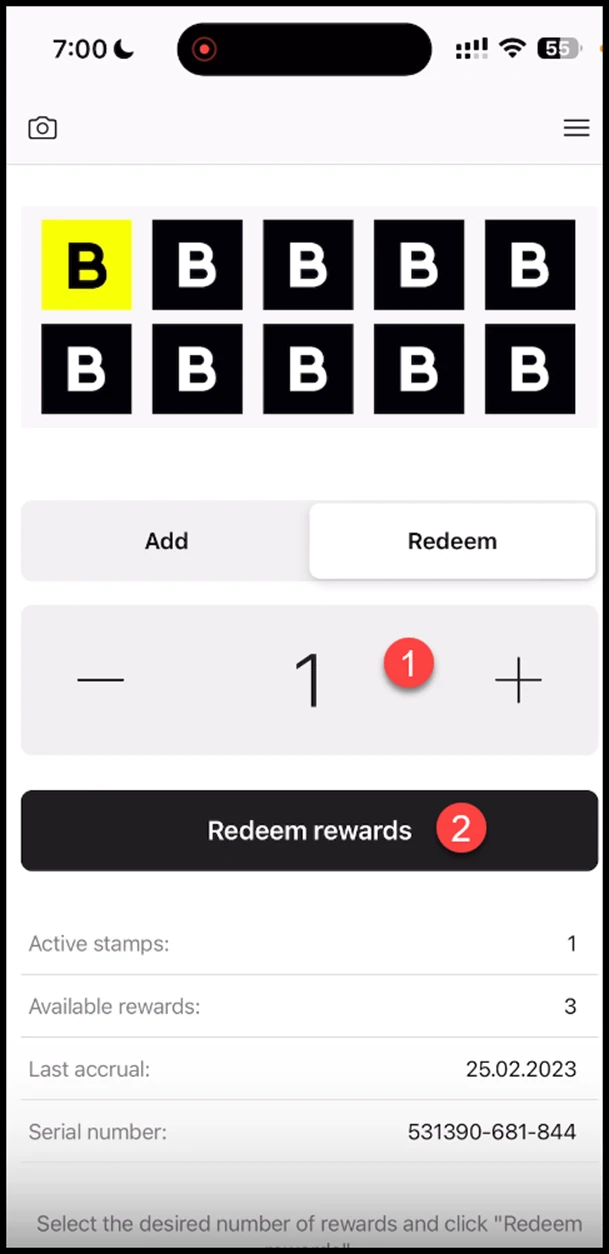
Scanner app - Stamp: Here, use the +/- buttons to set the number of stamps you want to redeem. Once set, click the Redeem Points button.

  1. This opens the Confirmation popup. To confirm, click the Redeem button.
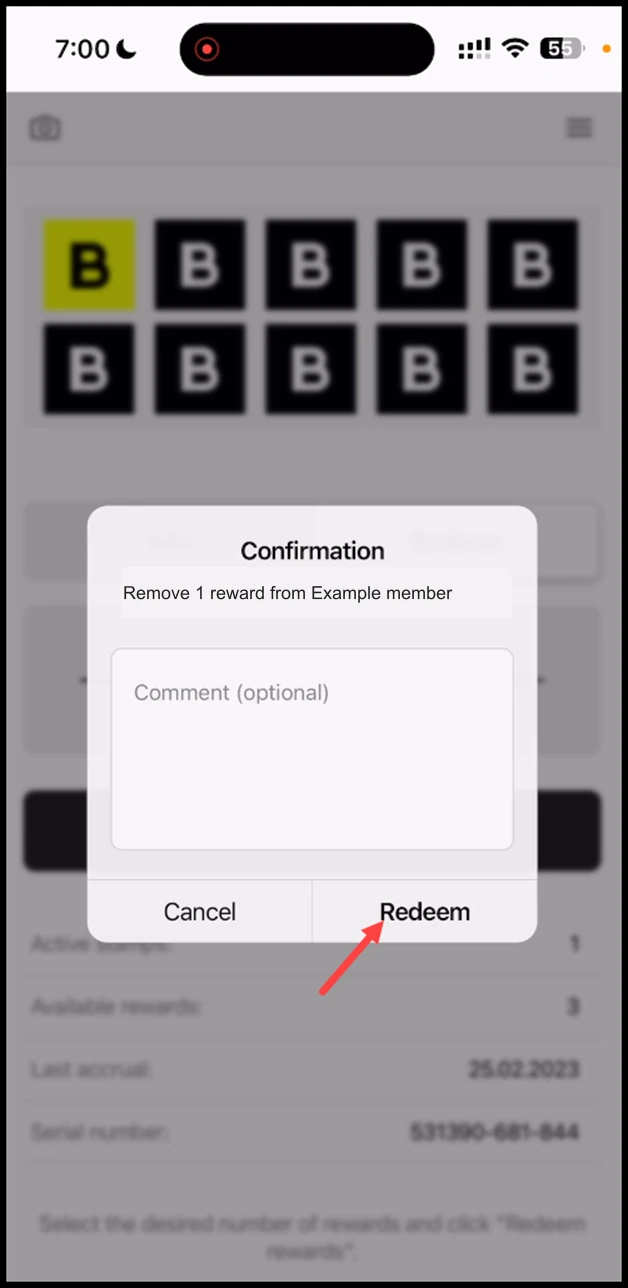
Scanner app - Stamp: This opens the Confirmation popup. To confirm, click the Redeem button.