Customer Profile
A closer look into the customer profile access and creation
Application review pending. Current permissions and product version are unverified.
On this page
-
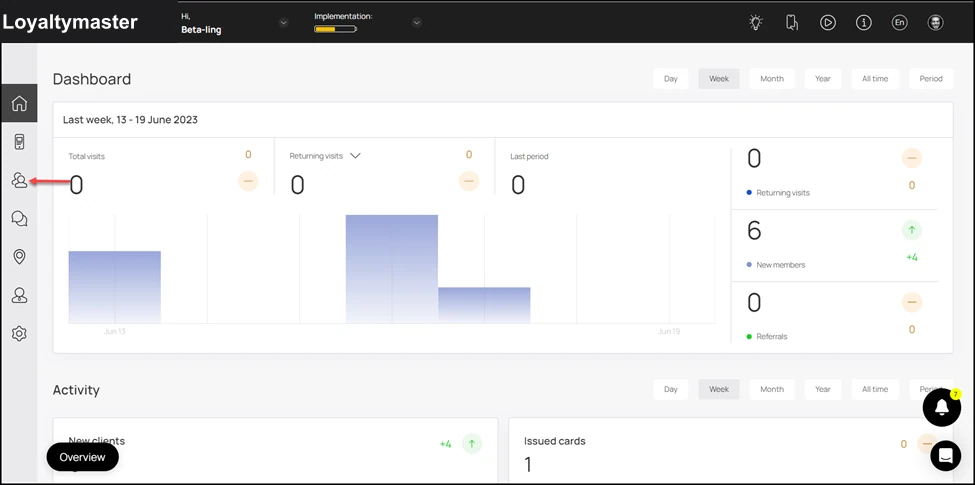
Upon successful login, navigate to the left-hand menu.
-
From the modules listed here, click the Customersicon. Doing so takes you to the Customers screen.
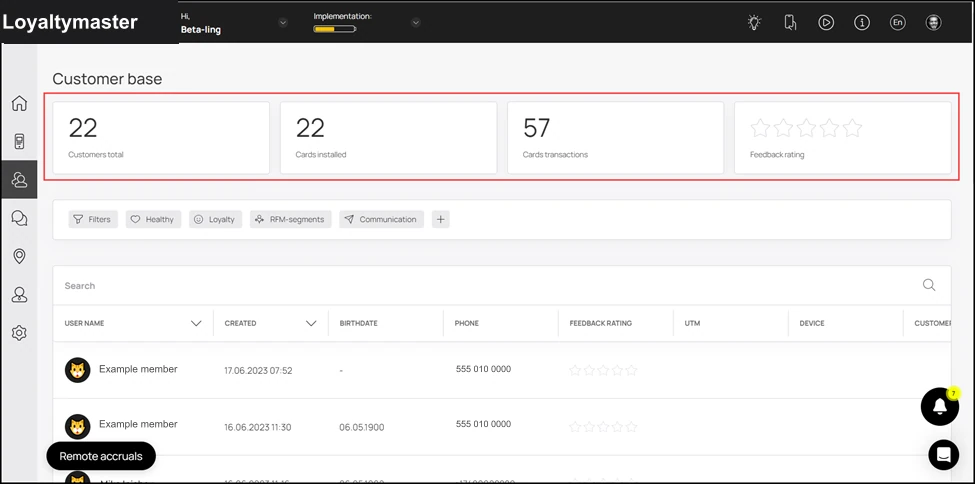
- The screen starts off with the Customer base heading under which 4 tiles are present to display meaningful information. They include a count of total customers, card transactions, reviews, and an overall feedback rating.
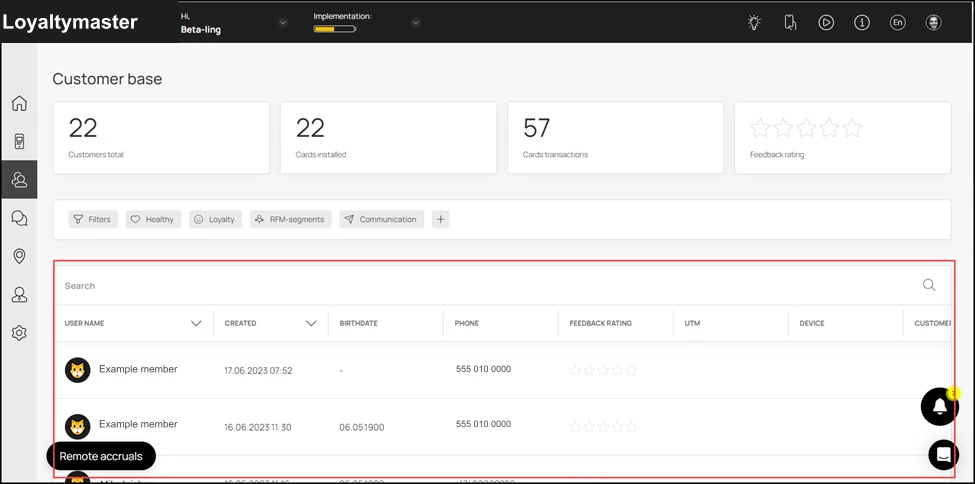
- Next up is the customers grid. Here, information for each customer is tabulated via a number of columns that include User Name, Created, Birthdate, Phone, Feedback Rating, UTM, Device, Customer Cards, and Custom Fields.
- From here, clicking a customer profile opens the details of the selected profile. Apart from the customer name, it has the details of the cards issued to the selected customer.
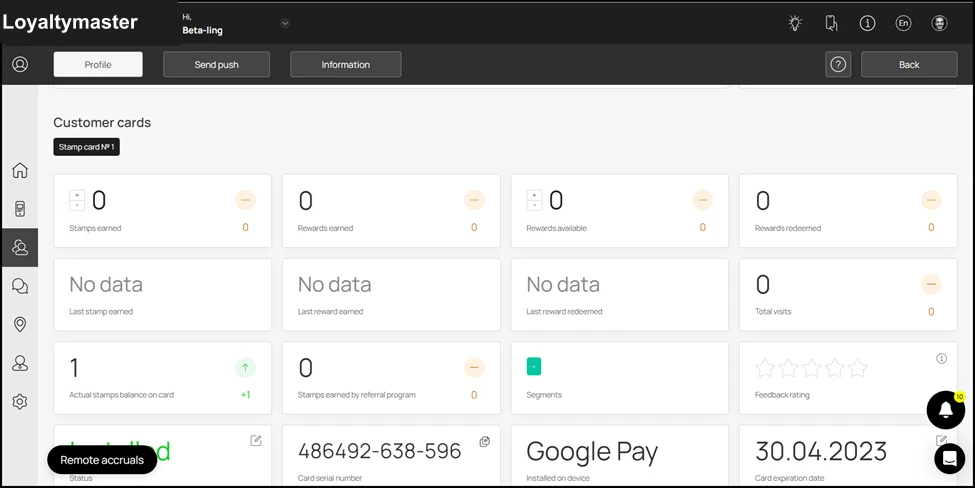
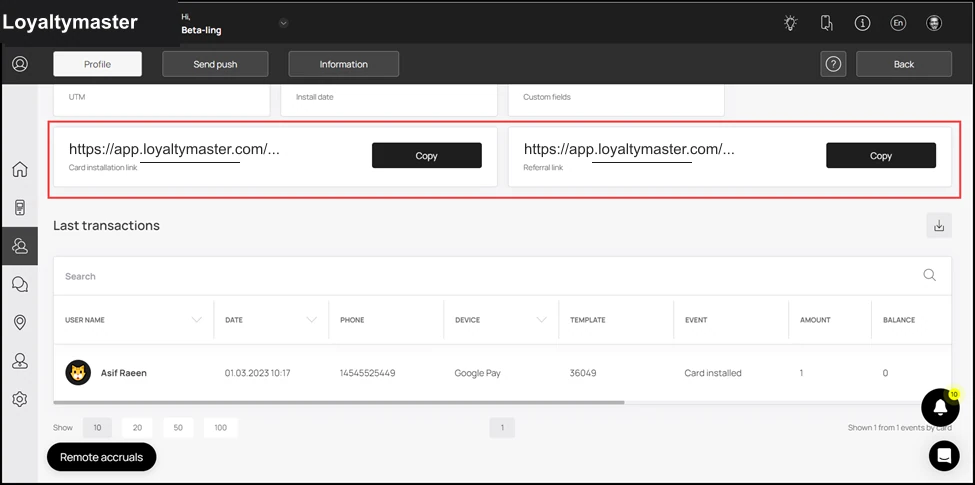
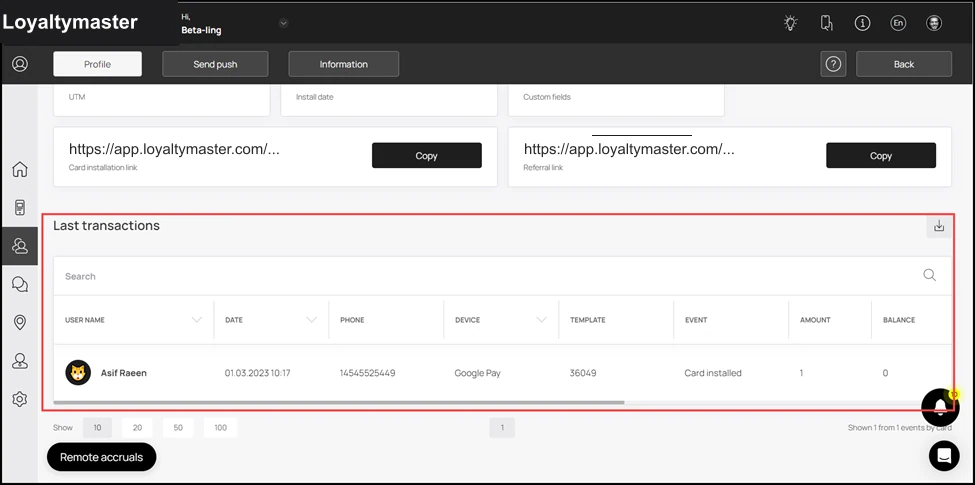
- Scrolling down further, you can see the card installation and referral links. You can click the Copy button to copy and send the link to a customer.
-
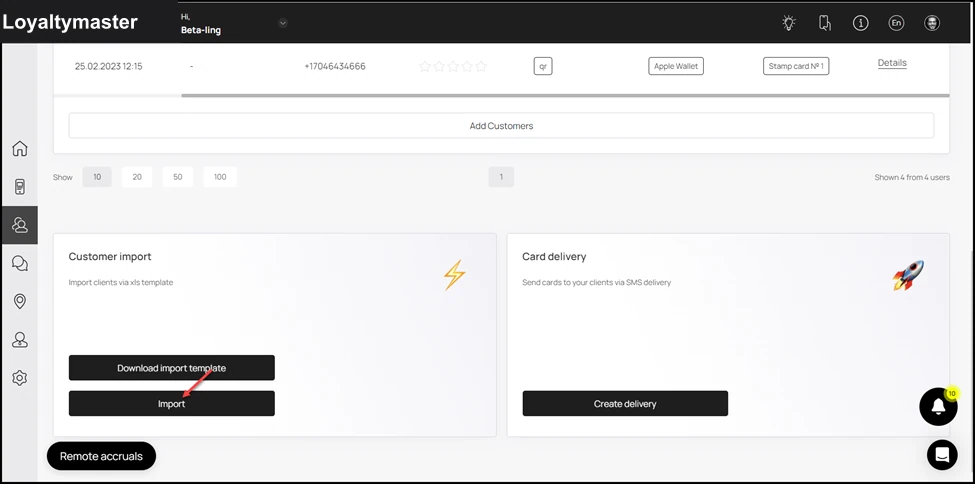
Next up is the Customer Import tile. This allows you to import customer records in bulk via a .CSV file. Loyaltymaster keeps an import template for your ease that can be downloaded by clicking the Download import templatebutton.
-
Once downloaded, you can fill in the fields as per your requirement. Once updated, choose this file from your system storage upon clicking the Importbutton.
Create Customer Profile
Loyaltymaster > Left-Hand Menu > Customers
-
Follow the above-mentioned workflow to land on the Customers screen.
-
Navigate to the customers grid.
-
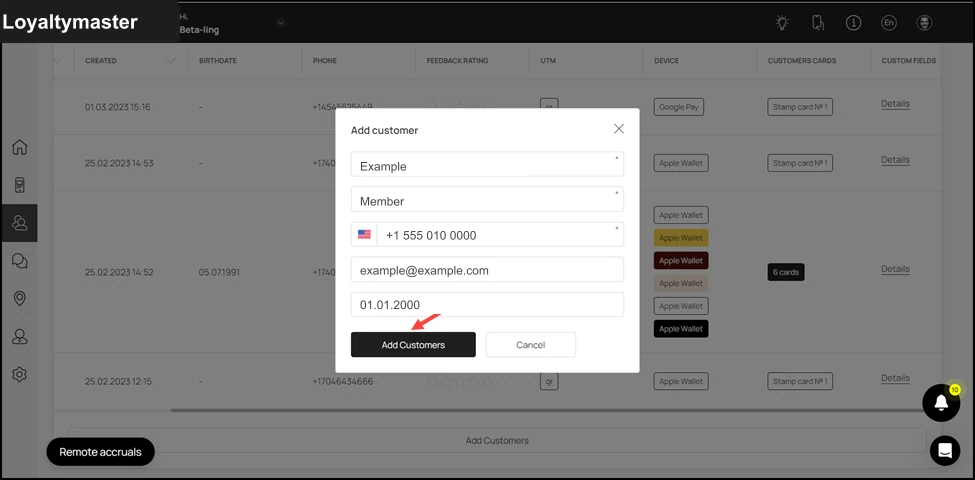
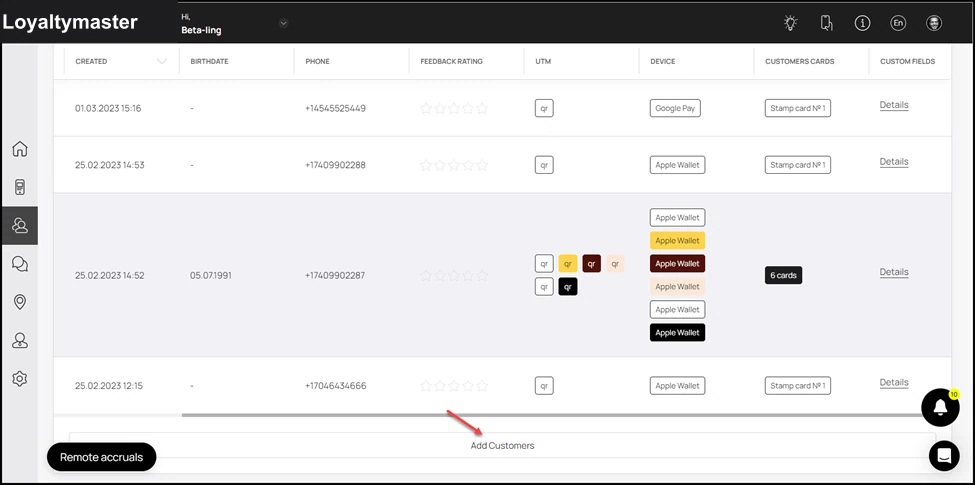
From the bottom of this grid, click theAdd Customers button. Doing so opens the Add Customer popup.
- Here, enter the last name of the customer using the Last Name field.
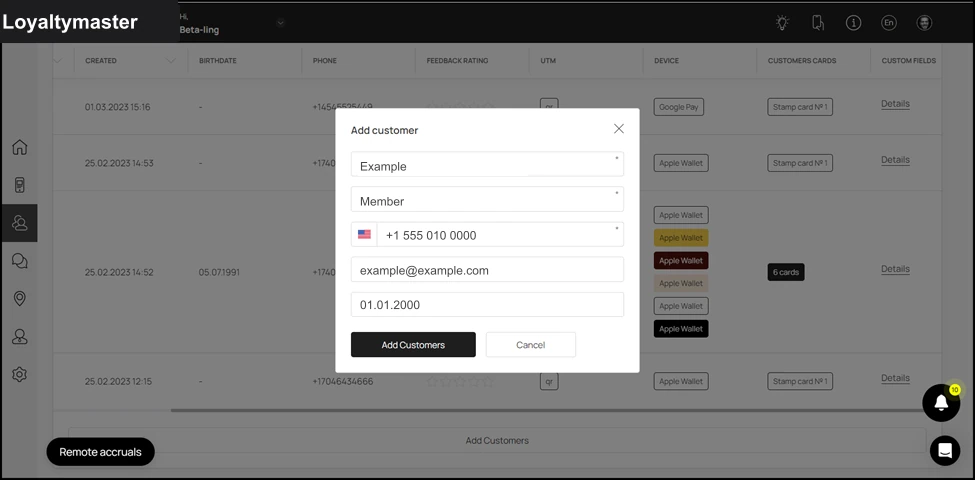
- Similarly, use the First Name field to record the first name of the customer.
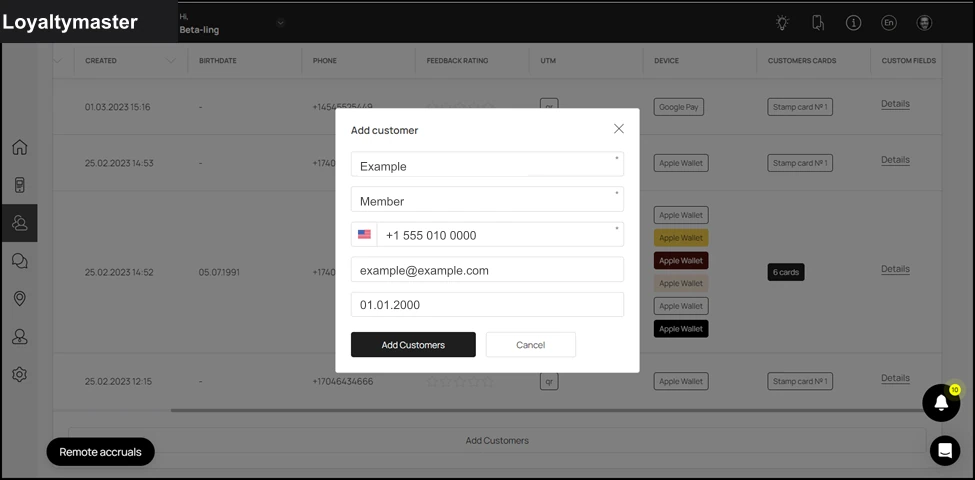
- Use the Contact Number field to record the contact number of the customer.
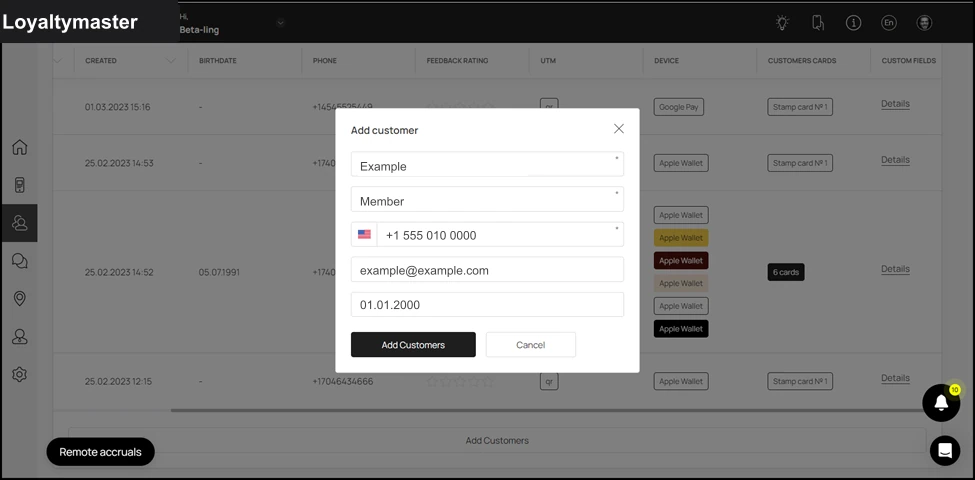
- Enter the email address of the customer using the Email Address field.
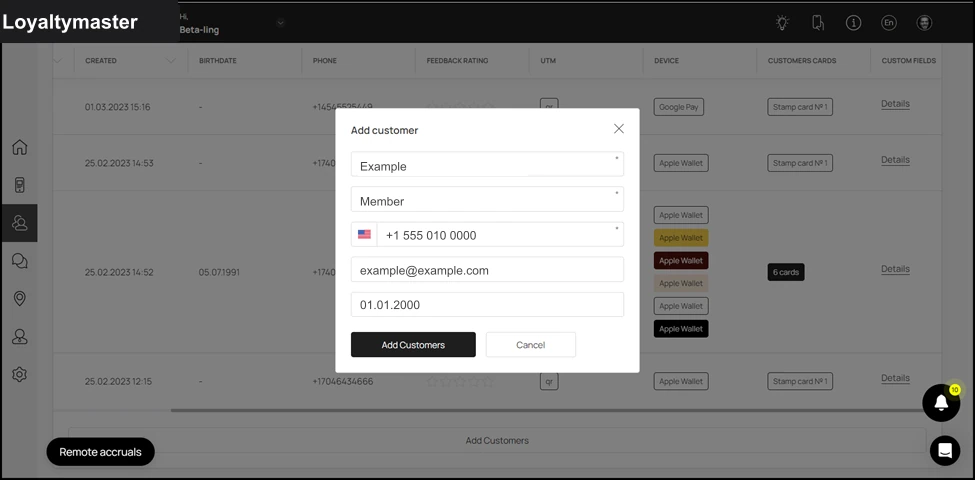
- Record the date of birth of the customer using the Date of Birth date selector.
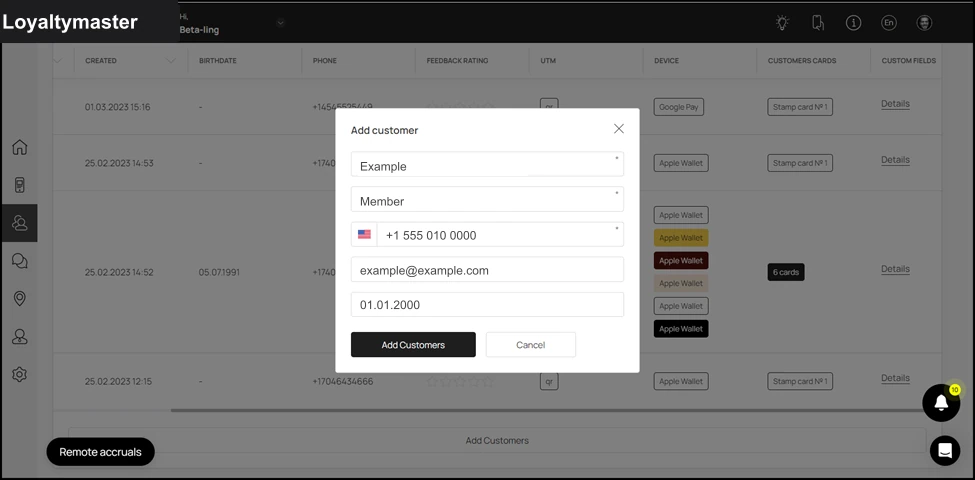
- Once the required details are recorded, click the Add Customersbutton. This adds the customer profile and it is displayed in the customers grid.