Import/export
Learn how you can import records from Customers section
Application review pending. Current permissions and product version are unverified.
Loyaltymaster > Left-Hand Menu > Customers
-
Follow the above-mentioned workflow to land on the Customers screen.
-
Navigate to the Customer Import tile. Here, a .CSV template is maintained by Loyaltymaster to make the import process hassle-free.
-
To download the import template, click the Download import template button.
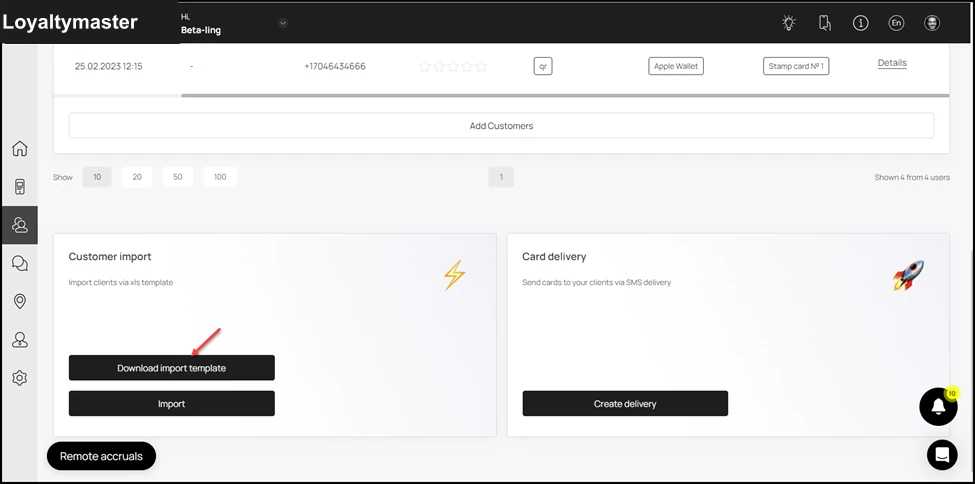
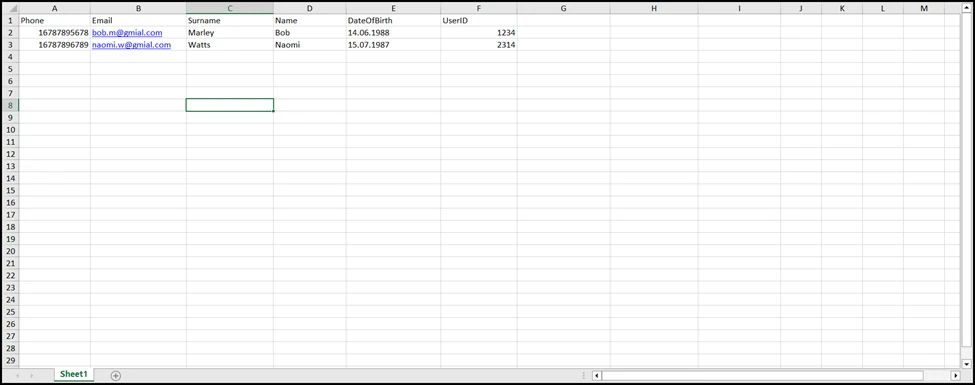
- This downloads the template. Open the file and fill in the information as per your requirement.
-
Once filled, save the file at a conveniently accessible place in your system storage.
-
To choose the saved file, click the Importbutton.
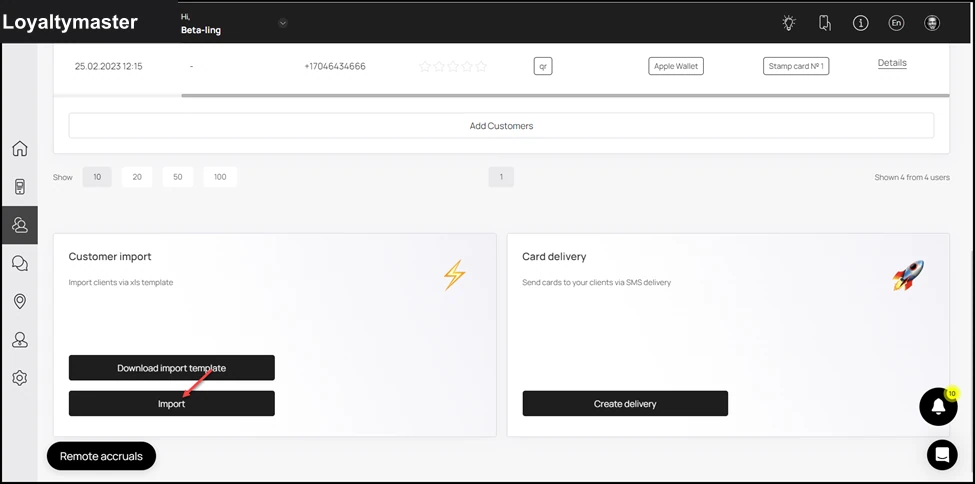
- This opens the customer base import popup. From here, click the Select File button choose the saved file.
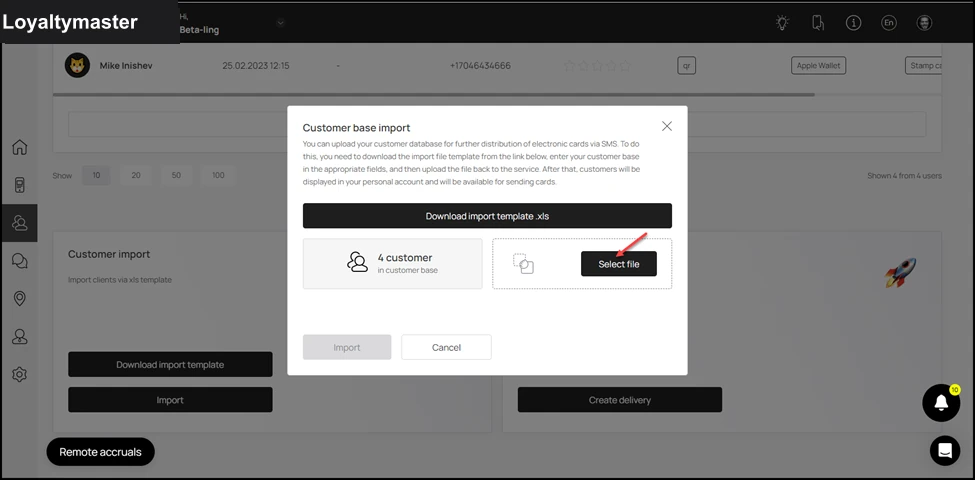
- Once the file is selected, click the Importbutton.
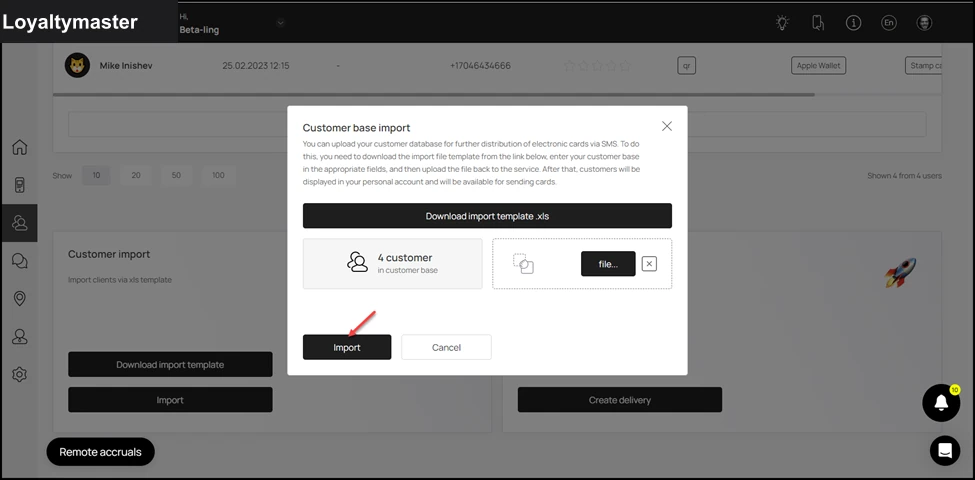
- This imports the customer profiles in the .CSV file and displays them on the Customers grid.