Google Pay on Android
Learn how the card addition in Google Pay works
Application review pending. Current permissions and product version are unverified.
Loyaltymaster > Left-Hand Menu > Cards > Select Card
-
Follow the above-mentioned workflow to land on the Card Information section.
-
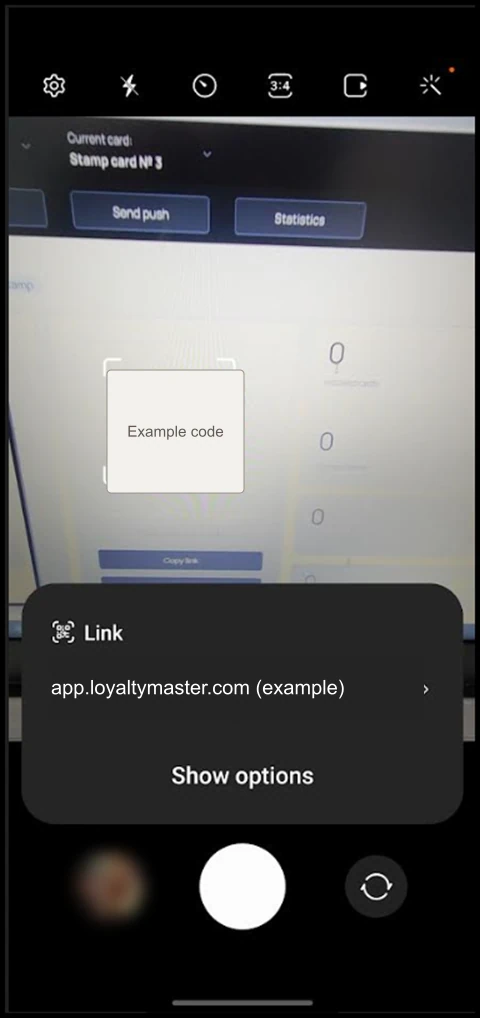
Scan the QR code from your Android device. This takes you to the Card Issuing Form.
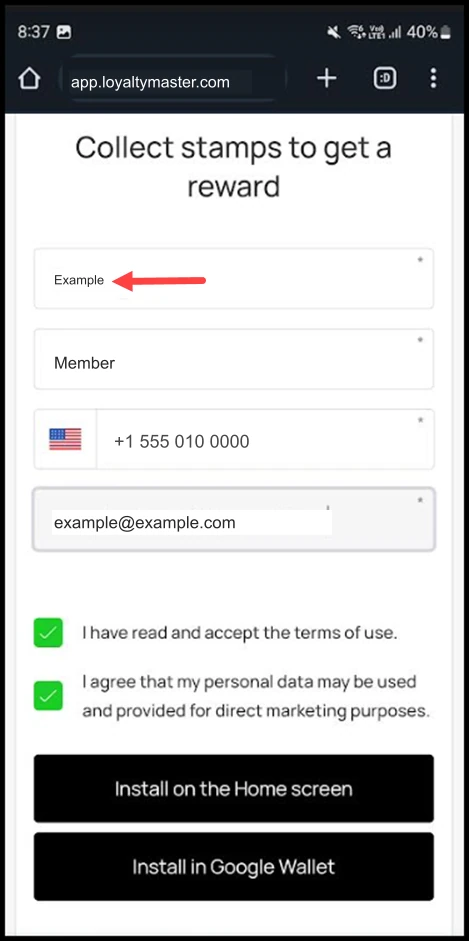
- Use the First Name field to record your first name.
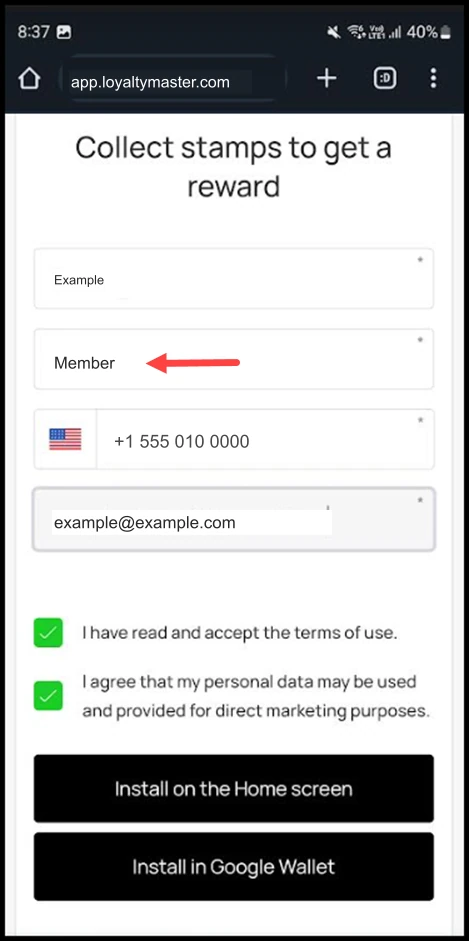
- Similarly, enter your last name in the Last Name field.
- Enter your contact number in the Contact Number field.
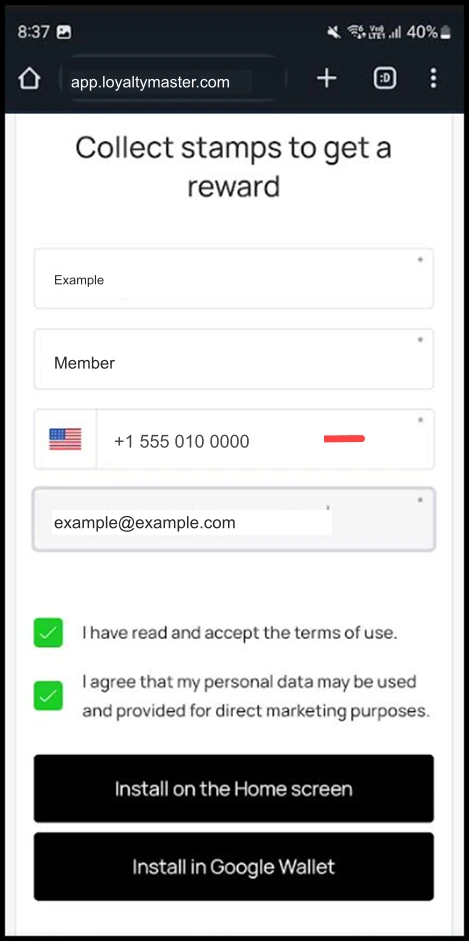
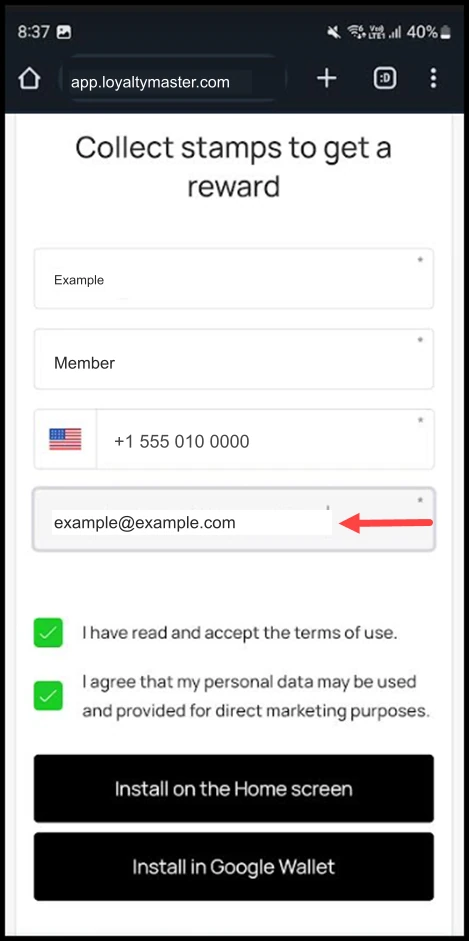
- Use the Email field to record your email address.
- To install the card in Google Wallet, click the Install in Google Wallet button.
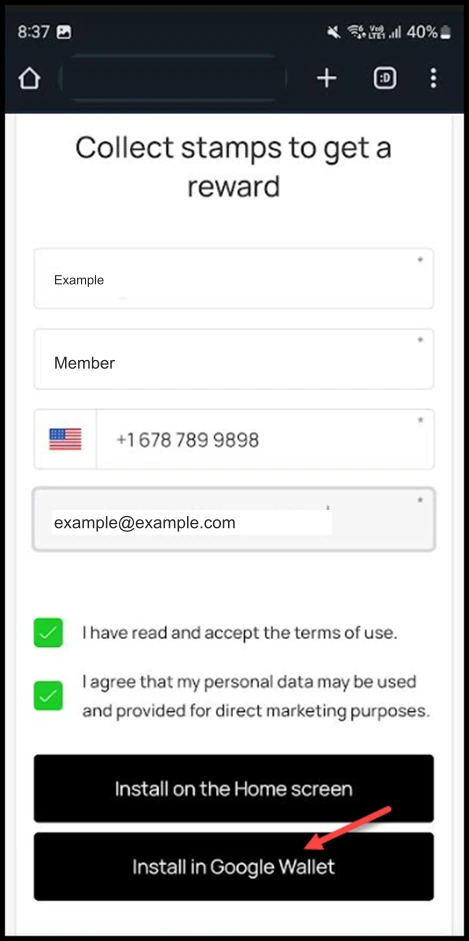
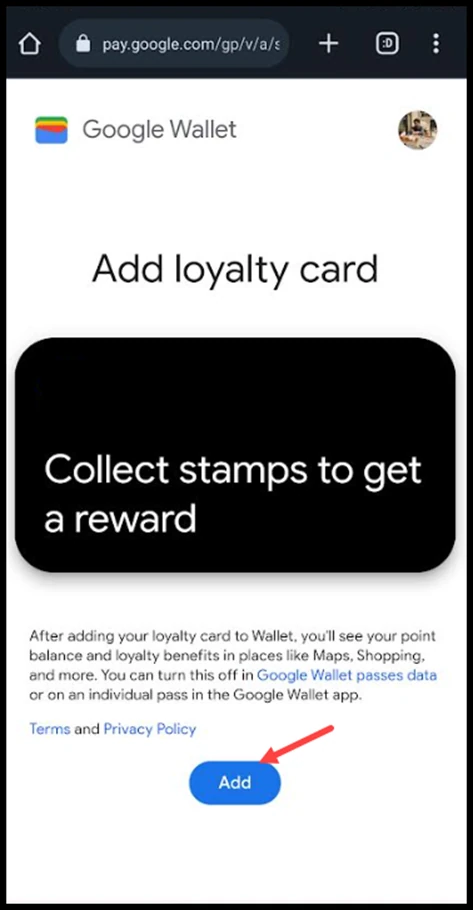
- This loads the card in Google Wallet. To add the card to wallet, click the Add button.