Add, edit or delete a manager
Create a manager account, choose a location and give staff access to the Scanner App.
Application review pending. Current permissions and product version are unverified.
On this page
Give each staff member a manager account so they can sign in to the Scanner App with their own email address and password.
Add a manager
- In the Loyaltymaster console, open Managers from the left menu and select Add manager.
- Enter the person's Full name, Email and phone number, including the correct country code. The email address is their Scanner App sign-in name; the phone number is a separate contact field.
- Enter a Password and enter it again in Repeat password. The form requires at least six characters; choose a strong, unique password.
- Use Location select to assign a location if needed. Add Notes if you have instructions to record.
- Leave Send access to email on if you want to send access by email. Turn it off if you will give the manager their sign-in details yourself.
- Select Add manager. Check that the new manager appears in the list.
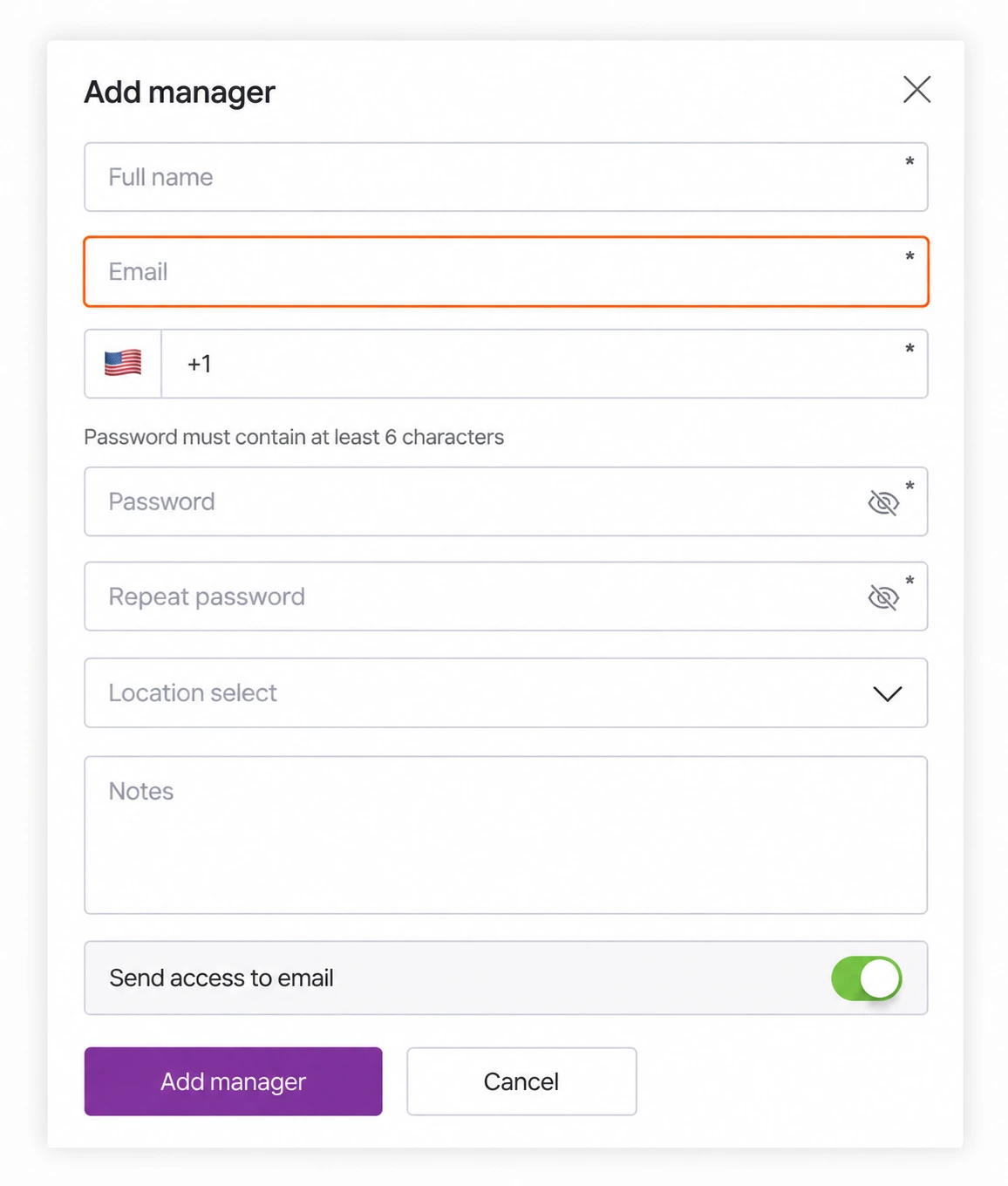
For a practice example, you could use Joe Nemont and joe@example.com. Replace these with the staff member's real details when creating their account. If you turn off Send access to email, give them the Scanner App link and their credentials through your usual secure channel.
Help the manager sign in
Select Scanner App at the top of the Managers page, or open app.loyaltymaster.com/scanner-app. Give this same link to the manager for their phone, tablet or computer.
They enter the Email and Password from their manager account, then select Sign in. They do not need the owner's console login. See Scanner App sign-in for access help and Cashback transactions for adding purchases and redeeming credit.
Edit Manager
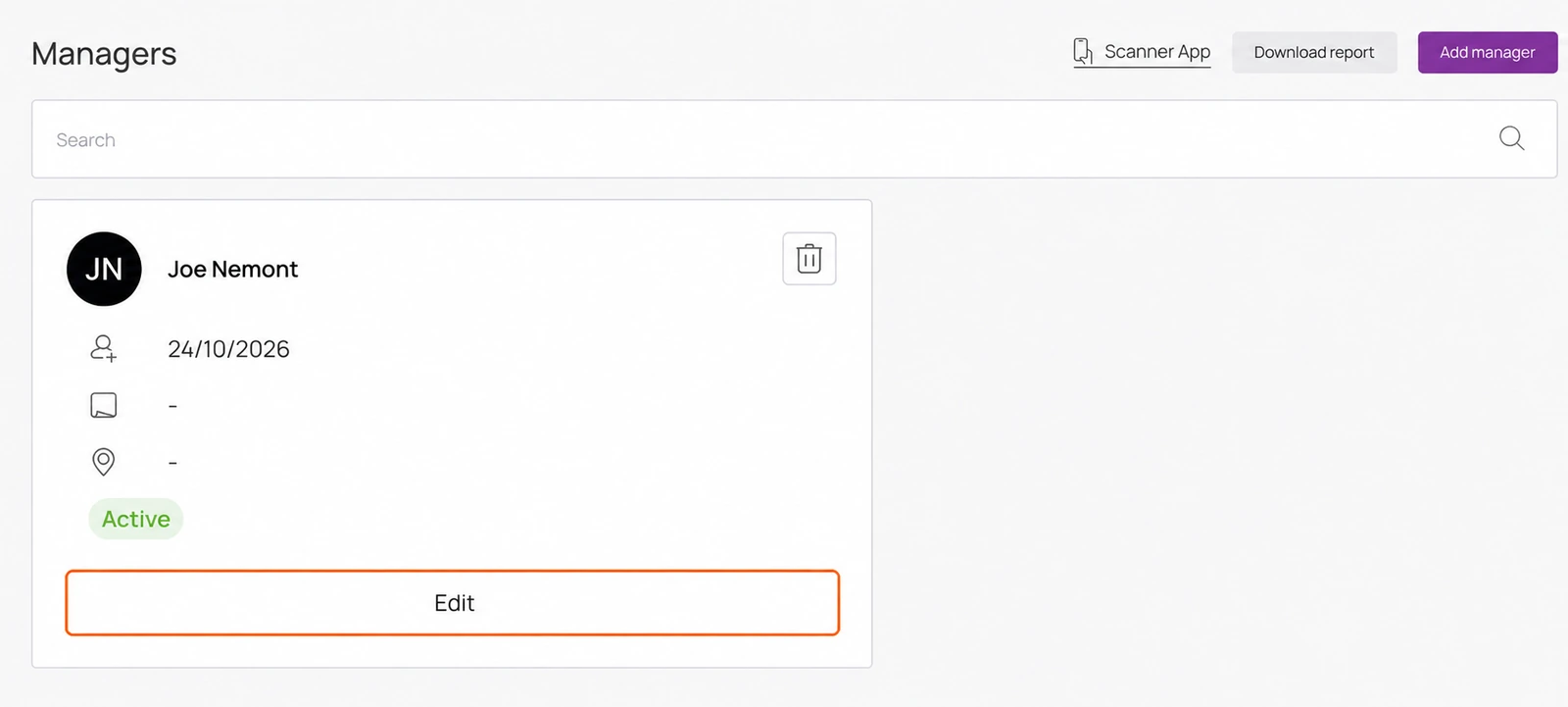
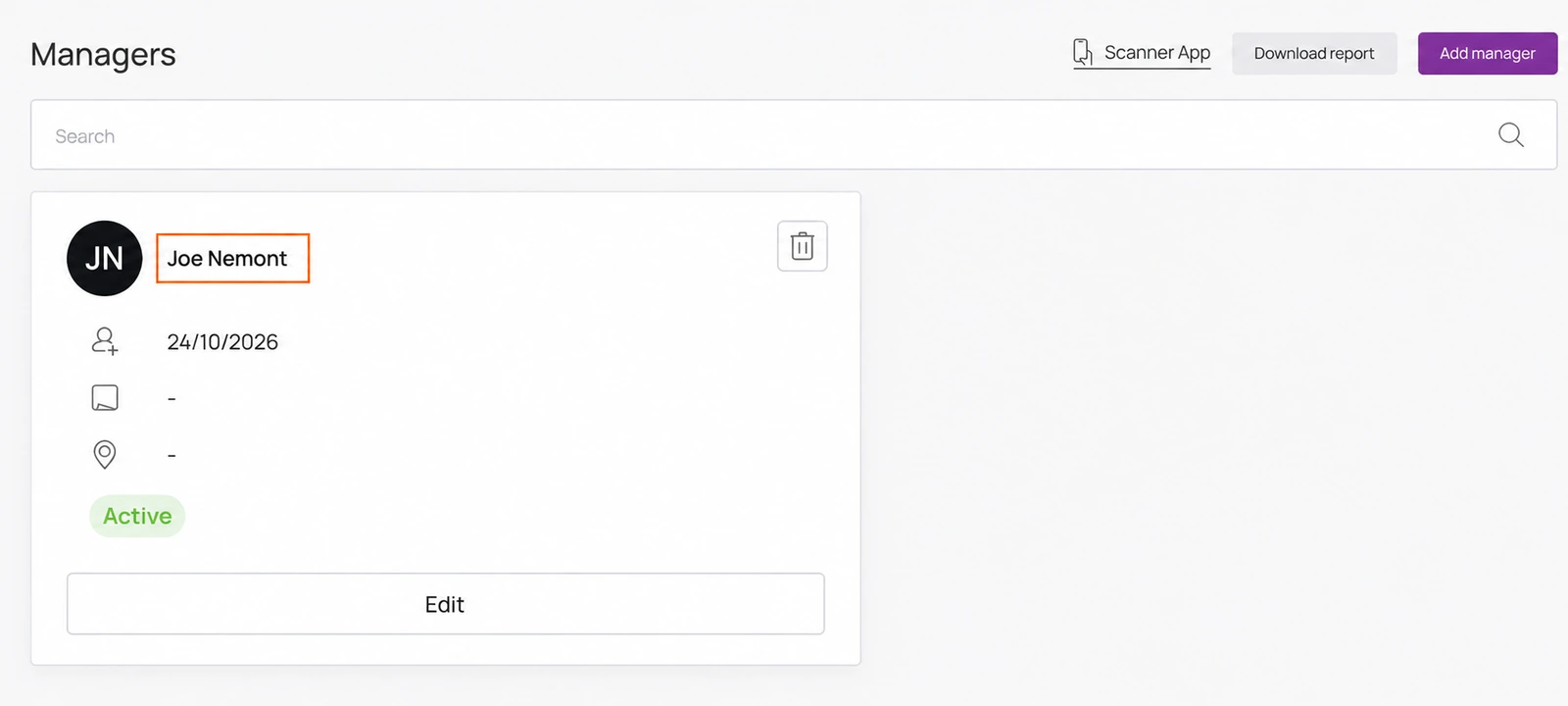
- In Managers, find the manager and select Edit at the bottom of their card.
- Update the details you need in Edit manager. Scroll down to review Permissions, then select Save. Use Cancel to close without saving. Choose permissions to match the person's role; the selected boxes in the example are not a recommended access policy.
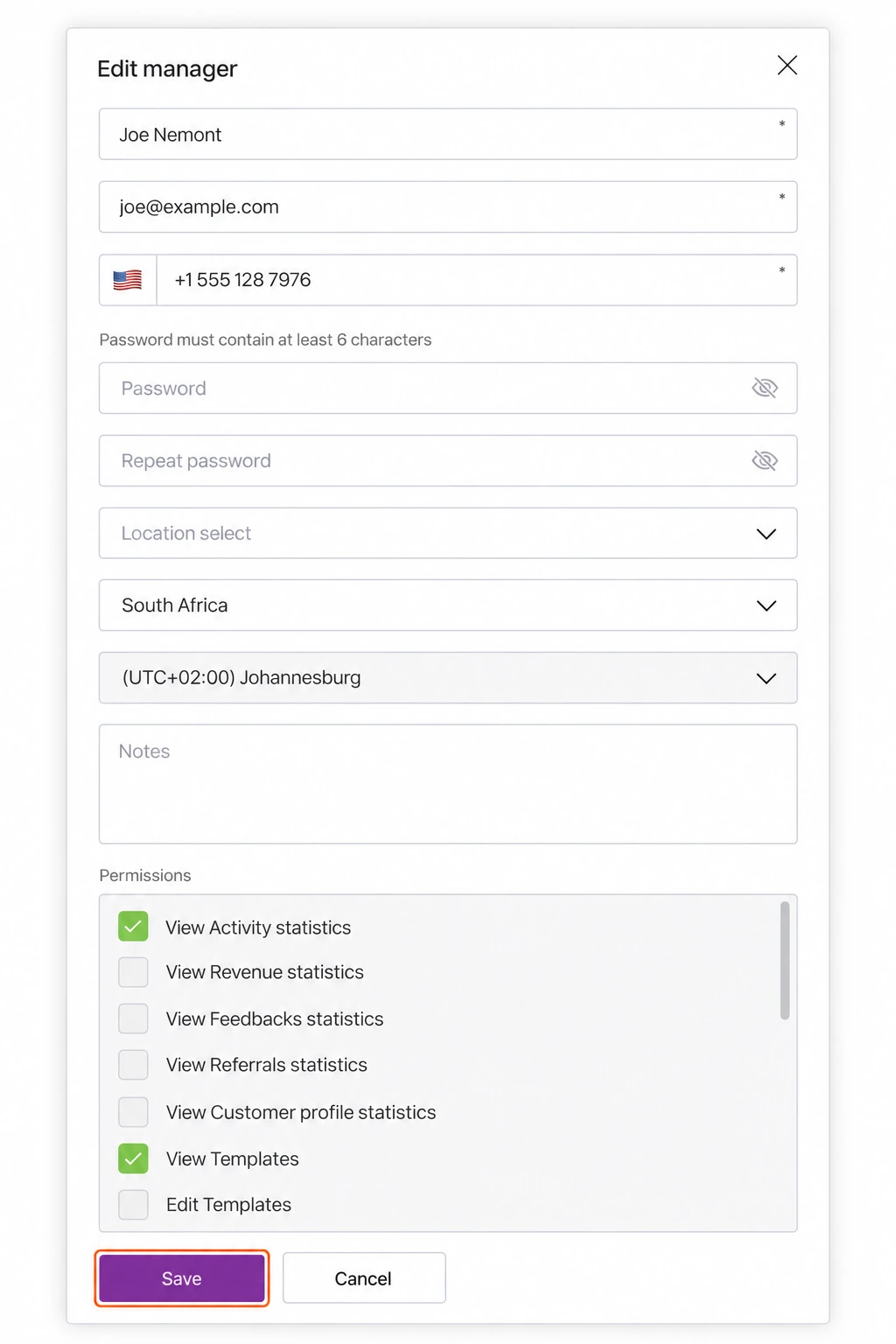
The form is shown in one illustration so you can see the fields and Save together. In the app, scroll down to reach the bottom. Select an image to enlarge it.
Delete Manager
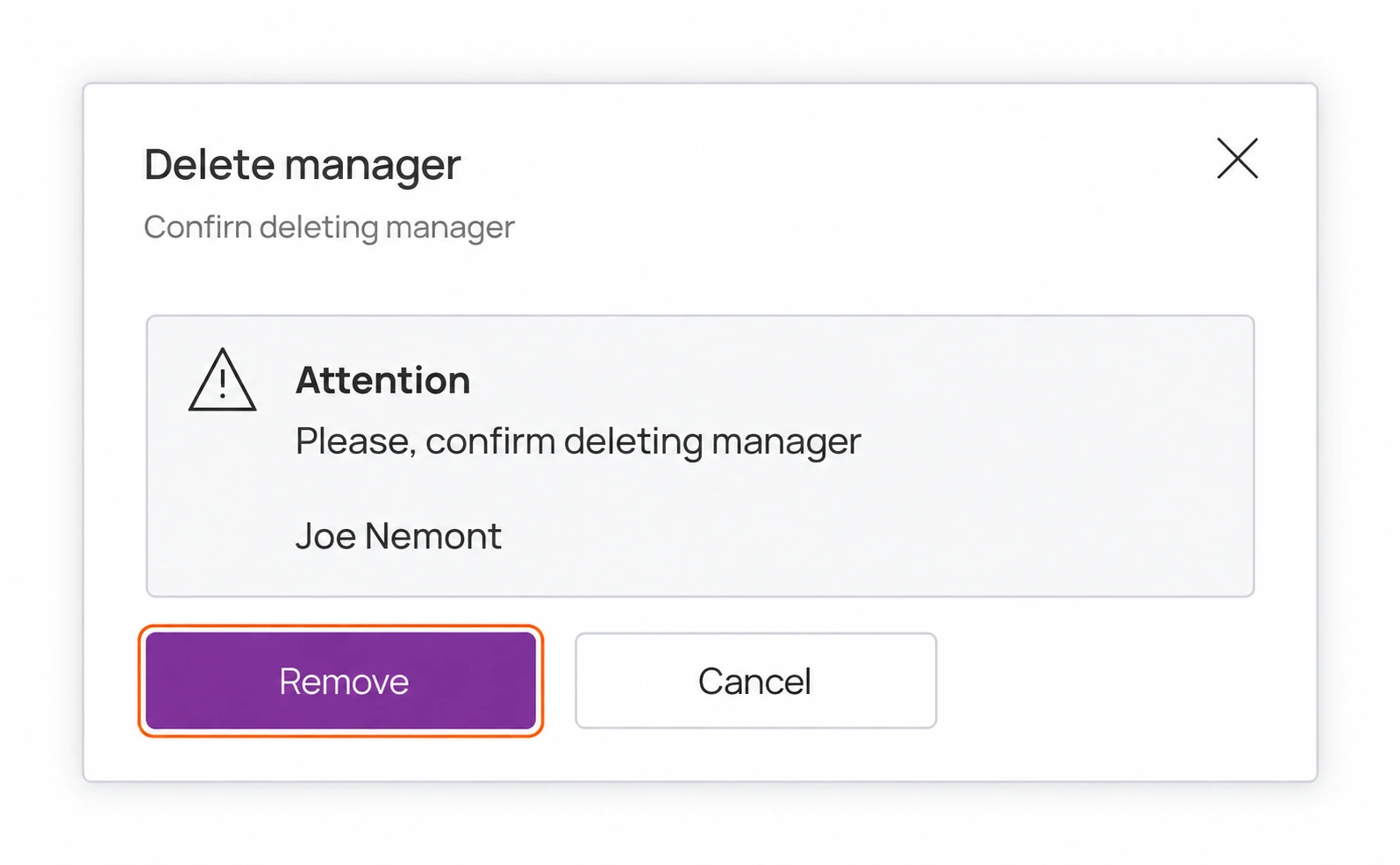
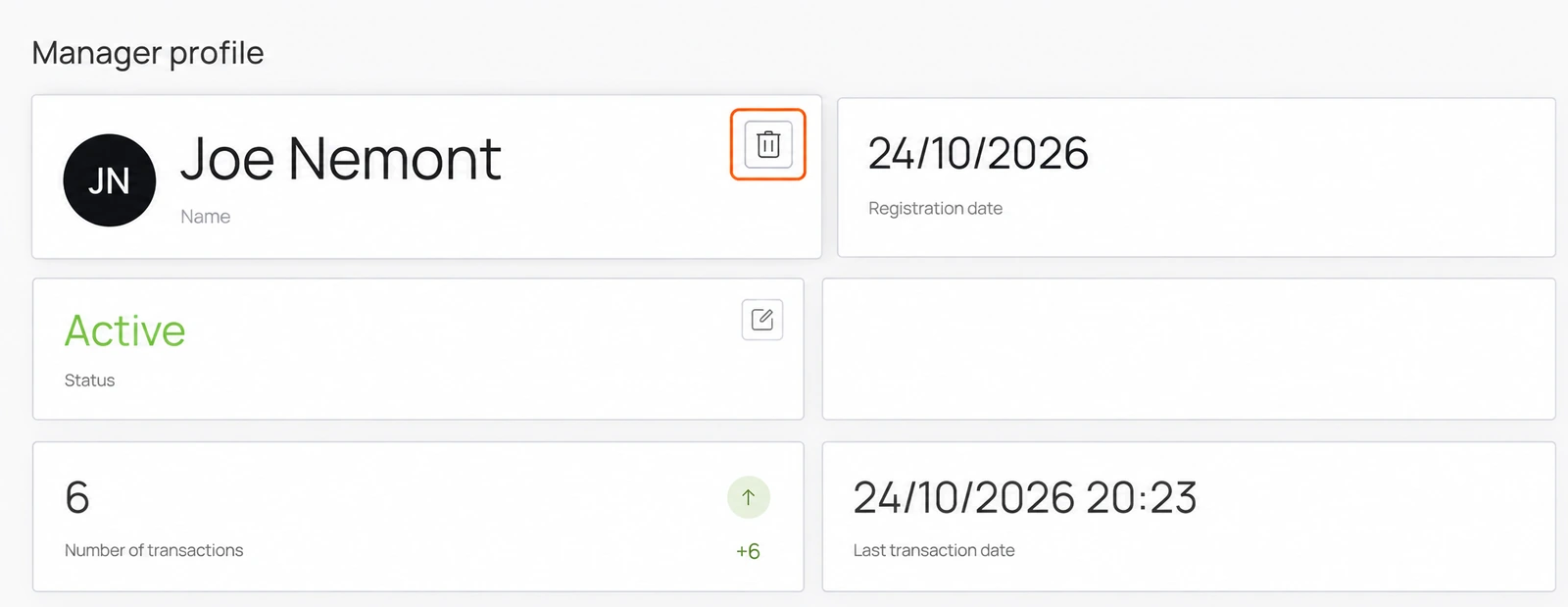
- In Managers, select the manager's name to open Manager profile.
- Select the trash icon beside the manager's name at the top of their profile.
- In Delete manager, check the name. Select Remove to delete that manager, or Cancel to keep them.