Push Notifications

Sending messages to all customers

Learn how you can send push notification message to all customers

Application review pending. Current permissions and product version are unverified.

Loyaltymaster > Left-Hand Menu > Push

  1. Follow the above-mentioned workflow to land on the Send Push tab.

  2. From the Card dropdown under Send Push heading, choose the card you want to send push notifications for. All the created cards are populated in this dropdown.
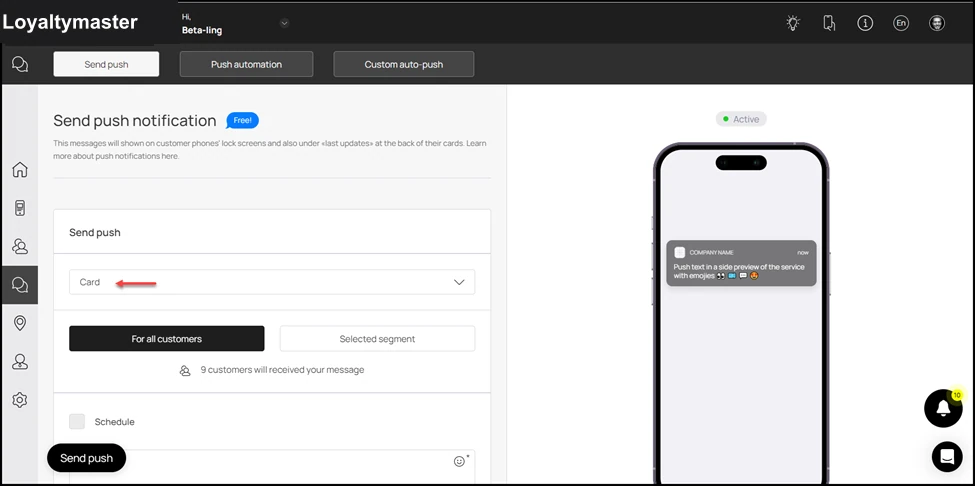
Sending messages to all customers: From the Card dropdown under Send Push heading, choose the card you want to send push notifications for. All the created cards are populated in this dropdown.

  1. By default, the For All Customers option is selected. It means that the push notifications will be sent to all customers having the selected card.
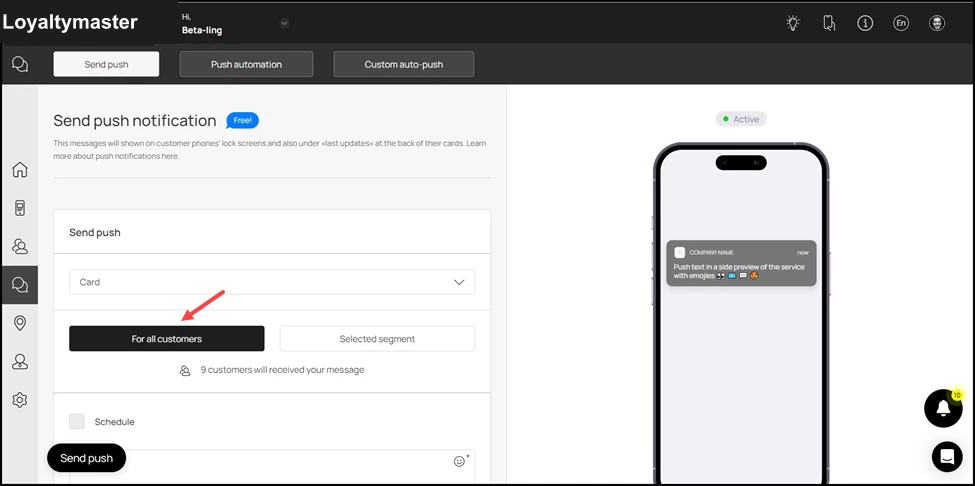
Sending messages to all customers: By default, the For All Customers option is selected. It means that the push notifications will be sent to all customers having the selected card.

  1. Furthermore, if you want to schedule a push notification, mark the Schedule checkbox.
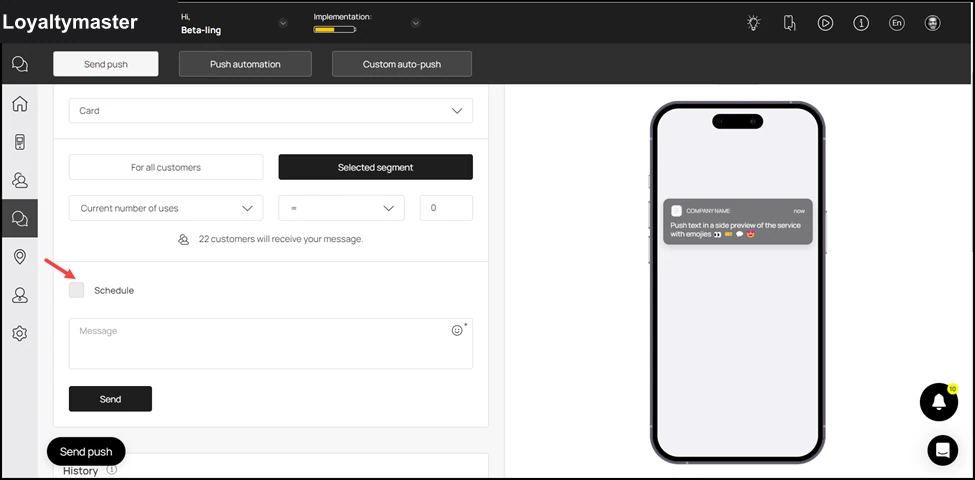
Sending messages to all customers: Furthermore, if you want to schedule a push notification, mark the Schedule checkbox.

  1. This reveals a date/time selector on the right side. You can choose the date and time at which you want the scheduled push notification to be sent.
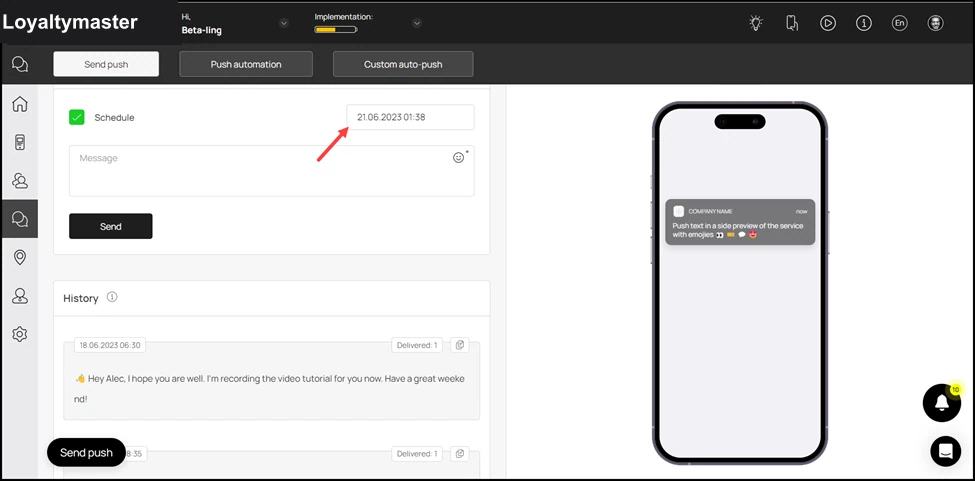
Sending messages to all customers: This reveals a date/time selector on the right side. You can choose the date and time at which you want the scheduled push notification to be sent.

  1. Enter the message you want to send via the push notification using the Message textbox. You can also include smileys by clicking the Emojiicon.
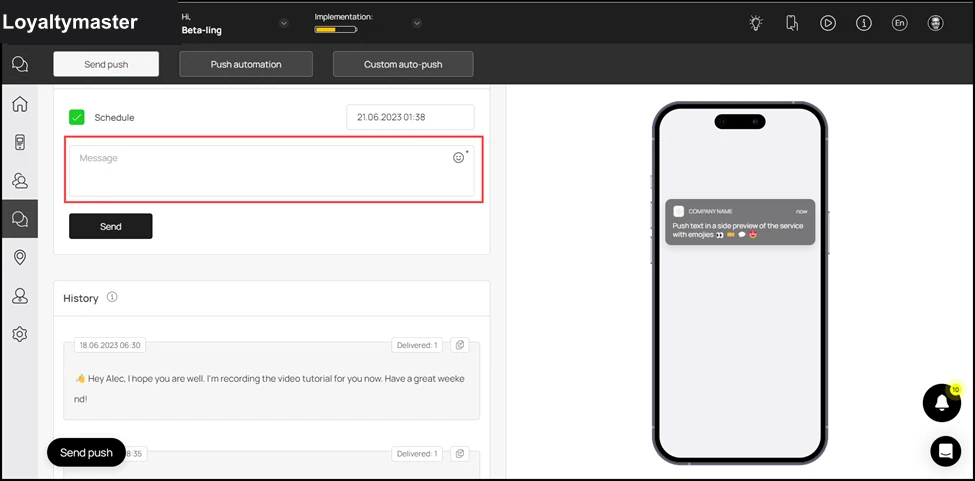
Sending messages to all customers: Enter the message you want to send via the push notification using the Message textbox. You can also include smileys by clicking the icon.

  1. Once the selections are made, click the Send button.
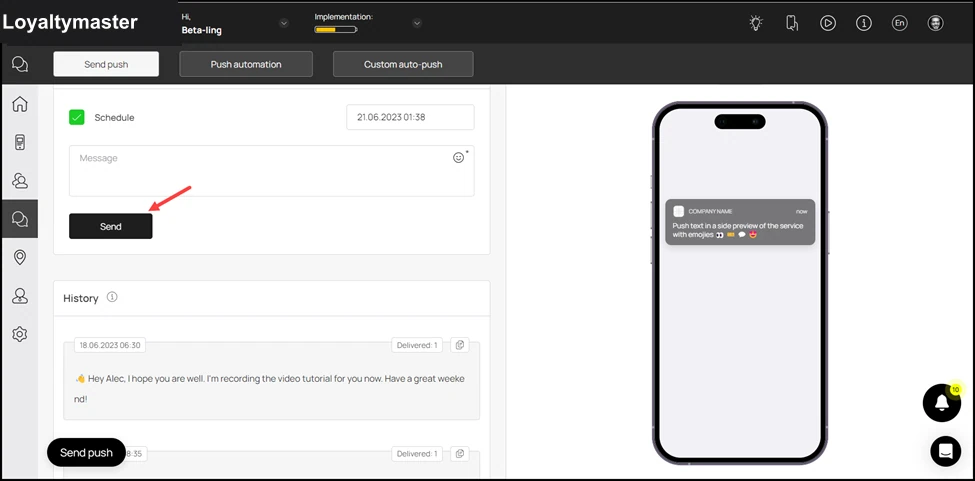
Sending messages to all customers: Once the selections are made, click the Send button.

  1. This opens the Send Push popup with the selections you made displayed to you for review. To confirm, click the Send button.
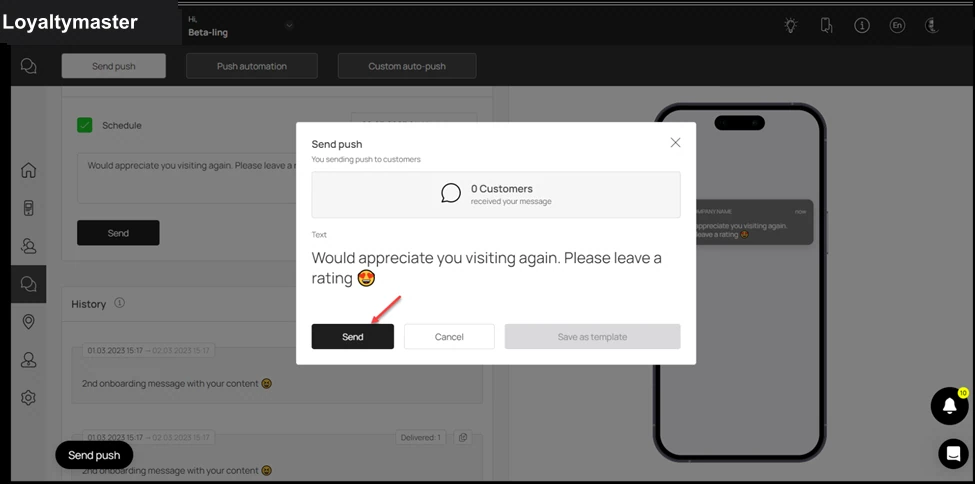
Sending messages to all customers: This opens the Send Push popup with the selections you made displayed to you for review. To confirm, click the Send button.

  1. This schedules the push notification and it is displayed in the History log.
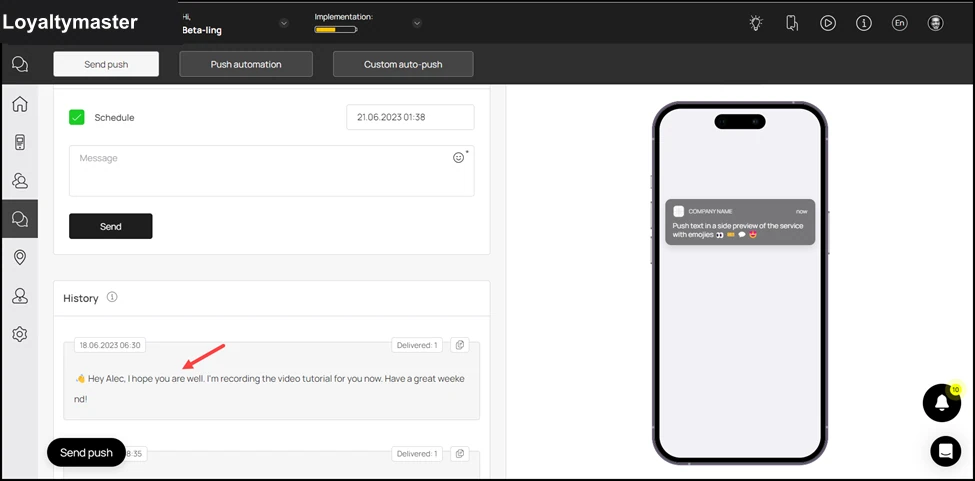
Sending messages to all customers: This schedules the push notification and it is displayed in the History log.