Birthday congratulation
Learn how to setup push notifications for birthday congratulations
Application review pending. Current permissions and product version are unverified.
Loyaltymaster > Left-Hand Menu > Push
-
Follow the workflow mentioned above to land on the Push notifications screen.
-
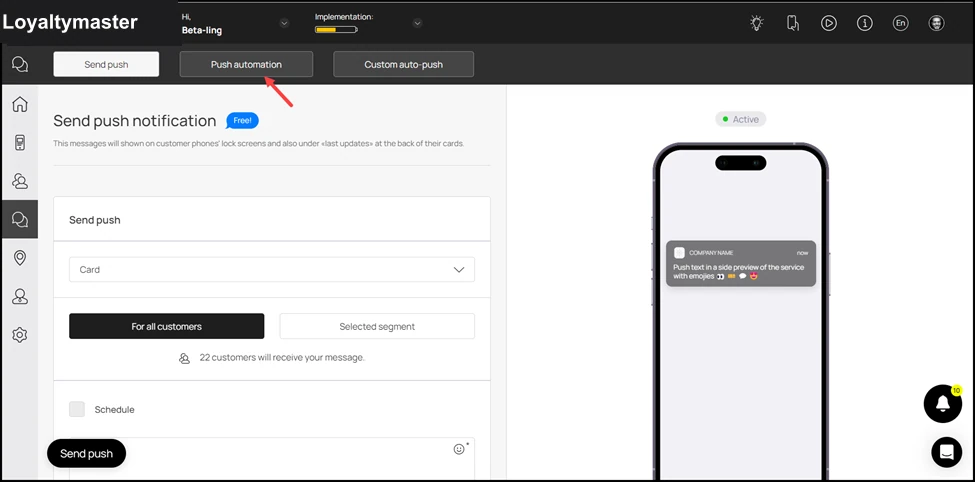
From the tabs listed atop the screen, click Push Automation. This takes you to the Push Automation screen.
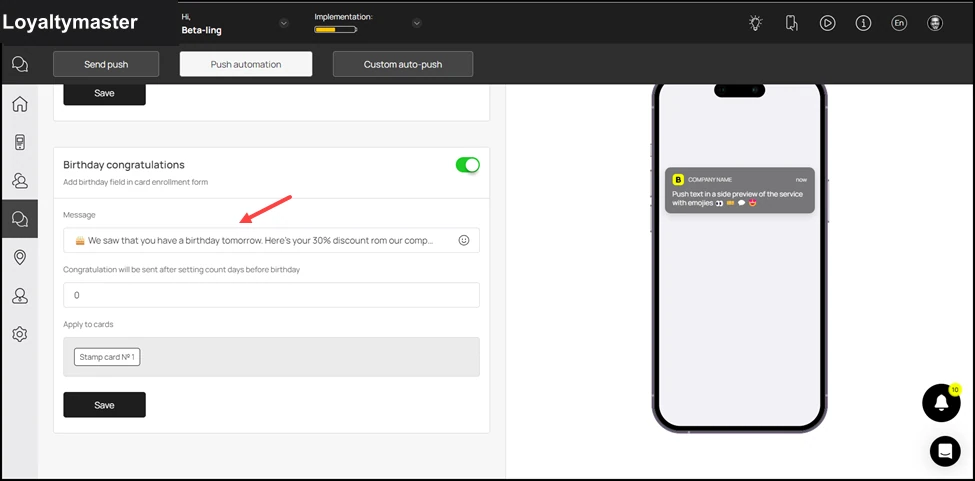
- Navigate to the Birthday Congratulations tile. Here, use the Message field to record the birthday wish you want to be displayed to the customer via the push notification.
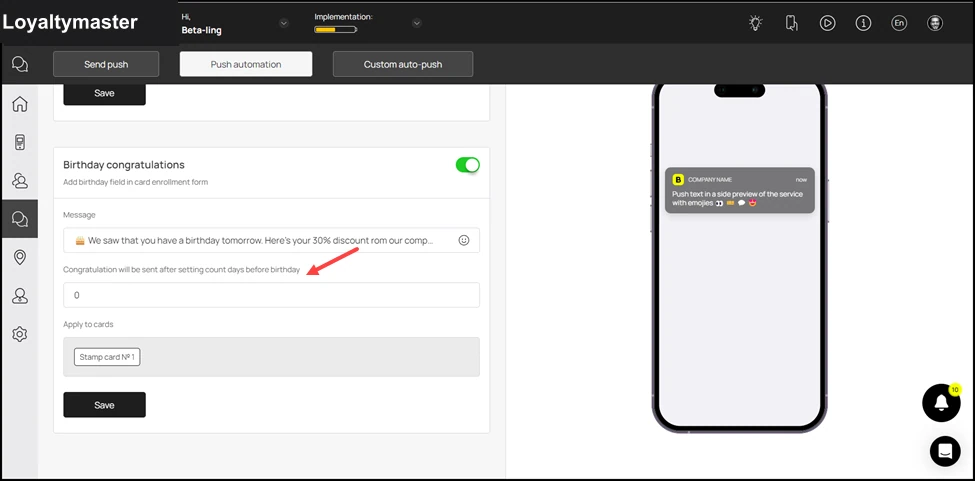
- Enter the number of days prior to the customer's birthday for the birthday wish to be sent using the Congratulation will be sent after setting count days before birthday field.
- The card(s) to which this applies are displayed in the Apply to Cards field.
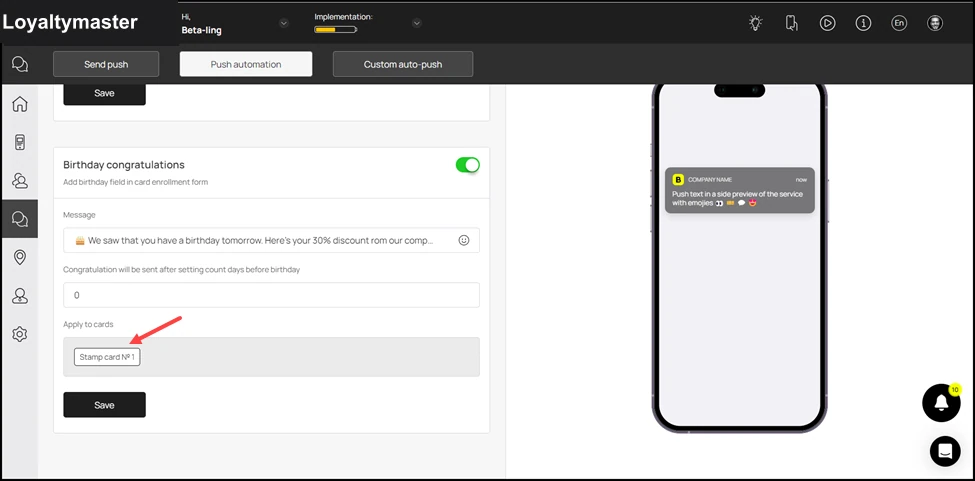
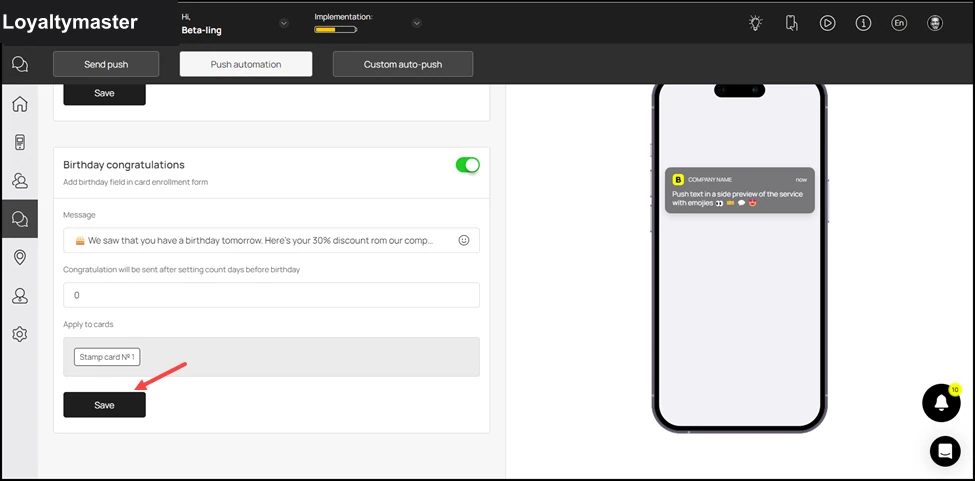
- Once the selections are made, click the Save button.