Automate Feedback Requests
Learn how push automation works for Feedback Collection
Application review pending. Current permissions and product version are unverified.
Loyaltymaster > Left-Hand Menu > Push
-
Follow the workflow mentioned above to land on the Push notifications screen.
-
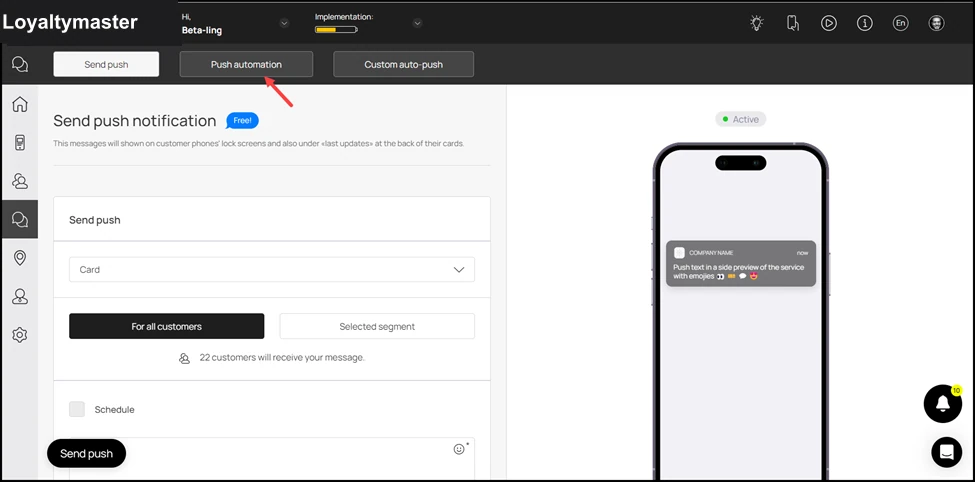
From the tabs listed atop the screen, click Push Automation. This takes you to the Push Automation screen.
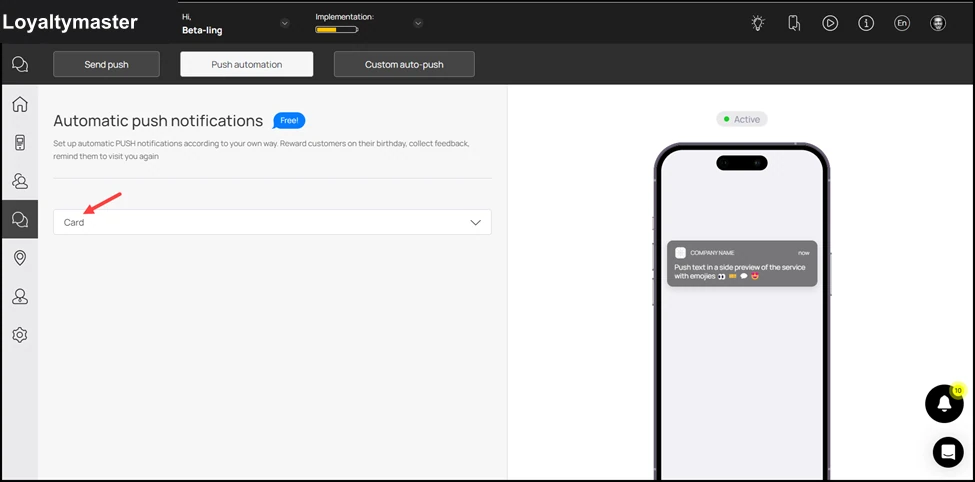
- Here, use the Card dropdown to select the card for which you want to setup push automation.
- As a selection is made, all events for push automation are displayed via separate tiles. You can use the toggle button at the top-right corner of each tile to enable/disable the automation for that specific event.
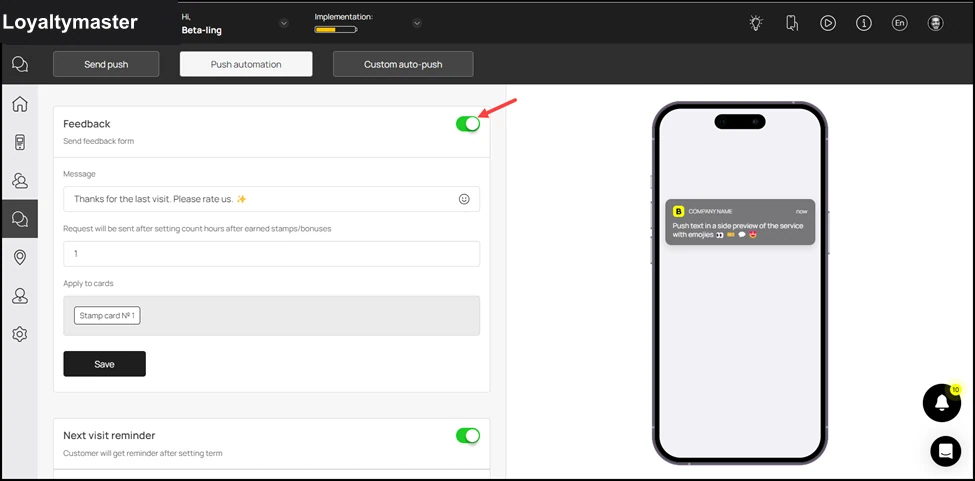
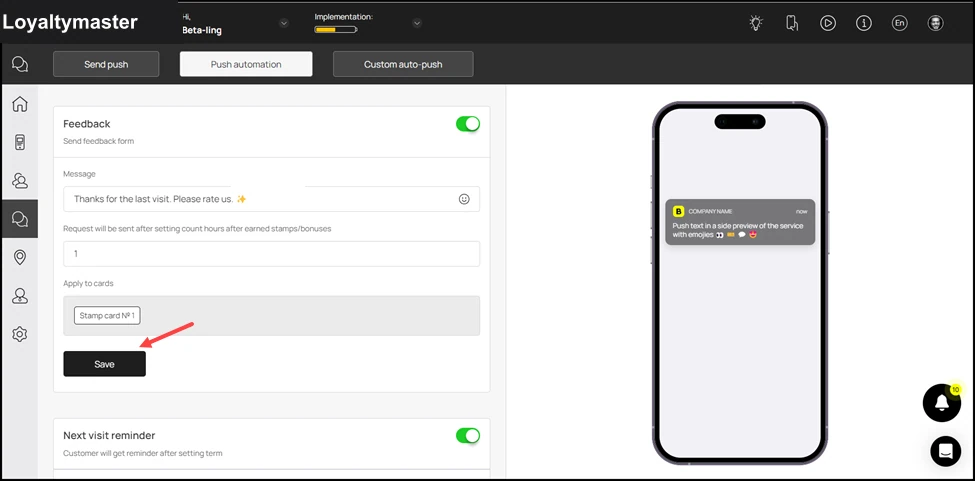
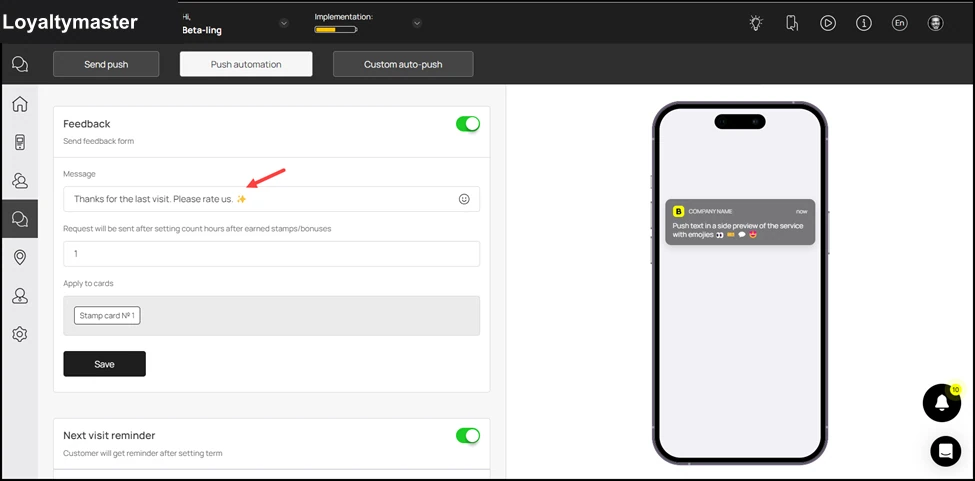
- Record the message you want to be displayed in the push notification using the Message field.
- Using the next field, you can set the number of hours upon visit after which the push notification for feedback is sent.
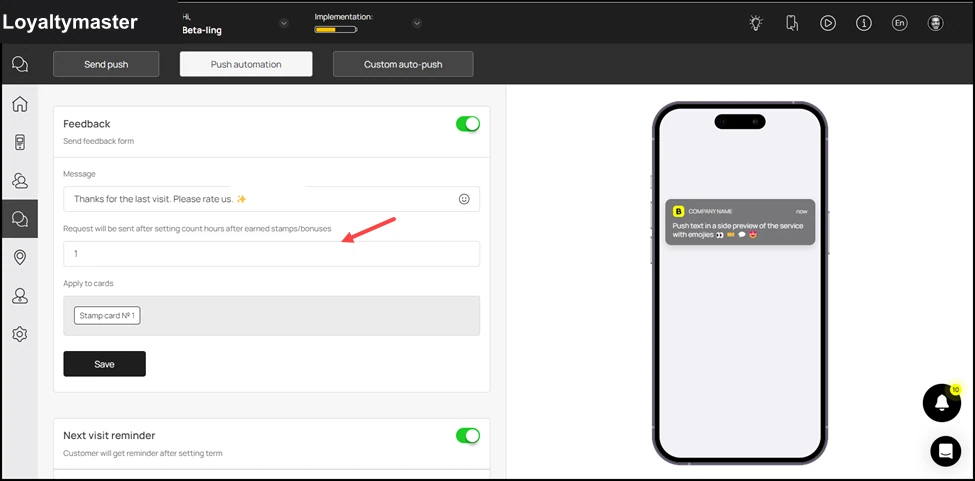
- As the selections are made, click the Save button.