Grinds: Create a Discount Card
Set up five spending-based discount levels, design a recognisable coffee-shop card and follow the customer journey into Apple Wallet.
On this page
Give regular customers a reason to come back by letting them build towards a higher discount. This example uses Grinds, a coffee shop, to show a five-level Discount card from setup to the customer's Apple Wallet.
Use the example to plan your own offer in your own Loyaltymaster account. You do not need access to the Grinds card. The amounts below use dollars; choose your own thresholds and rates after checking the cost to your business.
The Grinds offer
A new customer starts at 0%. As their recorded eligible spending reaches each threshold, they qualify for a higher discount:
| Level | Spending needed to reach the level | Discount |
|---|---|---|
| Starting level | $0 | 0% |
| First discount | $250 | 5% |
| Second discount | $500 | 10% |
| Third discount | $750 | 15% |
| Highest discount | $1,500 | 20% |
These thresholds are totals, not extra amounts added at each level. The customer can see their current discount and how much more they need for the next level.
For example, at a 5% discount, a $20 eligible bill has a $1 saving and $19 to pay. At 10%, the same bill has a $2 saving and $18 to pay. The discount reduces the bill; it does not create a cashback balance.
A coffee shop might use this approach for repeat coffee visits. A retailer or salon could adapt it for repeat purchases or appointments. Decide which items qualify and whether any low-margin products or other promotions are excluded. A busy shop should be able to explain the offer in one sentence: “Your discount grows as your eligible spending adds up.”
Create the card in your account
Open Cards, start a card From scratch, and give it a useful name, such as Grinds Discount Card for a practice example. Select Discount in Card type, then select Continue.
In Settings, find Cardholder status. Enter the starting row with 0 spending and 0 percent. Use Add tier for the remaining four rows:
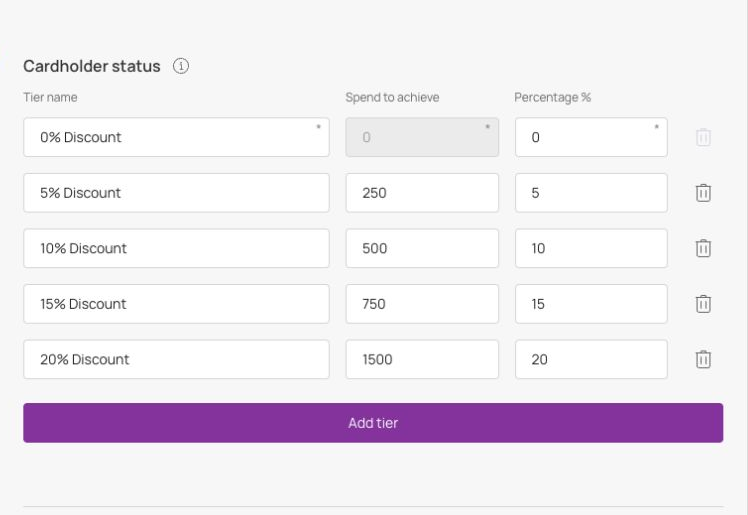
Use names such as 5% Discount so the benefit is easy to recognise. Enter 250, 500, 750 and 1500 in Spend to achieve, with 5, 10, 15 and 20 in Percentage %. Keep the starting row even though it gives no discount: it explains what a new customer receives before reaching the first threshold.
Select your participating Locations. For an ongoing offer, choose Unlimited under Card expiration date. If your programme has an end date instead, choose the matching expiry option and include it in your terms.
Keep the first launch focused on the standard levels. Add Happy hours or other promotions only after deciding how they fit your offer and checking the results. The Discount setup guide explains these optional settings and the remaining fields.
Keep joining straightforward
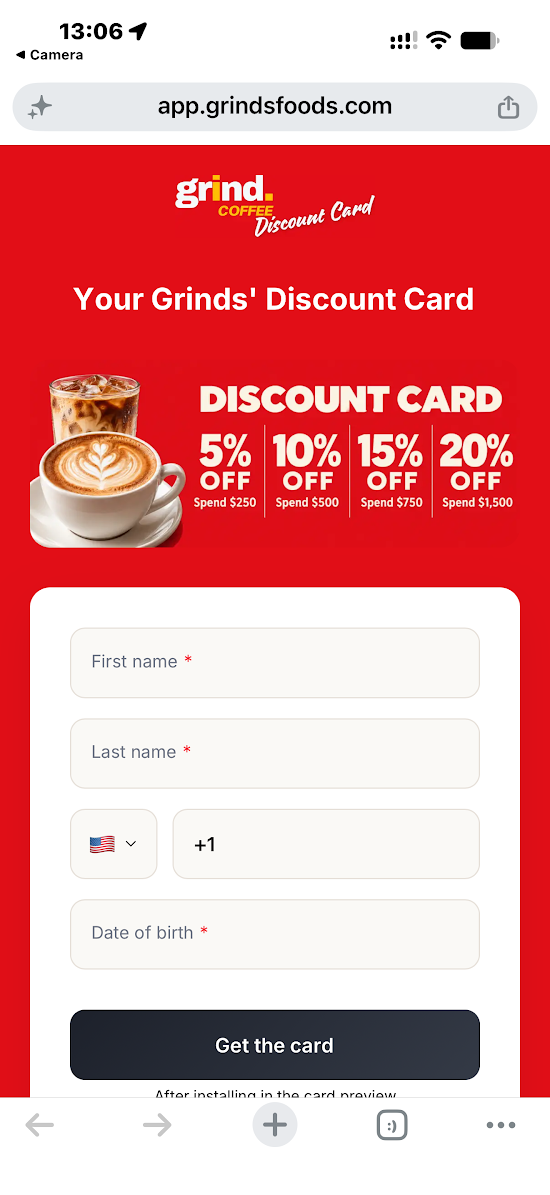
Under Card issuing form, choose the information your business needs. The Grinds form shown here asks for first name, last name, phone and date of birth. First name, last name and birth date are required; phone is optional. Your business can use a shorter form if it does not need all of those details.
Choose a suitable Phone mask, review the privacy and consent text, and leave Card installation via shared link on if you want people to join from a public poster or web link. Select Continue when your settings are ready.
Make the benefit clear on the card
In Design, upload your own logo, square icon and central artwork. Grinds uses bold red artwork so customers can recognise the card quickly in their wallet. Keep the discount and progress easy to read against the background.
Under Fields name, choose Spend to reach next level and Discount status. Give them short labels, such as To Get to Next Level and Level. Turn on the two registration-form branding switches if you want your logo and background colour on the joining page.
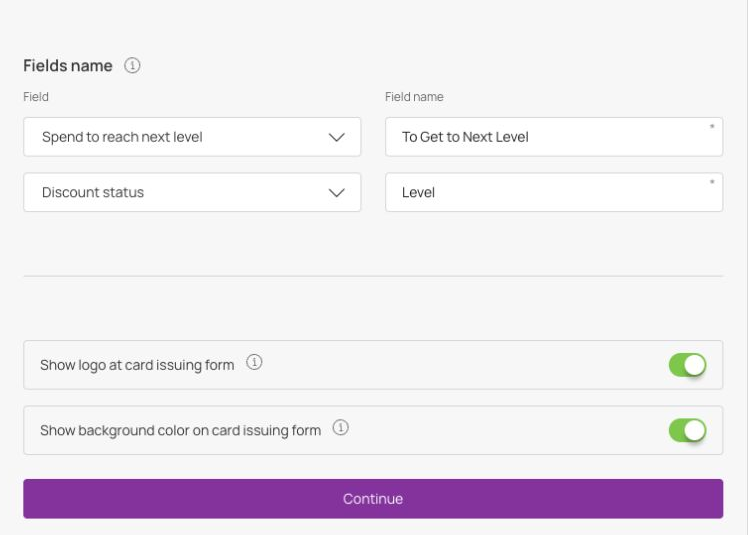
The useful result is a card that answers two questions: “What discount do I have?” and “How much more do I need to spend for the next level?” Wallet presentation can differ from the editor preview, so check the installed card as well as the design screen. Select Continue to open Information.
Explain the offer before sharing it
In Information, enter your business name and a short description. Add a menu or website link if it will help customers. Use your own customer contact details in Issuer information.
Turn on Terms of use and enter your offer in the text field below it. For this example, the core wording could be:
Start at 0% discount. Reach $250 in eligible recorded spending for 5%, $500 for 10%, $750 for 15%, and $1,500 for 20%. Show your card when you order so staff can check your current discount.
Add your own eligible-purchase, expiry, return and offer-combination rules. Decide when a higher discount begins to apply to a purchase that crosses a threshold, then make that rule clear to staff and customers. Keep the tier table, joining form and terms consistent.
Use Finish to save, check the saved card and joining form, then activate your own card when ready. Read the activation warning before confirming, because some settings become locked. Saving alone does not make the template active.
What the customer sees on iPhone
These are three separate stages of joining and adding the card. The customer uses your shared installation link or scans your installation QR code; they do not need a Loyaltymaster business account.
Complete the joining form
The customer opens the link, sees the discount levels and enters the required details. They then tap Get the card.
Add the card to Apple Wallet
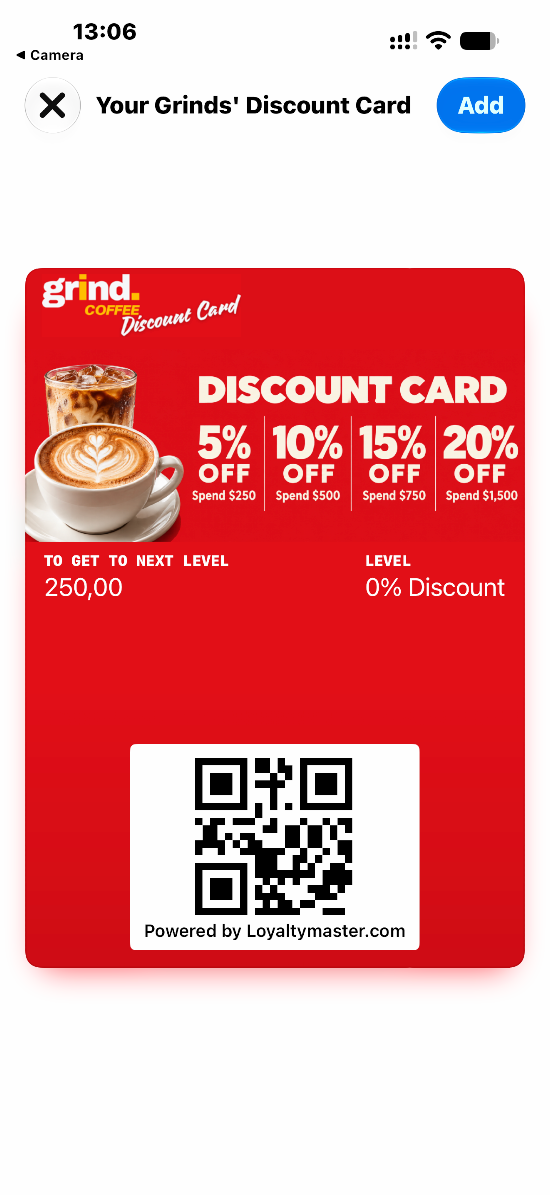
The Apple Wallet preview opens. The customer taps Add in the top-right corner to save the card.
Find the saved card
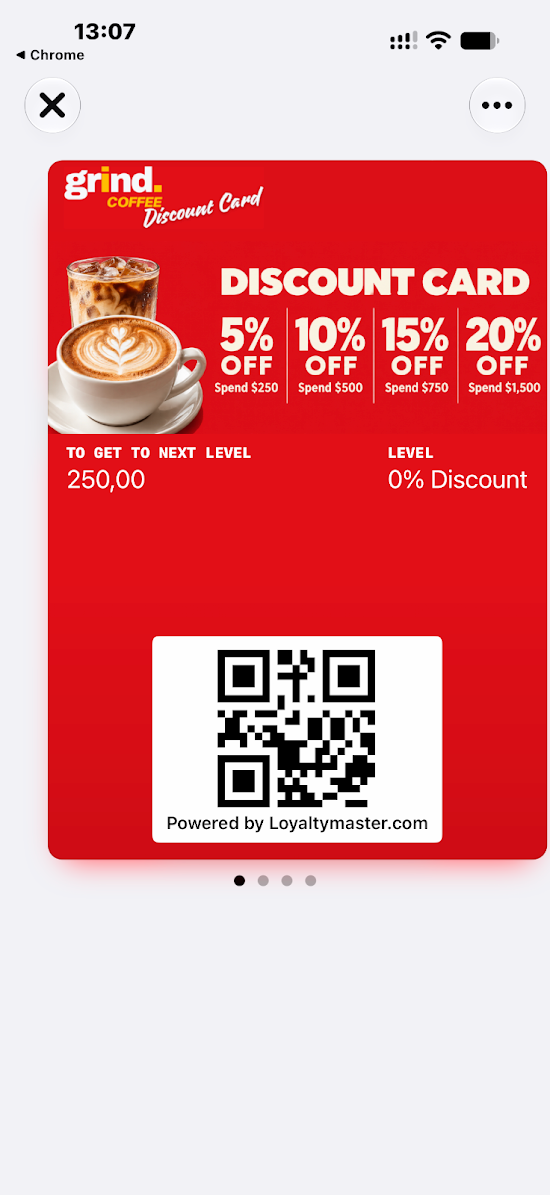
The customer opens Apple Wallet and selects the Grinds card. The installed card shows a starting 0% Discount and 250,00 to get to the next level. Its QR code is the code staff scan during a visit. The comma is the decimal separator, so 250,00 means 250.
For Android customers, enable the Google Wallet installation option and check that separate path on an Android phone before promoting it. The screens above show the iPhone path.
Use the offer at the counter
When a customer visits, staff scan the installed card in the Scanner App and check its current discount. Apply that rate to eligible items at the till. For example, if the card shows 5% and the eligible bill is $20, the saving is $1. The amount to pay is $19.
Record the eligible transaction in the Scanner App using your agreed spending rules. Check any prefilled amount. On the second confirmation screen, choose Add or Redeem as appropriate to the action; a comment is normally optional unless required by your setup. Type the purchase amount only if the setup requires it and it is not already filled in. See Scan and make transactions for that confirmation flow.
Keep the till adjustment and card update as two checks in staff training. Do not assume recording a card transaction automatically reduces the customer's bill in your payment system.
Before launch, use an authorised test card to check a purchase and a threshold crossing, then reopen the wallet card to check the displayed level and progress. Confirm your spending and return rules with staff. This is especially important near a new level, where customers may ask whether the higher rate applies to today's purchase or the next one.
Ready to introduce your own version?
Check that your card is active, the joining form asks only for the details you need, the installed card shows the correct starting level, and staff can explain the saving and next threshold. Then share your own installation link or QR code at the counter, on your website or in a customer message.
Use How to Create a Discount Card for the complete settings reference and Share a card for the sharing steps.