Cards in Your Wallet

Install a Loyalty Card on Android

Convenient method to install cards on Android devices

Application review pending. Current permissions and product version are unverified.

Loyaltymaster > Left-Hand Menu > Cards > Select Card

  1. Follow the above-mentioned workflow to land on the Card Information section.

  2. Scan the QR code from your Android device. This takes you to the Card Issuing Form.
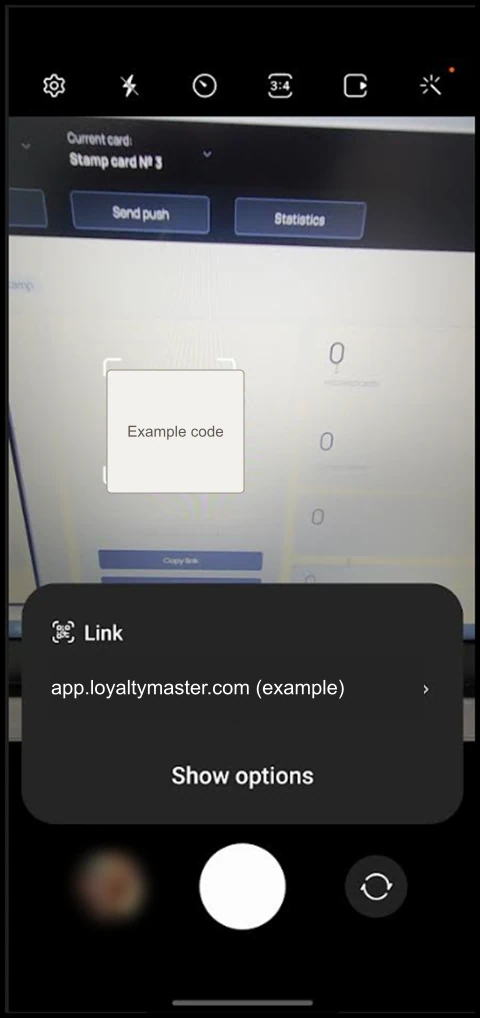
Install a Loyalty Card on Android: Scan the QR code from your Android device. This takes you to the Card Issuing Form.

  1. Use the First Name field to record your first name.
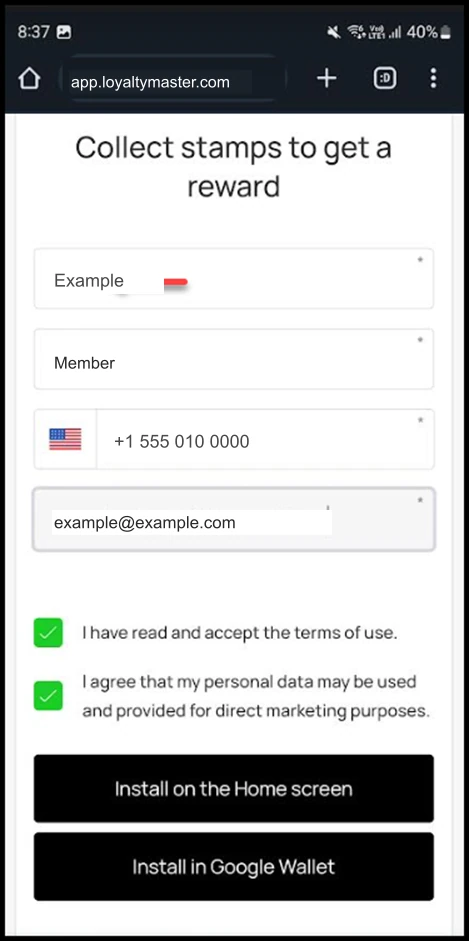
Install a Loyalty Card on Android: Use the First Name field to record your first name.

  1. Similarly, enter your last name in the Last Name field.
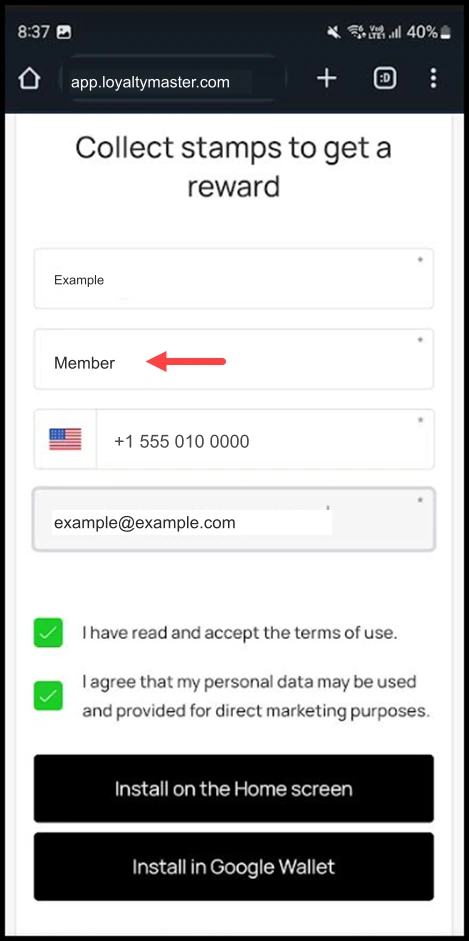
Install a Loyalty Card on Android: Similarly, enter your last name in the Last Name field.

  1. Enter your contact number in the Contact Number field.
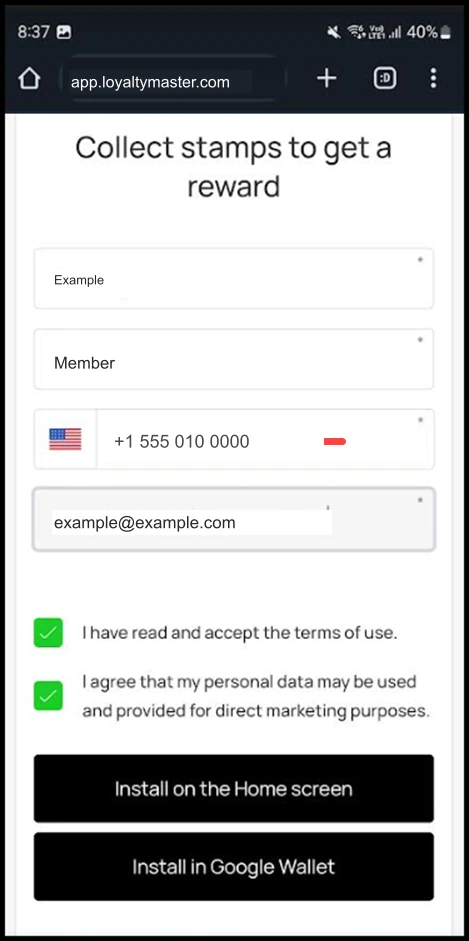
Install a Loyalty Card on Android: Enter your contact number in the Contact Number field.

  1. Use the Email field to record your email address.
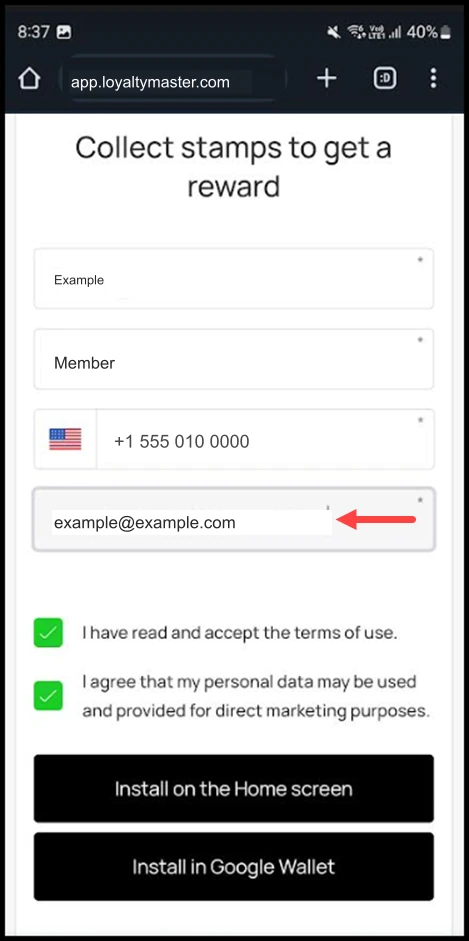
Install a Loyalty Card on Android: Use the Email field to record your email address.

  1. To install the card on your home screen, click the Install on Home Screen button.
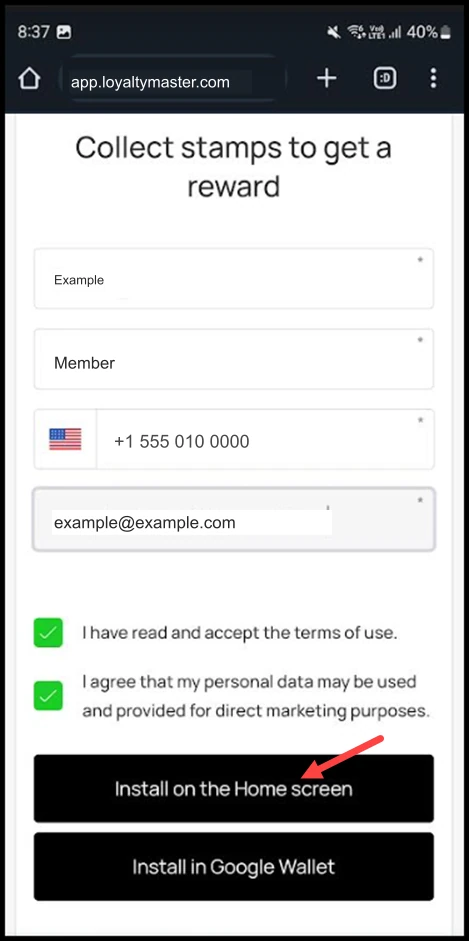
Install a Loyalty Card on Android: To install the card on your home screen, click the Install on Home Screen button.

  1. To install the card in Google Wallet, click the Install in Google Wallet button.
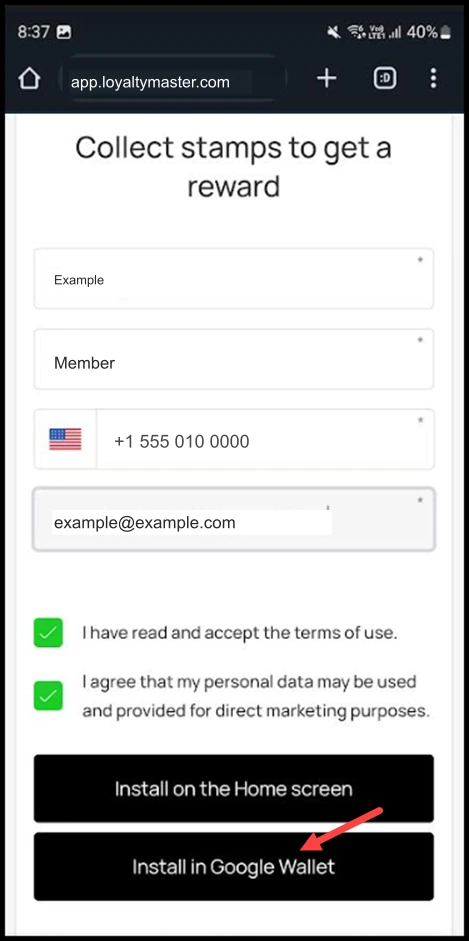
Install a Loyalty Card on Android: To install the card in Google Wallet, click the Install in Google Wallet button.

  1. This loads the card in Google Wallet. To add the card to wallet, click the Add button.
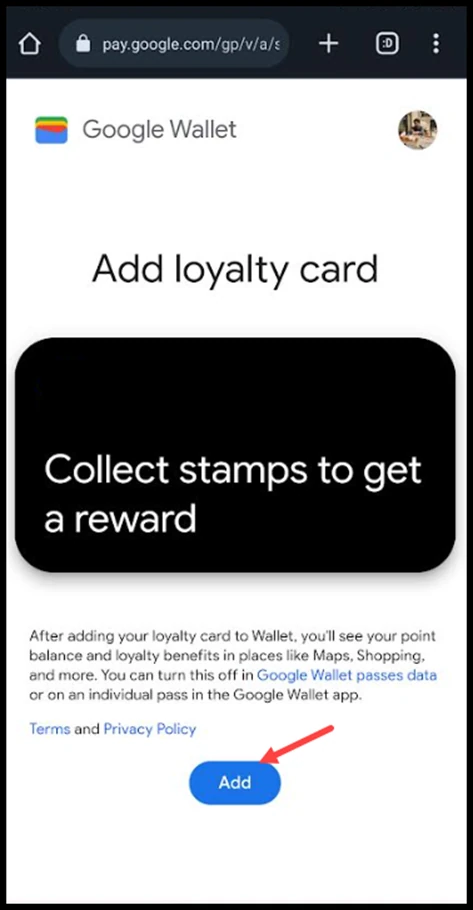
Install a Loyalty Card on Android: This loads the card in Google Wallet. To add the card to wallet, click the Add button.