Manager Seats
Learn how to create manager profiles
On this page
Give each staff member a manager account so they can sign in to the Scanner App with their own email address and password.
Open Managers
In the Loyaltymaster console, open Managers (the single-person icon below Locations) from the left menu, then select Add manager.
Select any screenshot to enlarge it.
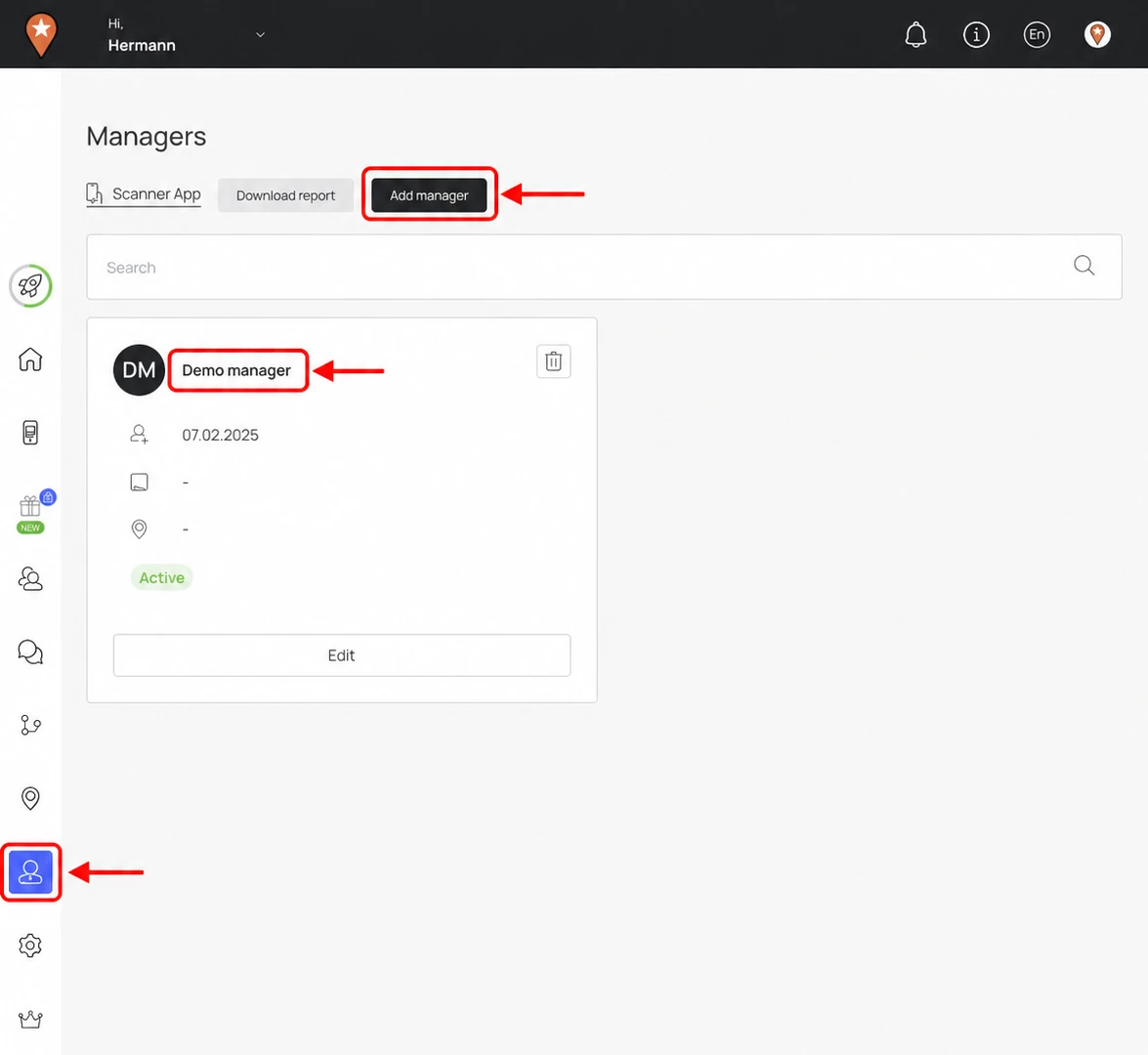
To create a staff account, use the marked Managers menu and Add manager button.
Enter the manager's details
- Enter their Full name, Email and phone number, including the country code. Use the email address they will use to sign in to the Scanner App.
- Enter a Password, then enter it again in Repeat password. The form requires at least six characters; choose a strong, unique password.
- Use Location select to assign a location if needed. Enter any staff instructions in Notes.
- Leave Send access to email on if you want to send access by email. Turn it off if you will give the manager their sign-in details yourself.
- Select Add manager and check that the new manager appears in the list.
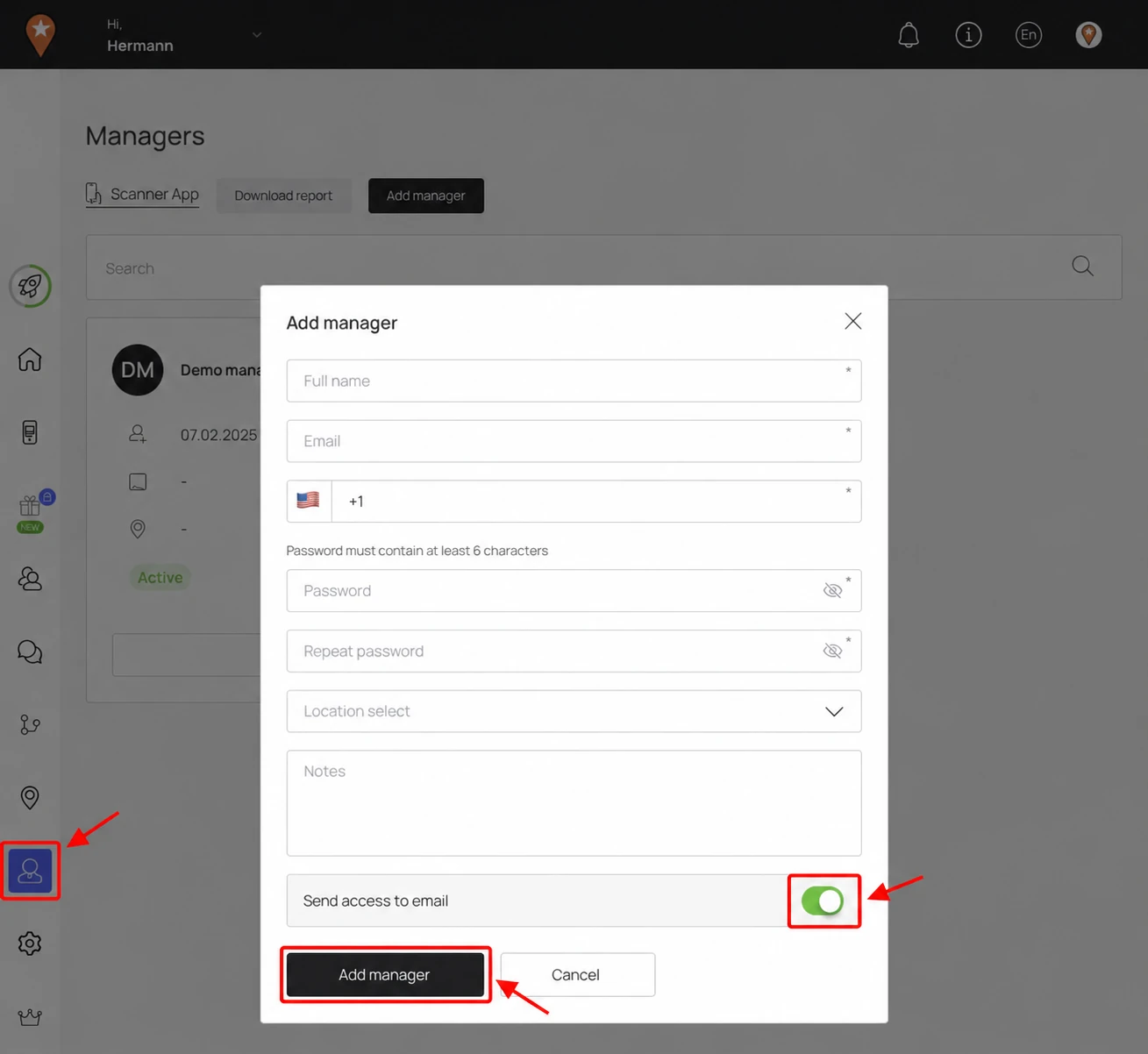
Help the manager sign in
Select Scanner App at the top of the Managers page, or open app.loyaltymaster.com/scanner-app. Give the manager this link and their sign-in details through your usual secure channel.
They use the email address and password from their manager account. See Scanner App sign-in for access help. For later changes to details, permissions or access, see Add, edit or delete a manager.