Scanner APP - Rewards Card
Find your customer, add points for a purchase and redeem an available reward using the Scanner App.
Application review pending. Current permissions and product version are unverified.
On this page
Use the Scanner App to add points for a customer's purchase or redeem an available reward on their Reward card. Your Reward card settings determine how customers earn points and which rewards they can claim.
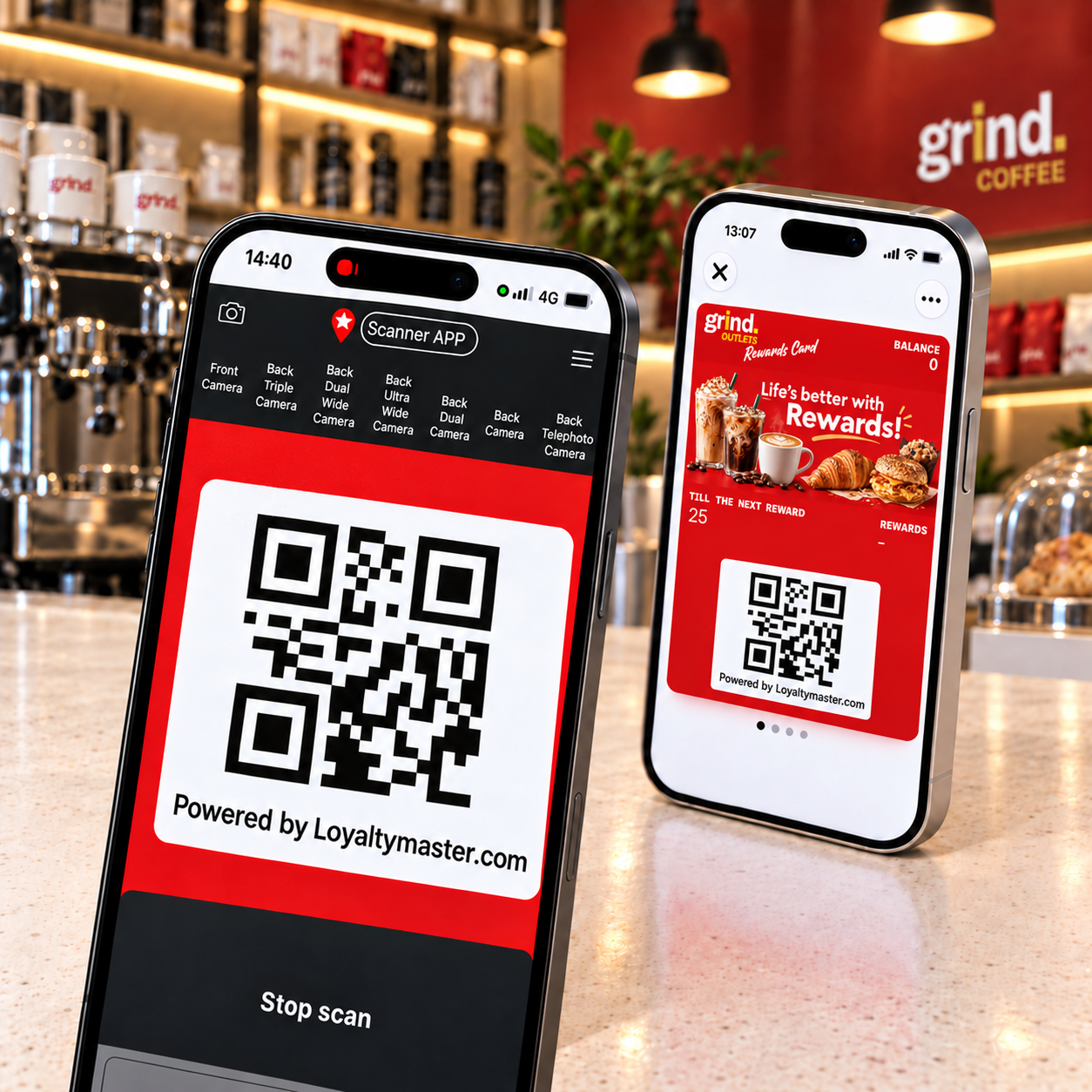
How to start
Open the Scanner App and sign in with the username (email address) and password supplied by your manager. If you do not have these details, ask your manager before continuing.
Find your customer
Once you are signed in, scan the customer's card or search for them. The screen and available actions can differ depending on your phone, the customer's card type and your card settings.
Choose how to find the customer:
-
Scan: select Scan and point the camera at the QR code on the customer's loyalty card. The first time you scan, allow camera access if prompted. The Scanner App scans the code and shows the customer's details.
-
Search: select Search customers, below the large Scan button at the bottom of the screen.
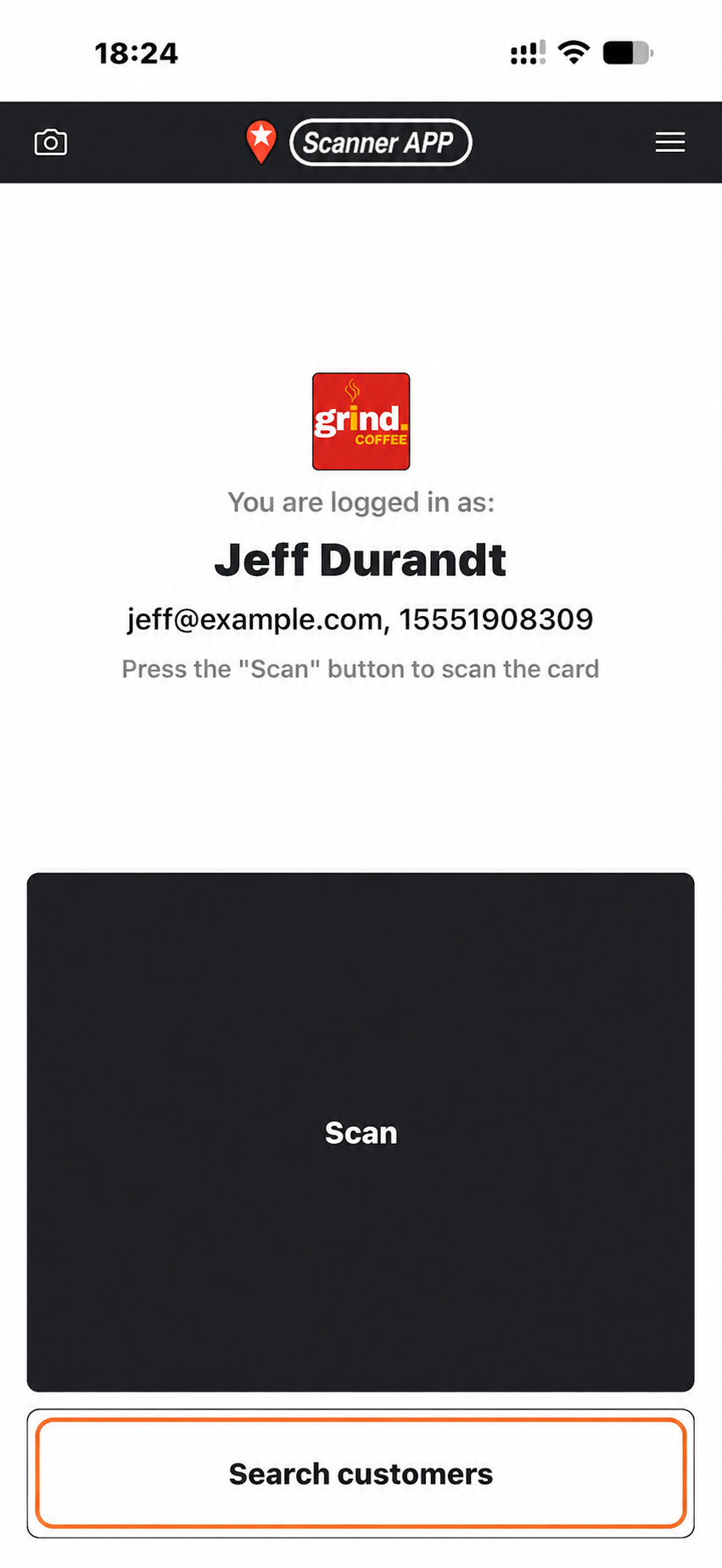
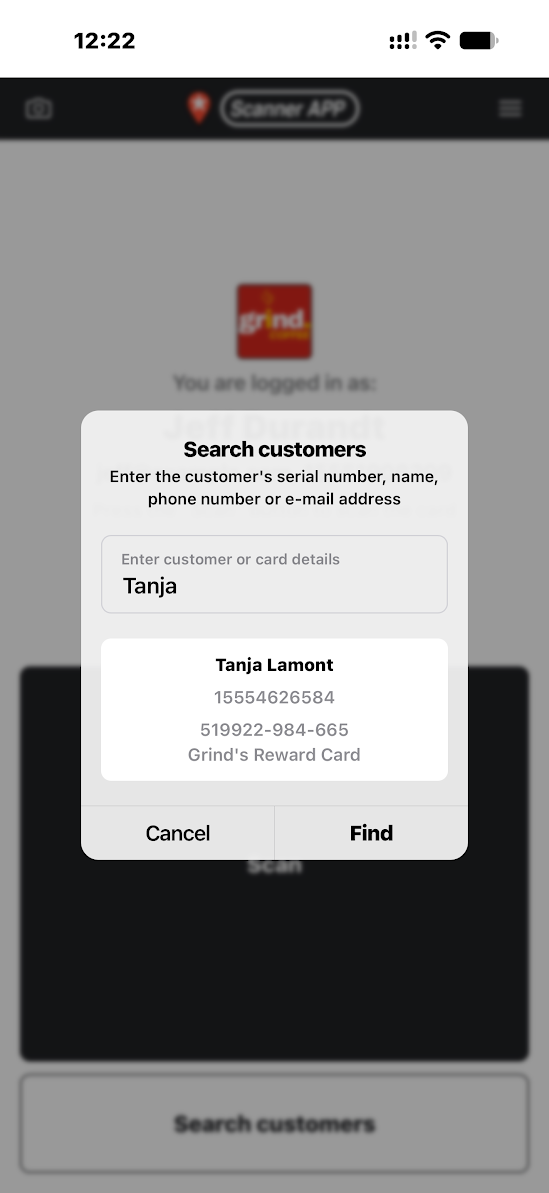
Search by phone, name, surname or loyalty card serial number
- Ask the customer for their mobile phone number and type part of it into Enter customer or card details. You do not need the full number. This is usually the quickest way to find them. You can also search by first name, surname, email address or Reward card serial number.
- If more than one result appears, check the name, phone number and card details, then select the correct customer. Check that you have opened their Reward card before continuing. If needed, enter more of the phone number to narrow the results.
Add points for a purchase
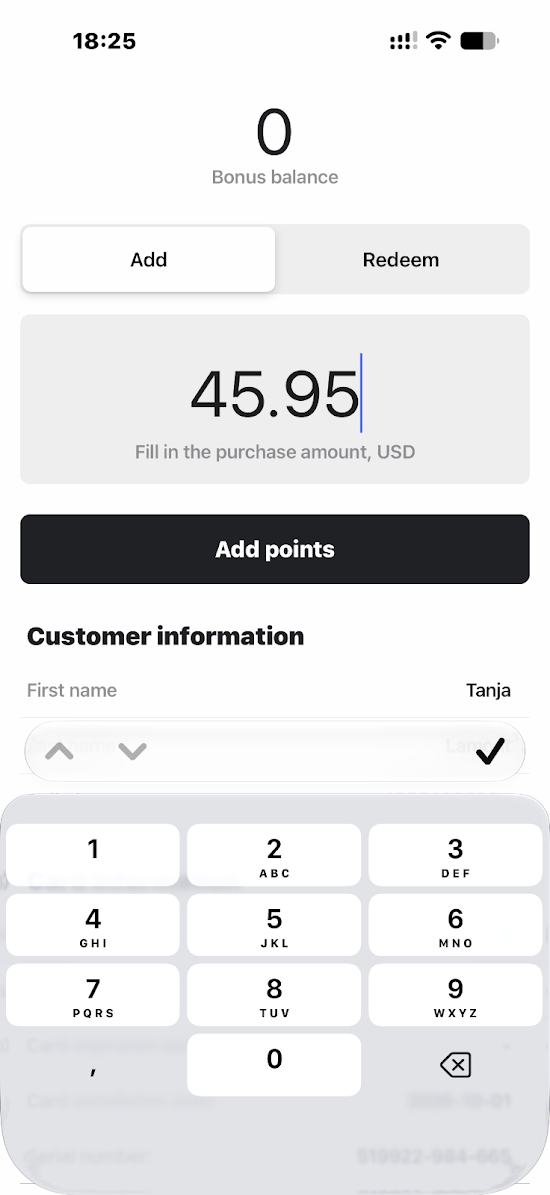
These steps show a card that awards points based on Spend. If your card uses another earning method, follow the fields shown for that card. The purchase example is 45.95 USD; enter your customer's actual eligible purchase amount in the currency shown.
- Select Add, enter the purchase amount in Fill in the purchase amount, USD, then select Add points. Enter the purchase value, not a points total you calculated yourself. The Scanner App calculates points using your card's earning rule.
- On the separate Confirmation screen, check the customer and purchase amount, then select Add. If a purchase amount is already filled in, check it rather than entering it again. A comment is normally optional; complete it if your card requires one.
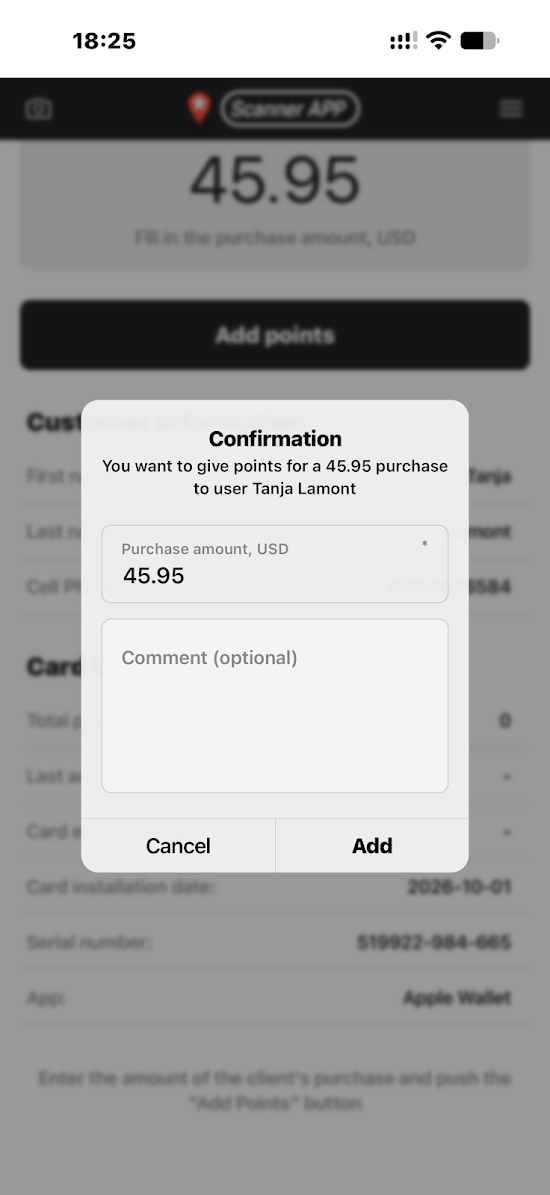
A purchase amount is required here when Settings → Purchase amount when charging → Purchase amount is required in Scanner App is enabled. A required comment is controlled separately by Comment when accruing → Require a comment when crediting.
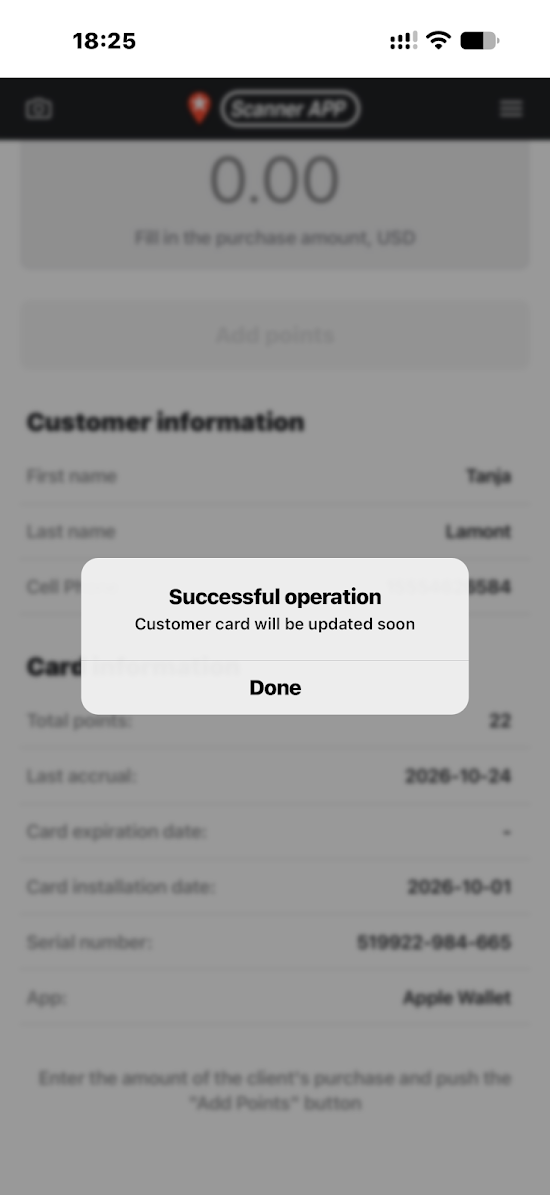
- When Successful operation appears, select Done. The message says the customer's card will be updated soon.
Redeem a reward
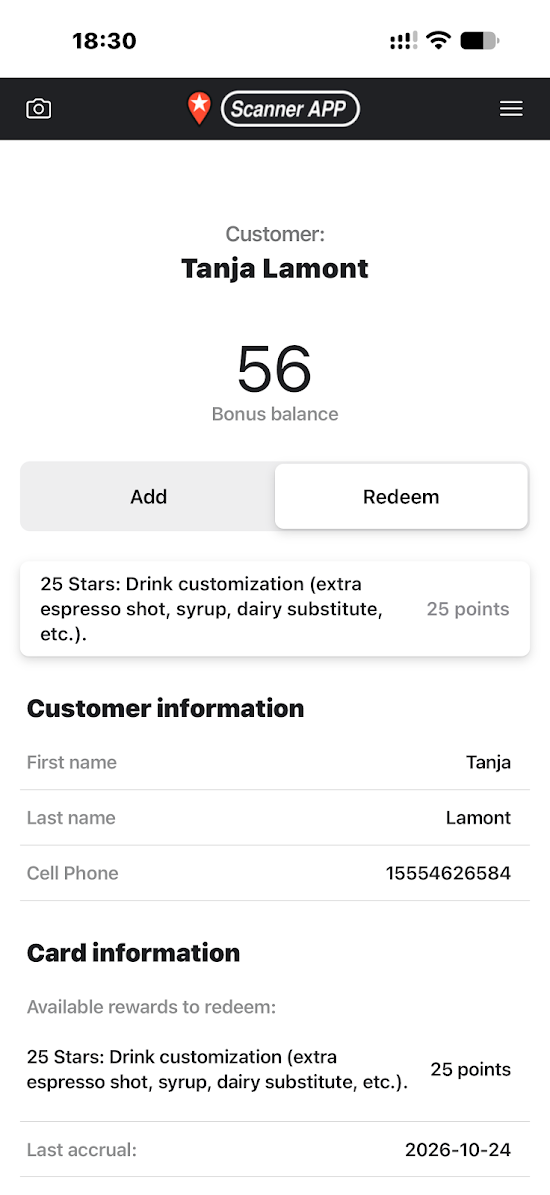
- Find the customer's Reward card and select Redeem. Check Bonus balance and the available named rewards. Ask which reward the customer wants, then select that reward.
In this separate redemption example, the customer has 56 points and can select 25 Stars: Drink customization (extra espresso shot, syrup, dairy substitute, etc.) for 25 points. Your reward names and points costs depend on your card settings.
- On the separate confirmation screen, check the customer and selected reward, then select Redeem. A comment is normally optional. Complete any purchase amount or other required field shown for your card.
- Wait for confirmation that the redemption succeeded before handing over the reward. If the result is unclear, check the customer's card or ask for help before repeating the transaction.
Recording a loyalty transaction does not replace the sale or discount entry at your till.
Need help?
If anything is unclear, get help or contact our support team.