Coffee Shop: Create a Stamp Card
Build a clear buy-nine-coffees offer: compare earning methods, choose the reward, set up the card and plan your counter test.
Application review pending. Current permissions and product version are unverified.
On this page
A practical walkthrough for a coffee shop that wants a clear offer: buy nine eligible coffees and get one coffee free. Start with the offer, then enter settings that support it. You can use this as a planning guide before opening the editor.
The screenshots use The Grind's existing demonstration Stamp card. They are annotated teaching illustrations made from current captures; enlarged panels are not extra windows in the app. Some settings are locked on this active card. The recommended starter offer below is a worked example, not a claim that the existing card has been changed. Select an image to enlarge it; on a phone, use Zoom in to read the small controls. Every instruction is also written below.
Decide your offer first
For this example, use the following rule sheet. Agree it with whoever runs the till before creating the card.
| Decision | Starter example |
|---|---|
| What earns a stamp? | One paid, eligible regular coffee earns one stamp. Two eligible coffees earn two stamps. |
| What earns the reward? | Nine earned stamps qualify for one free coffee. Choose 9, not 10, for the stamp target. |
| What can be redeemed? | One eligible regular coffee. Decide sizes, upgrades and exclusions, and write them clearly. |
| Is the reward purchase eligible for another stamp? | No, for this example. Tell staff the same rule. |
| Are there bonus stamps? | None in the starter example: zero welcome/birthday stamps and referrals off. |
| Does it expire? | Use Unlimited card and stamp validity for this starter example if it fits your business policy. |
| Can the customer keep the reward for later? | Choose No for automatic redemption in this example; train staff to redeem it when the customer requests it. |
These are example choices, not compulsory Loyaltymaster defaults. If you want a different offer, change the rule sheet before entering settings.
Important difference from the reference: the existing demonstration card shows one issuing stamp, two birthday stamps, a six-month stamp life and an active referral programme. Copying those values changes this starter offer. For example, one welcome stamp would leave eight earned stamps to reach a nine-stamp target, before any other bonuses. Decide whether your customer promise is “nine paid coffees” or “collect nine stamps”; they are different offers.
1. Open a new Stamp card
Sign in to Loyaltymaster. Open Cards, select From scratch, choose Stamp, then use Continue to reach Settings. The original creation guide follows Card type → Settings → Design → Information → Save and preview. This walkthrough groups those screens into practical tasks; it does not add extra creation screens. To inspect an existing card, open it, choose Edit, then Settings.
Use a new card for a new programme. Do not overwrite an active programme to follow this example. If a control is locked, stop and ask support what can safely be changed. See account access if you are starting a trial or subscription.
2. Choose how customers earn stamps
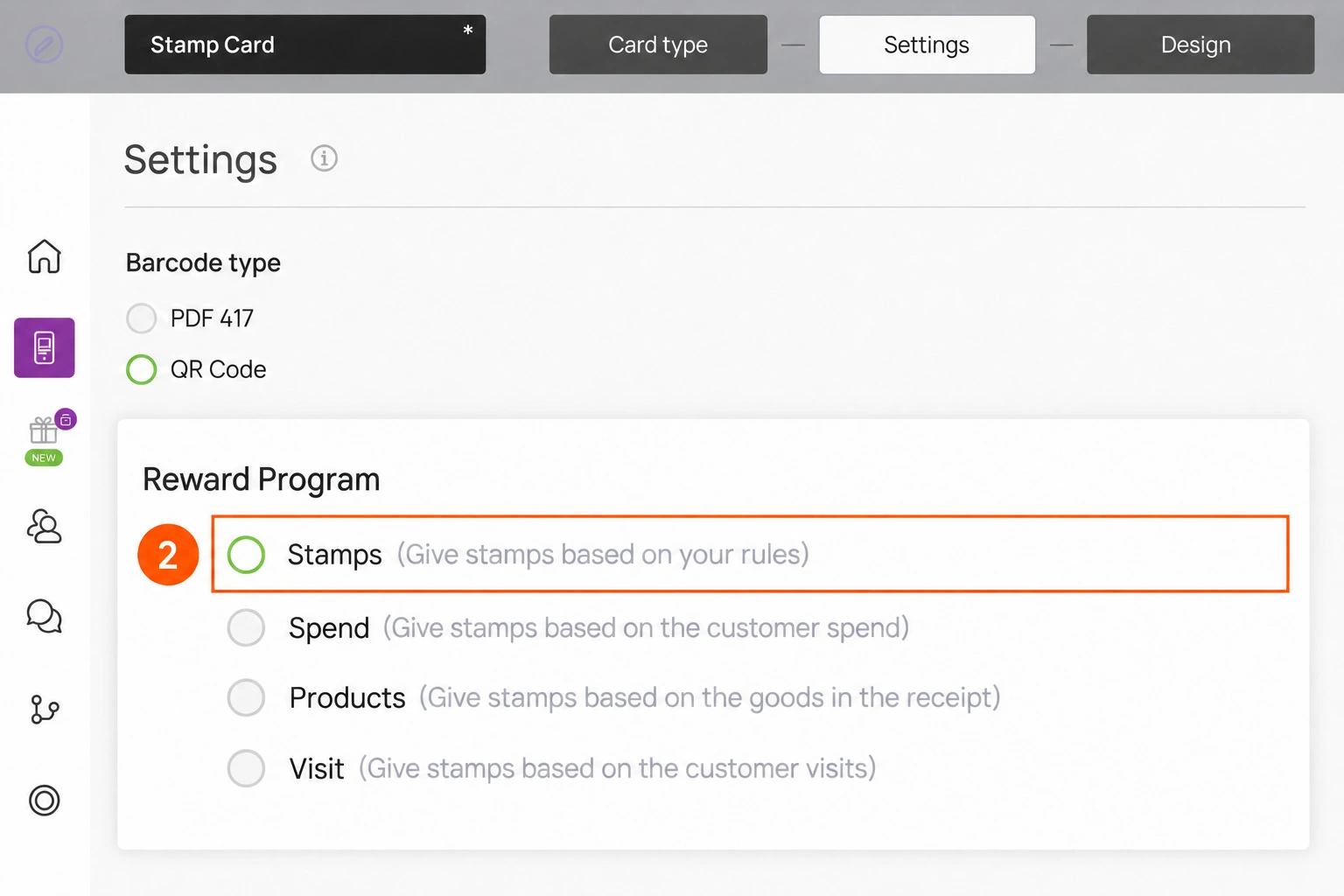
In Settings → Reward Program, select Stamps for this example. Staff apply your rule and issue the appropriate quantity after checking the purchase. This keeps “one eligible coffee = one stamp” easy to explain at the till.
When would I choose the other options?
| Option | Meaning and when to choose it |
|---|---|
| Stamps | Give stamps based on your rules. Choose this for a coffee offer where staff issue stamps for eligible items. This is the choice used here. |
| Spend | Give stamps based on customer spend. Consider it when bills vary because customers buy drinks, meals and retail items. Decide the spend-to-stamp rule and check the purchase inputs first. |
| Products | Give stamps based on goods in the receipt. Consider it when only particular products qualify. Confirm the product/receipt setup before relying on it. |
| Visit | Give stamps based on customer visits. Consider it when returning visits matter more than the number of coffees in one order. Decide what counts as a qualifying visit. |
These labels describe earning methods, not four different card types. Seeing an option does not establish that your POS is connected or that crediting is automatic. Check your scanner or integration setup before choosing a more complex method.
3. Name the reward and choose its type
Use a name customers and staff understand, such as One coffee free. In Reward type, select Custom for a coffee benefit. The reference screenshot shows the existing name Any Drink Free; keep the name and the actual eligible reward consistent on your own card.
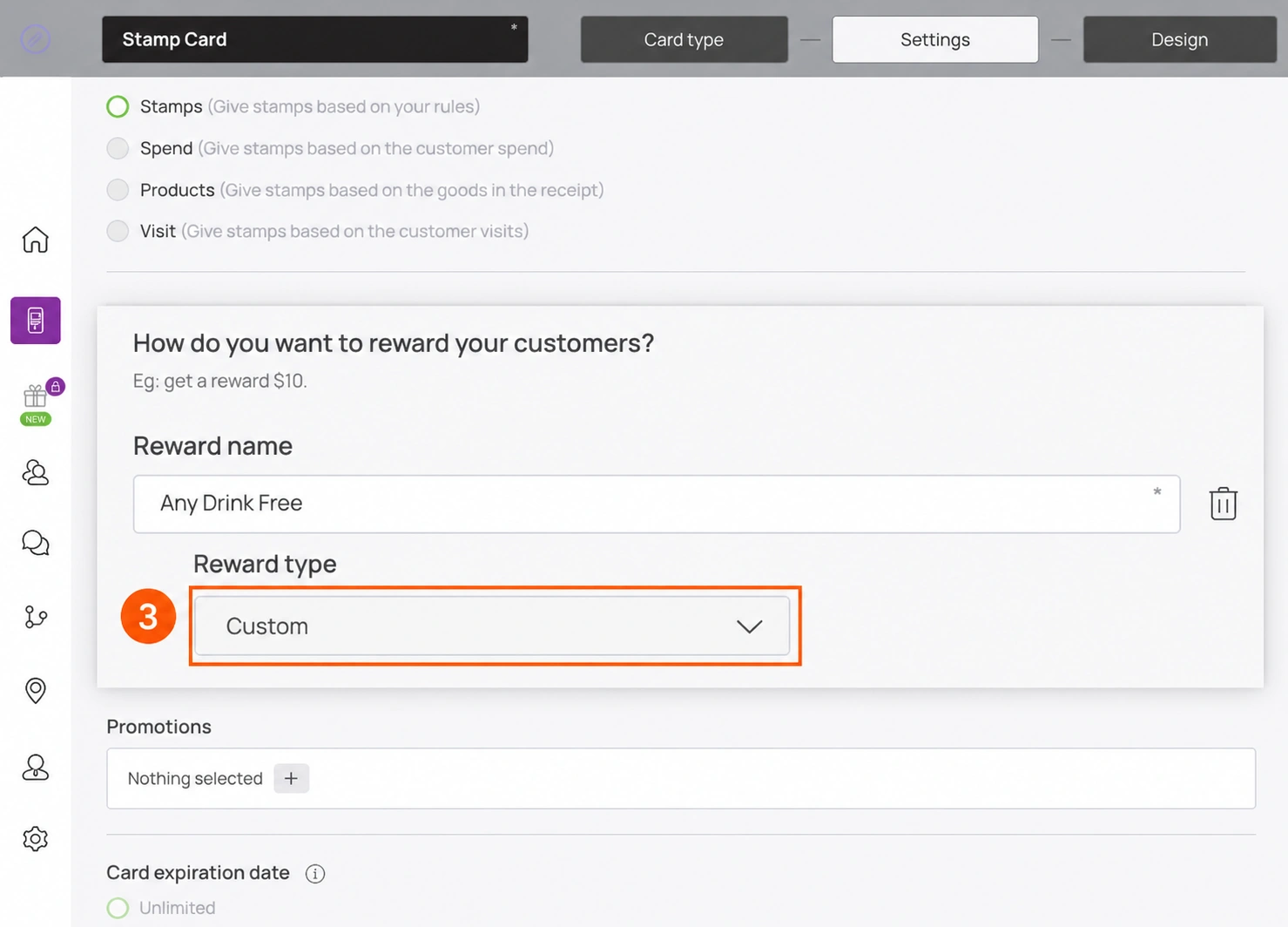
Reward name describes the benefit. Reward type describes its form:
| Reward type | Consider it when |
|---|---|
| Custom | The benefit is a named item or perk, such as a coffee. Used in this example. |
| Order ($ OFF) | Your offer is a fixed amount off an order. Decide the amount and any minimum purchase. |
| Order (% OFF) | Your offer is a percentage off an order. Decide the percentage, eligible items and exclusions. |
The three choices were observed in the current editor. Their end-to-end checkout behaviour has not been tested in this review. A named reward does not by itself prove your till applies it automatically.
Complete Settings before moving on
- Language and Locations: choose the customer-facing language and all participating shops. Make sure staff know which locations accept the offer.
- Card expiration date and Stamp life: these are separate choices. For this starter offer, choose Unlimited for both if that matches your policy. If you choose a fixed term, set its Term value and unit, then explain the expiry in the rules. Do not copy the older guide’s fixed-term recommendation as a requirement.
- Card issuing form: this collects the customer’s details when they get a loyalty card; it is separate from creating your merchant account. Use Add field, select Field type, enter Field name, and use Remove for an unwanted field. Required makes a field compulsory; Unique is intended to prevent duplicate field values. Do not enable Unique for names without considering customers who share a name. Review only the fields your programme needs; locked controls require support’s advice.
- Phone mask: if collecting a phone number, review the available region/format choice for your customers. The older guide’s description of masking communication calls has not been verified; do not rely on that wording.
- Privacy Policy and Consent to the processing of personal data: review both switches and the policy text against your approved customer-data policy before collecting details. Do not copy the demonstration business’s policy as your own.
Use Continue to move from Settings to Design in the creation flow described by the original guide. The active-card editor used for the screenshots also lets you inspect those named sections directly.
For the starter offer, set Number of stamps when issuing a card and Number of birthday stamps to 0 where those controls are available. The former is in Settings and is locked on the active reference card. Leave UTM links and analytics for a later setup task unless you already need them. UTM-specific welcome settings can override template welcome settings, so review those too if you add campaign links later. For that later task, the original guide describes entering a Source Name and selecting Add a link with UTM Tag. Leave Analytics empty unless you have a reviewed tracking setup; no script is needed to follow this coffee example.
4. Set the target to nine stamps
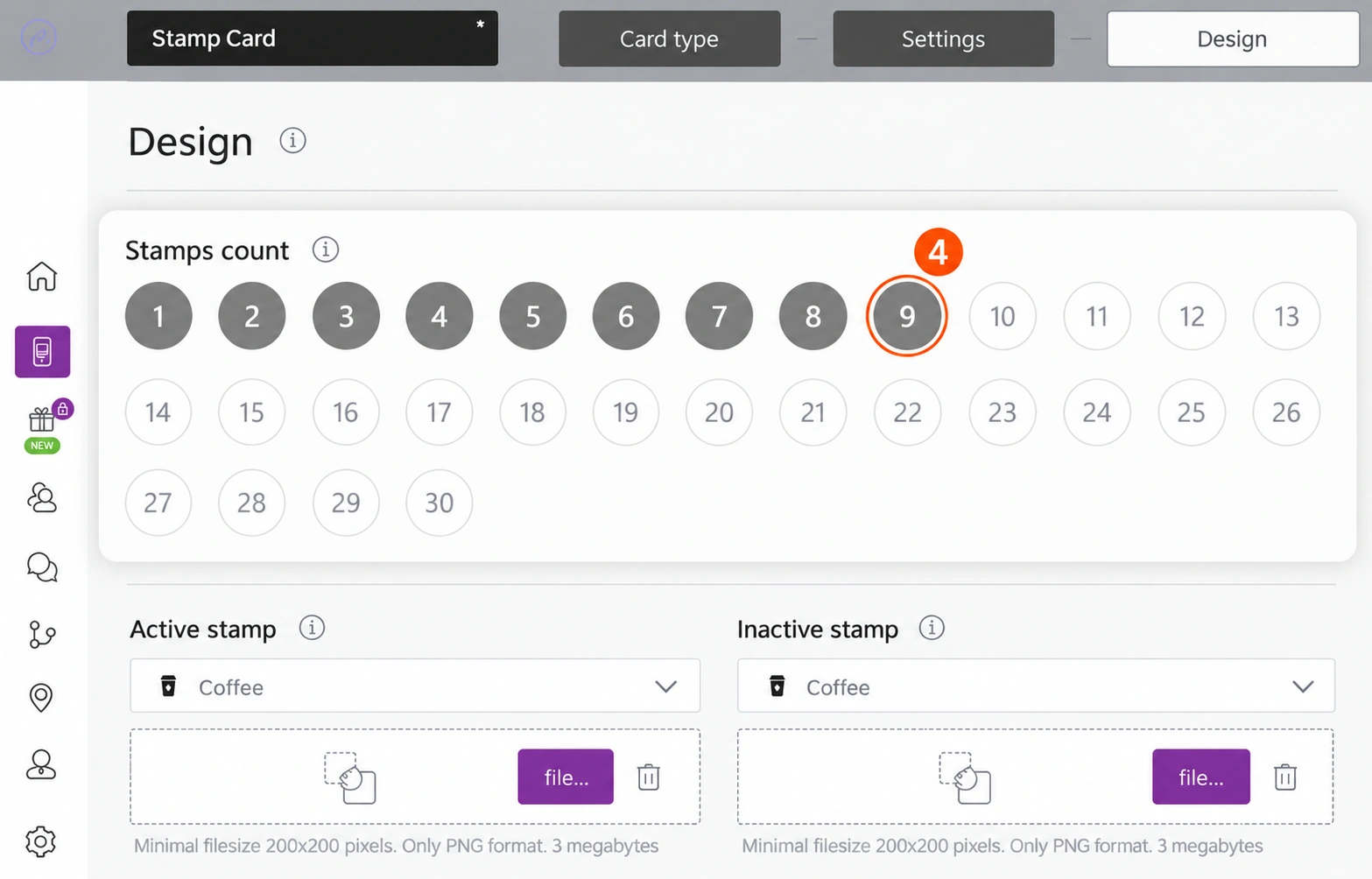
Open Design. Under Stamps count, select 9. Nine paid eligible coffees should earn the nine stamps for one reward in this starter example; the free reward coffee is the next coffee, not a tenth paid stamp.
In Information, keep Multi rewards empty for one reward at the target. Adding milestones such as 3, 6 and 9 changes the offer and needs a separate explanation for customers and staff. Do not promise automatic balance reset or a particular redemption result before checking your configured card.
5. Add recognisable coffee-shop branding
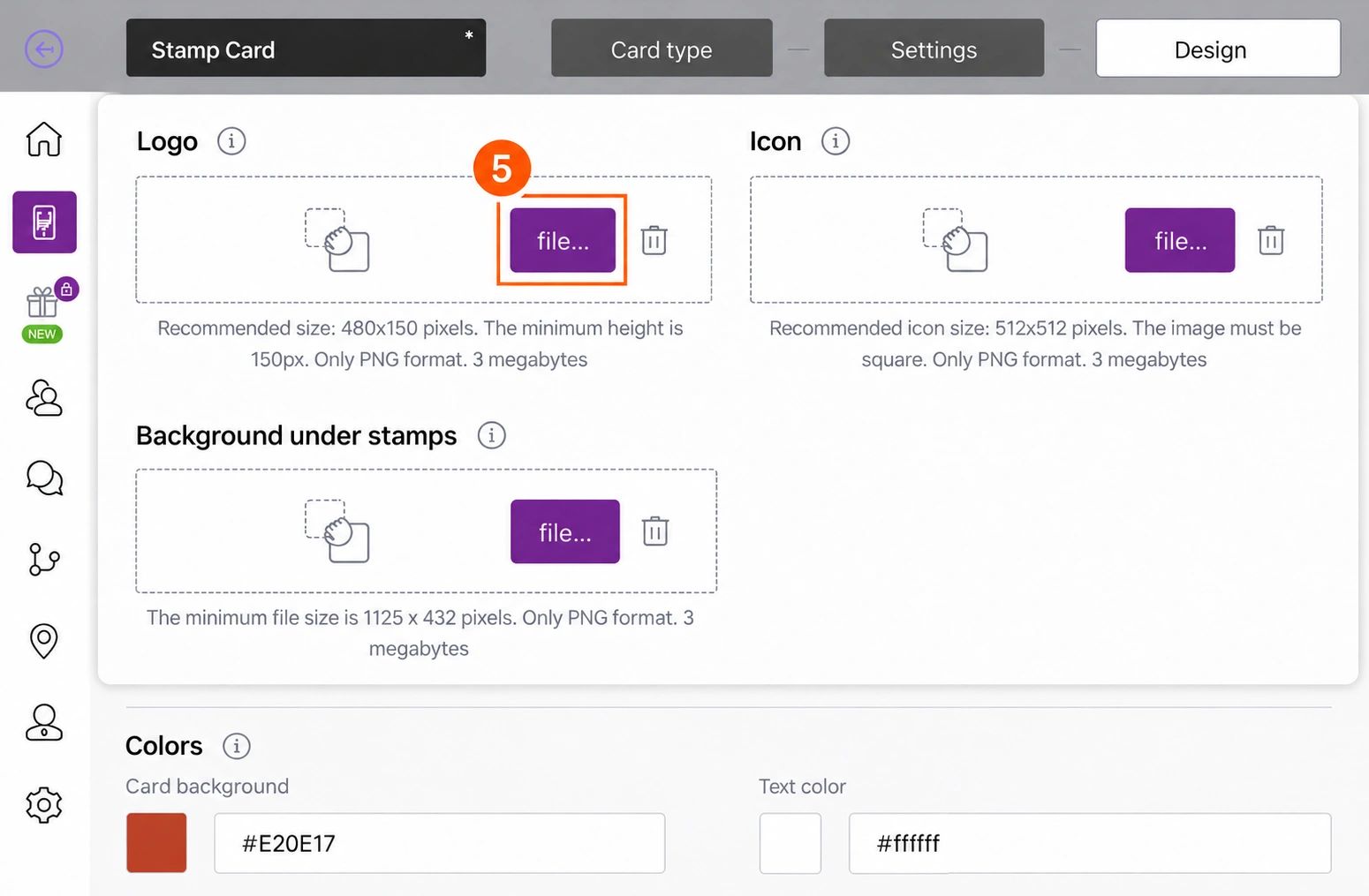
Stay in Design. Use file... under Logo to upload your shop logo. Choose an active stamp that means “earned” and an inactive stamp that means “still to earn”; the reference uses Coffee icons. Keep the two states easy to distinguish.
Current upload guidance shown in the editor:
- Stamp icons: PNG, at least 200 × 200 px.
- Logo: PNG, recommended 480 × 150 px, minimum height 150 px.
- Icon: square PNG, recommended 512 × 512 px.
- Background under stamps: PNG, minimum 1125 × 432 px.
- The displayed file-size limit is 3 megabytes.
The Logo identifies your shop. The separate Icon is described in the original guide as the image used in push messages; do not confuse it with the active/inactive stamp icons. Use file... under the relevant heading for custom stamp icons, the logo, icon or Background under stamps. Custom artwork can wait; the existing Coffee stamp choices keep a first setup manageable.
Before leaving Design, review these less obvious controls:
- Colors: check Card background, Text color, Stamp background, Outline color, Active stamp, Inactive stamp and Background under stamp. Earned and unearned stamps should be distinct, and text should remain readable.
- Fields name: choose what each Field displays, then set its Field name label. These are labels on the card, separate from the customer details collected by the issuing form. Check them in the mobile preview rather than leaving a misleading default.
- Show logo at card issuing form and Show background color on card issuing form: review both switches if you want the signup form to use your branding.
Check the preview as you work, then use Continue to reach Information in the original creation flow. The upload sizes above are from the current editor, not a guarantee that every file will be accepted.
6. Explain the offer on the card
Open Information. Enter the customer-facing rules in Card description and How to earn a stamp; use Reward details for what the free coffee includes. The reference screenshot contains the demonstration card's existing wording. For your starter offer, use consistent wording such as:
| Field | Suggested starter copy |
|---|---|
| Card description | Buy nine eligible regular coffees and get one regular coffee free. |
| How to earn a stamp | Earn one stamp for each paid eligible regular coffee. Free reward coffees do not earn stamps. |
| Reward details | Redeem one reward for one eligible regular coffee. State your sizes, upgrades and exclusions here. |
| Company name | Your coffee shop's trading name. |
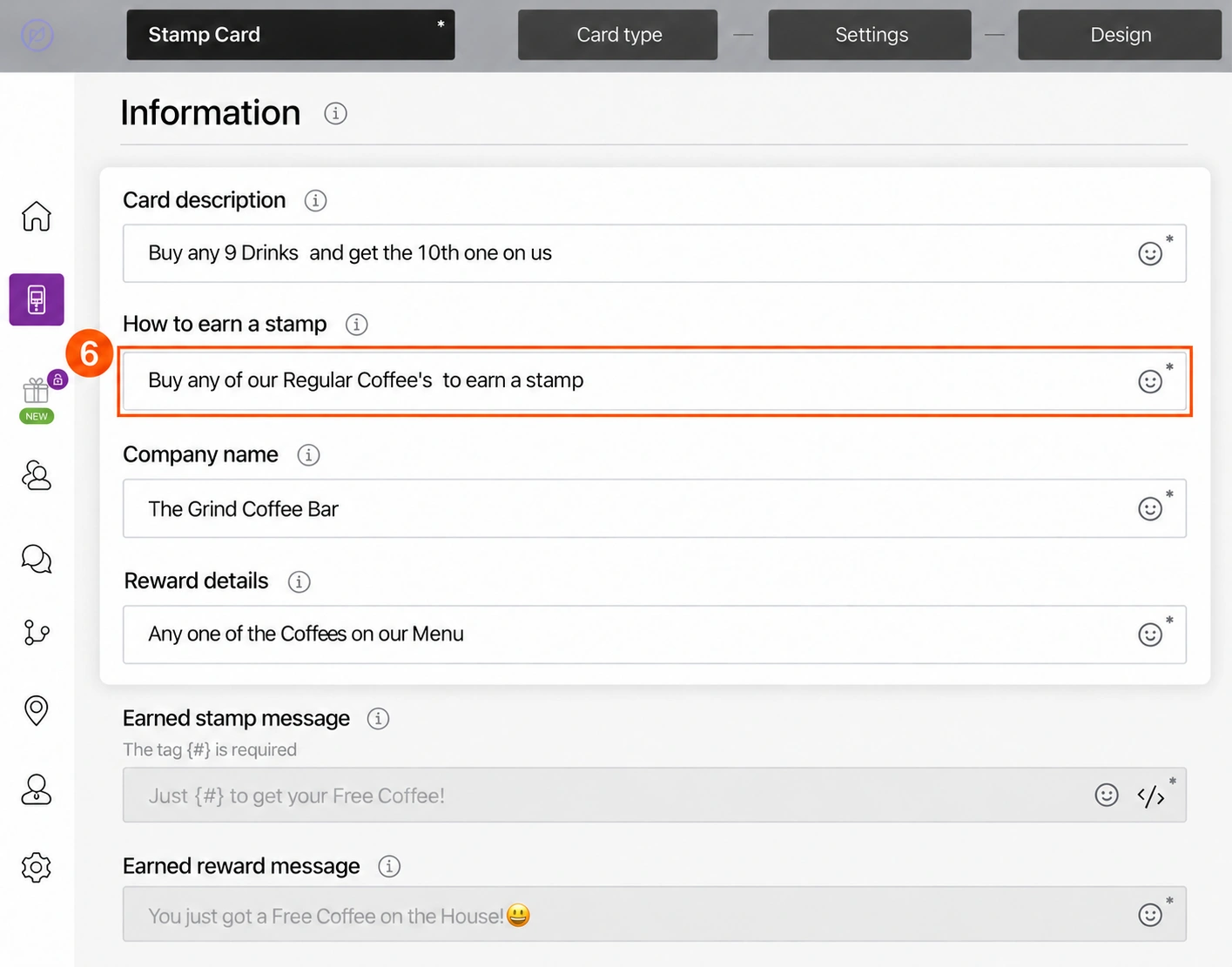
Review Earned stamp message and Earned reward message too. The editor marks {#} as required in the earned-stamp message; preserve it. Its exact substitution has not been transaction-tested here. If those fields are locked, ask support before promising different text.
For this starter offer, keep referrals off and choose No for Redeem reward automatically?. Automatic redemption's displayed explanation says the reward is redeemed at the next visit after enough stamps are accumulated; test that behaviour before adopting it. Choose Inactive under Referral program for this offer. If you introduce referrals later, also decide Get bonus at the moment when, Stamps count for referrer and Stamps count for new customer; these bonuses change how many paid coffees are needed. Use the full Stamp reference for that separate setup.
Finish the customer-facing details
- Active links: choose Type (URL, Phone, Email or Address), enter the destination in Link, and provide a clear customer-facing Text label. Use Add link for another row or Remove for an unwanted one. Check every destination yourself.
- Feedback links: optionally add your shop’s review destination using the link controls. This is separate from your contact links. The reference card’s Add link control was disabled; if yours is unavailable, ask support rather than assuming it has been configured.
- Terms of use: review the switch and enter your approved programme rules, including eligible coffees, upgrades, exclusions and expiry. Add Link to full terms and conditions if you have a complete policy page. The terms must match the rule sheet.
- Issuer Information: check Company Name, Email and Contact Number so customers can identify and contact the business issuing the card. This is separate from the reward description and should contain your own business details.
Preview the card’s wording and details together. Privacy policy and consent controls are in Settings, so return there if they still need attention.
7. Review before you save or activate
Check these items together:
- Earning: one paid eligible coffee = one stamp; two eligible coffees = two stamps.
- Target: 9 stamps; no welcome, birthday or referral bonuses for the strict nine-paid-coffee example.
- Reward: the same benefit in Reward name, Reward details, messages and terms.
- Validity: the card, stamps and customer-facing rules agree.
- Design: logo, earned/unearned stamps, colors and wording are readable.
- Customer details: signup fields and privacy information are appropriate for your programme.
Save and preview, Finish, Activate and Activate Card appear in the reference material, but their current sequence and effects were not exercised on this active card. Do not treat them as interchangeable. Confirm the save/activation sequence with in-app support before making a new programme available. The original guide describes Finish → Preview popup, with a QR code and Copy link, followed by Activate Card; it also mentions an Activate control under the earlier card preview. This is the historical sequence to confirm, not a verified instruction to click both activation controls. When you reach the verified preview for your own new card, check its identity and intended offer, and obtain its installation URL through Copy link or its QR code. Do not share the demonstration card’s code or link as your new programme.
This walkthrough does not claim a new card has been created or activated.
8. Test the counter journey before launch
Use an owner-approved test card and test participant, rather than a real customer's balance. Agree the test scope first, then check:
- The intended link installs the correct card on iPhone or Android.
- Staff can access the scanner and issue the intended quantity using the Stamp transaction guide.
- Progress reaches the target as agreed; one reward becomes available at the expected point.
- Redeeming the reward records the intended change and handles the next purchase correctly.
- Staff can explain eligible coffees, exclusions, expiry and what happens when a customer cannot find their card.
This is your prelaunch acceptance checklist, not a record that those transactions have already passed. Once verified, give staff the same one-sentence offer customers see and share the intended installation link or QR code at the counter.
More detail and evidence
Use the complete Stamp settings reference for controls outside this starter example, or return to Real-world examples.
The earning-method descriptions and reward-type choices were read in the current Loyaltymaster editor on 20 October 2026. The coffee-shop context is supported by Loyaltymaster's coffee-shop overview, and the counter journey by Loyaltymaster's scanner explanation. Visible controls were reviewed without saving or changing the reference card. Full creation, activation, wallet and transaction testing remains outstanding.