Church Mouse Cheese: Create a Cashback Card
Plan a tiered cashback offer for a cheese shop, then set up its rewards, signup form, design and customer terms.
Application review pending. Current permissions and product version are unverified.
On this page
Church Mouse Cheese gives us a practical example of a shop where customers earn points on purchases and use them for a discount on a later visit. Its Cashback card has four spending tiers, starting at 1% and rising to 7.5%. Each point is worth A$1 to spend in the shop.
This walkthrough uses those tiers and a six-month points expiry. For a simpler first offer, it leaves birthday rewards, referrals and promotions off. These are suggested choices for a new card; the saved demonstration card has additional rewards enabled.
Have access to your merchant account, your logo and business contact details. Agree which purchases qualify and where customers can redeem points before entering the settings.
Start with Decide the offer to build your card. Use your own branding and contact details for your business.
When should you use a cashback card?
A Cashback card lives in your customer's phone, in Apple Wallet or Google Wallet. Customers earn a percentage of their eligible spending as points or credit they can use on a future visit. To illustrate the value, an offer of 5% back would give $2 credit on a $40 purchase, redeemable against a later bill. On this Australian-dollar card, 2 points are worth A$2 in store credit.
The reward is store credit for use at your participating business, not money paid into the customer's bank account. Explain that clearly before they reach the till.
When customers could easily go elsewhere. Cashback can suit purchases people make often, such as groceries, coffee, fuel, takeaway food and everyday services. A balance waiting at your shop gives customers a reason to return. For Church Mouse Cheese, that might mean using credit from one cheese purchase on a later visit.
When customers are watching their spending. A clear balance, such as “You have $6.50 to spend here”, makes the reward easy to understand. If your card displays points, tell customers what those points are worth and how to use them. Avoid making them work out a conversion at the counter.
When you want to keep today's price. With cashback, the customer pays your normal price today and earns a reward for a future purchase. This can reduce your reliance on immediate discounts while giving customers a reason to come back. You still need to budget for the reward they have earned.
When you want customers to spend more with you. Higher cashback rates can reward customers who reach higher spending levels. This example uses Bronze, Silver, Gold and Platinum tiers. Spend to achieve is the total recorded spending needed to reach a tier. Customers can reach it over several visits.
When you want customers to return sooner. An expiry can give customers a reason to use their balance within a set period. For example, a 60-day credit offer would create a shorter return window than this guide's six-month points expiry. Choose a period customers can reasonably use, state it clearly and check the consumer rules that apply in your market before introducing it. This guide does not establish which expiry rules apply in Australia or other jurisdictions.
When you want a programme without paper cards. Customers keep the card on their phone, so staff do not need to manage paper cards or physical stamps. Staff record purchases in the Loyaltymaster console and apply redeemed credit as a discount line in the POS. The console procedure is explained in the final section.
Keep in mind. Customers attracted only by cashback may move to a competitor with a better offer. Pair it with friendly service, recognition of regulars and, if it fits your programme, a birthday treat.
Count cashback as a real cost. At 5% back, each $100 of eligible spending earns a future reward with a face value of $5. Allow for redemption when planning your margins, even if some customers never use their full balance. The effect on profit depends on what they redeem it against and the cost of those goods.
See the example card
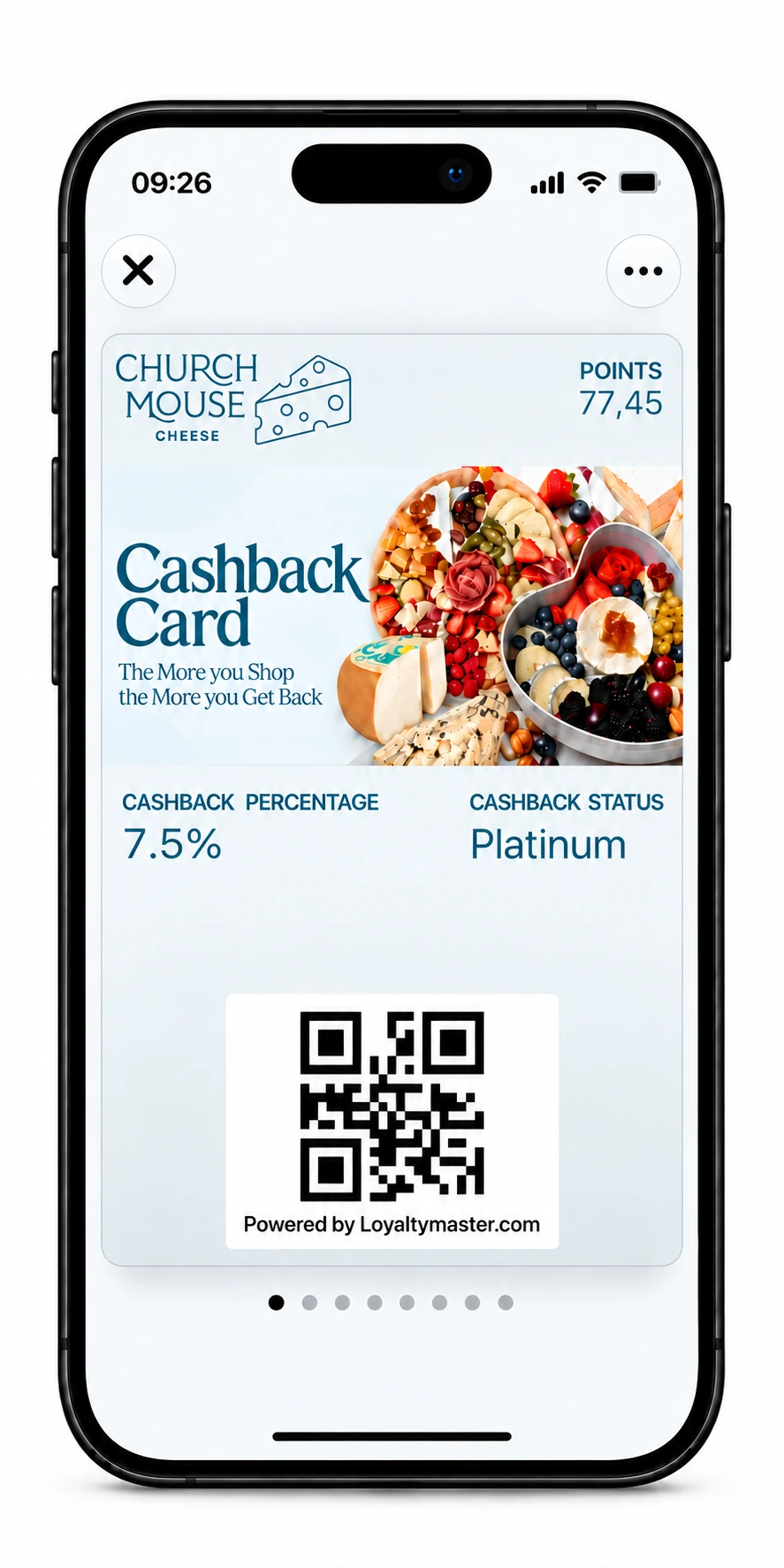
Illustration based on the supplied wallet card, showing an existing customer with 77.45 points (A$77.45) and Platinum status at 7.5%. A new customer starts at Bronze with 0 points in this walkthrough. Use your own card’s installation link to join; the pictured QR is part of the illustration.
Decide the offer
| Decision | Church Mouse Cheese worked example |
|---|---|
| Earning | Cashback points on eligible purchases, using the customer's tier percentage. |
| Starting tier | Bronze, 1%, with a spending threshold of 0. |
| Higher tiers | Silver from A$250 at 3%; Gold from A$500 at 5%; Platinum from A$1,000 at 7.5%. |
| Redemption | Each point gives A$1 off a later eligible purchase. Record the redemption in Loyaltymaster and a matching discount line in the POS. No cash payout. |
| Card validity | Unlimited. |
| Points expiry | Each amount earned expires six months after its earning date. |
| Extra rewards | No welcome or birthday bonus; referrals inactive; no happy hours or promotion for this first setup. |
| Purchases and locations | Agree the eligible products and participating shops, then list any exclusions in the terms. |
Tiers use the customer's total recorded purchases, not their available points balance. Silver starts at A$250, Gold at A$500 and Platinum at A$1,000. For this example, the purchase that reaches a threshold earns the new rate: a customer with A$240 of recorded spending who buys another A$20 reaches Silver and earns 0.60 points at 3%.
At the counter, staff can say: “Each point is worth one Australian dollar off a later purchase. Your cashback rate grows as you spend with us. Use each reward within six months of earning it.” Add any product exclusions or redemption limits your shop chooses.
1. Create the Cashback card
- Sign in to Loyaltymaster. Open Cards, select Create card, then From scratch.
- Enter a Card name you can recognise, such as Church Mouse Cheese Cashback.
- In Card type, select Cashback, then Continue to open Settings. Cashback suits this offer because purchases earn points for later use. If you want an immediate price reduction instead, review the Discount Card guide.
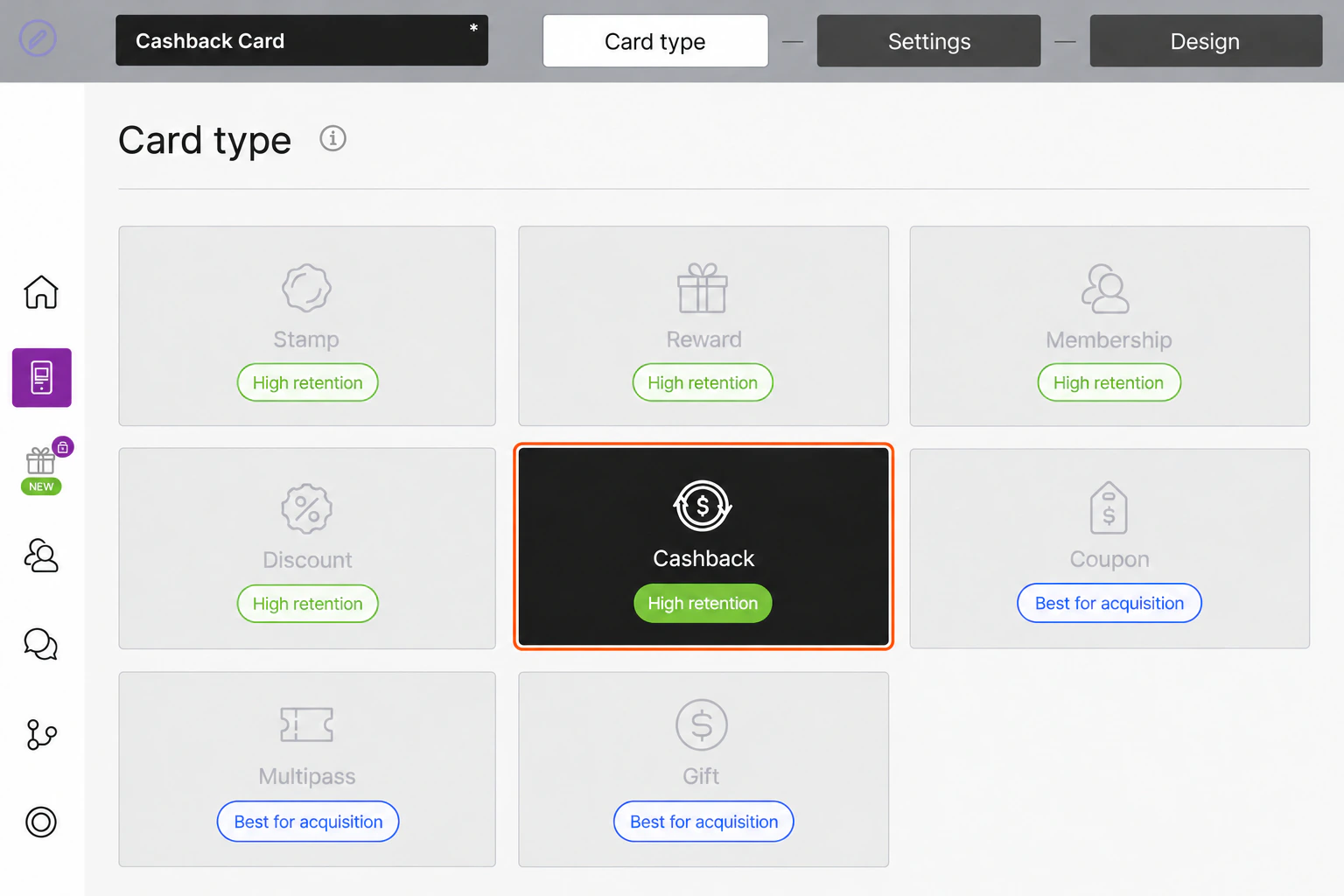
The illustration shows the existing card, whose type is locked. Create your own card for a new offer. The enlarged panels are teaching illustrations; use View larger image and Zoom in for small labels.
2. Set the tiers and expiry
- Choose QR Code under Barcode type if your staff will scan QR codes, as in this example. PDF 417 is also available.
- Leave Happy hours and Promotions unconfigured for this first offer.
- Under Card expiration date, choose Unlimited. Under Lifetime points, choose Fixed term after bonuses earned, then set Term to 6 and Months.
- Select the participating shops under Locations. If no locations are available, use Add location to create one.
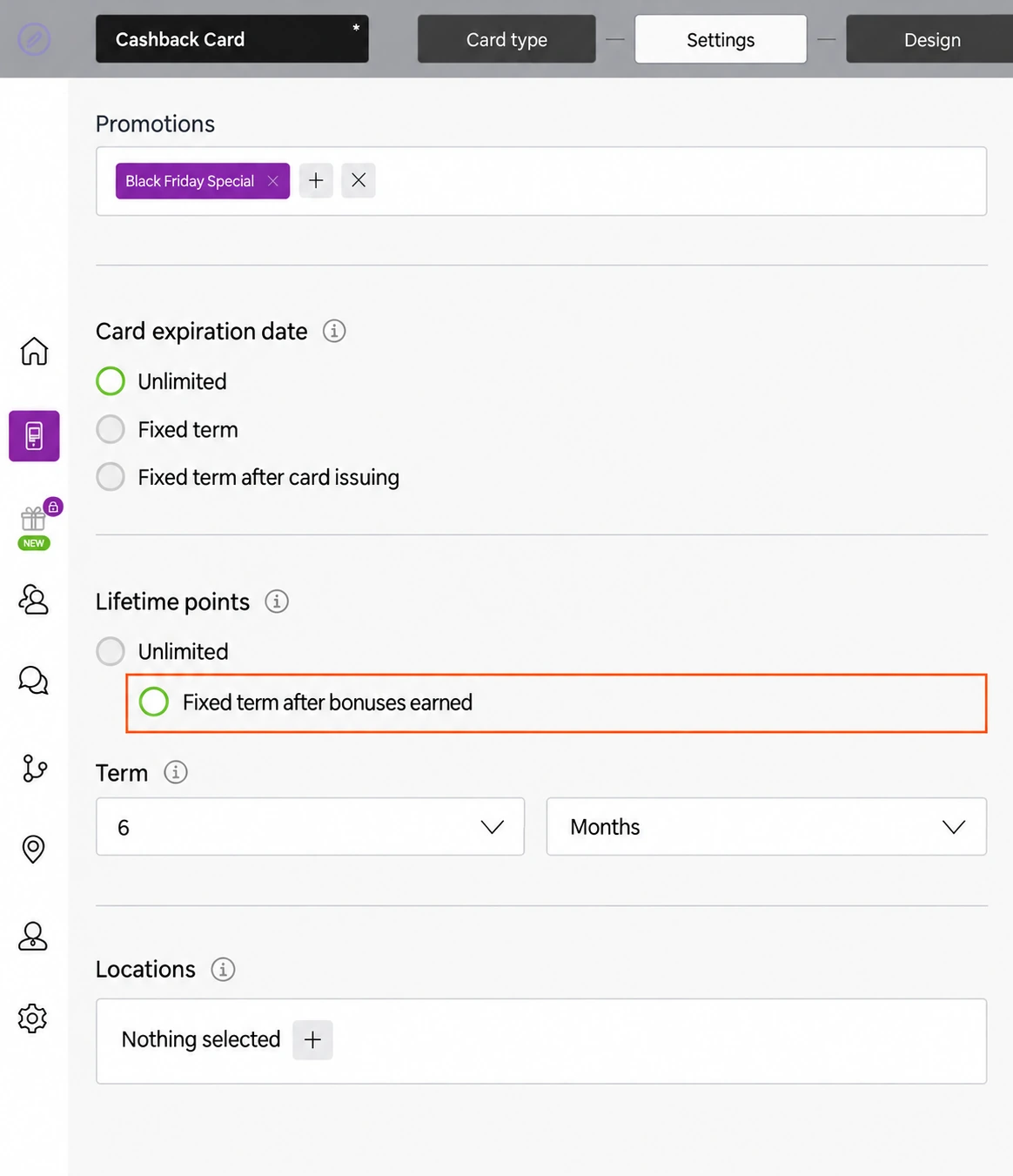
Each reward has its own six-month clock. If a customer earns A$2 on 1 November and A$5 on 8 November, the unused amounts expire on 1 May and 8 May respectively. Earning more points does not extend the older points' expiry. The card itself remains valid. The promotion visible above these controls is not part of this simple offer.
- Under Cardholder status, enter the following rows. Use Add tier for Silver, Gold and Platinum. Spend to achieve is the qualifying spending threshold; Percentage % is the cashback rate. Enter 1 for 1%, not 0.01.
| Tier name | Spend to achieve | Percentage % |
|---|---|---|
| Bronze | 0 | 1 |
| Silver | 250 | 3 |
| Gold | 500 | 5 |
| Platinum | 1000 | 7.5 |
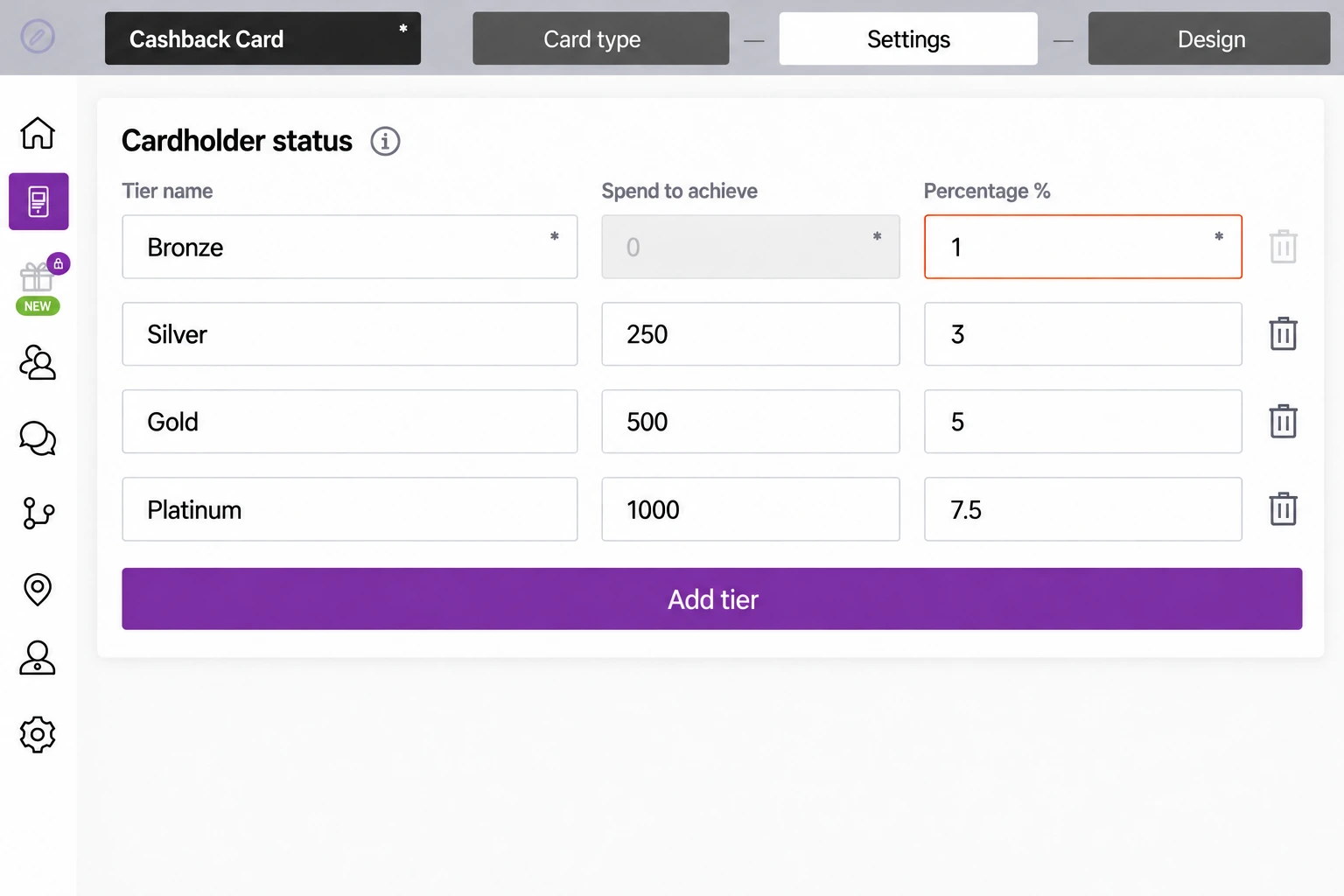
The first threshold is locked at 0 in the saved example. Use the trash icon beside an additional tier if you do not need it. A single 1% tier is a simpler alternative if your shop does not want spending levels.
3. Finish customer signup and Settings
- Choose Language, Date format, Thousands Separator and Decimal Separator for your customers. The sample uses English (International), DD/MM/YYYY, a space and a comma respectively.
- Turn on Purchase amount is required in Scanner App if staff must enter the purchase amount, as in the saved card. Leave Require a comment when crediting off unless your staff need to record a reason.
- Under Card issuing form, use Field type and Field name to choose what customers enter. A suggested starting form is First name and Phone, both Required, with Phone Unique. Leave names non-unique because customers may share a name. Add Email if you will use it; Date of birth is unnecessary for this no-birthday-bonus example. Use Add field or the row's trash icon to adjust the form.
- Choose the appropriate Phone mask. Choose Australia for this example, as shown in the current card settings.
- Enable Privacy policy and Consent to the processing of personal data for this example, then enter your approved policy wording. Complete Privacy policy (full text) as well. The sample's short marketing-consent text is not a ready-made policy for your business.
- Enable Google Wallet Installation button for Android customers. Leave PWA Installation button off unless you also want the web-app option. Enable Card installation via shared link if customers will join through a common shop link. This switch applies to shared links; it does not block individual links.
- Set Limit the number of cards issued to 0 for an uncapped offer. Set Number of points when issuing a card and Number of birthday points to 0.
- Leave UTM, Analytics and Meta Ads empty for the first setup. See campaign links and tracking for the optional setup.
- Select Continue to open Design.
Customer signup here is the form for getting a loyalty card. It is separate from creating the merchant's Loyaltymaster account.
4. Design the card
The example uses the Church Mouse Cheese logo and cheese artwork. Upload your own logo and artwork for your business. Label the artwork Cashback Card so customers do not confuse it with an immediate discount.
- Upload your Logo, Icon and Background of the central part. An empty upload control says Select file; an existing one may say file.... The icon is used in push messages.
| Upload | Guidance shown in the editor |
|---|---|
| Logo | PNG, recommended 480 × 150 pixels; minimum height 150 pixels. |
| Icon | Square PNG, recommended 512 × 512 pixels. |
| Background of the central part | PNG, at least 1125 × 432 pixels. |
| File size | Up to 3 MB per image. |
- Under Colors, use a pale background and readable dark text. The sample uses #F6F9FB for Card background and Background color of the center part, and #004750 for Text color.
- Under Fields name, select Cashback percentage and Cashback status in the two Field dropdowns. Use those same names in Field name so customers can see their rate and tier.
- Turn on Show logo at card issuing form and Show background color on card issuing form to carry the branding through signup.
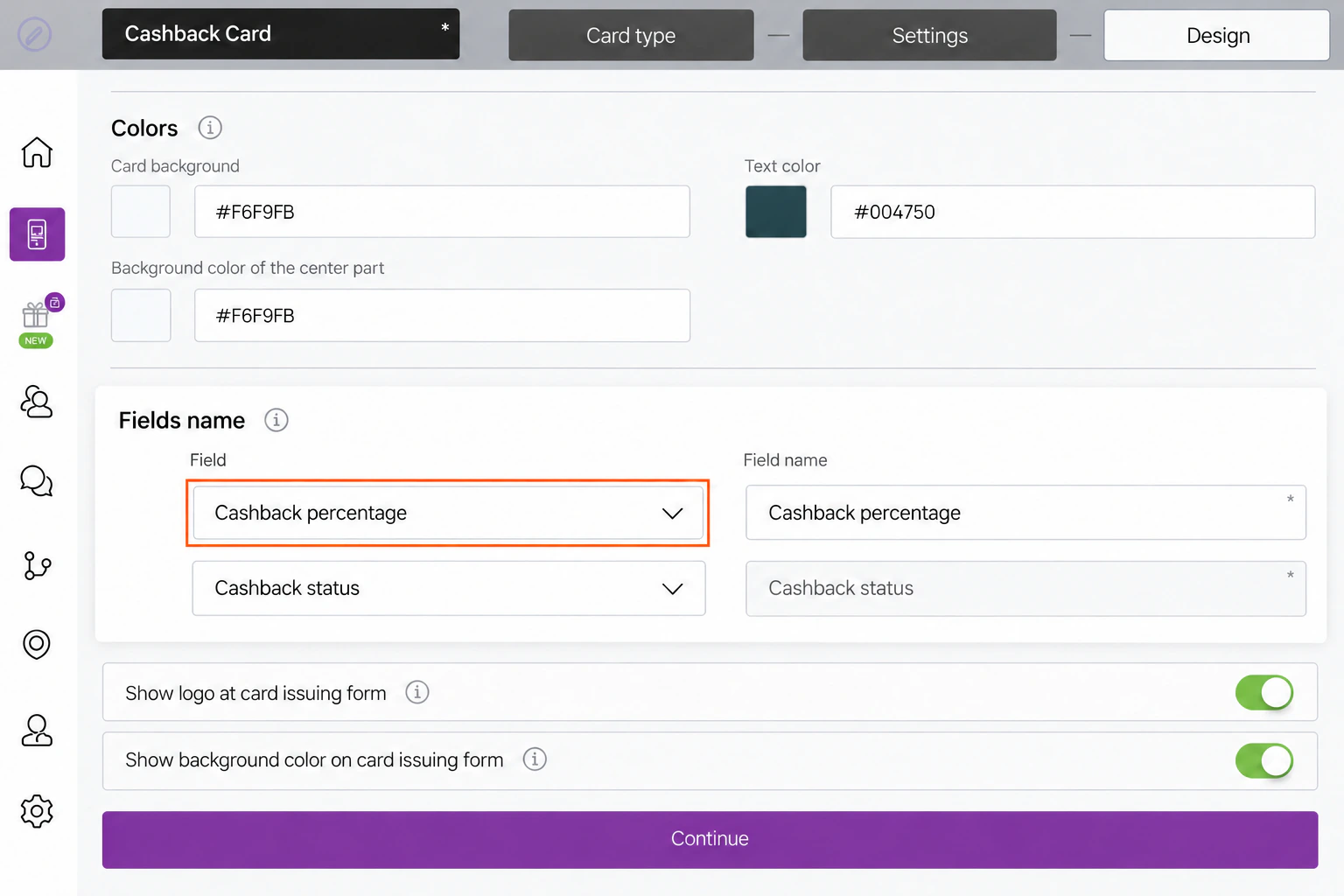
Review the phone preview, then select Continue to open Information.
5. Explain the offer and add business details
- In Card description, enter a short customer promise. Suggested copy: “Earn cashback points on eligible purchases at Church Mouse Cheese. Use your points for a discount on a later purchase.”
- Enter Church Mouse Cheese in Company name for this example, or your own business name for your card.
- Set Referral program to Inactive for this first offer. You can add referral rewards later using the referral instructions.
- Under Active links, choose a Type, enter its destination in Link, and give it a clear Text label, such as “Our website”. URL, Phone, Email and Address are available. Use Add link for another destination or the row's trash icon to remove one. Replace all demonstration addresses with your own working links.
- Skip Feedback links unless you want review collection. To add it later, follow customer links. If its Add link button is disabled, leave it unset. Link for redirection after card installation is also optional and applies only to Apple Wallet installations.
- Turn on Terms of use and enter your agreed rules. Include eligible purchases and shops, the tier thresholds and rates, point redemption value and limits, and the six-month expiry for each reward. Use Link to full terms and conditions (optional) for your complete terms.
The current card's terms explain point value, cashback levels and six-month expiry. A clearer version for customers is:
Each point you earn is worth A$1 to spend at Church Mouse Cheese on a later purchase. Your cashback rate is based on your total recorded spending with us: Bronze earns 1% below A$250; Silver earns 3% from A$250 to below A$500; Gold earns 5% from A$500 to below A$1,000; Platinum earns 7.5% from A$1,000. The purchase that reaches a new tier earns that tier's rate.
Each amount of cashback expires six months after you earn it. Later purchases do not extend the expiry of older cashback. Your card has no expiry date. Points cannot be exchanged for cash, and cards cannot be transferred or combined.
For this shop's example, cashback is calculated on the full purchase amount before deducting redeemed credit. State your own policy and any exclusions or redemption limits in your terms. Use “within six months” rather than “whenever you want” so the point-value promise agrees with the expiry rule.
- Under Issuer information, enter the Company name, Email and contact number customers should use. Check those details and links in the preview.
6. Save, preview and share
- When Information is complete, select Finish to save and open Preview. Complete any highlighted required fields. For later edits, use Save and preview in the top bar.
- Check the business name, tier rates, expiry wording, artwork and contacts. Use Copy link in Preview to obtain your card's installation link, or scan its installation QR code.
- If the card is inactive, use Activate Card when you are ready and check its status before distribution. The editor also shows Activate beneath the phone preview; do not activate the same card twice.
- Open your installation link on a phone and complete the fields you chose in Settings: First name and Phone for this example. Follow the iPhone or Android instructions to add the card to the wallet. On Android, use the Google Wallet path; the home-screen option is off in this example.
The supplied wallet image shows an installed card. The new-card save, activation and installation sequence has not been independently retested here. If your screen differs, contact support.
7. Check one customer visit before launch
Use a test customer to practise earning and redeeming before training staff. In the console, open the Cashback card, select Customers, then select the customer. Their Current balance is the credit available to spend. Transactions amount is their recorded purchase total.
Add a purchase and earn cashback
- Select + beside Transactions amount and enter the purchase amount in Australian dollars. Enter the purchase value, not the points you have calculated yourself.
- Add an invoice number if you want a reference, then select Apply.
- Check Current balance, Transactions amount, Cashback percentage and the transaction history. Loyaltymaster calculates the reward using the customer's cashback rate.
In the demonstrated Silver transaction, staff entered A$80.12. At 3%, Loyaltymaster credited 2.40 points, worth A$2.40. The recorded purchase total rose from A$306.23 to A$386.35.
Redeem credit and record it in the POS
- Check the customer's Current balance and agree how much they want to use.
- Select − beside Current balance. Enter the points to redeem; for this card, 1 point = A$1. Check the corresponding amount shown in the dialog, then select Apply.
- In your POS, add a discount line for the same amount. An A$80 bill with A$1 redeemed becomes A$79 to pay. This is a separate POS entry; staff must record it there as well as in Loyaltymaster.
The demonstration started with 1.04 points. Redeeming 1 point left 0.04. The later A$80.12 purchase earned 2.40 points, bringing the balance to 2.44 points (A$2.44).
For Church Mouse Cheese's example policy, staff enter the full A$80 under Transactions amount even when A$1 of redeemed credit reduces the POS payment to A$79. At Silver, that earns 2.40 points. The shop owner decides whether their programme rewards the full price or the amount paid after redemption; make the policy clear to staff and customers.
Use the Scanner App at the till
First add a manager. For this example, the owner creates Joe Newman's account with an email address and password, can assign a shop location, and leaves Send access to email off if handing over access directly. Use each staff member's own details in practice.
Open app.loyaltymaster.com/scanner-app on the phone, tablet or computer. Sign in with the manager's email and password. On a phone, use Scan to read the customer's card; on a computer, select Search customers, enter part of their card serial number or their phone number, and choose the matching customer.
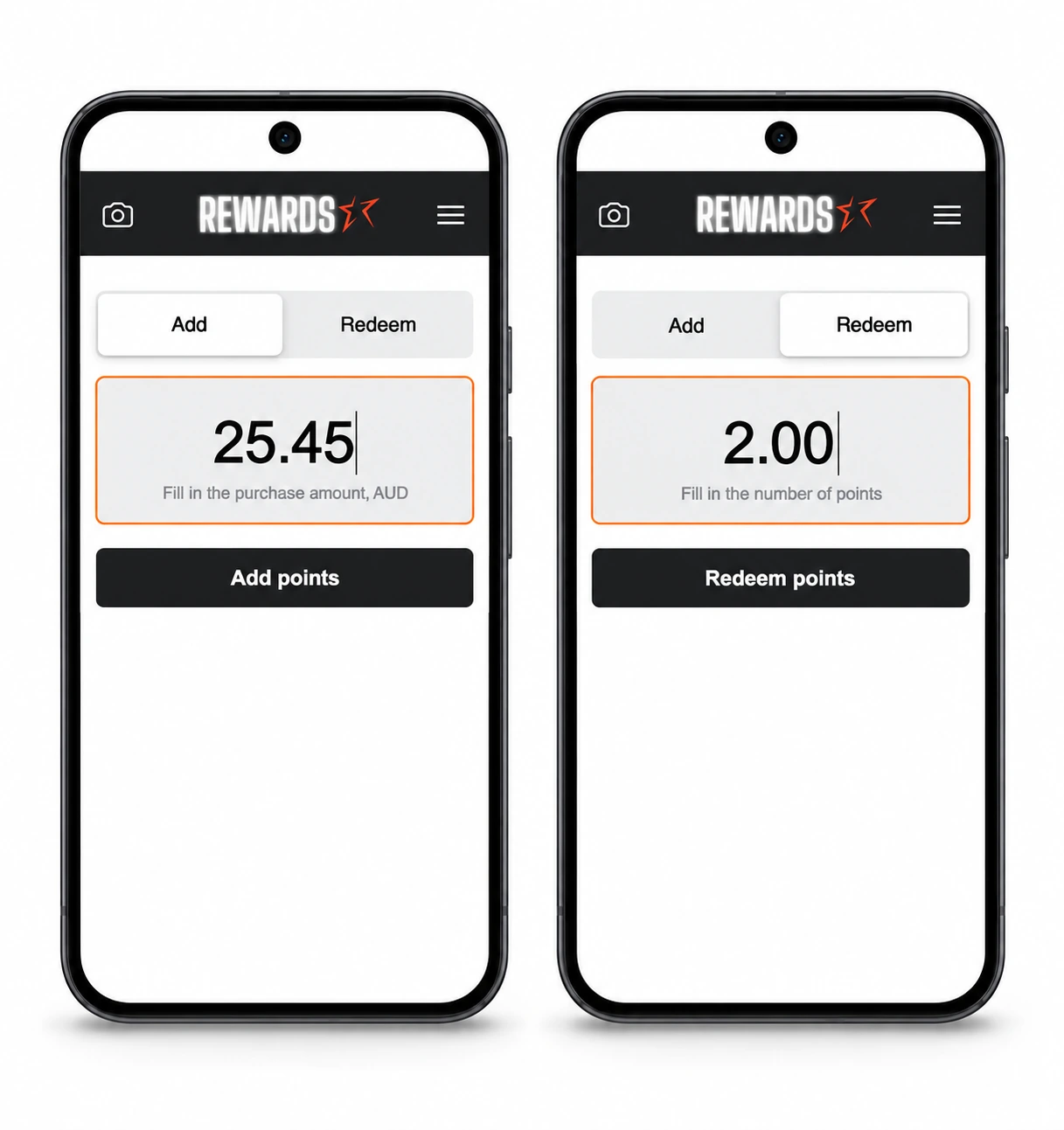
Phone illustrations of the current controls, with customer details omitted. The same Add and Redeem choices are available in the computer browser. Select the image to enlarge it.
- Add a purchase: select Add, enter the purchase amount (for example 25.45 for A$25.45), and select Add points. Check the confirmation, add a comment if needed, then select Add. The app calculates the cashback; staff enter the sale value.
- Redeem credit: select Redeem, enter 2.00 to spend A$2 on this card, then select Redeem points. Check the customer and the two-point amount in the confirmation. Normally, leave the repeated purchase-amount field unchanged, add a comment if wanted, then select Redeem. Fill in a purchase amount if the card requires it. Wait for the card-update message and check the balance.
Record the same A$2 discount in your POS. An A$80 bill becomes A$78 to pay. Under this shop's example policy, staff still enter the full A$80 when recording that purchase for cashback.
See the Cashback scanner guide for the complete procedure and phone illustration.
On the second screen, you can usually just select Add or Redeem after checking the details. If Settings → Purchase amount when charging → Purchase amount is required in Scanner App is enabled, supply the purchase amount if it is not already filled in. Comments are optional unless Require a comment when crediting is enabled. See the confirmation screens.