Harry's Burgers: Create a Subscription Card
See a sample burger Subscription Card on an iPhone, then follow the illustrated Multipass setup for a five-purchase, 30-day offer.
Application review pending. Current permissions and product version are unverified.
On this page
Harry's Burgers is a sample shop created to demonstrate Loyaltymaster. This worked example shows a Subscription Card with five burger purchases during a 30-day period. The console calls this card type Multipass.
Before you start: have access to the merchant console and agree your allowance, price, expiry, locations and staff rules. Use this guide to prepare the card. Not yet verified: the current save/preview/activation sequence, issued allowance, expiry timing and transactions. Confirm these with support or on an authorized test card before offering it to customers.
See the sample card on an iPhone
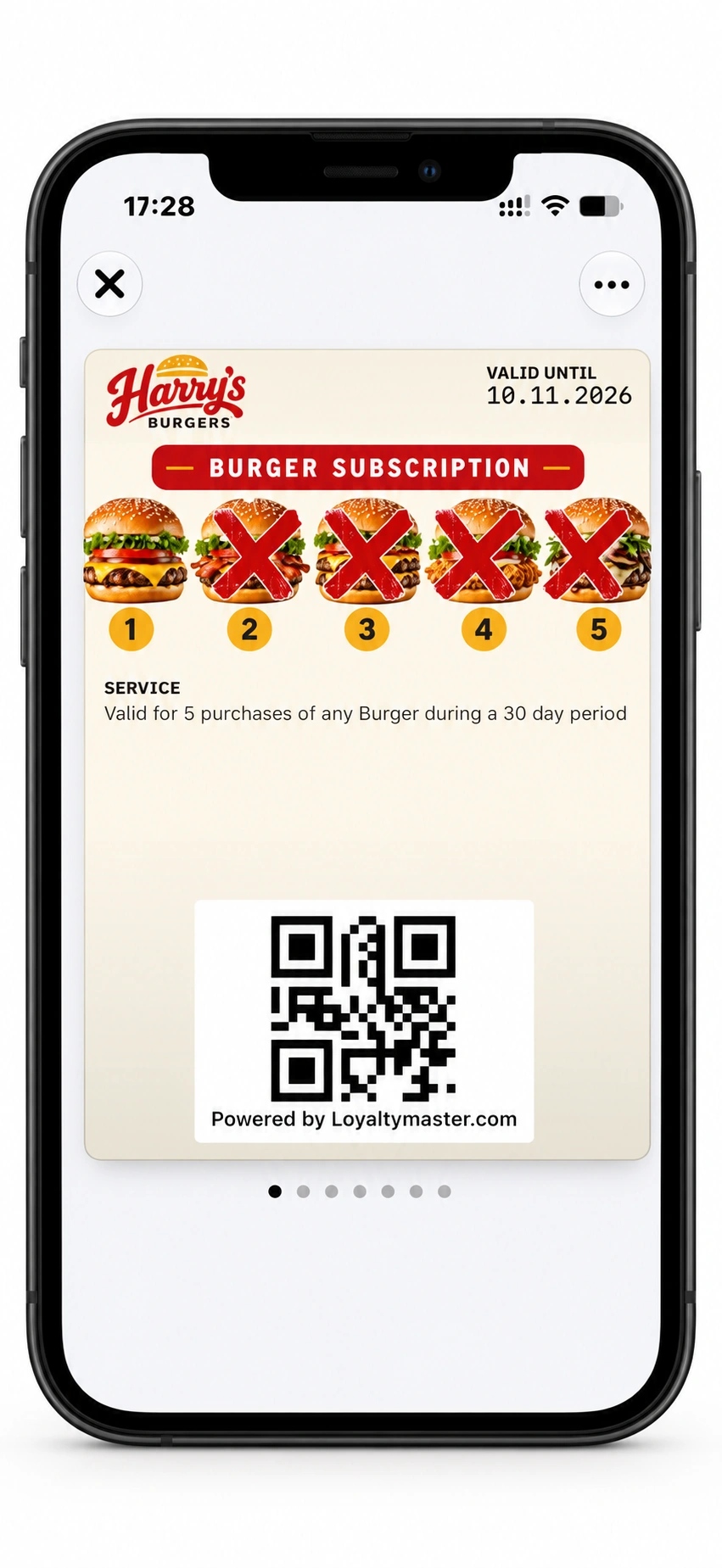
Harry's sample card shown in an illustrative iPhone mockup. Use your own card's installation link and QR code when sharing an offer with customers; the QR in this mockup is for the demonstration.
The logo, burger artwork, red subscription banner and service text show how your branding and offer can appear together in Apple Wallet. The date and balance shown belong to the sample.
Decide your offer first
Harry's sample uses the following written rules. Agree on these details before you build your own card.
| Decision | Harry's Burgers sample |
|---|---|
| Allowance | Five purchases of any burger during a 30-day period. |
| Daily limit | One redemption per day. |
| Eligible burgers | All burgers on the Harry's Burgers menu. Low-carb or gluten-free choices cost extra. |
| Extras | Extras and additions are charged in full. |
| Expiry | Unused allowance expires after 30 days and does not carry over. |
| Renewal | No automatic renewal or recurring payment. A new subscription can be purchased after the 30-day cycle ends. |
| Concurrent subscriptions | One subscription of the same type per customer. |
| Payment | The sample terms require a valid credit/debit card or wallet balance. No selling price is specified. |
| In-store use | The customer presents the subscription voucher for scanning at the till. |
These are the sample shop's terms. Confirm how your payment process and staff will enforce the daily limit, concurrent-subscription rule and extras charges. The card's name and artwork do not establish payment automation or automatic rule enforcement.
For your own offer, set a price and explain what each purchase includes. Decide which locations accept it, when the 30-day period starts and what staff should do if a customer disputes a balance or expiry.
1. Open a new Subscription Card
Use a new card for a new offer. The existing Harry's sample is an inactive Multipass with its card type locked. If a control you need is locked, ask support what can be changed safely.
This walkthrough follows Card type, Settings, Design, Information, then Save and preview. The teaching images show the existing saved sample, cropped to the relevant controls and displayed at the reading-column width. Cropping preserves the original text, values and numbered markers. Orange numbers refer to the steps within each section. Select View larger image, then Zoom in for fine print on narrow screens.
-
Sign in to Loyaltymaster, then open the left-hand menu. See account access if you are starting a trial or subscription.
-
Click Cards to open the Cards module.
-
Decide whether to reuse a template or build a new offer; this walkthrough uses a new offer.
-
Click From scratch.
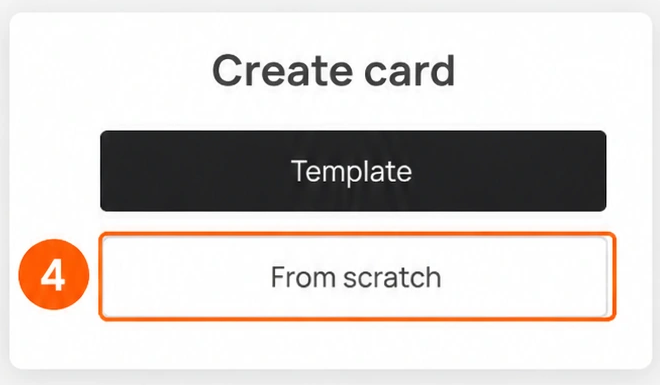
- The card creation workflow has five sections: Card Type, Settings, Design, Information, and Save and preview.
2. Choose Multipass
Why Multipass for this offer?
A Subscription Card suits a set allowance of uses. Harry's offer is five burger purchases within 30 days, with one redemption per day in its written rules. A Stamp Card suits an offer where paid purchases earn progress towards a later reward. Choose the customer promise before choosing the card type.
-
Open Card type on your new card. The illustration shows an existing locked example, not a tested new-card selection.
-
From the available card types, select Multipass (the console name for a Subscription Card).
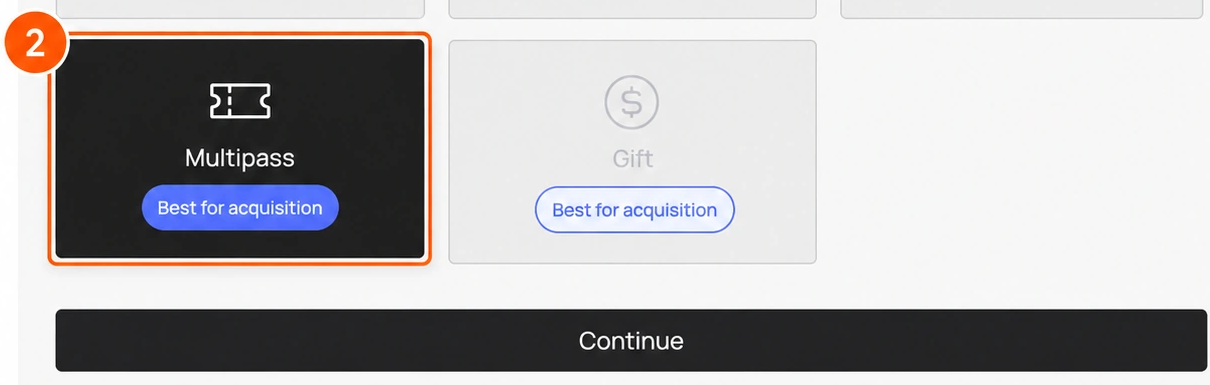
- Click Continue to open Settings.
3. Complete Settings
The editor also includes Barcode type, Happy hours, Promotions, Stamp life, Lifetime points, date and number formats, Scanner App purchase and comment requirements, wallet and PWA installation controls, issuing limits, shared-link installation and birthday settings. The values shown are saved example settings, not required defaults.
- Choose your Subscription Card's language from the Language dropdown.
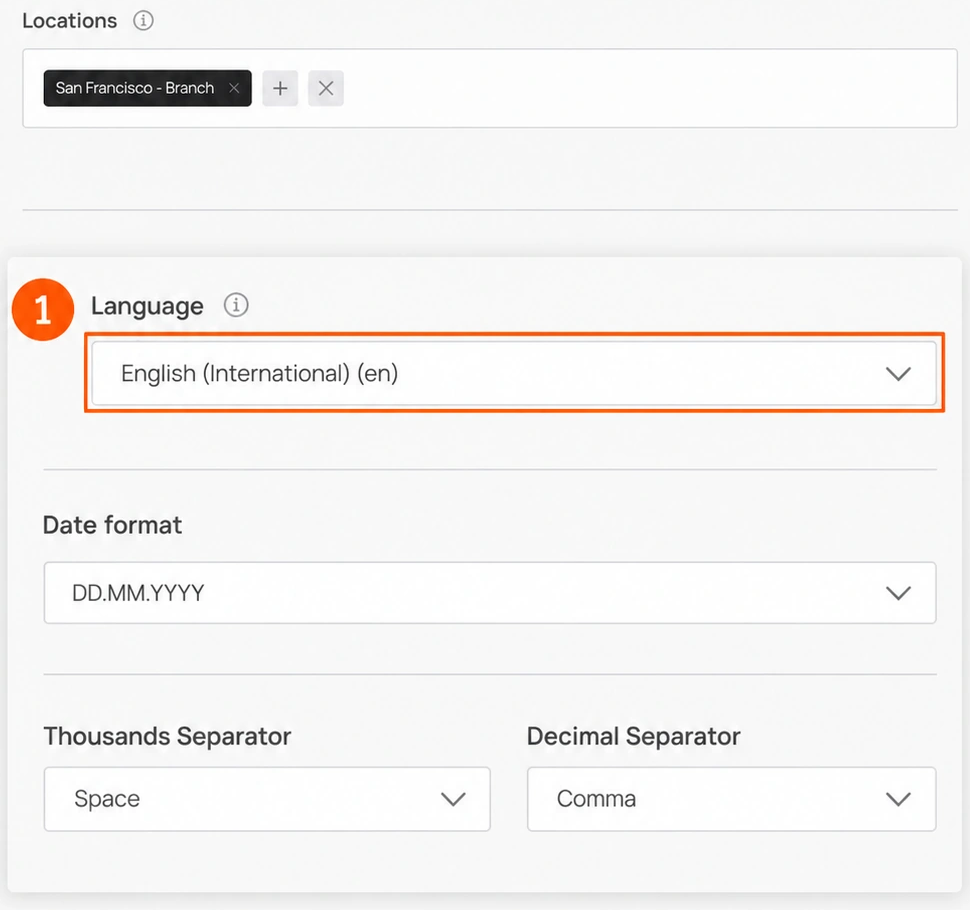
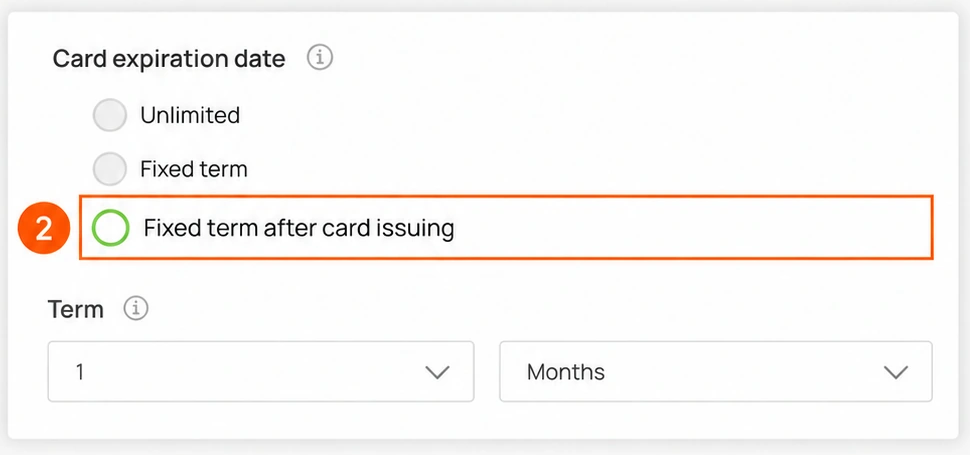
- Choose an expiry option under Card Expiration Date.
-
Harry's intended offer needs a rolling 30-day expiry. Fixed term after card issuing → 30 Days is the proposed configuration, not a tested result. Days, Months and Years were visible in the editor, but the exact value and validity boundaries still need confirmation. The saved 1 Months illustration must not be copied as proof of 30 days.
-
In Locations, select the business locations where customers can use the card. You can select more than one. Choose your participating shops, not the sample shop's saved locations.
-
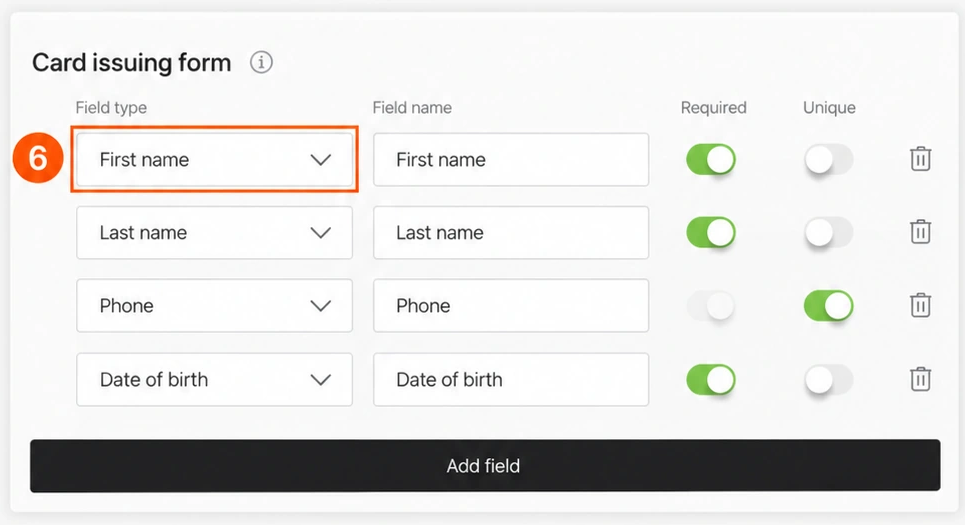
Configure Card issuing form. Suggested first setup: First name and Phone, both Required; leave name fields non-Unique because customers can share names. Add Email if your installation instructions rely on it. Collect Date of birth only if needed. This is a recommendation, not the saved sample or a tested uniqueness policy.
-
Use the Field Type dropdown to select the type of field you are adding.
-
Enter the field name in Field Name.
-
Turn on Required to make the field mandatory.
-
Turn on Unique if the field must contain unique data.
-
To remove a field, select the trash icon at the end of that form row.
-
Click Add field, then choose the field type and enter its name.
-
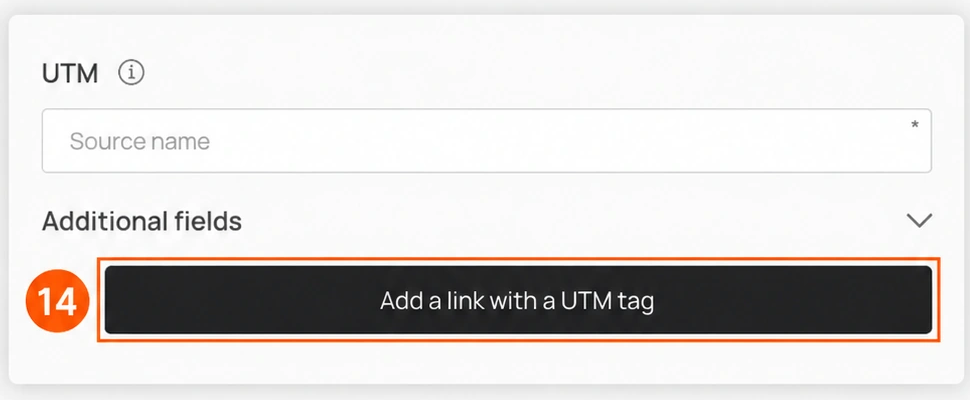
Optional tracking; skip steps 12–14 for the first setup. Use UTM to create a link that tracks traffic from a channel. For example, entering Facebook creates a URL with a UTM tag for that channel.
-
Only for a UTM link, enter the channel name in Source Name.
-
Only for a UTM link, click Add a link with UTM Tag. Check the resulting link and its effects before distributing it.
-
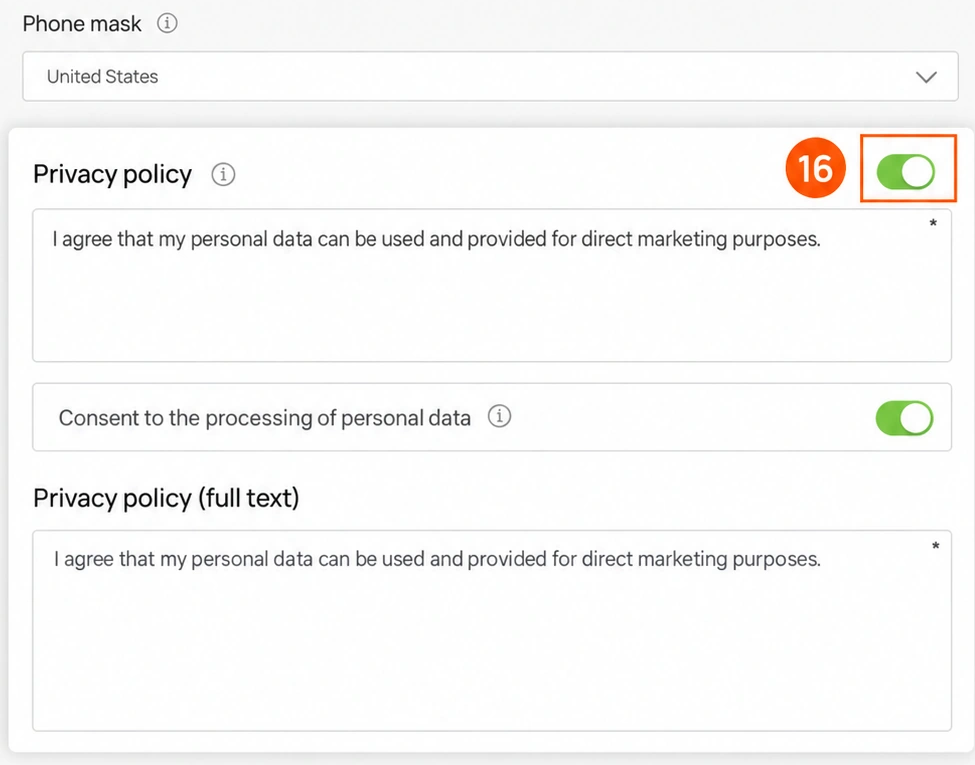
Choose a country or region in Phone mask. The sample uses United States. Choose the region appropriate for your customer phone numbers; formatting and validation still need a test.
-
Turn on Privacy Policy to include it on the card. Edit the policy in the field below.
-
To include consent for processing personal information, turn on Consent to the processing of personal data.
-
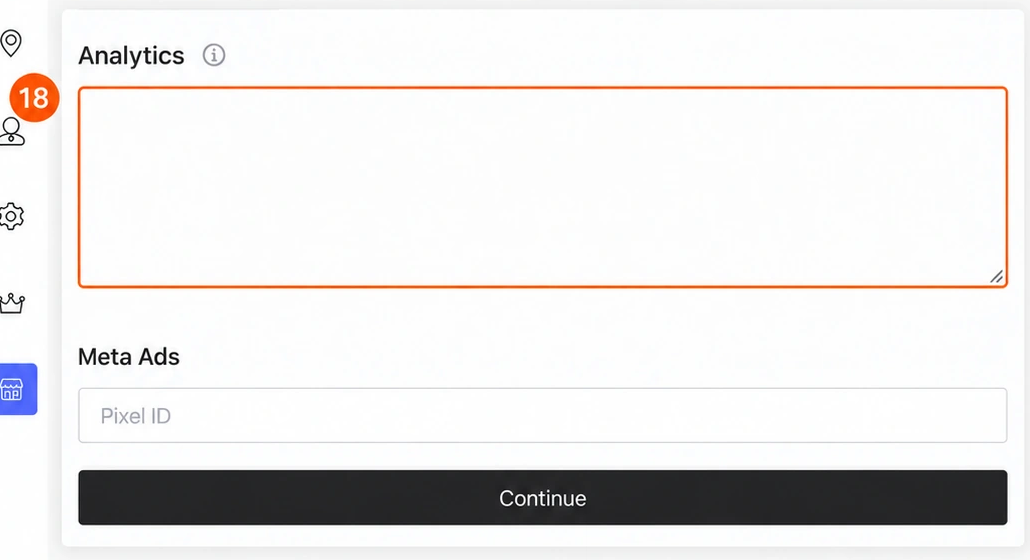
Optional analytics: leave Analytics and Meta Ads empty for the first setup unless you have a reviewed tracking configuration.
Choose validity to match the promise
| Choice | When it fits |
|---|---|
| Fixed term after card issuing, 30 Days | The recommended setting for this sample's rolling 30-day promise. Confirm the actual start/end in a test. |
| Unlimited | An offer without a fixed validity period. This changes Harry's 30-day promise. |
| Fixed term | An offer needing a fixed expiry. Confirm the date, value and unit in your setup before writing the customer rules. |
Card expiry, Stamp life and Lifetime points are separate controls. Review each one you use.
Finish Settings for a five-purchase offer
- Card issuing form: collect only the details your programme needs. Customer card signup is separate from merchant account creation. Two customers may share a name, so consider that before making a name field Unique.
- Privacy and consent: review both switches and the full policy text against your business's approved wording. Do not adopt the sample shop's policy as your own.
- Birthday stamps and points: use 0 for this simple offer. Additional uses or points change what customers receive.
- Referral program: choose Inactive in Information for this example. Its optional bonus fields are explained there.
- Tracking: leave Analytics and Meta Ads empty unless you have a reviewed tracking setup. UTM links can wait until you need campaign attribution; if you add one, review its settings alongside the card's rules.
- Other controls: review Barcode type, Happy hours, Promotions, Scanner App purchase/comment requirements, wallet/PWA installation buttons, the issuing limit and shared-link installation. Enable only the options your offer needs, and check their effect in your test.
- After completing the required fields, click Continue to open Design.
4. Design the five-purchase card
Upload buttons are labelled file.... In the sample, Service is filled in and replaces the custom display fields. Those fields are greyed out in the illustrations.
-
Prepare your logo and artwork, or use stock stamp icons for the first setup.
-
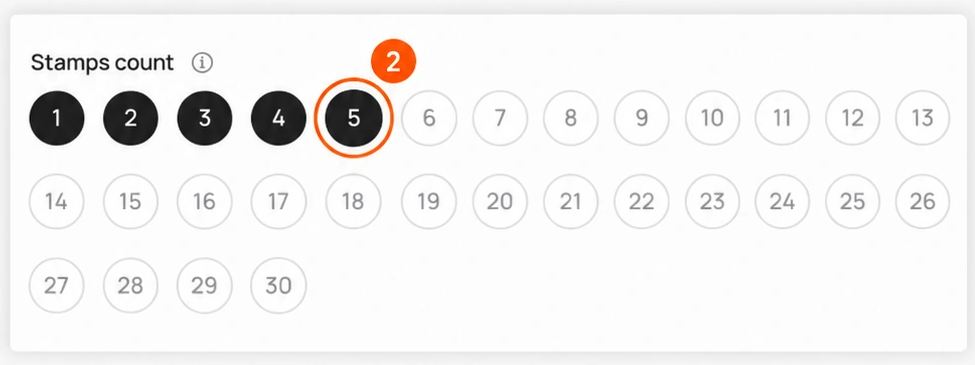
Choose 5 under Stamps count for Harry's five-position layout. The editor uses this label for Multipass too. Check that your test card receives the intended five-use allowance; the picture alone does not prove the issued balance.
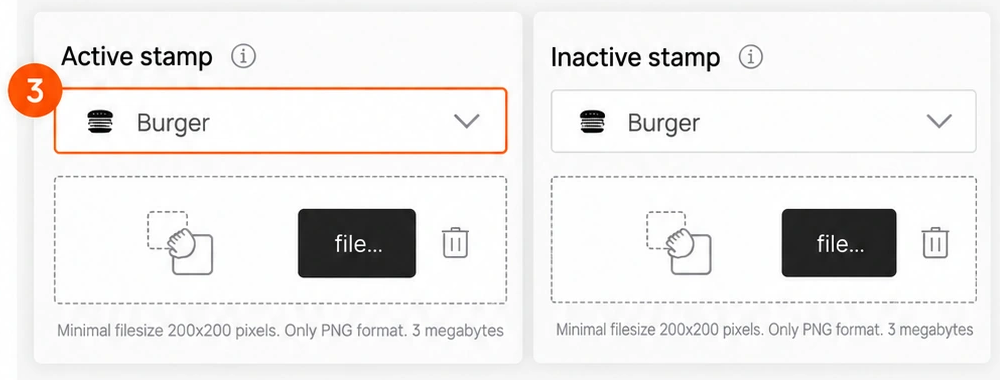
- Choose an icon for active stamps from Active Stamp. Harry's saved example uses Burger; choose artwork that customers can distinguish from the inactive state.
-
Choose an icon for inactive stamps from Inactive Stamp.
-
Alternative to a stock icon: to upload an active stamp icon from your device, click file... under Active Stamp.
-
Alternative to a stock icon: to upload an inactive stamp icon from your device, click file... under Inactive Stamp.
-
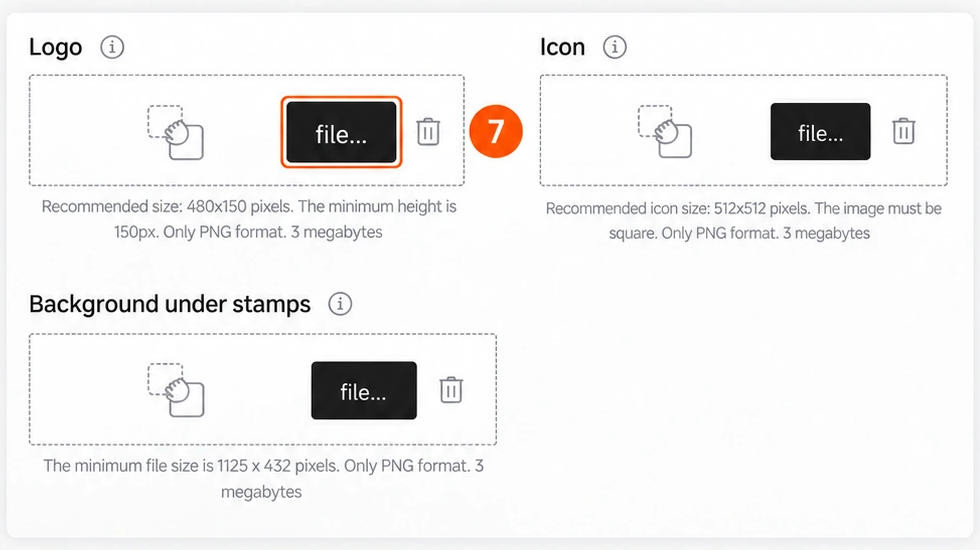
Click file... under Logo to upload a logo from your device for the card and issuing form.
-
Click file... under Icon to upload an icon from your device for push messages.
-
Click file... under Background under stamps to upload background artwork from your device.
-
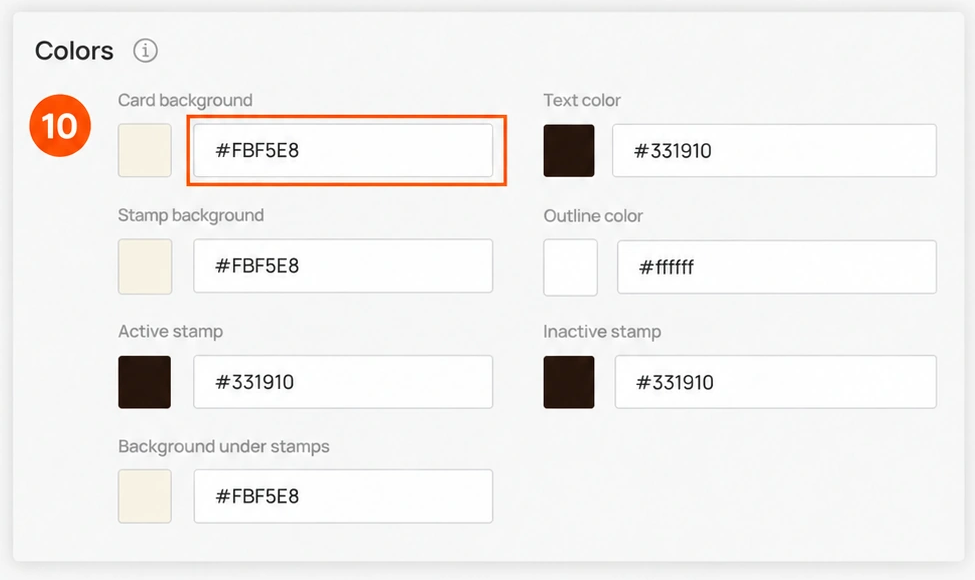
Under Colors, set Card Background, Text Color, Stamp Background, Outline Color, Active Stamp, Inactive Stamp, and Background under stamp.
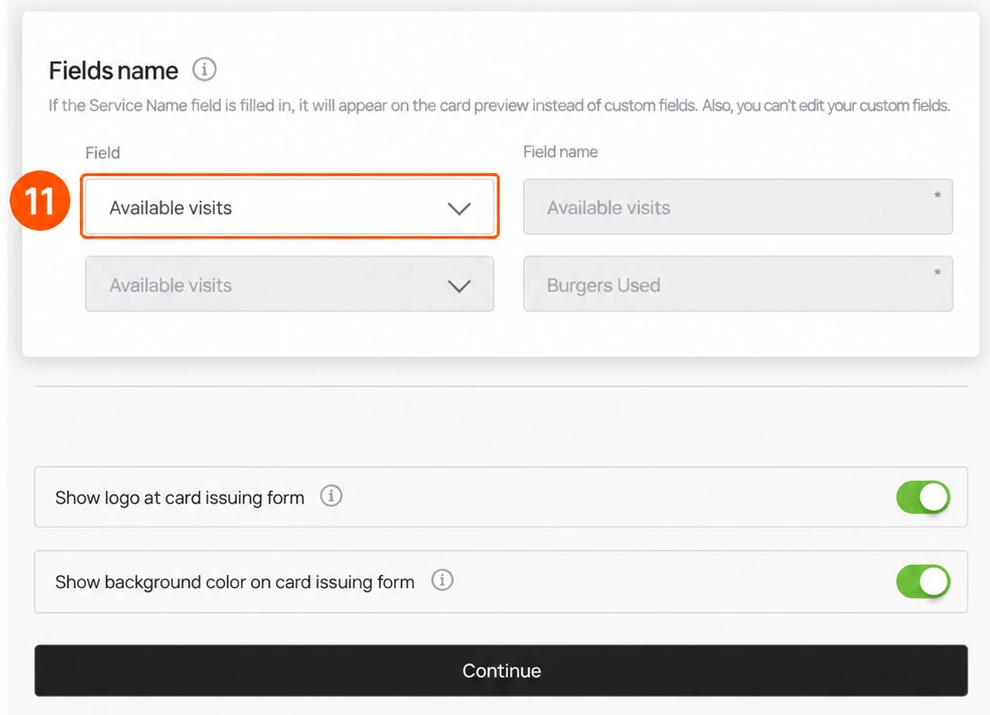
- Service or custom fields: for this Service-based example, skip custom-field steps 11–12. The editor says a filled Service replaces custom fields and prevents editing them. For an offer using custom fields instead, Fields name → Field selects the display type; that alternative setup remains unverified.
-
Custom-fields alternative only: Field Name holds the display text. Confirm the editable setup with support before using it instead of Service.
-
Turn on Show logo at card issuing form to display the logo on the card issuing form.
-
Turn on Show background color on card issuing form to display the background color on the form.
Choose artwork customers can read
The logo identifies your shop. The separate Icon is used in push messages; it is different from the active and inactive burger icons. Keep the two burger states distinct, and check the card in a phone's wallet.
| Upload | Guidance displayed in the sample editor |
|---|---|
| Active and inactive stamp icons | PNG, at least 200 × 200 px. |
| Logo | PNG, recommended 480 × 150 px; minimum height 150 px. |
| Icon | Square PNG, recommended 512 × 512 px. |
| Background under stamps | PNG, at least 1125 × 432 px. |
| File size | The displayed limit is 3 megabytes. |
Check the guidance beside your upload. The sizes describe the observed editor and do not guarantee acceptance of every file. Stock Burger icons can keep a first setup simple; custom artwork can follow later.
The cream background and red banner in Harry's wallet picture are design choices. Your colors, logo, signup-form switches and wording should agree with your own branding. When Service is filled in, the editor disables custom display-field names and shows Service instead.
- When the design is ready, click Continue to open Information.
5. Explain the offer and finish the customer details
Keep the description, Service, usage message and terms consistent. The following copy is a suggested plain-language version of Harry's sample. It has not been saved to the demonstration card.
| Field | Suggested sample copy or setting |
|---|---|
| Card description | Valid for five purchases of any burger during a 30-day period. |
| Company name | Harry's Burgers |
| Service | Five burger purchases within 30 days. One redemption per day. |
| Number of points for using the card | 0 for this example, which does not add a separate points offer. |
| Message about the accounted use of the card | Burger purchase recorded. Burgers remaining: {#} |
| Referral program | Inactive. |
The editor requires {#} in the usage message and labels it as the number of remaining uses. It also documents {#2} as the bonus account. Keep required placeholders intact and check the message on a test card; this walkthrough has not tested their runtime substitution.
Follow the numbered steps below to enter the copy, then complete links, terms and issuer details. Steps 8 to 12 are an optional referral branch. Keep referrals Inactive for this example; those conditional fields and their effects remain unverified.
-
Enter the card information and check how each field appears in the mobile preview on the right.
-
Enter a short description in Card Description. Use the suggested Harry's sample copy above, or write the equivalent promise for your own offer.
-
Enter your business name in Company Name. For this sample, use Harry's Burgers.
-
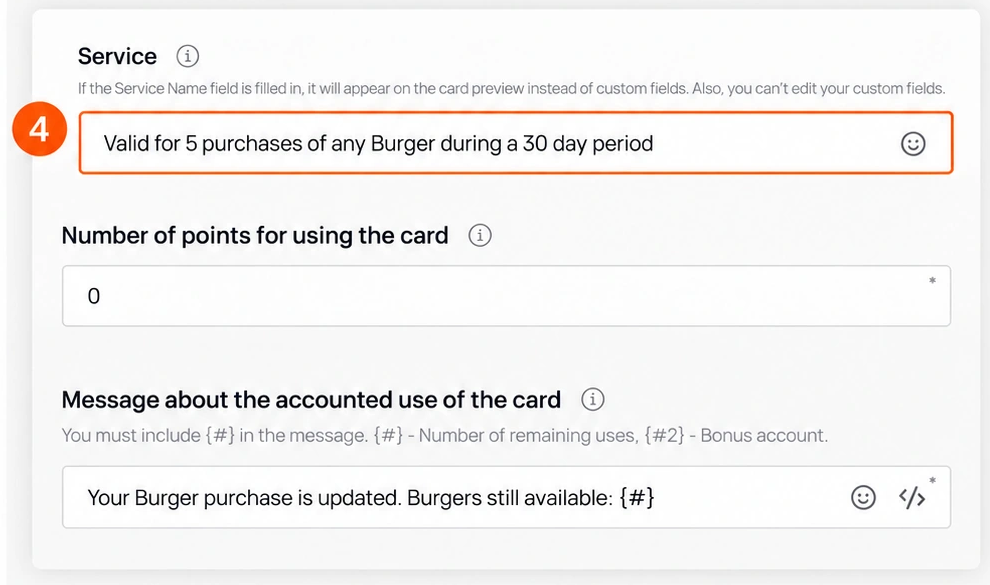
Enter the offer in Service. For the sample copy above, use Five burger purchases within 30 days. One redemption per day. A filled-in Service replaces the custom fields on the card.
-
In Number of points for using the card, set 0 for this example. Adding a separate points offer changes the rules customers need to understand.
-
In Message about the accounted use of the card, enter Burger purchase recorded. Burgers remaining: {#} for this sample. Keep the required {#} placeholder.
-
Leave Referral program set to Inactive for this five-use example and continue to step 13. Steps 8–12 are an optional reference for an Active program; the current fields and their effects have not been verified.
-
Active referrals only, unverified: Under Get bonus at the moment when, choose when customers receive the bonus.
-
Active referrals only, unverified: Under Number of points for the referrer, set how many points a customer earns for sharing their card through the referral program.
-
Active referrals only, unverified: Use the controls under Number of points for a referral to set how many points a new customer earns for registering through the referral program.
-
Active referrals only, unverified: Under Number of uses of the card for the referrer, set how many stamps a customer earns for sharing their card through the referral program.
-
Active referrals only, unverified: Use the control under Stamps count for the new customer to set how many stamps a new customer earns for registering through the referral program.
-
Optional customer links: under Active Links, choose a link type from Type: URL, Phone, Email, or Address.
-
For URL, enter the website address in Link. Phone, Email and Address need their corresponding destination; their current input formats remain unverified.
-
In Text, enter the link text to display on the card.
-
To remove an active link, select the trash icon at the end of its row.
-
Click Add Link to add another row.
-
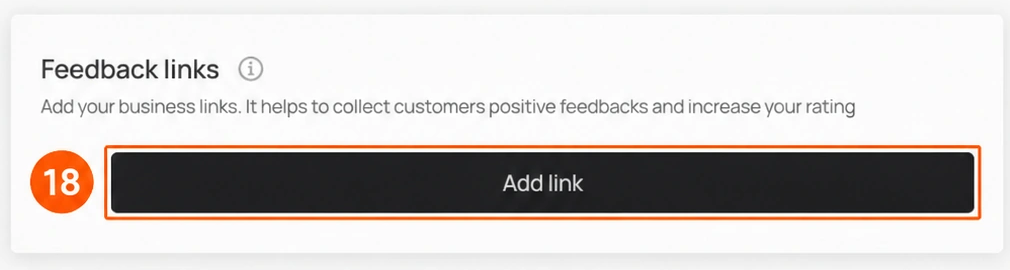
Optional feedback: use Feedback links for a review destination. Not yet verified: the current Add link sequence and resulting fields. The button was enabled in the read-only review, but was not clicked. If unavailable, ask support; do not assume a destination is configured.
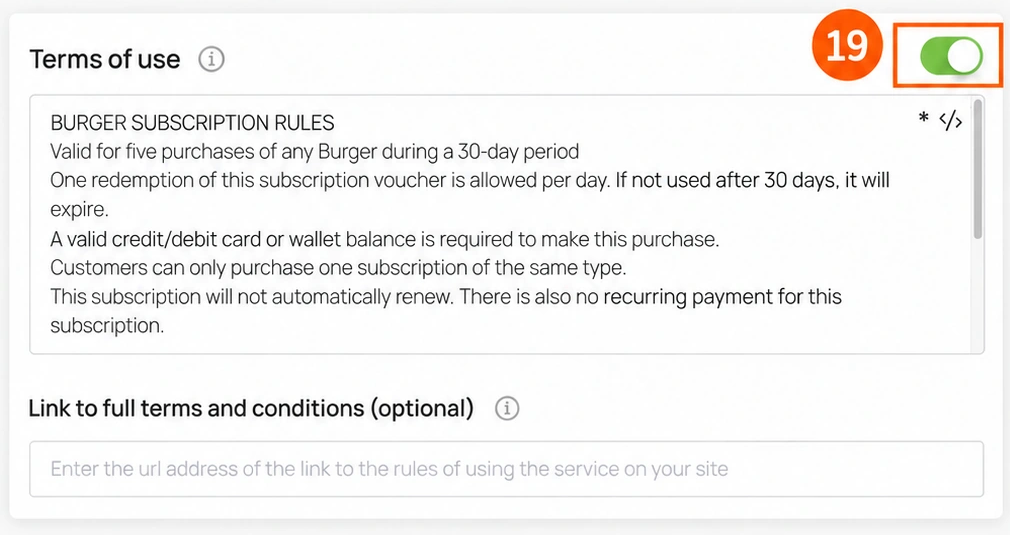
- Turn on Terms of Use to include terms on the card.
-
Enter the agreed offer rules in Terms of Use. Include the allowance, daily limit, price and payment requirements, expiry, eligible burgers, surcharges, extras, concurrent-subscription rule and renewal policy from your rule sheet.
-
In Link to full terms and conditions, enter the link to your business's complete terms and conditions.
-
Under Issuer Information, enter your own Company Name, Email, and Contact Number. These details appear on the back of the card; use the business contacts customers should rely on.
Check the less obvious Information controls
The optional Link for redirection after card installation is described by the editor as applying to Apple Wallet installations. Review it if you need a destination after installation.
Terms must match your agreed rule sheet, including any price you set. The sample's written no-renewal and one-redemption-per-day rules do not establish automatic payment or restriction enforcement. Check the payment process and staff procedure separately.
Review before activation
Check the offer before activation:
- Allowance: five burger purchases, with no extra birthday or referral allowance for this example.
- Eligibility: the same burgers, surcharges and extras policy in the description, Service, terms and staff instructions.
- Validity: the promised 30 days agrees with the configured value/unit and the issued card's actual expiry.
- Design: logo, active/inactive burger artwork, text, field labels and both wallet views are clear and consistent.
- Customer details: signup fields, privacy text, consent, links and issuer contacts are ready for your customers.
- Price and renewal: staff can explain the agreed price, payment process, daily limit, one-subscription rule, expiry and next purchase.
Completion is not yet verified. The existing editor shows Finish, Save and preview, and Activate. Older instructions disagree about their order. Visible controls do not establish their effects; do not follow an inferred activation sequence.
-
Review the offer, expiry, signup/privacy text, artwork, usage message, terms and issuer details before activation. Check that saved sample values have not replaced your intended offer.
-
Confirm the current save → reopen → preview → activation procedure with support or in an authorized test. Confirm the saved state and active status separately; do not assume that viewing a preview saves or activates a card.
6. Confirm saving, activation and installation
-
Verification required: establish the save and reopen steps first. The older guide said Finish opened a Preview popup; that transition has not been tested in the current flow.
-
Check the card identity, allowance, expiry and terms in your own preview. A preview alone does not prove issuance, payment or redemption behavior.
-
Obtain your own installation link or installation QR using Share your card. The older flow names Copy link; its current location and destination still need confirmation. The barcode on an issued wallet card is for staff scanning. Never use Harry's demonstration QR for your customers.
-
Confirm the activation control and resulting status before distribution. The older guide also named Activate Card; do not assume it must be used in addition to Activate. Test installation and an authorized one-use transaction before launch.
7. Check the wallet details
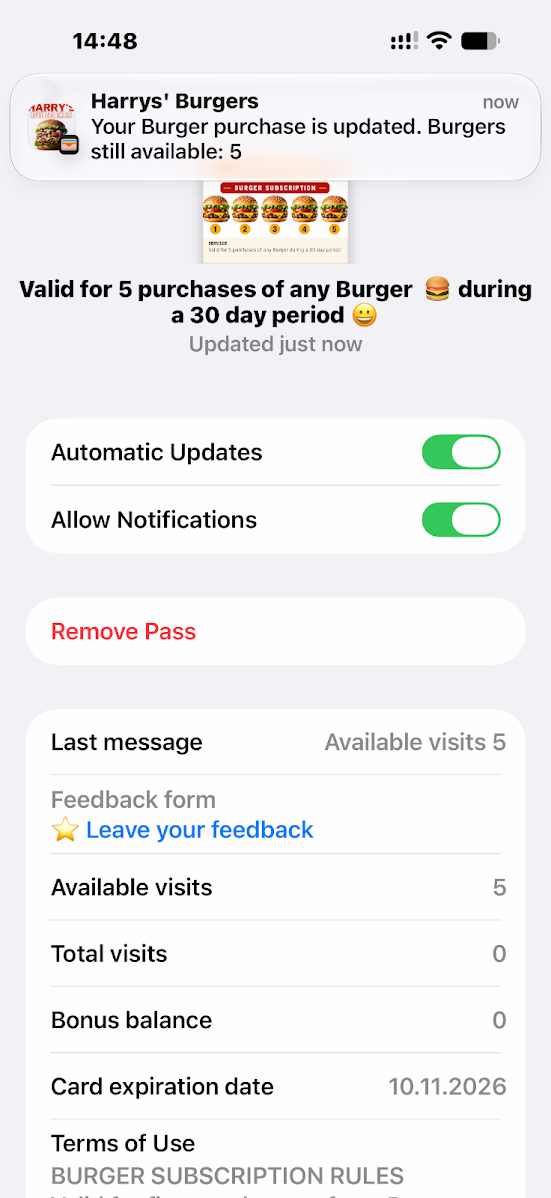
The details view shows the update message, Available visits, Total visits, Bonus balance, expiry date, feedback link and terms. Customers can also see the wallet's update and notification controls.
During your test, check the card's front and details together so the artwork, remaining allowance and terms agree. Unmatched sample states: the front has one uncrossed and four crossed burger icons, while details show Available visits 5 and Total visits 0. Icon meaning and matching balances are unverified. These images illustrate appearance only; capture the front and details of the same test card at the same moment before using them as outcome evidence.
8. Test the counter journey
Use this checklist with a test card and an authorized staff member:
- Confirm the agreed price, payment process, permitted locations and the start of the 30-day period.
- Check that the customer receives the intended five-use allowance and that the wallet shows the correct expiry.
- Scan the test card and check the intended one-use transaction, remaining allowance, artwork and usage message together.
- Check how staff enforce one redemption per day, one subscription of the same type and charges for extras.
- Confirm what happens at zero uses and at expiry, and how a customer purchases a new subscription. Check that no unintended bonus or renewal changes the offer.
- Open the signup form, privacy text, terms, support details and links on the customer's device.
Do not infer a successful transaction or automatic restriction from a screenshot. The sample terms describe the intended offer; a controlled test confirms how your setup behaves.
When the offer is ready, use the installation link or QR code for your own card. Follow Share your card, then the iPhone or Android instructions for the recipient's device. Staff can use the Multipass scanner guide before recording an authorized transaction.
More detail
Browse Real-world Examples for another worked offer. The next-step links below include the standalone Subscription Card reference.